

Update costs and margins
1
Select products
Check the products you want to update. Or use filters and select all matching results.
2
Open Bulk Edit and choose Update Cost/Margins
Click Bulk Editing. Search for “Cost” or “Margins” or find it under Pricing & Discounts.
3
Choose an update mode
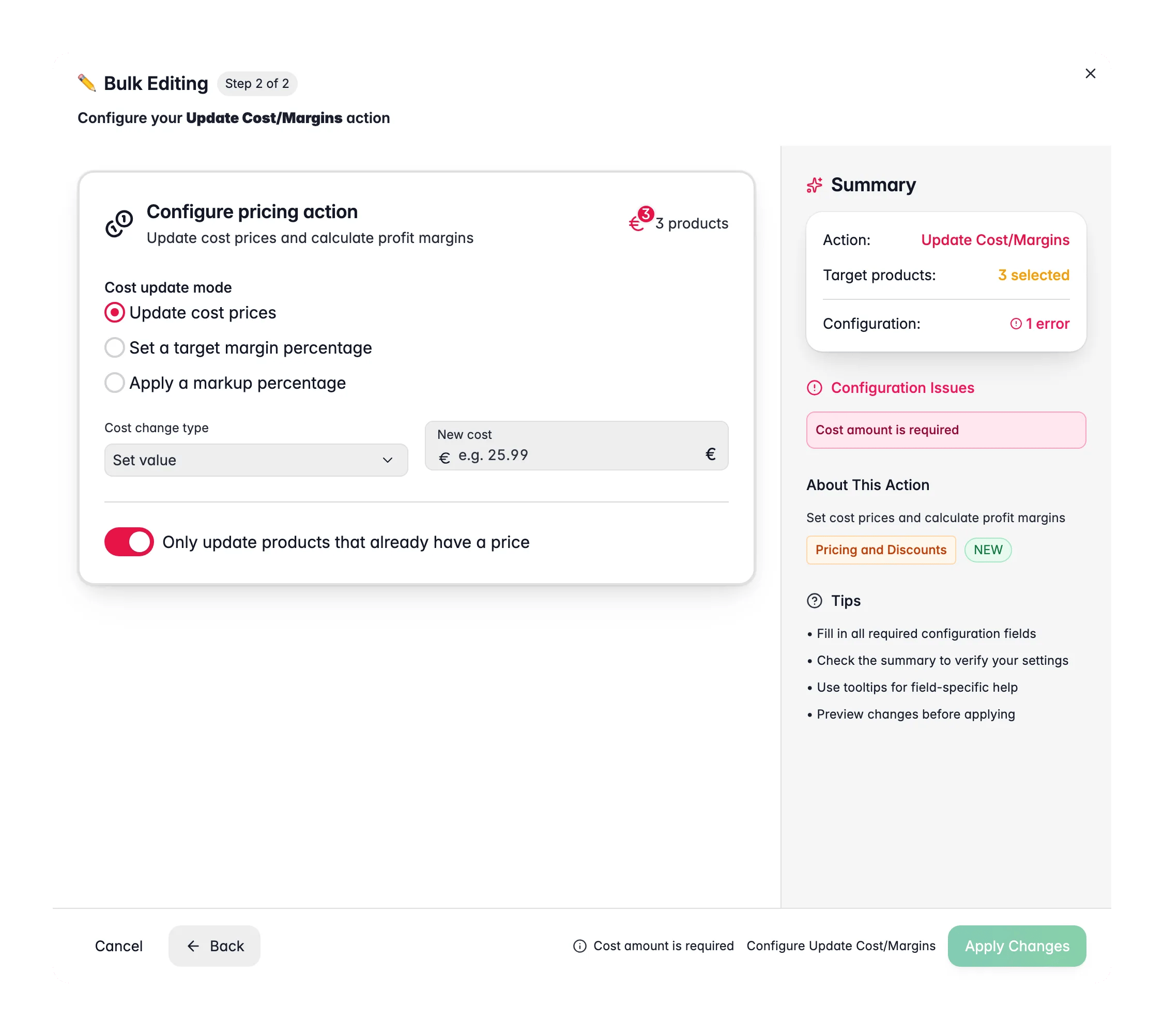
Pick how to calculate costs: direct update, target margin, or markup percentage.
4
Enter your values
Set the amount, percentage, or target for the mode you chose.
5
Configure options and apply
Set rounding and scope, then click Apply.
Update modes
For Update cost prices, you can choose:
- Fixed: set or adjust by a specific euro amount.
- Percentage: adjust by a percentage of the current cost.
- Set Value: overwrite with an exact cost.
Options
Markup and margin are not the same. A 50% markup on a €100 cost gives a €150 price. A 50% margin on a €150 price gives a €75 cost.
Tips
- Use Set target margin for consistent profitability. Set a 40% margin and costs are worked back from the selling price.
- Keep Only update products with existing prices on so you don’t set costs on products that aren’t priced yet.
Related
Change Price
Adjust selling prices by a percentage or fixed amount.
Set Special Price
Apply a sale price with an optional start and end date.
Apply Volume Discounts
Add tiered pricing based on quantity.
All Bulk Edits
Browse every bulk action available in WisePIM.