

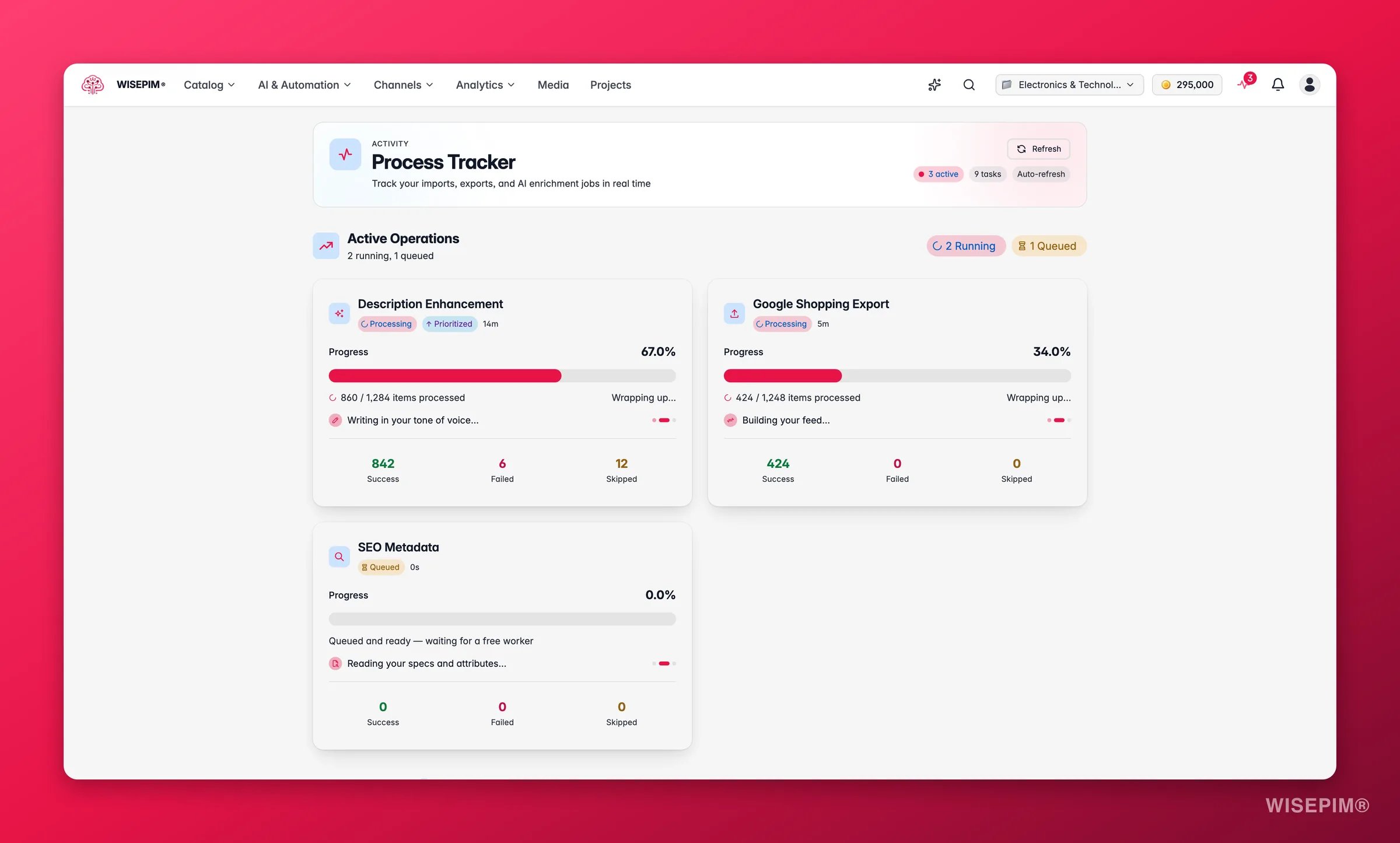
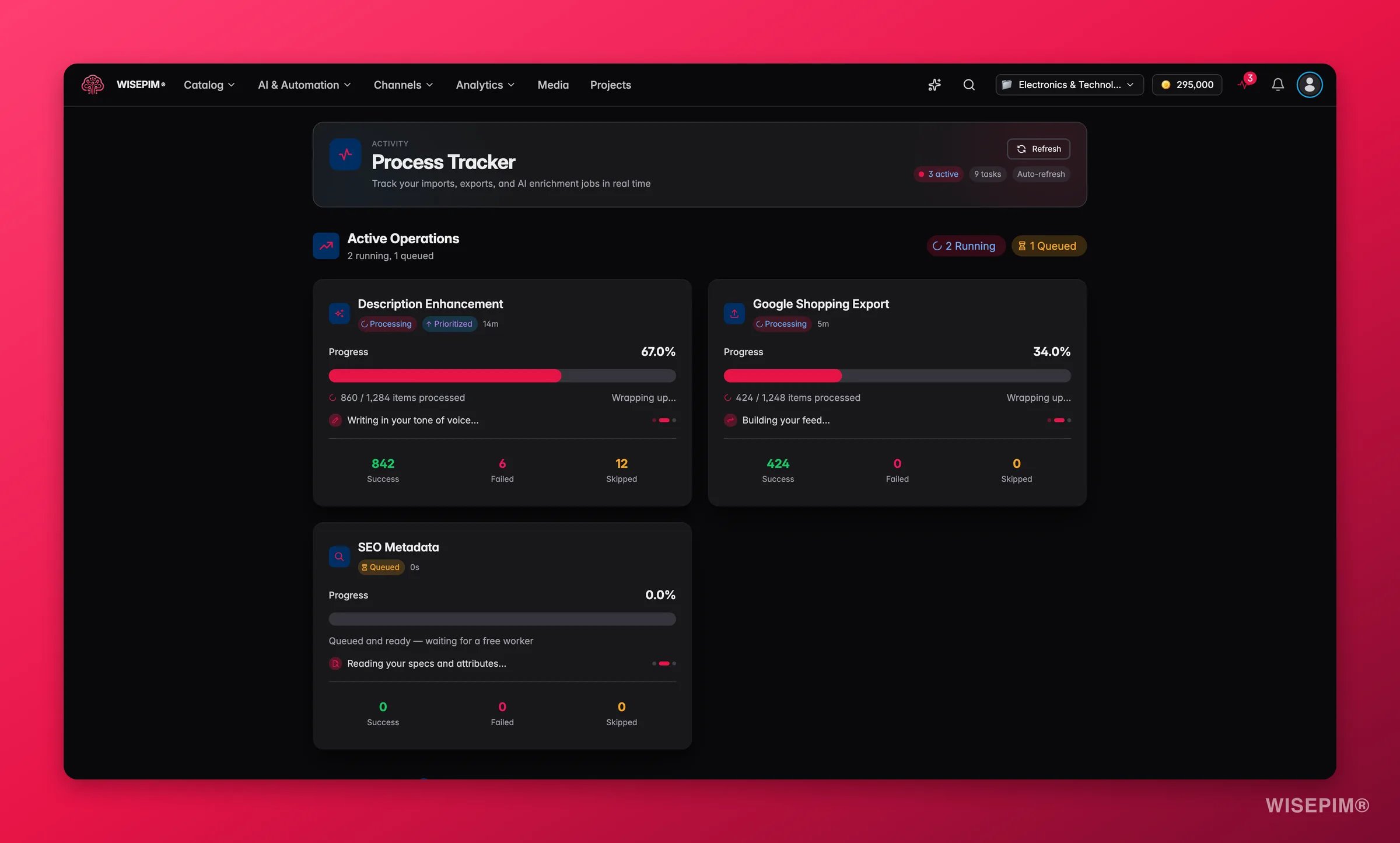
Look for the indicator in the header. Live means real-time updates are connected, so progress moves as it happens. Auto-refresh means there is no live connection and the page refreshes periodically instead. Either way, you never need to reload.
What you can track
The Process Tracker watches every long-running job in WISEPIM:
A task shows up the moment you start it, before any worker has touched it. Until one picks it up you see the stage Waiting for a worker to pick up this task…, so you always know the job was accepted.
Find your way around
View modes
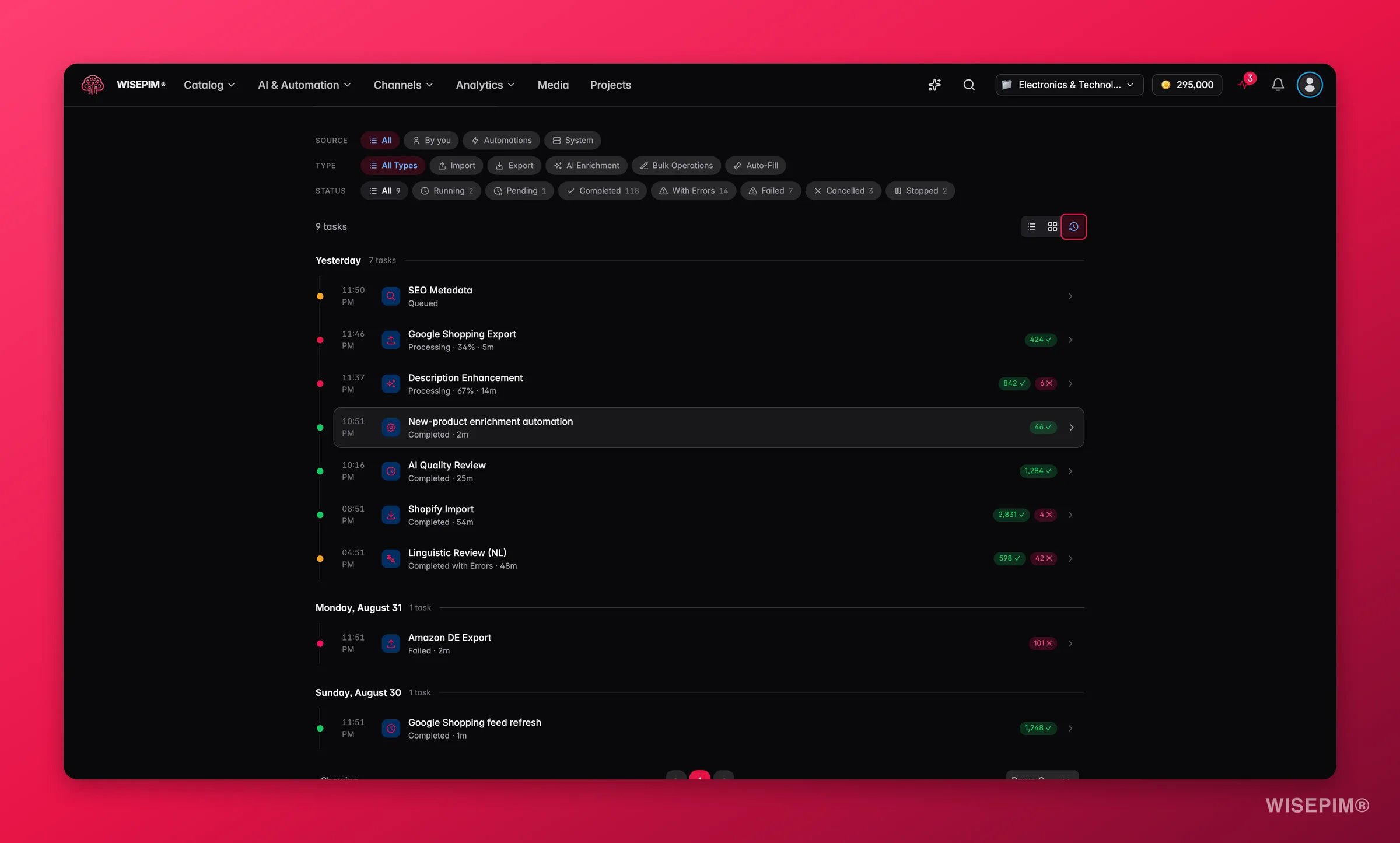
Switch the task list between three layouts, depending on what you are trying to see.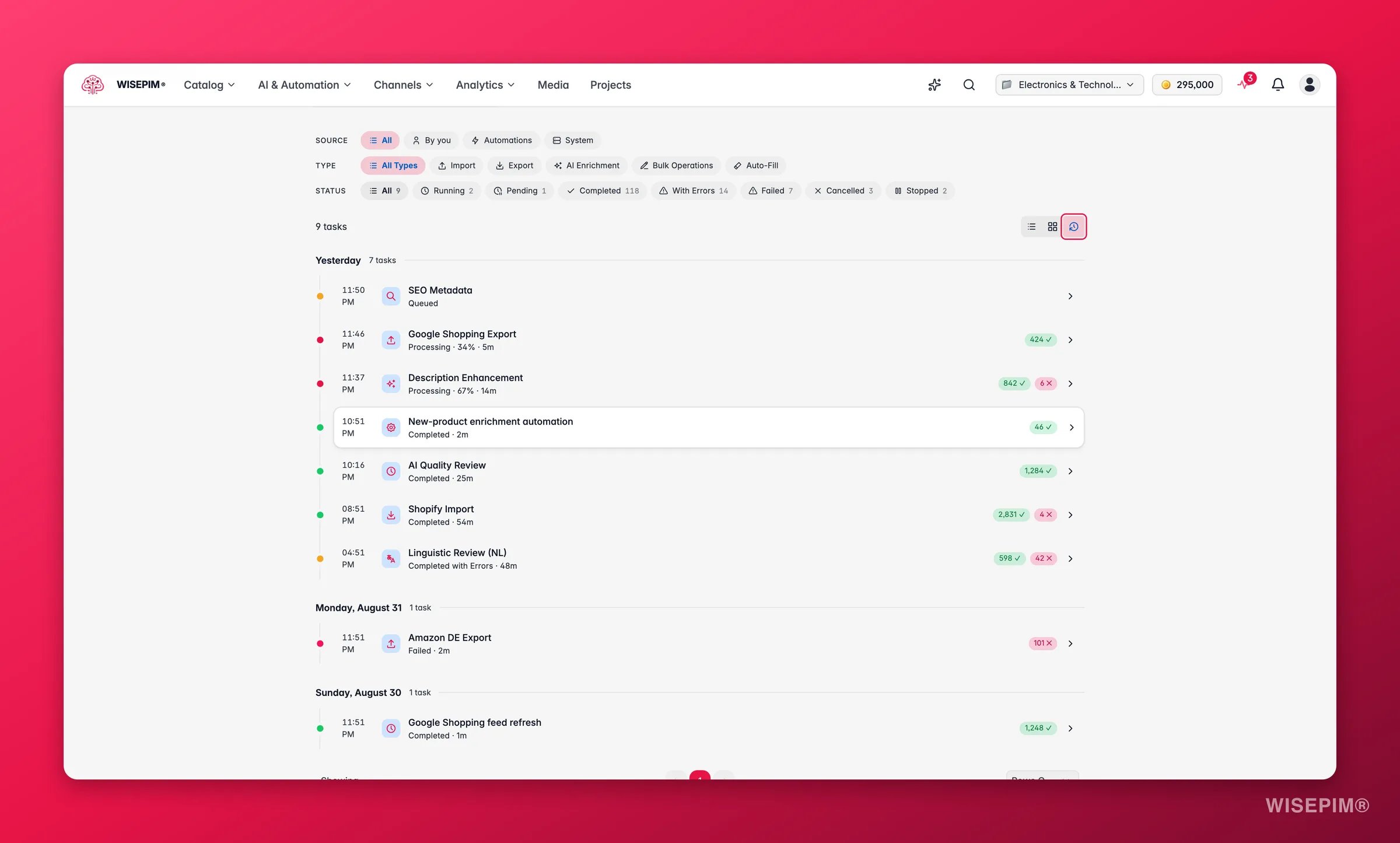
Filter by source
The Source filter answers “who started this?”.
System tasks are hidden until you ask for them. That keeps the list about the work you started, instead of burying it under routine background jobs. Switch to System when you want to check whether a feed rebuilt or an order sync ran. Internal recovery tasks that clean up after a remote platform are hidden everywhere, including statistics and live overlays; support can still open one by its exact task ID.
Imports and exports narrate what they are doing in plain language, such as “Fetching your catalog from Shopify”, “3 of 10 done, 2 need a second look” or “Nothing to do, everything was already up to date”. The same applies to the waits and hiccups in between, so a quiet task is never a mystery:
- “Queued and ready, waiting for a free worker”
- “Reserving credits for this run”
- “Spreading 500 products across parallel workers”
- “Sent 120 of 500 to Shopify”
- “Shopify asked us to slow down, so we pick back up in 30s”
- “Hit a bump, trying again (attempt 2 of 3)”
- “Picking up where we left off, with 340 already done”
Dashboards
Overview
Active tasks and progress at a glance, with success rates and completion estimates. The Status Breakdown rows are clickable, so you can jump straight to just the failed or running tasks.
Analytics
Success rates, processing speed, and error trends over time.
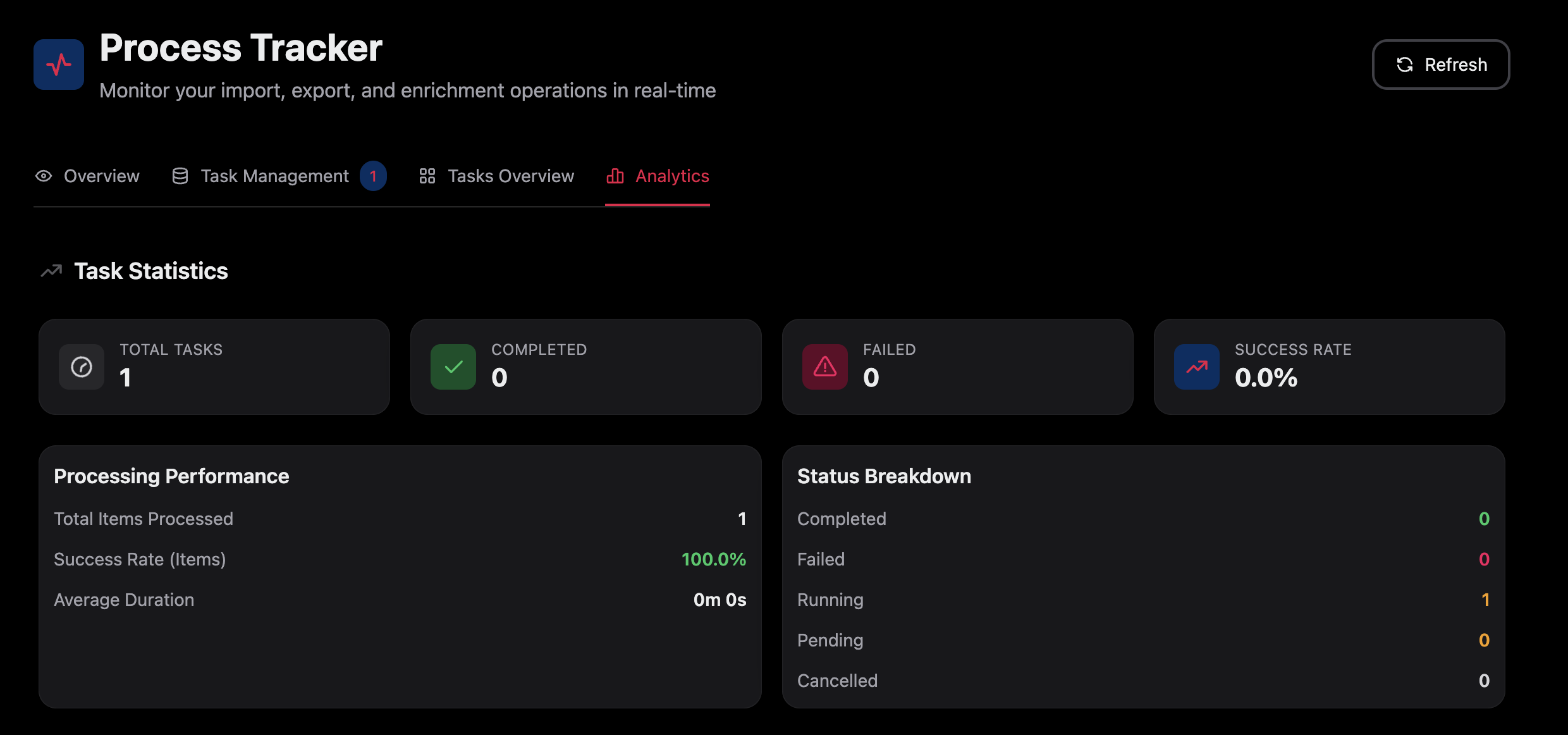
Read task status
Every task shows a color-coded status so you can scan progress fast.
Progress bars are exact. A task never reports more than 100%, so the number you see is the number of items actually handled.
Check task details
Open any task to see how it ran.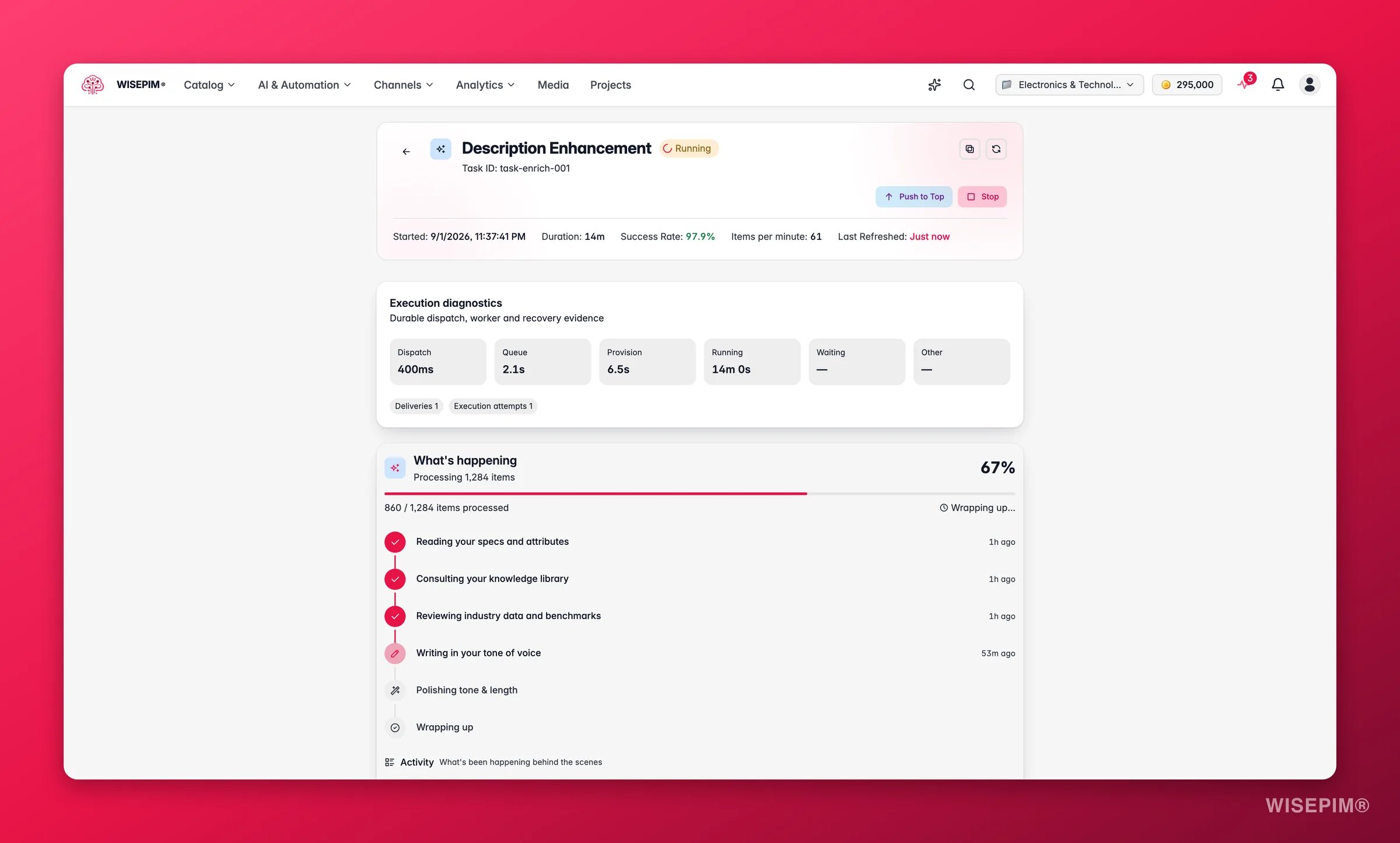
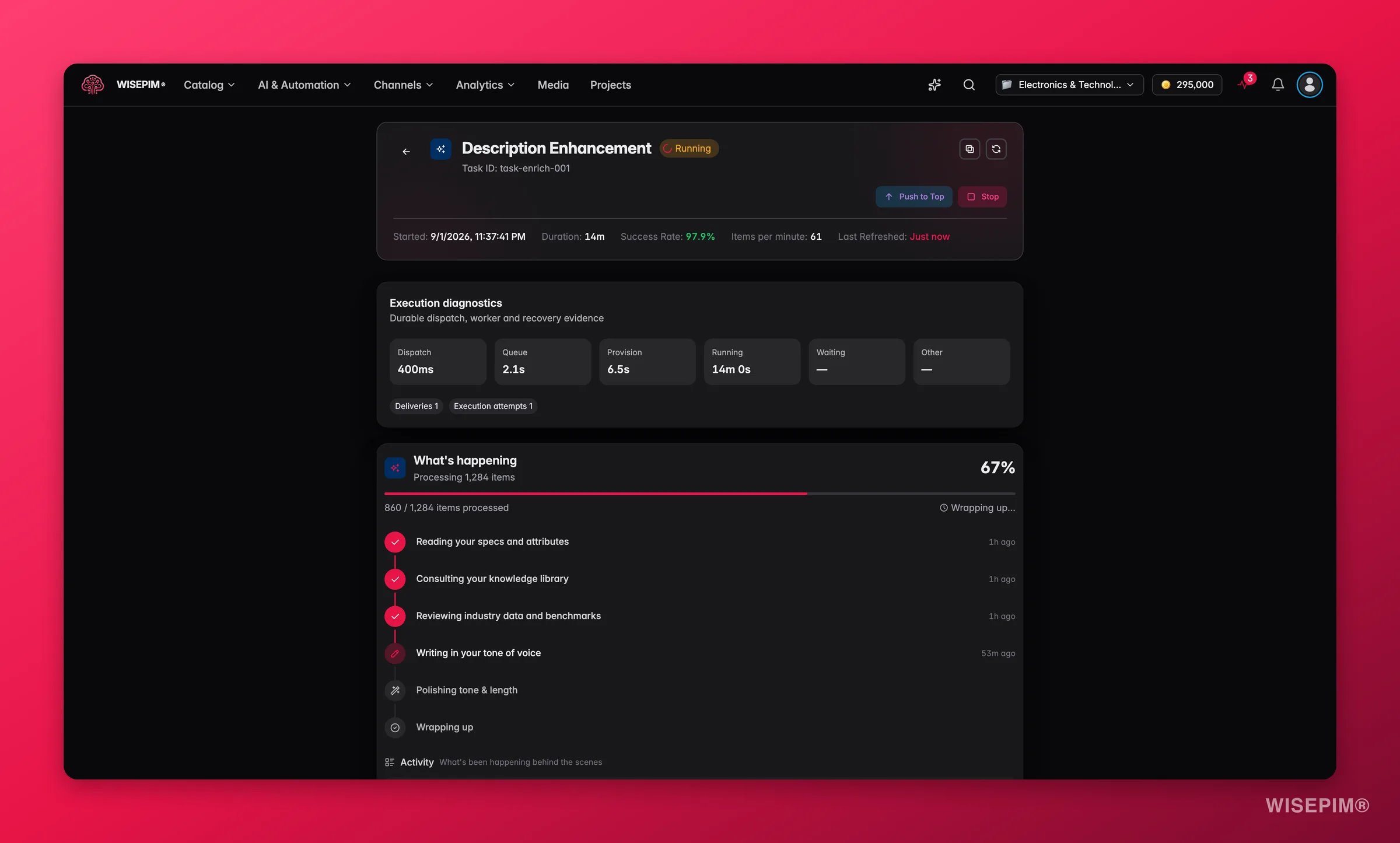
What’s happening
The What’s happening timeline narrates the run in plain language, one step at a time. Instead of a spinner you get lines like:- “Searching the web”
- “Reading your specs and attributes”
- “Consulting your knowledge library”
- “Mining high-intent search keywords”
- “Normalizing units”
- “Writing in your tone of voice”
Activity
Below the narration, the Activity feed (“What’s been happening behind the scenes”) lists every checkpoint the task logged, in order and with timestamps. The narration tells you what the task is doing now; Activity is the record of everything it did on the way, which is where you look when a run took longer than expected or ended somewhere you did not expect.The numbers
Each task reports four item counts:- Processed: items handled so far.
- Successful: items finished without errors.
- Failed: items that hit an error.
- Skipped: items bypassed by a rule or condition.
The recap
When a task finishes, Here is what WISEPIM did sums the run up in one sentence, for example how many products were enriched, how long it took, and which of your rules and context it used. It is the fastest way to confirm a run did what you wanted before you move on.Jump to the products
View products opens the Products page filtered to exactly the products in that task. Use it to spot-check the results, or to select the same set again for a follow-up action.Save this routine as an automation
When you complete the same kind of manual task three or more times in 30 days, the completed task shows an Automation opportunity card (“Save this routine”). It recognises four routines: recurring imports, enrichment work, recurring exports, and quality checks, and tells you how many times you did it recently. Click Create automation and the builder opens with a matching template already loaded, so the routine is a few clicks from running on its own. Not interested? Dismiss the card and it stays hidden for that template in this project.Manage running tasks
1
Open the task
Find it in any view and open it.
2
Stop it if needed
Click Stop to halt a running task. WISEPIM keeps everything processed so far. Use this when you spot wrong settings or want to free up capacity.
3
Resume when you are ready
Once the cause is fixed, Resume finishes the remainder. See Resume or restart below.
Stopping an Auto-Fill or Bulk Enrich parent task now also stops the child tasks it started. One click stops the whole job, so credits are not spent on work you have already cancelled.
Resume or restart
When a task stops, fails, or finishes with errors, you have more than one way to run it again. The difference matters, because one of them is free and the other is not.When you can resume or restart
Resume is available once a task has reached a resting state: stopped, failed, cancelled, or completed with errors. Restart needs the same, and refuses while a task is still pending or running. Stop it first, then restart. If every item was already handled, resuming tells you there is nothing left to pick up and points you at Retry failed instead.What each task type supports
Resuming an Auto-Fill or Bulk Enrich parent restarts its unfinished children as follow-up tasks, so you will see new rows appear for the remaining work.
Fix failed tasks
When a task fails, open it and read the error message first. It tells you what went wrong and which items were affected. Then run it again once the cause is fixed. Failures are grouped for you. When every failure has the same root cause, the task says so outright: All N failures share one cause, followed by the cause and the advice to use Resume or Retry failed once it is resolved. That turns a wall of 300 red rows into one thing to fix.Task stuck in pending
Task stuck in pending
A pending task is queued and waiting for a worker. Large jobs can hold up the queue. Check the queue order, and try smaller batches or off-peak timing for big operations.
High failure rate
High failure rate
Open the task and read the shared cause callout. Common ones are missing required fields, data in the wrong format, and platform validation rules. Fix the data or mapping, then resume.
You ran out of credits mid-run
You ran out of credits mid-run
The task stops and says so. Top up or upgrade, then use Resume: the products already processed are not charged again.
Slow processing
Slow processing
Large datasets and complex transformations take longer. Process data in smaller batches and run big jobs during off-peak hours.
Connection errors
Connection errors
These point to the platform connection. Check the platform status, confirm your credentials are valid, and test the connection in your integration settings.
Related
Bulk editing
Run mass updates that show up as tasks in the Process Tracker.
Enriching products
Trigger AI enrichment and track it here as it runs.
Integrations
Set up the platform connections your imports and exports use.
Notifications
Get alerts when tasks finish or fail.