

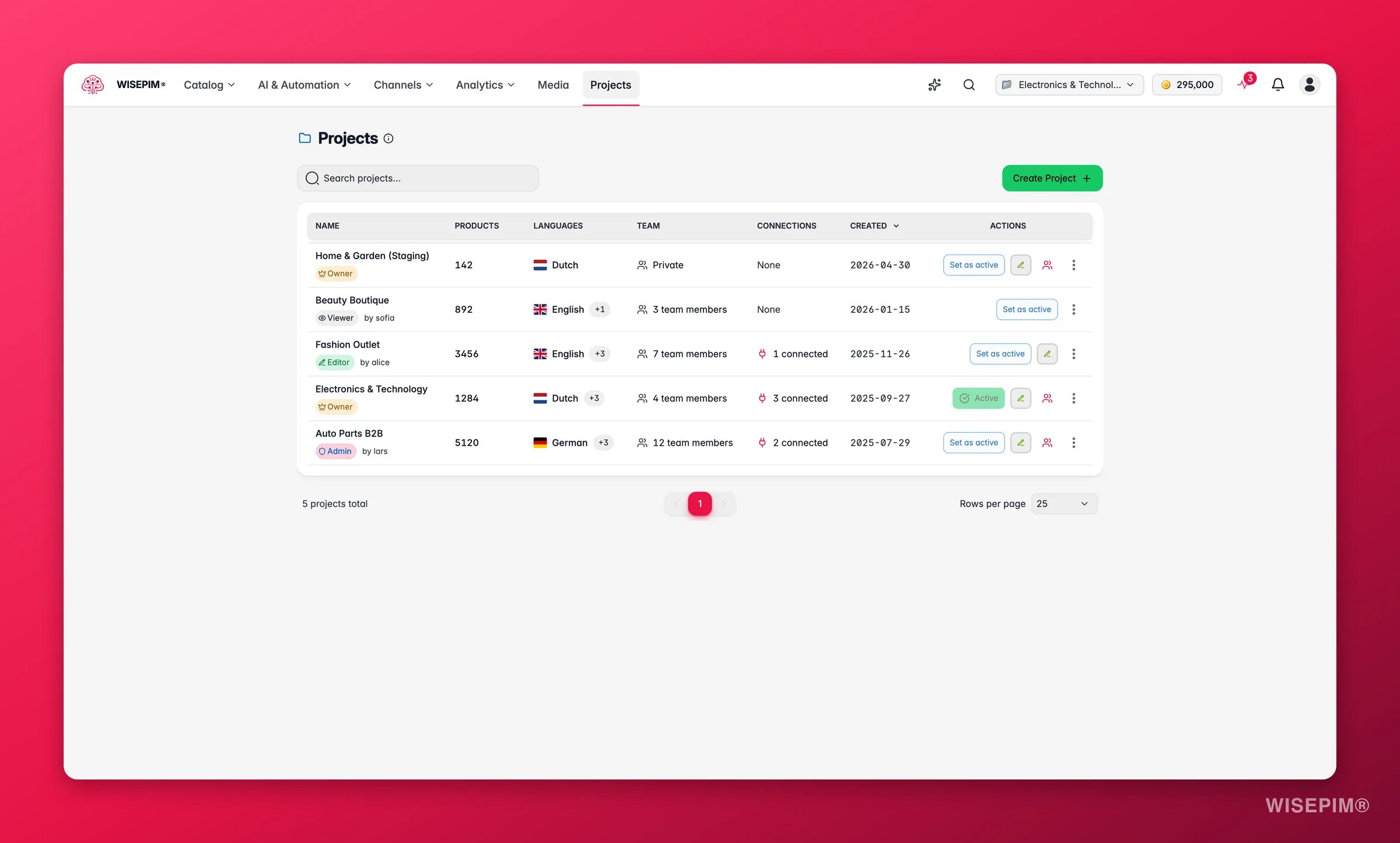
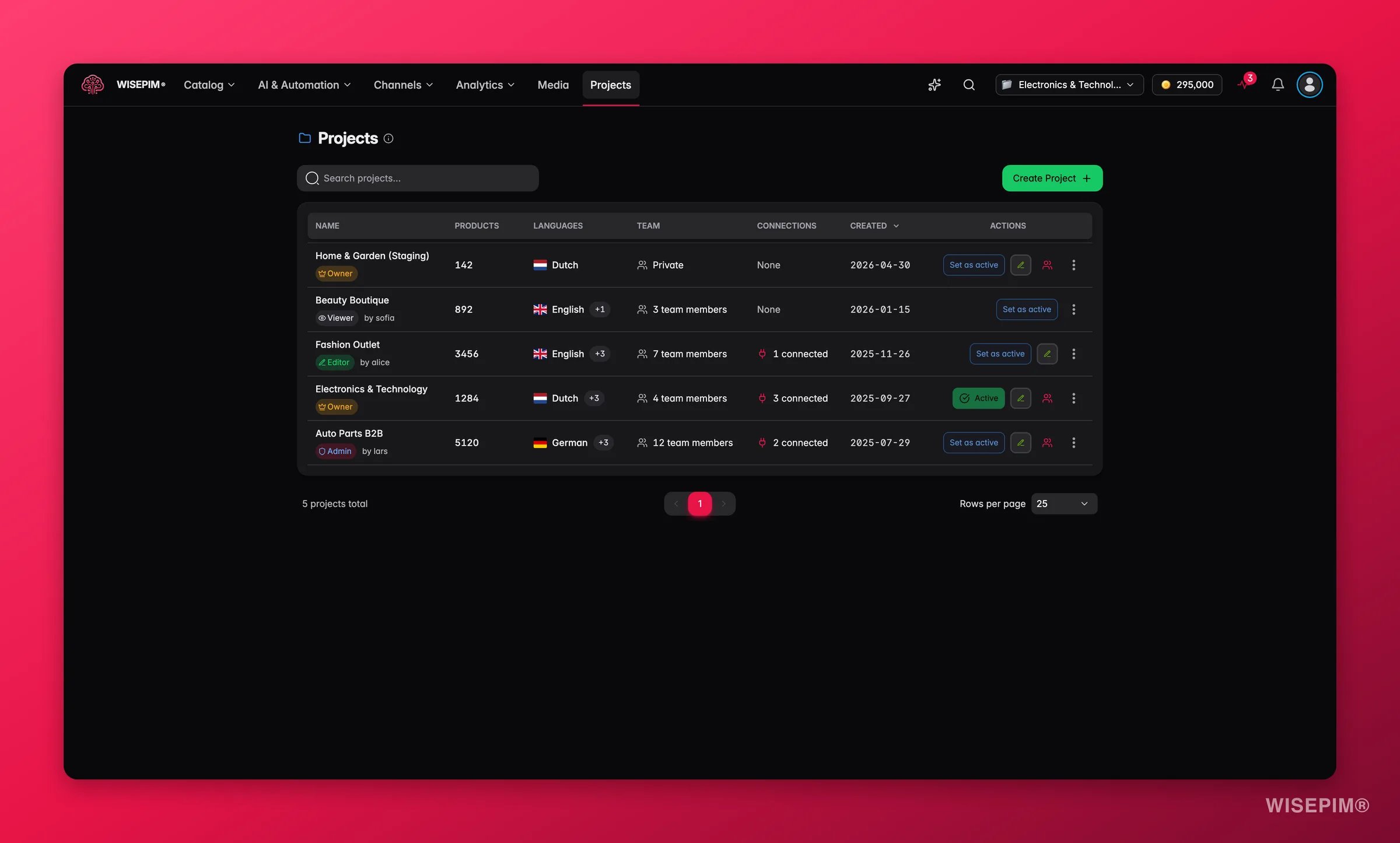
You work in one project at a time. The one you are working in is your active project, and every action you take applies only to it.
When to use separate projects
Create a new project whenever you need a clean, isolated catalog. Common reasons:What lives inside a project
Each project holds its own copy of everything below. Nothing is shared between projects.- Products: the full catalog and all its data
- Categories: the category tree for this catalog
- Custom attributes: the fields and properties your products use
- AI prompts: the default prompts for enrichment and translation
- Integrations: the platform connections and feeds
- Team access: who can see and edit the project
Custom team roles only get what you explicitly grant them. A member with a custom role can edit products, or manage the team, only when that permission is switched on; anything not granted behaves as view-only.
View and switch projects
Open the Projects page from the main menu. It lists your Workspaces: every project you can access, newest first. Use the search box to find one by name, and click a column header to sort.
Each project has an actions menu with Set as active, Manage team, Duplicate, Leave project, and Delete. If you can edit the project, a pencil icon (Quick edit project) sits next to it.
To start working in a different project:
1
Open the actions menu
Find the project you want in the table and open its actions menu.
2
Set it as active
Select Set as active. WISEPIM updates your workspace to that project.
When you switch projects, your views, filters, and settings update to match the new project. Each project remembers its own setup.
Create a project
1
Click Create Project
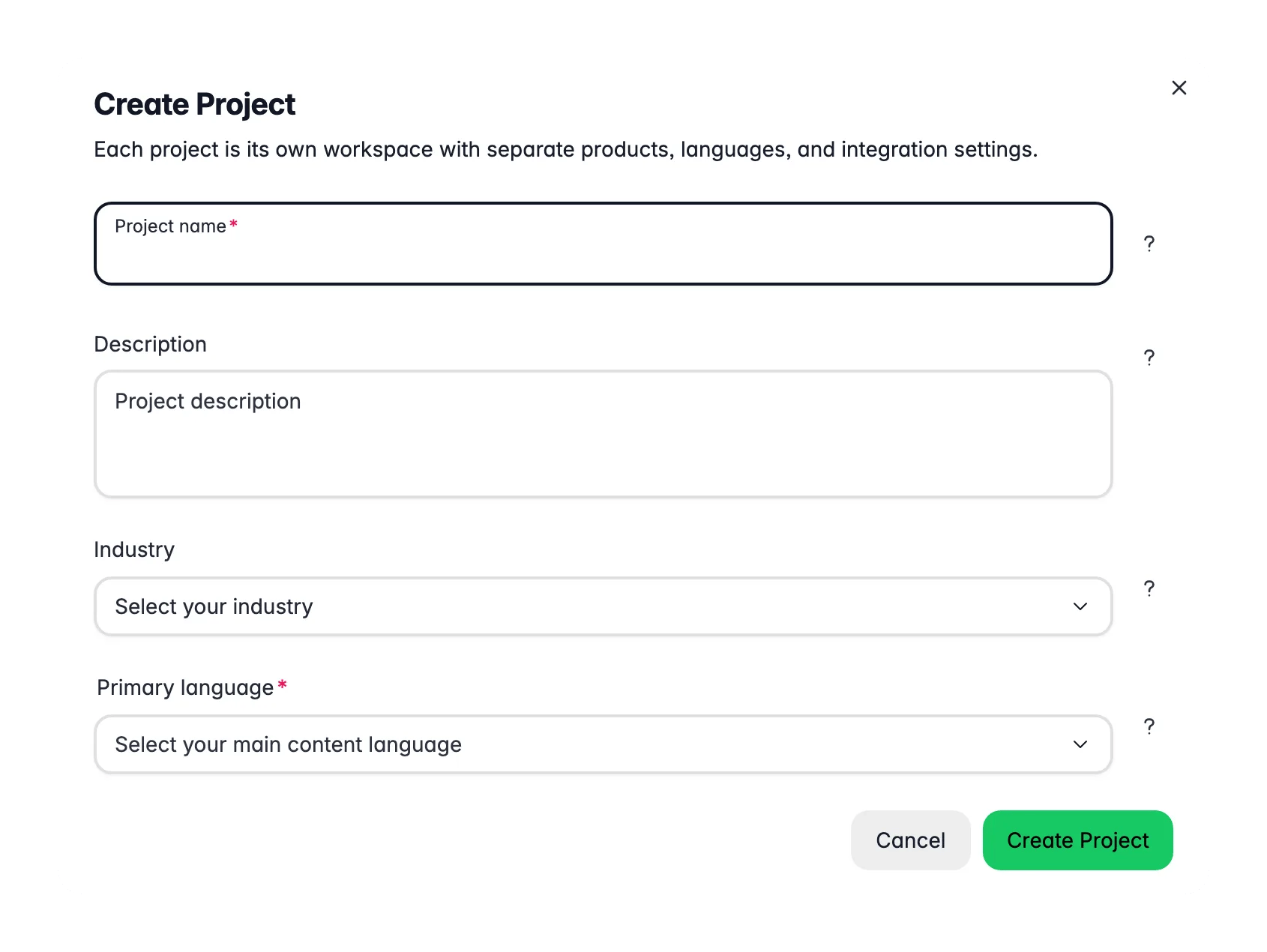
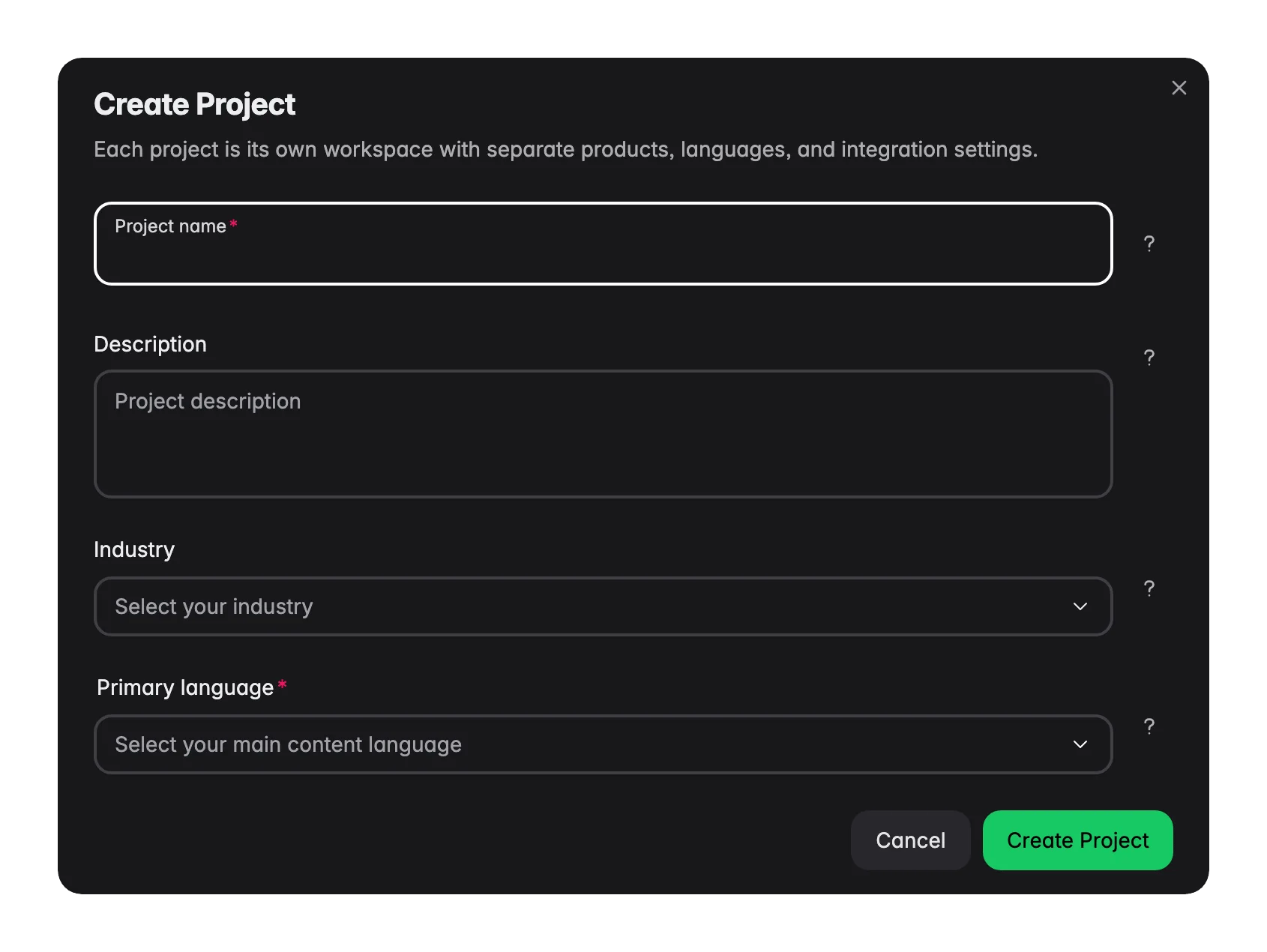
Open the Projects page and click Create Project, or press ⌘⇧C (Ctrl+Shift+C on Windows and Linux).
2
Fill in the basics
Give the project a clear Project name, a short Description, and a Primary language. The primary language is the main language for this project’s content; AI generation and translations start from it. Add Additional languages for the ones you translate into.
3
Add optional settings
Pick your Industry so AI writes more relevant content, add a Sitemap URL for SEO insights, and under Advanced settings choose default AI prompts for descriptions, titles, attributes, and SEO meta. You can change all of these later.
4
Save
Save to create the project. It appears at the top of your projects table, ready to use.
Edit a project
To update a project’s details, click the pencil icon (Quick edit project) on its row to open Edit project. You can change the name, description, languages, industry, sitemap URL, and default AI prompts. Click Save changes to apply them, or close the modal and WISEPIM asks Discard unsaved changes? so you do not lose work by accident.Duplicate a project
Duplicating copies an entire project, so you can reuse a setup instead of building it again. It is useful for spinning up similar brands, testing big changes on a copy, or adapting a catalog for a new market.1
Open the actions menu
Find the project you want to copy and open its actions menu.
2
Select Duplicate
Choose Duplicate and confirm.
3
Wait for the copy
WISEPIM builds the copy in the background and notifies you when it is ready.
Compare two projects
When the same products live in two projects, they drift apart. Compare Projects puts them side by side so you can see exactly what differs and fix it, without exporting anything. Where to find it: open the command menu (⌘K / Ctrl+K) and run Compare Projects, or go directly to/products/compare. It is not in the main navigation yet.
Pick Project A and Project B. WISEPIM matches their products by SKU and shows you the result in four tabs:
1
Start with Differ
This is where the work is. Each row tells you how many fields differ.
2
Open a product
Click Compare to open the diff drawer. It lists the fields one by one, with both values next to each other.
3
Choose a direction and sync
Set the sync direction, then sync a single field or use Sync all to bring the whole product in line.
4
Handle the missing ones in bulk
On the “Only in” tabs, select rows and use Copy to the other project. The copy runs in the background.
The two projects don’t have to share a primary language. When their languages differ, text fields are still shown so you can read them, but they are not counted as differences. Only real mismatches get flagged.
Leave a project
Been added to a project you no longer need? Open its actions menu and choose Leave project. WISEPIM asks you to confirm (Leave project?): you lose access to the project, and a team owner can invite you again later.Delete a project
To remove a project, open its actions menu and select Delete, then confirm.Name your projects clearly
A clear naming pattern makes projects easy to scan. Include the brand or product line, plus the market or language where it helps.- Acme Electronics, US market
- Fashion Brand, EU collection
- B2B Tools, German market
Related
General settings
Set the name, language, keywords, and default prompts for your active project.
Managing products
Work with the catalog inside your active project.
Importing products
Fill a new project with products from Excel, CSV, or a platform.
Enriching products
Use the project’s AI prompts to improve product content.