
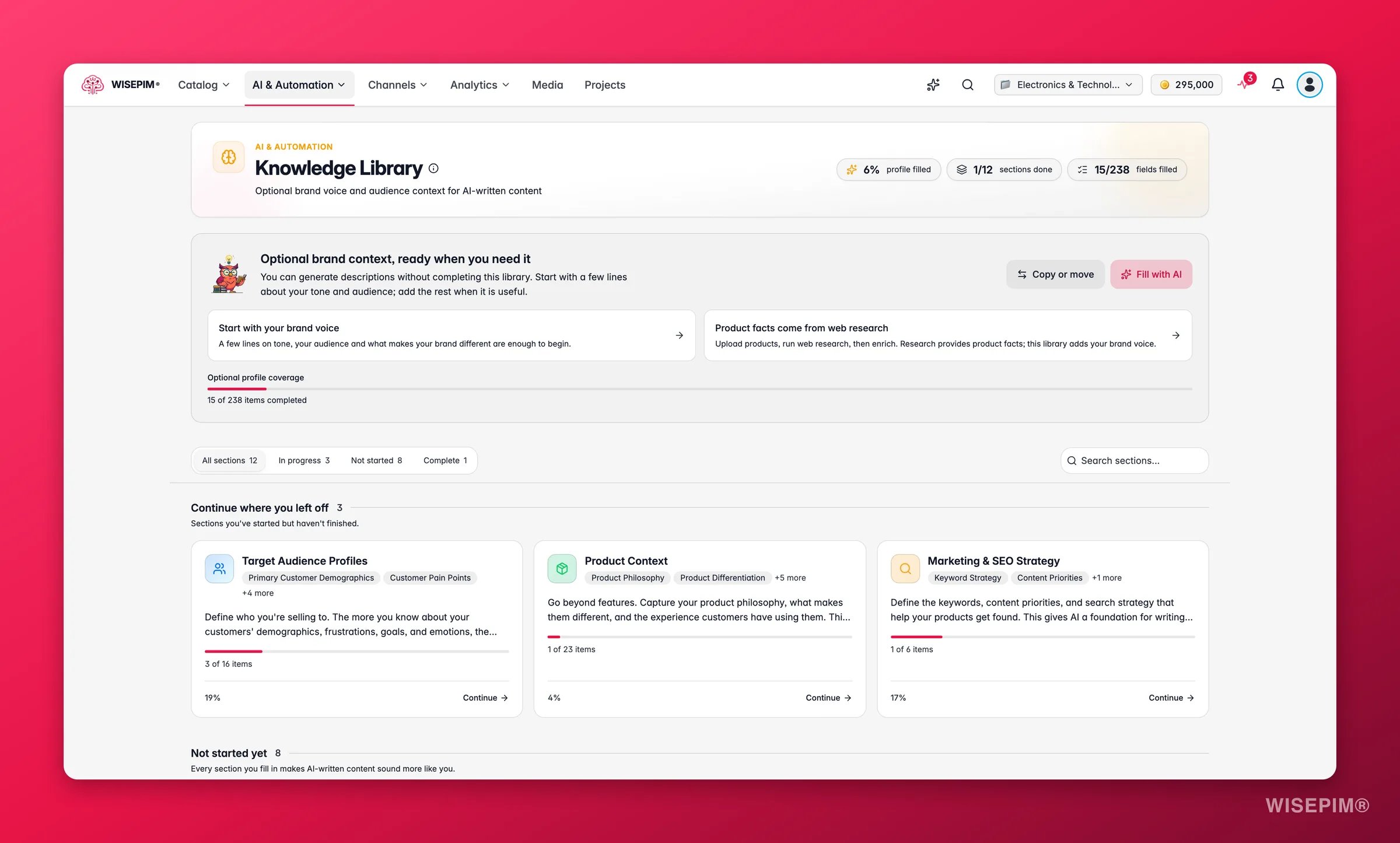
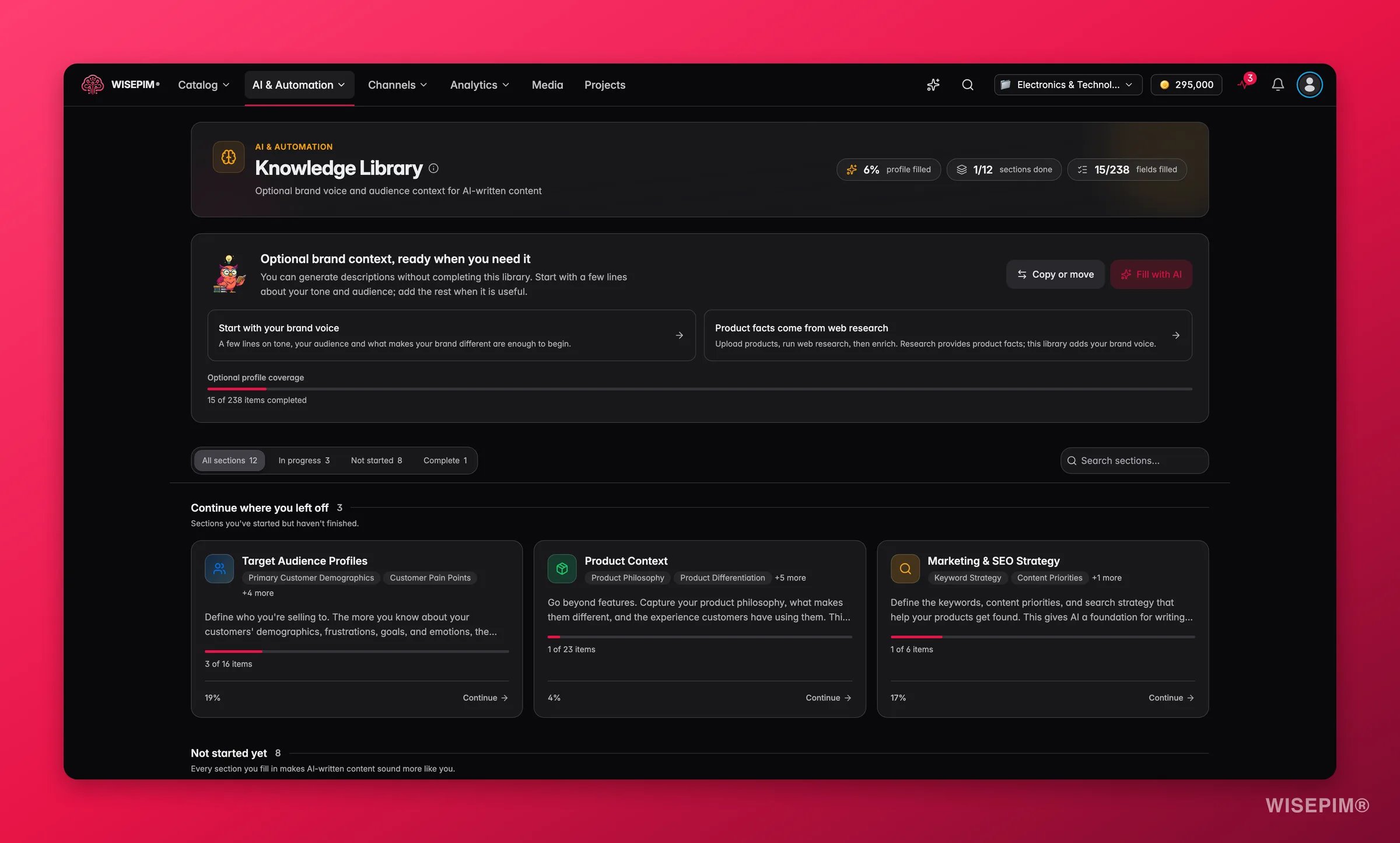
You can generate descriptions without completing this library. Start with a few lines about your tone and audience, and add the rest when it is useful. Product facts come from your data and web research. The library adds your brand voice.
Why it matters
Without context, AI writes generic copy. With your Knowledge Library filled in, the same AI knows your tone, your selling points, and who you are talking to.Knowledge sections
Your Knowledge Library is split into focused sections. Fill in the ones that matter most to you first. You do not need to complete every field to see results.Brand Identity
Brand Identity
Your brand story, voice and tone, values, and visual identity. This is the foundation, so start here.
Target Audience Profiles
Target Audience Profiles
Who you sell to. It starts with the Business profile (see below), then covers demographics, pain points, goals, decision-making factors, and the emotions behind a purchase.
Product Context
Product Context
Your product philosophy, what makes your products different, how people use them, and which products go well together.
Industry Knowledge and Industry-Specific Knowledge
Industry Knowledge and Industry-Specific Knowledge
Industry terms, trends, standards, and certifications, plus details for your own industry, such as food and beverage, pet products, or fashion.
Marketing & SEO Strategy
Marketing & SEO Strategy
Target keywords, the information every description must lead with, and how you position yourself against competitors.
Conversion Drivers and Customer Communication
Conversion Drivers and Customer Communication
What makes people buy, the trust signals and objections that matter, and the words your customers actually use.
Channel-Specific Requirements
Channel-Specific Requirements
Content rules per sales channel and region, platform character limits, and content for each buying stage.
Technical Specifications, Storytelling, and Sustainability
Technical Specifications, Storytelling, and Sustainability
How to turn specs into benefits, the stories behind your products, and your environmental and ethical commitments.
Brand identity
Brand identity is the foundation, and it has its own form. Fill it in first: every other section builds on it, and it is the part the AI leans on hardest when it writes.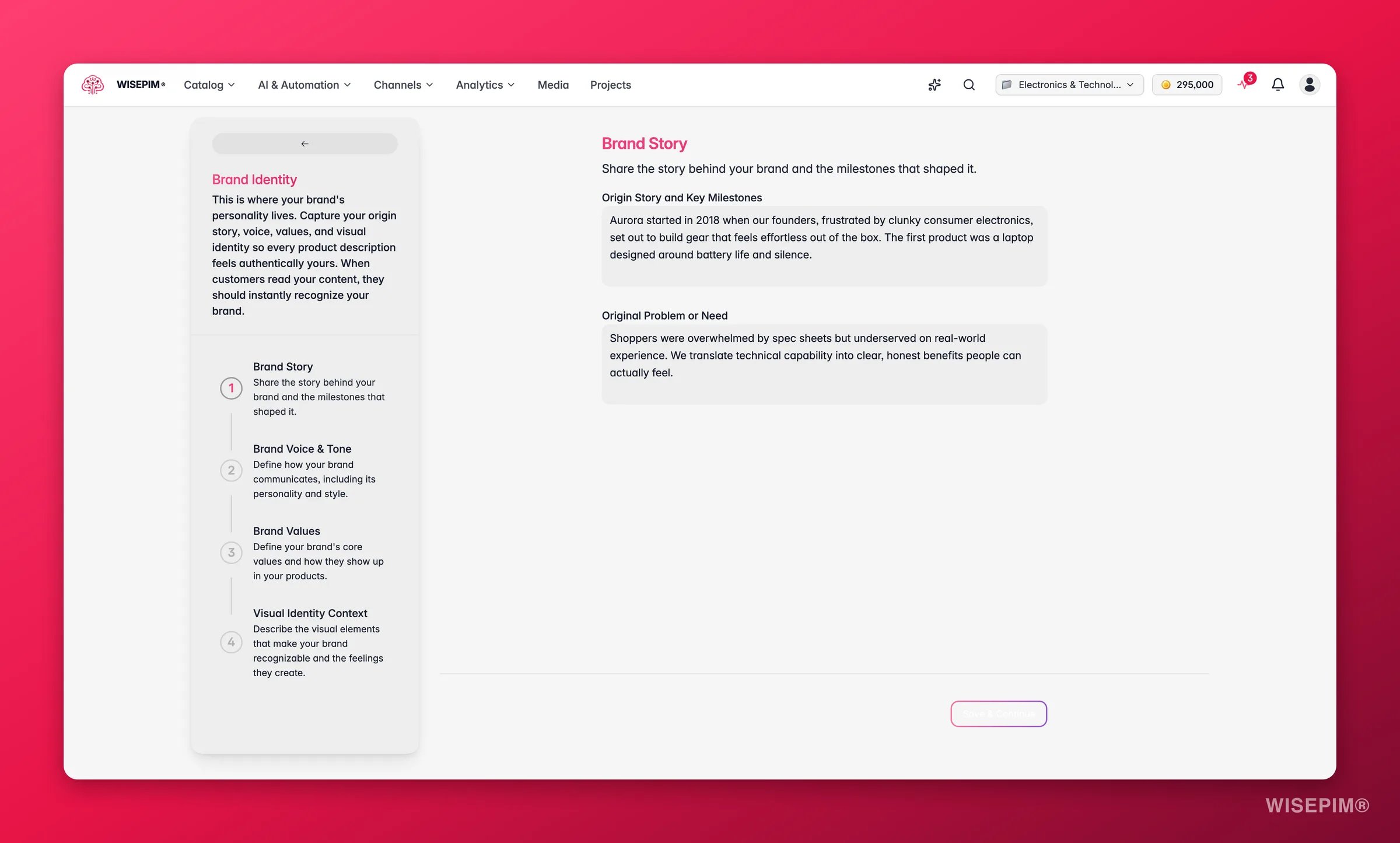
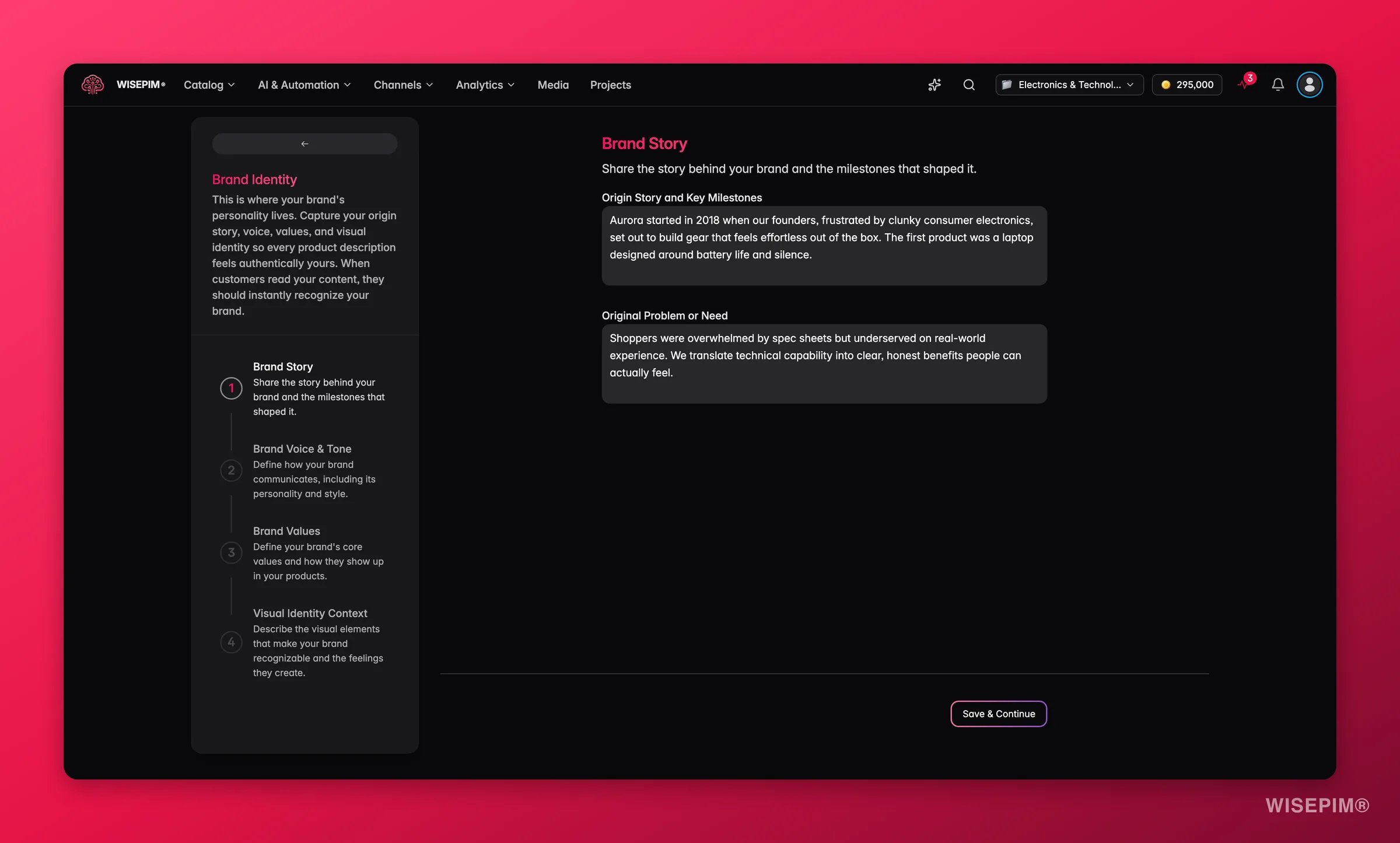
- Brand Story: who you are, where you came from, and what you exist to do. This gives the AI the context behind your products, not just the specs.
- Brand Voice & Tone: how your brand sounds. Warm or precise, playful or expert. Add the words you use and the words you never use.
- Brand Values: what you stand for. Sustainability, craftsmanship, value for money. These are the promises the AI should reinforce instead of inventing its own.
Business profile
The Business profile sits at the top of Target Audience Profiles. It tells the AI which markets you serve and what you sell, so every text speaks to the right buyer in your industry.
The AI reads the business profile for every kind of enrichment except image alt text. When you sell to professional buyers, resellers, or the public sector, buyer FAQs also get a question about pack quantity.
Fill in your Knowledge Library
1
Open the Knowledge Library
Go to AI & Automation > Knowledge Library. You can also jump straight to any section from the Command Menu.
2
Start with brand identity
Begin with brand identity. It is the foundation every other section builds on.
3
Work one section at a time
Open a section and fill in its fields. Finishing one section before moving on keeps your context coherent.
4
Be specific
Concrete details beat vague ones. Write in the tone you want AI to copy, and use the exact terms your industry uses.
Fill with AI from your website
Click Fill with AI, enter your Website URL, and click Analyze Website. WISEPIM reads your site and fills the library for you. About Us pages, your homepage, and product pages that describe your business work best.- It only fills empty fields. Fields that already have text are skipped and stay as they are.
- The business profile is a separate step. After the text fields, the AI fills Who do you sell to? and What do you sell?, but only when those lists are still empty. If it is not confident enough, it leaves a list empty and reports it as skipped. For What do you sell? it keeps only medium or high-confidence picks.
- It runs in the background. Larger sites can take a few minutes. Click Close and keep working in the background and keep working. Your library updates when the run is done.
- You see what changed. The result lists the fields and sections it filled, including a Business profile chip, and an accordion with notes about the run, for example pages it could not read.
If no worker picks up the run within 20 minutes, it fails with a timeout. A failed run is never retried automatically, so start it again yourself. If a site blocks the reader, WISEPIM retries it through a proxy in the site’s country.
Where each instruction belongs
The Knowledge Library is for things that are true across your whole catalog. Put narrower instructions closer to where they apply.Buyer FAQs use the library as steering only: your brand, audience, purchase criteria, and the buyer hesitations and terms you describe. The library is never quoted as a source for an answer. See Product FAQs.
Track your progress
The overview shows how much of the library you have filled. Use it to spot gaps.- Per-section progress shows which sections still need attention.
- Overall progress shows how much of the profile is filled.
- Not started sections are listed separately, so you can see where to focus next.
Reuse a library in another project
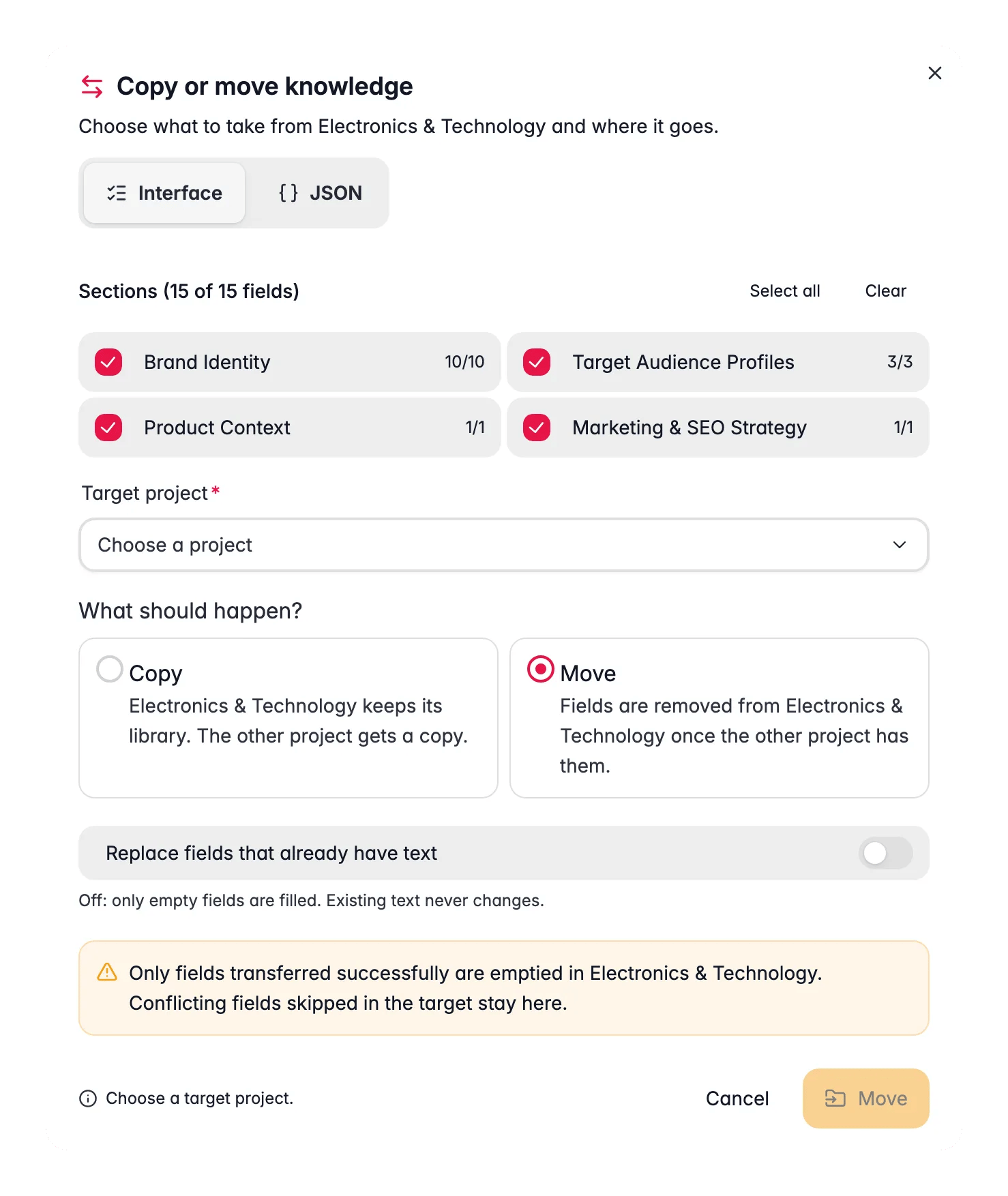
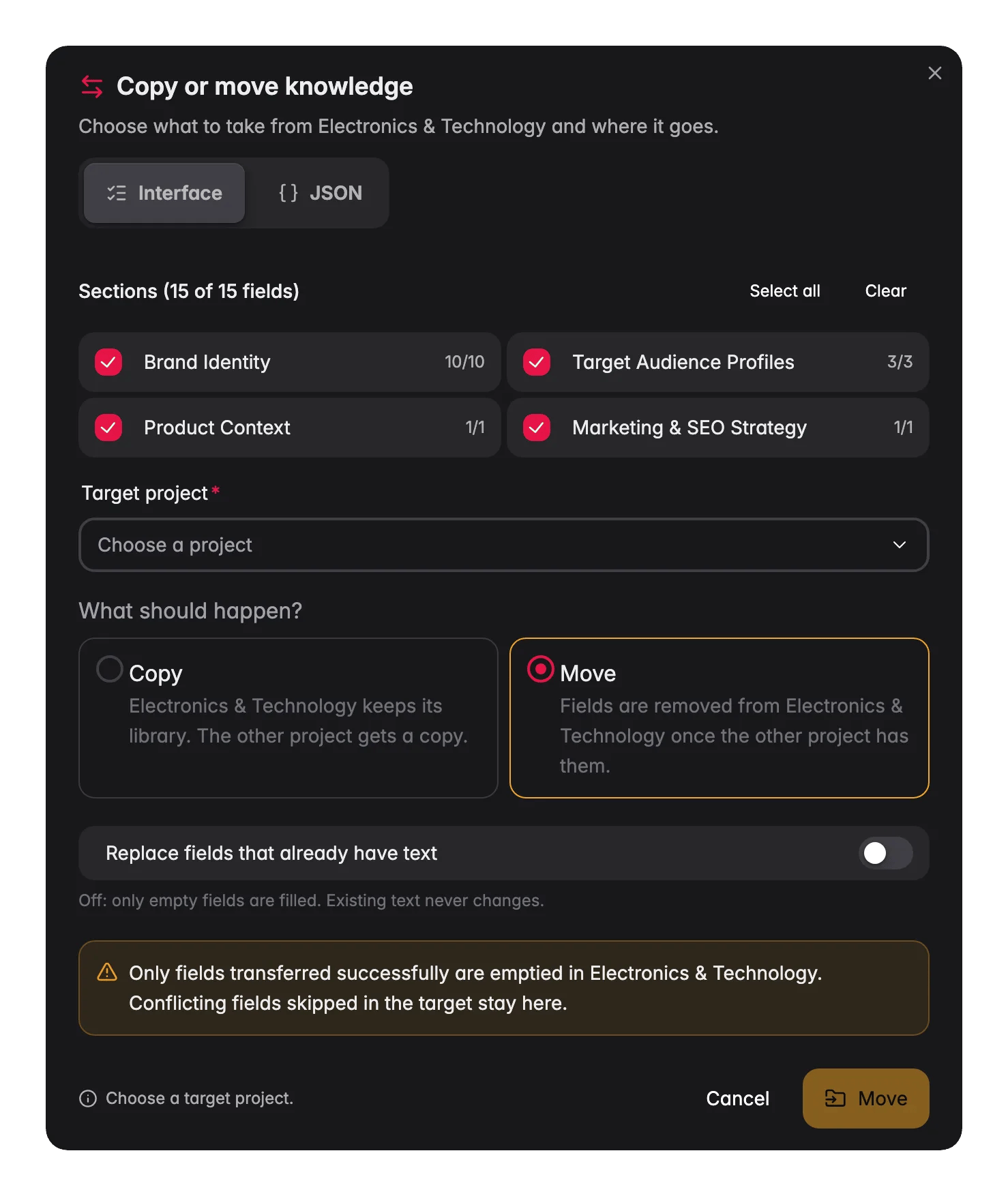
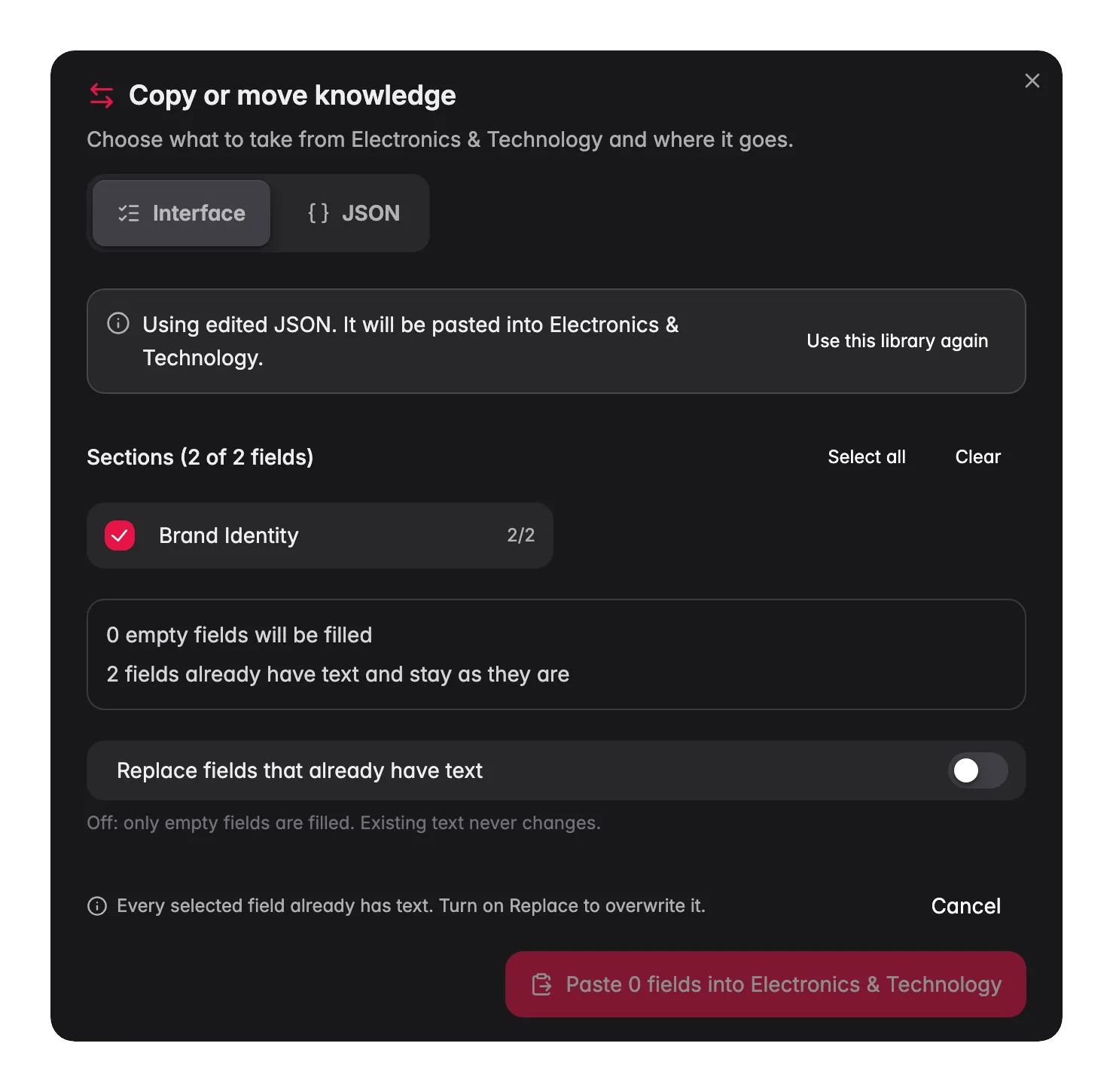
Running several stores or brands that share a voice? Click Copy or move on the Knowledge Library page to take fields to another project. The dialog Copy or move knowledge has two views: Interface and JSON.Copy or move to another project
1
Pick the sections
Under Sections, tick the sections to take along. Use Select all or Clear to change them all at once.
2
Choose the target project
Pick a Target project. You only see projects you can edit.
3
Choose what should happen
Under What should happen?, pick Copy (this project keeps its library, the other project gets a copy) or Move (fields are removed here once the other project has them). You can only move from a project you can edit.
4
Decide about existing text
Replace fields that already have text is off by default. Off, only empty fields in the target are filled and existing text never changes. On, filled fields get the new text. An empty source field never clears anything.
5
Run it
Click the button, for example Copy 15 fields to your target project. The result tells you how many fields were copied or moved and how many kept their text because the target already had text there.
Copy and paste as JSON
The JSON view shows the selected fields as JSON. Click Copy as JSON, open the Knowledge Library of another project, open Copy or move there, and paste the JSON into the JSON view. If your browser blocks the clipboard, WISEPIM downloads the JSON as a file instead.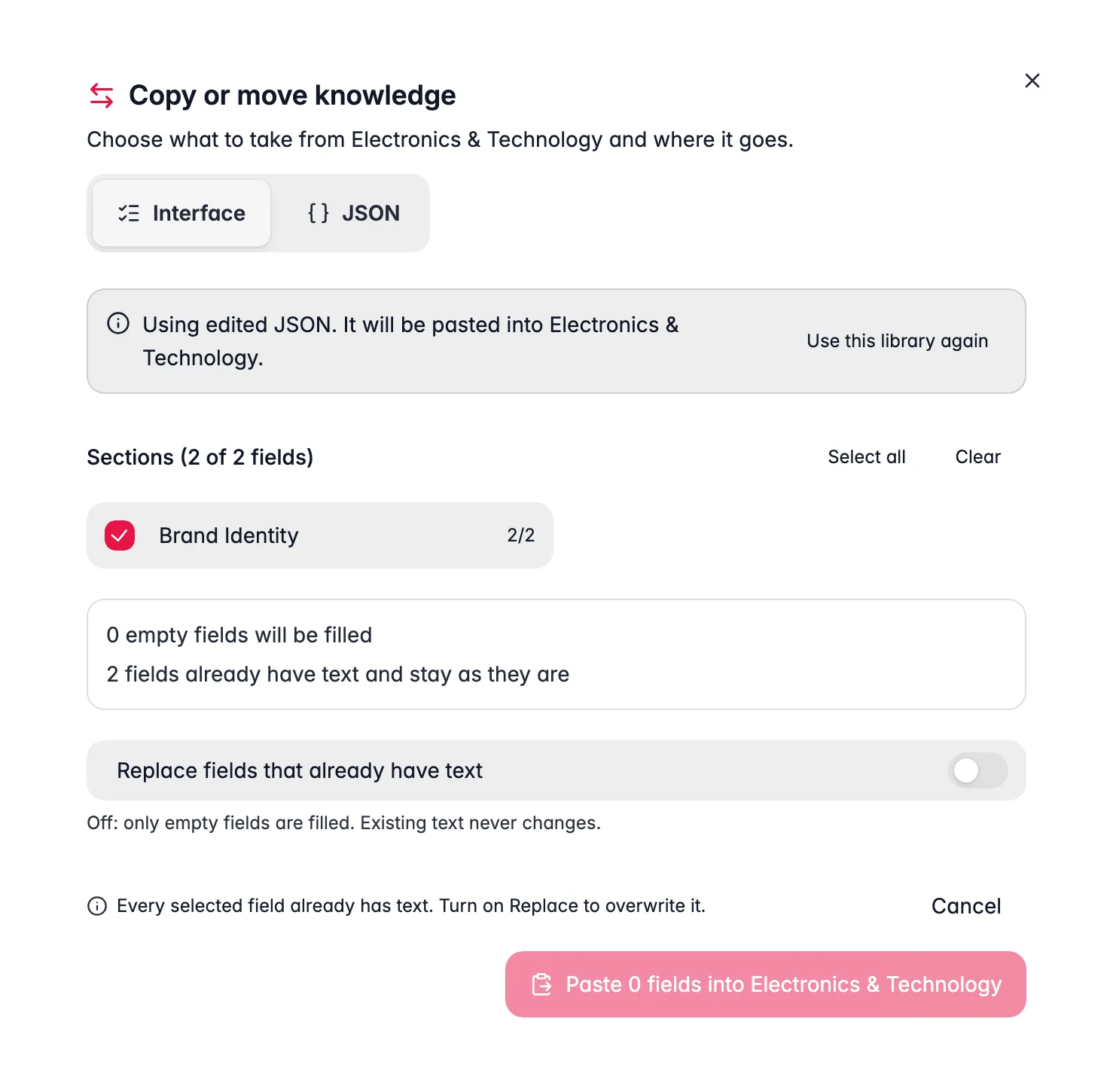
Supplier glossary
The Supplier glossary card on the Knowledge Library page teaches WISEPIM how your suppliers write codes and abbreviations, so Catalog Jobs can read codes likeHB/908/101/56/16. The glossary comes with common eyewear codes built in. Add your own when WISEPIM reads one wrong.
- Add entry opens Add a glossary entry. To change a built-in code, override it. Your meaning then wins for this project.
- Import opens Import your glossary: drop a CSV file or paste lines, then choose Add to my glossary or Replace my entries. Replacing removes your own entries first. Built-in codes stay.
- Try a code shows how WISEPIM reads a supplier code and description while you type. Unknown words are marked, and you can teach WISEPIM what they mean right there.
- We spotted these in your codes suggests words that show up often in your products and that WISEPIM cannot read yet.
Keep it current
Your Knowledge Library is a living document. Update it whenever your brand, products, or audience change. Common triggers:- Your messaging or positioning shifts.
- You launch a new product line or start selling to a new market.
- Your audience grows or changes.
- The market or competition moves.
Troubleshooting
AI content doesn't sound like my brand
AI content doesn't sound like my brand
Fill in Brand Identity thoroughly, especially Brand Voice & Tone. Add concrete tone adjectives and example phrases your brand uses. Vague input gives vague output.
Copy speaks to the wrong buyer
Copy speaks to the wrong buyer
Check the Business profile. Put your main market first in Who do you sell to? and make What do you sell? as specific as you can. For a product group in another industry, set the category’s Industry instead.
Descriptions are too generic
Descriptions are too generic
Add detail to Product Context and Marketing & SEO Strategy. List your specific benefits and the sections every description must include.
Fill with AI left fields empty
Fill with AI left fields empty
It only fills empty fields and skips anything it could not find on the page. Open the notes about the run to see which pages it could not read, then try a page that describes your business in more detail.
I can't move fields to another project
I can't move fields to another project
Moving needs edit rights on this project, and the target list only shows projects you can edit. Use Copy, or ask a project owner for edit rights.
Related
Enriching Products with AI
Generate titles, descriptions, and SEO copy that draws on your Knowledge Library.
Managing Product Categories
Set an industry or AI notes for one product group.
Product FAQs
Generate buyer FAQs steered by your business profile.
Prompt Lab
Build and test prompts that use your brand context automatically.
Managing Projects
Set up the projects you copy knowledge between.
AI Chat
Chat with an AI that already knows your brand and products.