

A saved prompt is reusable across your whole catalog. Build a small collection of proven prompts, and your content stays consistent no matter who runs it.
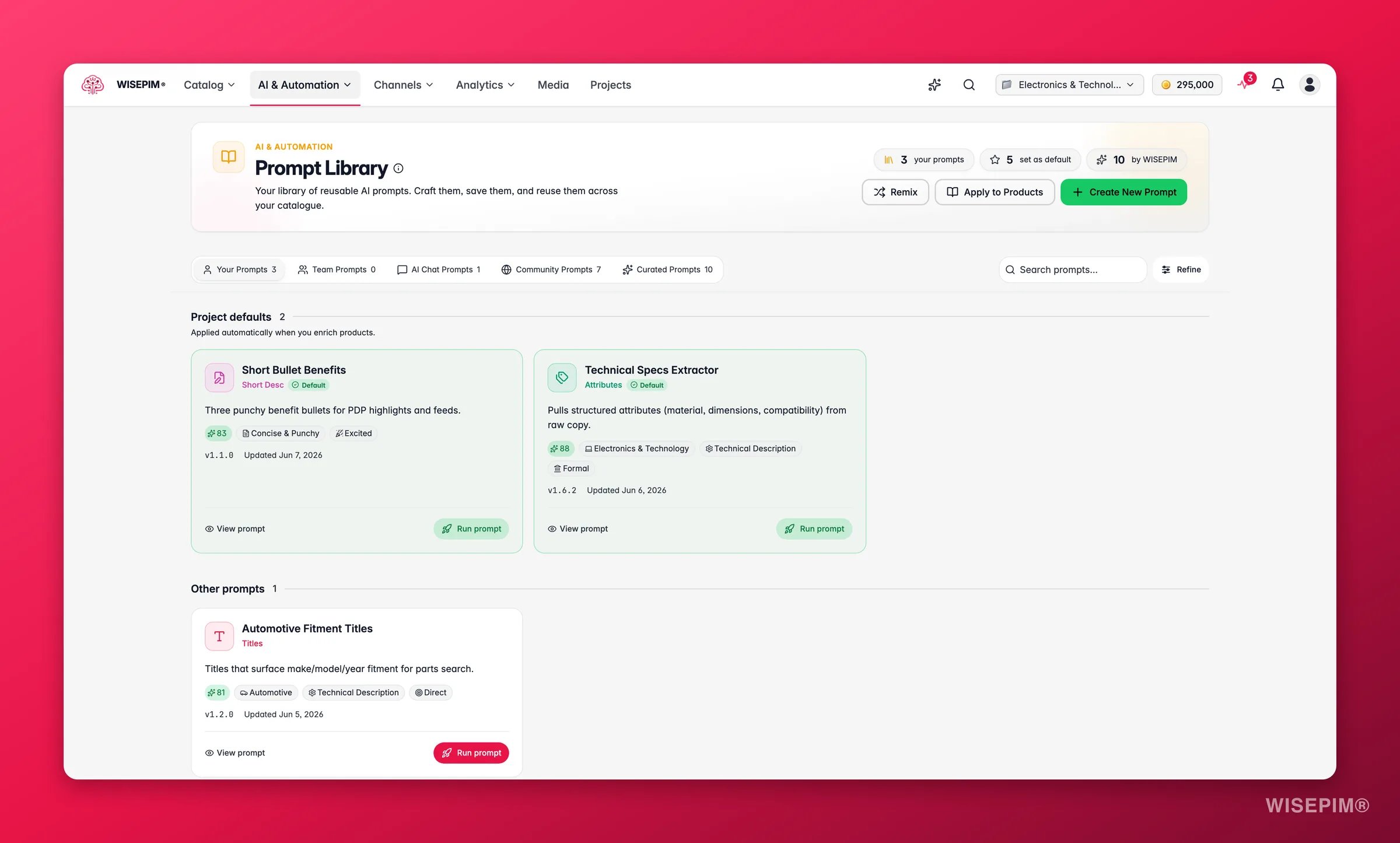
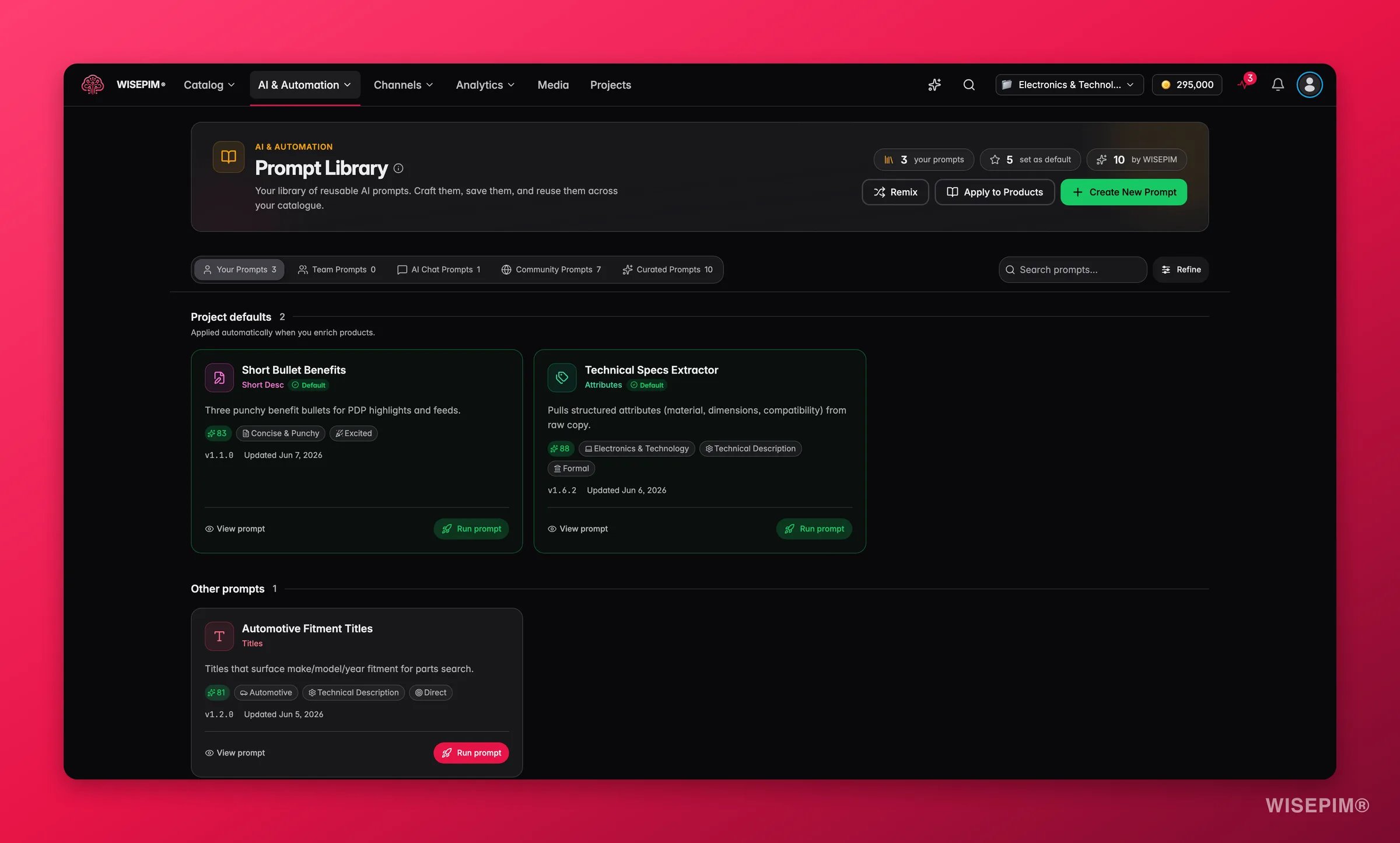
Three collections
The library is split into three tabs. Use the right one for the job.Curated Prompts
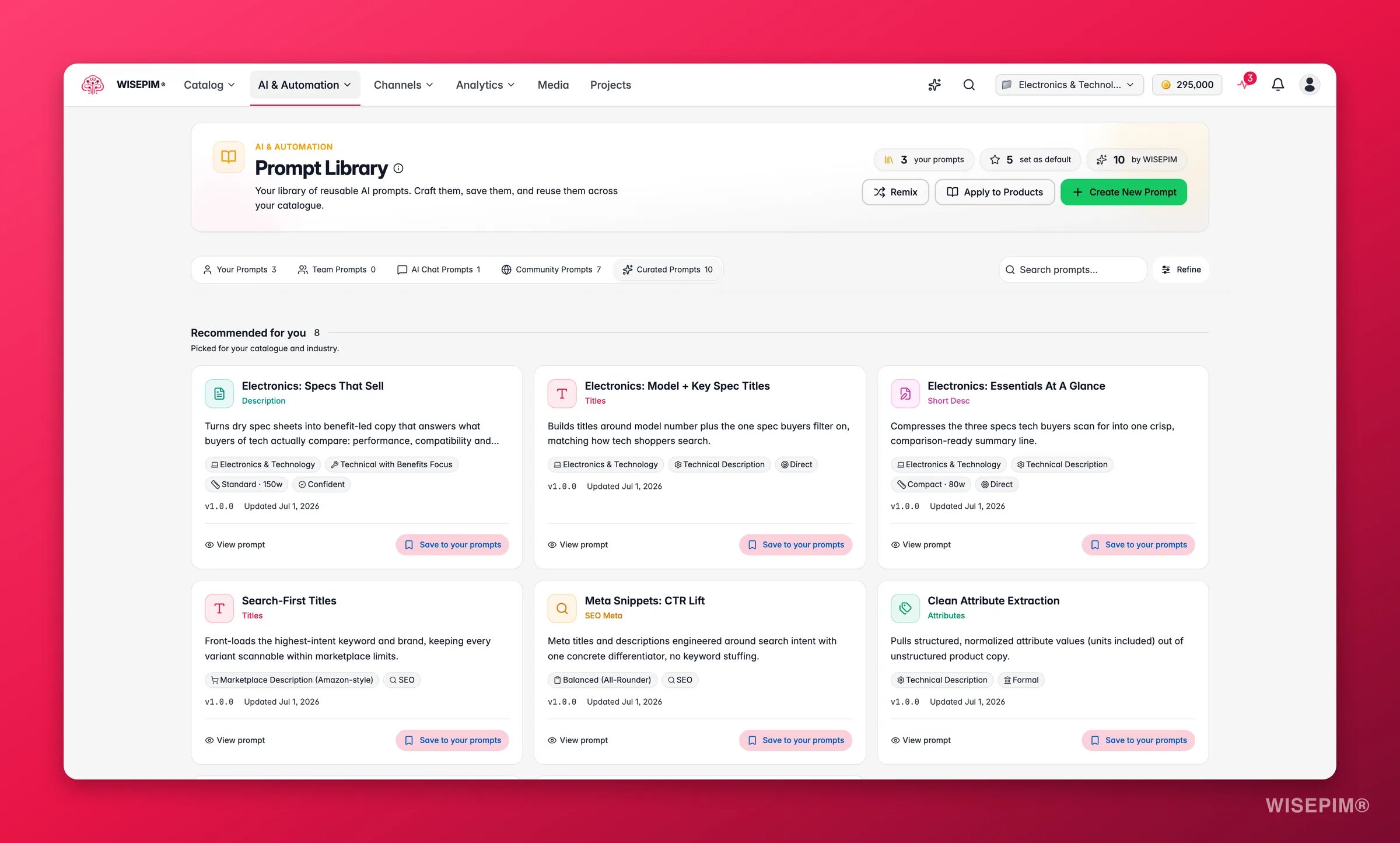
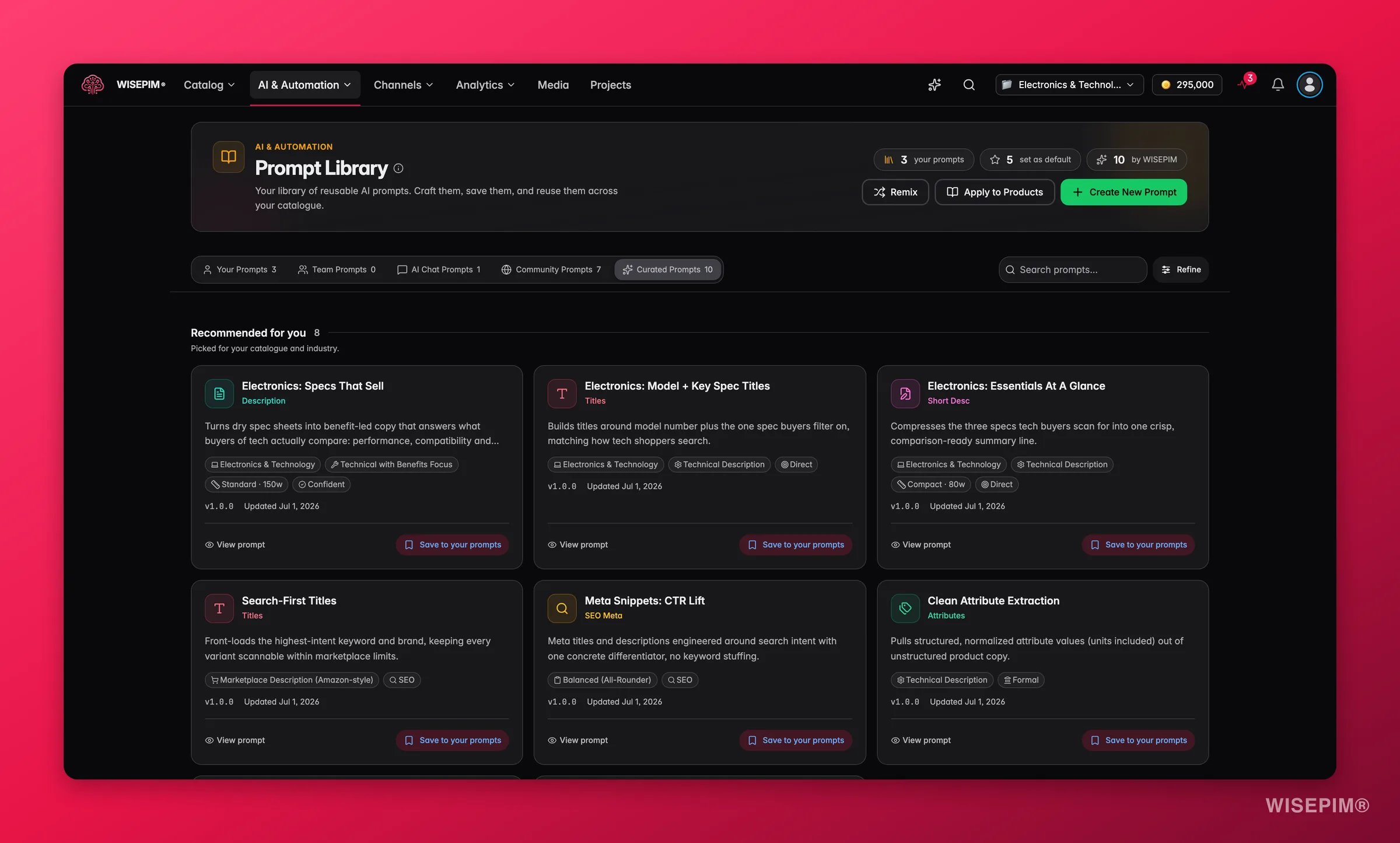
A new project starts with sensible default prompts so you can enrich from day one. Once you finish onboarding and WISEPIM knows your industry, those starting defaults are upgraded to industry-specific ones. Any prompt you wrote or edited yourself is left exactly as you set it.
Find a prompt
Search by title or description, and the results filter as you type. Narrow them further with the filters:- What to Enrich: description, title, or attributes
- Industry: your market sector
- Purpose: SEO, marketing, technical, or standard
Create a prompt
1
Open the form
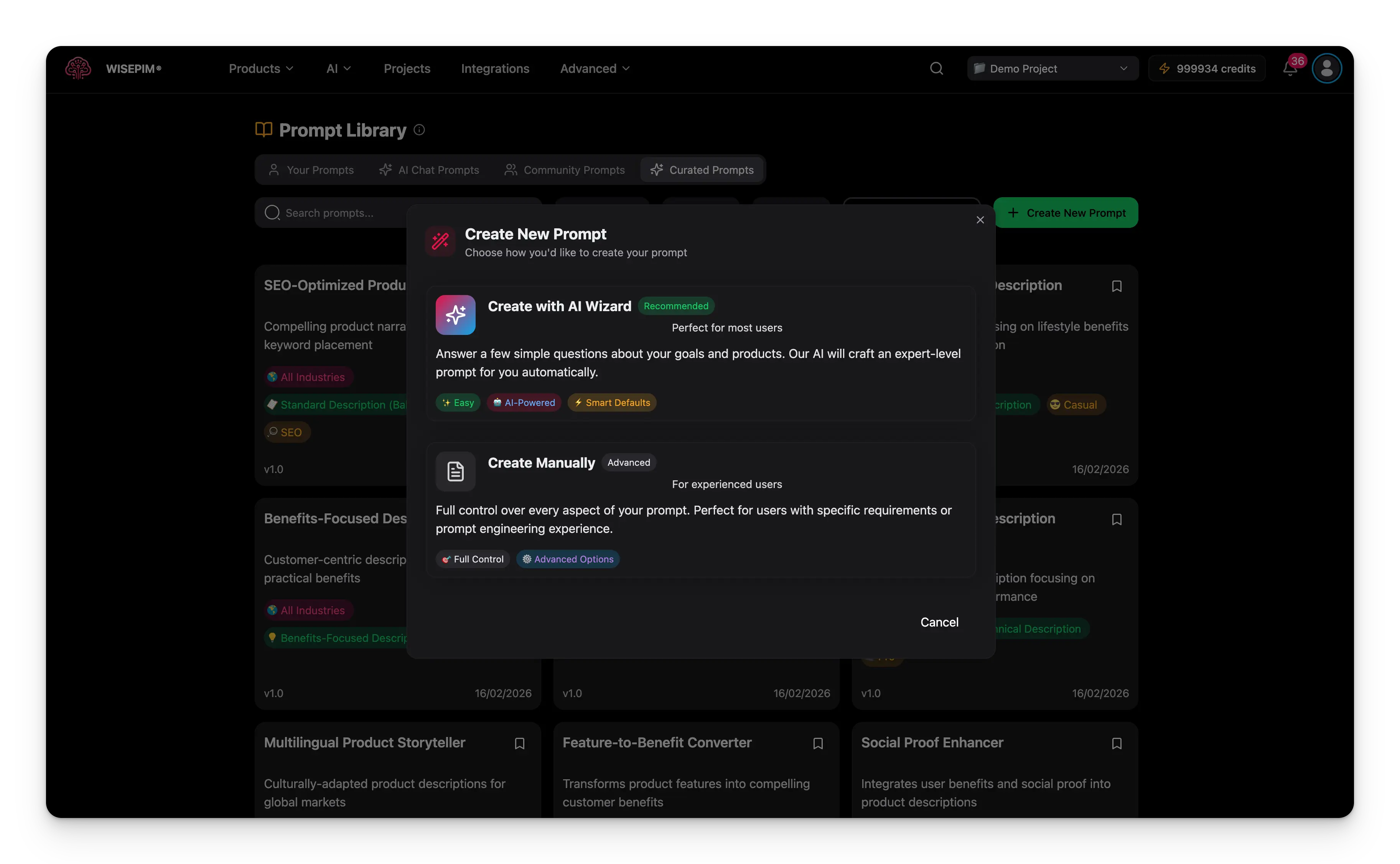
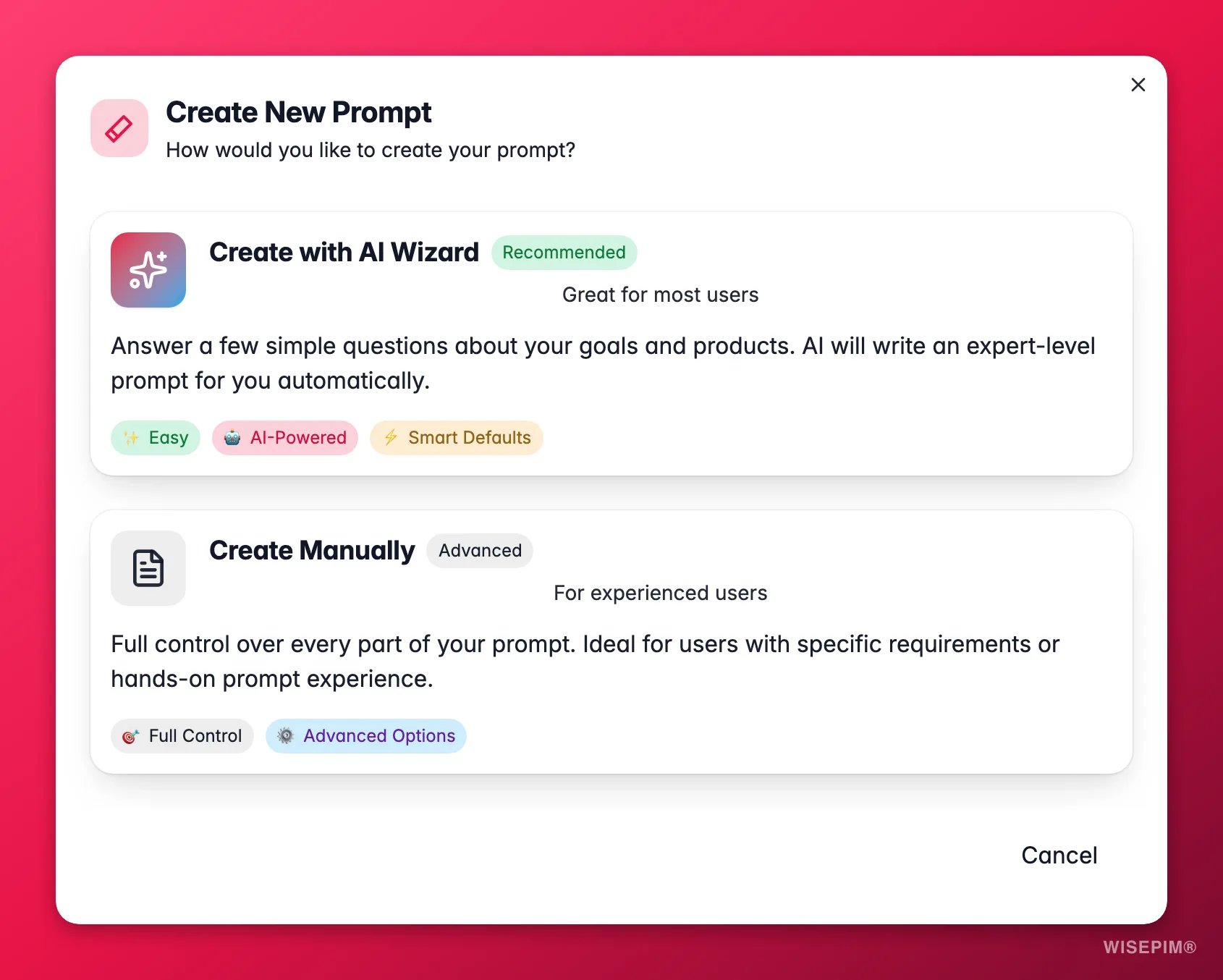
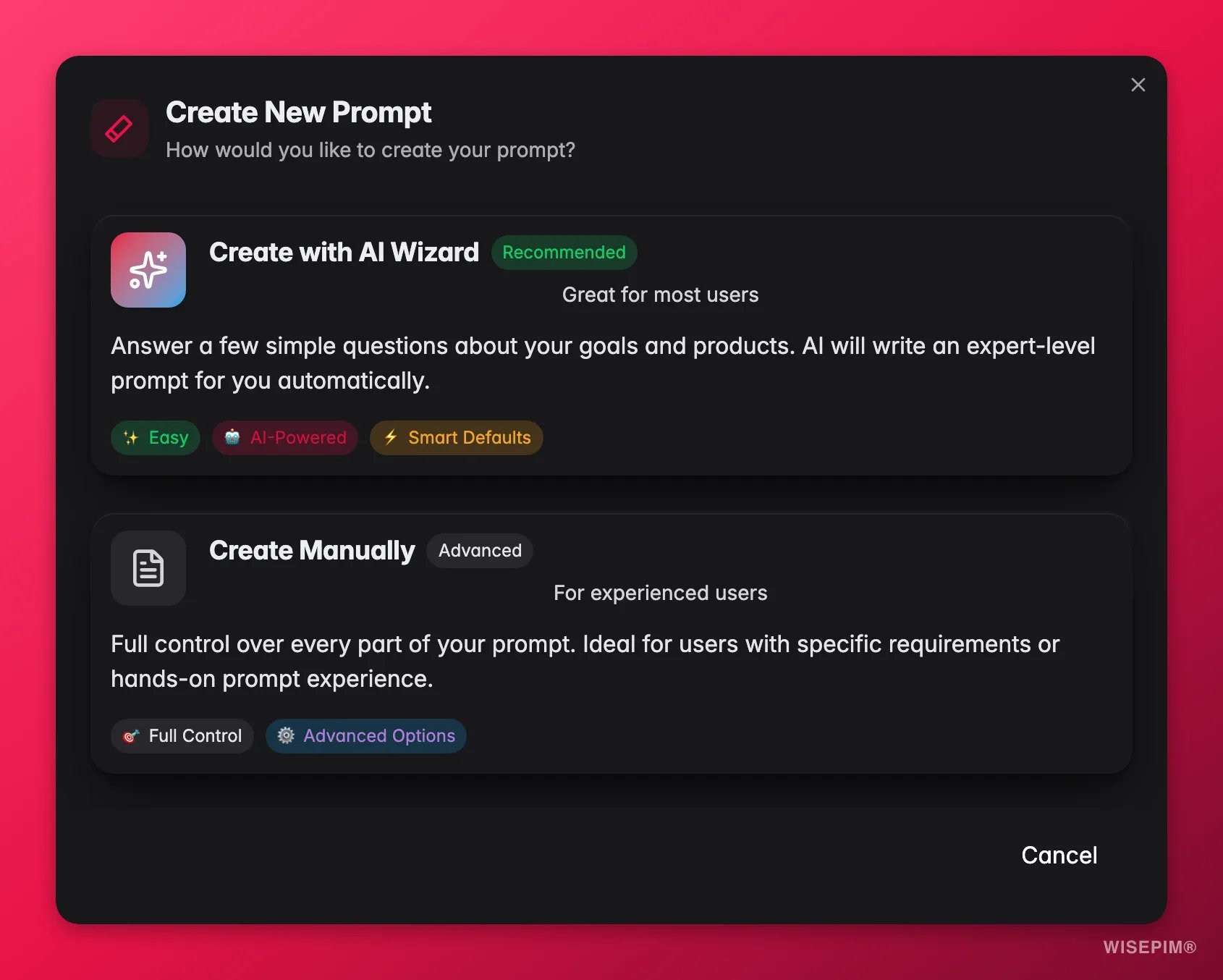
Click Create New Prompt (the green button, top right). Or open the Prompt Lab and save a prompt from there.
2
Add the details
Give it a descriptive, searchable title, a clear description, and the prompt text.
3
Set the categories
Choose the industry, purpose, and tone so the prompt is easy to filter later. Set the point of view and any advanced options.
4
Save and test
Save to your library, then test it in the Prompt Lab before using it in production.
Edit a prompt
Click the edit icon on any of your prompts to change its title, description, text, or categories. Save the changes instantly. Edit a prompt when you want to improve its results, adapt it for new products, or refine its language.The version number advances only when you change something that affects generation: the prompt text, enrichment type, tone or custom tone, purpose, industry, point of view, the spec-table flag or the title and target-size controls. Renaming or sharing a prompt does not bump it. The previous configuration is kept in the version history, and every enrichment records the exact prompt, version and title it used. For a major change, create a new prompt instead of overwriting, so you keep the working version as a backup.
Set a prompt as default
When a prompt becomes your go-to for a content type, make it the default. Choose Set as default on the prompt card in the library, or open the prompt and use the same option in the view modal. The default prompt is preselected every time you open the enrich modal for that field, and it is the prompt Auto-Fill uses when it fills gaps on its own. One click here saves a click on every enrichment run afterwards.Set as default and the dropdowns in Settings → Enrich Prompts are the same setting: one default per enrichment type, stored on the project. Changing it in either place updates the other, and the most recent change wins - there is no precedence between them. Use whichever is closer to hand: the library when you’ve just written a prompt, the settings page when you want to review all five types at once.
Choose how long descriptions should be
Description prompts have a target size, so you can reuse the same prompt and still get copy that fits the channel you are writing for.Reuse community and curated prompts
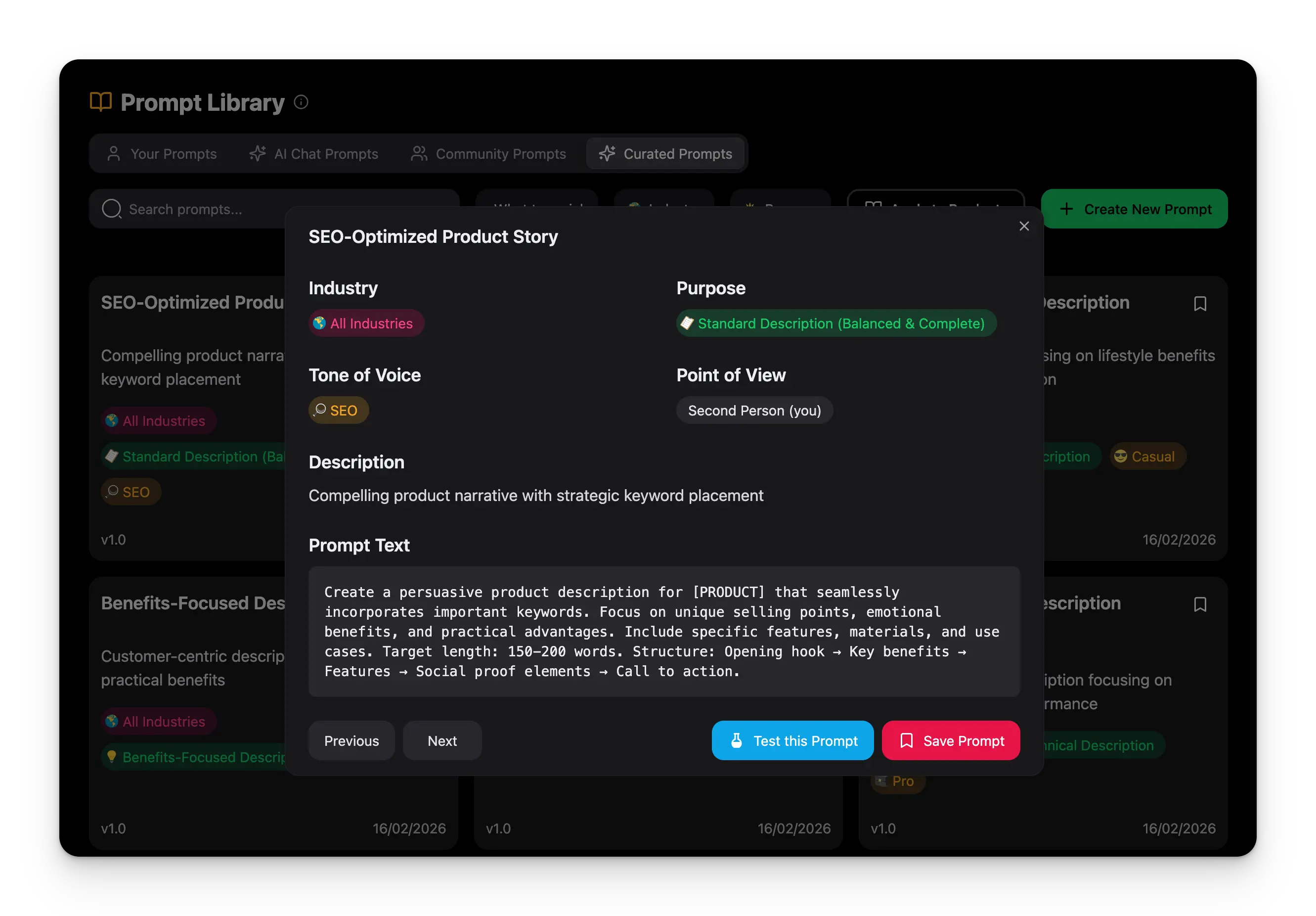
You don’t have to write every prompt yourself. Copy a good one into your own collection and adapt it.- From Community Prompts
- From Curated Prompts
- Browse and find a useful prompt.
- Click the copy icon to Duplicate it into your collection.
- Edit the copy to match your brand and products.
- Test and refine it in the Prompt Lab.
Use variables inside a prompt
Content Logic variables work inside the prompt text itself. Write{{product.name}}, {{brand.tagline}}, or {{category.target_audience}} in the prompt body and each variable is replaced with that product’s own value before the prompt reaches the AI.
Keep your library organized
A tidy library is faster to search. A few habits keep it that way:- Name clearly. Use descriptive names like “Electronics SEO Description v2” or “Fashion Marketing Copy”.
- Categorize consistently. Group by industry or content type, and tag with relevant keywords.
- Review regularly. Archive or delete prompts that no longer perform, and test the rest against new products.
Troubleshooting
I can't find the right prompt
I can't find the right prompt
Use more specific search terms, try different filter combinations, and browse the community and curated collections for inspiration.
A prompt doesn't work for my products
A prompt doesn't work for my products
Customize it for your product types and adjust the industry and purpose settings. Test it on a few different products in the Prompt Lab to find what needs changing.
My generated content isn't consistent
My generated content isn't consistent
Use the same prompt across similar products, complete your Knowledge Library, and make sure the prompt instructions are specific enough.
My library is getting disorganized
My library is getting disorganized
Apply consistent naming and categories, and archive or delete prompts you no longer use.
Related
Prompt Lab
Build and test prompts on a real product before you save them.
Enriching products
Apply your saved prompts to products in bulk.
Knowledge Library
Give the AI your brand voice for on-brand results.
AI Chat
Generate and refine content in a conversation.