

Four steps to better content
1
Connect your platform
Set up your integration with your e-commerce platform. We support Shopify, Magento, WooCommerce, Lightspeed, CCV Shop, and more.
2
Import your products
Pull your products into WISEPIM. The importer maps your fields for you. Review the mapping, confirm, and your catalog is ready.
3
Enrich with AI
Select products and click Enrich. WISEPIM writes optimized titles, descriptions, and attributes from your prompts and Knowledge Library.
4
Export back to your store
Push your enriched products back to your platform. One click, and your store has better content.
Before you begin
You don’t need to set up everything first. When you import, WISEPIM creates attributes and maps fields for you. Still, a few things are worth setting up early for the best results.Get your platform access ready
Get your platform access ready
Have admin access to your e-commerce platform and your API credentials on hand. See our integration guides for platform-specific setup.
Build your first prompt
Build your first prompt
Open the Prompt Library and create a reusable prompt template. It tells the AI how to write content for your brand.
Fill your Knowledge Library
Fill your Knowledge Library
The Knowledge Library teaches WISEPIM about your brand. Add your brand voice, audience, and product context. The more you share, the better the AI writes.
Your first sign-in
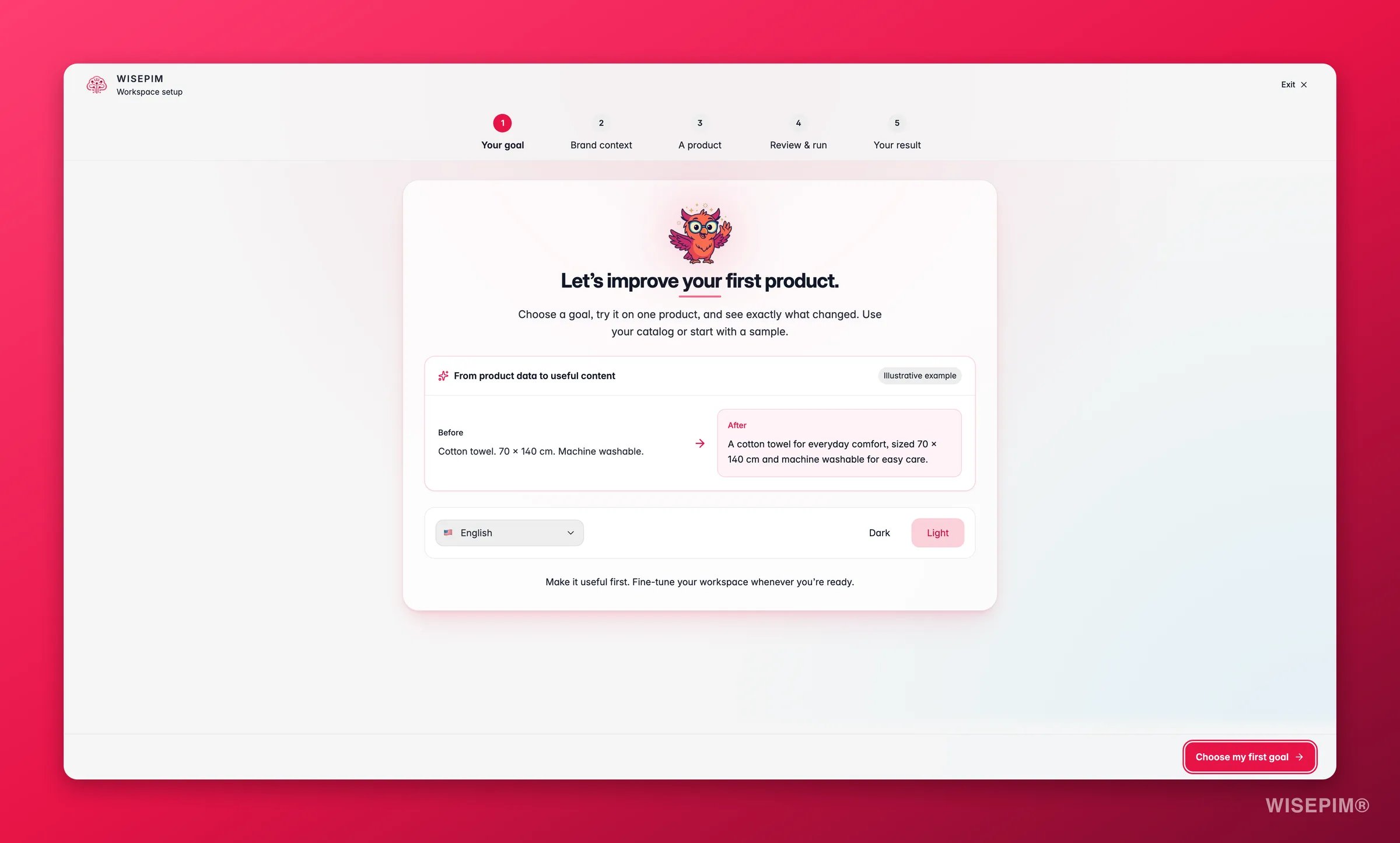
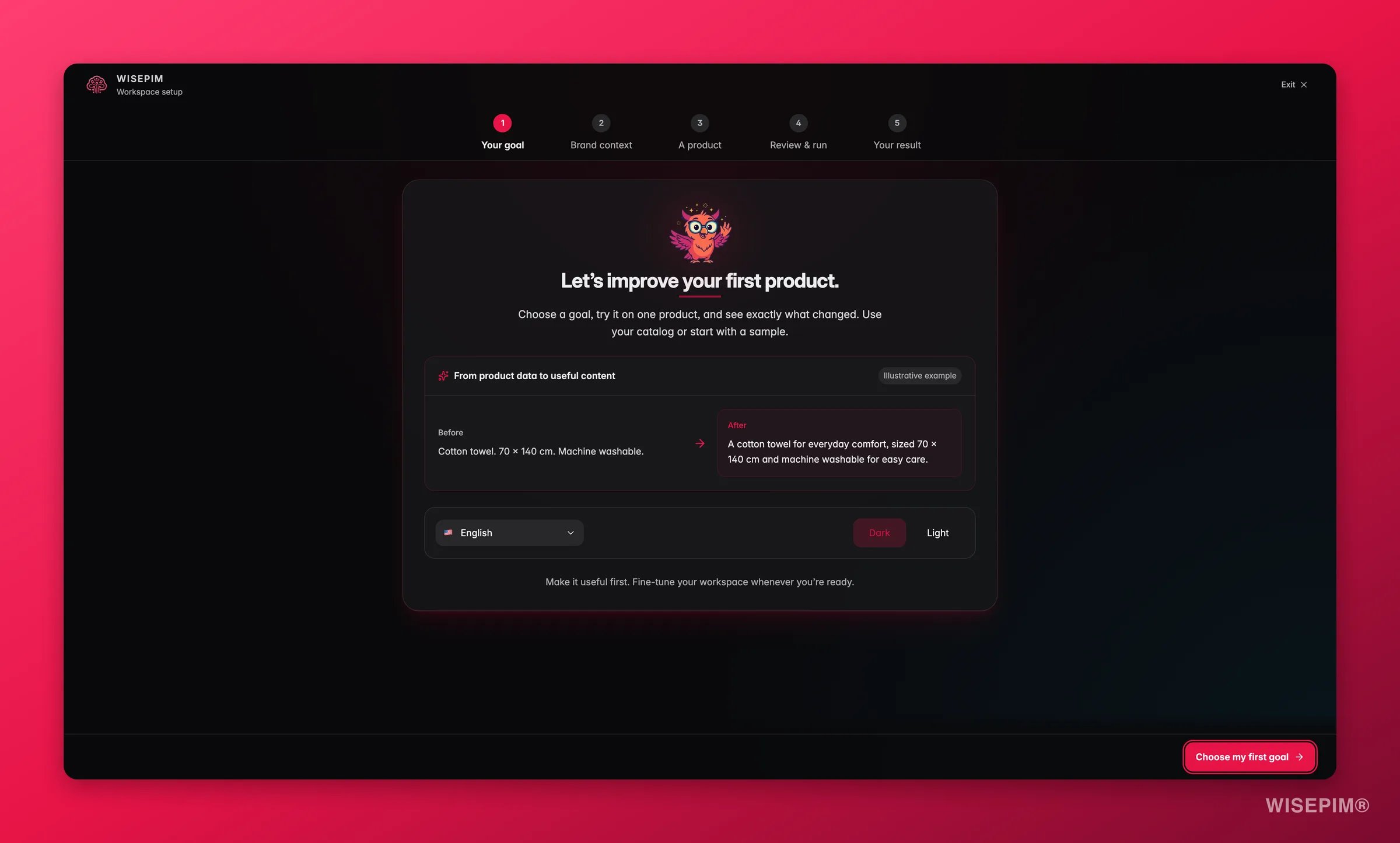
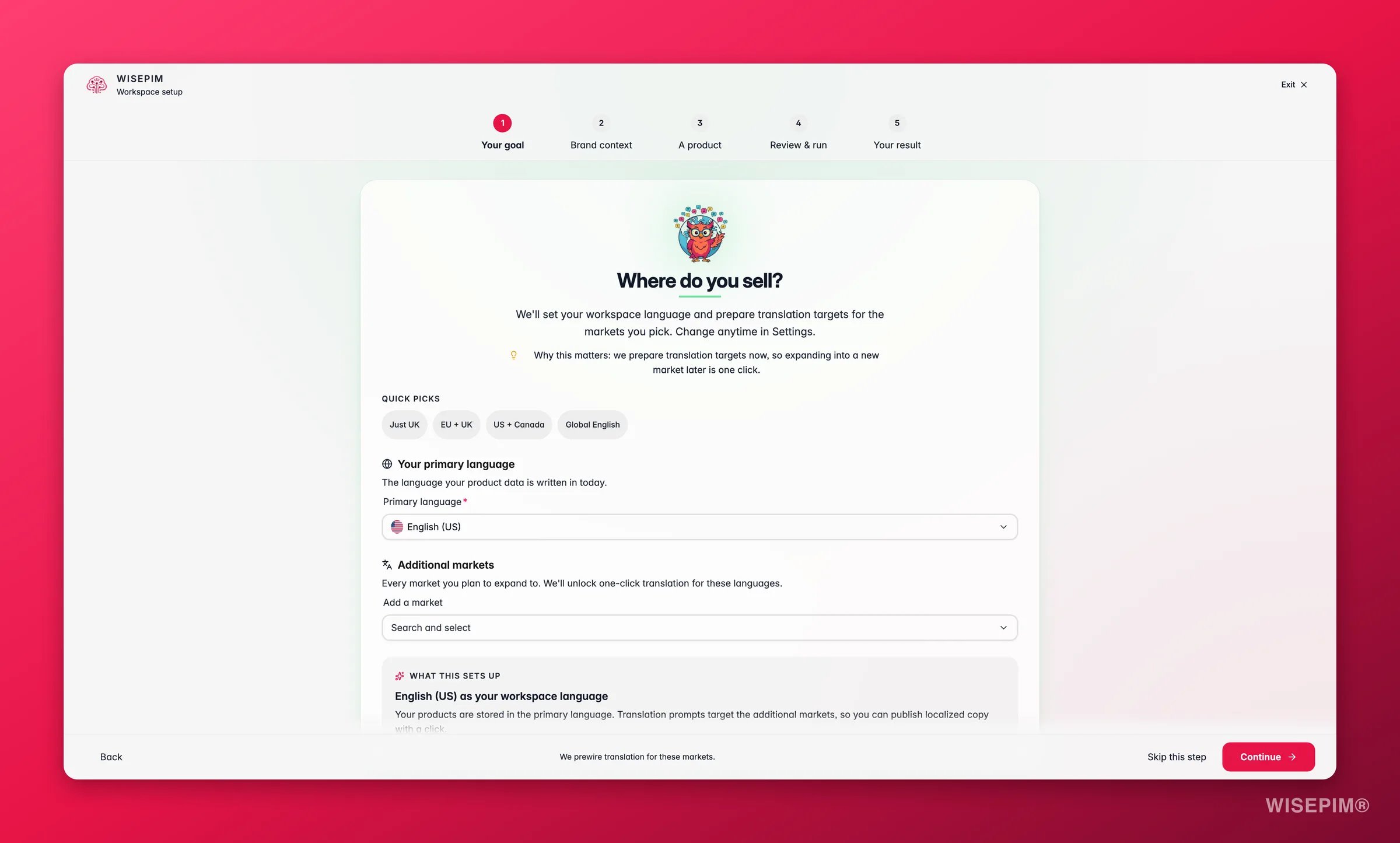
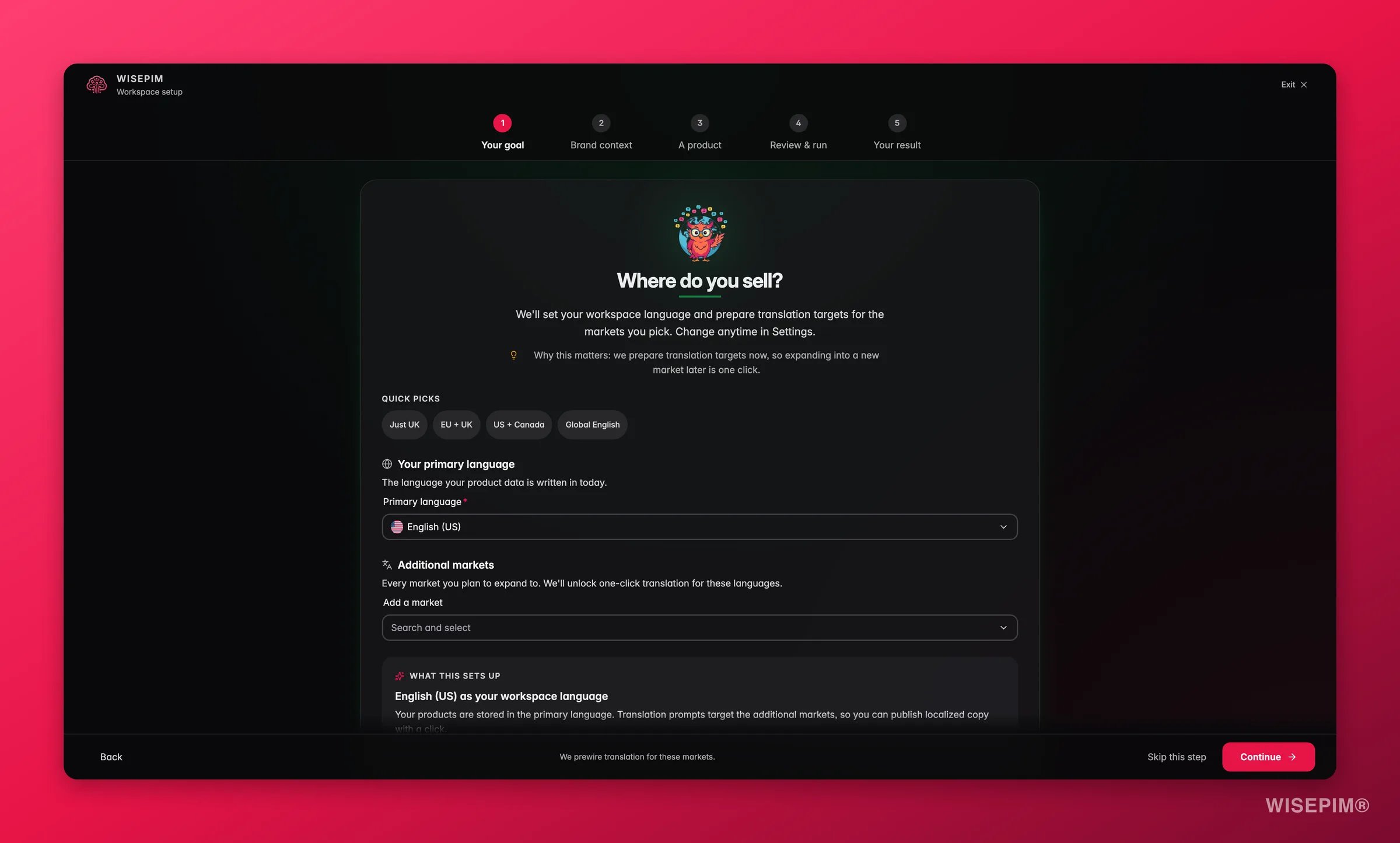
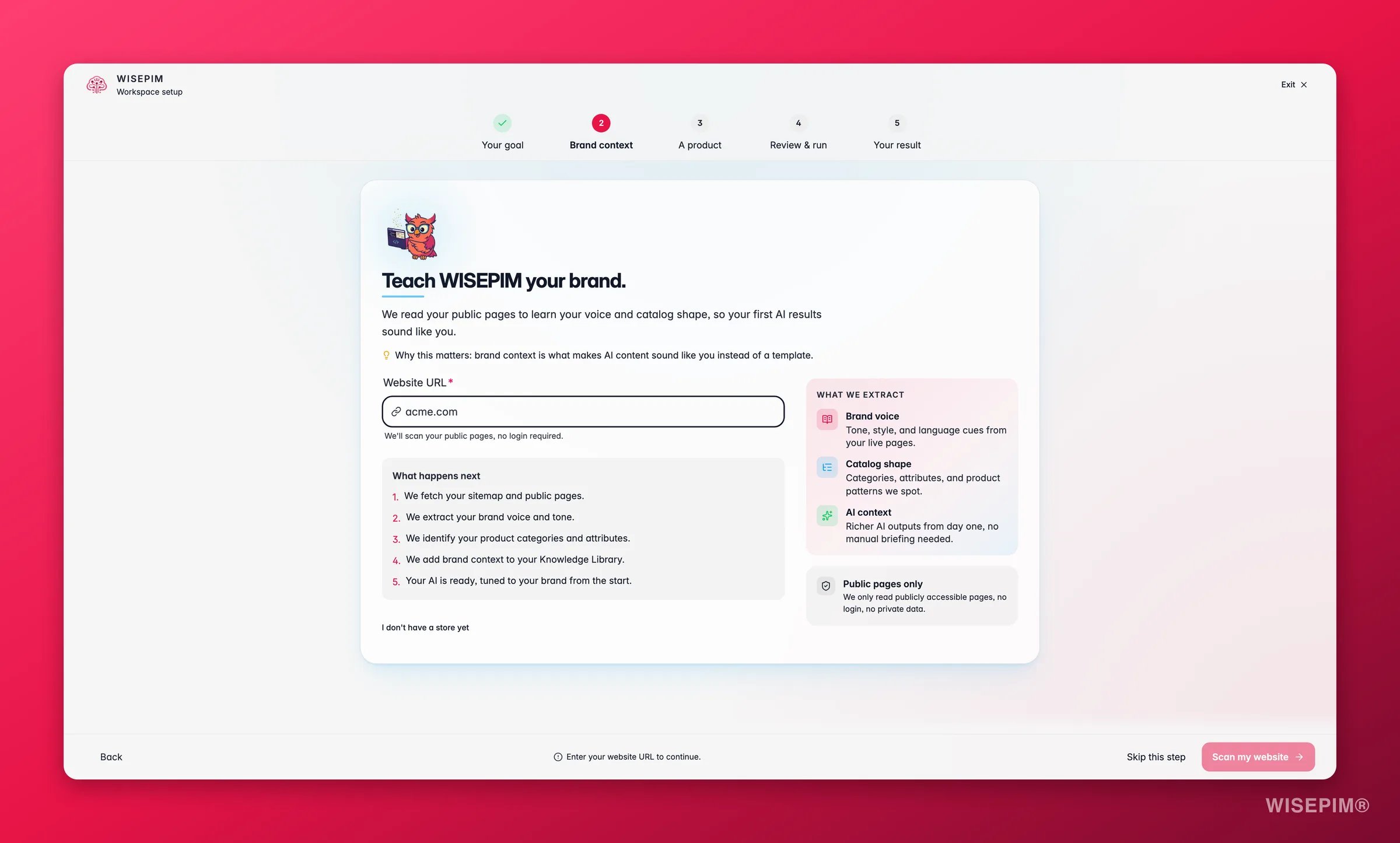
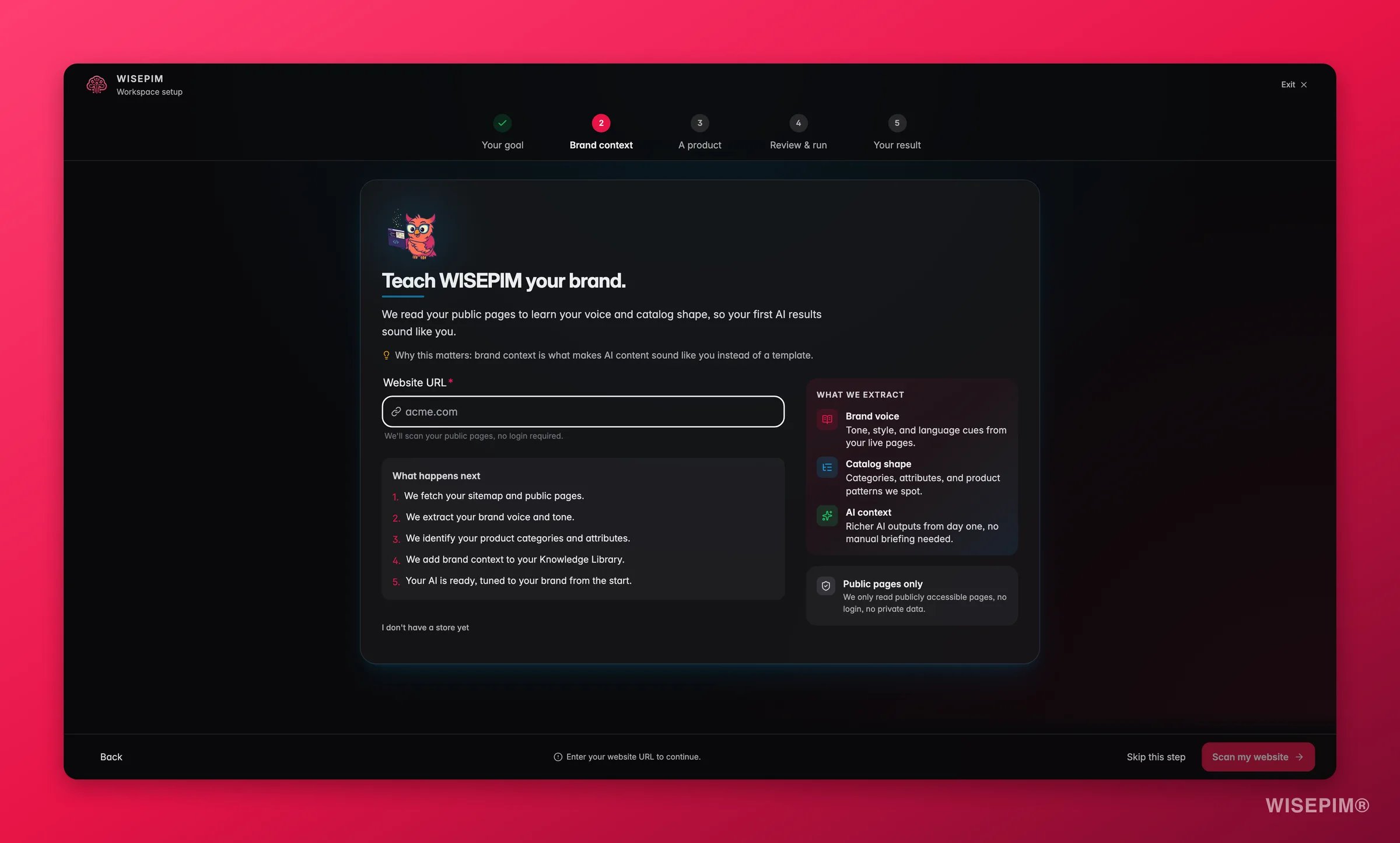
New accounts start with a short setup wizard. It asks about your company and website, the markets and languages you sell in, and which platforms you want to connect, then tunes WISEPIM to match. It takes a few minutes and runs once, and every step tells you roughly how long is left (“About 4 min left”). On the signup form, the box “I want to receive product updates in my mailbox.” is optional. A few steps do more than collect answers:- About you: “Only your company name is required. The industry is optional and sharpens the examples we generate.” The industry list goes down to segments and assortments. When WISEPIM has read your store, it can preselect a segment for you: “Suggested from your store. Open the list to pick another segment or the whole industry.”
- What do you want to achieve first? Pick a goal or describe it in your own words, then click Set my goal. It decides what WISEPIM sets up first and tunes the prompt library to match.
- What does great product data look like for you? Set your quality bar and click Switch on my rules. WISEPIM switches on matching Quality Guard rules straight away: “Your quality rules are switched on. Weak products will be flagged.”
- The integrations step shows top picks for your industry. Click Show all N platforms to see every connector.
- Shape your workspace preselects tools from your goals. Pick Simple to keep the menus short or Advanced to switch every tool on. You can change this any time in Workspace Features.
Some new accounts get a store-first setup instead. The signup form then has an optional Store URL field: “We read up to 25 public products so your first result uses your own catalog. Nothing on your store changes.” You get a catalog health report, fix your first gap with AI, and see the score go up. See Start from your store.
Find your way around
Once you are logged in, the top navigation has four groups. Almost everything lives under one of them:
Media and Projects sit at the top level on their own, next to the four groups.
The Catalog menu has two versions. Stable, the default, lists all catalog tools in one list. Experimental groups them under Work with products and Catalog setup, and adds Catalog structure and the Review inbox. Switch under Appearance.
Navigate with the Command Menu
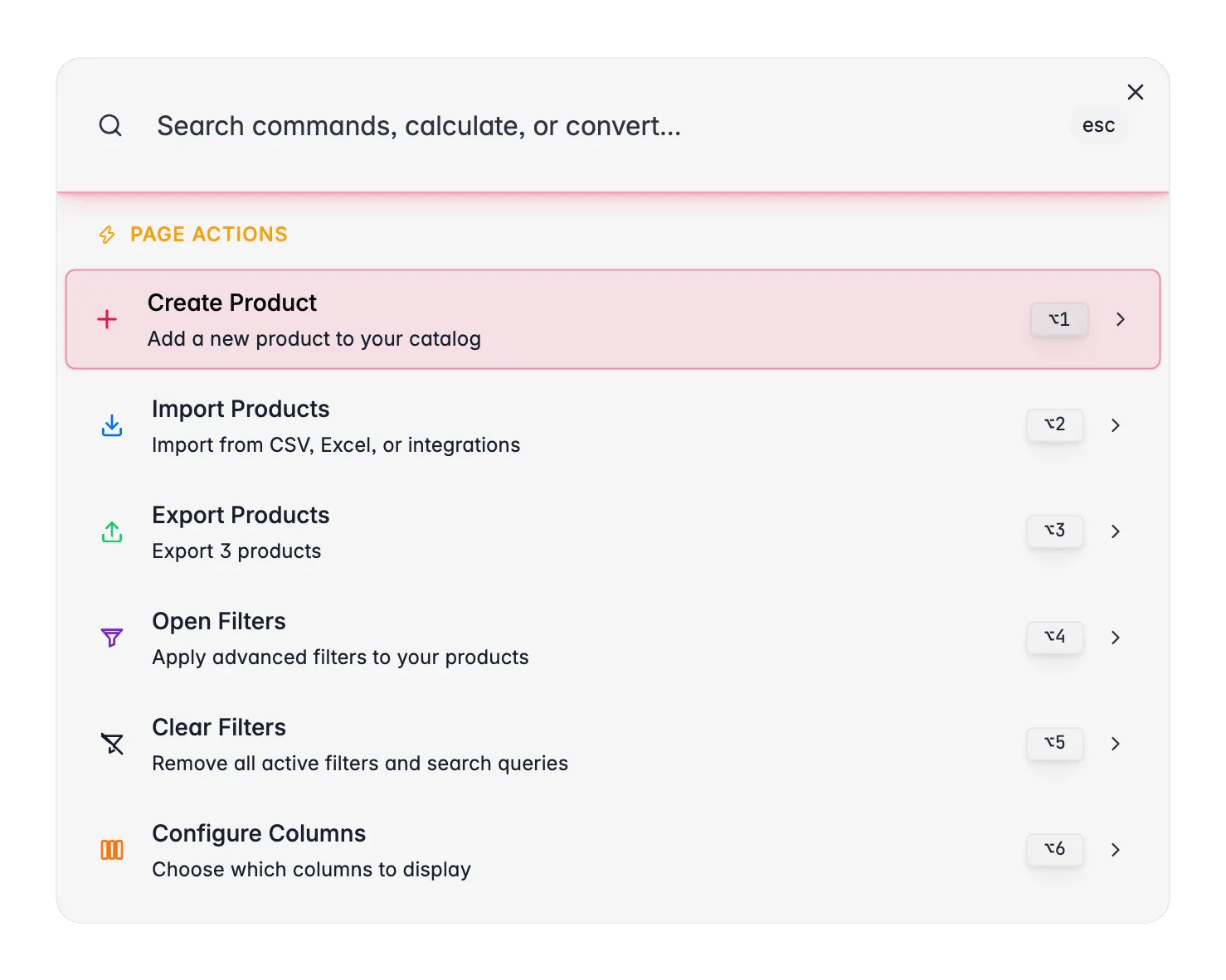
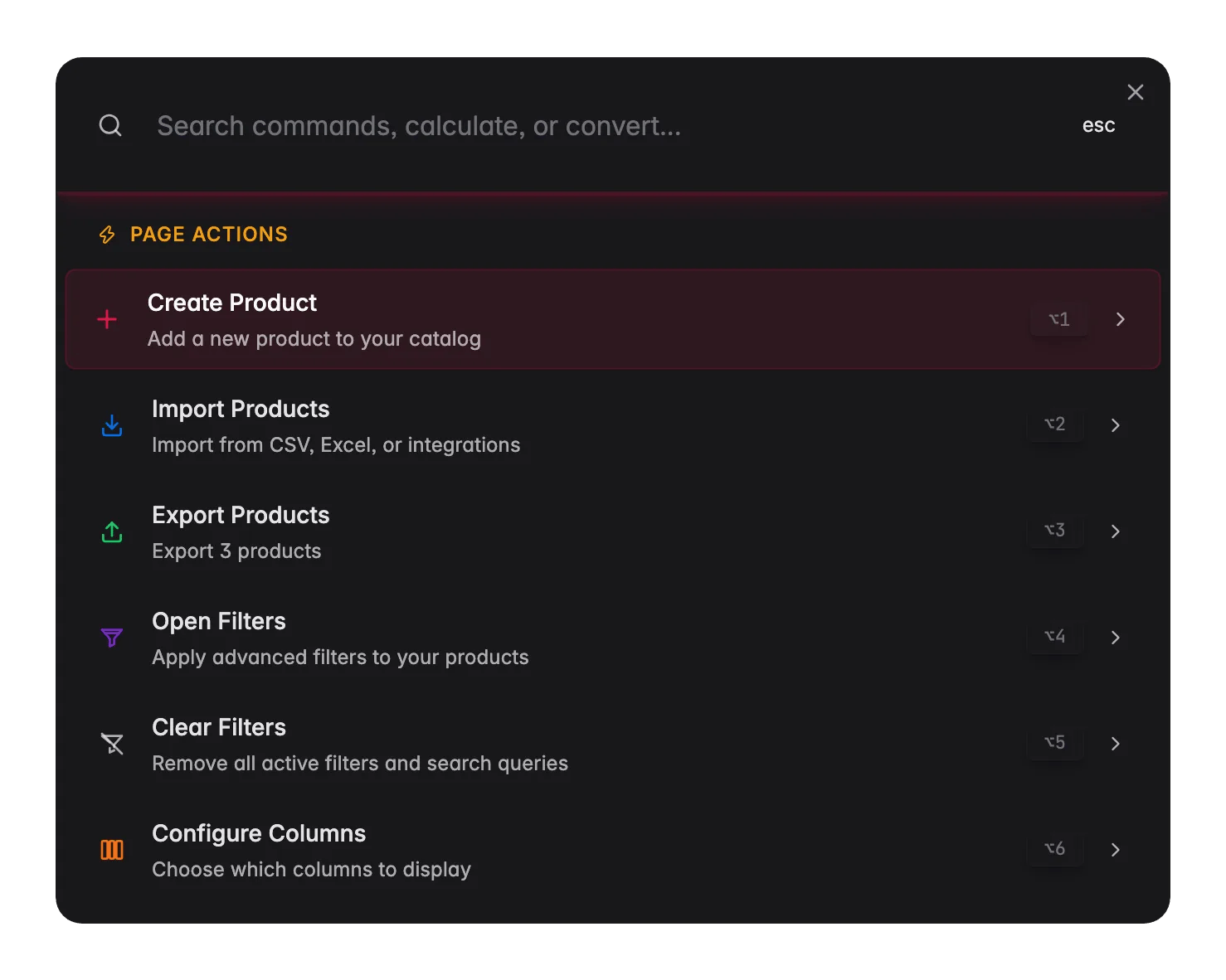
⌘K on Mac or Ctrl+K on Windows, or click the search icon in the top-right corner. Then type to jump to a page, find a product, run a calculation, or trigger a page action.
Get help on the page you’re on
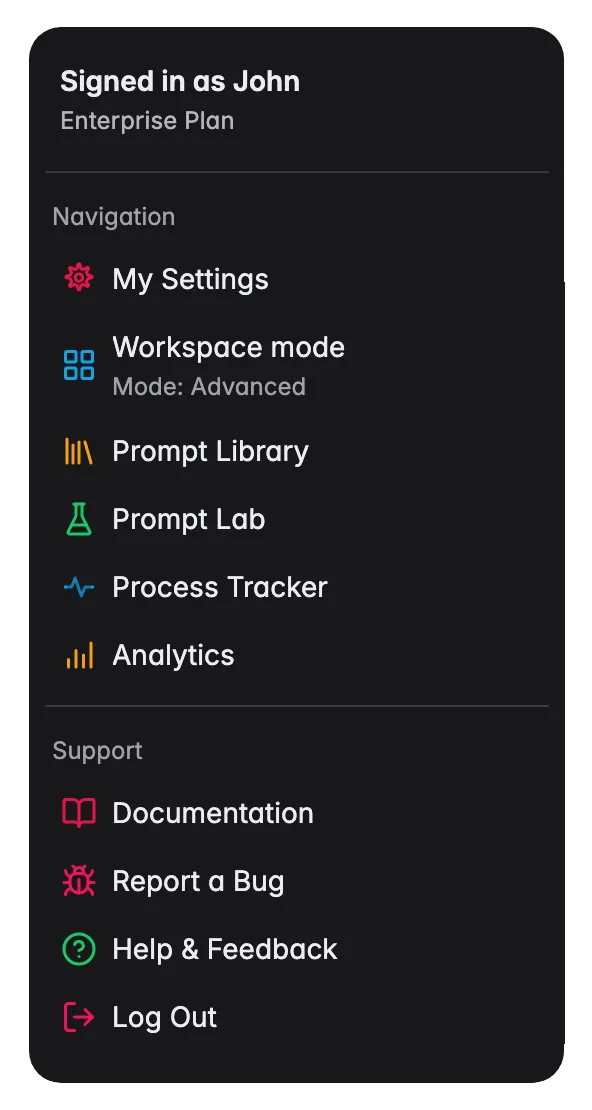
Stuck on a screen and want to know more? You don’t have to leave WISEPIM or search the docs. Click your avatar in the top-right corner and choose Documentation under Support.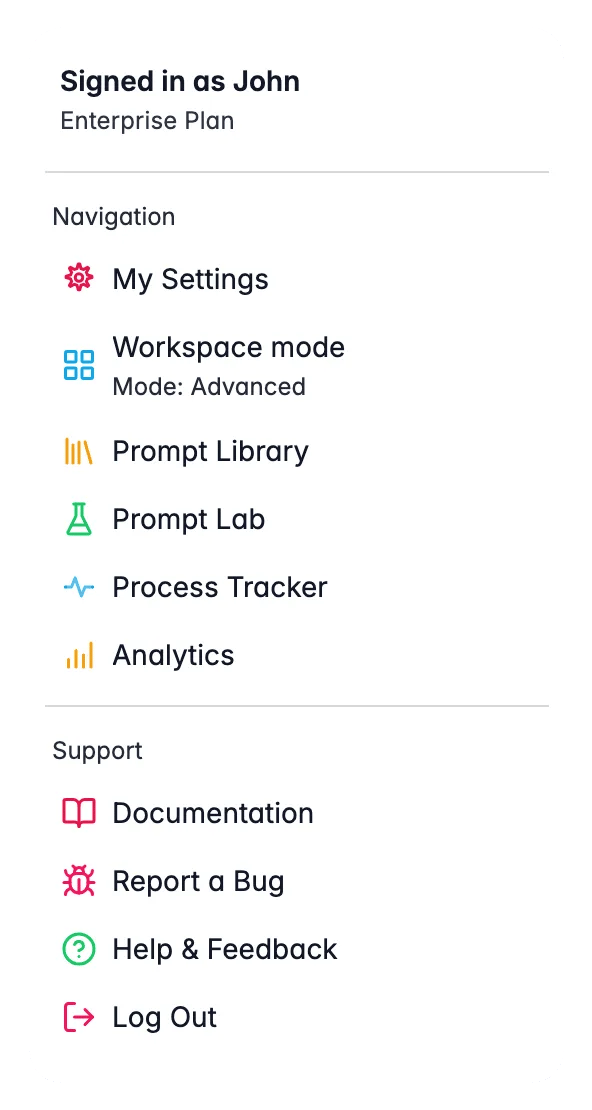
What to try first
Once your products are in, these are the fastest ways to see results:Enrich descriptions
Pick a few products and generate AI descriptions. Compare the before and after.
Translate your catalog
Pick a few products and translate them into a new language. Native-quality results in seconds.
Check data quality
See how your catalog scores on completeness, channel readiness, SEO, and conversion potential.
Test in the Prompt Lab
Try different prompt setups and see the results live before you apply them to your catalog.
Need help?
Integration guides
Step-by-step setup for every supported platform.
Contact support
Our team is here to help with any question or setup.
Related
Set up WISEPIM before you import
A five-part guide that takes these four steps all the way to live, enriched listings.
Managing Your Products
Filter, sort, and select products once your catalog is in WISEPIM.