

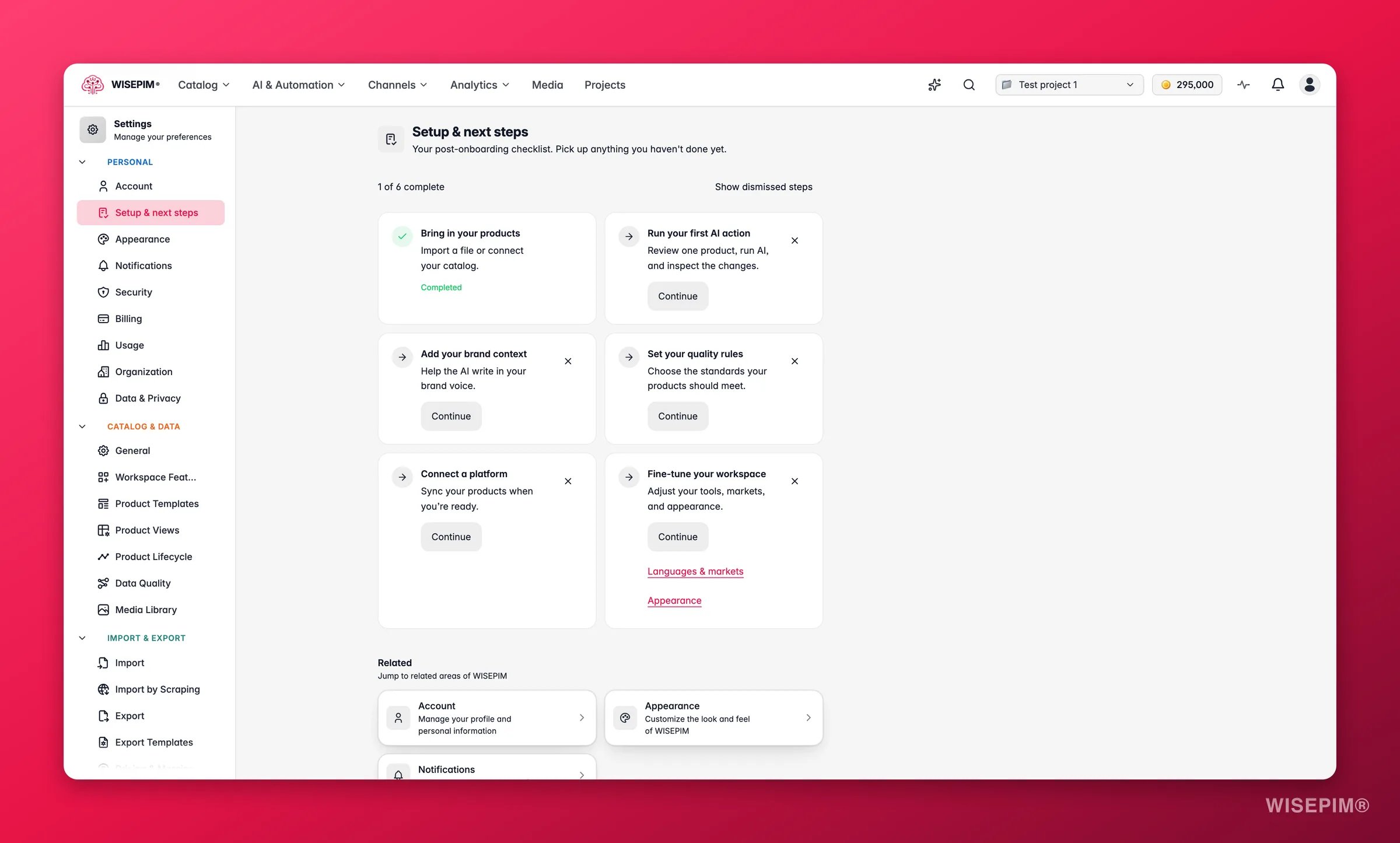
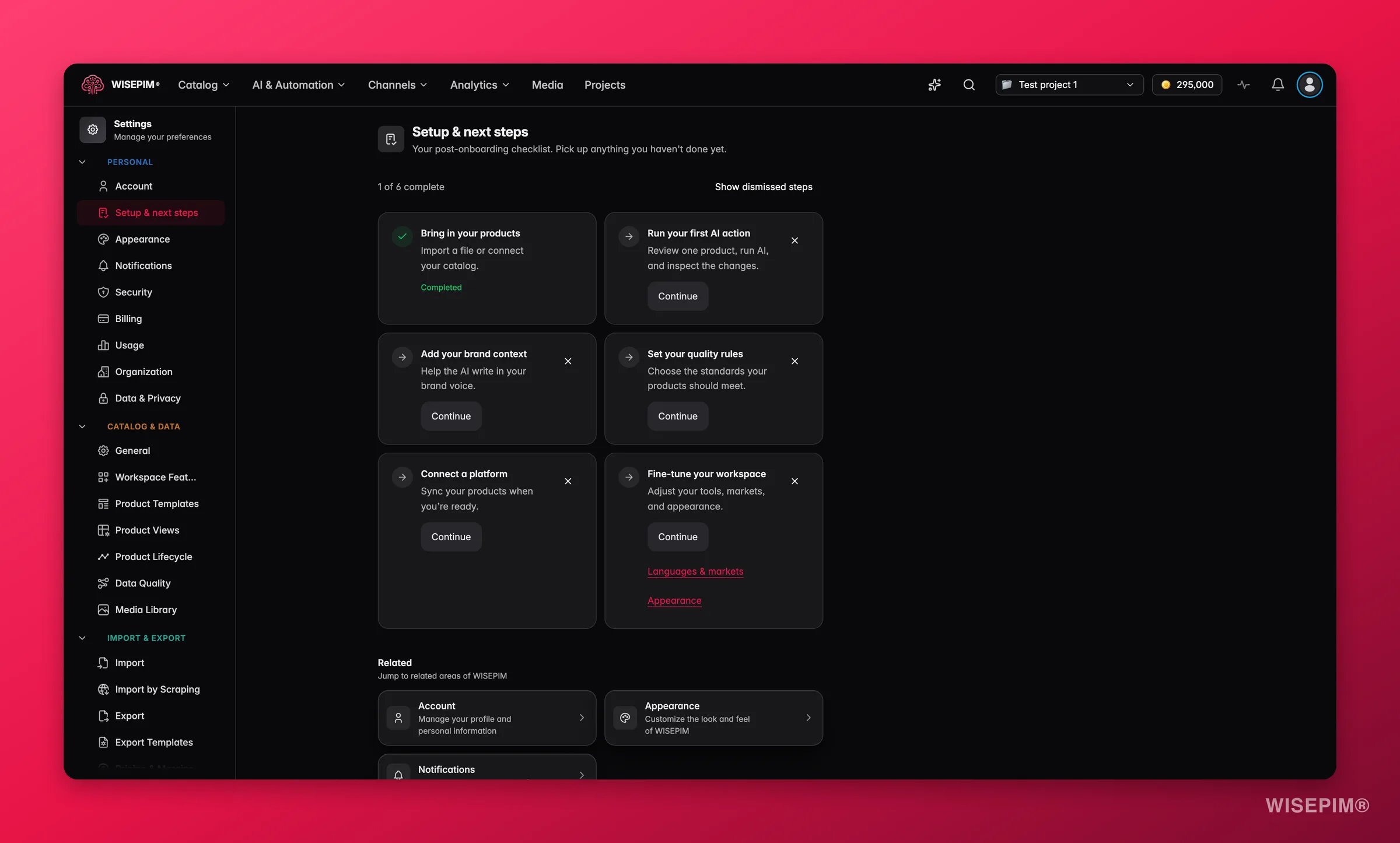
The six steps
The order is deliberate: each step is more useful once the one before it is done. You are free to jump around, but a quality bar with no products behind it does not tell you much.
Each row has a Continue button that drops you on the right page, and a counter at the top of the list shows how far along you are.
How a step gets ticked
WISEPIM verifies steps against your project rather than trusting a flag from the wizard. Two of them matter especially:- Teach the AI your brand is read from your Knowledge Library’s actual contents.
- Set your quality bar is read from the Quality Guard rules that exist.
A step can also show Not checked, in a yellow chip. That is not the same as “not done”: the check itself could not complete this time. The list says so plainly (“We couldn’t check every step just now. Nothing was changed.”) and offers Check again.
Skip what you do not need
Not every catalog needs every step. Click the × on a step to skip it and it drops out of the list, marked Skipped. Skipping is always reversible. Nothing is deleted, and Bring back skipped steps returns them. If everything open has been skipped, the list tells you that instead of pretending you are finished.The reminder on the products page
The same checklist has a one-line version that sits under your product table: your next open step, how far along you are, and a Continue button. All steps opens the full page. Click the × on it and it stops appearing there. The full checklist keeps track of that too, so you can always tell the reminder is hidden rather than gone. Once every step is done, dismissed, or hidden, the reminder disappears on its own.Start from your store
Some new accounts get a store-first setup instead of the classic wizard. It reads a few of your own products, shows a health report and fixes the first gap with AI. The steps show as “Step N of 5”:1
Store
“Let’s start with your store”: enter your Store URL and click Read my products. For Shopify and WooCommerce stores, WISEPIM reads up to 25 public products. “We only read public product data. Nothing on your store changes.” For other platforms you get a button to connect that platform instead. Under Other ways to add your products you can pick Connect your store, Upload a CSV, Use the browser extension or No store yet, which opens Pick your industry and Load sample products.
2
Scan
WISEPIM counts the products it reads (“N of 25 products read”). You can move on early with Continue with N products.
3
Report
Your catalog health report shows your Quality score out of 100, Channel readiness per channel (Not ready, Almost ready or Ready), Gaps we can fix with AI and Needs your own data for fields AI can’t fill in. Pick the gap you want fixed first.
4
Fix
WISEPIM shows the products it will fix and what they have now, such as Empty or Thin descriptions. Nothing runs until you click Run on N products. Or click Skip to my workspace and run the fix later.
5
Result
Your catalog after the fix shows the score change and the before and after. Send the changes to your store, for example with Push N products to Shopify, or use Download CSV or Connect your store.
The fix uses credits: 1 credit per product, and translations 1 credit per product for each language. The report tells you the cost before you run it. The store preview works twice per account. After that, connect your store or upload a CSV.
Industry suggestion
On the About you step you can pick your industry. When WISEPIM has read your store, it can preselect a segment: “Suggested from your store. Open the list to pick another segment or the whole industry.” See General Settings for how the industry tree works.Organize your products (optional)
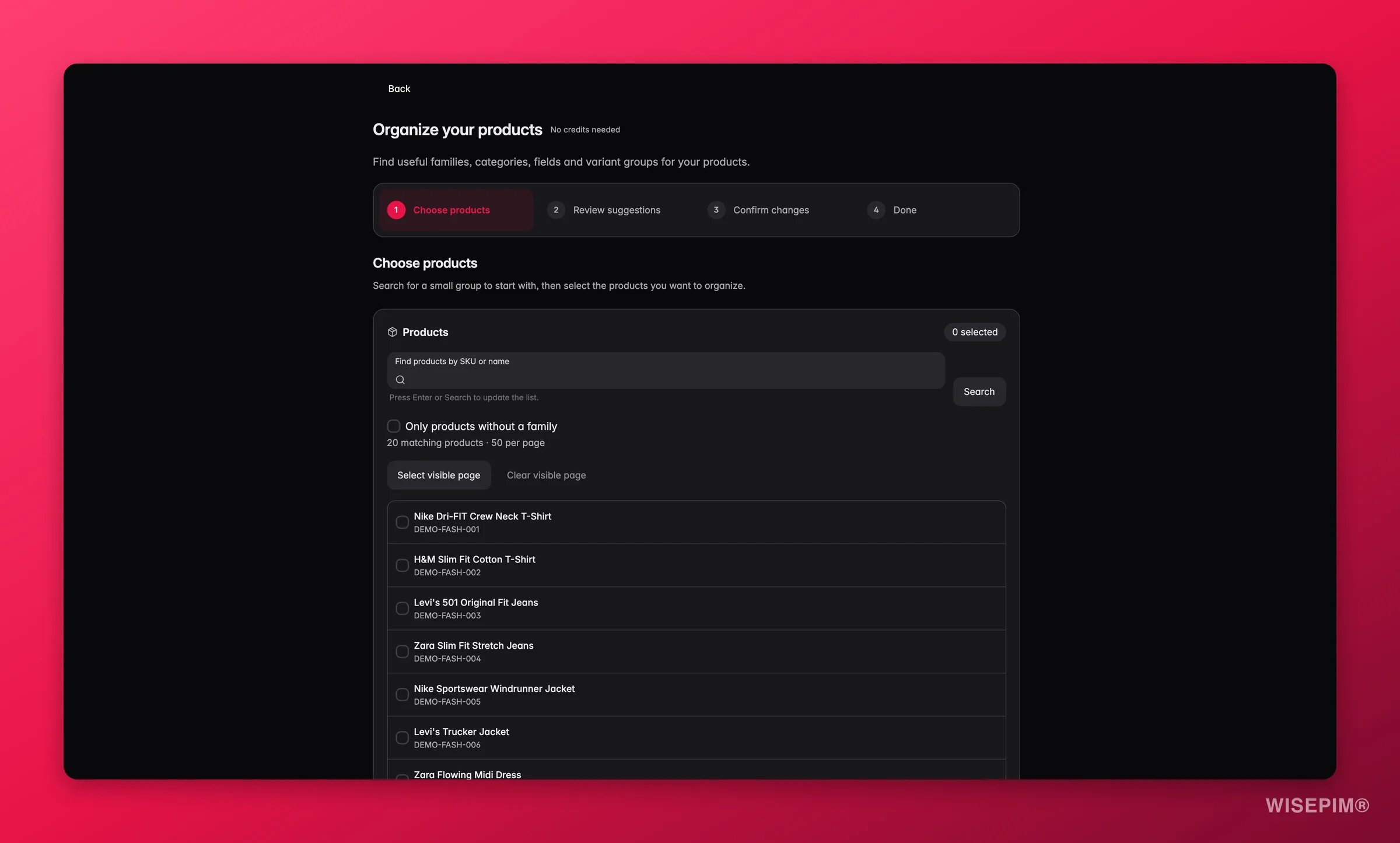
The result step can also show an Organize your products card. Click Choose products, pick a few products, review the suggested families, categories, fields and variant groups, and apply only the changes you want. This guided setup needs no credits. See Catalog Structure for the full walkthrough.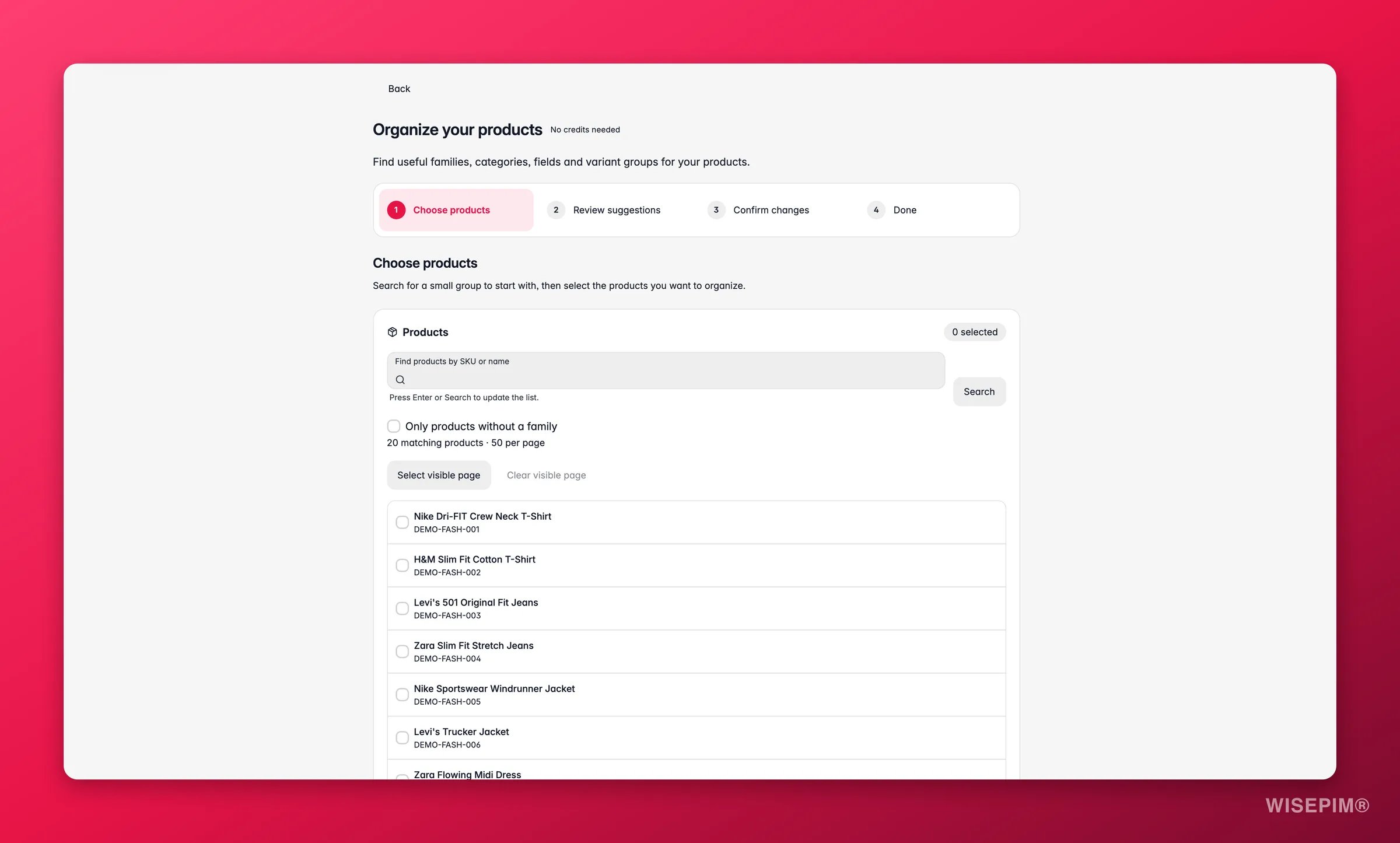
Replay the wizard, or start over
Two controls sit at the bottom of the page:- Reset checklist clears your skips and progress marks so you can go through the list again.
- Replay onboarding runs the signup wizard from the start. Useful after a big change of direction, when the goal you picked on day one no longer matches what you are doing.
Related
Quick Start Guide
The four steps from empty account to enriched catalog.
Workspace Features
Choose which tools this workspace shows.
Catalog Structure
Set up families, categories, fields and variant groups with a guided setup.
Quick Win
Step two of the checklist, in full.
Knowledge Library
Teach WISEPIM your brand so every generated text sounds like you.
Quality Guard Overview
Define what a complete product looks like, and catch what falls short.