
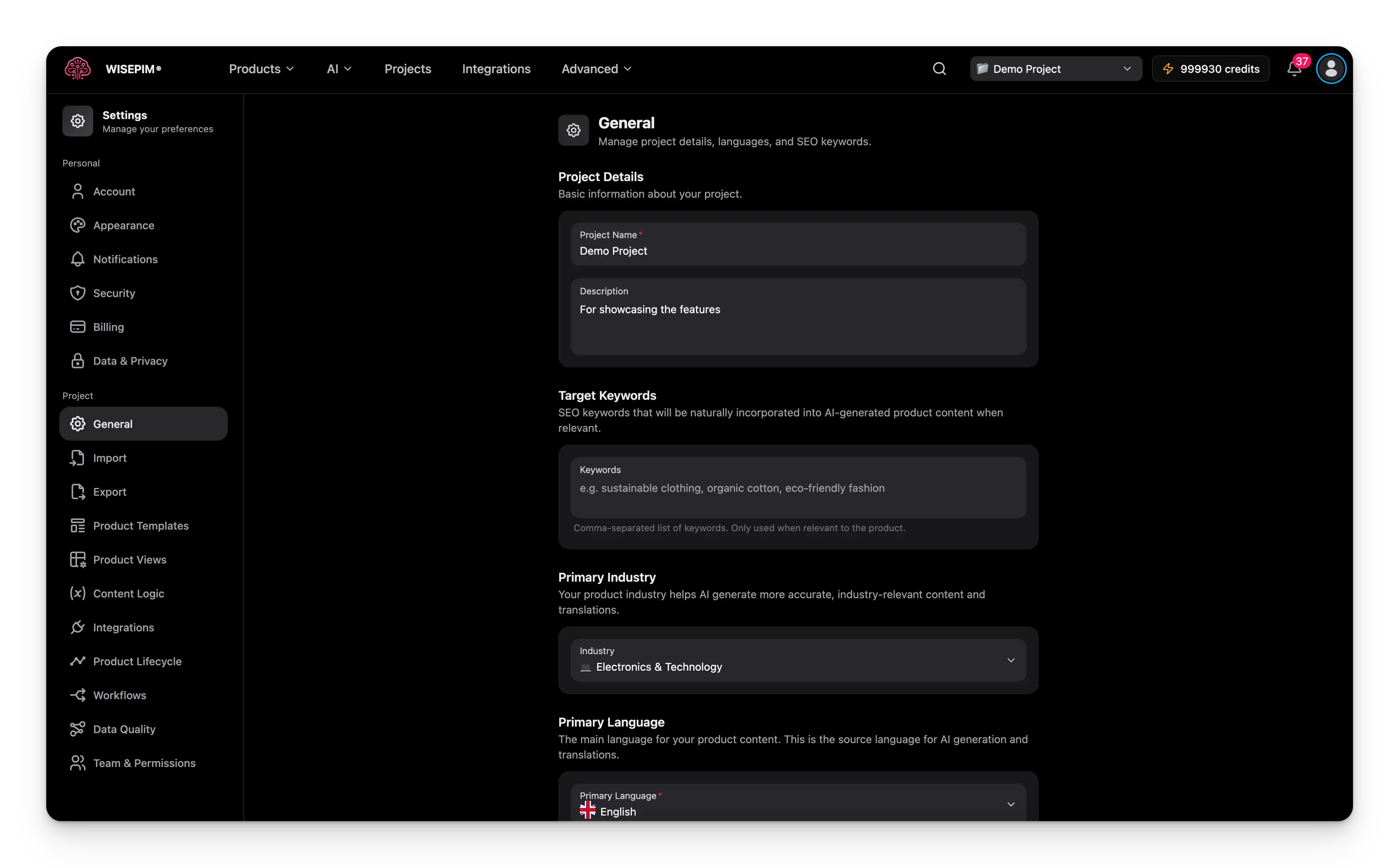
Pick a project in the project switcher before you open General settings. Settings apply to the selected project only.
Name your project
Give your project a clear identity so your team knows what it holds.1
Project name
Enter a descriptive name. It shows in the project switcher and across the interface.
2
Description
Add a short summary of the project and the products it contains. This helps your team understand its scope at a glance.
Add target keywords
Target keywords are the SEO terms you want to rank for. AI weaves them into your product content when they fit, so descriptions read naturally and still help you rank. Enter a comma-separated list, for example:Set your industry
Your industry tells AI what kind of products you sell. With this context, it writes more accurate, on-topic content and translations. It also decides which quality benchmarks, recommended fields and FAQ types WISEPIM suggests. Under Primary Industry, open Select your primary industry. The list is a tree with three levels:
Pick the most specific level that fits your whole catalog. A segment or assortment gives AI more precise context than the industry alone. Expand an industry to see its segments, and a segment to see its assortments.
Recent additions to the list include Foodservice & Hospitality (HoReCa), Building Materials, Baby & Kids, Agriculture & Farm Supplies and General Merchandise (multi-category).
Mixed catalogs and category industries
Each category can set its own Industry. A product uses the industry of its primary category. If that category has none, it uses the nearest parent category that has one. If no category sets one, the product uses the project’s Primary Industry. See Managing Product Categories to set it per category. Selling across many unrelated industries? Pick General Merchandise (multi-category) as the project industry and set an industry on your main categories. Products then get the right context from their category.Where else you pick an industry
The same picker shows up when you:- Create a project or edit one with quick edit on the Projects page.
- Fill in About you during onboarding. WISEPIM can suggest a segment from your store there.
- Set the Industry of a category, or let AI suggest one with Suggest industries.
- Override the industry for a quality review.
Changing your industry does not rewrite existing content. It only shapes content AI generates from now on.
Choose your languages
Your languages decide which versions of your product content WISEPIM can create.Primary language
The primary language is your source language. All AI generation and translation start from it.1
Select the primary language
Search the autocomplete dropdown and pick your main language. Each one shows its country flag, so it is easy to spot.
2
Check the result
If your new primary language was in the additional list, WISEPIM removes it from there automatically.
Additional languages
Add as many extra languages as you need. WISEPIM translates your content from the primary language into each one.- Add a language: search and select it in the autocomplete field.
- Remove a language: click the close icon on the language chip.
Save your changes
Edit any field and a save bar appears at the bottom of the page. You have two choices:- Save: applies your changes right away.
- Undo: reverts every field to the last saved state.
Related
Managing Product Categories
Give a category its own industry for mixed catalogs.
Import Settings
Control conflict resolution, empty fields, and validation for every import.
Translation
Fine-tune how AI translates content into your additional languages.
Interface Language
Set the language of the WISEPIM interface for your account.
Managing Projects
Create, switch, and organize the projects in your workspace.