

Changing the attribute scope or a category’s default family needs the owner or admin role. Assigning families to products needs edit access.
Choose where attributes come from
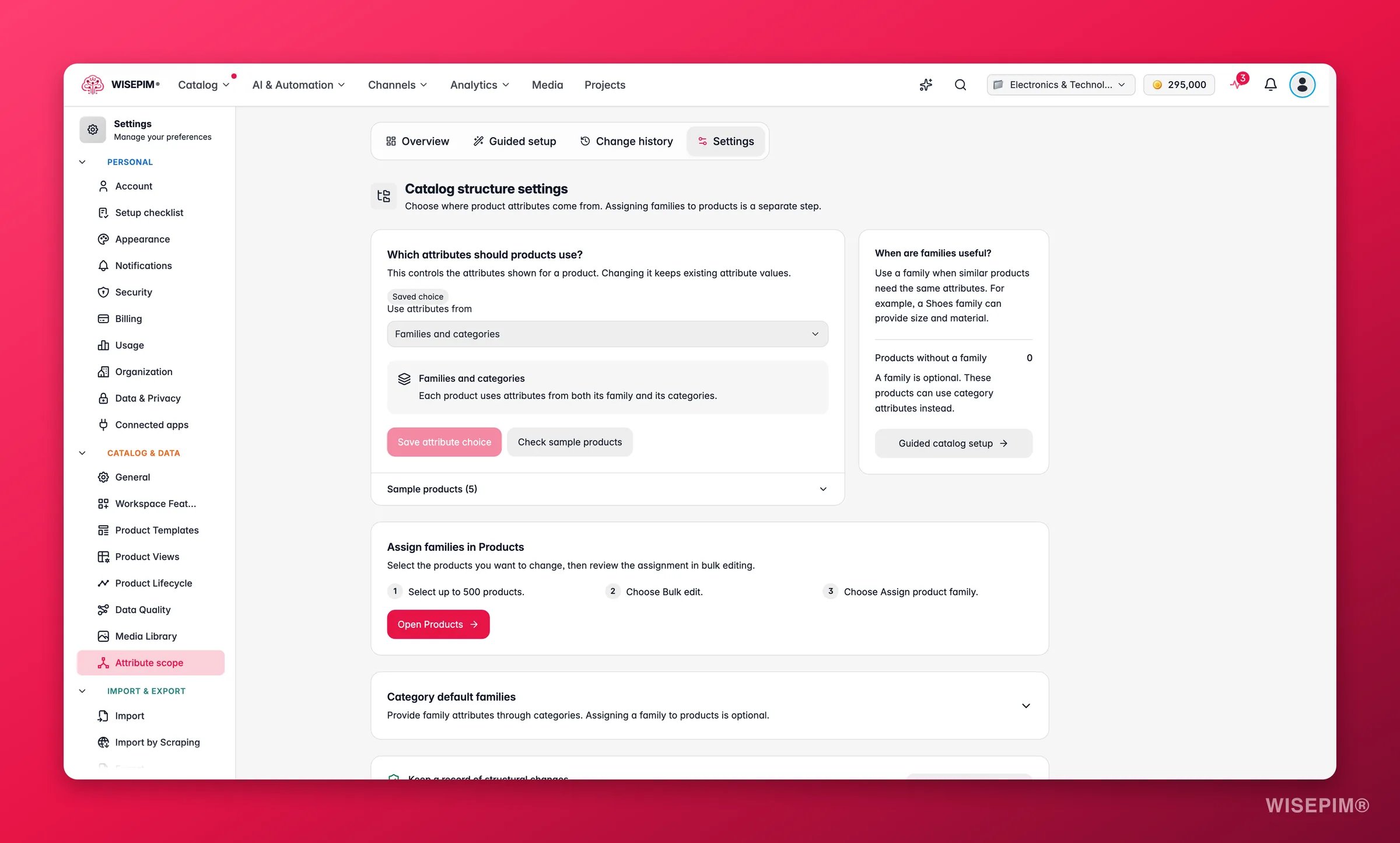
Under Which attributes should products use?, pick a value for Use attributes from:
A chip shows where the current value comes from: Saved choice (someone saved it), Recommended default (WISEPIM picked it for your catalog) or Default.
Changing the scope only changes which attributes are shown. Existing attribute values stay stored, even when they fall outside the new scope.
1
Pick an option
Choose Families, Categories or Families and categories.
2
Check sample products
Click Check sample products. Each sample shows how many attributes apply under your choice, for example “Blue T-shirt: 12 applicable attributes”.
3
Save
Click Save attribute choice. To go back to WISEPIM’s pick, click Use the recommendation.
What WISEPIM recommends
The recommendation is based on your catalog and your connected platform:When are families useful?
The aside on the right explains: “Use a family when similar products need the same attributes.” It also shows how many products have no family. That is fine: “A family is optional. These products can use category attributes instead.” Click Guided catalog setup to get family suggestions for your products.Assign families in Products
Assigning a family is a separate step from choosing the scope. The page walks you through it:1
Select products
Click Open Products and select up to 500 products.
2
Open Bulk edit
Click Bulk edit.
3
Assign the family
Choose Assign product family, pick the family, check the preview and apply. Existing attribute values stay stored, even when they are outside the new family.
Category default families
Open Category default families to give a category a family of its own. Products without a family then get that family’s attributes through the category. A family assigned to the product always wins.1
Save the category's default
Pick a Category and a Default product family. Or choose Use the parent category’s default to inherit it. Click Save category default.
2
Assign it to existing products (optional)
Click Preview existing products to see up to 500 products in this category and its children that have no family. Click Assign family to these products to give them the default family.
Saving a default changes the category rule. It doesn’t assign a family to products, also not during import. Only the products in the preview get the family, and only when you apply it.
Keep a record of structural changes
Changes to category defaults, families and attributes are recorded. Click View change history to see them and undo what you need. See Catalog Structure.Act on what you find
Products show attributes that don't belong to them
Products show attributes that don't belong to them
You probably use Families and categories while your categories carry broad attributes. Switch to Families and click Check sample products to compare the attribute counts before you save.
Most of your products have no family
Most of your products have no family
If your shop is organized by category, switch to Categories and give your main categories a default family. If you prefer families, run Guided catalog setup with Only products without a family ticked.
New imports don't get a family
New imports don't get a family
That is expected: a category default doesn’t assign a family to products. With Categories or Families and categories, the products still get the default family’s attributes through their category. To assign the family itself, use Preview existing products or Bulk edit > Assign product family.
You can't save the setting
You can't save the setting
Changing the scope needs the owner or admin role. Ask a project owner or admin, see Team Management.
Related
Catalog Structure
Structure gaps, guided setup and change history.
Product Families
Create families and the attributes they share.
Managing Product Categories
Build the category tree your defaults hang on.
Managing Product Attributes
Create the attributes families and categories use.