

Categories are shared across your project. A product can sit in many categories, but always mark one as the primary category. Platform integrations and reports use the primary category.
How categories work
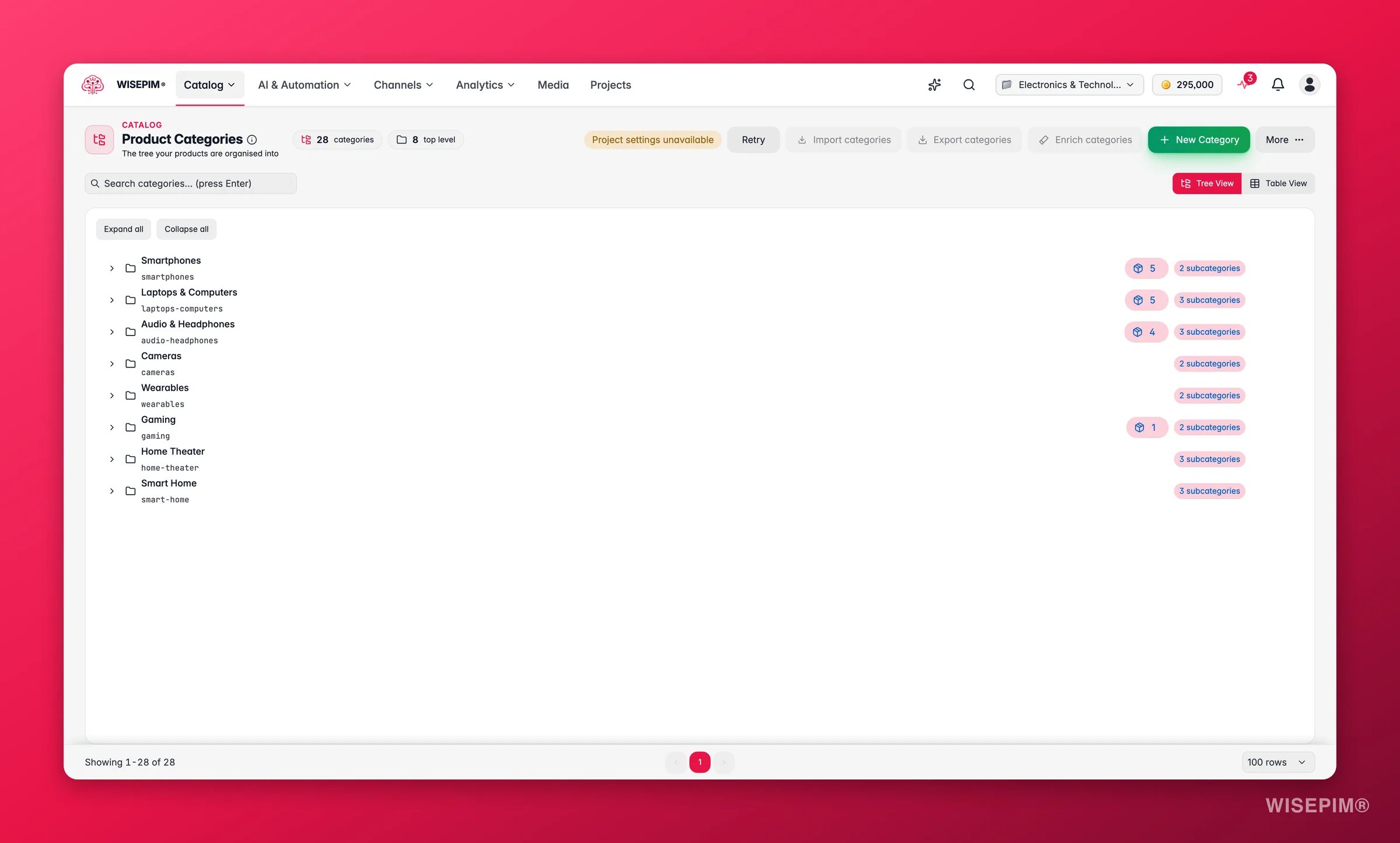
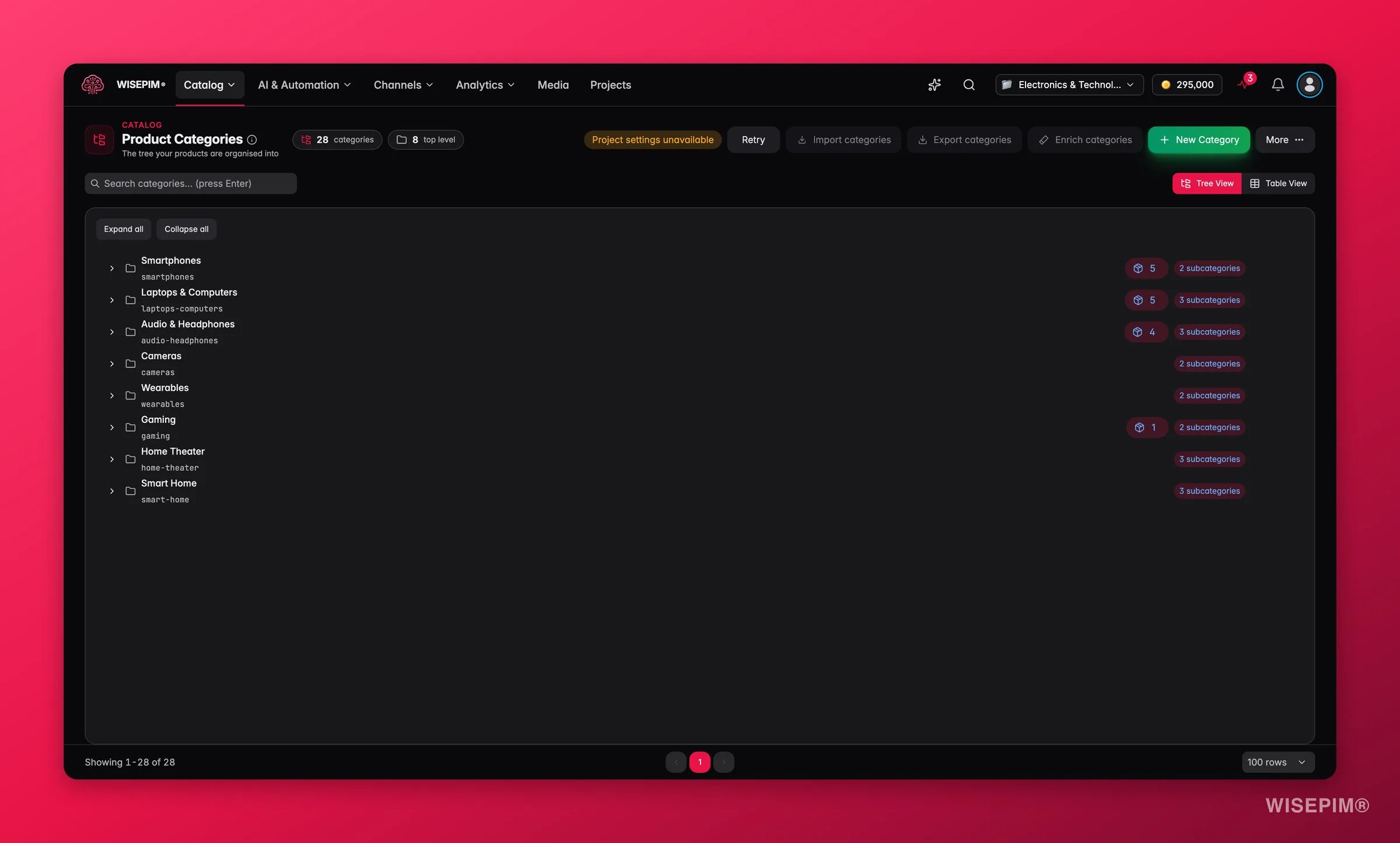
- Parent categories are broad top-level groups (Electronics, Clothing, Home & Garden).
- Child categories sit under a parent and get more specific (Electronics > Laptops).
- Category paths are the full route from top to bottom (Electronics > Smartphones > Android Phones). Paths drive breadcrumbs, URLs, and platform mappings.
The full hierarchy path (like
electronics/smartphones) is shown as a read-only column. It is built automatically from the parents you choose, so you never type it by hand.
Create a category
1
Open Product Categories
Go to Product Categories in the sidebar. You see your categories as a tree.
2
Click New Category
Click New Category to open the form.
3
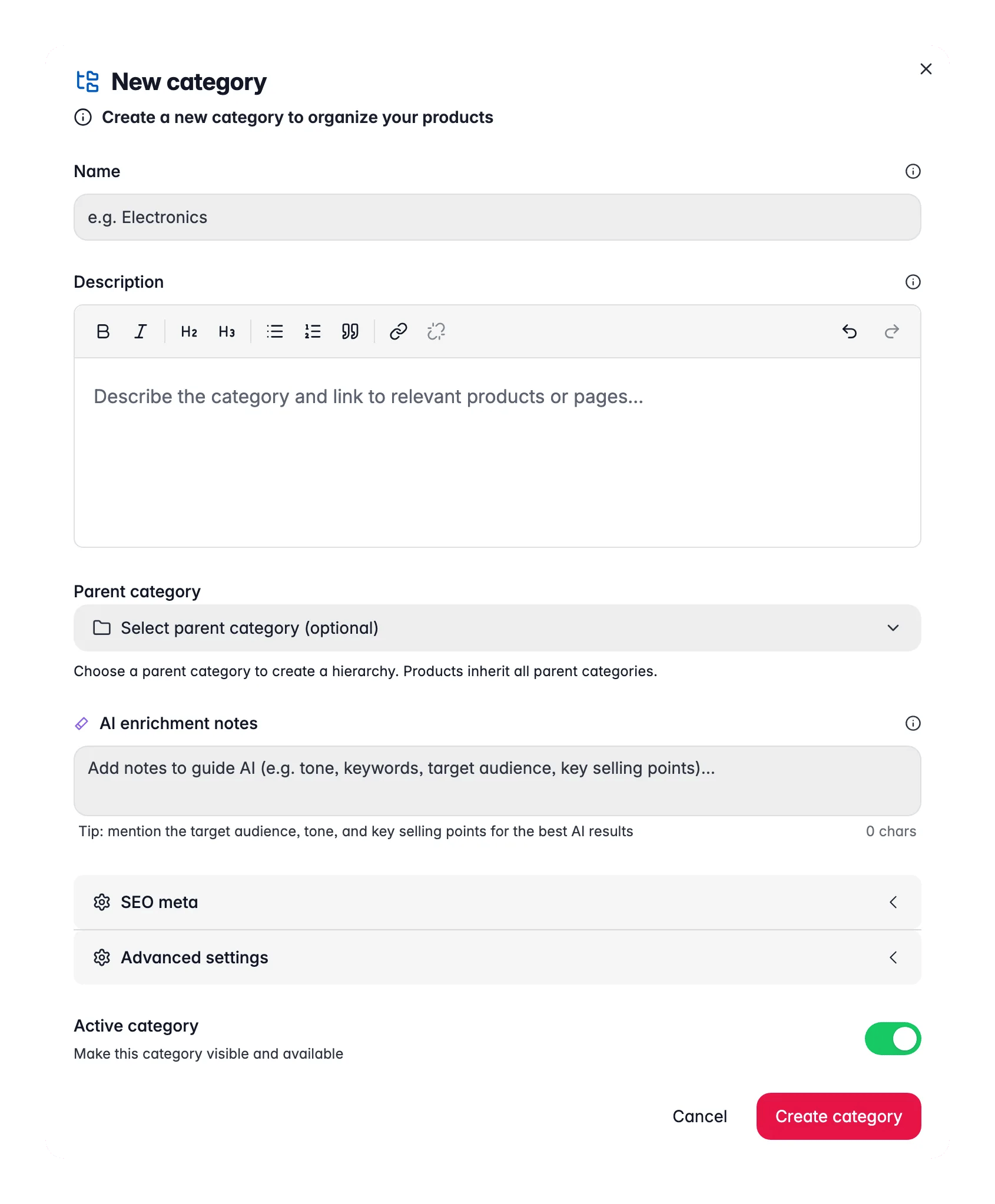
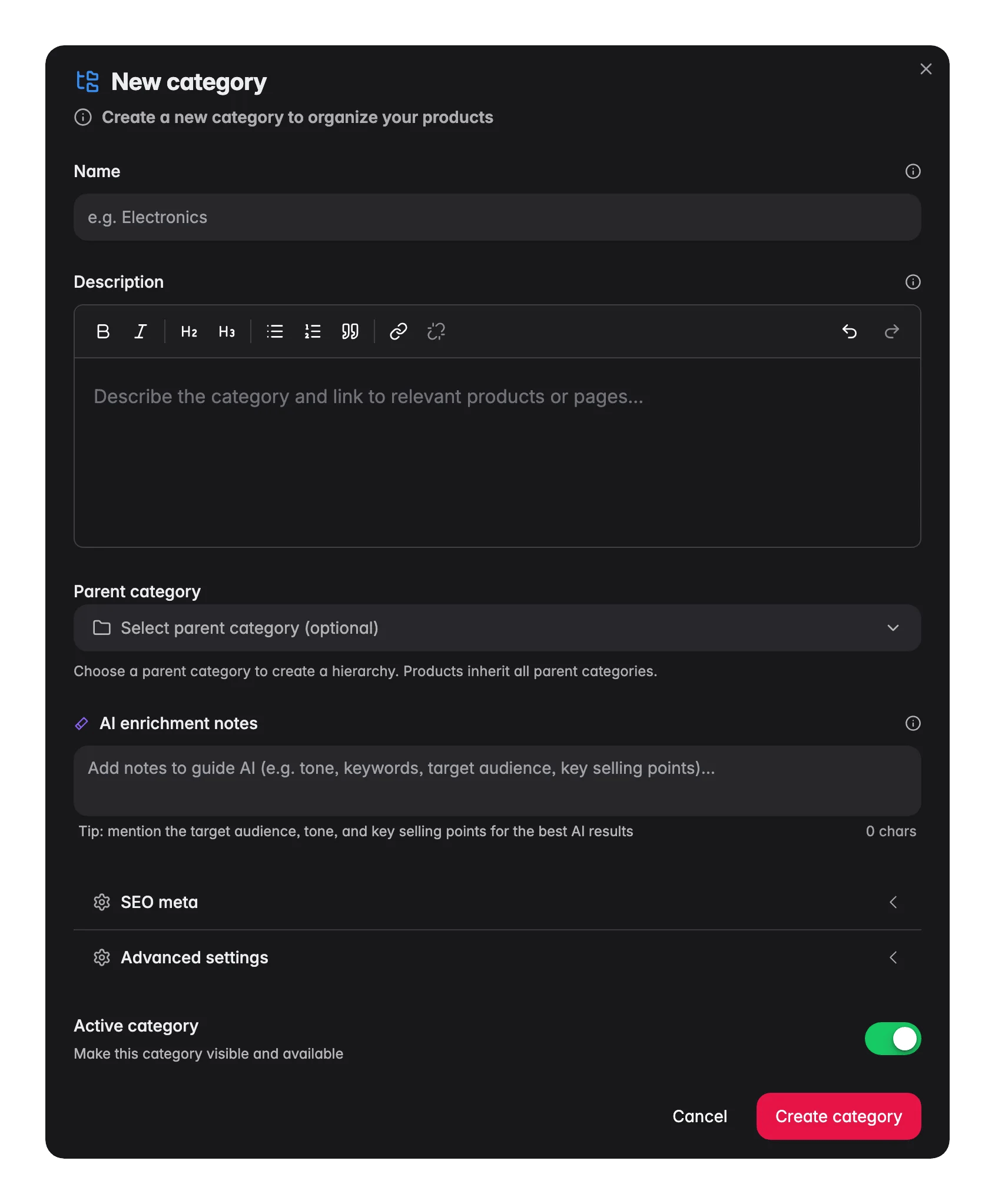
Fill in the details
Enter a Name. Add a Description to give the category page real content. The Slug fills in automatically, and you can edit it under advanced settings along with the Sort order.
4
Choose a parent (optional)
Pick an existing category as the parent to make this a subcategory. Leave it empty for a top-level category.
5
Save
Click Save. You can now assign products to the category.
Assign products to categories
There are two ways to put products into a category:- From a product page: open a product, pick categories in the category field, and mark one as primary.
- In bulk: select several products on the Products page, then use bulk edit to assign or change categories at once.
Fill categories with AI
Categories are a quiet SEO win. A good description and meta tags on every category help shoppers and search engines, but writing them by hand for a deep tree is slow. WISEPIM does it for you.Bulk enrichment
Use the Enrich action to generate content across many categories at once. You choose:- Which fields to write: description, meta title, meta description, and keywords.
- Which languages to write them in, so multilingual catalogs get covered in one run.
- Internal links to weave in, pointing to related categories. This builds the kind of internal linking search engines reward.
Per-category AI assist
When you edit a single category, an AI assist panel sits right in the form. Generate a description or SEO meta for that one category, review the suggestion, and accept it into the field. Add AI notes to steer the result toward your tone or must-mention details.Import and export categories
You do not have to build your tree by hand.- Import from CSV: bring an existing category tree in from a spreadsheet, or import categories from a connected platform.
- Export to CSV: download your categories for backups, audits, or editing in a spreadsheet before re-importing.
Navigate the tree
Categories show as an interactive tree by default. Expand and collapse branches to focus on one part of your catalog, and search to jump to a category fast. Matches are highlighted as you type, so a deep tree stays easy to navigate. Prefer a flat list? Switch to the table view.Reorganize your tree
Edit any category to change its name, slug, sort order, or parent. When you move a category under a new parent, its children move with it, and the hierarchy path updates automatically. Two common cleanups keep your tree useful:- Split a category when it holds too many products and browsing gets hard. For example, split “Clothing” into “Men’s Clothing” and “Women’s Clothing”.
- Merge categories when each holds only a few products and the split does not help customers. Combine “USB Cables” and “HDMI Cables” into “Cables & Adapters” when volumes are low.
Map categories to your sales channels
Every platform has its own category system. Map your WISEPIM categories to each platform’s categories in your integration settings so products land in the right place on every channel.You set mappings per integration. Go to Settings > Integrations, select your platform, and set up the category mappings there.
Troubleshooting
Products are not showing in a category
Products are not showing in a category
- Confirm the product is assigned to the category on its product page.
- Check the category’s visibility settings.
- If you use filters, make sure the category is not excluded.
A category is not showing on a platform
A category is not showing on a platform
- Confirm the category has a mapping in your integration settings.
- Run the integration sync after you set the mapping.
- Review the platform’s category rules. Some require specific fields or formats.
The tree looks wrong
The tree looks wrong
- Check the Sort order values. Categories at the same level sort by this number, lowest first.
- Confirm parent assignments are correct. A misplaced parent builds the wrong tree.
Related
Product Families
Define which attributes each product type needs using families.
Managing Attributes
Create the custom fields that store your product data.
Category Insights
Analyze revenue and performance at the category level.