Think of a family as a blueprint. A Clothing family might require size, color, and material. An Electronics family might require voltage, wattage, and connectivity.
How families work
The order attributes appear in is assigned automatically as you select them, so you do not set it by hand here.
Families also support a per-attribute default value and validation overrides in the data model, but these are not yet editable in the family editor. Set validation on the attribute itself through its attribute settings.
Parent and child families
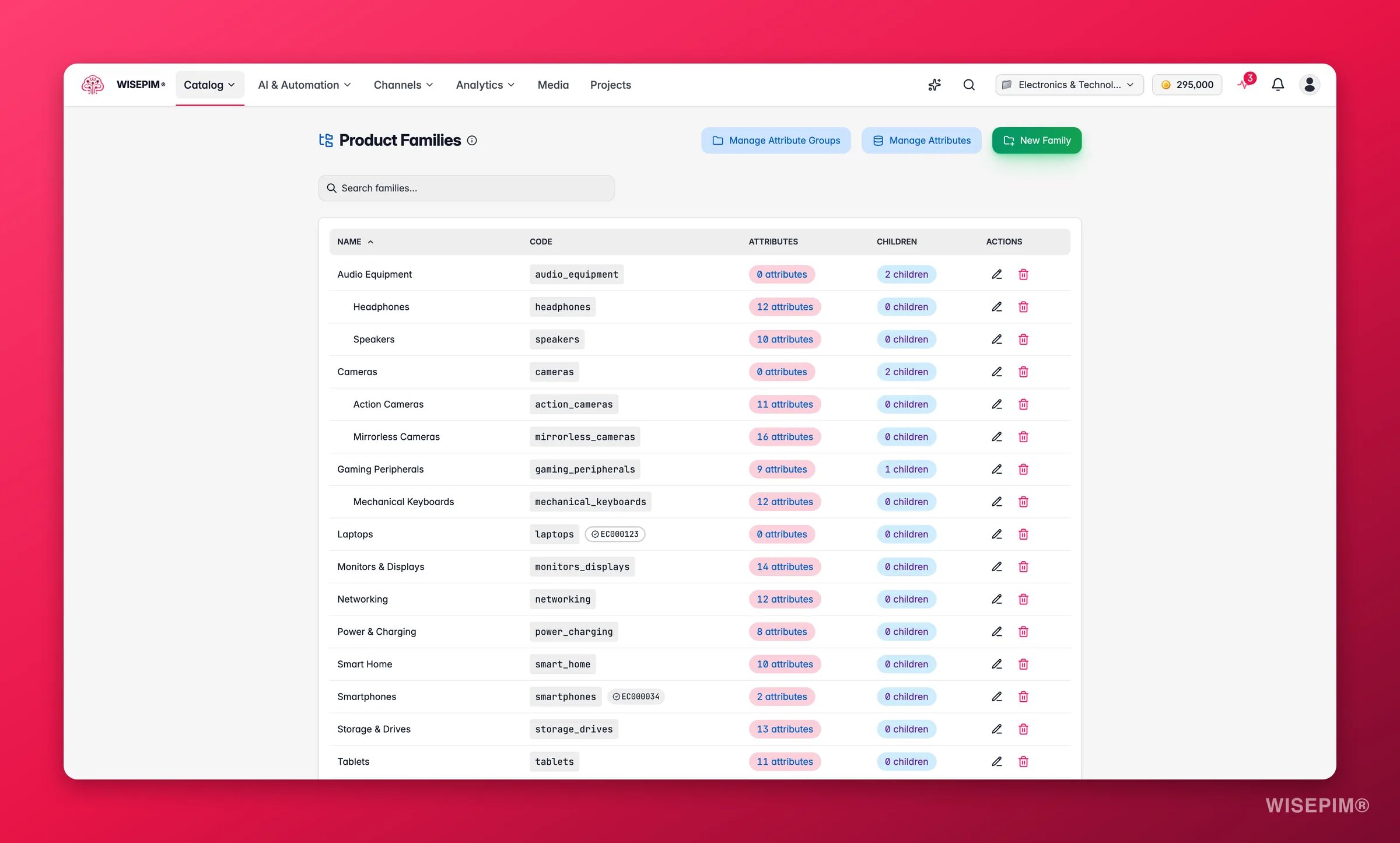
Families can be nested. A child family inherits every attribute from its parent and can add its own on top. Use this when product types share a common base but differ in the details. For example:- Apparel (parent): brand, material, care instructions
- Tops (child): adds sleeve length, neckline
- Bottoms (child): adds inseam, waist type
- Outerwear (child): adds insulation type, waterproof rating
Create a family
1
Open Product Families
Go to Product Families in the sidebar. You’ll see a table of every existing family.
2
Click New Family
Click New Family in the top-right corner to open the form.
3
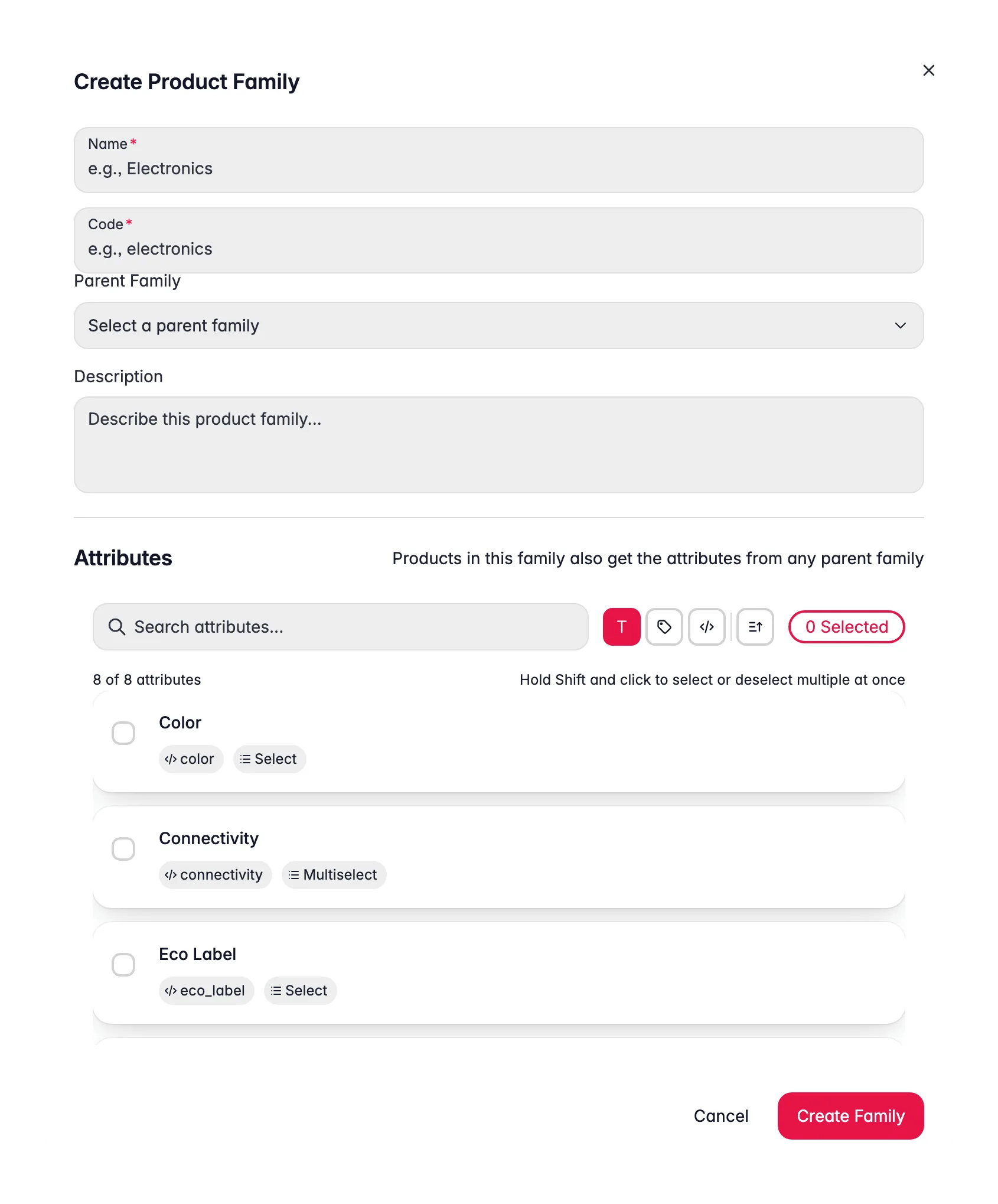
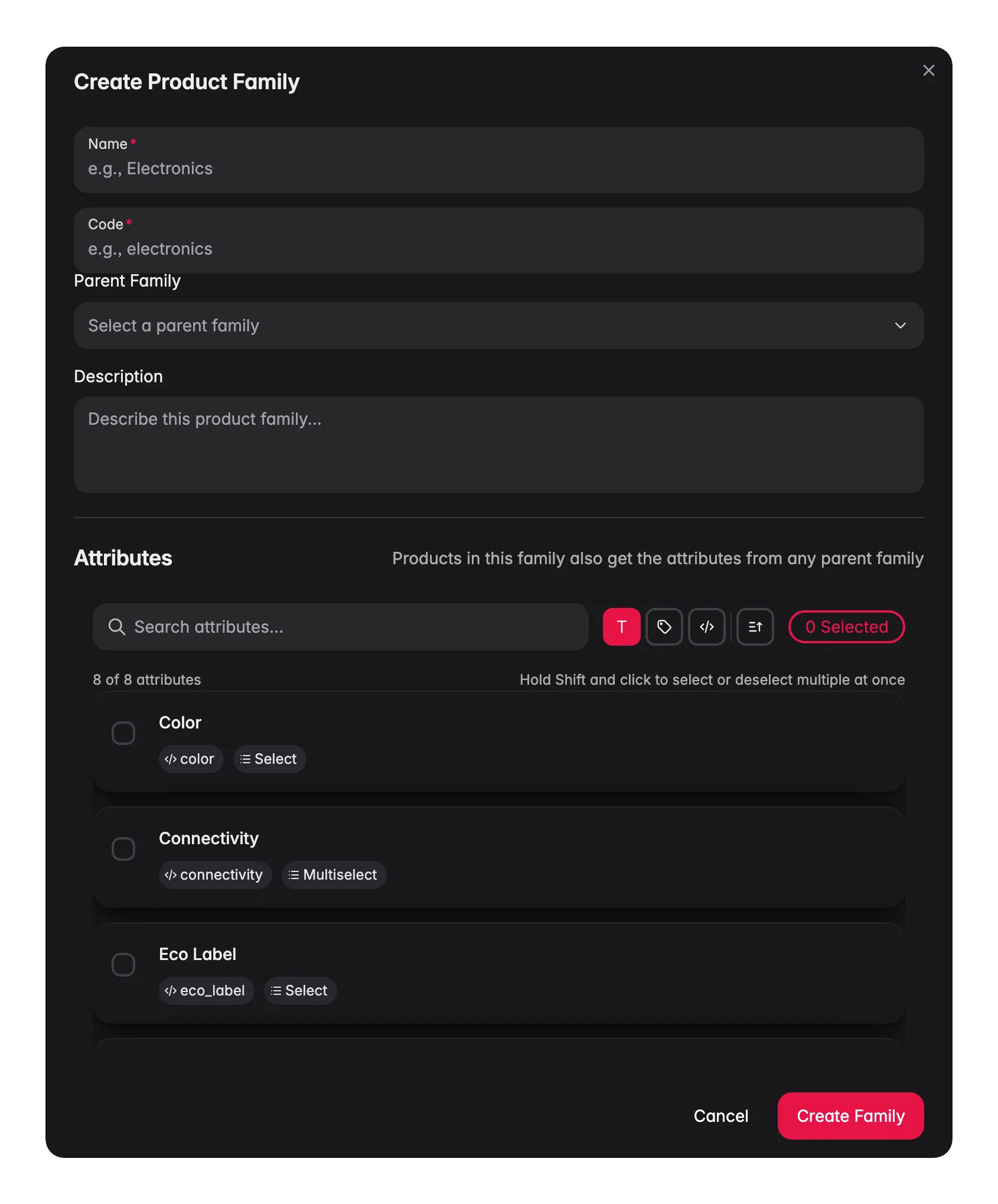
Enter the details
Add a name (such as “Electronics”) and a unique code (such as
electronics). Add a description if it helps your team understand the family’s purpose.4
Set a parent (optional)
To inherit attributes from another family, pick a parent. Leave this empty for a top-level family.
5
Assign attributes
Choose the attributes products in this family should have. For each one, set whether it’s required and whether it’s a variant axis. Their order follows the order you select them in.
6
Save
Click Save. The family appears in the table right away.
Assign products to a family
After you create a family, assign products to it so they inherit its attributes. You can pick the family in three places:
The family picker is searchable, lists sub-families too, and shows how many attributes each family brings, so you can tell similar families apart. When you change the family, the Attributes tab updates to the new family’s attributes plus the general ones that apply to every product. Values you already filled in stay stored, also for attributes outside the new family.
When you create a product, the create modal has the same picker. See Creating Products.
Assign in bulk
To set or clear the family for many products at once, select them on the Products page and run the Assign product family bulk action, in the Families, categories & variants group. It previews which attributes each product gains before you apply it, and existing attribute values stay stored. See Assign Product Family.Add attributes to families in bulk
Working from the other side? On the attributes page, select attributes and click Add to families, or use Add to families… in a row’s menu, to link them to several families in one step. You can mark them as required in those families at the same time. See Managing Product Attributes.Variant axes
Attributes marked as Variant axis on a family tell its variants apart, such as size or color. When you save the variant options on a configurable parent, WISEPIM stores them on the family when every variant shares that family, and on the parent otherwise. See Product Variants.Manage families
The Product Families page lists every family in a sortable table. Use the search bar to filter by name or code.Edit a family
Edit a family
- Click the edit icon (pencil) in the Actions column.
- Update the name, description, parent, or attribute assignments.
- Save your changes.
Delete a family
Delete a family
- Click the delete icon (trash) next to the family.
- Confirm in the dialog that appears.
Work with attributes
Families are built from attributes and attribute groups. Manage both from the Product Families page.Manage attributes
Create, edit, and organize the individual attributes that make up your data model.
Manage attribute groups
Group related attributes for cleaner organization. For example, put “width”, “height”, and “depth” in a “Dimensions” group.
Best practices
Plan your hierarchy first
Map out your product types and how they relate before you build families. A clear plan saves time and avoids duplication.
Keep families focused
Each family should represent one distinct product type. Avoid broad families with dozens of optional attributes.
Mark only essentials as required
Too many required fields slow down product creation. Require only the fields you truly need.
Lean on inheritance
Share common attributes through parent and child families. This keeps your data model lean and easy to maintain.
Families from ETIM classes
You don’t have to build every family by hand. If your project uses the ETIM standard, adopting an ETIM class creates a ready-made family (ETIM_{CODE}) with one attribute per feature the class defines, plus value lists and units - exactly as the standard prescribes.
ETIM-linked families show an ETIM chip in the families list that links to the class definition. These families are managed by ETIM: re-syncing the class refreshes the family against the imported release, and existing attribute data is kept. Products in an ETIM-linked family also get an ETIM conformance score in the product editor, so you can see how close each product is to satisfying the standard.
Troubleshooting
A family doesn't appear in the product form
A family doesn't appear in the product form
- Check that the family saved successfully.
- Confirm the family belongs to the correct project.
- Refresh the Products page to load the latest family data.
Attributes are missing from a child family
Attributes are missing from a child family
- Child families inherit from their parent. Check that the parent has the expected attributes assigned.
- New attributes added to a parent flow down automatically. Refresh the page if they don’t show up.
You can't delete a family
You can't delete a family
- Confirm you have permission to delete families.
- If the family has children, reassign or delete the children first.
Related
Managing Product Attributes
Build the attributes your families are made of.
Assign Product Family
Set or clear the family for many products in one action.
Product Variants
Use variant axes to group sizes and colors under one parent.
Editing Products
Pick a product’s family and fill in its attributes.