

Start in the Discounts section. Create your customer groups and discount rules there. Then apply them to products or categories from the product detail page.
Discounts and Pricing & Margins rules are two different tools. Discounts change what a product costs your customers: they work on your stored prices and special prices, and they sync to your stores. Pricing & Margins rules never touch your stored prices. They add a markup or margin at the moment a product is exported, per channel. Use discounts for promotions and B2B pricing, and Pricing & Margins for channel fees and margin protection.
What the overview shows
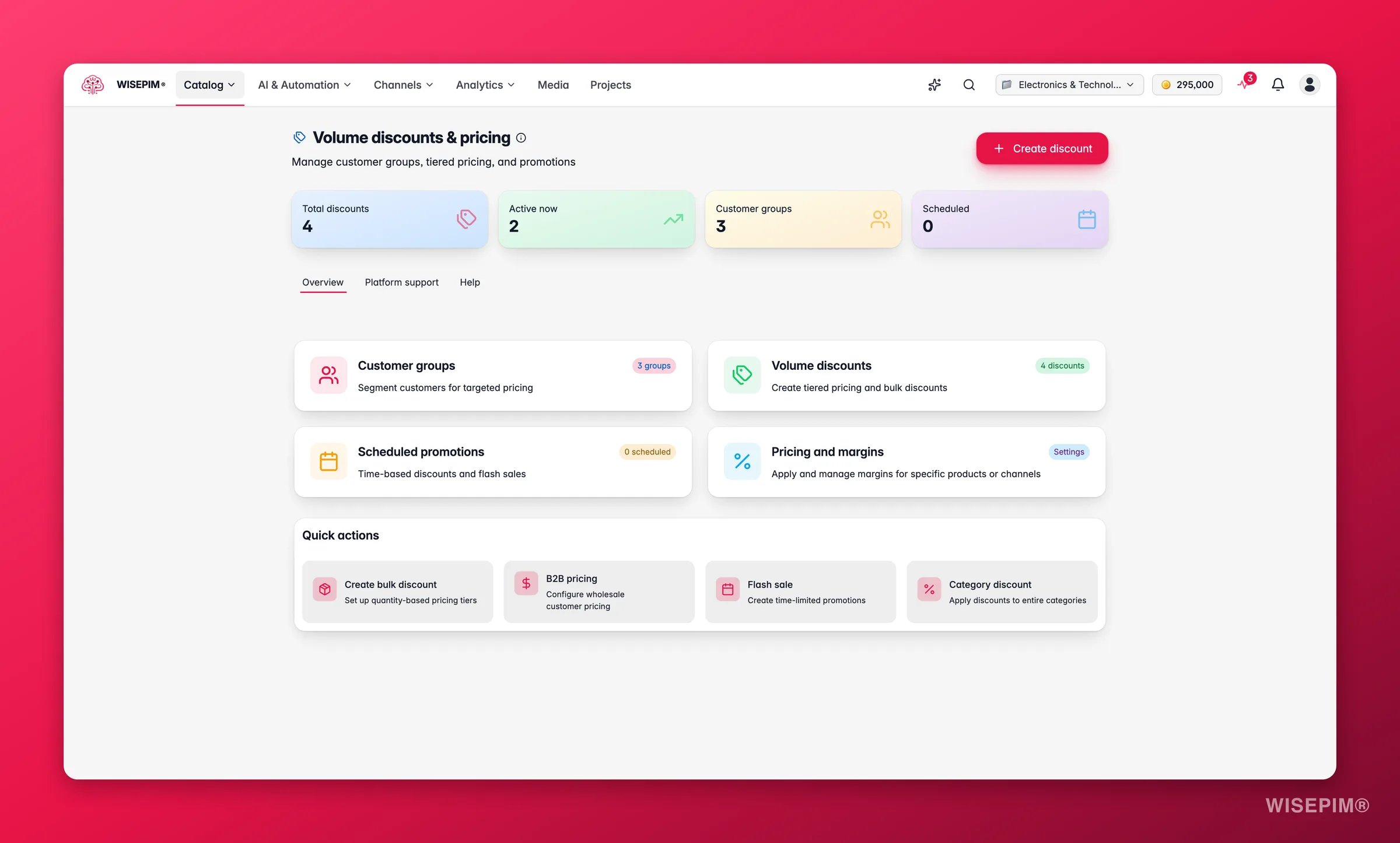
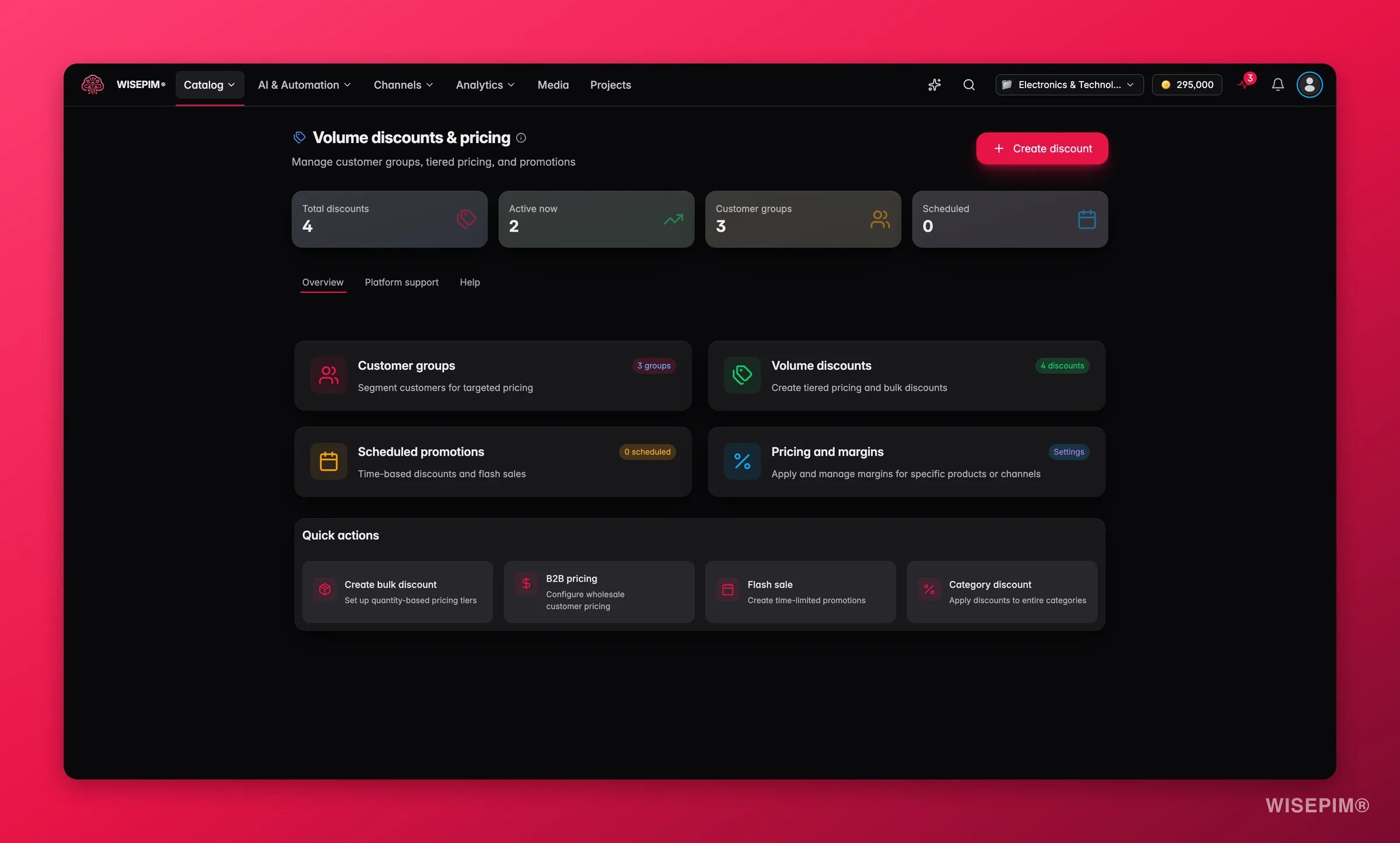
From here, jump to Customer Groups, Volume Discounts, or Scheduled Promotions. Or use a quick action to start a new discount right away.
The overview is split into three tabs: Overview (the feature cards and quick actions), Platforms (which stores discounts sync to), and Help (a short setup guide). You will also see an Analytics card marked coming soon, so you know that view is on the way.
Create a customer group
1
Open Customer Groups
Go to Discounts > Customer Groups in the sidebar.
2
Click Create
Open the form for a new group.
3
Add the details
Enter a name (for example, “Wholesale”), a unique code (for example,
wholesale), and an optional description.4
Set the options
Choose whether the group requires approval before customers can join. Choose whether it is the default group for new customers.
5
Map to platforms (optional)
If you have connected stores, link this group to the matching customer group on each one. Pricing then syncs automatically.
6
Save
Click Save. The group appears in your list right away.
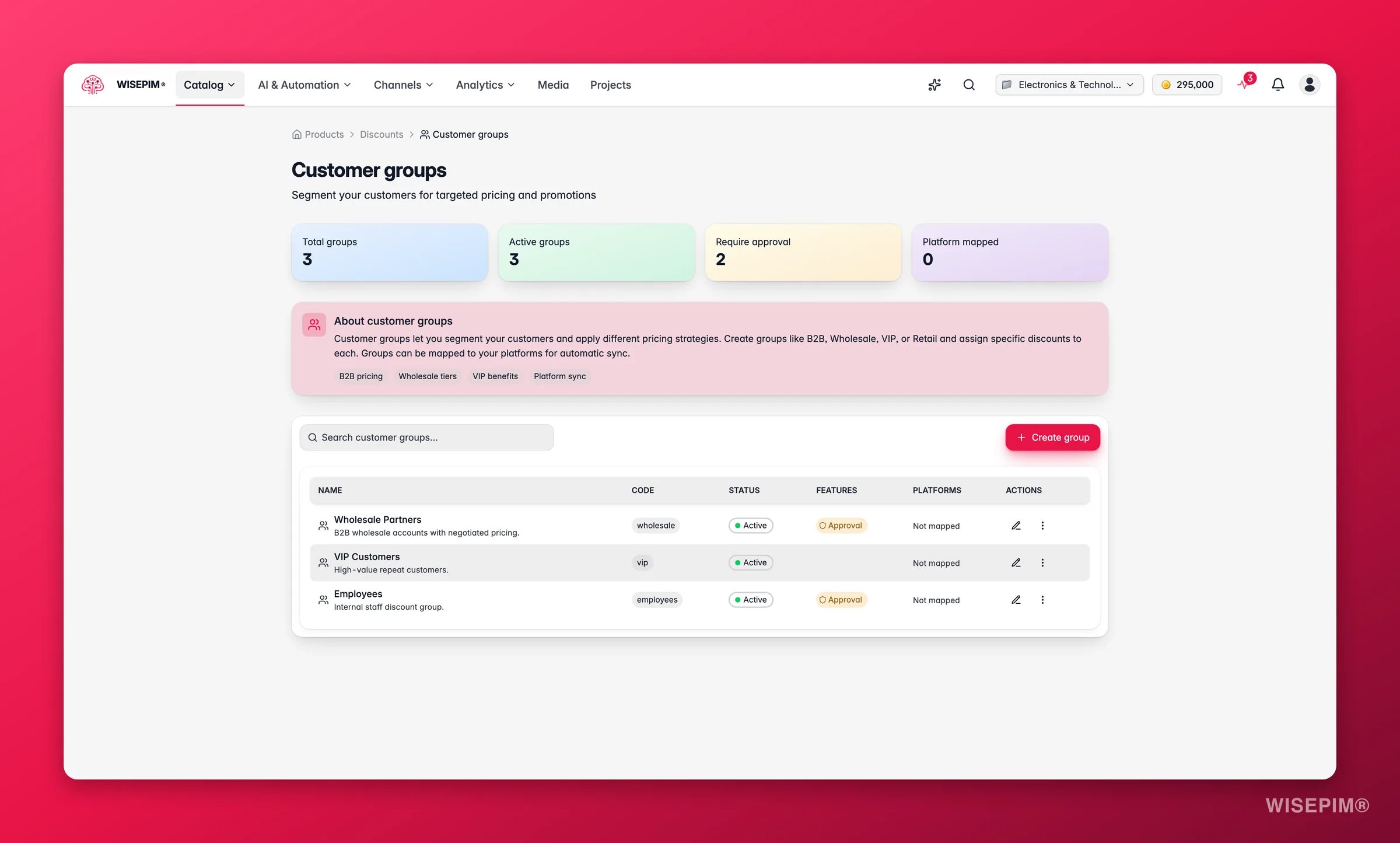
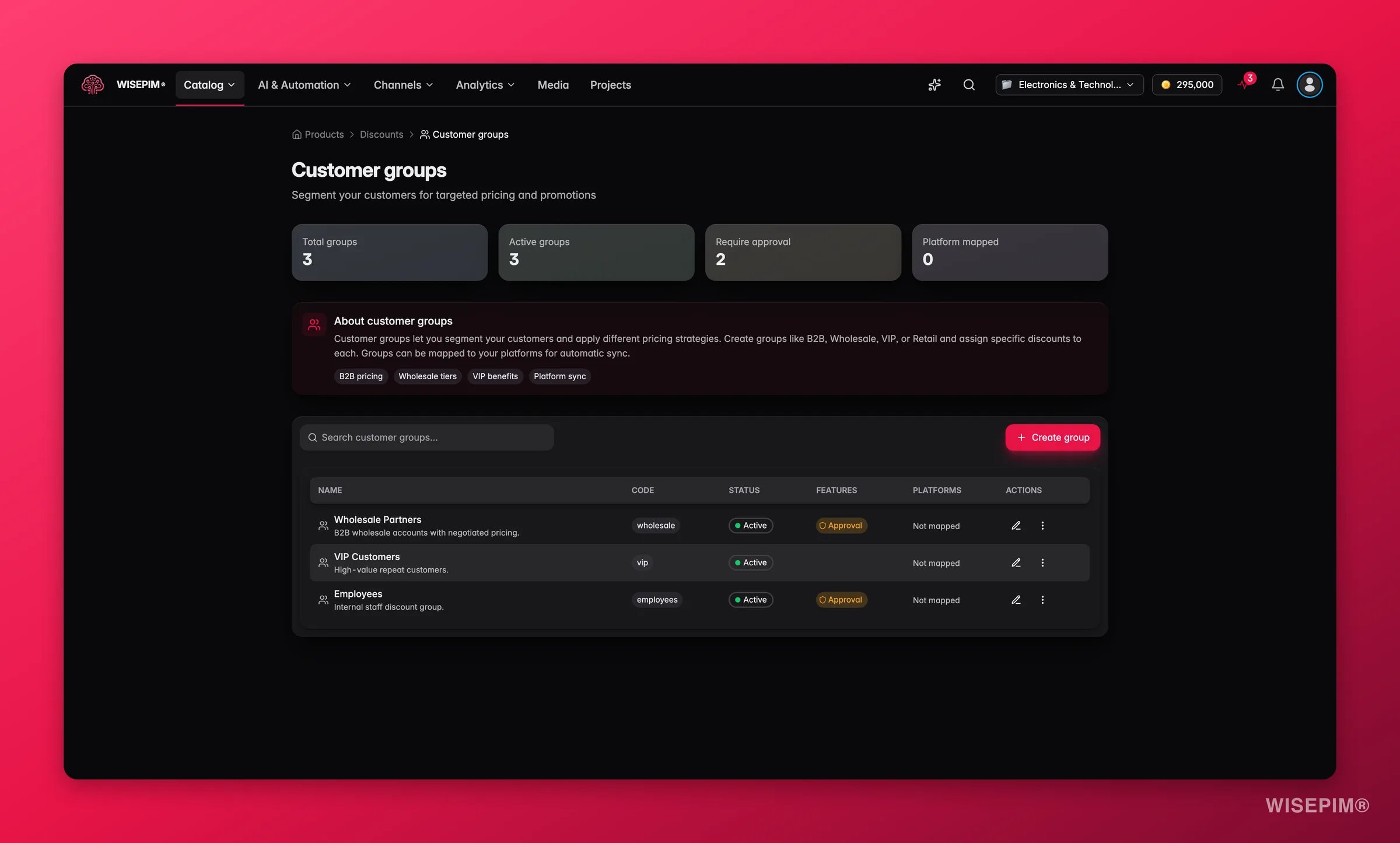
Manage your groups
The Customer Groups page tracks key stats at a glance:- Total Groups: how many groups you have
- Active Groups: groups that are currently on
- Require Approval: groups where customers must be approved before they get group pricing
- Platform Mapped: groups linked to a connected store
Choose a discount type
Volume discounts reward customers for buying more. There are six types. Pick the one that fits your goal:Flat Discount
A simple percentage or fixed amount off, no matter the quantity. Good for sales and promotions.
Bulk Discount
Take a percentage or fixed amount off, based on quantity. For example: 10% off for 10–24 units, 15% off for 25–49, 20% off for 50+.
Tier Pricing
Set a fixed unit price at each quantity level. For example: 8.99 each for 10–24, $7.99 each for 25+.
Buy X Get Y
Give free products when customers buy in multiples. For example: buy 2, get 1 free.
Progressive Discount
The discount grows as the quantity grows. For example: 5% off at 10+, 10% off at 25+, 15% off at 50+.
Quantity Break
Apply different discount rates to different quantity ranges within the same order.
Create a volume discount
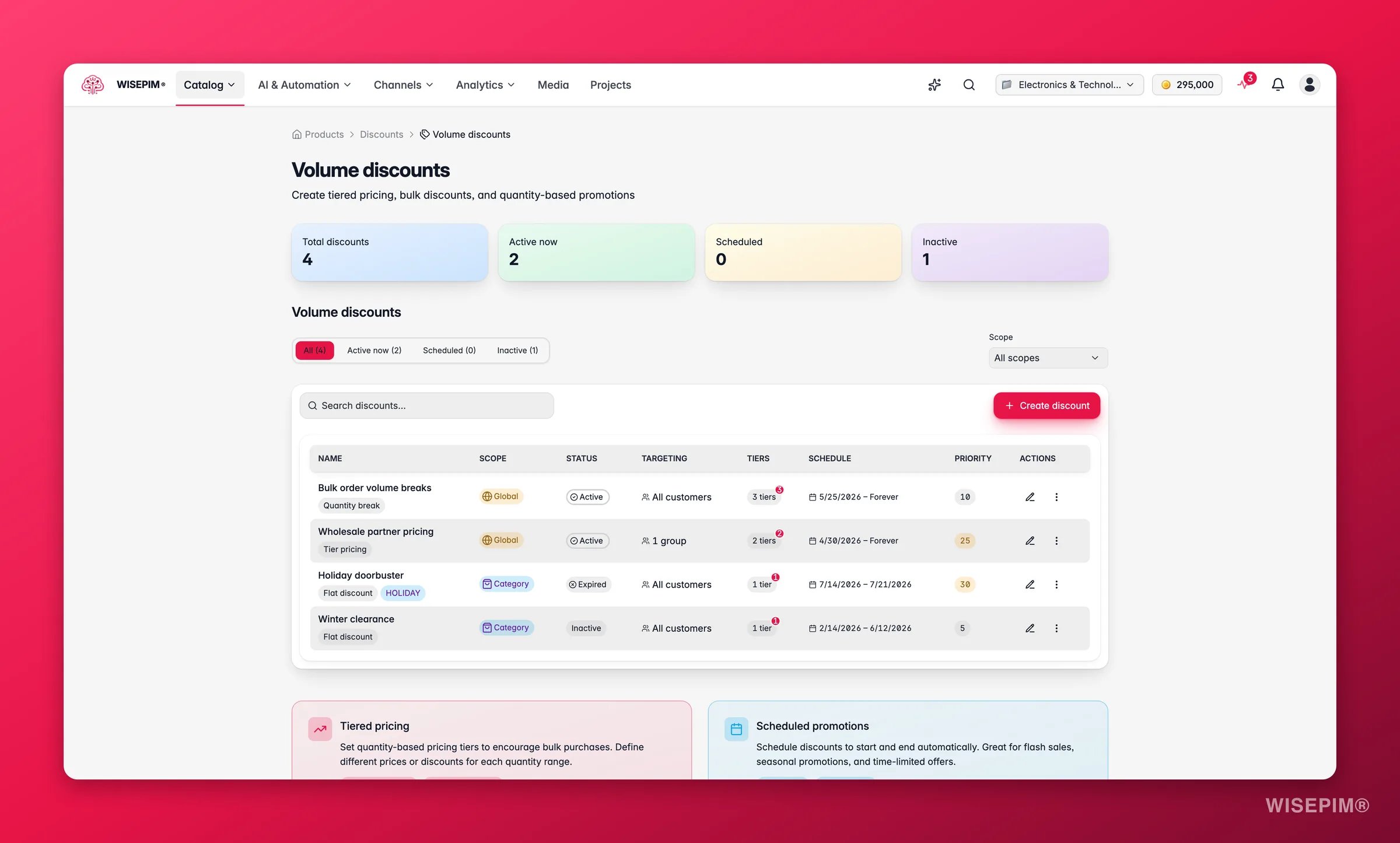
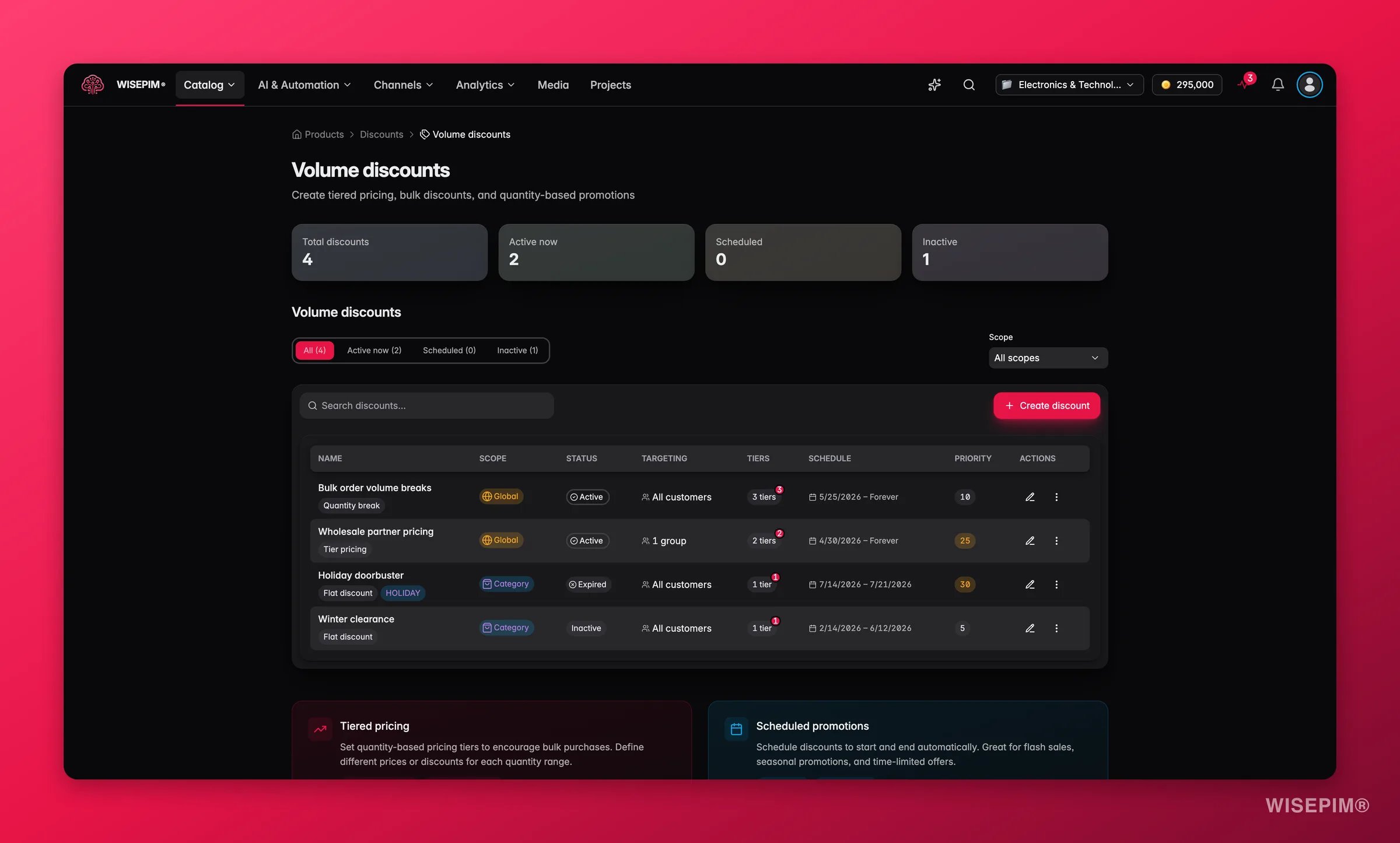
Start from a template
1
Open Create Discount
Go to Discounts > Create Discount. You will see a set of templates.
2
Pick a template
Choose the one that fits your goal:
- Simple Flat Discount: a fixed percentage off, for sales
- Flash Sale with Coupon: a timed discount that needs a coupon code
- Buy X Get Y Free: free products based on quantity
- Bulk Volume Pricing: tiered discounts for wholesale
- Tier Pricing: fixed unit prices at quantity breaks
- Custom: a blank form to build your own
3
Adjust the settings
The template fills in common settings and example tiers. Change the name, tiers, scope, and targeting to fit your needs.
4
Save
Click Save. The discount joins your volume discounts list.
Discount settings
When you create or edit a discount, you can set the following:Manage your discounts
The Volume Discounts page lists every discount rule, with tools to filter and act on them.Find a discount fast
Use the filter tabs to narrow the list:- All: every discount you have created
- Active: discounts that are live now
- Scheduled: discounts set to start later
- Inactive: discounts that are turned off
Act on a discount
For each discount, you can:- Edit: change the name, tiers, targeting, or schedule
- Activate / Deactivate: turn it on or off without deleting it
- Duplicate: copy it as a starting point for a new one
- Delete: remove it for good
Set up pricing tiers
Tiers are the heart of a volume discount. Each tier sets a quantity range and the price or discount for that range.Example: bulk percentage discount
Example: fixed tier pricing
Discount methods per tier
Each tier can use its own method:- Percentage Off: a percentage off the original price
- Fixed Discount: a fixed amount off the original price
- Fixed Price: a set unit price that replaces the original
- Price Per Unit: a set price per unit, no matter the original
Schedule a promotion
Set a start and end date, and the discount turns itself on and off. No manual steps on the day.Flash sales
Run a timed promotion that starts and ends on its own.
Seasonal promotions
Set up holiday or seasonal discounts weeks ahead and let them run.
Product launches
Offer intro pricing for a limited time when you launch a product.
Clearance events
Schedule end-of-season pricing to start and end on set dates.
Sync discounts to your stores
Volume discounts and customer group pricing sync to your connected stores on their own. Create or update a discount in WISEPIM, and the price change goes to your platforms.Each discount can have platform-specific settings. These control how it appears on each connected store and keep it compatible.
Plan limits
Your plan sets how many volume discounts and customer groups you can create:
Reached your limit? Upgrade in Settings > Billing.
Best practices
Set clear priorities
When two discounts could hit the same product, set the priority so you know which one wins.
Test with a small scope
Apply a new discount to one product or category first. Check the price is right before you widen the scope.
Use groups for B2B
Put wholesale and B2B buyers in their own groups. Assign volume discounts to those groups so retail customers never see wholesale prices.
Schedule ahead
Set start and end dates on seasonal and promo discounts in advance. You will never forget to switch one on or off.
Troubleshooting
The discount is not applying
The discount is not applying
- Check that the discount is active, not just scheduled for a future date.
- Confirm the scope matches the product or category you expect.
- Make sure Apply To includes the right customer group, or “all customers.”
- If a coupon code is required, check the customer is entering it correctly.
The wrong price is showing
The wrong price is showing
- Look for overlapping discounts on the same scope. The one with the highest priority wins.
- If Combine with Others is on, discounts may be stacking. Turn it off if they should not combine.
- Check the calculation method is right (replace price, discount on price, or compound).
Customer group pricing is not syncing
Customer group pricing is not syncing
- Make sure the group has a platform mapping for the target store.
- Confirm the integration is connected and active in Settings > Integrations.
- Check the sync status in the customer group details for any error messages.
Related
Editing products
Set base prices and product details before you layer discounts on top.
Bulk editing
Update prices and fields across many products at once.
Integrations
Connect the stores your discounts and pricing sync to.
Billing & plans
See your plan limits and upgrade for more discounts and groups.