

These checks do not change the quality score or block exports. They show you where to look. To stop a product from exporting, use a quality rule.
The Question checks page
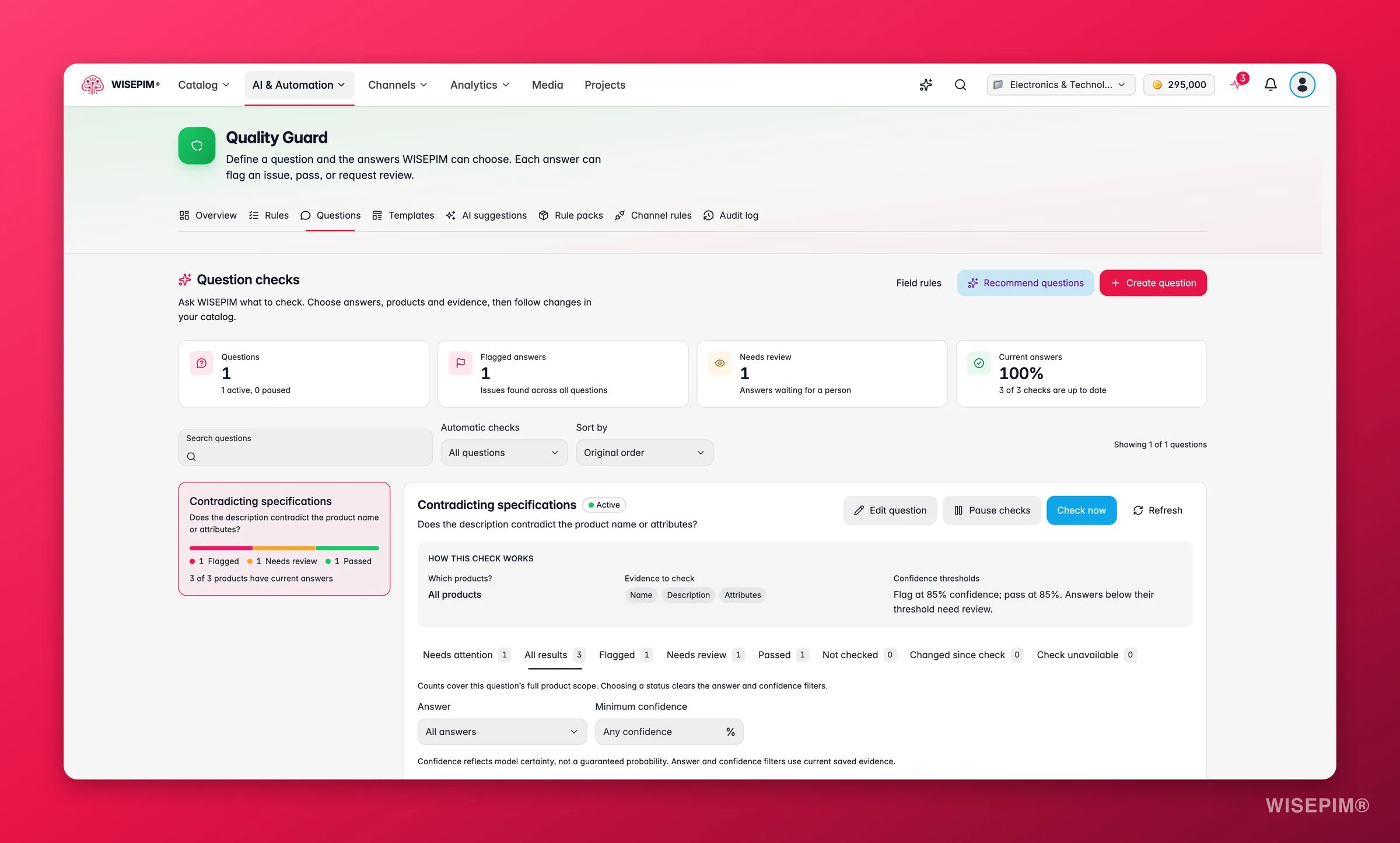
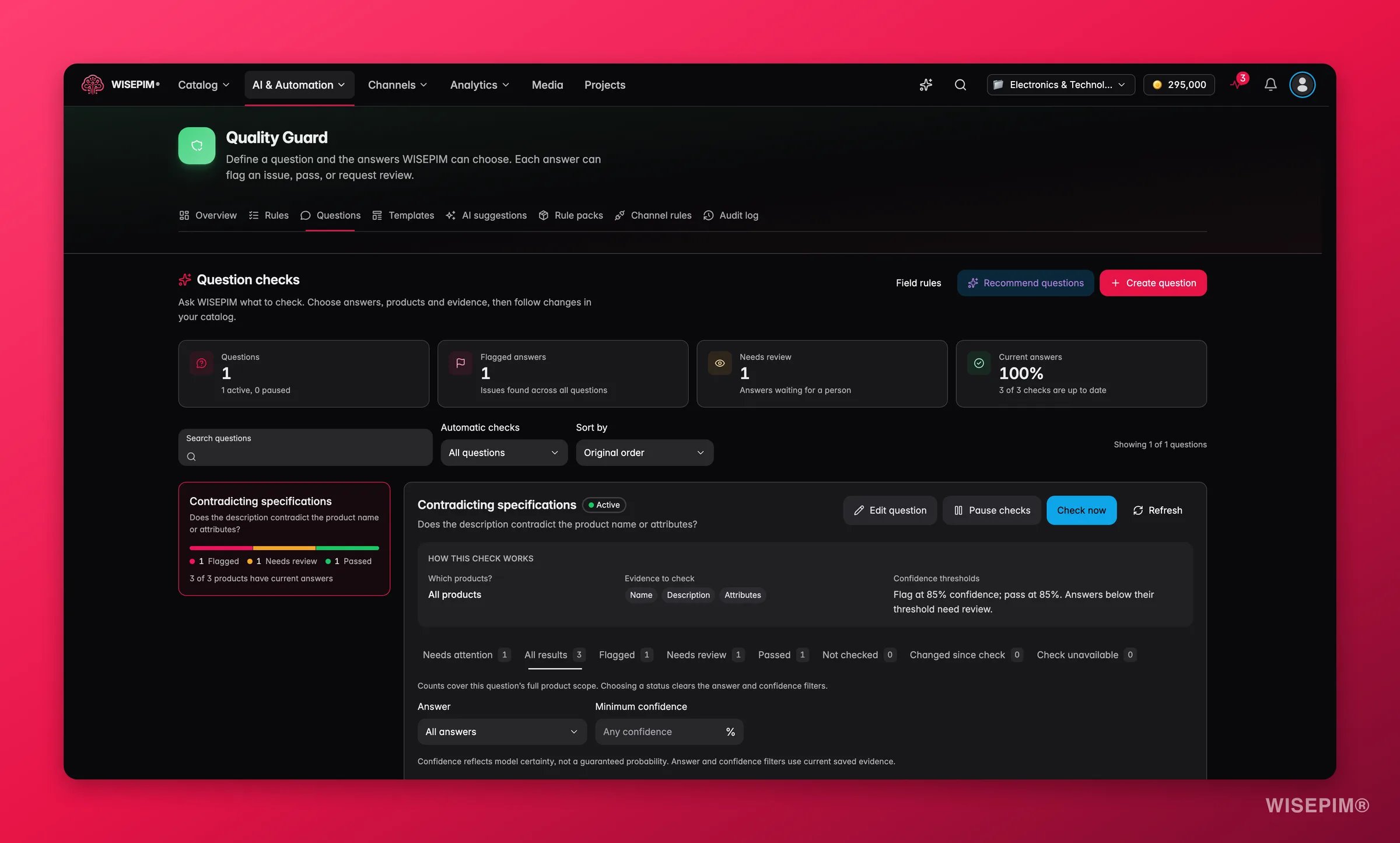
The page header has three buttons:- Field rules opens the Rules tab.
- Recommend questions suggests questions that fit your catalog.
- Create question opens the question editor.
Overview tiles
Find a question
Use Search questions, filter Automatic checks by All questions, Active questions or Paused questions, and Sort by Original order, Needs attention first or Name (A to Z). Each question card shows its coverage, such as “3 of 3 products have current answers”, counts per result, and the buttons Edit question and Check now.Saved answers
Select a question to open its Saved answers panel:- Refresh reloads the results. Pause checks or Resume checks turns automatic checking off or on.
- Check now asks WISEPIM to check the whole scope again: “Check requested. Results refresh automatically; unchanged answers are reused.”
- How this check works sums up the products, evidence and thresholds, for example “Flag at 85% confidence; pass at 85%.”
Narrow further with Answer (including Not enough evidence) and Minimum confidence. The table shows Product, Answer, Status, Confidence, Last checked and Action, 50 rows per page. Click Open filtered products to open the same products in your product list.
Confidence reflects how sure WISEPIM is, not a guaranteed probability.
Correct an answer
If you can review answers, pick the right one under Correct answer and click Save review. You see “Review saved. This feedback will be used to evaluate the check.” Your correction is a label for the check. It never changes the product.Create or edit a question
1
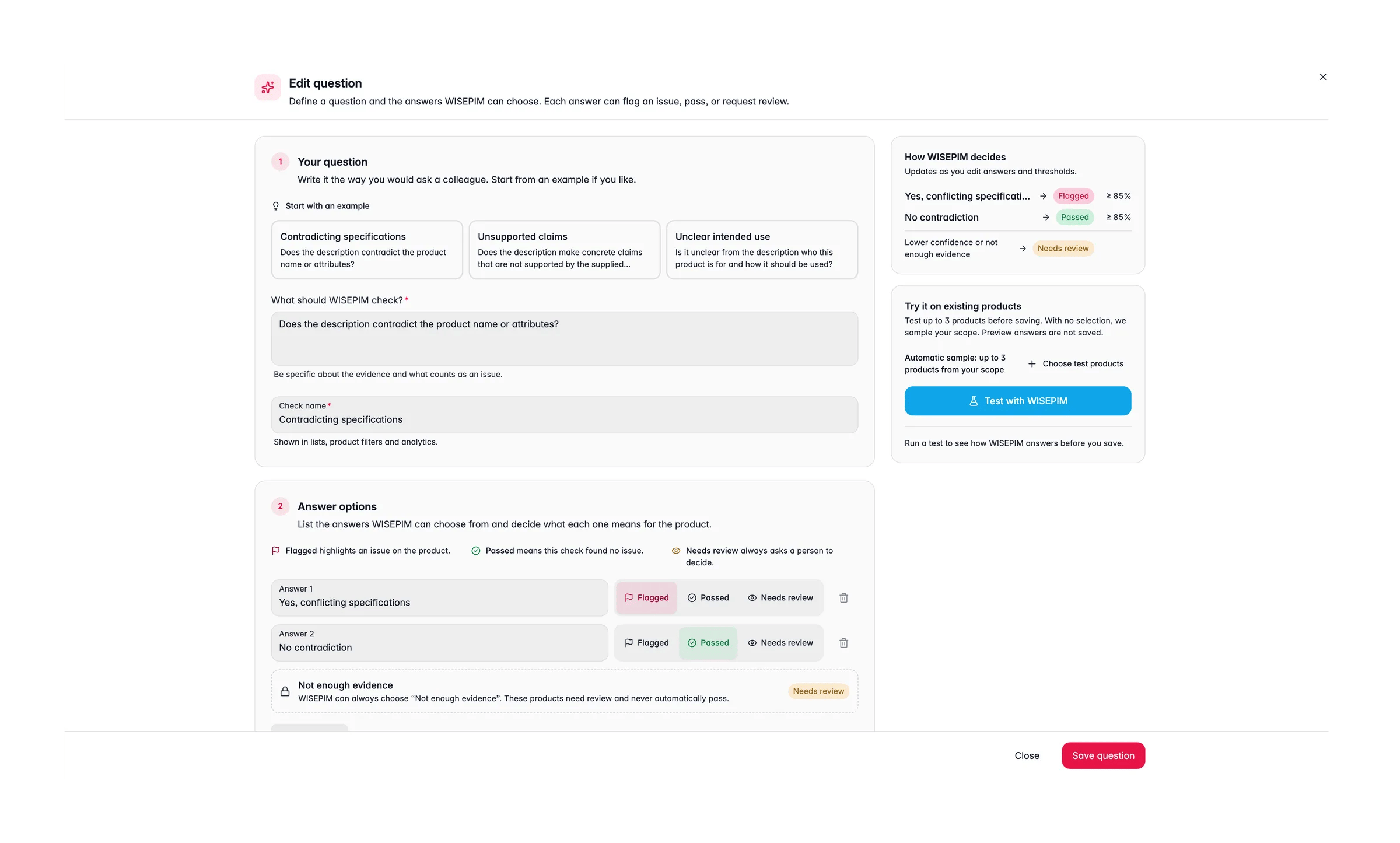
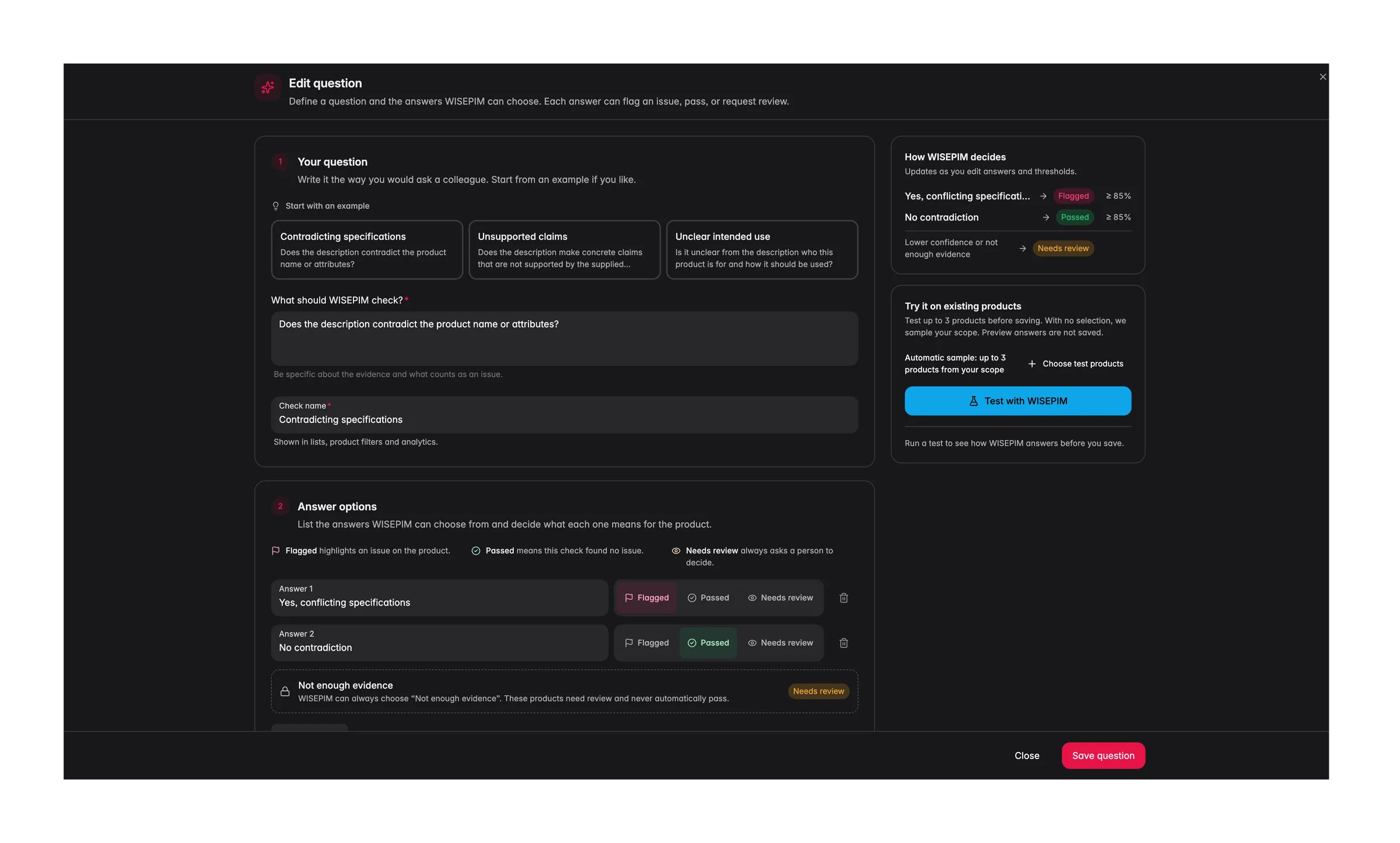
Your question
Under Start with an example, pick Contradicting specifications, Unsupported claims or Unclear intended use to fill in a complete example, or write your own. Fill in What should WISEPIM check? (5 to 2,000 characters) and a Check name (up to 160 characters). The name shows in lists, product filters and analytics.
2
Answer options
List 2 to 10 different answers, Answer 1, Answer 2 and so on, with Add answer for more. Give each a Result: Flagged highlights an issue, Passed means this check found no issue, Needs review always asks a person. A new question starts with “Yes” as Flagged and “No” as Passed.WISEPIM can always choose Not enough evidence. Those products need review and never automatically pass.
3
Choose products and evidence
Under Which products?, pick All products (including new ones) or Selected products, up to 1,000, with Add products.Under Evidence to check, tick the fields WISEPIM may read: Name, Description, Short description, Reviewed name, Reviewed description, Reviewed short description, Brand, Supplier, Attributes, Categories, Price, EAN, SKU, Meta title and Meta description. Name, Description and Attributes are ticked by default. WISEPIM reads only these fields.
4
Automation and confidence
Automatically check changes checks new and changed products without you asking. Turn it off to save the question as paused. Also recheck when the quality score changes runs the check again when a product’s score moves (on by default).Under Confidence thresholds, set To flag an issue and To pass, each between 50% and 100% (85% by default). Answers below their threshold need review.
5
Test and save
The How WISEPIM decides panel updates as you edit answers and thresholds. Under Try it on existing products, choose up to 3 products, or let WISEPIM sample your scope, and click Test with WISEPIM. Test results are not saved. Click Save question when you’re happy.
What each answer becomes
A product hits the evidence limit when it has more than 200 attributes, more than 100 categories, or more evidence text than one check can take (about 24 KB). Pick fewer fields if you see it.
When checks run
- When you save an active question, WISEPIM checks every product in scope.
- When you click Check now.
- When a product changes in one of the question’s evidence fields.
- When a product’s quality score changes, if that option is on.
Recommend questions
Click Recommend questions to get ready-made questions that fit your catalog. Everything in Steer the recommendations is optional:- What do you want to check? in your own words, up to 600 characters.
- Kinds of problems: Contradictions, Unsupported claims, Safety and compliance, Missing buyer information, Unclear use or audience and Misleading SEO copy.
- Focus on categories and Focus on families.
- How many ideas: 3, 5 or 8.
- Start checking right away. Off means added questions are saved as paused.
Limits and access
Members who can only view see “You can view checks and filter results. An editor can create, change or run questions.”
Use the answers elsewhere
- Products: the advanced filter Question check finds products by a question’s status, answer and minimum confidence.
- Analytics: the Data Quality page has a Your question checks card with the current saved answers and a Manage questions link back here.
Act on what you find
Many products land in Needs review with Not enough evidence
Many products land in Needs review with Not enough evidence
The evidence fields don’t hold what the question asks about. Edit the question and tick more fields under Evidence to check, such as Attributes or Categories, or fill in the missing data on the products.
Too many answers fall Below confidence threshold
Too many answers fall Below confidence threshold
Look at a few of them. If the answers are right, lower To flag an issue or To pass a little. Changing a threshold re-sorts saved answers without running new checks.
A flagged product is actually fine
A flagged product is actually fine
Use Correct answer and Save review so the check can be evaluated. Then rephrase the question to be more specific about what counts as an issue.
You want to fix every flagged product
You want to fix every flagged product
Open the Flagged tab and click Open filtered products. Work through them in the product list, or start an AI enrichment on the selection.
You don't know what to ask
You don't know what to ask
Click Recommend questions and leave everything empty for a broad first set. Add the ones that fit with Start checking right away off, test them, then turn them on.
Related
Quality Guard Overview
See how rules, scores and checks fit together in Quality Guard.
Quality Rules
Set measurable standards that can block a product from export.
Data Quality Analytics
Follow your question check answers next to the rest of your data quality.
Filtering & Searching Products
Filter products by a question check’s status, answer and confidence.