

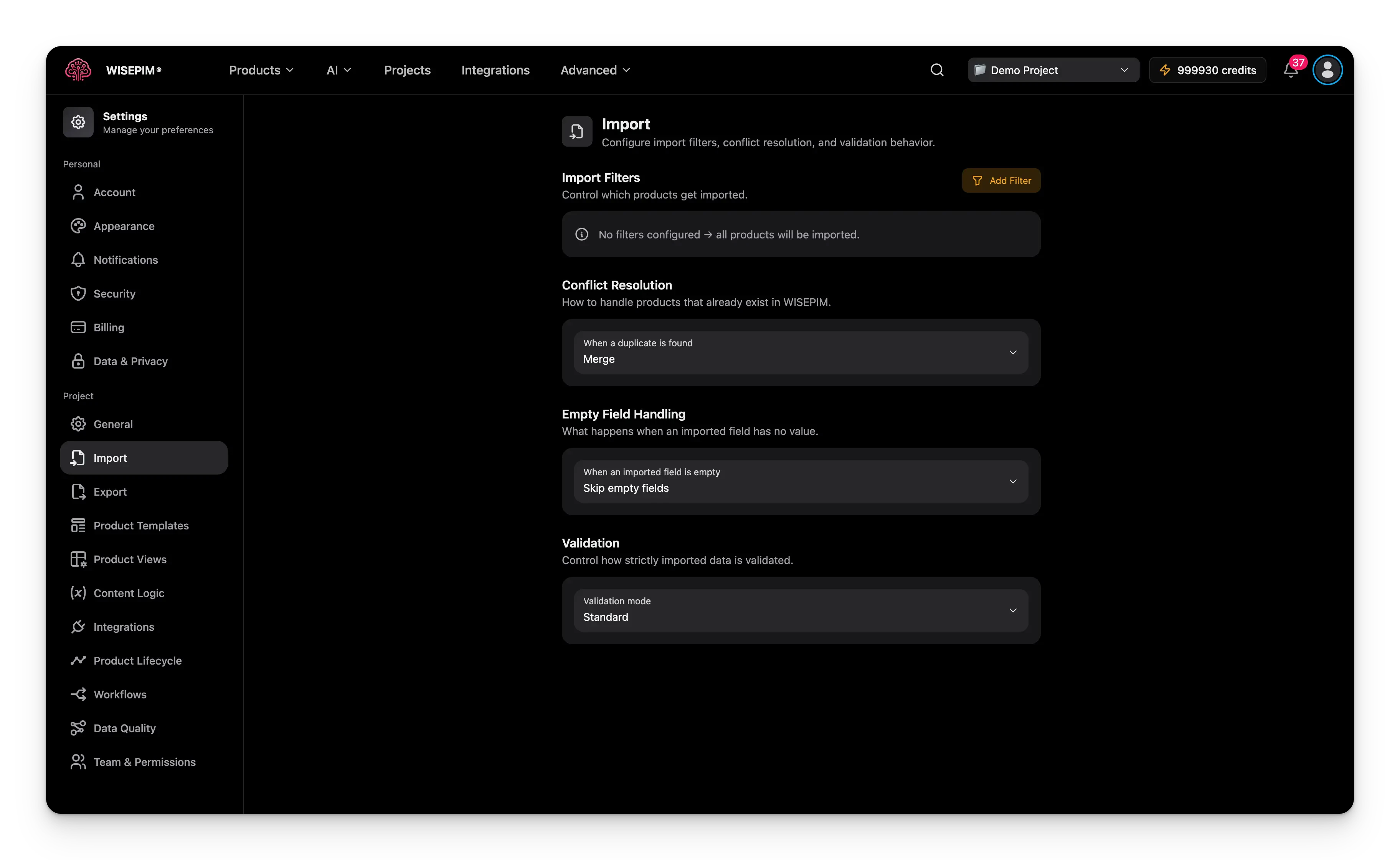
These settings are project-wide defaults. You can still override any option when you run a specific import.
Filter which products import
By default, WISEPIM imports every row in your file. Add import filters to bring in only the products you want.1
Open the filter modal
Click Add Filter to open the advanced filter modal.
2
Build a condition
Each condition has three parts:
- Field: the product field to check (Product Name, SKU, Price, Stock Quantity, and more).
- Operator: the comparison logic (equals, contains, is empty, greater than, and more).
- Value: what to compare against. Operators like “is empty” or “has value” need no value.
3
Combine conditions
Use AND to require every condition. Use OR to require just one.
Handle duplicate products
When an imported product already exists in WISEPIM (matched by SKU or another identifier), conflict resolution decides what happens.This project-wide setting is separate from the CSV import wizard. The wizard asks its own duplicate question per import - Update existing products, Skip duplicates, or Create as new, and does not read this setting. Set your conflict resolution here for platform and integration imports; choose per file in the wizard for CSV imports.
Handle empty fields
This setting decides what happens when a field in your file is blank.Choose how strictly to validate
Validation decides how carefully WISEPIM checks your data before it imports.Standard is the recommended default. It protects your data, stays flexible, and tells you clearly which rows did not import.
Fill the gaps with your product template
Import files are rarely complete. When a new product comes in without a value for a field you did not map, WISEPIM falls back to the defaults in your Product Templates settings. That covers things like status, visibility, brand, supplier, price, cost, stock, shipping, and units, plus pattern fields that build a value from{{variable}} placeholders.
This is on by default. You can turn it off for a single import if you want that file to bring in nothing but what it contains.
Template defaults apply when a product is created, and never when one is updated. An import can never quietly overwrite a value you already have.
Save your changes
Edit any setting and a save bar appears at the bottom of the page:- Save: applies your import settings to the project.
- Undo: reverts every change to the last saved state.
Ready to import?
Once your defaults are saved, the page points you straight at the next step. Start an import from the Products page, or read the full walkthrough for mapping a file field by field.Importing products
Run an import step by step, from picking a file to reviewing what landed.
Product Templates
Set the defaults that fill the gaps your import file leaves behind.
Related
Web scraping import
Bring in products from a webshop page with the scraper or the browser extension.
General settings
Set the project name, industry, and languages that shape your data.
Export settings
Control the defaults for exporting your products out of WISEPIM.
Integrations
Pull products in automatically from your connected platforms.