

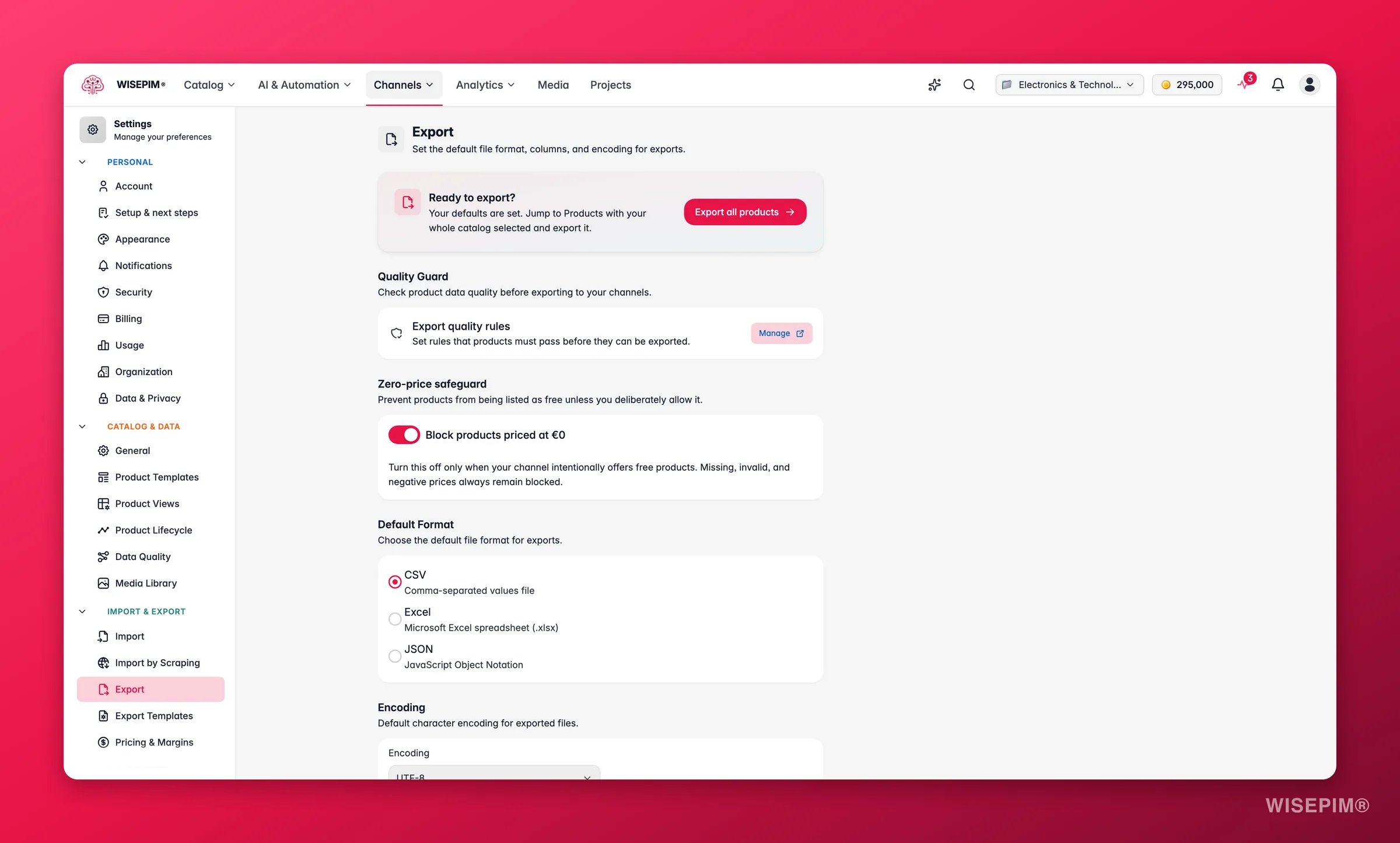
Select a project from the project switcher first. Export settings are saved per project.
Looking to control which fields and columns go out per channel? That lives in Export Templates. This page sets the file-level defaults (format, encoding, and the pre-export quality check).
Quality Guard
Quality Guard checks product quality before an export goes out, so only products that meet your standards are included. Click Manage to open Quality Guard, where you can:- Set quality gates that products must pass before export.
- Add validation rules for required fields, content length, and completeness.
- Set quality thresholds per channel.
Zero-price safeguard
Prevent products from being listed as free unless you deliberately allow it. Block products priced at €0 is on by default. While it is on, a product with a price of exactly zero is held back from every export. Turn it off only when your channel intentionally offers free products.Missing, invalid, and negative prices always stay blocked, whatever this switch is set to. That is the built-in price check that runs on every export.
Default format
Pick the file format new exports use by default. You can still change it for any single export.Encoding
Pick the default character encoding for exported files. This controls how special characters (accents, symbols, non-Latin scripts) are stored.Save your changes
Change any setting on this page and a save bar appears at the bottom.- Save: stores your export settings for the project.
- Undo: reverts everything to the last saved state.
Related
Quality Guard
Set the quality gates that products pass before export.
Data Quality
Define how WISEPIM scores your product data.
Import Settings
Set defaults for bringing product data into WISEPIM.
Settings Overview
Browse every personal and project setting in one place.