

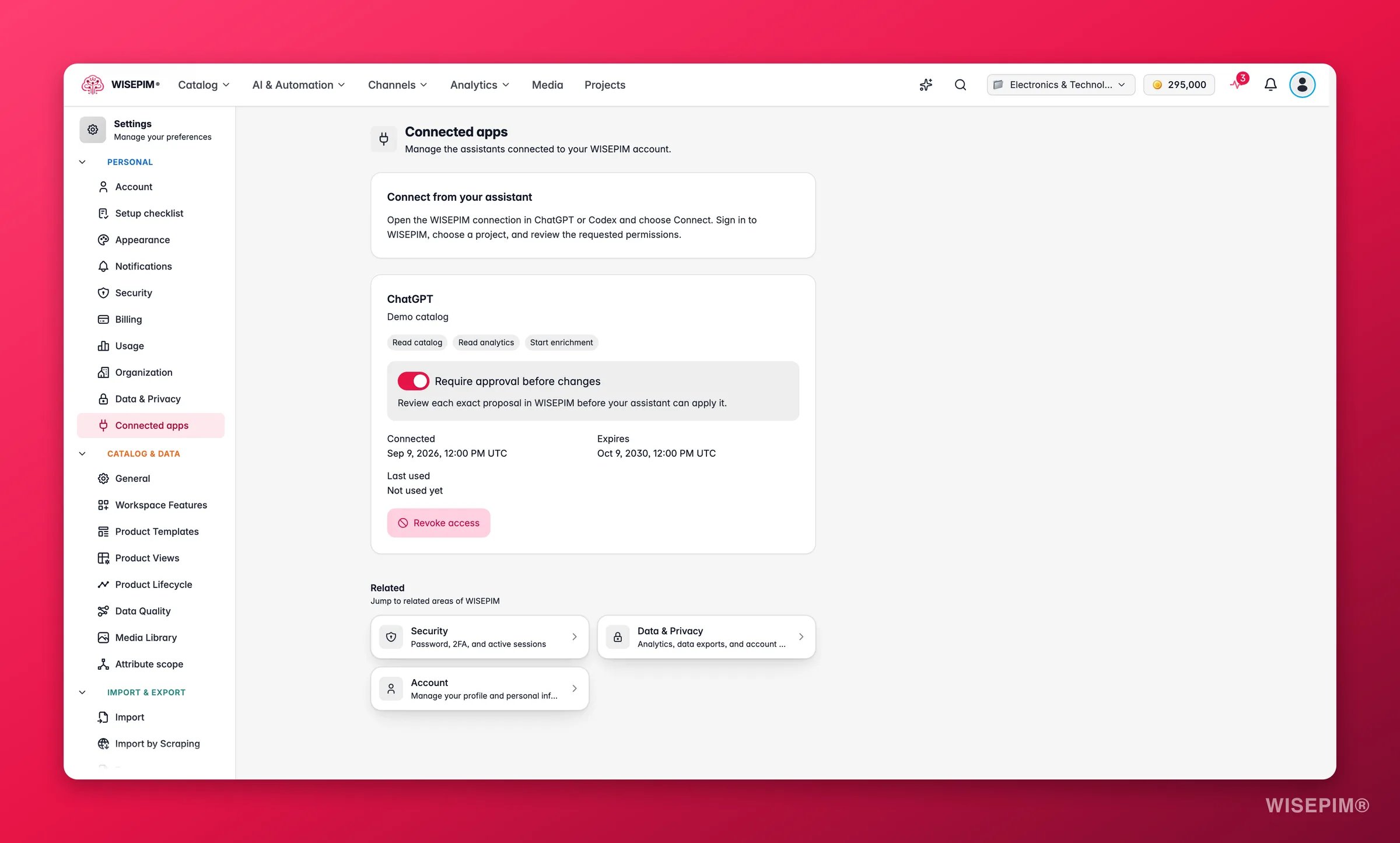
This is the reverse of Feed Hub’s ChatGPT Shopping channel. Feed Hub pushes your products out so shoppers can find them. Connected apps let an assistant reach in to the catalog you work on.
Connect an assistant
You start from the assistant, not from WISEPIM: “Open the WISEPIM connection in ChatGPT or Codex and choose Connect. Sign in to WISEPIM, choose a project, and review the requested permissions.” Claude works the same way: in Claude Code you add the WISEPIM server and sign in through/mcp. The setup for each assistant is on ChatGPT and Claude.
1
Check who is asking
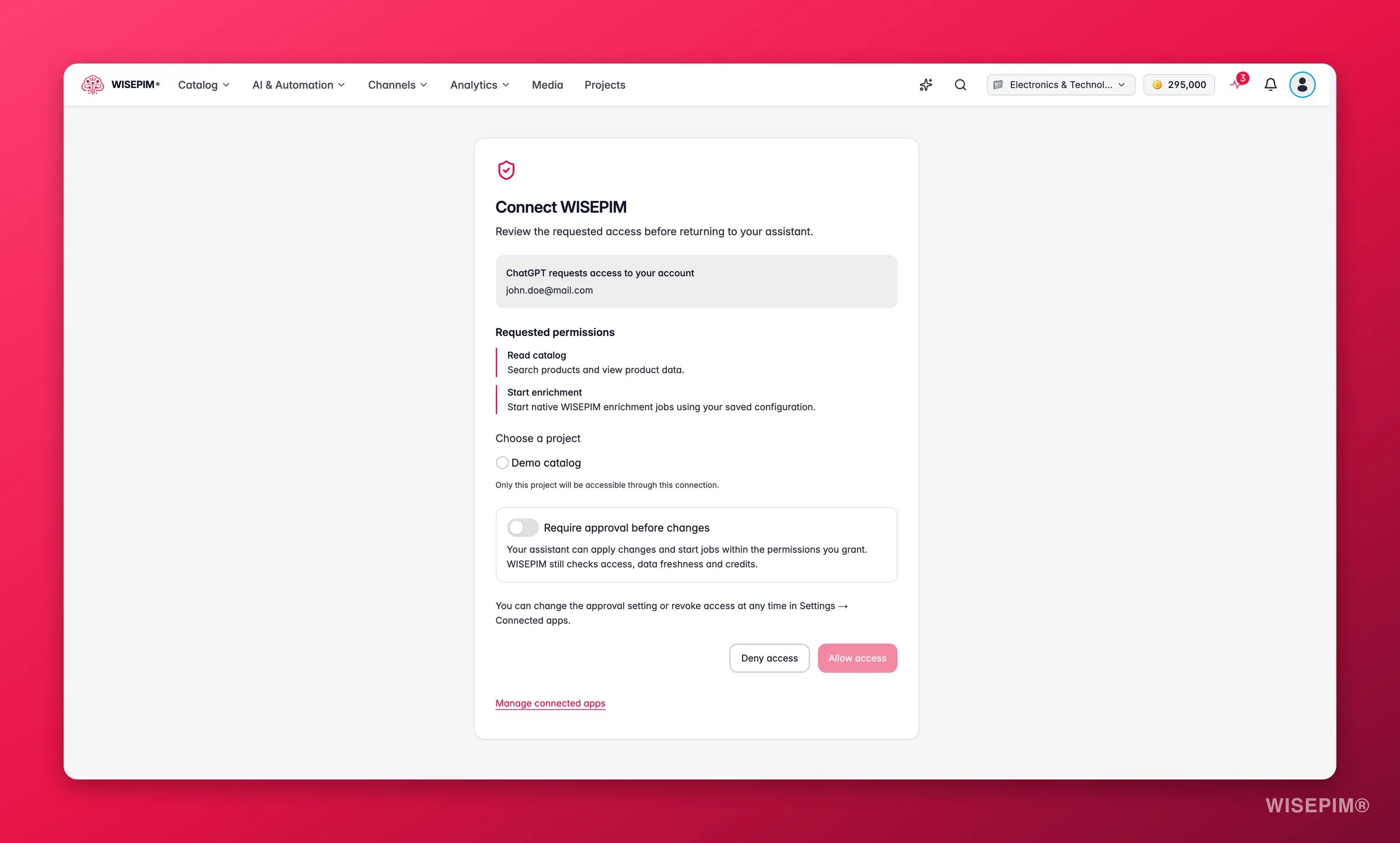
The top of the card names the assistant and the account it would connect to, so you can spot a request meant for a different login.
2
Read the requested permissions
Each permission is listed with a plain-language description of what it allows. Nothing outside this list is granted.
3
Choose a project
Pick exactly one: “Only this project will be accessible through this connection.” Your other projects stay invisible to the assistant.
4
Decide whether changes need your approval
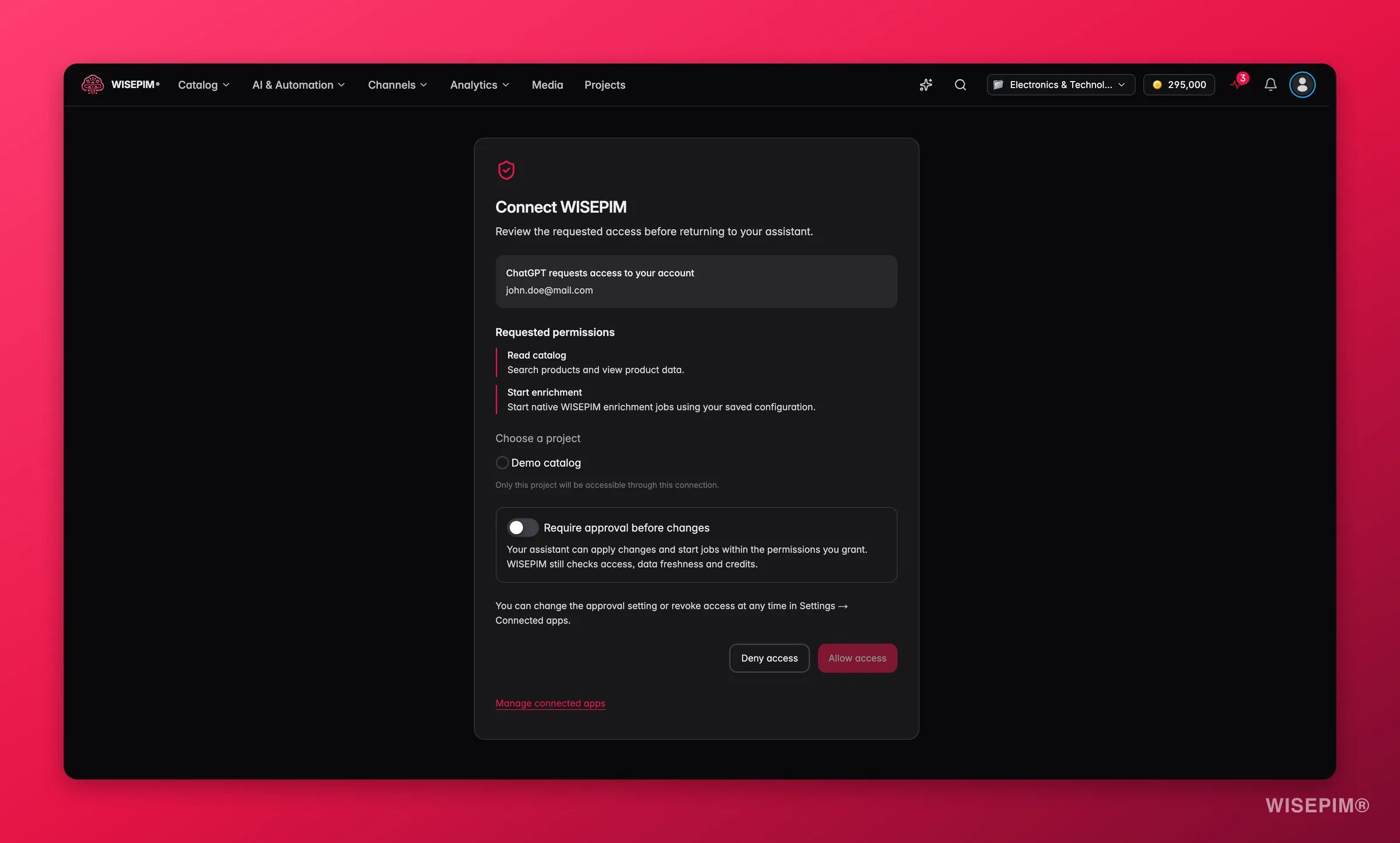
When the request includes a permission that changes your catalog or starts jobs, the card offers Require approval before changes. It is off by default: “Your assistant can apply changes and start jobs within the permissions you grant. WISEPIM still checks access, data freshness and credits.” Switch it on and every change waits for your approval in WISEPIM: “Review each exact proposal in WISEPIM before your assistant can apply it.” You can change this later on the Connected apps page.
5
Allow or deny
Allow access returns you to the assistant, connected. Deny access ends it there.
When a request includes a permission that writes, only projects you can edit are offered: you are the owner, an admin or editor, or have a custom role that can edit products. If none qualify: “No projects are available with the requested permissions. You can deny this request and ask your administrator for access.”
The permissions an assistant can ask for
A permission is the ceiling of what an assistant can do, and Require approval before changes decides whether you sit between the assistant and your catalog. Your role still applies: a permission never lets an assistant do more than you can, and WISEPIM checks your role again on every request. If an assistant needs a new permission later, you reconnect and approve it.
Review what an assistant wants to change
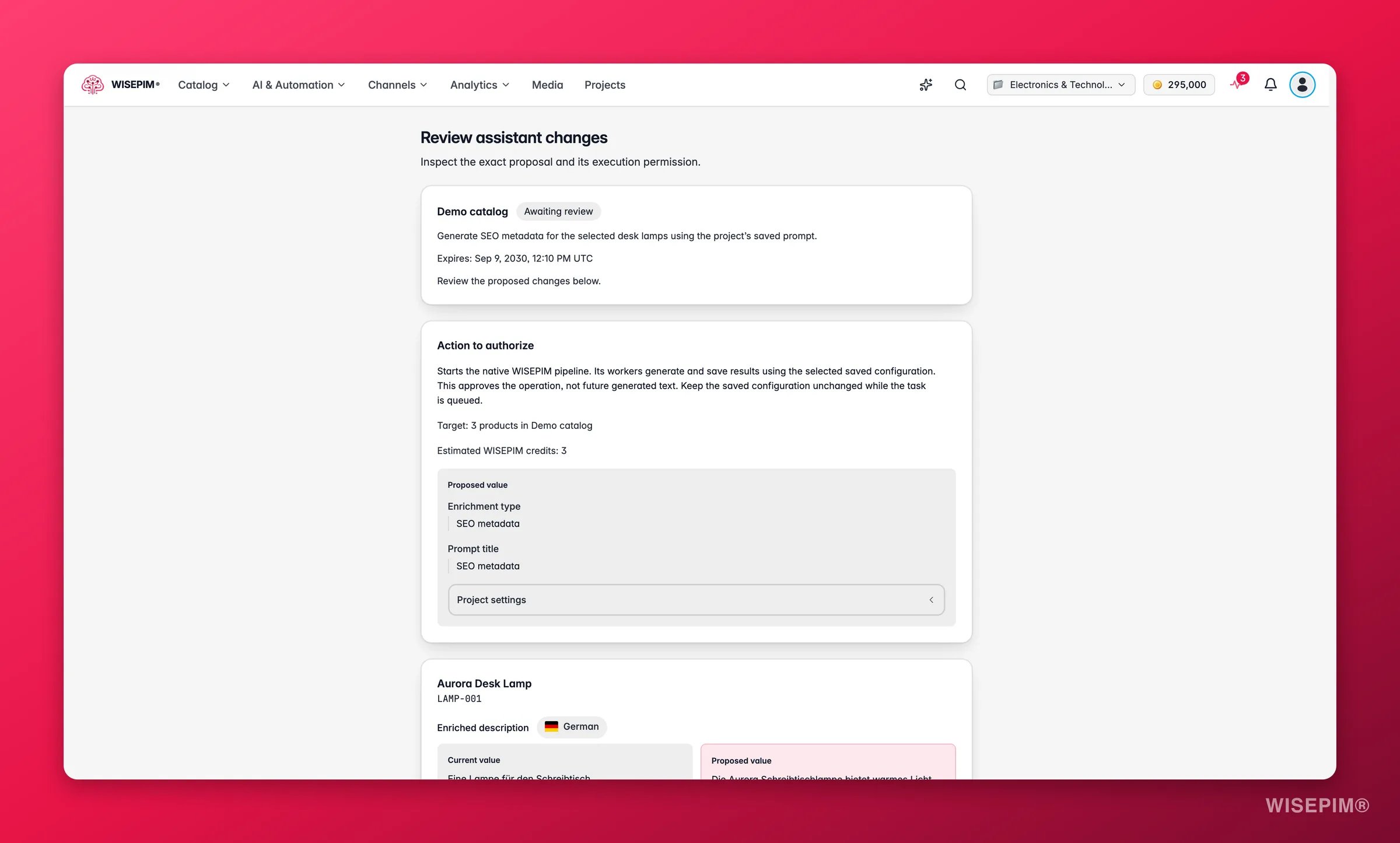
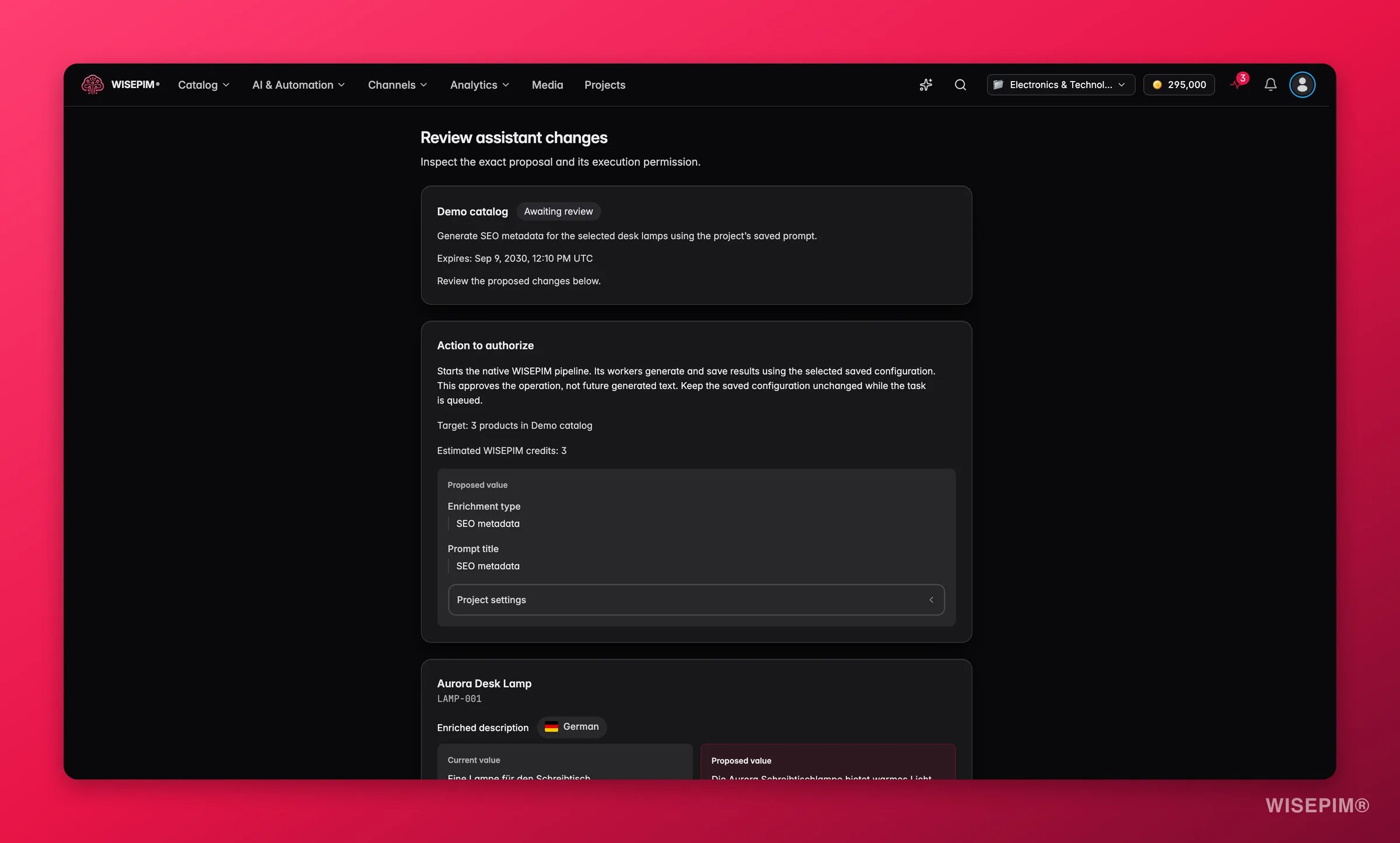
- The project and a status chip, plus a line telling you what to do next.
- The action to authorize, its target, and an estimated credit cost (“Estimated WISEPIM credits: 120”). If the estimate cannot be worked out, it says so rather than guessing.
- Every affected product by name and image, never by a bare id, and per field a side-by-side Current value and Proposed value, with a flag for the language of each translated field.
- An expiry date. A proposal expires one hour after the assistant creates it, or sooner if the connection expires first.
What each status means
That last status is the important one: a proposal is tied to the exact data you looked at. If a product moves while you are reading, WISEPIM refuses to apply stale content and makes the assistant produce a new preview.
Manage and revoke connections
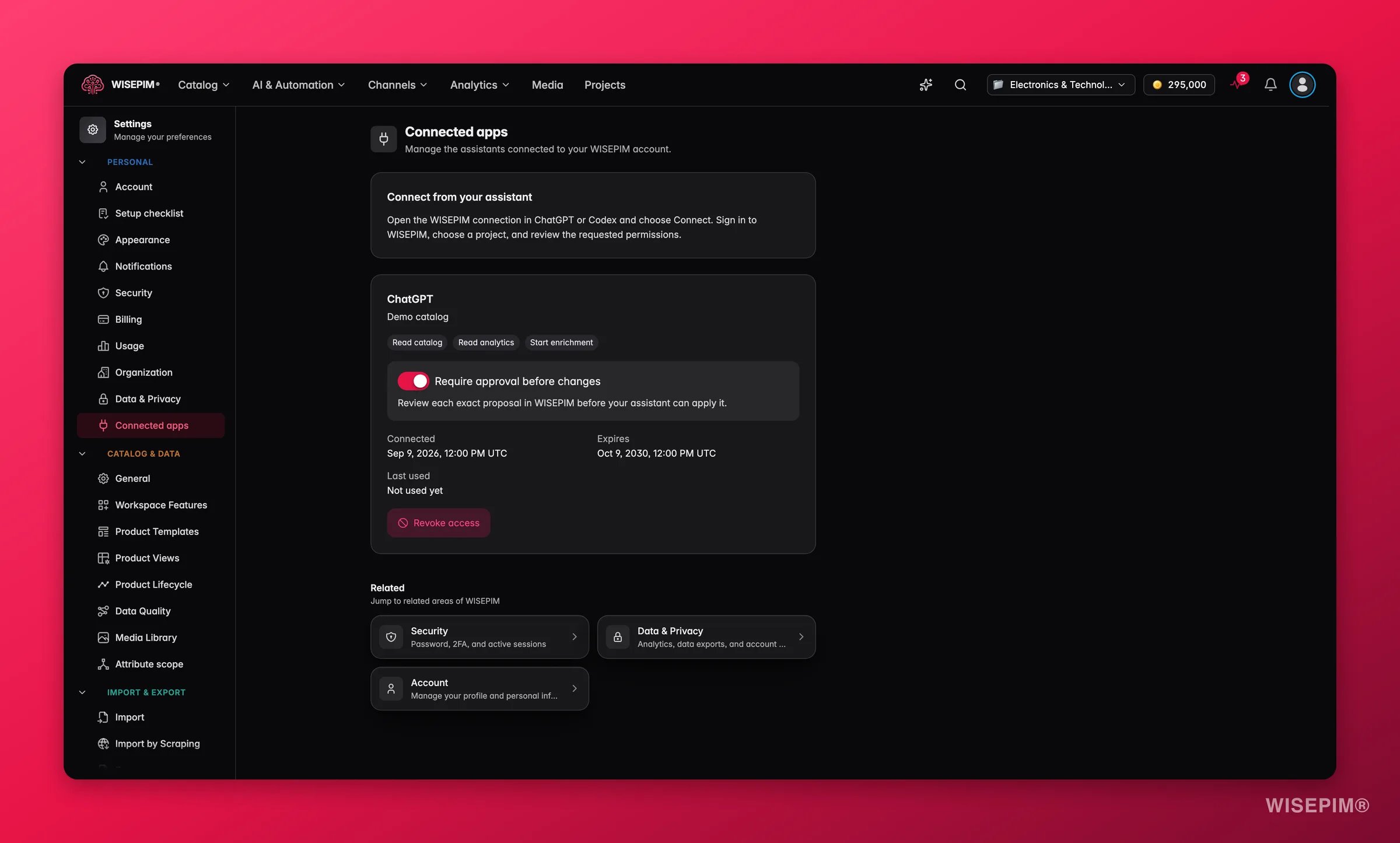
Every connection on the page shows the assistant, the project it reaches, its permission chips, and three dates: Connected, Expires, and Last used (or “Not used yet”). Connections expire on their own; you do not have to clean them up by hand. To end one early, click Revoke access and then Confirm revocation. WISEPIM spells out the consequences first: “This stops new requests and invalidates pending approvals for this connection. Existing catalog data stays in WISEPIM.” Revoking is per connection, not per assistant. If you connected the same assistant to two projects, revoke each one separately.Switch approval on or off
Each connection card has a Require approval before changes switch. It is off for a new connection unless you switched it on at the consent screen. Switch it on and the assistant stops at every change and sends you a review link. Switch it off and it applies changes within its permissions on its own. The assistant learns the current setting with every preview it makes, so a change here applies from its next request; the page confirms with “Approval setting saved”. The switch is disabled for everyone else: “Only the connection owner with project edit access can change this setting.”Browser agents
Some browsers have an AI agent built in. With Browser agents switched on, that agent can use WISEPIM in your open tab as you: search, edit and enrich your catalog. It works through WebMCP, an open browser standard, so there is nothing to connect or install in WISEPIM. It can only do what you can do yourself. Browser agents is a tool on the Workspace Features page: “Let AI agents in your browser work in WISEPIM for you.” It is on by default. Switch it off to keep agents out of this workspace for everyone on the project.See what the agent is doing
While an agent is active, a button in the bottom-left corner shows its state:
Click it to open AI agent activity. Recent agent actions lists each action with its result: Done, Failed, Declined or Approved by plan. Use Pause agent access to stop the agent at once, and Resume agent access to let it continue.
Approve each change
Looking things up never asks you. Every change waits for you in a WISEPIM dialog titled “AI agent: ” followed by the action, with Approve and Decline. The dialog says which tool asked. If you have unsaved edits to the same product open in the editor, it warns you with Unsaved edits: saving the editor later may overwrite the agent’s change.Approve a plan
For a job with several steps, the agent can ask once with “Approve a plan with N steps” instead of one dialog per change. The dialog lists the goal and each step, plus these limits:
While a plan runs, the activity panel shows how many changes and credits it used and how many minutes are left. Click Revoke plan to end it early. A plan also ends when you pause agent access or switch projects.
Act on what you find
An assistant connection I no longer use is still listed
An assistant connection I no longer use is still listed
Click Revoke access on that connection, then Confirm revocation.
An assistant applied a change I wanted to see first
An assistant applied a change I wanted to see first
Switch on Require approval before changes for that connection on this page. From the next request on, every change waits for you as a proposal. The review link for the change that already landed shows exactly what was applied, so you can correct it in WISEPIM.
A proposal shows Needs a new preview
A proposal shows Needs a new preview
The product data changed after the assistant made the proposal. Ask the assistant for a fresh preview and review that one.
A browser agent is doing something I didn't expect
A browser agent is doing something I didn't expect
Click the agent indicator and choose Pause agent access. If a plan is active, click Revoke plan. To block browser agents for the whole project, switch off Browser agents in Workspace Features.
Related

ChatGPT
Connect the WISEPIM app in ChatGPT or Codex, and what it can do.

Claude
Connect Claude Code or the Claude apps over MCP.
API Access
Connect your own code to the catalog through the REST API.
Security Settings
Password, two-factor authentication, and active sessions.
Workspace Features
Switch Browser agents and other tools on or off for this workspace.
Data & Privacy Settings
What WISEPIM stores, exports, and deletes for your account.
AI Chat
The assistant built into WISEPIM, for when you would rather stay in the app.