

Change prices in bulk
1
Select products
Check the products you want to reprice. Or use filters and select all matching results.
2
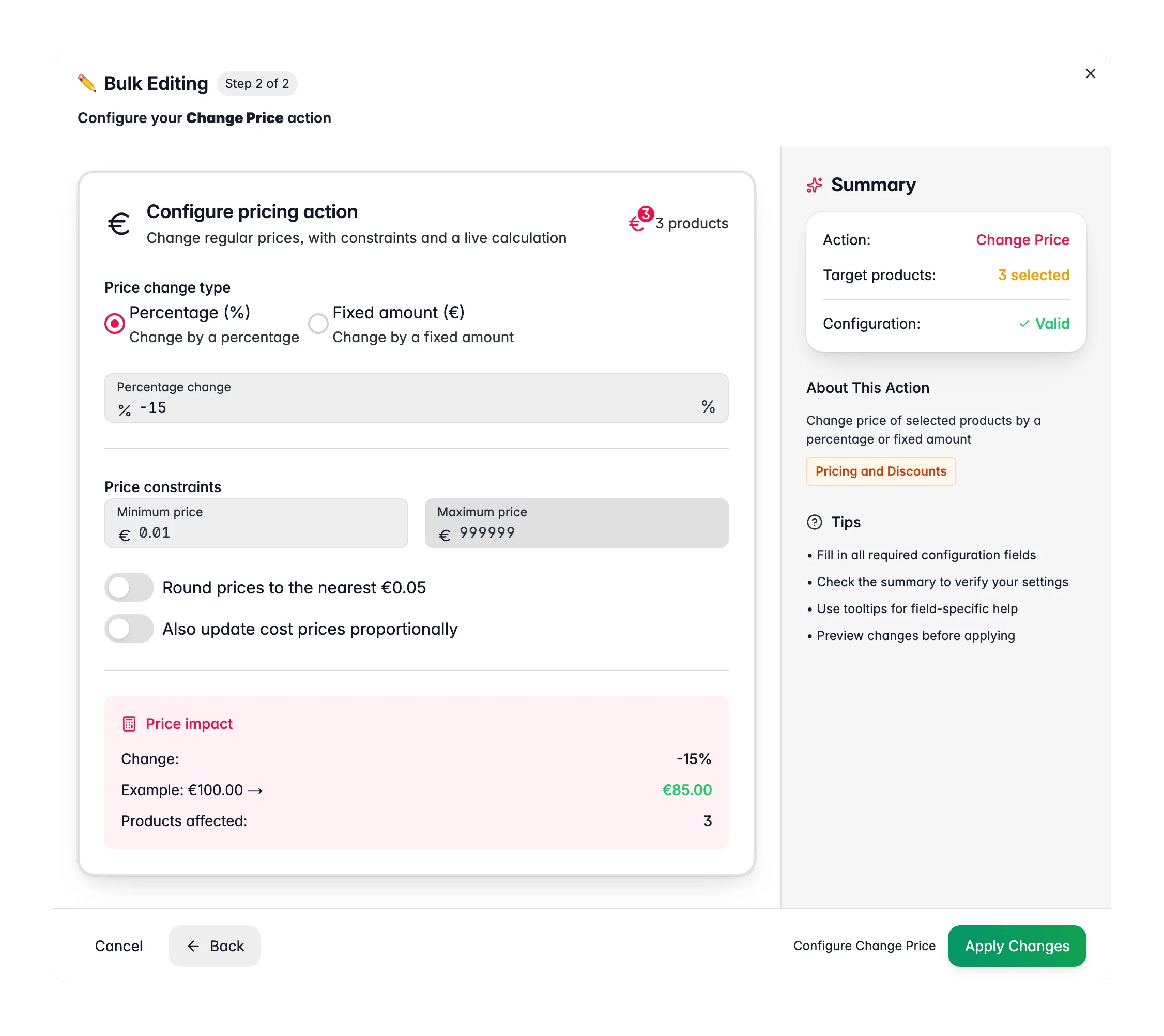
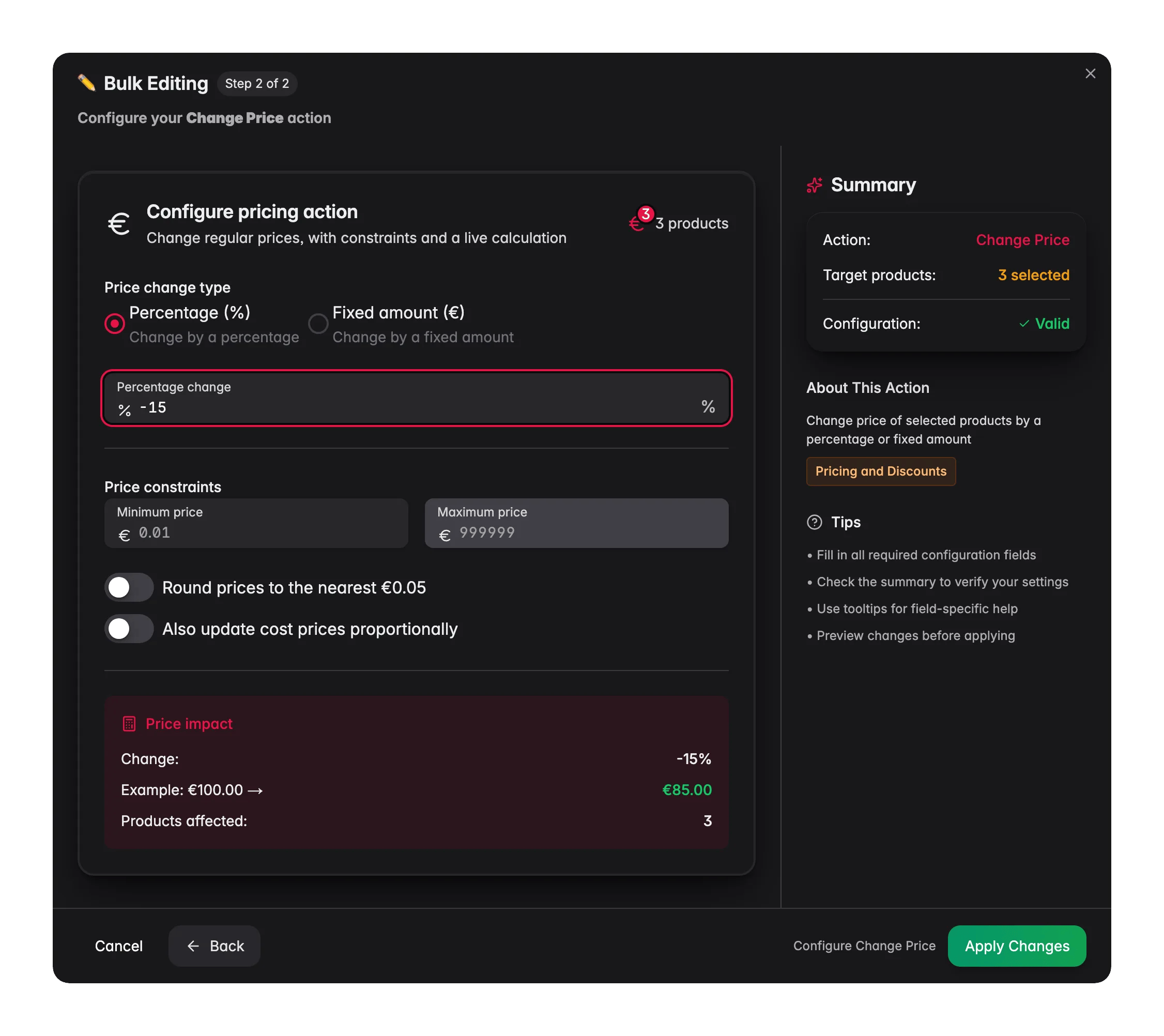
Open Bulk Edit and choose Change Price
Click Bulk Editing. Search for “Change Price” or find it under Pricing & Discounts.
3
Choose the change type
Pick Percentage to change by a % (for example +10% or -15%), or Fixed Amount to add or subtract a set euro amount.
4
Set guardrails and options
Optionally set a minimum and maximum price, turn on rounding, and choose whether to update cost prices too.
5
Review the preview and apply
Check the impact calculator, which shows what happens to a €100 product, then click Apply.
Options
Tips
- Use the impact calculator to check the change before you apply it. It shows the result on a €100 example product.
- Set a minimum price when applying discounts. This stops prices from dropping below your cost.
- Turn on Also update cost prices proportionally for catalog-wide changes. This keeps your margin calculations accurate.
Related
Update Cost/Margins
Set cost prices or hit a target margin across products.
Set Special Price
Apply a sale price with an optional start and end date.
Apply Volume Discounts
Add tiered pricing based on quantity.
All Bulk Edits
Browse every bulk action available in WisePIM.