

Quick edit vs. full edit page
Both editors share the same core fields (name, descriptions, pricing, inventory, SEO, categories, custom attributes). The difference is context: the modal is for speed, the page is for depth.
Quick edit modal
Click the pencil icon in the Actions column of the product table to open the quick edit modal. It gives you access to the most-used fields in a compact layout without navigating away from your product list.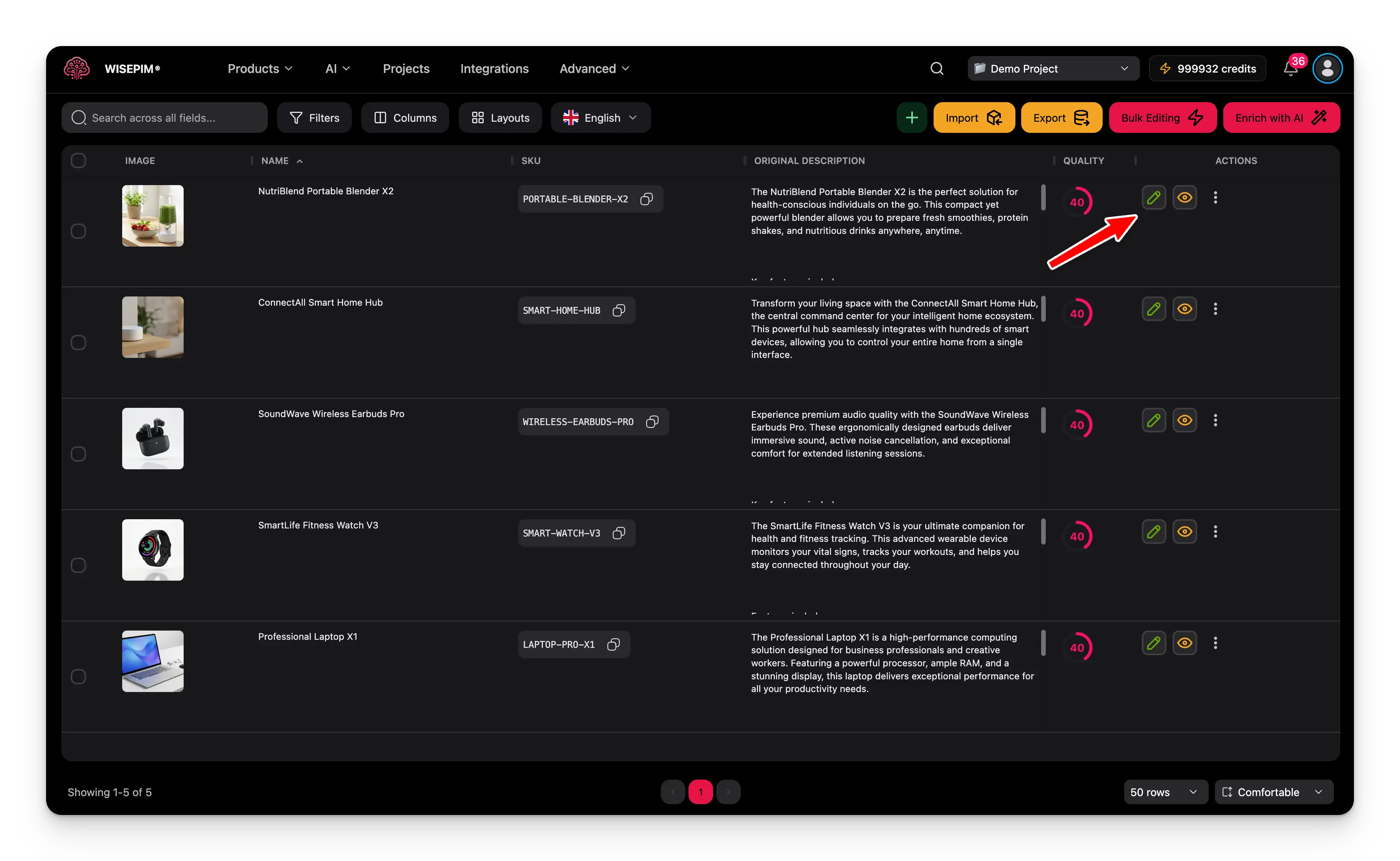
The pencil icon in the Actions column opens the quick edit modal.
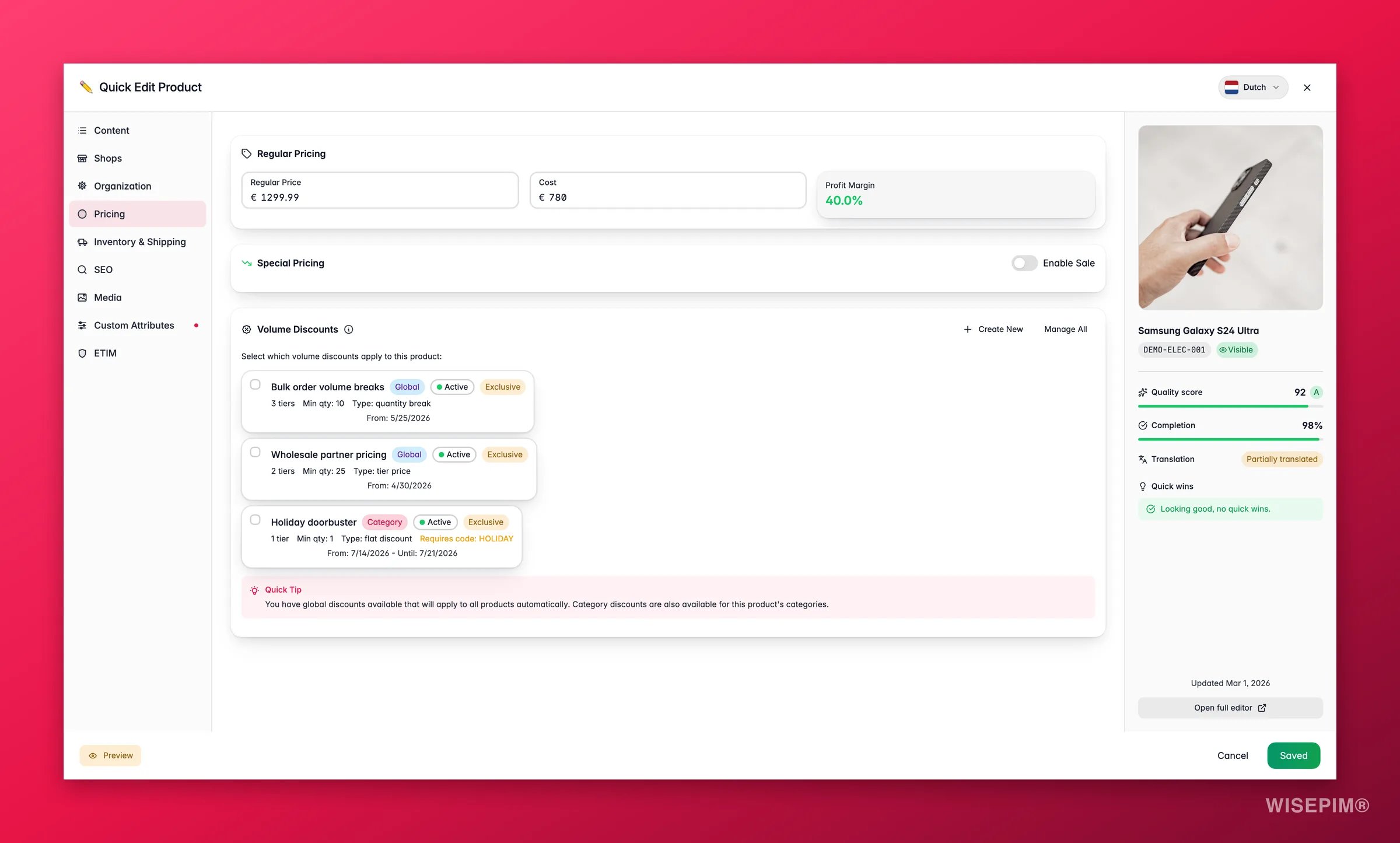
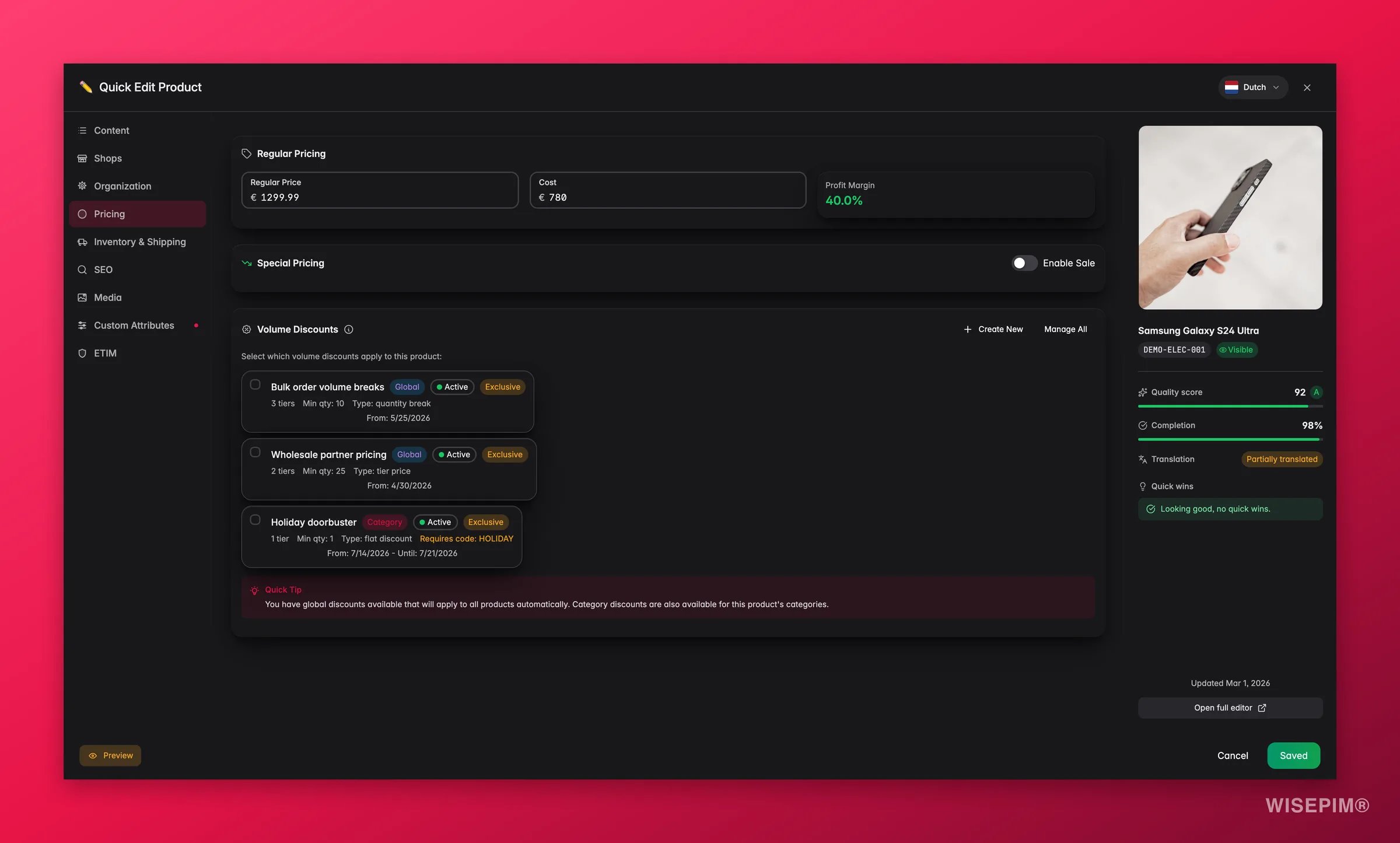
Tabs
- Content: product name and enriched name, SKU, brand, manufacturer part number, supplier, and the description and short description, original and enriched side-by-side
- Shops: which connected shops this product syncs to, the same controls as the Shops tab in the full editor
- Organization: product type, product family, parent product, status, visibility, and a tree-based category selector with multi-select
- Pricing: regular price and cost with live profit margin, special pricing with quick sale presets, volume discounts with conflict warnings
- Inventory & Shipping: EAN, UPC, HS code, country of origin, shipping class, stock quantity and status, low stock threshold, shipping and handling switches, handling instructions, dimensions and weight
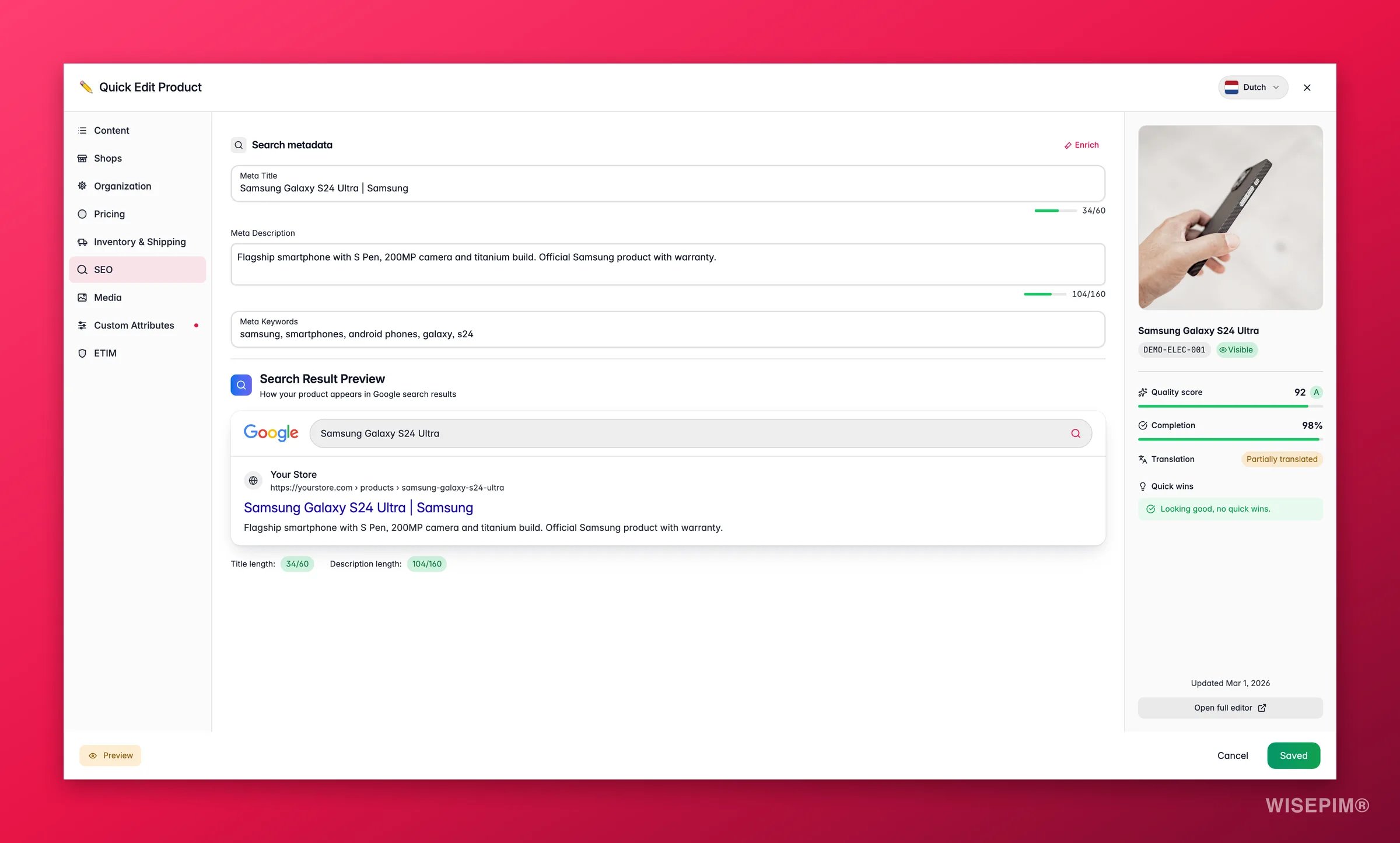
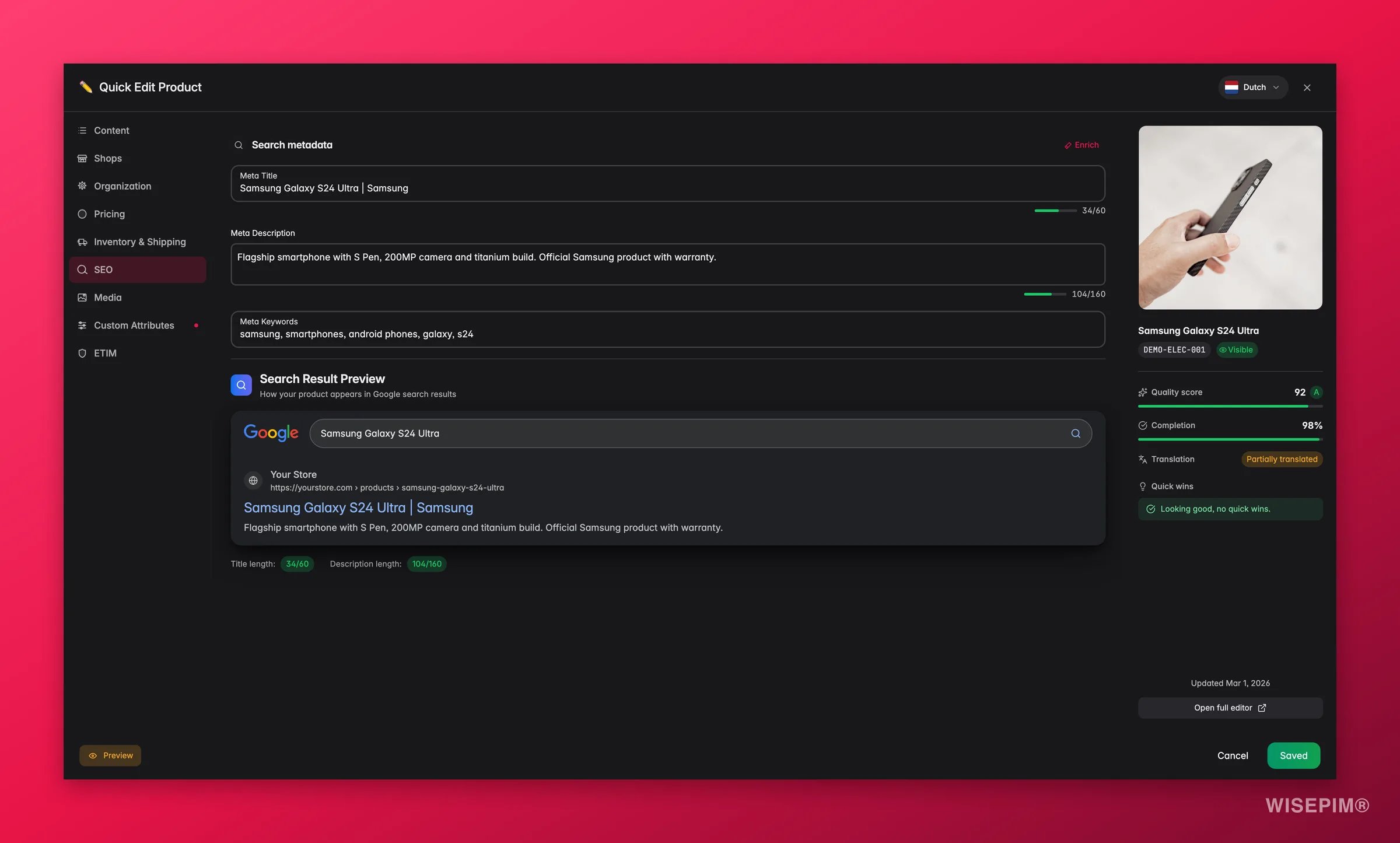
- SEO: meta title, description, keywords with a live Google search preview and character counts
- Media: this product’s images. Upload files, generate one with AI, link an asset from the Media Library, drag to reorder, set the main image, or remove a background
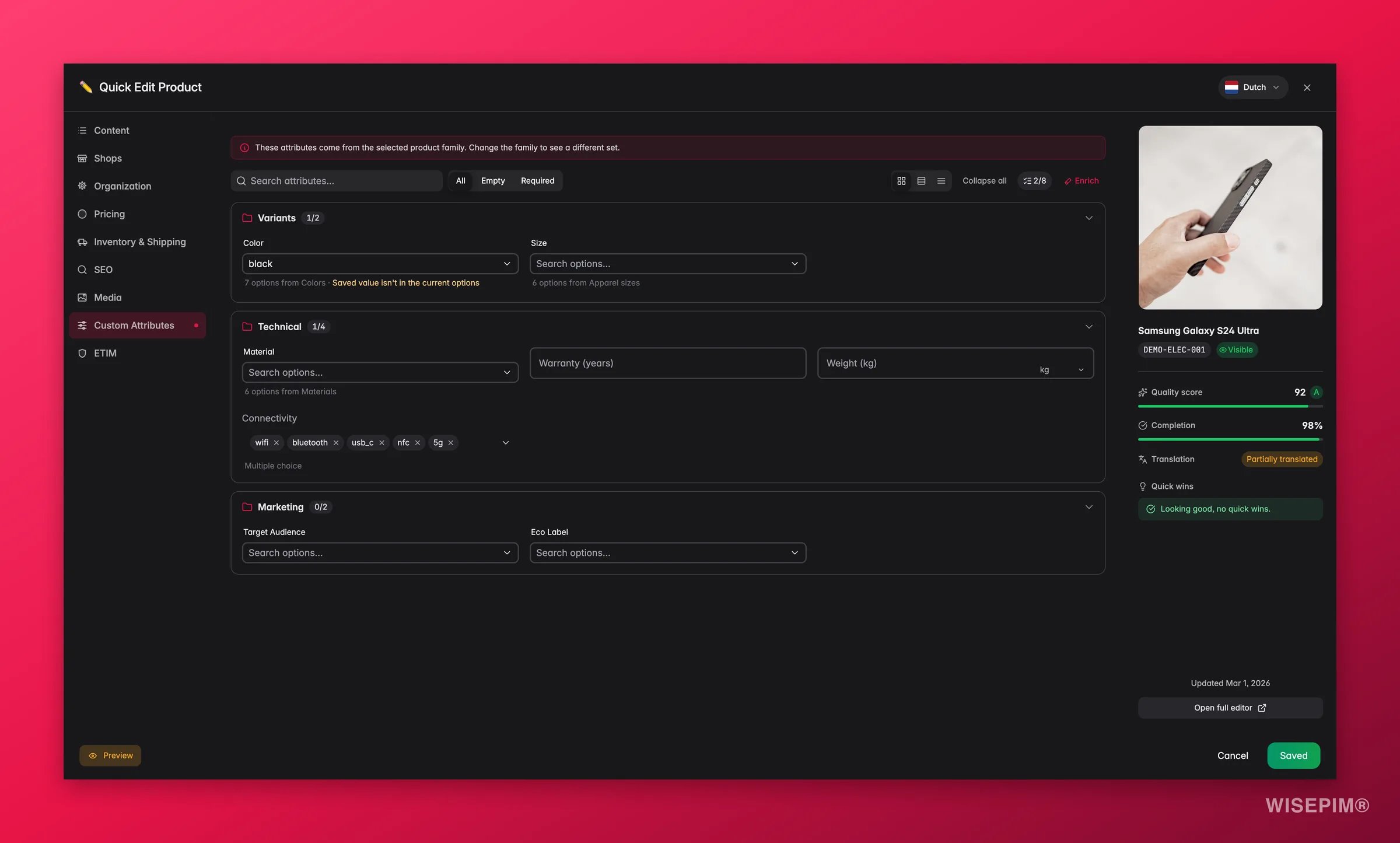
- Custom Attributes: product attributes from the assigned product family, in the same attributes panel as the full editor
- ETIM: how the product conforms to its family’s ETIM class, with per-feature validation and AI auto-fill
Three of these are conditional. SEO and ETIM follow the SEO and Classification modules in your workspace, and Custom Attributes only appears when the product’s family has attributes. So nine tabs is the maximum, not what you’ll always see.
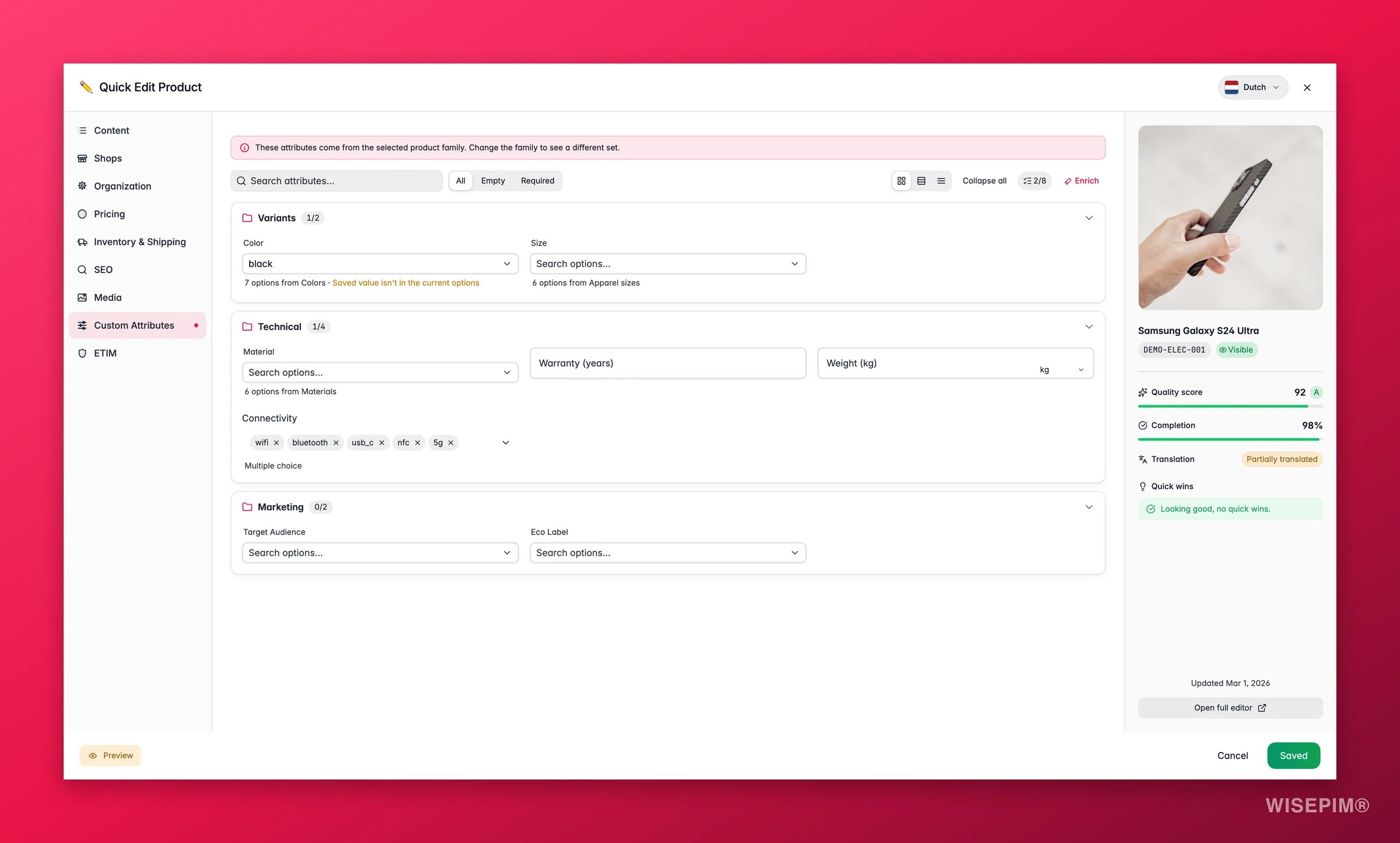
Translate from Quick Edit
If the product has no translations yet, a Generate translations button appears in the modal. Click it to translate this product into your project languages without leaving the list. See translating products for what gets translated and what it costs.Original and enriched descriptions
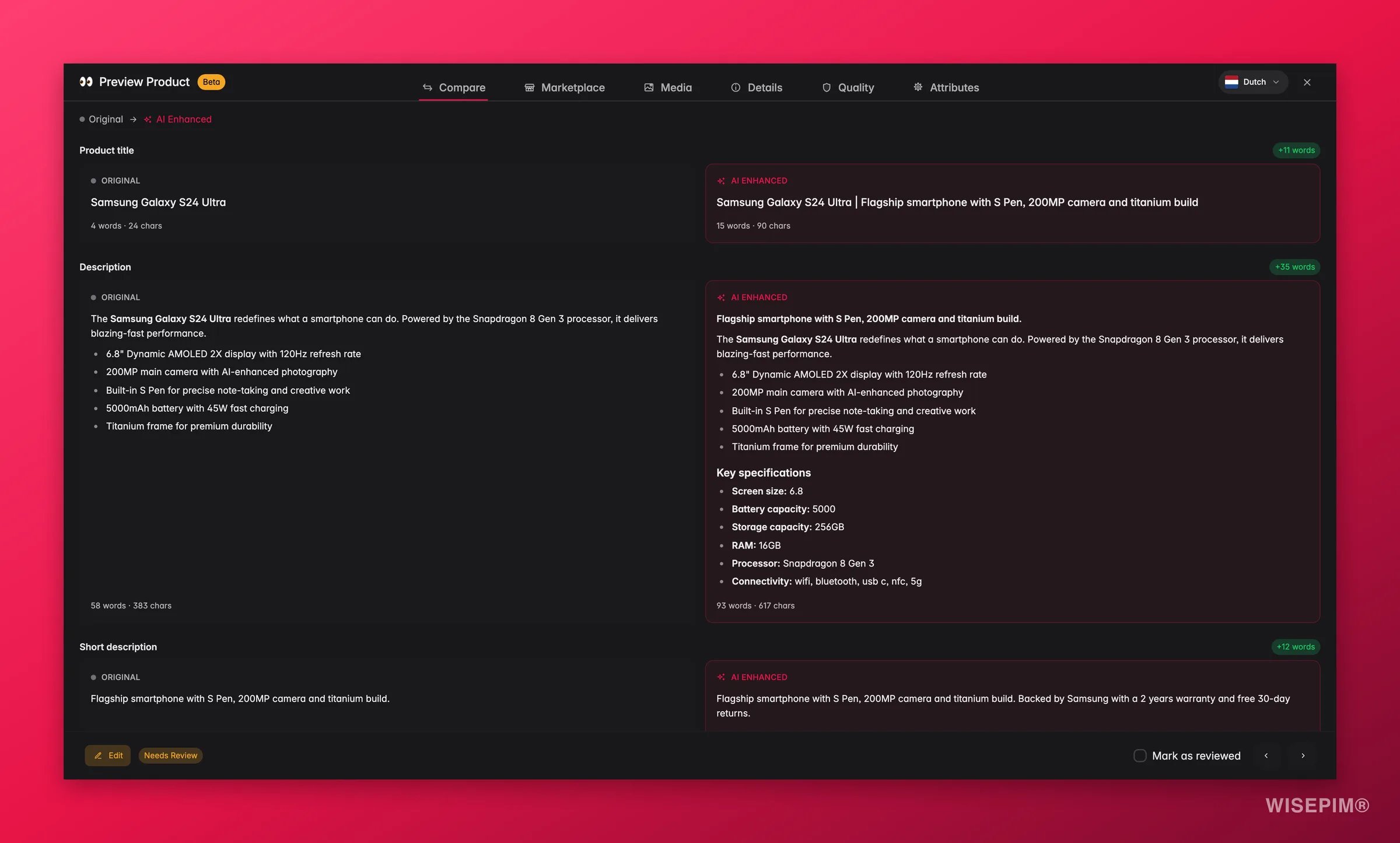
The Content tab shows the Original Description and the Enriched Description side-by-side. The original is the text as it came from your source system. The enriched version is what AI generates. You can edit both, and they stay independent. Fix a typo in the original without touching the AI version, or polish the enriched copy on its own. Nothing you write in one field overwrites the other.Saving and closing
Quick Edit does not auto-save. Click Save Changes and the modal closes as soon as the server confirms the save. The row in the table updates in place and keeps its position, also when an enrichment lands on it later, so a run of edits does not shuffle the list under you.- Close the modal with unsaved edits and WISEPIM asks Discard unsaved changes? Choose Discard changes or Keep editing.
- If the save fails, you see We couldn’t save this product. Your edits stay in the modal, so check your connection and try again.
- If someone else saved the product in the meantime, you see This product changed elsewhere. Your edits are kept; review the latest state, then try again.
Special pricing features
The Pricing tab includes features designed for fast promotional setup:- Profit margin: automatically calculated from price and cost
- Quick sale presets: one-click buttons for 24h Flash Sale, 7-Day Sale, Weekend Sale, and Monthly Sale that set the date range for you
- Status badges: shows whether a special price is active, scheduled, or expired
- Volume discounts: assign discount rules with automatic conflict detection (warns about overlapping quantity ranges or mixed discount types)
Full edit page
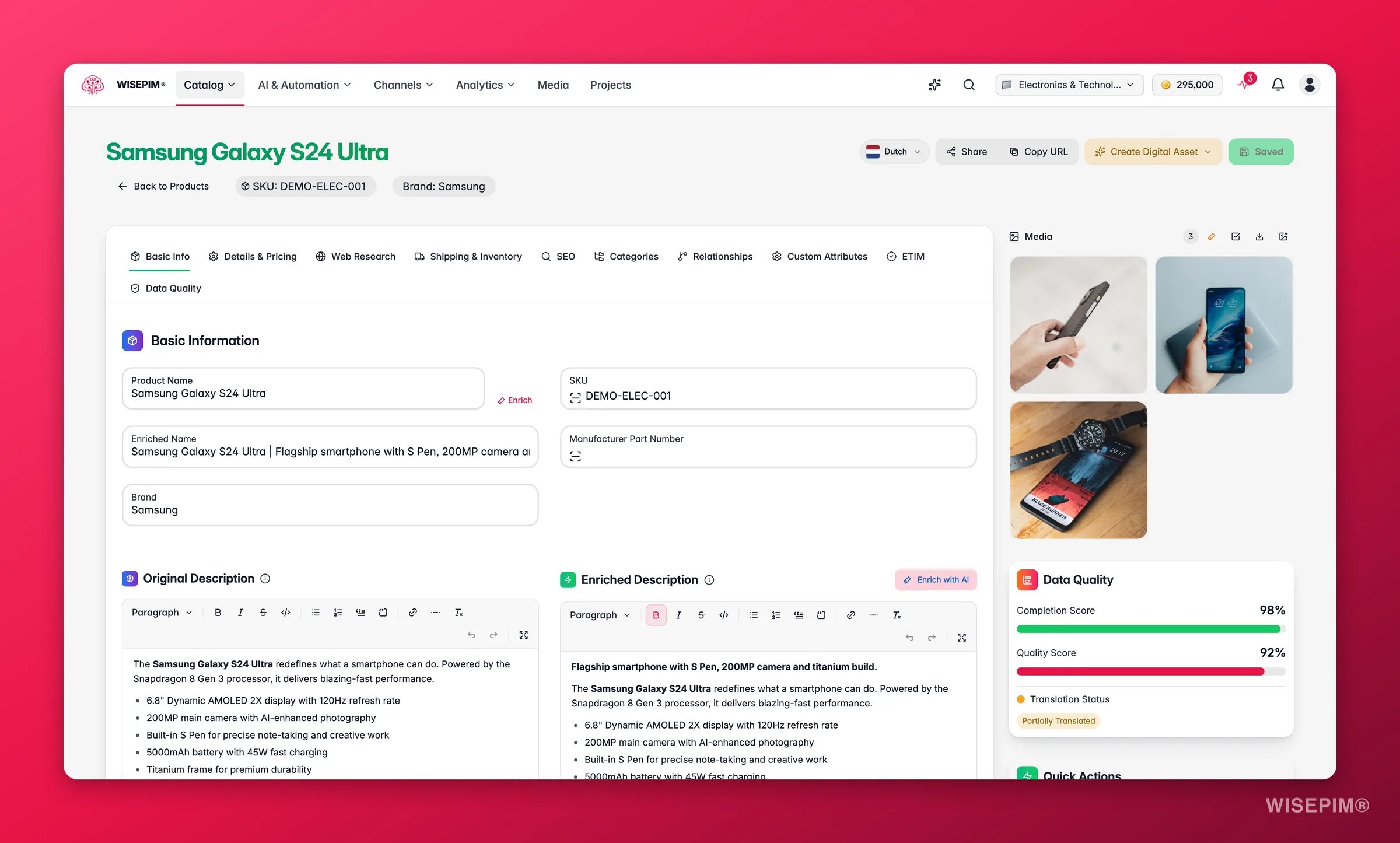
Open the full edit page from the row’s ⋮ (three-dots) menu: choose Edit. (You can also navigate straight to the product’s URL.) This is a dedicated page with the full product URL (/products/edit/{sku}) and gives you access to everything.
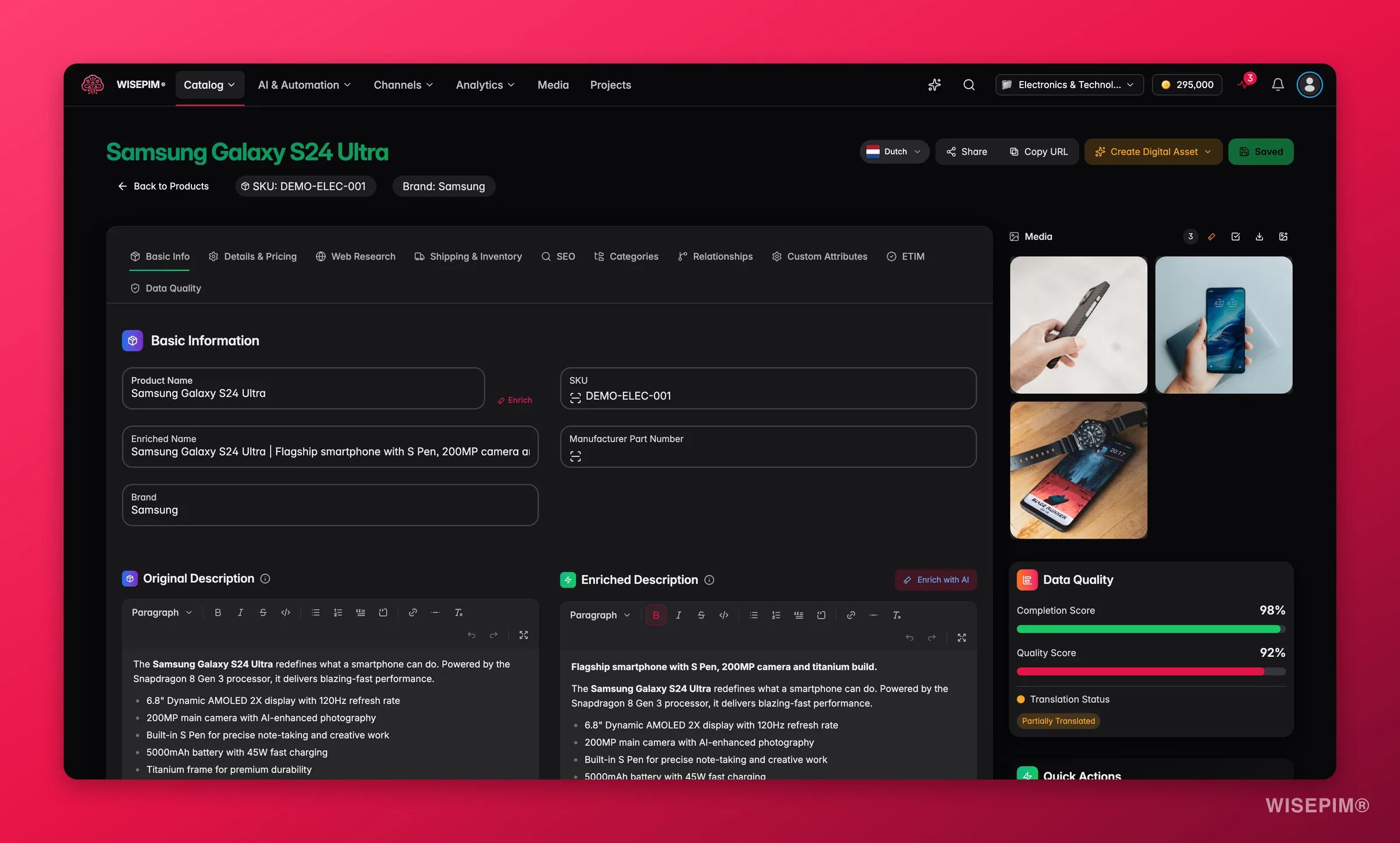
Tabs
- Basic Info: product name, brand, SKU, and descriptions. The Original Description is preserved from your source system. The Enriched Description holds the AI-improved version, ready to review before publishing.
- Details & Pricing: product type, supplier, MPN, pricing, cost, and product configuration (visibility, product type)
- Web Research: AI-gathered product information from the web with merge status, field tracking, and the ability to merge research data into product fields
- Shipping & Inventory: EAN, UPC, HS code, country of origin, stock quantity, dimensions, weight, and shipping toggles
- SEO: meta title, description, and keywords with a live Google search preview. AI can also suggest internal links to related products directly in your descriptions.
- Categories: tree-based category selector with multi-select. Child categories automatically include their parents.
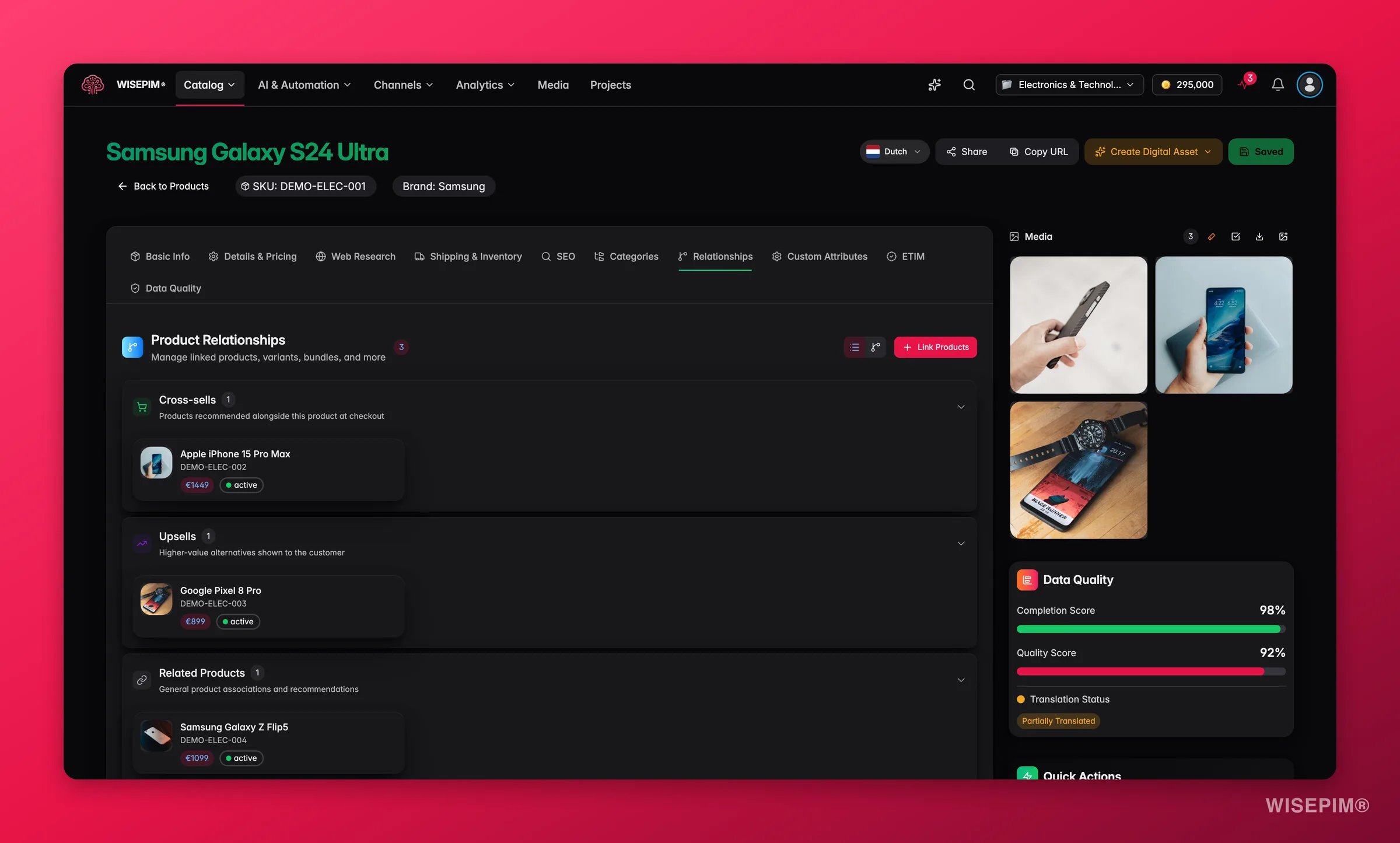
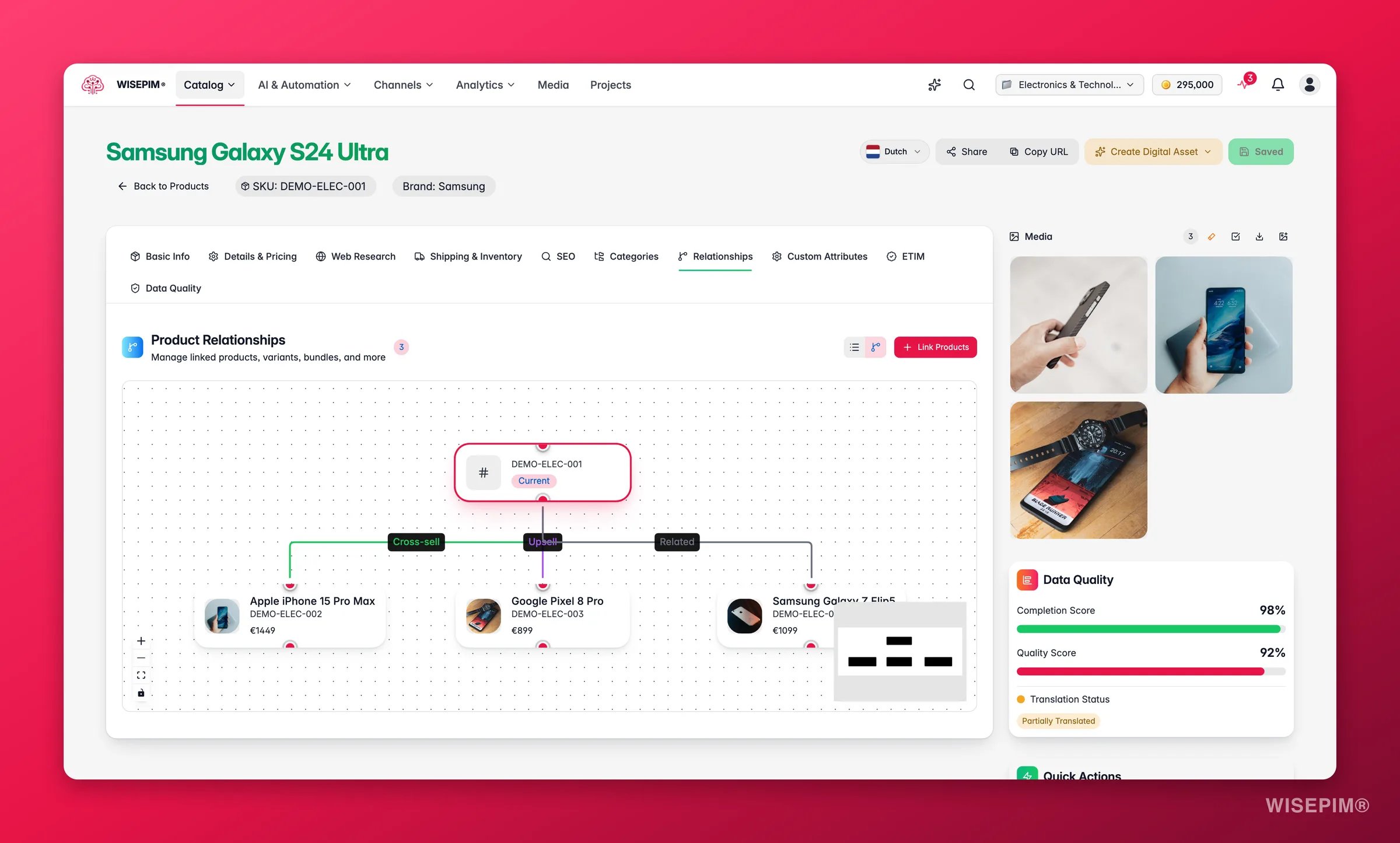
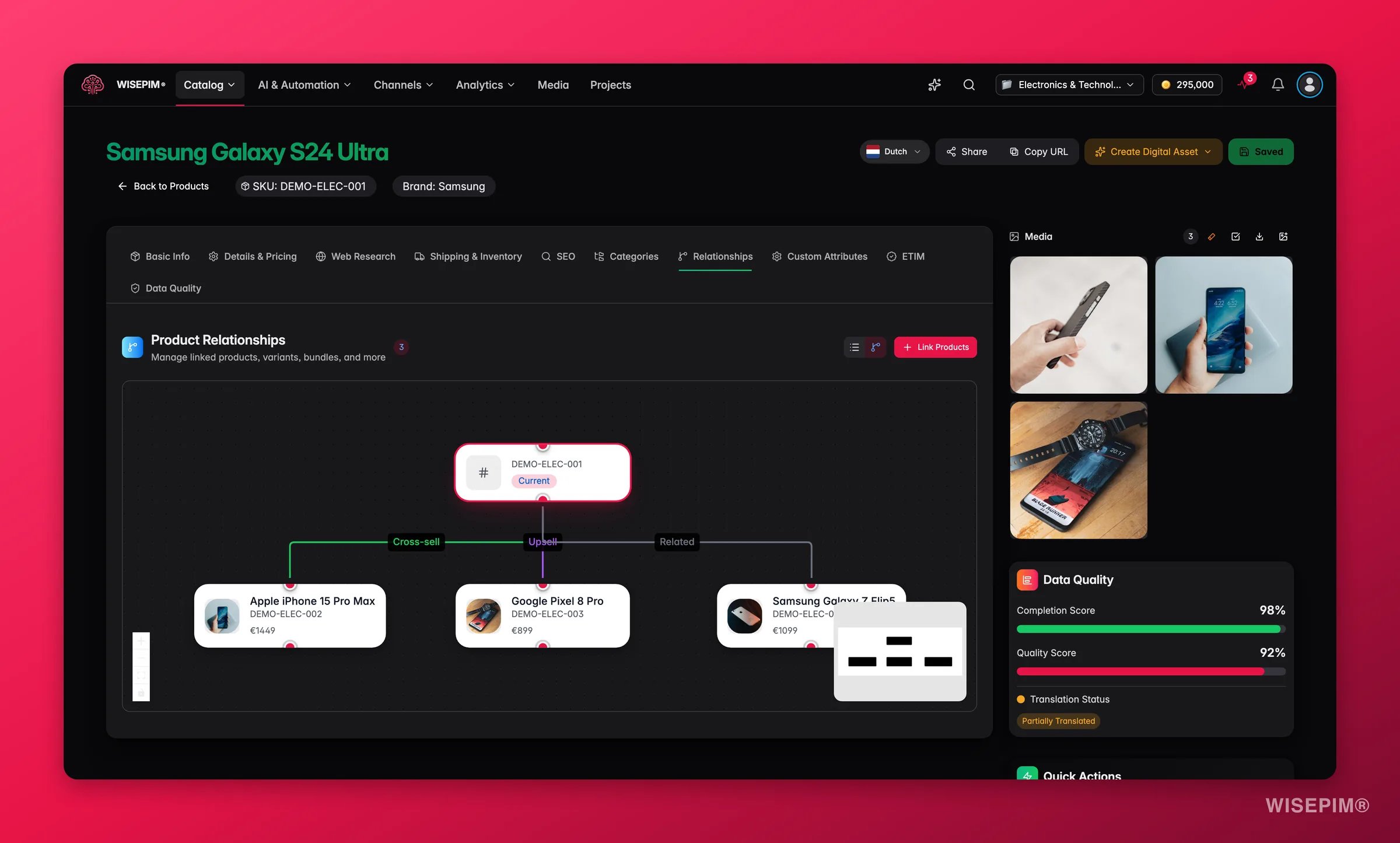
- Relationships: link this product to variants, bundle items, grouped items, cross-sells, upsells, and related products. View relationships as a list or an interactive graph.
- Custom Attributes: all attributes grouped by attribute group in the attributes panel, with search, filters, units, and controlled option lists. Available attributes depend on the assigned product family.
- ETIM: conformance against the product’s ETIM class: a score, a per-feature checklist with plain-English fixes, and one-click AI auto-fill.
- Data Quality: overall quality grade, completeness, channel readiness, SEO and discoverability, and conversion potential scores with a detailed domain breakdown and actionable recommendations.
- Shops: which connected shops receive this product, with a sync switch per connection and CCV multishop assignments.
The Web Research and Custom Attributes tabs only show when there’s something to display: Web Research appears once research has been run for the product, and Custom Attributes appears when the product has attributes (usually from its product family). So eleven tabs is the maximum, not what you’ll always see.
The attributes panel
The Custom Attributes tab got a full overhaul, built for catalogs where a product can carry hundreds of fields (an adopted ETIM class alone brings dozens):- Grouped and collapsible: attributes render in sections per attribute group, each with a filled/total count. Ungrouped fields collect under Other attributes. On products with a very large attribute set, only the first section starts open.
- Search and filters: search by label or code, and filter to All, Empty, or Required fields. A warning chip counts required attributes that are still missing.
- Three layouts: switch between full grid fields, one-attribute-per-row (best for long ETIM feature names), or a dense two-column compact view. Your choice is remembered.
- Units built in: numeric attributes show their unit inside the field. If the attribute’s unit set has one unit, it’s shown as text; with more, you get an inline unit picker with the attribute’s default unit first.
- Ranges: interval attributes (like an operating temperature of −40 to 85 °C) render as paired Min / Max inputs sharing one unit.
- Searchable option lists: select fields backed by an attribute options set are always searchable, show labels in the language you’re editing, and only offer active values. When a product family narrows the allowed values, you only see the ones that apply.
- Family scoping: with a family selected, you see that family’s attributes plus general (unscoped) ones - attributes belonging to a different family stay out of the way.
- ETIM context: attributes materialised from an ETIM class carry a quiet
ETIM EF…reference. Click it to see what the standard says: type, prescribed unit, whether the class requires it, and the permitted values.
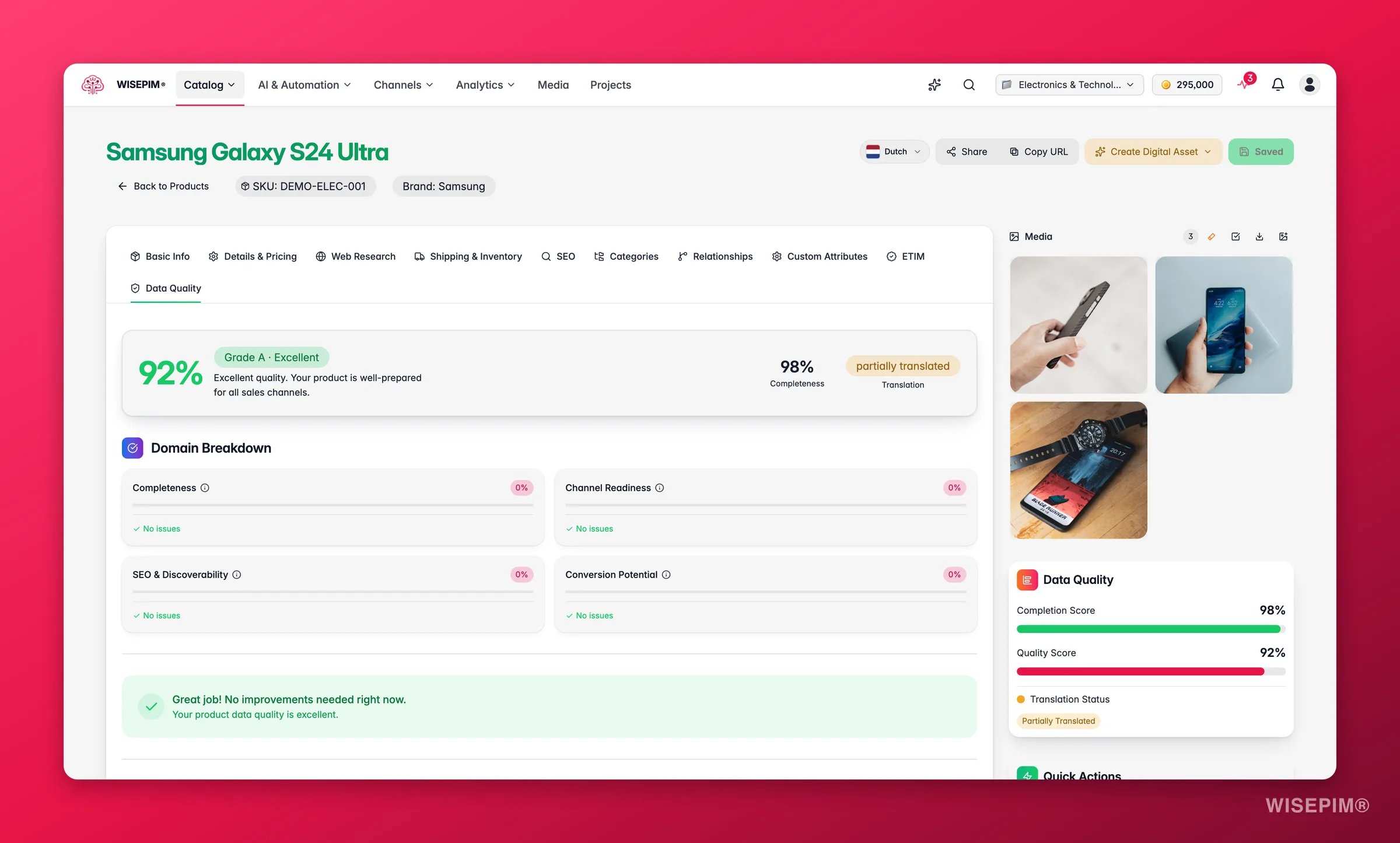
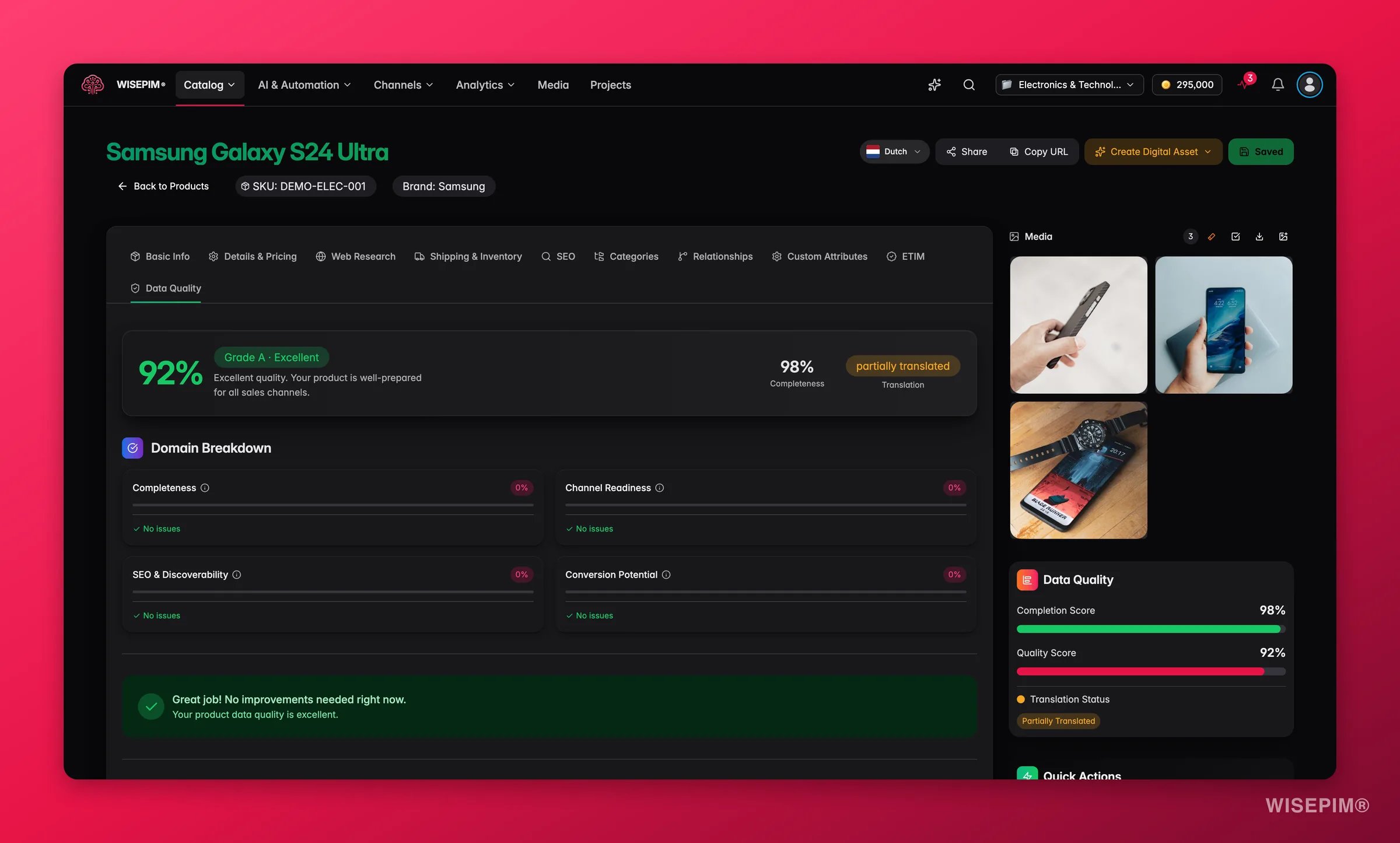
Sidebar
The right sidebar shows three live scores for the product you are editing:- Completion Score: how much of the expected data is filled in
- Quality Score: an overall data quality grade
- Translation Status: whether the product content has been translated and reviewed
AI enrichment
The full edit page has Enrich buttons next to every major field: titles, descriptions, SEO metadata, categories, and product attributes. Click one to run an AI prompt on that specific field. When AI updates a field, it lights up with a visual animation so you can see exactly what changed. Enrichment runs via WebSocket, so updates appear in real-time without refreshing.Original vs. enriched content
WISEPIM always keeps the Original Description intact. It is the exact text from your source system. AI writes to the Enriched Description field instead, which you can review and compare before saving. The translation status reflects whether the enriched content has been reviewed and approved.Product families and variants
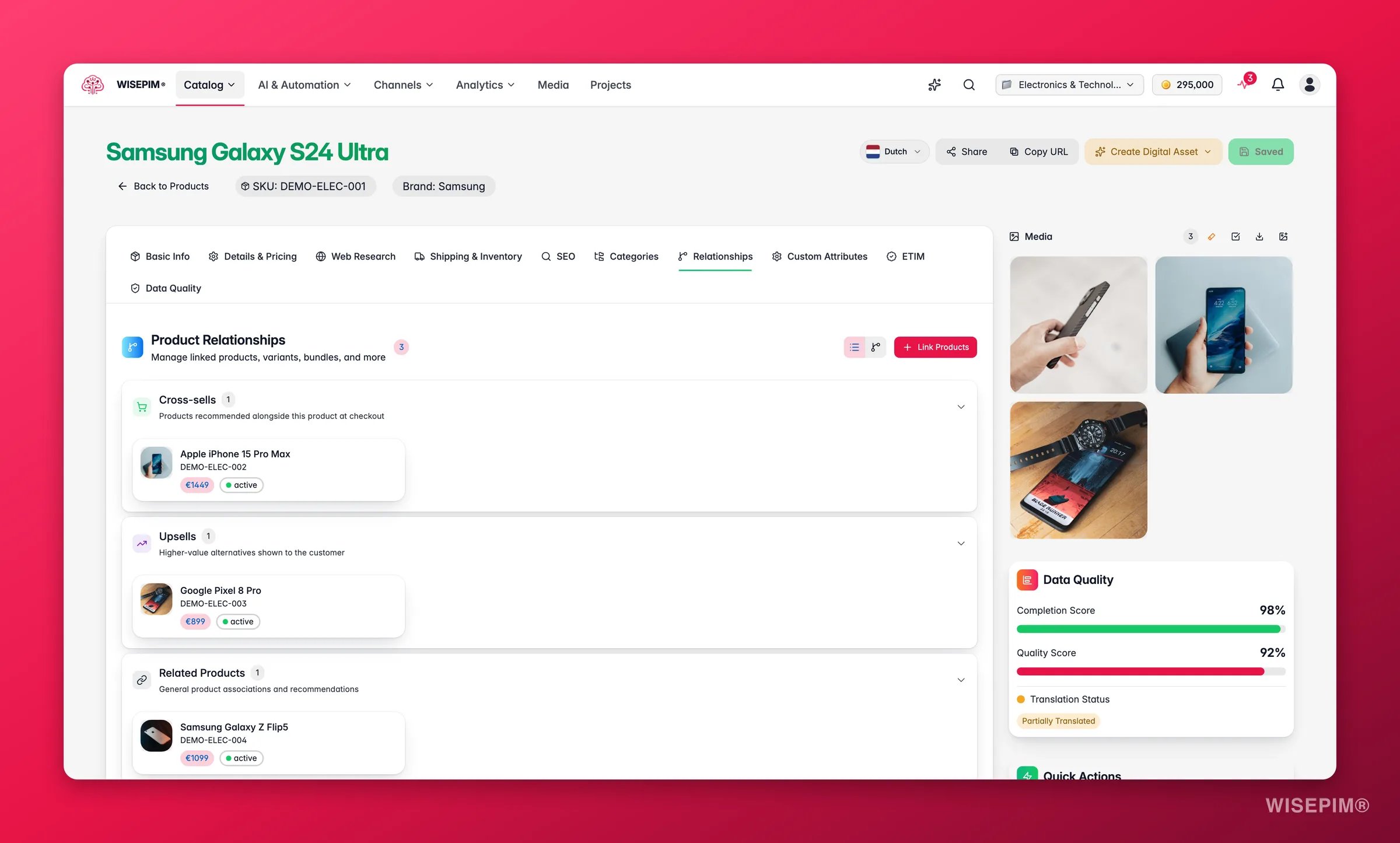
Make a product a variant
A variant is a product that hangs under a parent, for example each size and color of the same shirt. Grouping them keeps your catalog tidy and lets channels show one listing with options instead of ten near-identical products. There are three ways to set this up:- On the edit page: pick a Parent product on the product you want to turn into a variant. The search shows configurable products by default; toggle Show all products, not just configurable ones to pick a simple product, and WISEPIM converts it to a configurable parent when you save (an amber warning tells you first). Clear the field to detach the variant and make it standalone again.
- In Quick Edit: the same Parent product field is on the Organization tab, so you can attach a variant without opening the full page.
- In bulk: select the products in the table and run the Group as Variants bulk action to attach them all to one parent in a single step. See Group as Variants.
The Parent product field only appears on simple and virtual products - a configurable, bundle, or grouped product can’t itself become a variant. A variant cannot have variants of its own, bundle/grouped/virtual products cannot be parents, and the parent has to live in the same project. If a product refuses to attach, check those first.
Manage variants from the parent
On a configurable parent, the Relationships tab (full editor only - Quick Edit doesn’t have it) is where variants live: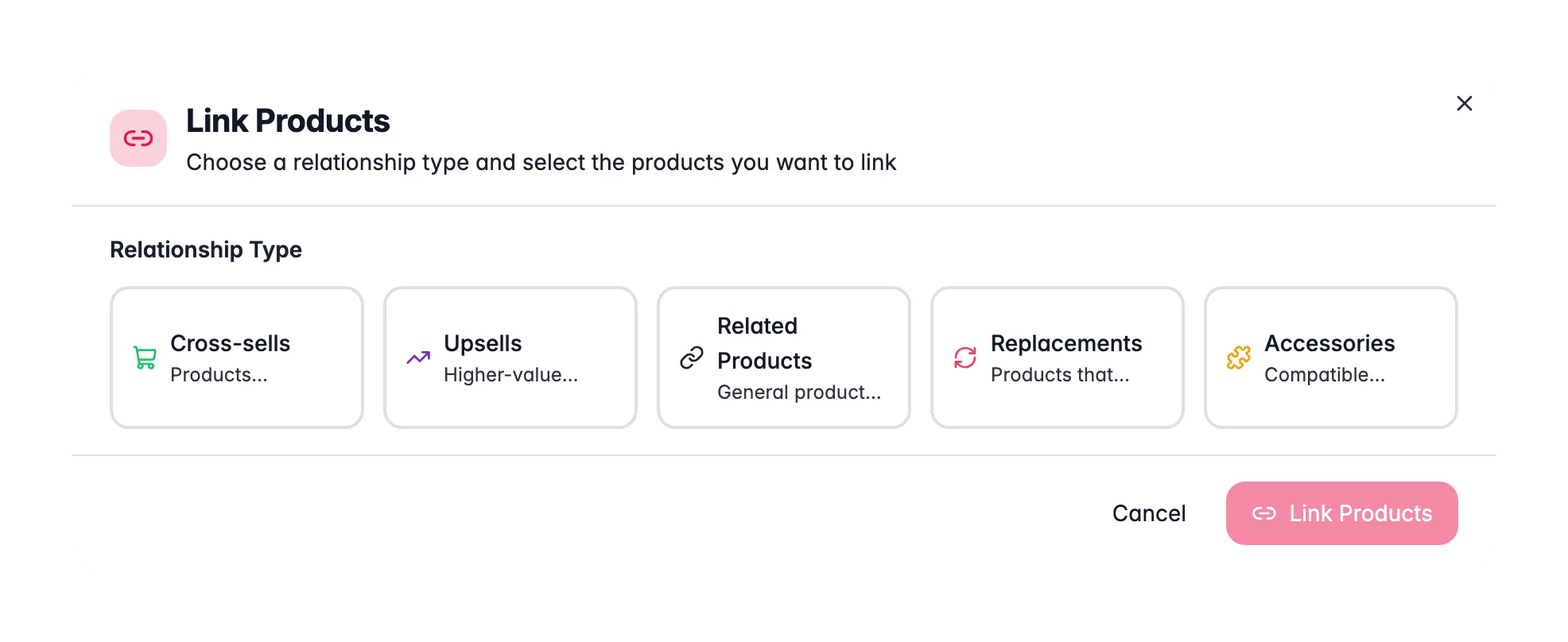
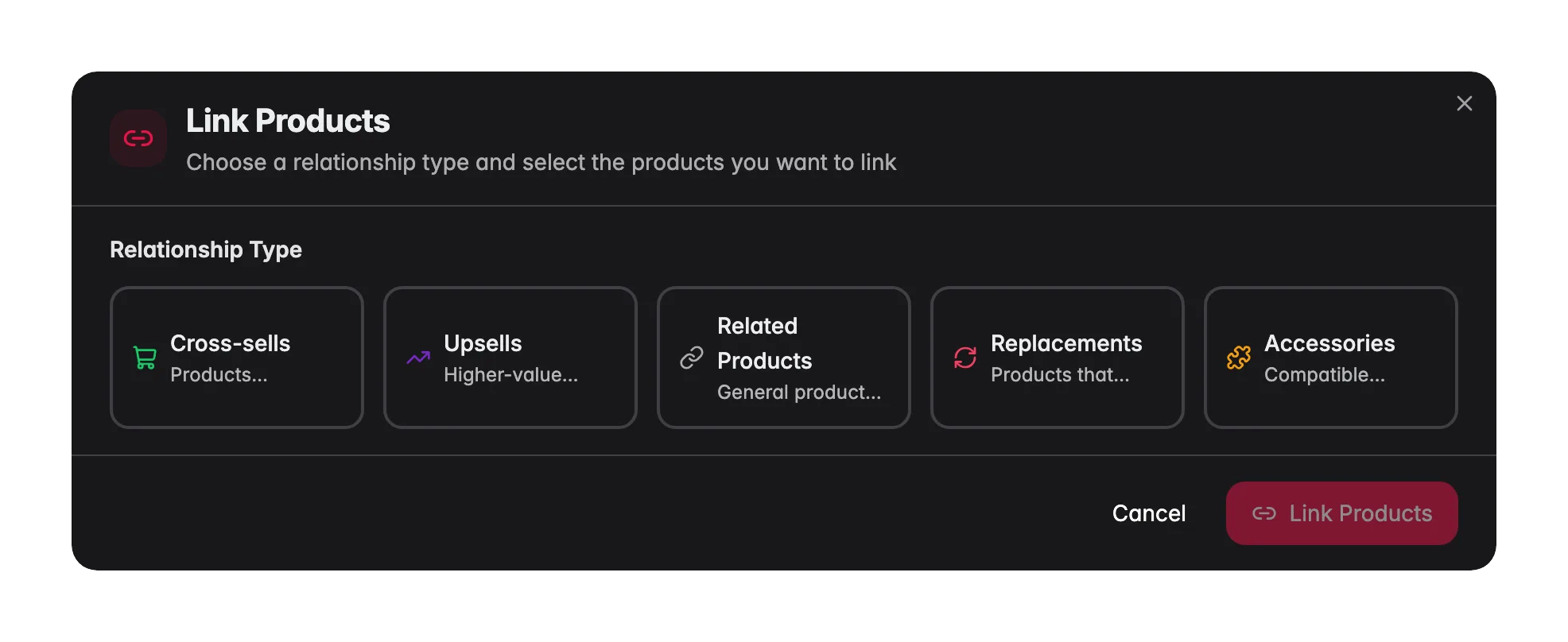
- Link Products attaches children to the current product: pick the Variant relationship type, search by name or SKU, select the products, and link them in one go.
- Each variant card has an Actions menu with View Product and Remove Link. Removing a link detaches the variant - the product is never deleted, it just becomes standalone.
- On a product that is a variant, the tab shows a read-only banner - “This product is a variant of …” - linking to the parent. Changing or clearing the parent happens on the Basic Info tab, not here.
Digital assets
From the header of the full edit page, you can create:- Product Sheet: export as a downloadable PDF product sheet
- Landing Page: design a landing page for this product
Unsaved changes protection
If you try to navigate away with unsaved changes, WISEPIM shows a confirmation dialog so you don’t accidentally lose work.Imported images in the gallery
The product gallery can hold images that were mirrored from your source webshop but never stored in the Media Library. They carry an Imported badge. They still go out to your sales channels, so if you do not want one published, delete it from the gallery. There is no library asset behind them, so you cannot reorder them, keep versions, or run AI edits on them. Upload or link the image from the Media Library to get the full toolset.Previewing a product
Click the eye icon in the Actions column to open a read-only preview. This is useful when you just need to check a product’s details without risking accidental edits.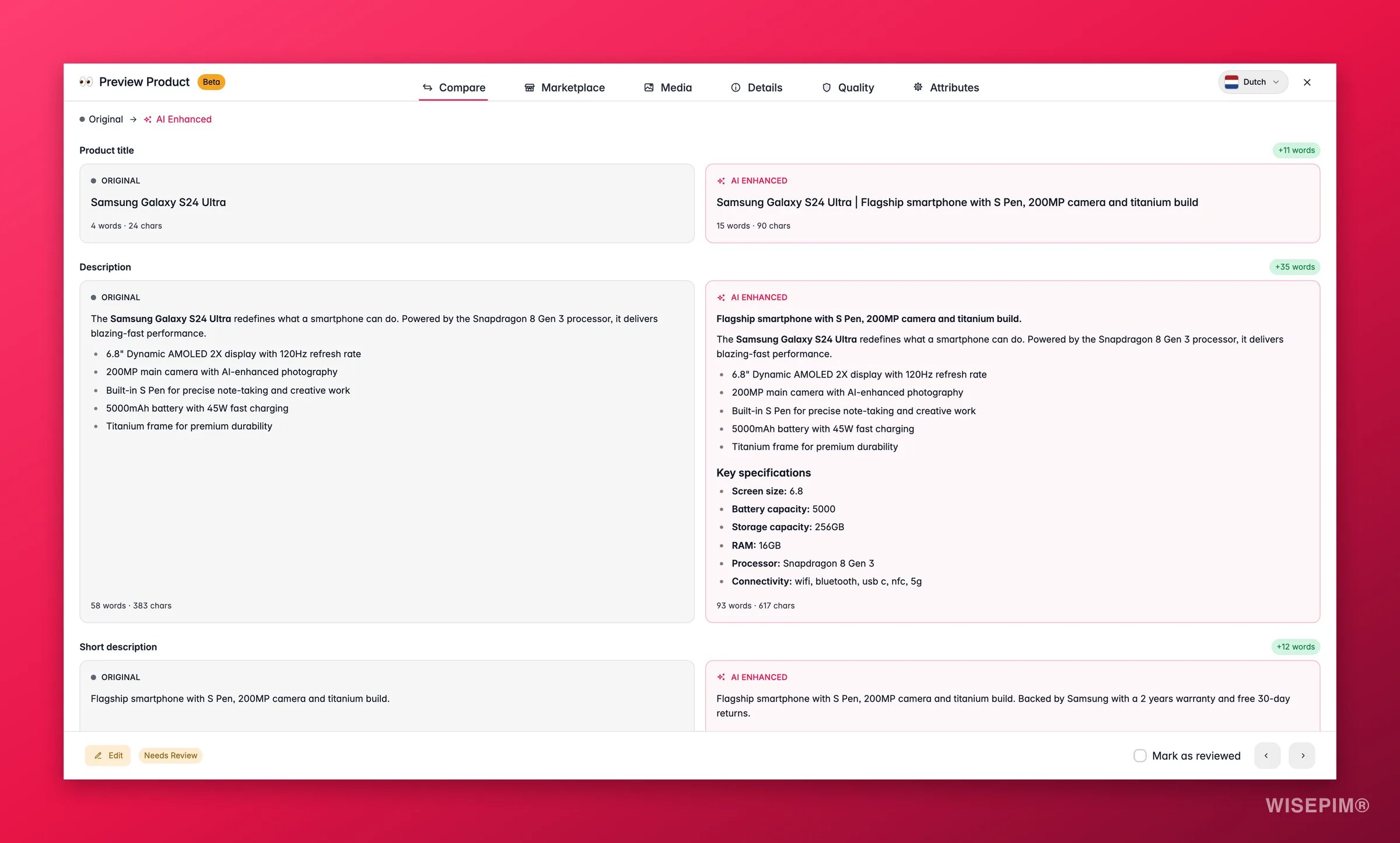
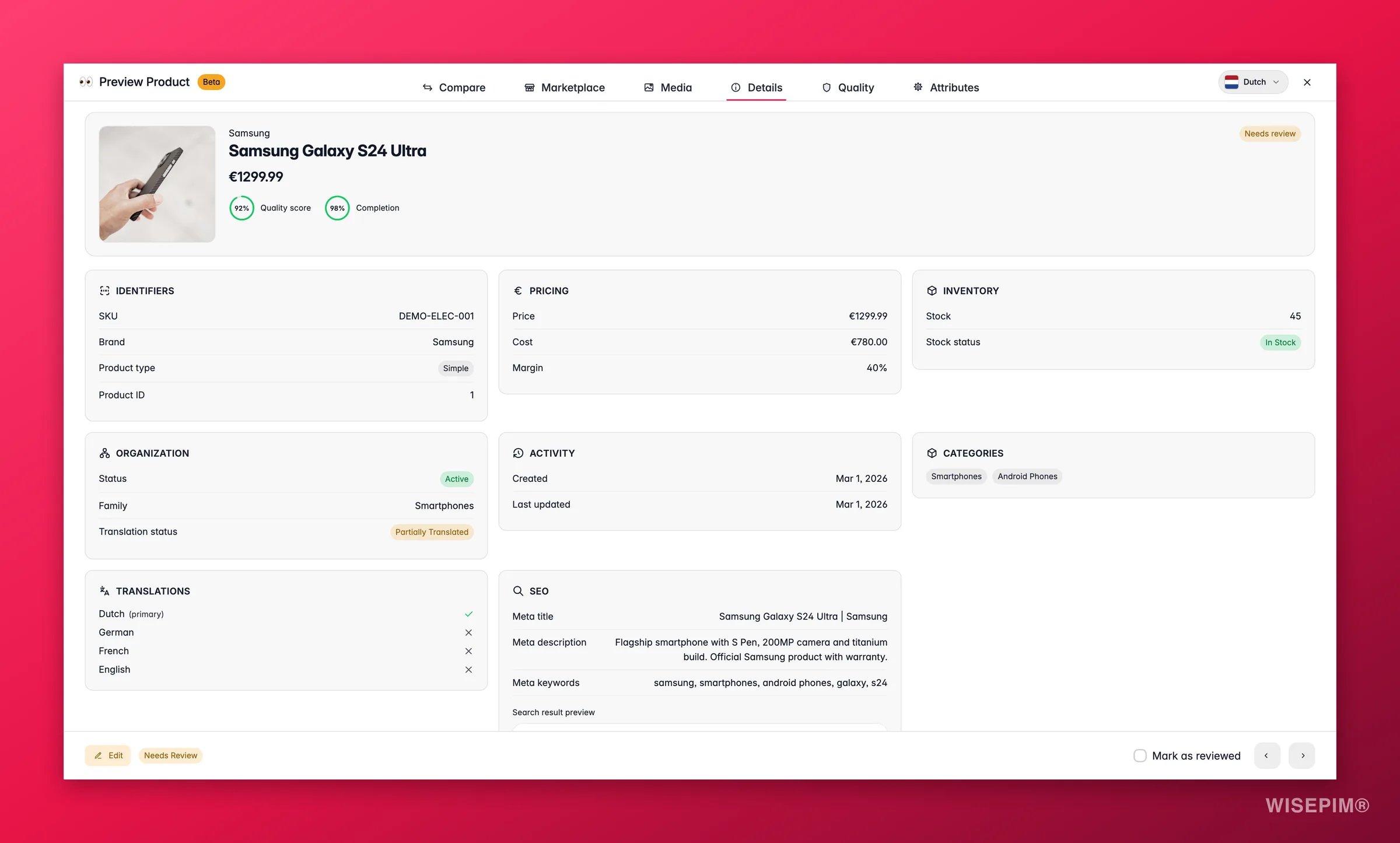
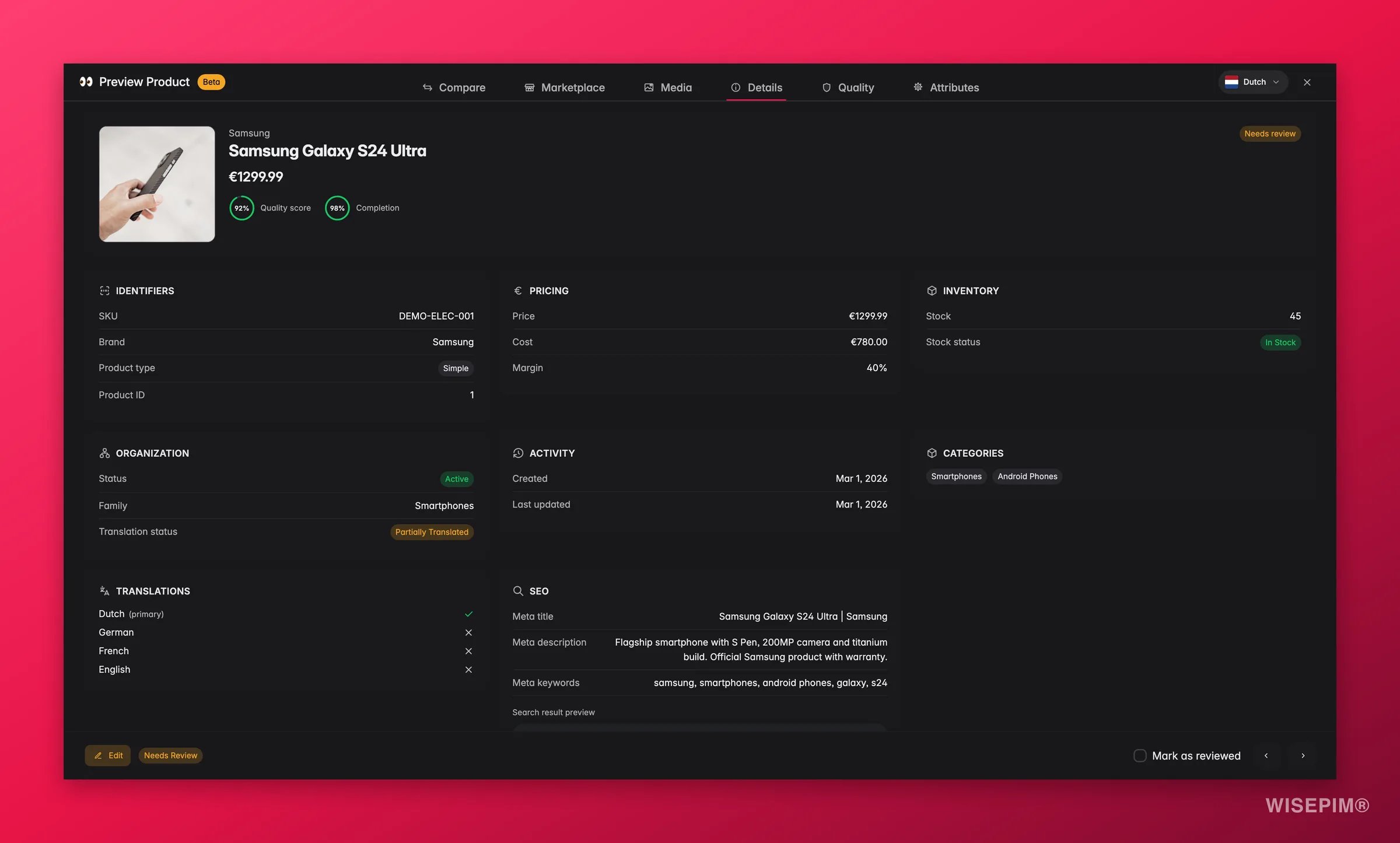
- Browse through products with previous/next arrows
- Change status (Reviewed / Unreviewed)
- Edit to start making changes. This opens the quick edit modal (not the full page), so you can fix things fast and stay close to your product list.
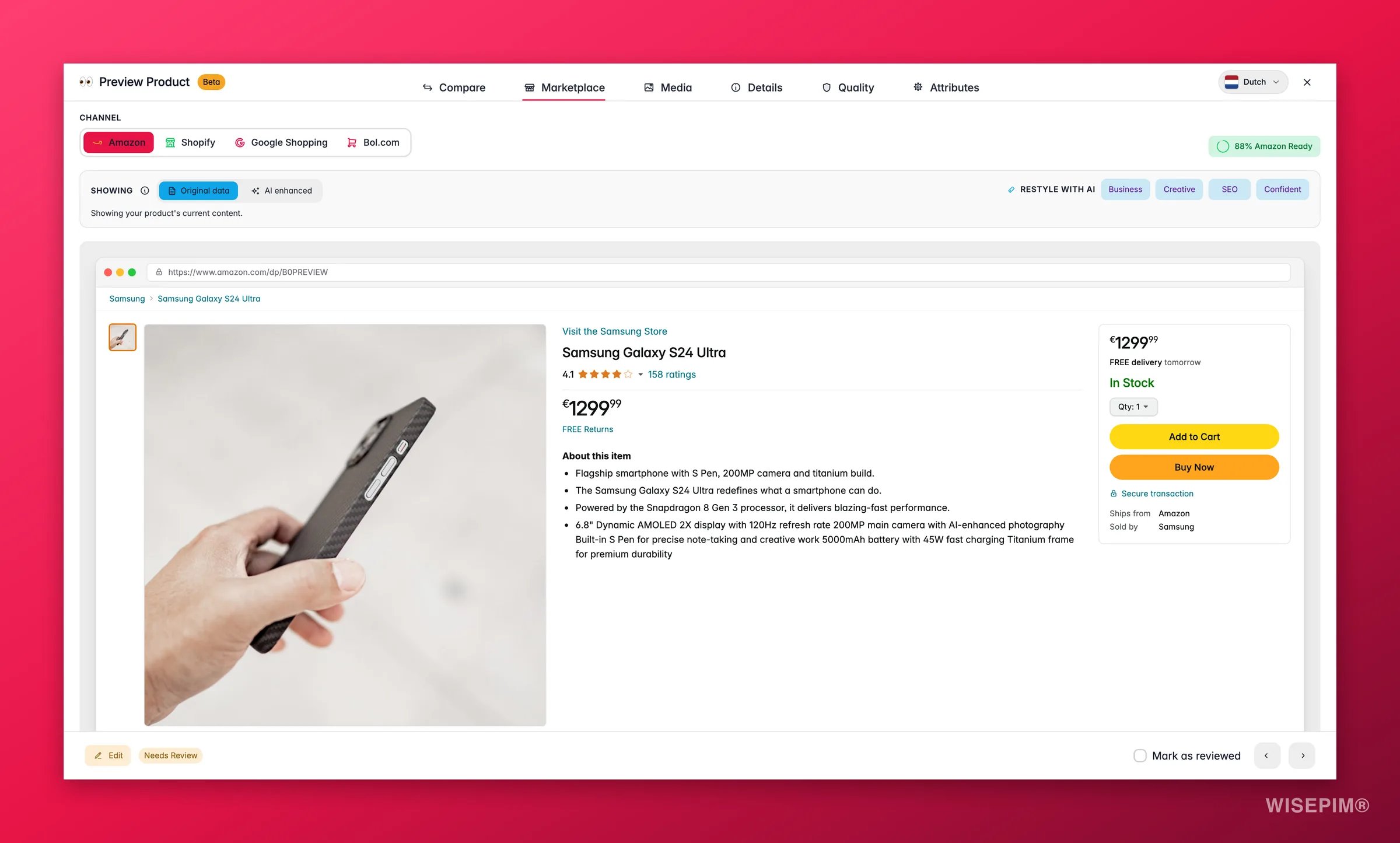
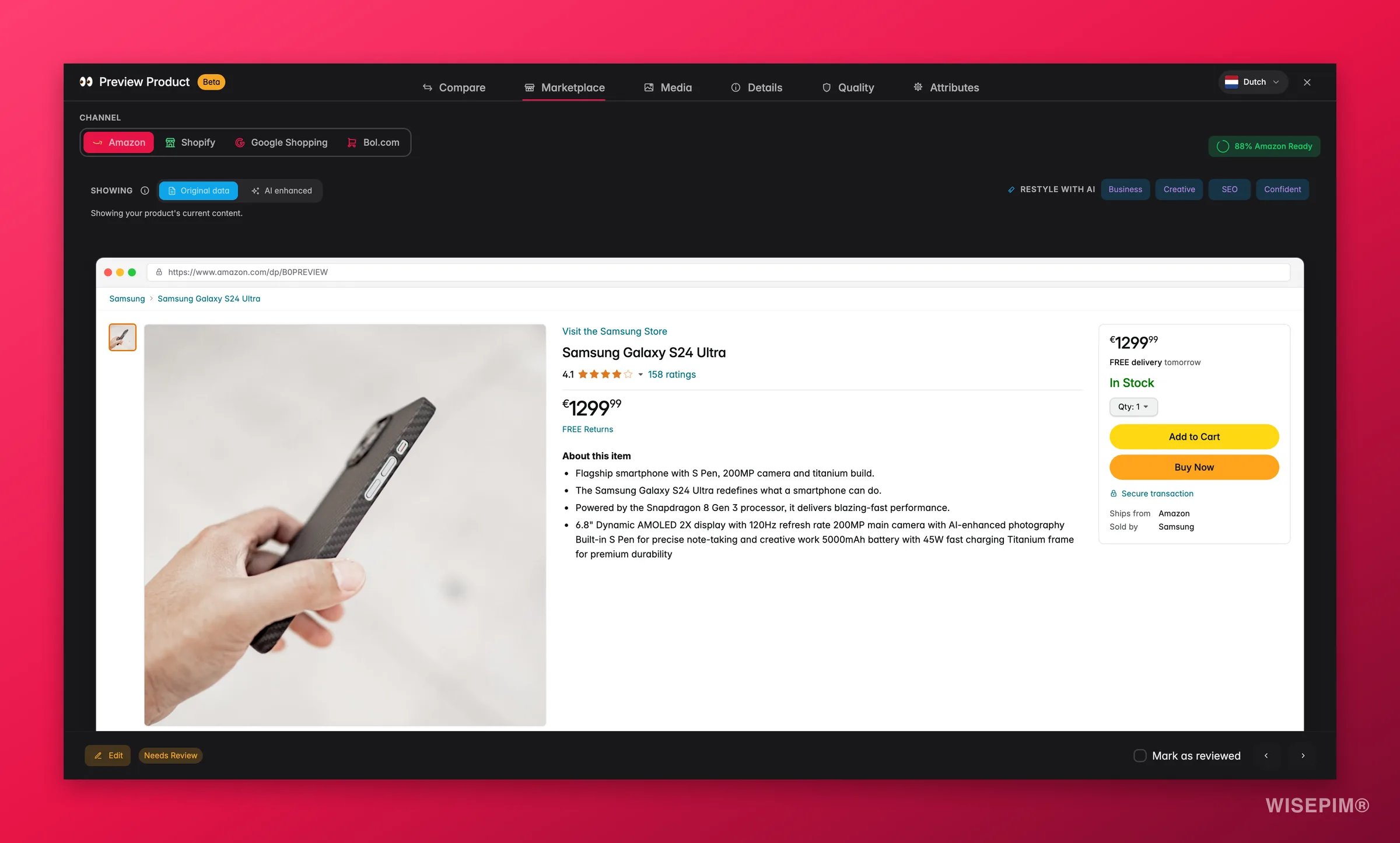
See the listing before the channel does
Tips
- Start with quick edit: for most day-to-day edits (fixing a price, updating stock, tweaking a description), the quick edit modal is faster because you stay in your product list.
- Switch to the full page for content work: when you’re writing descriptions, optimizing SEO, or enriching products with AI, the full edit page gives you the space and tools to do it properly.
- Review enriched content before publishing: AI writes to the enriched fields, not the originals. Check the side-by-side view, then save when you’re happy.
- Use the SEO preview: both editors show a live Google search preview in the SEO tab. Stay within the recommended character ranges (Title: 30–60, Description: 70–160) for the best results.
- For bulk changes, use bulk edit: if you need to change the same field on multiple products, bulk editing is much faster than editing products one by one.
Related
Product Families
Set up families to define which custom attributes apply to a product.
AI Enrichment
Learn how AI enriches titles, descriptions, attributes, and more.
Bulk Editing
Change the same field across many products at once.
Managing Attributes
Create and organize the custom attributes shown in the editor.