

Delete products in bulk
1
Select products
Check the products you want to delete, or use filters and select all matching results.
2
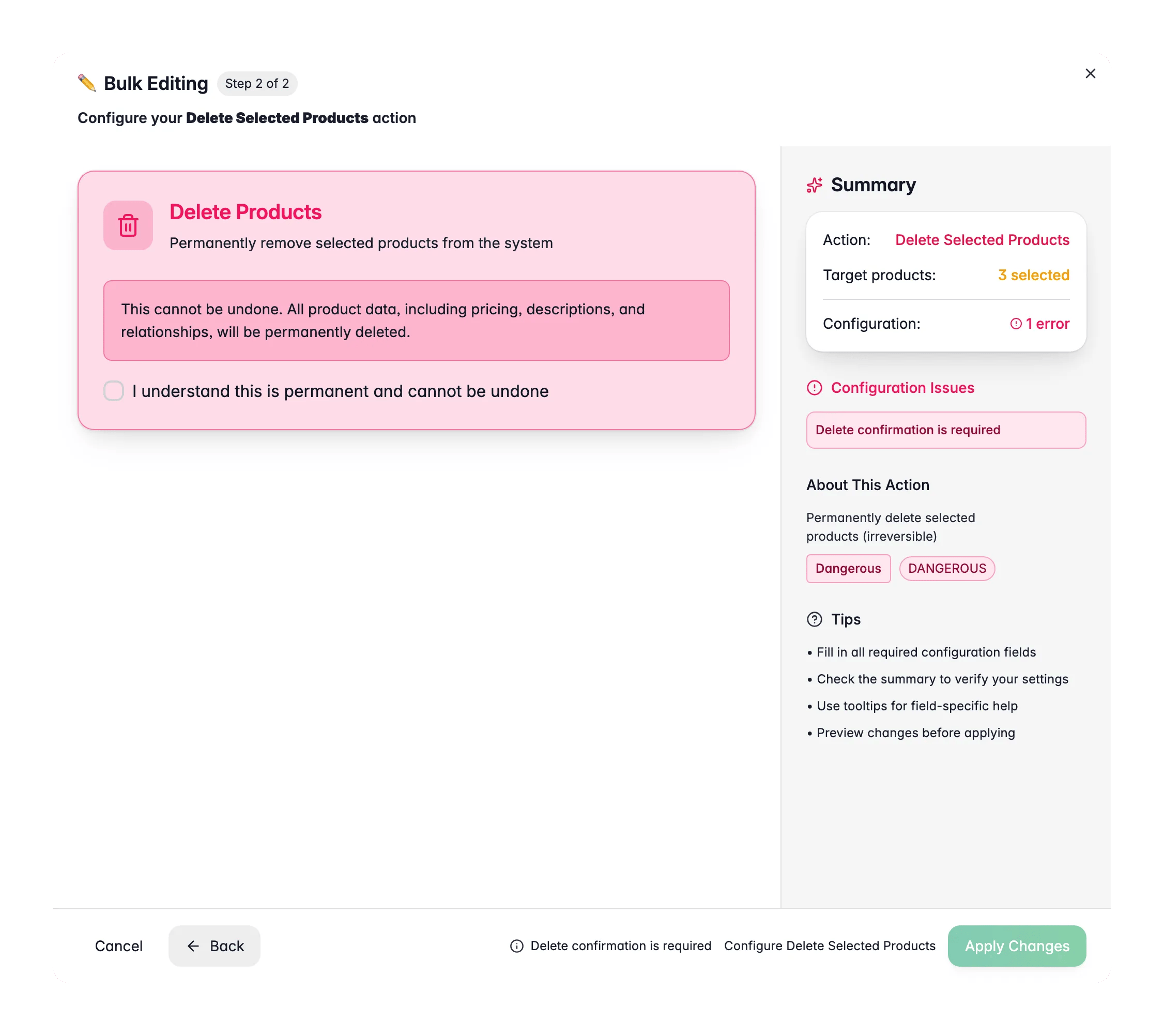
Open Bulk Edit and choose Delete Products
Click Bulk Editing, then search for “Delete Products” or find it under Danger zone.
3
Review and confirm
Check the number of products that will be deleted, then confirm. You must confirm explicitly before the action runs.
What gets deleted
Deleting a product removes everything attached to it:- The product record and all its field values
- Custom attribute values
- Category assignments
- Pricing and inventory data
Tips
- Export your products before a bulk delete if there’s any chance you’ll need the data later.
- Use filters to narrow your selection. Double-check that only the intended products are selected before you confirm.
- For large deletions, follow progress in the Process Tracker.
Related
Export products
Back up your data before deleting anything.
Update status
Hide products instead of deleting them.