

Set dimensions
1
Select products
Check the products you want to update, or use filters and select all matching results.
2
Open Bulk Edit and choose Set Dimensions
Click Bulk Editing, then search for “Set Dimensions” or find it under Inventory & Shipping.
3
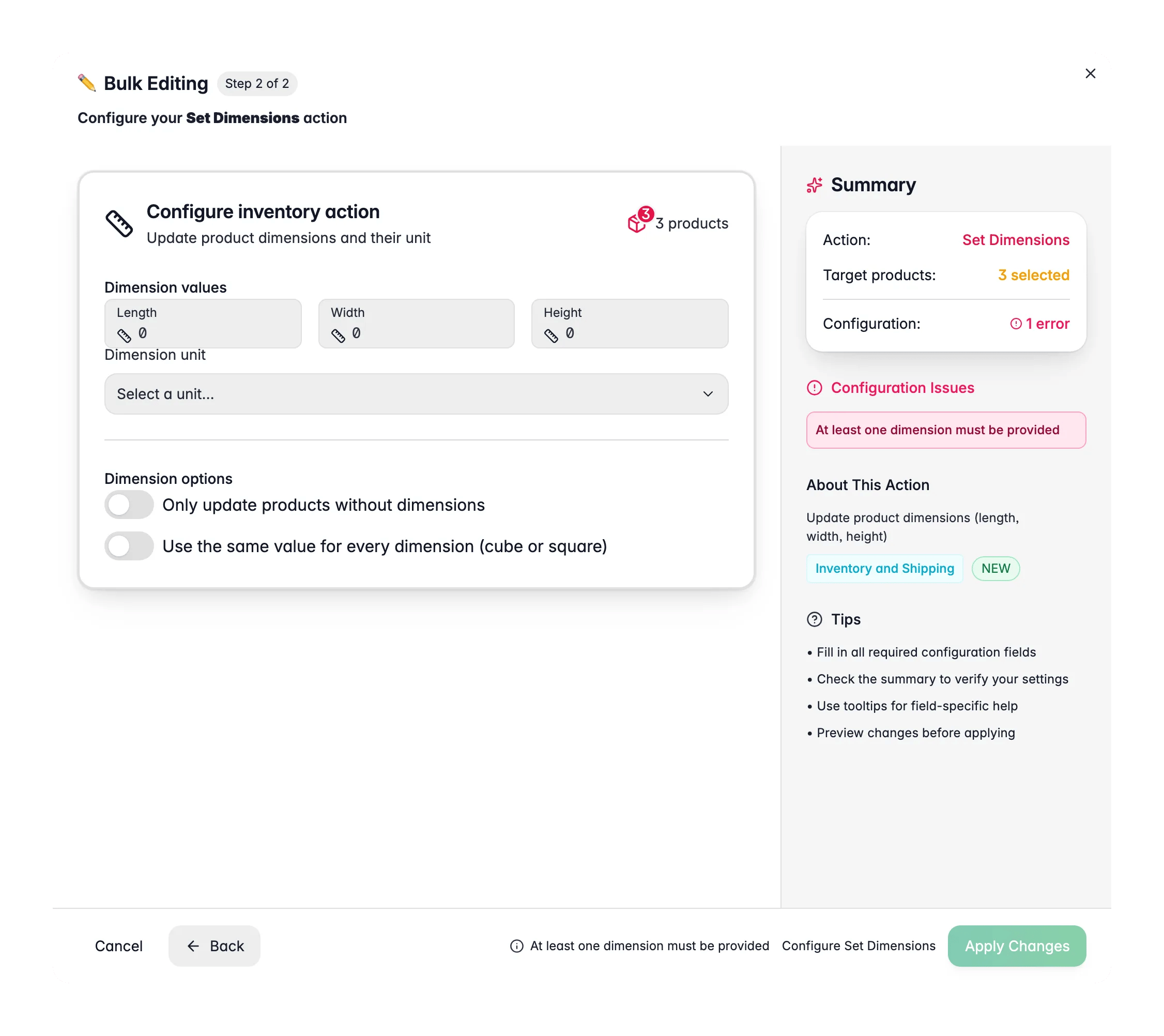
Enter the measurements
Fill in length, width, and height. To set all three at once, turn on Use same value for all.
4
Pick the unit and apply
Choose the dimension unit, set any options, then click Apply.
Options
Tips
- Turn on Calculate and store volume when you need volumetric weight for shipping. Volume is computed as L × W × H.
- Use Only update products with no dimensions to fill gaps without overwriting existing measurements.
- Use same value for all is quick for cube-shaped products or a uniform size estimate.
Related
Shipping Settings
Set HS codes, country of origin, and shipping flags.
Update Weight
Set or adjust product weight in bulk.