

WIRELESS HEADPHONES, the next is wireless headphones. This action fixes that in one pass. Pick a case style, choose the fields, and apply it to every selected product at once.
Use it to clean up names, descriptions, or any text field after an import or manual entry.
Standardize case
1
Select products
Check the products you want to update. Or use filters and select all matching results.
2
Open Bulk Edit and choose Standardize Text Case
Click Bulk Editing, then search for “Standardize Text Case” or find it under Text & Content.
3
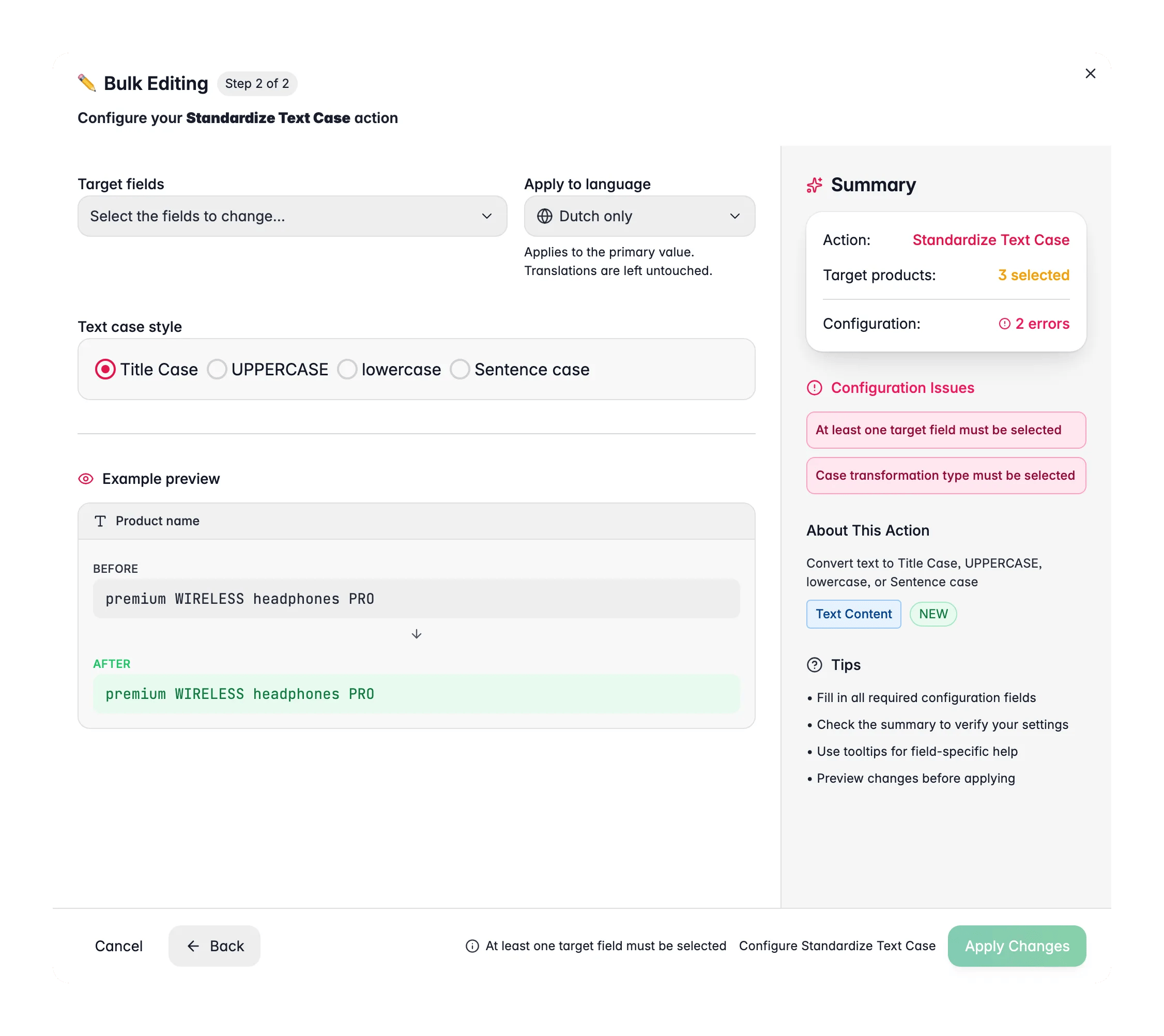
Pick a case style
Choose Title Case, UPPERCASE, lowercase, or Sentence case.
4
Choose the fields to convert
Select one or more target fields, such as product name, description, or SEO title.
5
Preview and apply
Check the live before/after preview, then click Apply.
Case styles
Target fields
You can convert one field or several at once. For example, fix the product name and the SEO title in a single action.Related
Trim Whitespace
Remove stray spaces and line breaks from your text fields.
Find and Replace
Fix typos or swap words across many products at once.
Append/Prepend Text
Add a prefix or suffix to any text field across your selection.
All bulk actions
Browse every bulk editing action by category.