

This action sets your own custom attributes. To set built-in product fields like name, price, or SKU, use Set Field Value instead.
Set an attribute value
1
Select products
Check the products you want to update, or use filters and select all matching results.
2
Open Bulk Edit and choose Set Attribute Value
Click Edit on the selection bar, then pick Set attribute value under Fields and attributes. You can also search for it.
3
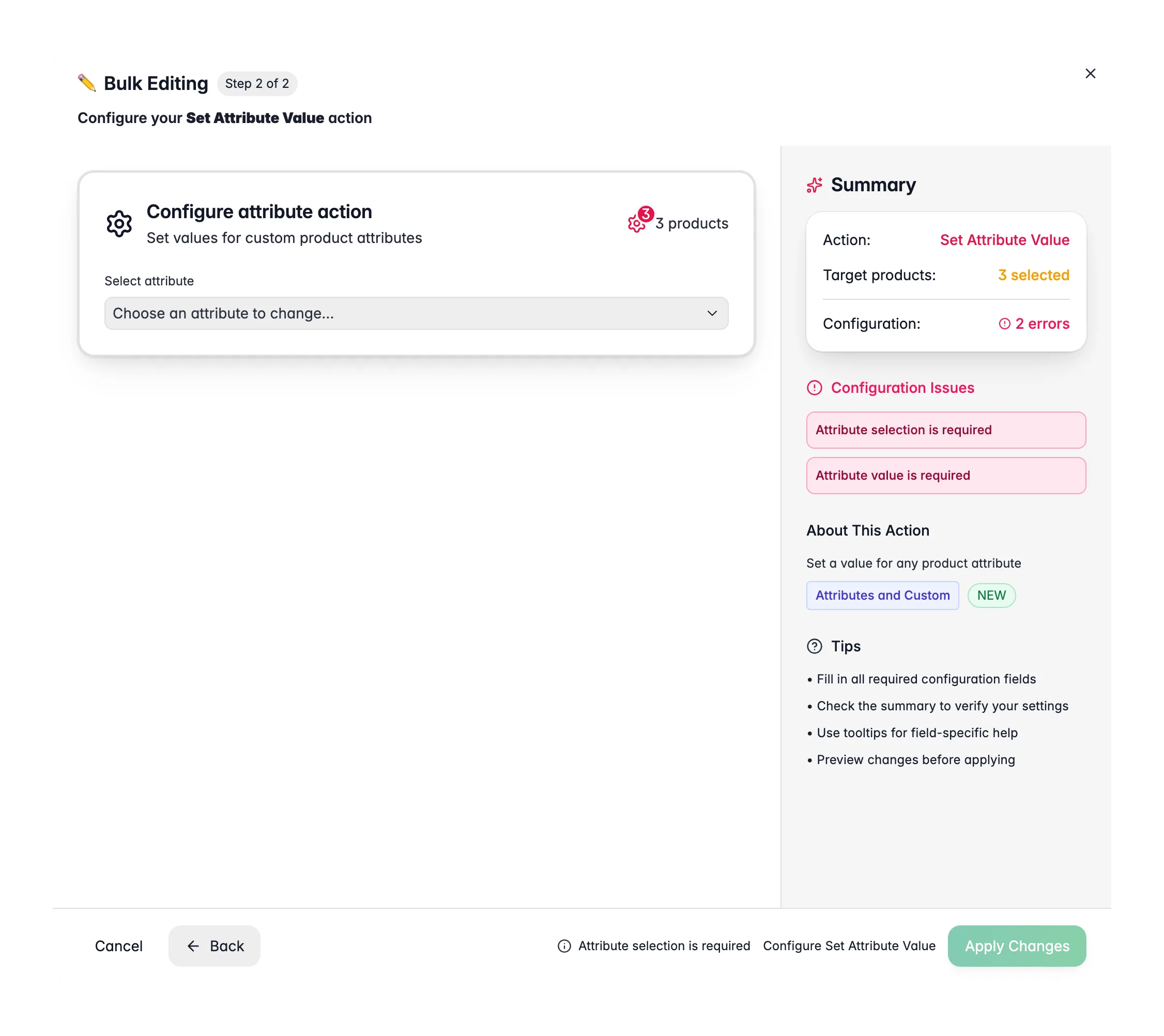
Choose the attribute
Pick the custom attribute from the dropdown. The input adjusts automatically to match its type.
4
Enter the value
Set the value using the input shown: a text field, number input, dropdown, date picker, and so on.
5
Set options and apply
Adjust any type-specific options, then click Apply.
Options
Options by attribute type
Some attribute types add their own options:Supported attribute types
Text, Textarea, WYSIWYG, Select, Multiselect, Checkbox, Radio, Boolean, Date, Datetime, Number, Decimal, Integer.A translatable attribute is read and written in your project’s primary language only. Translations stay as they are. When the attribute has a unit, new values get the attribute’s default unit.
Tips
- Turn on Only set if attribute is empty to fill gaps without overwriting values you already entered.
- For select and multiselect attributes, Create attribute value if missing lets you add new options on the fly. Handy when you introduce a new value.
- For text attributes, use Append to existing text to add to what is there instead of replacing it.
Related
Set Field Value
Set built-in product fields like name, price, or SKU.
Clear Attribute Values
Empty an attribute across selected products.