

Assign products to categories
1
Select products
Check the products you want to categorize. Or use filters and select all matching results.
2
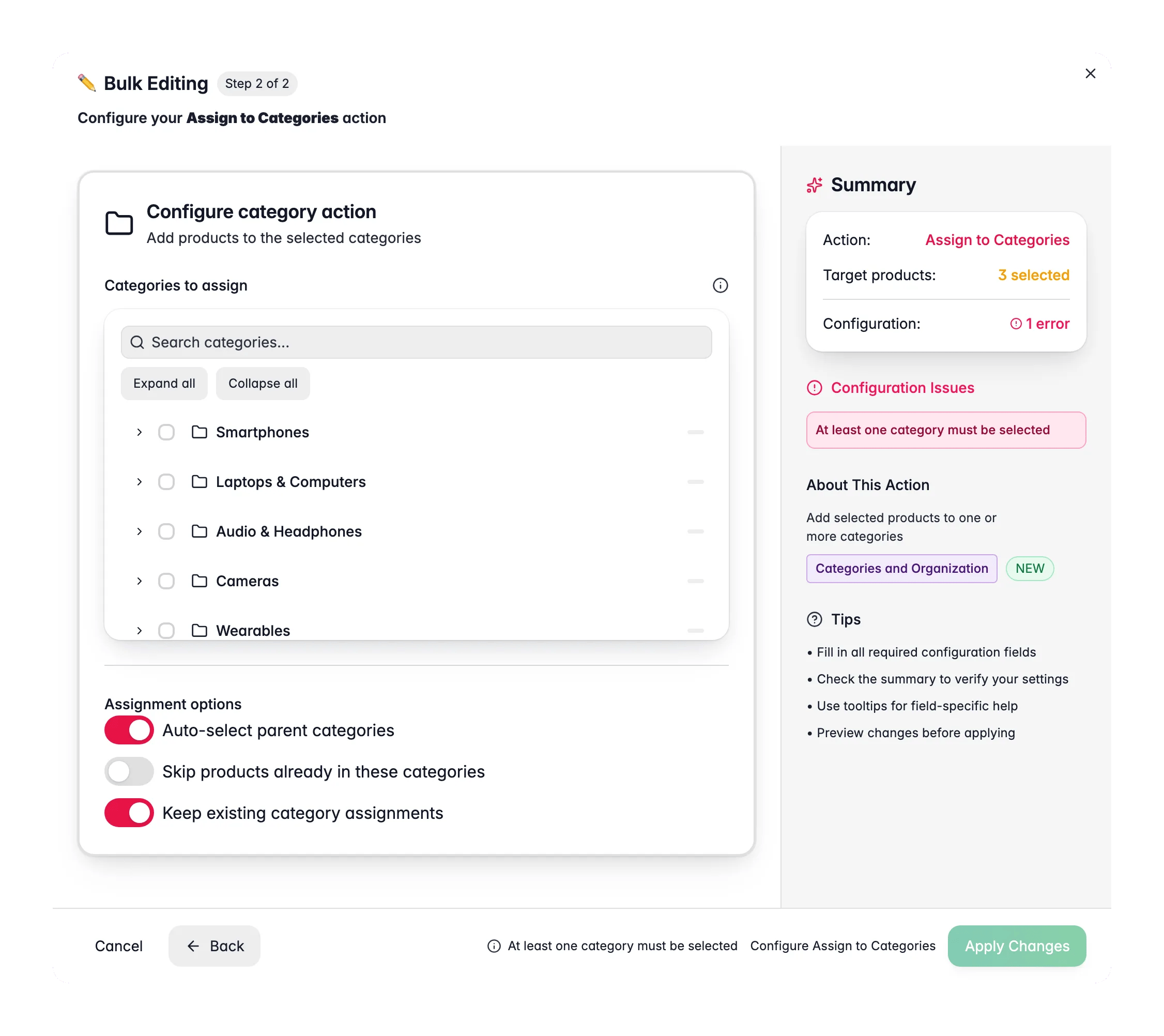
Open Bulk Edit and choose Assign to Categories
Click Bulk Editing. Search for “Assign to Categories” or find it under Categories & Organization.
3
Pick categories
Use the category tree to select one or more categories. Parent categories are selected for you by default.
4
Adjust options and apply
Change the options below if you need to, then click Apply.
Options
Tips
- Keep Auto-select parent categories on so products stay properly nested in the tree. Most e-commerce platforms need this.
- WisePIM flags parent-child conflicts, so you know when a selection creates unexpected nesting.
- Filter your product list first. For example, filter by brand, then assign all matching products to a brand category in one go.
Related
Remove Categories
Take products out of specific categories in bulk.
Replace All Categories
Clear current categories and set new ones in one step.
Set Primary Category
Choose which category is the main one for each product.
All Bulk Edits
Browse every bulk action available in WisePIM.