

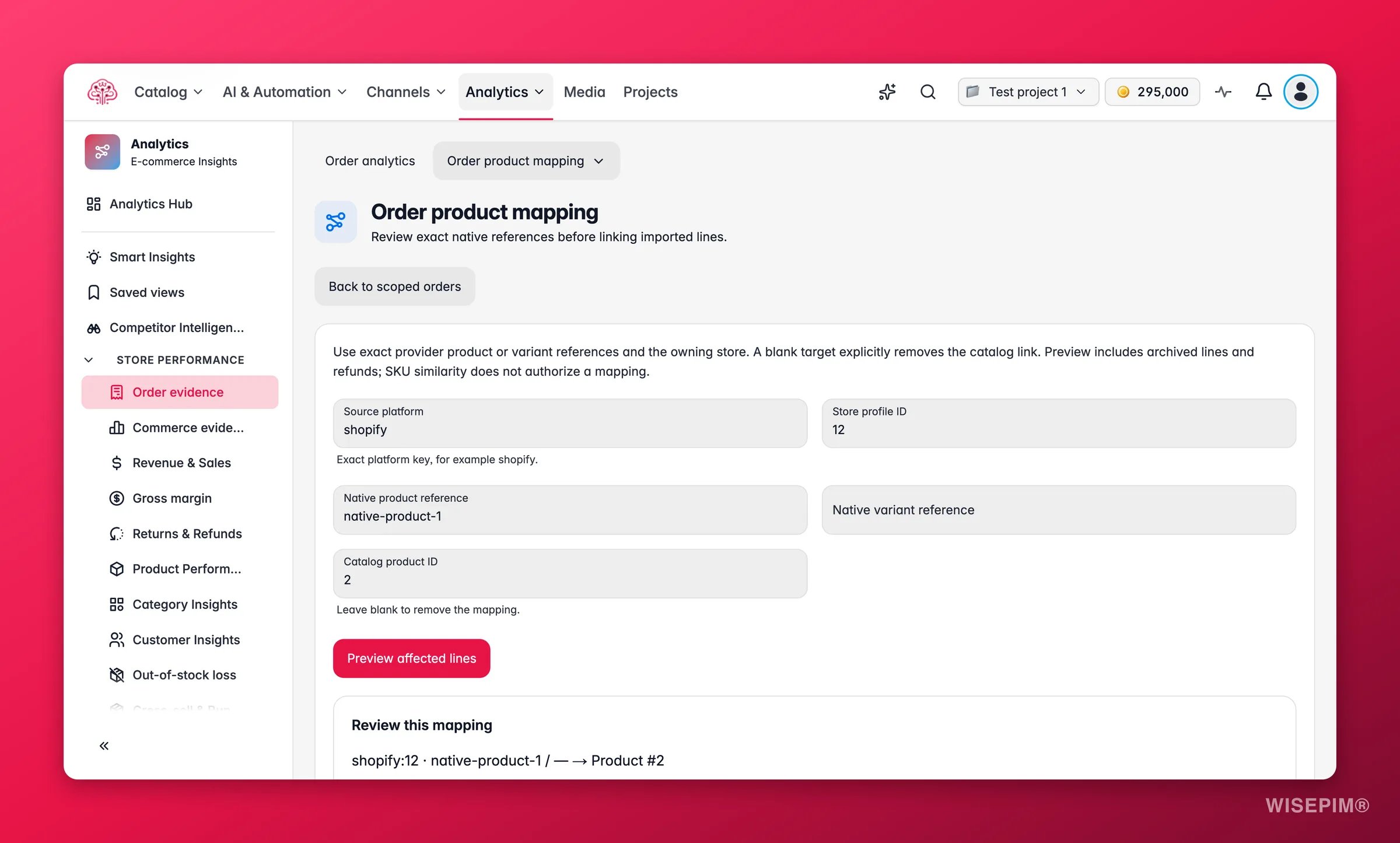
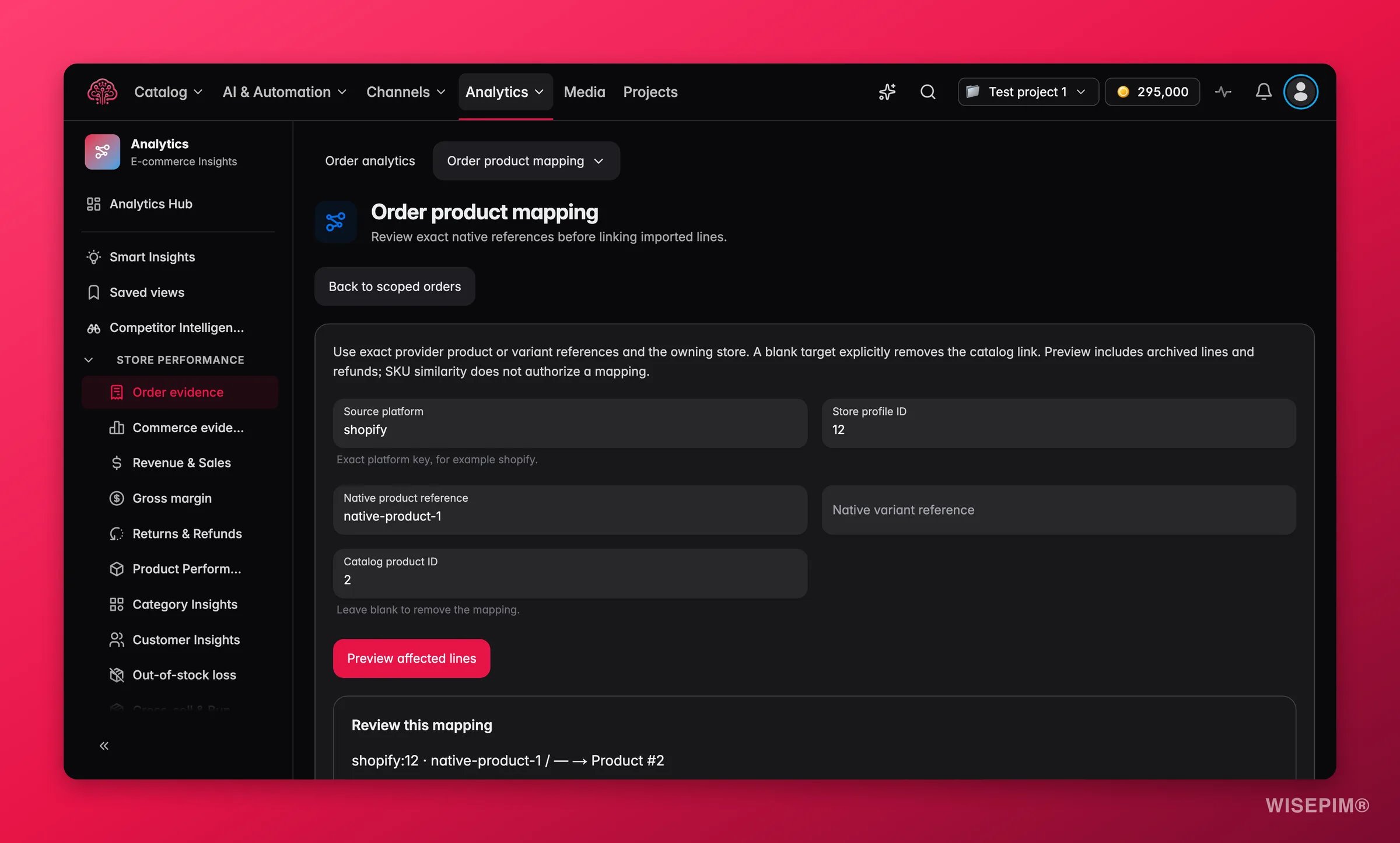
Matching uses the exact product or variant reference from the store. A similar SKU is not enough: WISEPIM never guesses a link from a near match, so a reference stays unmatched until you confirm it.
Work the queue
The subtitle counts the work: N order lines in the last 90 days aren’t linked to a product, so product reports leave them out. Each entry shows the reference As sold, the store, and Last seen{time}. Click Link to product…, search the catalog by name or SKU, and click Apply. The entry moves into Matched just now (N) and you get ten seconds to Undo.
Load more fetches older references. When the queue is empty, the page says every order line in the last 90 days is linked to a product.
Enter a link manually
For references that no longer appear in the queue, or to remove a link, open Enter manually:
Click Preview affected lines. The Check this link step shows N order lines (N archived) and N refund lines. Link version N. so you can see what the link will touch. Then click Apply link.
After applying, the page reads Reports need an update to include this change. Run Update reports under Analytics settings for the affected period.
Links are versioned, not final. Applying a new link for the same reference replaces the old one, and removing the product from a link takes the lines back out of product reports. The preview you confirm is valid for a short while; if orders or settings change in between, WISEPIM refuses the apply and asks for a fresh preview.
Act on what you find
A best seller shows in order totals but not in product sales
A best seller shows in order totals but not in product sales
The same reference keeps coming back after an import
The same reference keeps coming back after an import
The store sends a different reference for each variant. Link each variant reference, using Variant reference in the store in the manual form, rather than the parent product only.
You linked the wrong product
You linked the wrong product
Within ten seconds, click Undo. Later, open Enter manually, fill in the same references with the correct Product ID in your catalog, preview and apply. The new link replaces the old one for every order line.
Margin still says Needs product matching after you linked everything
Margin still says Needs product matching after you linked everything
Reports have not been updated yet. Run Update reports under Analytics settings for the period, then reopen Margin.
Related
Orders
Product sales that only include linked lines.
Margin
Needs linked lines to find the cost of each product sold.
Order Detail
Link a single order line from the receipt view.
Analytics settings
Run the report update that picks up new links.