

Forecasts use complete days only. Days without confirmed history are left out, never counted as zero. Products need an unbroken run of confirmed days before a forecast shows: 84 days for a 7-day look-ahead, 140 for 14 days and 252 for 28 days.
Reorder list
A row can also say Sibling variants in stock:
{names} when other variants of the same product are still available.
The chip Lead time 14 days · safety stock 7 days sets the thresholds. The note reads “Recommended: 14 + 7 days. Change it to match your suppliers.” Click Customize to change them. The values live in the page link, so a teammate who opens your link sees the same thresholds.
Click Plan reorder on a row to open the reorder quantity scenario for that product.
Expected sales
The Expected sales table is the forecast per product. Use Look ahead to pick 7, 14 or 28 days. Columns: Sold, Days with history, Estimated units, Likely range and Method.- Method is one of Method: repeats the last complete week. or Method: average of the last 28 days, chosen because it tested better on your past sales. WISEPIM tries both on earlier weeks of your own sales and keeps the one that would have done better.
- Likely range reads Likely range: 40 to 65 units. In tests on your past sales, 85% of results fell inside the range. The range is a guide for planning; real sales can fall outside it.
- A product without enough confirmed days shows Not enough confirmed history to forecast yet.
The forecast is retested on your own history, not a generic model. If a product’s method changes from one week to the next, that is the test picking the better one, not a change in the product.
Stock
The Stock table has one row per store and location, as each source reports it: Product reference in the store, Location, Source, Checked at (UTC) and the quantities On hand, Reserved, Available and Incoming, no date. “Incoming stock has no arrival date, so it isn’t counted as available.” If you know when a delivery arrives, add it in the reorder scenario instead.Reorder quantity
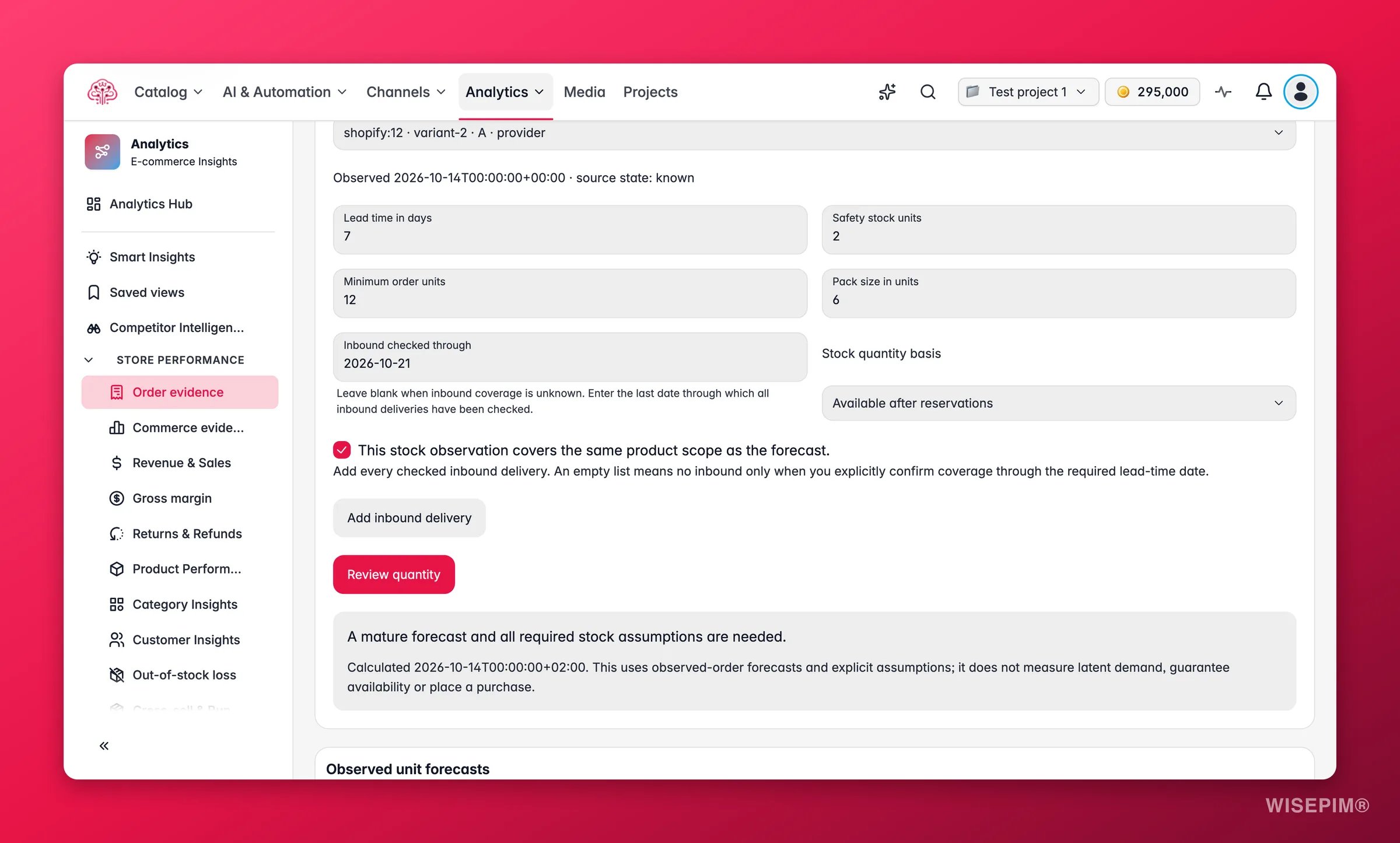
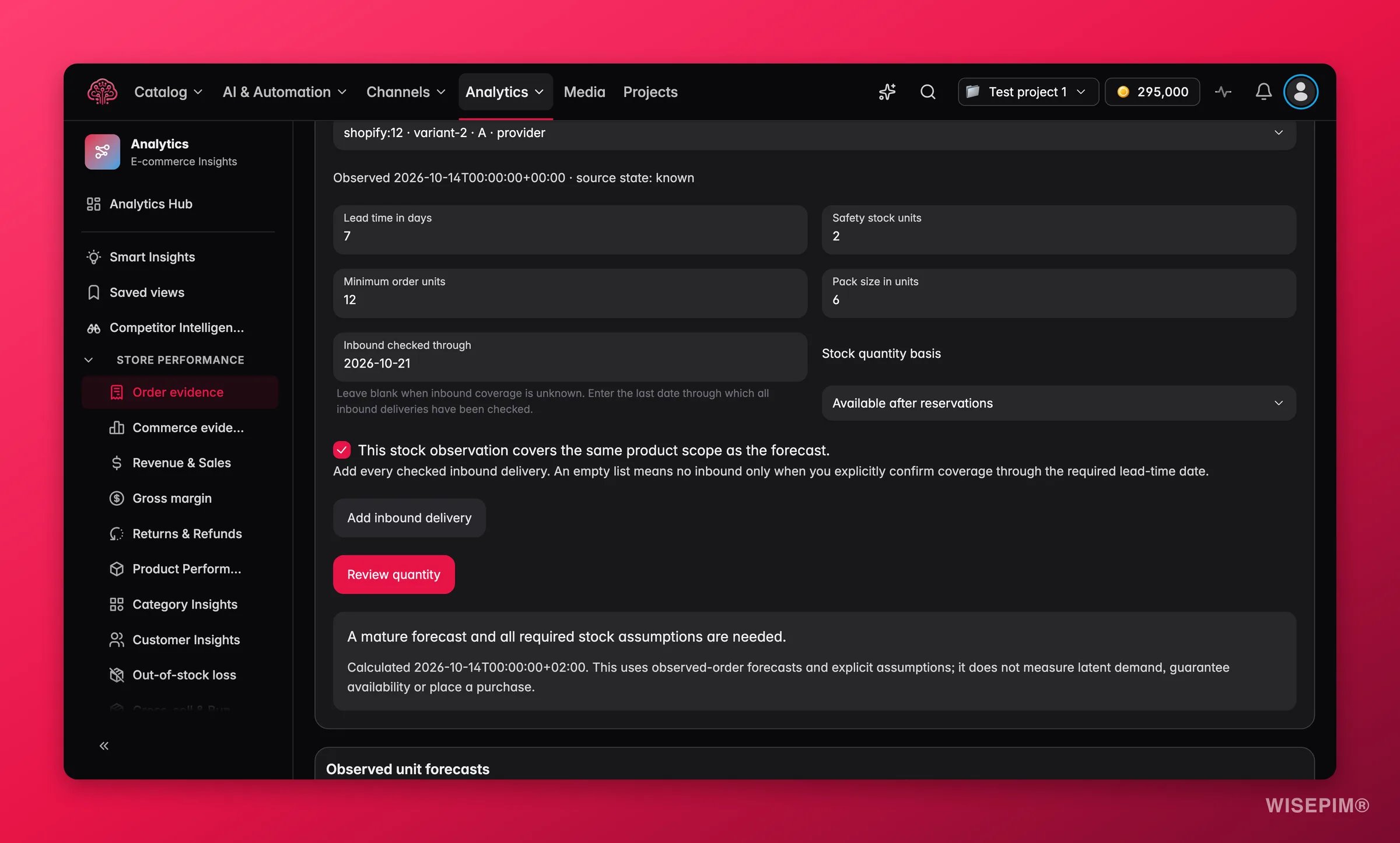
The scenario works out a quantity from current stock and your settings. “Nothing is ordered or saved.”1
Pick the stock to use
Under Stock to use, pick a matched product, store and stock source. Under Count stock as, choose Available after reservations or On hand minus reservations.
2
Confirm the scope
Tick This stock covers the same products as the forecast. The forecast is per product; if the stock record covers a bundle or a different variant set, the quantity would be wrong, so the page refuses to guess.
3
Enter your settings
Lead time (days), Safety stock (units), Minimum order (units) and Pack size (units). Under Deliveries checked up to, enter the last date you checked incoming deliveries, then use Add delivery with Expected arrival and Units for each one you know about.
4
Calculate
Click Calculate quantity. The result reads Suggested quantity (estimate): 120 units, with “Calculated
{date} from recent sales and your settings. We suggest a quantity; you place the order.” If you change an input, the page says Your inputs changed. Calculate again.When the quantity stays empty
The suggestion is withheld rather than guessed. The page tells you why:Act on what you find
A best seller shows Order now
A best seller shows Order now
Open Plan reorder, add the deliveries you already have on the way and calculate. If the suggested quantity is below your pack size or minimum order, the page rounds up to them. Pass the number to your supplier and update Deliveries checked up to once the order is confirmed.
Everything shows Not enough confirmed history
Everything shows Not enough confirmed history
Forecasts need an unbroken run of confirmed days. Check Data health for gaps in the import, and check that the store’s history state is confirmed on Customer Insights. A store imported recently gets its forecasts as the history fills in.
The likely range is very wide
The likely range is very wide
A wide range means the product sells unevenly. Shorten Look ahead to 7 days for a tighter range, and plan with Safety stock rather than with the top of the range.
A product is out of stock but siblings are not
A product is out of stock but siblings are not
Sibling variants in stock tells you the product page still converts. Decide whether to restock the variant or steer customers to the siblings in the listing, then check the Movers view in Orders to see where sales went.
Related
Orders
The sales the pace and forecasts are built from.
Today
Out-of-stock products that sold recently show up under Needs you today.
Analytics Alerts
Rules that watch daily orders and order totals per store.
How Order Numbers Work
Complete days, estimated values and why a forecast can be withheld.