

The Traffic & SEO group has an item with almost the same name, Content Impact. That one is the GA4-based Enrichment Impact report, which compares views, carts and sales from Google Analytics. This page uses your imported orders.
A change only counts once WISEPIM has seen it live in the store, in a specific language. That evidence comes from Listing history. The product also needs to be linked to its order lines; see Unmatched products if it is not.
Changes we’re watching
The top of the page lists the product changes WISEPIM is following under Changes we’re watching. Each card shows the product and store, a status, and two comparisons: the product’s own sales before and after (This product) and the store’s sales over the same days (Whole store), so you can tell a product effect from a store-wide swing.
If nothing is listed yet, the page explains: when you publish a product from WISEPIM, it follows the product’s orders for 28 days and reports back here.
Compare one change
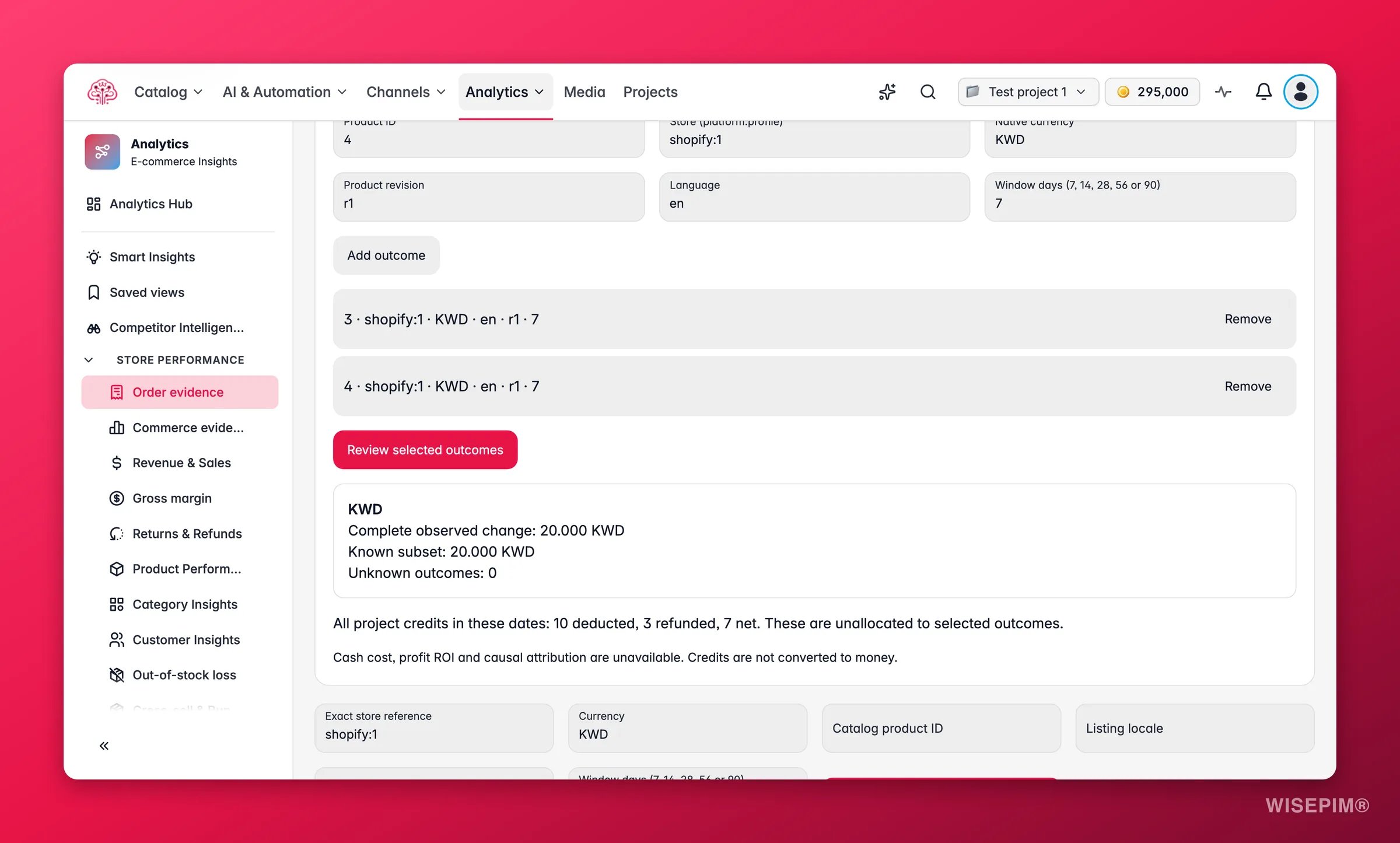
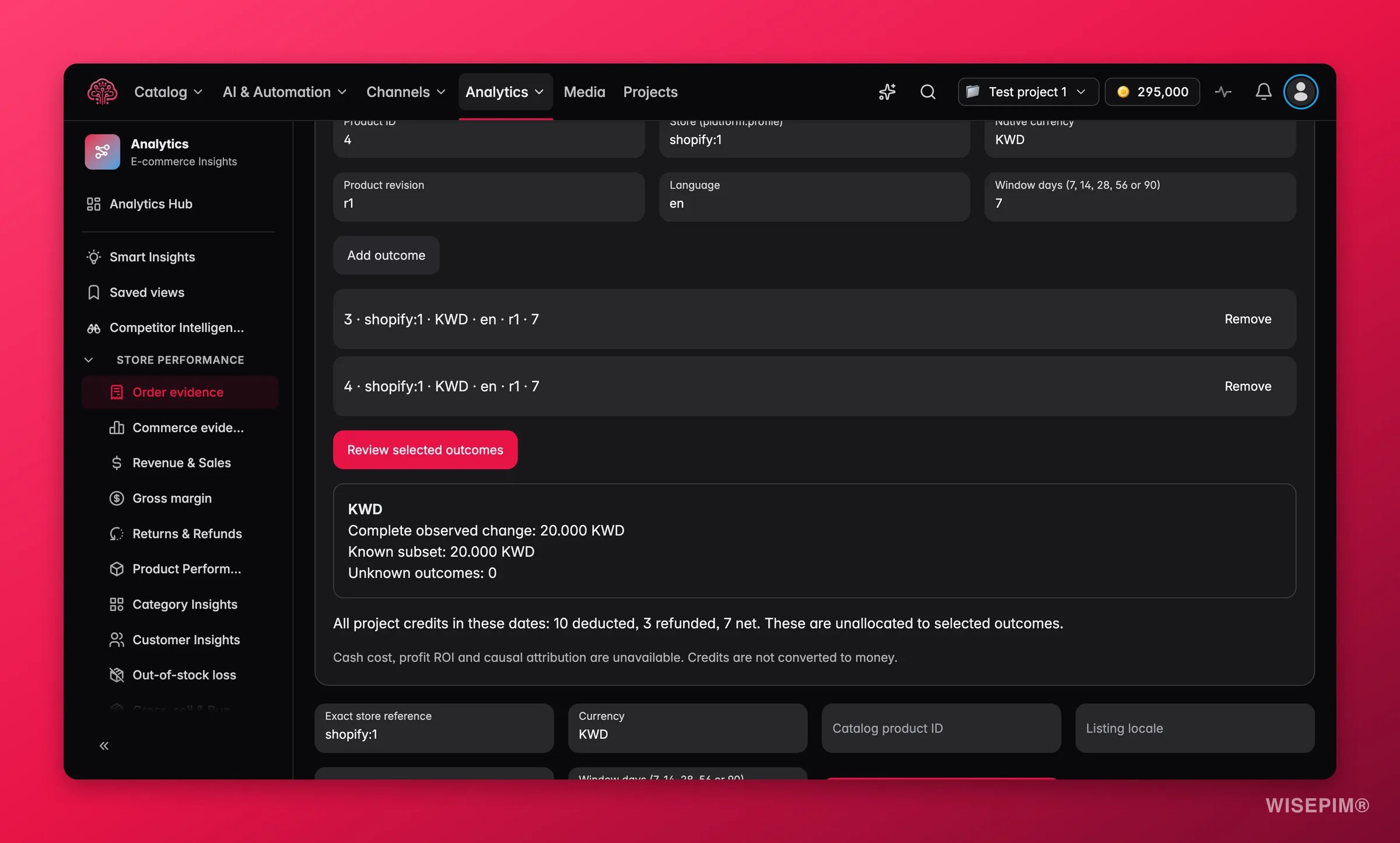
Open Advanced to compare a specific change yourself.1
Describe the change
Fill in the Product ID, the Store (store key), the Currency, the Version of the product and the Language it was published in. The store key is the platform and store number, such as
shopify:12; you find it in the store tooltip on any order page.2
Pick the window
Set Days before and after (7, 14, 28, 56 or 90). 28 is the recommended value because it smooths weekly cycles.
3
Compare
Click Compare before and after. The result shows Before, After, Difference and Change (%), plus the exact dates of both windows. The day the change went live is left out of both.
Compare several changes
Compare several changes adds up the differences of up to 20 product changes. The periods must not overlap for the same product, store and currency. Add each change with Add change, then click Compare selected changes. The result shows the Total difference, marked Known so far when some changes could not be read, and the line N changes with an unknown result. Losses are added up as well as gains, so the total is not a best case.Credits used in this project
The Credits used in this project card shows every credit used and refunded in the project between the selected dates, including failed tasks: Credits used, Credits refunded and Net credits, with a row per task and a Not linked to a task row for the rest.Credits aren’t split per product or turned into money, and credits aren’t converted to money, so WISEPIM does not show a return on spend. If you want a cost-per-change figure, you have to decide yourself which tasks belong to which product.
Act on what you find
A change reads Ready and the product is up while the whole store is flat
A change reads Ready and the product is up while the whole store is flat
That is the pattern worth acting on. Open the product, note what changed in the version you published, and apply the same approach to similar products with an enrichment run. Then watch them here once they are seen live.
The product is up, but so is the whole store
The product is up, but so is the whole store
Read it as a store-wide swing, a promotion or the season. The change may still have helped, but this page cannot separate it. Check Orders for what moved in the same period.
Every comparison says the version was not seen live
Every comparison says the version was not seen live
The export was accepted, but WISEPIM never observed the content in the store in that language. Open Listing history for the product: if the latest event is Accepted, not seen live yet, check that the channel actually published it.
You want to know what the enrichment cost per product
You want to know what the enrichment cost per product
The credits card gives project totals only. Open the Process Tracker to see which tasks ran on which products, then attribute the credits yourself.
Related
Listing history
The export and seen-live events that decide when a change counts.
Enrichment Impact
The GA4-based view of the same question, using views, carts and sales.
Orders
Recent sales changes by store and product, for context around a change.
How Order Numbers Work
Complete days, trust marks and why unknown is never shown as zero.