

Place data nodes between your trigger and your actions. This controls exactly which products reach each step.
Pick which products to process
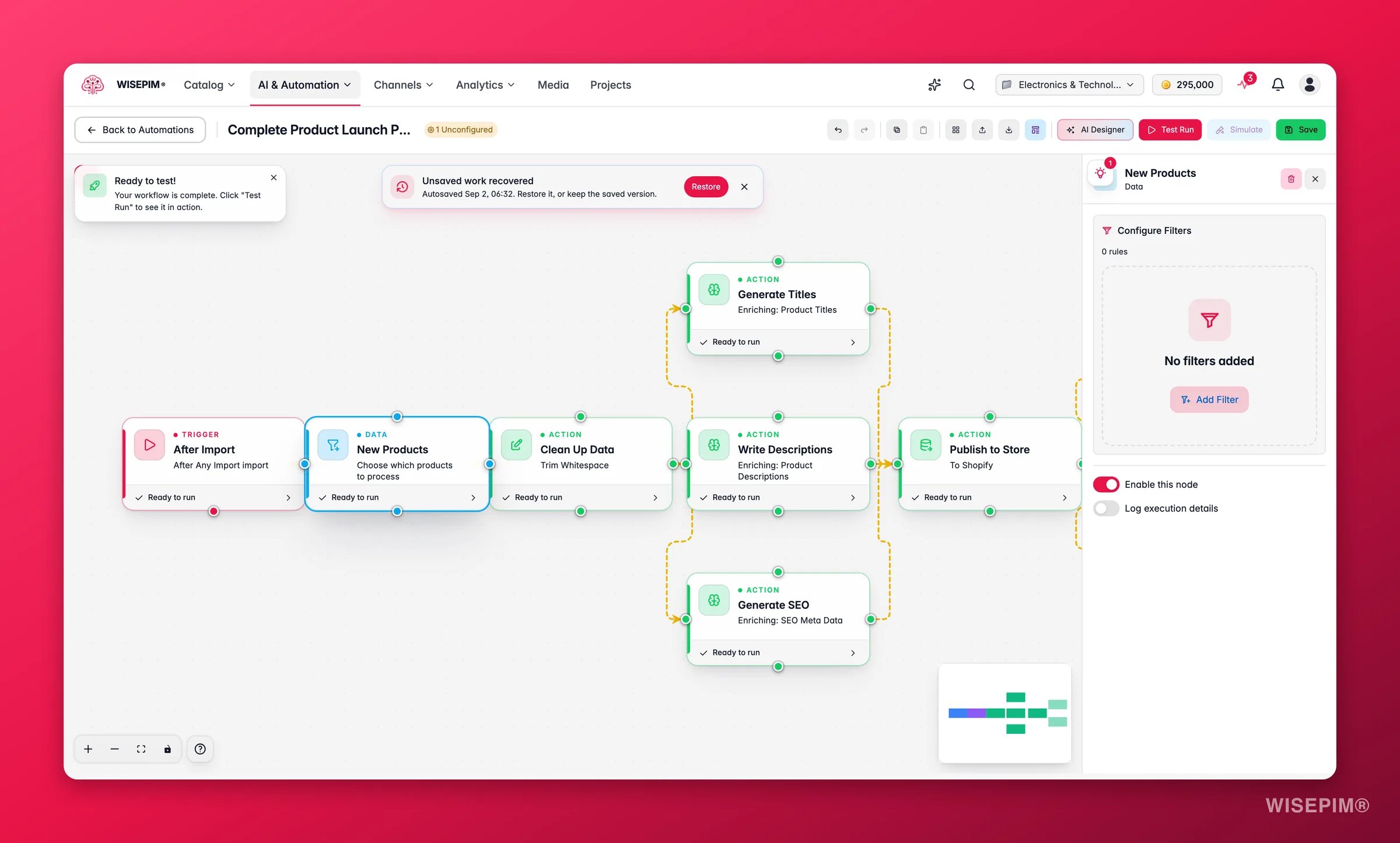
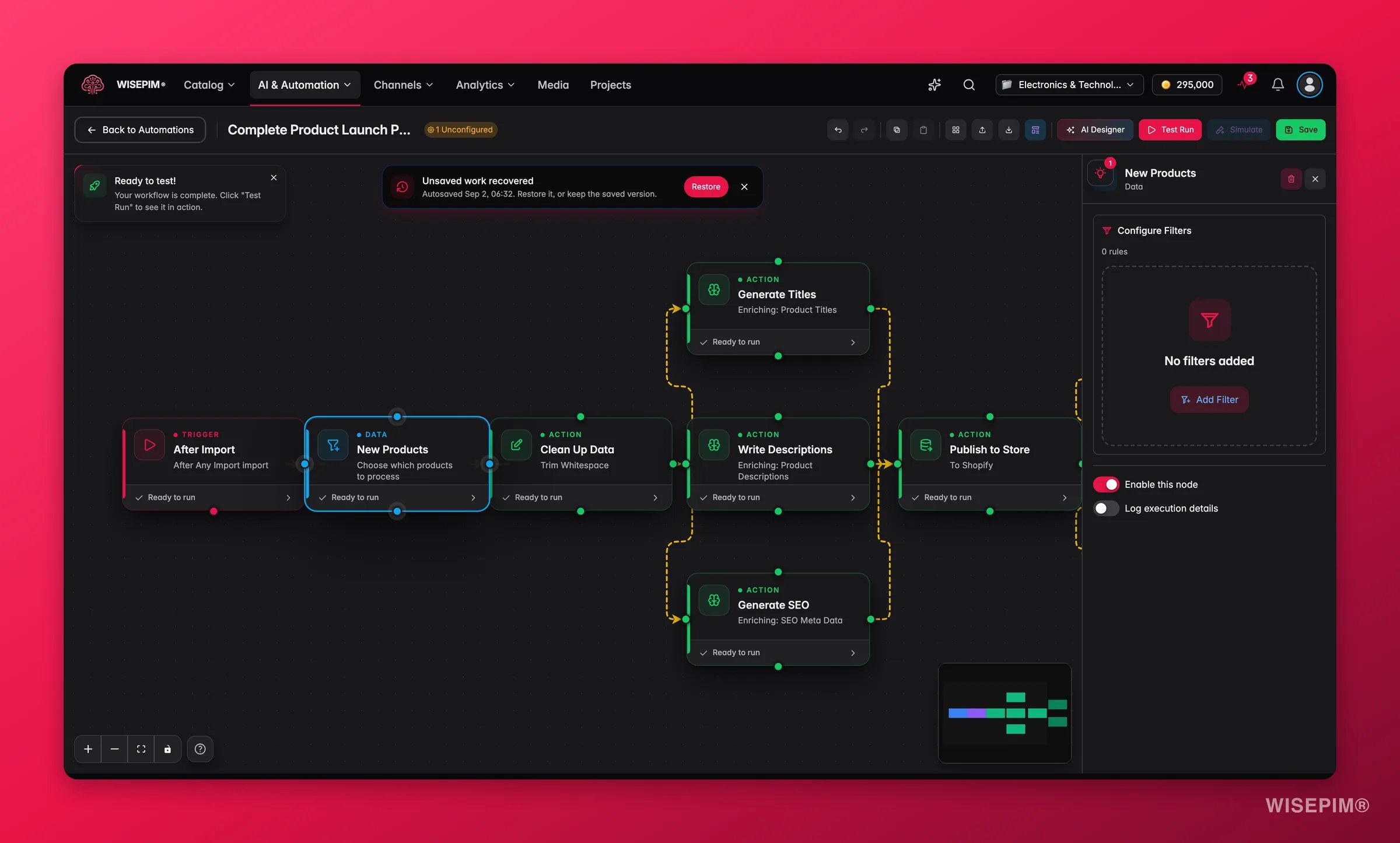
Leave the filter conditions empty to select every product in your catalog.
Narrow a set with filters
The Filter Products node trims a product set that is already moving through the workflow. Use it after a Select Products node or an import to cut the set down further.
Common ways to use it:
- Keep only imported products that are missing a description
- Narrow a set to one brand or price range
- Drop products that are already published
Select Products vs. Filter Products: Select Products builds a new set from your whole catalog. Filter Products narrows a set that is already flowing through the workflow.
Pull in data from a file
The Read File node loads product data from a file stored in WISEPIM. Use it when your workflow needs to process a CSV, Excel, or JSON file.Import your category tree
The Category Import node pulls categories in from a connected platform, so your structure in WISEPIM matches the structure in your shop. Run it before a product import and the products land in the right place straight away.
Products themselves come in through the Import products action, which also covers the Picqer node and its cross-project stock syncing.
Related
Logic nodes
Branch, merge, and pause the flow with if/then logic.
Action nodes
See every action your automations can run.
Visual builder
Drag, connect, and configure nodes on the canvas.
Triggers
Decide what starts your automation and when.