

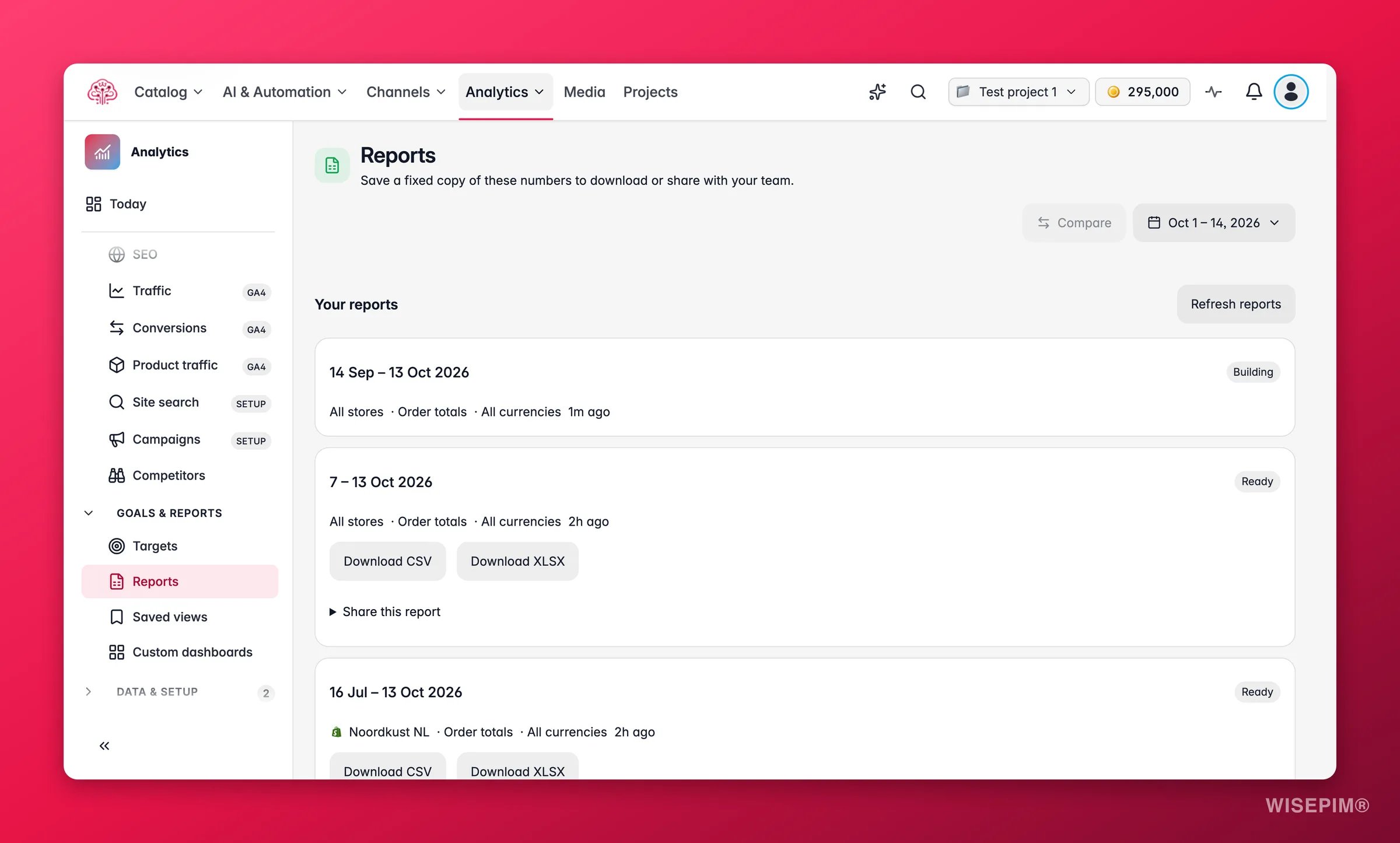
A report saves every order that matches your filters, up to 100,000 rows, with exact amounts in CSV and XLSX. PDF holds up to 5,000 rows. You need permission to export products to view saved reports; sharing and scheduling need permission to manage settings. Report rows carry totals and order data, never buyer names or contact details.
Create a report
1
Set the scope
Choose the stores, window and measure above, then save a fixed copy. The report keeps whatever period, stores, currency and Report measure are active in the scope bar.
2
Pick a preset or your own window
Under Presets, choose Last month for your accountant, Last 7 complete days or This month so far (not complete). The last one is marked as incomplete on purpose: today is still running.
3
Decide how long to keep it
Set Keep for (days, 1 to 90) and click Create report. The card appears under Your reports as Queued, then Building, then Ready.
Your reports
Each card under Your reports shows the window, the stores, the measure (for example Order totals), All currencies when no currency filter was set, the report’s age and a status:
The provenance line, Data version N · settings version N · created
{date} · expires {date}, records exactly which data and settings produced the file. Load older reports fetches reports beyond the 100 shown.
Share with one teammate
Share this report creates a link for a single project member. Only the member you pick can open this link, while they’re signed in and still allowed to see analytics and exports. WISEPIM doesn’t send emails or make public links. Set Link valid for (hours, 1 to 168), click Create link, and send the link yourself. Revoke link ends it early; Revoke report withdraws the report for everyone.Scheduled reports
A schedule builds the same report again on a fixed rhythm. Each run covers the last complete days up to yesterday, in your analytics timezone, with these stores, currency and measure. Recipients get a notice in WISEPIM once the report is ready.
Click Create schedule. Each schedule can be paused with Pause schedule and resumed with Turn schedule on. The list shows the newest 100 schedules.
A schedule repeats after a fixed number of days, so the local hour can shift when the clocks change. Scheduled reports keep the same retention you set for one-off reports.
Act on what you find
Your accountant's numbers differ from the report
Your accountant's numbers differ from the report
First compare definitions: a report holds order totals as the store sent them, tax and shipping included, refunds not subtracted. The Compare reports tool under Data health takes their CSV and tells you whether the two measure the same thing.
A report keeps coming back as Replaced by newer data
A report keeps coming back as Replaced by newer data
Orders or settings changed while it was building. If you just saved new Analytics settings, wait for Update reports to finish, then create the report again.
A teammate cannot open the link you sent
A teammate cannot open the link you sent
The link is tied to the member you picked and to their access. Check that they are signed in to this project and still allowed to see analytics and exports, and that the link has not passed its Link valid for window. Create a new link if it has.
You need more than 5,000 rows in a PDF
You need more than 5,000 rows in a PDF
PDF is capped at 5,000 rows. Download the CSV or XLSX instead; both hold the full report with exact amounts.
Related
Orders
Explore the orders before you freeze them in a report.
Data health
Reconcile a report against your own figures, part by part.
Analytics settings
The timezone and currencies every report uses.
Notification Settings
Where recipients see the notice that a scheduled report is ready.