

Build a conditional block
1
Create the block
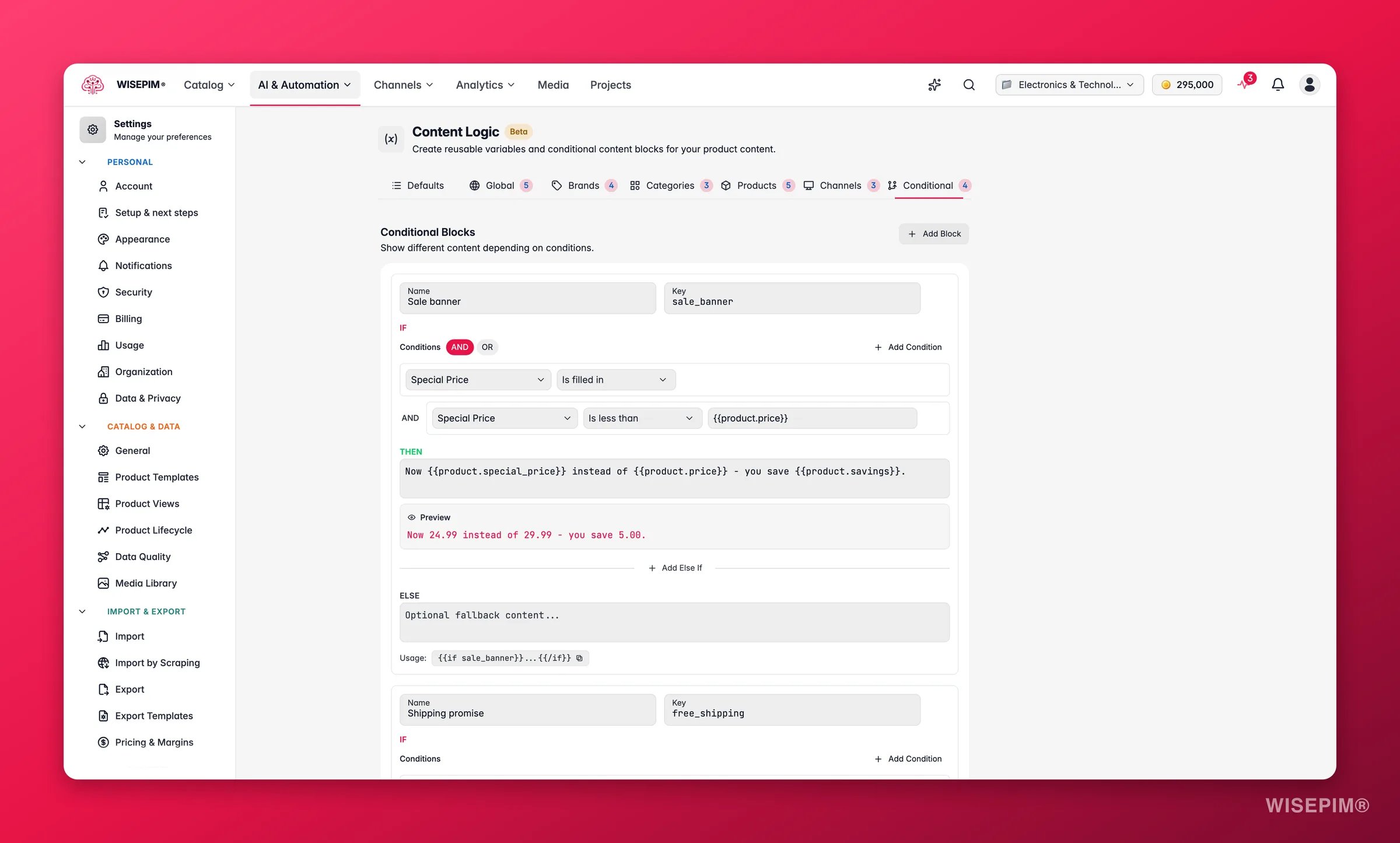
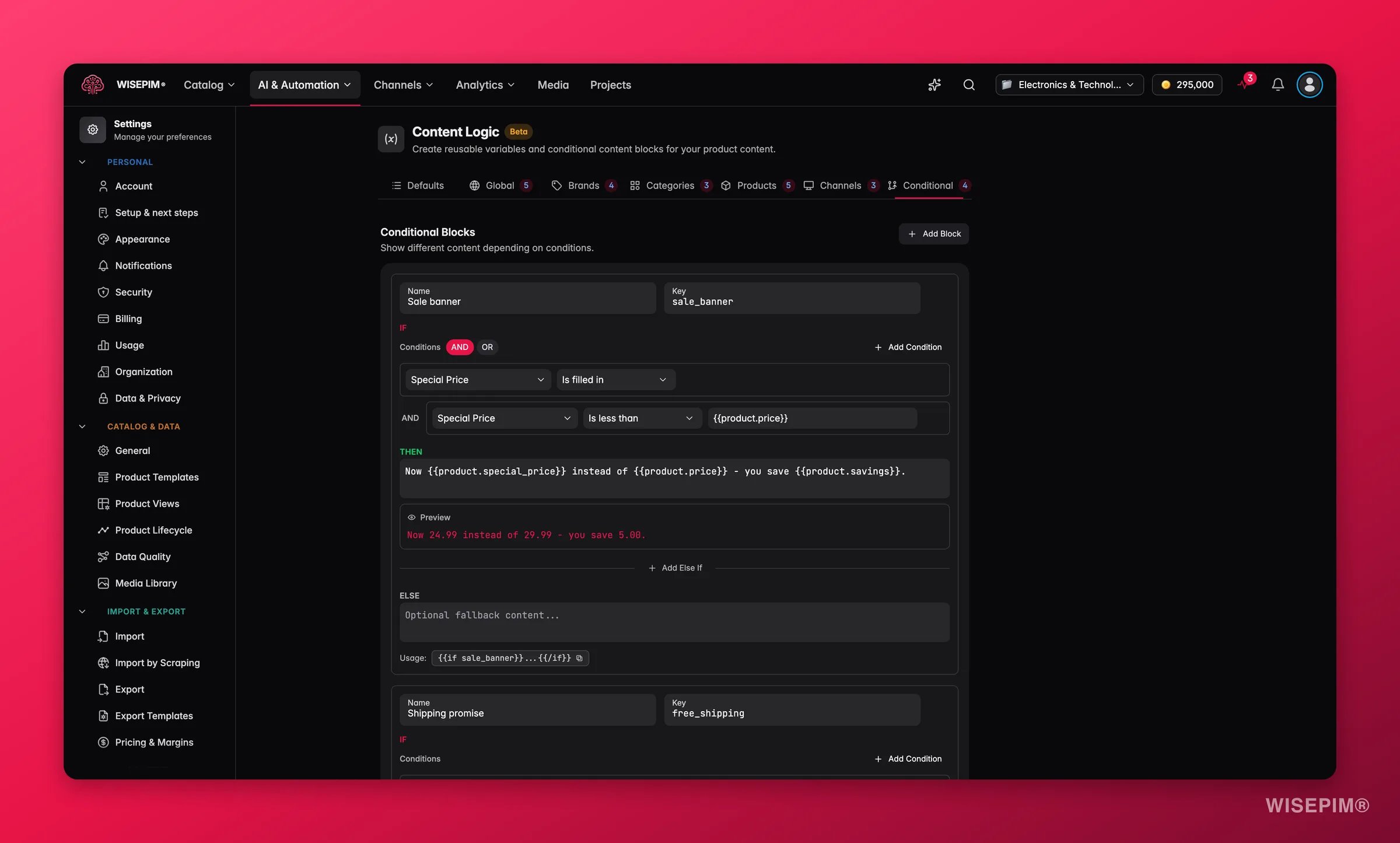
Click Add Block. Give it a name and a key.
2
Define conditions
Click Add Condition, pick a product field, choose an operator, and enter a value to compare against. With several conditions, set the Condition match mode: AND needs all of them, OR needs one.
3
Write the content
Enter the content for when conditions are met (then). Click Add Else If for other cases, each with its own conditions and match mode, and add optional else content for the fallback.
4
Reference in content
Use the key to insert the block anywhere variables are supported.
Condition operators
Conditions can reference any product field, custom attribute, or date/time variable.
How WISEPIM picks a branch
The first matching IF or ELSE IF branch is used. ELSE runs when none match. A branch without conditions matches every product, and the editor says so: No conditions: this branch matches every product. Keep such a branch last, or the branches below it never run.Common patterns
Here are ready-to-use blocks for everyday scenarios. Each row is one branch, evaluated top to bottom.Stock urgency messaging
Stock urgency messaging
Create urgency for low stock and set expectations for out-of-stock items. Key:
stock_messageSeasonal promotions
Seasonal promotions
Show different promo content based on the time of year. Key:
seasonal_promoB2B lead time by product type
B2B lead time by product type
Show the right lead time per product. Key:
lead_timeHazardous material warnings
Hazardous material warnings
Add safety warnings to dangerous goods automatically. Key:
hazmat_noticeDescription suffix by price tier
Description suffix by price tier
Add different messaging based on the product’s price tier. Key:
price_tier_textCompliance text by country of origin
Compliance text by country of origin
Show different compliance statements based on where the product is made. Key:
origin_complianceContent completeness nudge (internal)
Content completeness nudge (internal)
Flag products with missing data in internal exports or reports. Key:
data_quality_noteMOQ messaging for B2B
MOQ messaging for B2B
Show minimum order info that varies by product type and stock level. Key:
moq_messageSale badge content
Sale badge content
Generate dynamic sale badge text based on the discount depth. Key:
sale_badgeTips
- Branches are evaluated top to bottom, and the first match wins. Put specific conditions above general ones.
- Check a block with the preview. It shows an Example using sample values, not a live product.
- Use AND when all conditions must be true (low stock AND in stock). Use OR when any one should trigger the content.
- Content fields support all variables:
{{product.*}},{{global.*}},{{brand.*}}, and{{category.*}}. - Leave the else content empty when you want no output for non-matching products.
Related
Default Variables
The built-in
{{product.*}} and {{current.*}} fields you test against.Global Variables
Reusable values to drop into your branch content.
Brand Variables
Brand-specific content to show inside conditions.
Category Variables
Category-specific content to show inside conditions.