

An integration is a live link between WISEPIM and one of your stores. Set it up once, then import and export as often as you like.
What you can do
- Import products from your store into WISEPIM.
- Enrich them with AI: better titles, descriptions, attributes, and SEO.
- Export the results back to the same store, or to a different one.
- Manage every channel from one place.
Supported platforms
Each platform has its own setup guide. Pick yours to see the exact steps.Shopify
Connect your Shopify store to import and export products.
WooCommerce
Link your WordPress-based store and sync your catalog.
Magento 2
Connect Magento open-source or enterprise stores.
Lightspeed
Connect your Lightspeed eCom shop in a few clicks.
CCV Shop
Connect this Dutch e-commerce platform to enrich your data.
Ecwid
Link your Ecwid store and sync products.
Kaufland
List and manage products on the German marketplace.
Webshopimporter
Import dropshipment content and enrich it.
Find the right app
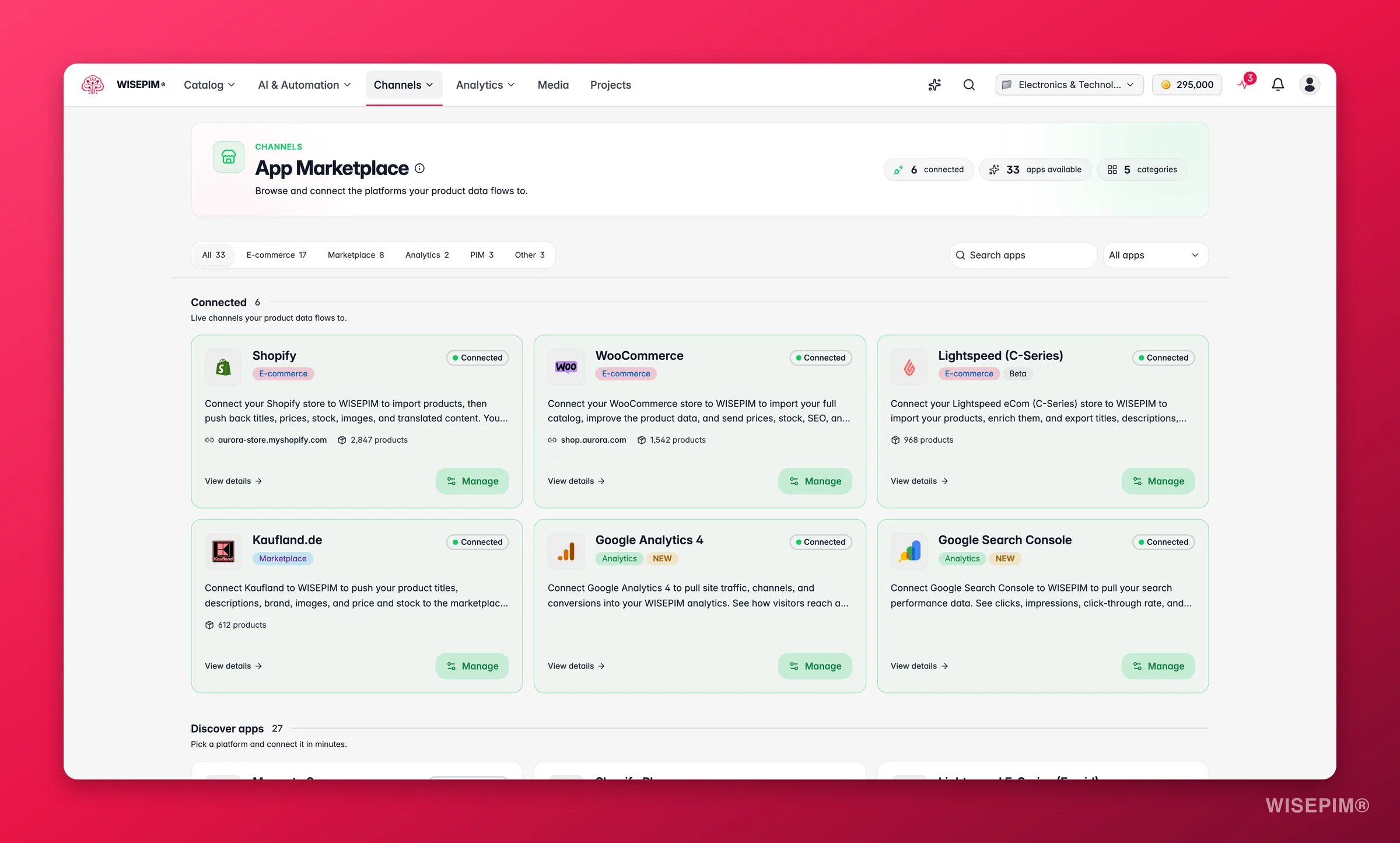
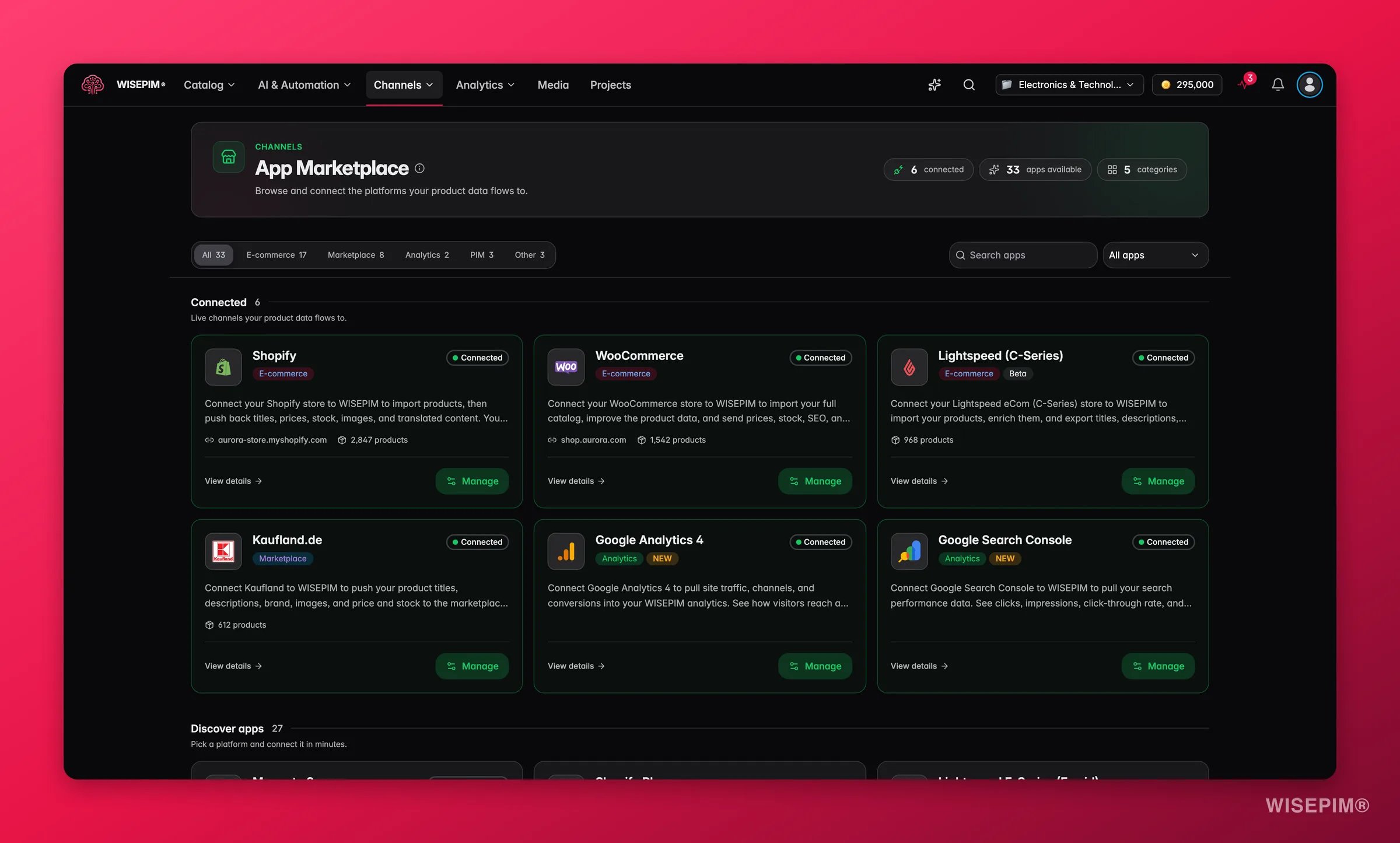
The marketplace opens on two sections: Connected, the apps you already use, and Discover apps, everything else. To narrow it down:- Search apps by name.
- Filter by category: E-commerce, Marketplace, PIM, Analytics, or Other.
- Filter by connection status to see only what is connected, or only what isn’t.
Open an app’s page
Click any app to open its own page before you commit to setting it up. It tells you the setup time, the difficulty, and what kind of login it needs, plus what you can do with the connection: import your catalog, enrich it with AI, translate it, push updates back, publish it through Feed Hub, map data your way, and automate the flow. There is also a “Good to know” section with the quirks of that platform and how WISEPIM handles each one. If the app is already connected, its page lists your connected stores so you can edit credentials or re-test a connection from there.Can’t find your platform? Use the Request an integration card in the marketplace. Tell us the platform, its URL, and what you’d want to sync, then send the request. We add new platforms regularly.
Connect a platform
The exact fields differ per platform, but the flow is the same.1
Open the App Marketplace
Find it under Channels in the main navigation.
2
Choose your platform
Select the store or marketplace you want to connect.
3
Enter your credentials
Add the API key, token, or login details the platform needs. Your setup guide lists exactly what to enter.
4
Test the connection
Run the connection test. WISEPIM confirms it can reach your store.
5
Map your attributes
Match the platform’s fields to your WISEPIM attributes, then save.
A green status means the connection is live. You’re ready to import and export.
What you’ll need
Credentials vary by platform. The most common ones:
Your platform’s setup guide lists the exact fields. Give each integration a clear name so you can spot it later.
Map your attributes
Attribute mapping tells WISEPIM which platform field matches which WISEPIM attribute. Good mapping means clean imports and correctly formatted exports. A connected integration has two mapping tools, and they do different jobs:- Data Mapping matches the platform’s attributes to your WISEPIM attributes. Open it from the integration’s card, match each source field to the right attribute, then save. The mapping is reused on every sync.
- Field Mapping decides, per store profile, which product data feeds each of the platform’s fields on export. Pick a profile under Field Mapping on the integration’s card to open the field-mapping workspace.
The field-mapping workspace
Every channel field starts with a platform default, and your changes are saved per profile as overrides. The workspace has two modes:
The audit summary counts Conflicts, Needs attention, Disabled, Changed, Overrides, Platform defaults, and Ready fields. Run Preview first and the audit also shows the current value each field would send for a sample product.
Protect the fields you do not want touched. Mark a field Protected and the bulk actions (auto-map, copy, reset) leave it alone. Use Select visible to pick every field in the current list, then Protect or Unprotect them in one go. Protection is a preference in your browser for this project and profile: it guards the bulk actions here, you can still edit the field yourself, and it is not a server-side lock.
Copy mappings from another profile. Choose a source profile and Review copy from shows what would change before anything is applied: Additions, Changes, Removals, Unchanged, and Incompatible mappings. If the source has fields that do not exist in this channel’s schema, the copy is blocked. Otherwise pick Add N missing, which keeps every current mapping and only fills the gaps, or Replace all. Protected mappings block Replace all.
After an auto-map, an AI auto-map, a copy, or a reset, a receipt tells you exactly what happened: how many mappings were created, how many still need attention, and how many existing overrides or protected mappings were kept. There is no automatic undo for these actions, so read the receipt before you move on.
Keep connections healthy
Each integration shows a status so you always know where it stands.
WISEPIM tests every connection when you first set it up, and runs regular health checks after that. You can also test on demand from the integration’s settings.
Update your credentials
Update credentials when an API key expires, a store URL changes, or permissions are modified. Edit the integration, enter the new details, and re-test. Your attribute mappings stay intact.Troubleshooting
Connection failed
Connection failed
- Check your API credentials. They may be wrong or expired.
- Confirm the store URL is correct and the platform is online.
- Make sure the API user has the right permissions.
- Re-test the connection after any change.
Import or export fails
Import or export fails
- Review your attribute mappings for mismatches.
- Confirm all required fields are filled in.
- Check that your data meets the target platform’s format rules.
Sync is slow
Sync is slow
- Process products in smaller batches.
- Run large syncs during off-peak hours.
- Platform rate limits cap how fast data transfers.
Data looks inconsistent
Data looks inconsistent
- Re-check your attribute mappings.
- Run a sync again to refresh the affected products.
- Confirm categories and images mapped correctly.
Related
Supported platforms
See every platform WISEPIM connects to, with setup guides.
Importing products
Pull products from a connected platform into WISEPIM.
Exporting products
Push your enriched data back to your store.
Enriching products
Improve your product data with AI before you export.