

You need admin access to your Lightspeed store and a WISEPIM account with an active project.
Get your API credentials
1
Open your Lightspeed admin panel
Log in to Lightspeed with your admin account.
2
Go to Apps
Open Apps from the main menu.
3
Find WISEPIM
Search for WISEPIM in the app store.
4
Install the app
Click Install and follow the authorization prompts.
5
Copy your keys
After authorization, you receive an API Key and an API Secret. Copy both. You need them in the next step.
Add your credentials to WISEPIM
Enter the keys from Lightspeed to finish the connection.1
Open Integrations
Log in to WISEPIM and go to Settings > Integrations.
2
Select Lightspeed
Choose Lightspeed from the available platforms.
3
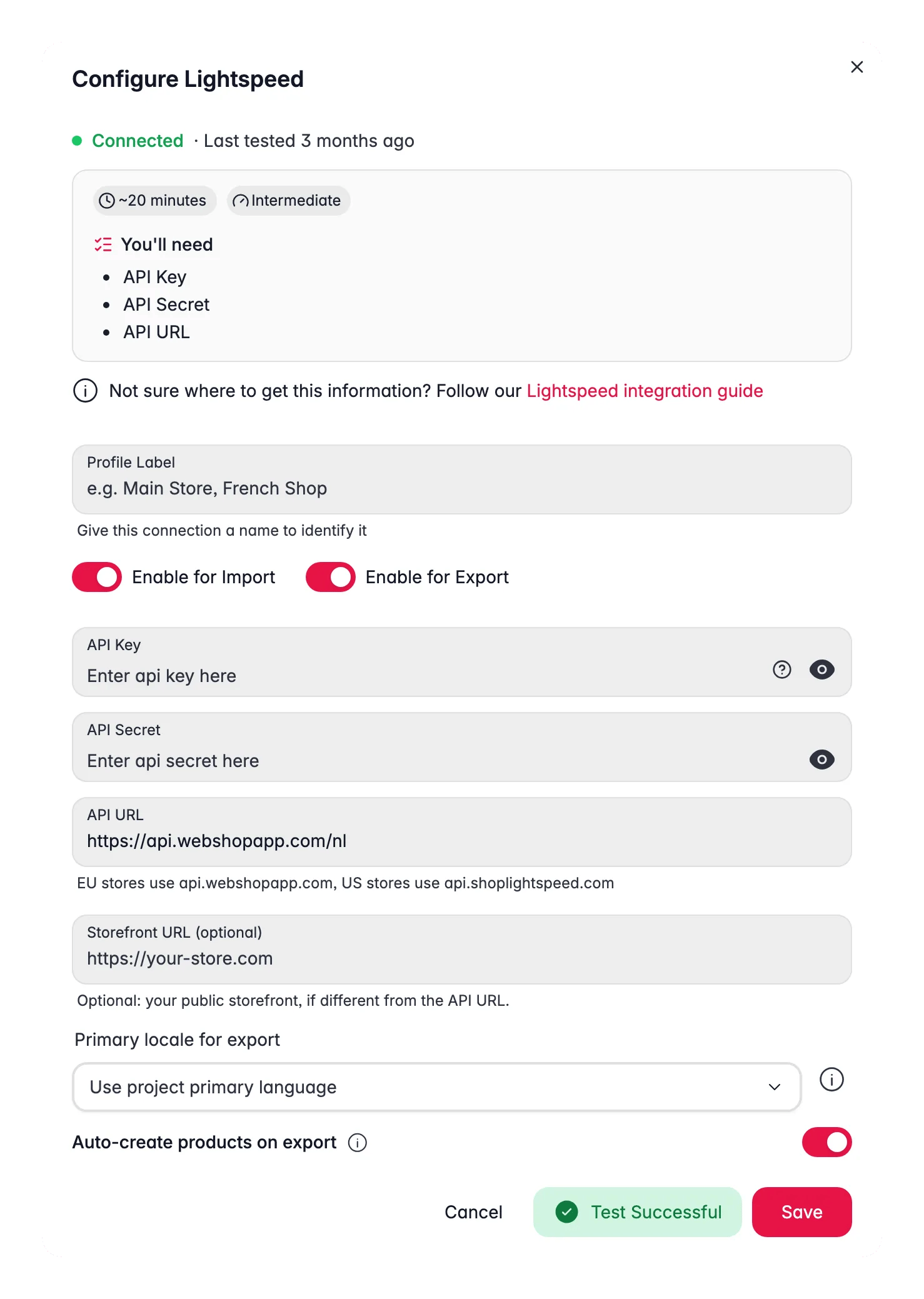
Enter your credentials
Fill in the following fields:
- API Key: your Lightspeed API key
- API Secret: your Lightspeed API secret
- Store URL: your Lightspeed store URL
4
Test the connection
Click Test Connection to confirm your credentials work.
5
Save
If the test succeeds, click Save.
Your Lightspeed store is now connected. You can start importing products.
What syncs between WISEPIM and Lightspeed
Beyond the basics (names, descriptions, prices, stock, images and variants), the connection covers the Lightspeed-specific fields below.Long titles
Lightspeed’s Paginatitel (fulltitle) comes from the long name field in WISEPIM. It travels in both directions and it is translatable, so each language gets its own long title.
Specifications
Lightspeed Specifications are a Type with a list of Attributes. WISEPIM imports them as product attributes and writes them back on export. Turn this on with the Specifications toggle in your connection settings.Lightspeed’s API cannot assign a Type to a product. WISEPIM can only fill in specifications for products that already have a Type in Lightspeed. Products without one are skipped for specifications, and the rest of their data still syncs.
Filters
Filters, the values behind Lightspeed’s faceted navigation, import and export as well. If a filter option in your data does not exist in Lightspeed yet, WISEPIM creates it for you. You do not have to pre-build every option by hand.Product sets
Product sets are imported and written back. Two limits come from Lightspeed itself:- The API cannot attach a set to a product, so that link stays a manual step in Lightspeed.
- Bundles have no API at all, so WISEPIM cannot read or write them.
When Quality Guard skips everything
An export in which every product was skipped by Quality Guard finishes as Completed with errors and reports the skipped count, so a run that pushed nothing never shows green. A run with a mix of exported and skipped products still completes normally.Categories deleted in Lightspeed
If a product in WISEPIM still points at a category that was deleted in Lightspeed, the export looks for a shop category with exactly the same title. When there is one unique match, the product is remapped to it and retried once. When there is no match, or more than one, the dead category is dropped and the product exports without it. Variant writes that Lightspeed rejects show Lightspeed’s own validation message in the task error, and a source image that returns 404 is skipped instead of retried.Related
Import products
Pull your catalog from Lightspeed into WISEPIM.
Enrich products
Improve titles, descriptions, and attributes with AI.
Export products
Push the improved content back to Lightspeed.
All integrations
Browse every platform you can connect to WISEPIM.