


Before you start
- A Google account with access to at least one GA4 property.
- A GA4 property that is receiving data from the storefront for this WISEPIM project.
- Standard GA4 ecommerce events for the complete funnel:
view_item,add_to_cart,begin_checkout, andpurchase. - For product-level attribution, send an identifier WISEPIM knows as GA4’s
item_id: the SKU, a variant SKU, the GTIN or the shop’s product id. See How products are matched.
Connect Google Analytics 4
1
Open Integrations
Go to Channels > Integrations, filter by Analytics, and open Google Analytics 4.
2
Connect with Google
Click Connect with Google. WISEPIM redirects you to Google’s consent screen and requests read-only Analytics access.
3
Choose an account
Sign in with the Google account that can access the required GA4 property. After consent, you return to WISEPIM automatically.
4
Select a property
WISEPIM lists the GA4 properties available to that account, including their Analytics account and property ID. Select the property that belongs to this project.
5
Let the first sync finish
WISEPIM verifies the selected property and queues its first sync automatically. The dialog follows the background job: it opens with “Preparing analytics data”, then names the stream it is on (“Syncing sessions and traffic sources”, “Syncing page performance”, “Syncing conversions and products”), counts “N of M steps” on a progress bar, and shows the “Date range:
{start} to {end}” it is covering. Finished runs appear in the sync history with their row count.What WISEPIM imports
GA4 only sends analytics data into WISEPIM. It does not import, edit, or export product titles, prices, images, stock, or other catalog fields.
How products are matched
WISEPIM links a GA4 item (item_id) to a product in the same project by its SKU, a variant SKU, its GTIN (EAN or UPC) or the product’s id in your connected shop. Product names are deliberately not used, because names are not stable identifiers.
Automatic matches are stored and checked again on later syncs. To fix one, open Tracking Health in Analytics, go to the Item Matching tab and click Link product or Change match on the GA4 product. A link you set by hand wins over the automatic match. Only WISEPIM’s reports change, GA4 stays as it is. Remove link lets automatic matching apply again.
How Tracking Health compares revenue
Tracking Health compares what GA4 recorded with the orders your shop reported. It only counts paid orders: pending and refunded orders do not count. Many shops send GA4 revenue without VAT and shipping, so WISEPIM compares against your order value without them when at least 90% of your orders carry tax information. Otherwise it compares against order totals including VAT and shipping, which makes the tracked share read lower. The headline says which basis it used: “excl. VAT and shipping” or “incl. VAT and shipping”.Understand the conversion rates
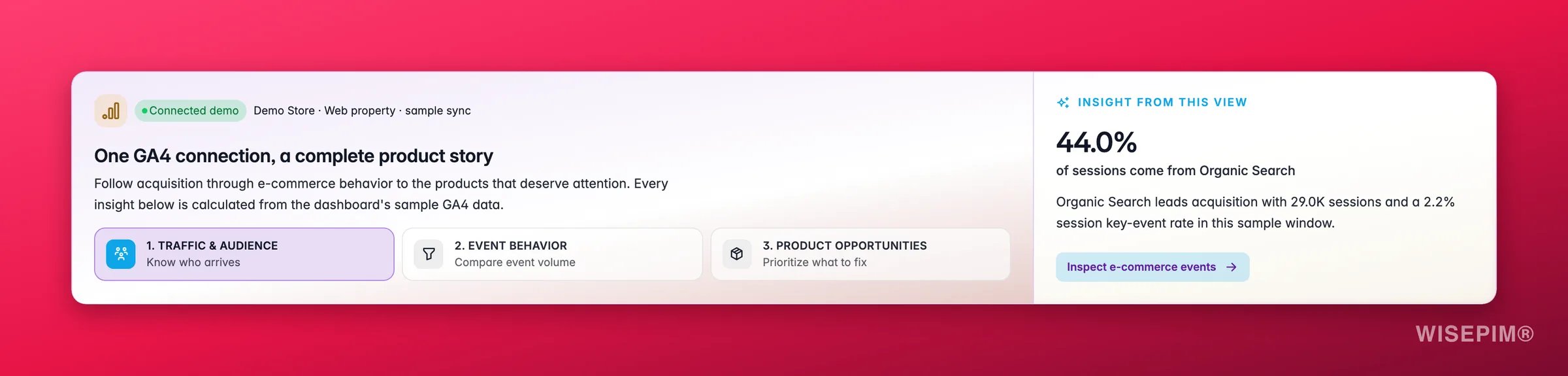
WISEPIM keeps rate names and denominators explicit:- Session key-event rate is GA4’s
sessionKeyEventRate: the share of sessions in which at least one event marked as a key event occurred. It is notkeyEvents ÷ sessions, because a session can contain several key events. - Unit cart rate is synced item additions divided by synced item views.
- Unit purchase rate is synced purchased items divided by synced item views.
What it powers
Manage and refresh the connection
Open the GA4 integration again to:- Change property. WISEPIM verifies it and automatically starts a new property-scoped sync. Data from the old and new properties is never mixed.
- Test connection to confirm the stored authorization and selected property still work.
- Sync now to refresh the latest seven days and fill gaps in the retained 180-day window.
- Force re-sync to rebuild the complete retained 180-day snapshot.
- View recent sync history, including running, successful, partial, and failed jobs, duration, range, and row count.
- Disconnect GA4 from the current project.
GA4 is not a real-time feed in WISEPIM. Syncs run in the background and end at yesterday. Google may revise recent analytics data, so WISEPIM refreshes the latest seven days during every smart sync.
Troubleshooting
No properties are listed
No properties are listed
The selected Google account cannot access a GA4 property, or the required Google Analytics APIs are unavailable. Switch to an account with property access and retry. If WISEPIM reports an API configuration problem, contact support.
The connection works but the reports are empty
The connection works but the reports are empty
Confirm that the selected property belongs to this storefront, receives data, and has completed at least one successful sync. GA4 processing delay and an empty selected date range can also explain missing recent data.
Traffic appears but products are not matched
Traffic appears but products are not matched
Inspect the storefront’s ecommerce payload. Its
item_id must be the SKU, a variant SKU, the GTIN or the shop’s product id. A product name or variant label does not match. For the rest, open Tracking Health > Item Matching and link the GA4 products by hand.A sync is partial or failed
A sync is partial or failed
Open the sync history for the provider error and affected range. Retry a normal sync first. Use Force re-sync when the retained history must be rebuilt after fixing the property or tracking setup.
Related
Conversions
Find the largest drop-off in the GA4 ecommerce funnel.
Product Performance
Tie item views and purchases to products and content quality.

Google Search Console Integration
Add organic-search clicks, impressions, CTR, and positions.
Supported Platforms
See everything you can connect to WISEPIM.