

- Install the WISEPIM app from the CCV Shop App Store. The quickest route, and it sets up your WISEPIM account for you.
- Generate API keys yourself and paste them into WISEPIM. Use this to connect a store to a WISEPIM account you already have.
You need admin access to your CCV Shop store, either to install the app or to generate API keys.
Install the app from the CCV Shop App Store
Install WISEPIM from the CCV Shop App Store and the connection is made for you.1
Find WISEPIM in the CCV Shop App Store
Open the App Store in your CCV Shop admin and search for WISEPIM.
2
Install the app
Install it and approve the access CCV Shop asks about.
3
Start working
If you do not have a WISEPIM account yet, one is created automatically using the details CCV Shop shares, including your company name. You get a project, and your store is connected and ready to import.
Generate API keys in CCV Shop
1
Open the API settings
Log in to your CCV Shop admin panel. Go to Settings, then API & Webhooks, then open the API Keys tab.
2
Create a new key
Click Generate new API key and fill in the details:
- Description: a name you recognize, such as
WISEPIM Integration - Permissions: enable both read and write for products
3
Save and copy your credentials
Click Save. CCV Shop gives you an API Key and an API Secret. Copy both and keep them somewhere safe. You enter them in WISEPIM next.
Add the keys to WISEPIM
Next, connect the store in WISEPIM using the keys you just created.1
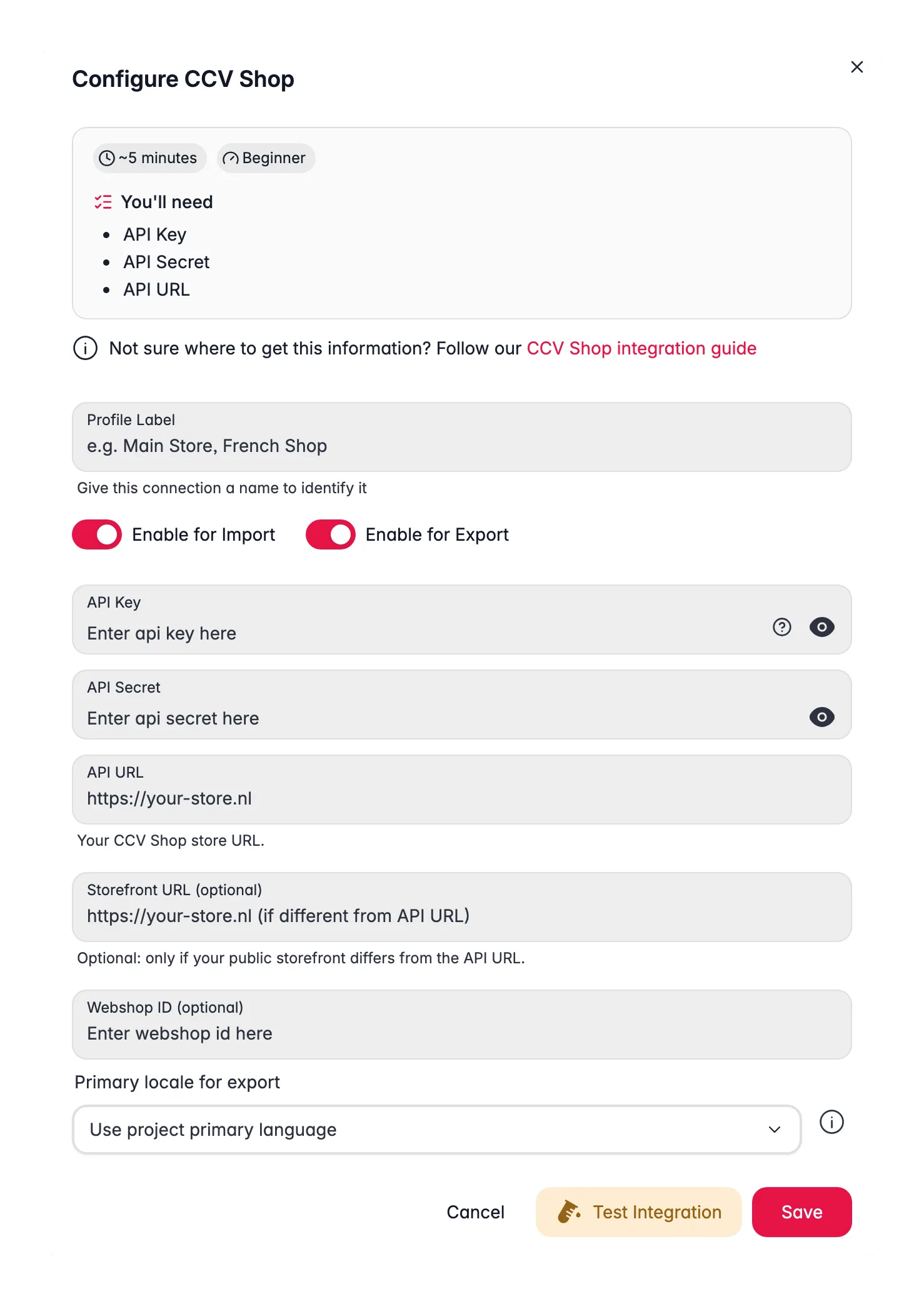
Open the CCV Shop integration
Log in to WISEPIM. Go to Settings, then Integrations, and select CCV Shop from the list of platforms.
2
Enter your credentials
Fill in the connection fields:
- API Key: your CCV Shop API key
- API Secret: your CCV Shop API secret
- Shop URL: your store address, such as
https://your-store.ccvshop.com
3
Save the connection
Click Save to store the configuration.
Run more than one CCV Shop store? Add each as its own connection profile with its own API keys. Imports and exports look up existing products per profile, so products from one shop are never matched against another.
Test the connection
Confirm that WISEPIM can reach your store before you sync anything.1
Find your connection
Go to the Integrations page and find your CCV Shop connection.
2
Run the test
Click Test Connection.
3
Check the result
A confirmation message means you are connected. An error usually means a wrong key or shop URL: check both and test again.
Connected. You can now import, enrich, and export products through CCV Shop.
Stuck during setup? Contact our support team and we will help you connect.
How exports are verified
After every write, WISEPIM reads the product back from CCV Shop per language. If CCV silently ignored a Dutch or German value, the product is marked failed and stays eligible for the next export instead of hiding behind a green task. When every field you asked to export is controlled by CCV’s multishop settings, the task reports that CCV Shop controls every requested field and no product data was updated, and retries later. Exports also reset a stale remote discount that would exceed the new price, so a listing never shows a negative amount.How images sync
On export, your CCV Shop gallery is made to match your WISEPIM gallery exactly. WISEPIM replaces the whole gallery in one go, so the order you set in WISEPIM is the order your shop shows, and the first image becomes the main product photo. Because the gallery is replaced instead of added to, exporting the same product again does not stack up copies of your images. Remove an image in WISEPIM and it disappears from CCV Shop on the next export too.Keep your API keys safe
Treat your API keys like passwords. Anyone with them can access your store data.- Never share your keys or post them publicly.
- Never commit keys to version control.
- Store keys in environment variables where you can.
- Rotate your keys regularly.
- Grant only the permissions the integration needs.
Related
Import products
Pull products from CCV Shop into WISEPIM.
Enrich products
Improve product content with AI.
Export products
Send products back to CCV Shop.