> ## Documentation Index
> Fetch the complete documentation index at: https://docs.wisepim.com/llms.txt
> Use this file to discover all available pages before exploring further.
# Translation
> Control how AI translates your product content: pick Fast or Pro, set the tone, add per-field rules, and lock in terms with a dictionary.
## What you can do here
Translation settings decide how the AI translates your products. Set them once, and every AI translation in your project follows the same rules. You stay in control of tone, terminology, and which fields get translated.
**Where to find it:** open your avatar menu → **My Settings**, then **AI & Content → Translation** in the settings sidebar.
These settings apply to all AI translations, including bulk translations from [Translating Products](/en/products/translating-products). Changes affect future translations only. Content you already translated stays as it is.
The page has five tabs. Start with **General** for project-wide rules, then add more specific rules only where you need them.
Set the default mode, tone, and content handling for the whole project.
Add rules for a single field, like a character limit on the product name.
Override the tone or formality for one language.
Use different terminology for a group of products.
Lock in how specific terms translate across every language.
## General
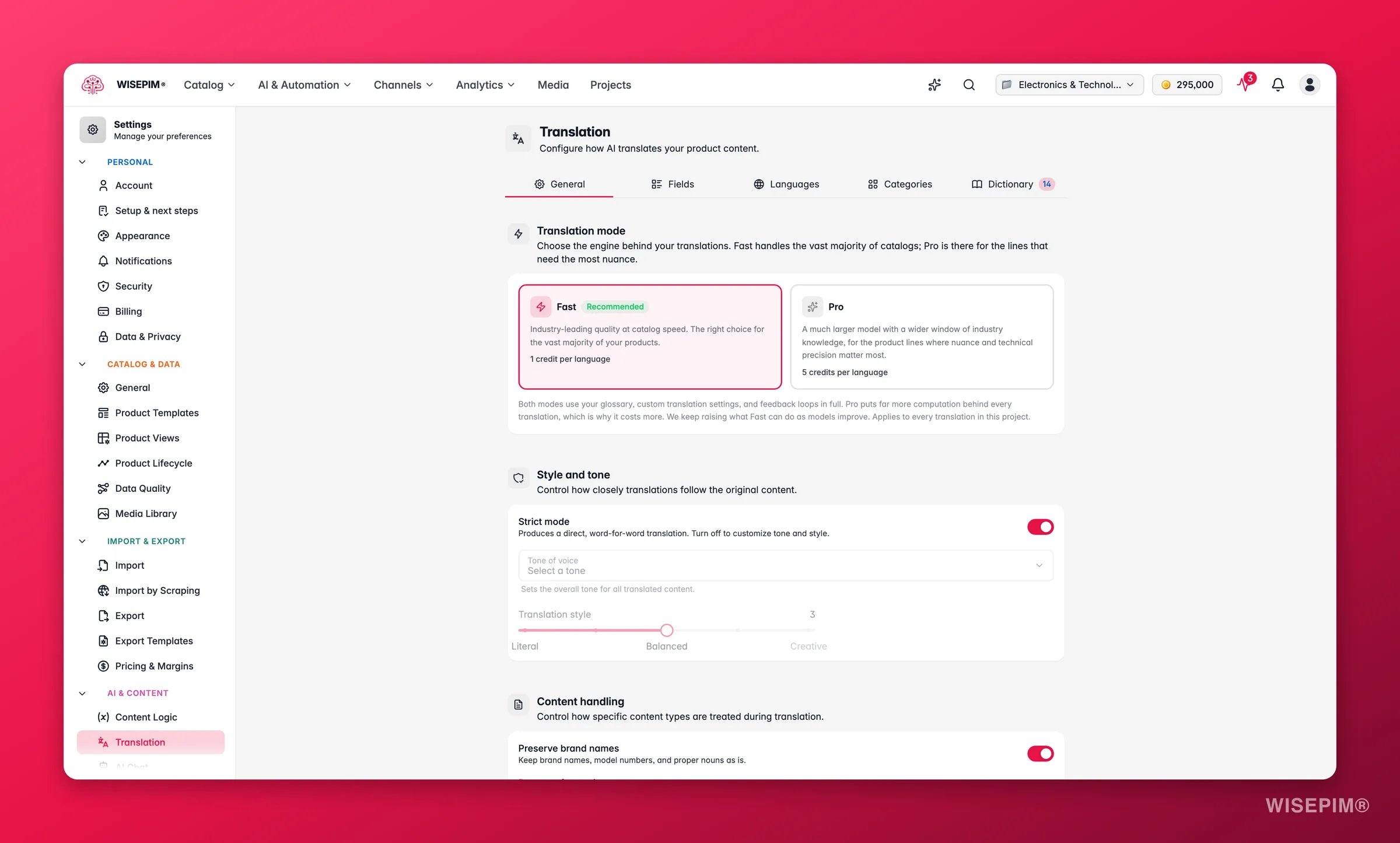
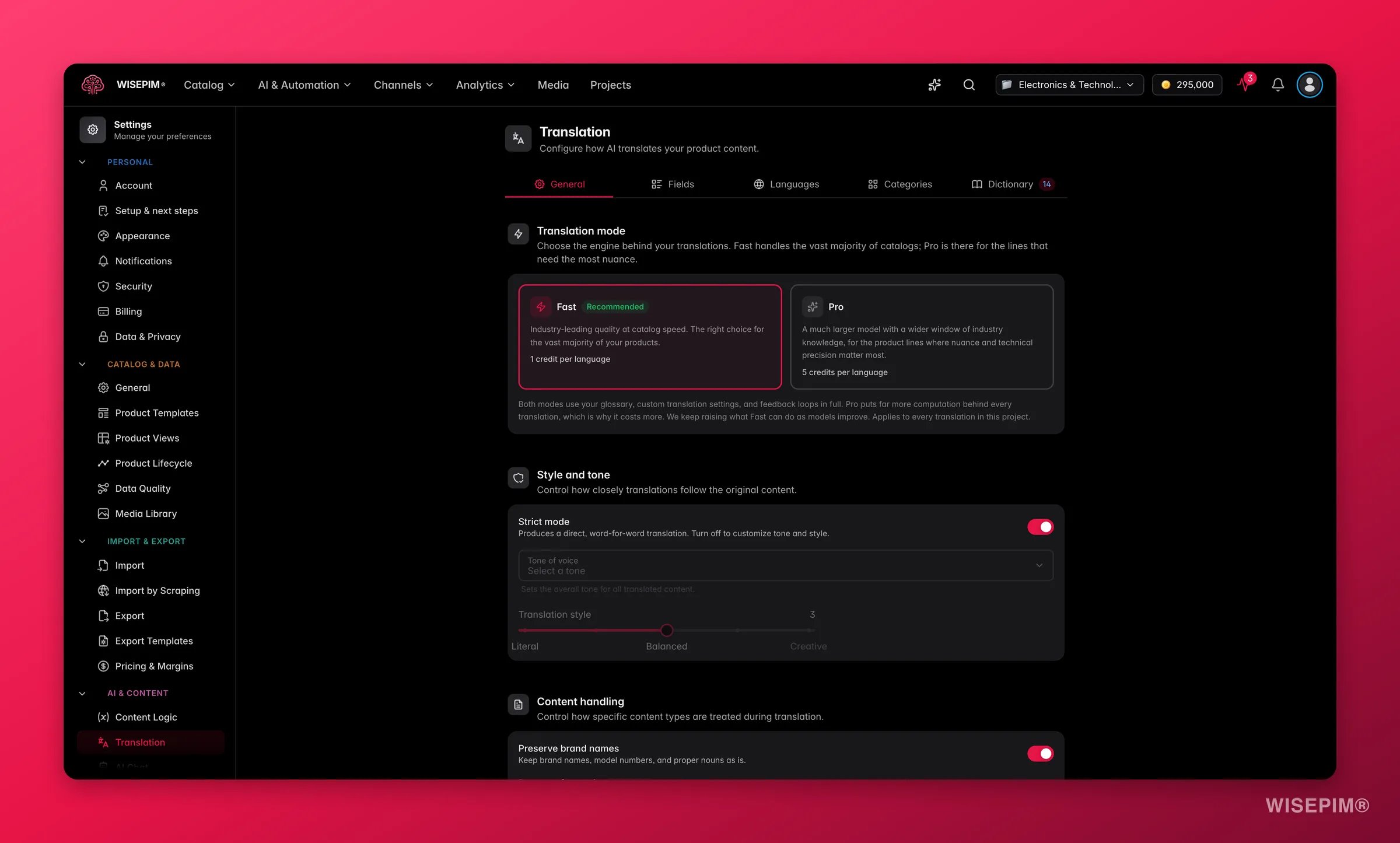 The General tab sets the default behavior for all fields and languages.
### Choose Fast or Pro
Every translation runs in one of two modes. Set the default here, and pick a different one per run when you need to.
| Mode | What it does | Credits |
| -------- | -------------------------------------------------------------------------------------------------------------------------------------- | --------------------------- |
| **Fast** | The recommended default. Industry-leading quality at catalog speed. Use it for everything unless you have a reason not to. | 1 per product, per language |
| **Pro** | Uses a much larger model that reasons before it writes. Worth it for flagship products, tricky copy, or a market you cannot get wrong. | 5 per product, per language |
Fast is on by default. Start there, translate your catalog, then re-run **Pro** on the products where the wording really matters. Failed translations are refunded automatically.
### Tone and style
| Setting | What it does |
| --------------------- | ------------------------------------------------------------------------------------------------------------------------------------------------------------------- |
| **Strict mode** | On by default. Translates word for word with no style changes. The safest choice for technical or regulated content. Turn it off to control tone and style. |
| **Tone of voice** | Pick a preset like professional, casual, or persuasive. Or choose **Custom** to describe your own tone. Available only when strict mode is off. |
| **Translation style** | A slider from **Literal** (1) to **Balanced** (3) to **Creative** (5). Higher values let the AI adapt phrasing more freely. Available only when strict mode is off. |
### Content handling
Decide how the AI treats specific content during translation.
* **Preserve brand names**: keeps brand names, model numbers, and proper nouns untranslated. On by default.
* **Preserve formatting**: keeps HTML, markdown, lists, and tables intact. On by default.
* **SEO optimization**: optimizes translated meta fields for search in the target language. Off by default.
* **Unit handling**: choose how measurements convert.
| Option | What happens |
| ----------------------- | ------------------------------------------------------------------------- |
| **Keep original units** | Units stay as they are (inches remain inches). |
| **Convert units** | Units switch to the target locale's standard (inches become centimeters). |
| **Show both** | The original and converted units both appear. |
### Additional instructions
A free-text field for custom rules that apply to every translation. Use it for project-wide notes like "Always use formal language" or "Never abbreviate product names."
## Consistency you get for free
Some things you do not have to configure. They apply to every translation, in both modes.
* **Translation memory**: once a phrase is translated one way, it stays that way. The same wording comes out the same across products, across chunks of a big run, and across runs you start weeks apart.
* **Built-in style guides**: WISEPIM ships language rules for 24 locales, covering things like formality conventions and local typography. You get them without writing a single instruction.
* **Regional languages are treated as their own**: pairs like `nl` and `nl-BE`, or German variants, are translated and stored separately. A Belgian Dutch translation is no longer mistaken for a copy of the Dutch one.
## Fields
The General tab sets the default behavior for all fields and languages.
### Choose Fast or Pro
Every translation runs in one of two modes. Set the default here, and pick a different one per run when you need to.
| Mode | What it does | Credits |
| -------- | -------------------------------------------------------------------------------------------------------------------------------------- | --------------------------- |
| **Fast** | The recommended default. Industry-leading quality at catalog speed. Use it for everything unless you have a reason not to. | 1 per product, per language |
| **Pro** | Uses a much larger model that reasons before it writes. Worth it for flagship products, tricky copy, or a market you cannot get wrong. | 5 per product, per language |
Fast is on by default. Start there, translate your catalog, then re-run **Pro** on the products where the wording really matters. Failed translations are refunded automatically.
### Tone and style
| Setting | What it does |
| --------------------- | ------------------------------------------------------------------------------------------------------------------------------------------------------------------- |
| **Strict mode** | On by default. Translates word for word with no style changes. The safest choice for technical or regulated content. Turn it off to control tone and style. |
| **Tone of voice** | Pick a preset like professional, casual, or persuasive. Or choose **Custom** to describe your own tone. Available only when strict mode is off. |
| **Translation style** | A slider from **Literal** (1) to **Balanced** (3) to **Creative** (5). Higher values let the AI adapt phrasing more freely. Available only when strict mode is off. |
### Content handling
Decide how the AI treats specific content during translation.
* **Preserve brand names**: keeps brand names, model numbers, and proper nouns untranslated. On by default.
* **Preserve formatting**: keeps HTML, markdown, lists, and tables intact. On by default.
* **SEO optimization**: optimizes translated meta fields for search in the target language. Off by default.
* **Unit handling**: choose how measurements convert.
| Option | What happens |
| ----------------------- | ------------------------------------------------------------------------- |
| **Keep original units** | Units stay as they are (inches remain inches). |
| **Convert units** | Units switch to the target locale's standard (inches become centimeters). |
| **Show both** | The original and converted units both appear. |
### Additional instructions
A free-text field for custom rules that apply to every translation. Use it for project-wide notes like "Always use formal language" or "Never abbreviate product names."
## Consistency you get for free
Some things you do not have to configure. They apply to every translation, in both modes.
* **Translation memory**: once a phrase is translated one way, it stays that way. The same wording comes out the same across products, across chunks of a big run, and across runs you start weeks apart.
* **Built-in style guides**: WISEPIM ships language rules for 24 locales, covering things like formality conventions and local typography. You get them without writing a single instruction.
* **Regional languages are treated as their own**: pairs like `nl` and `nl-BE`, or German variants, are translated and stored separately. A Belgian Dutch translation is no longer mistaken for a copy of the Dutch one.
## Fields
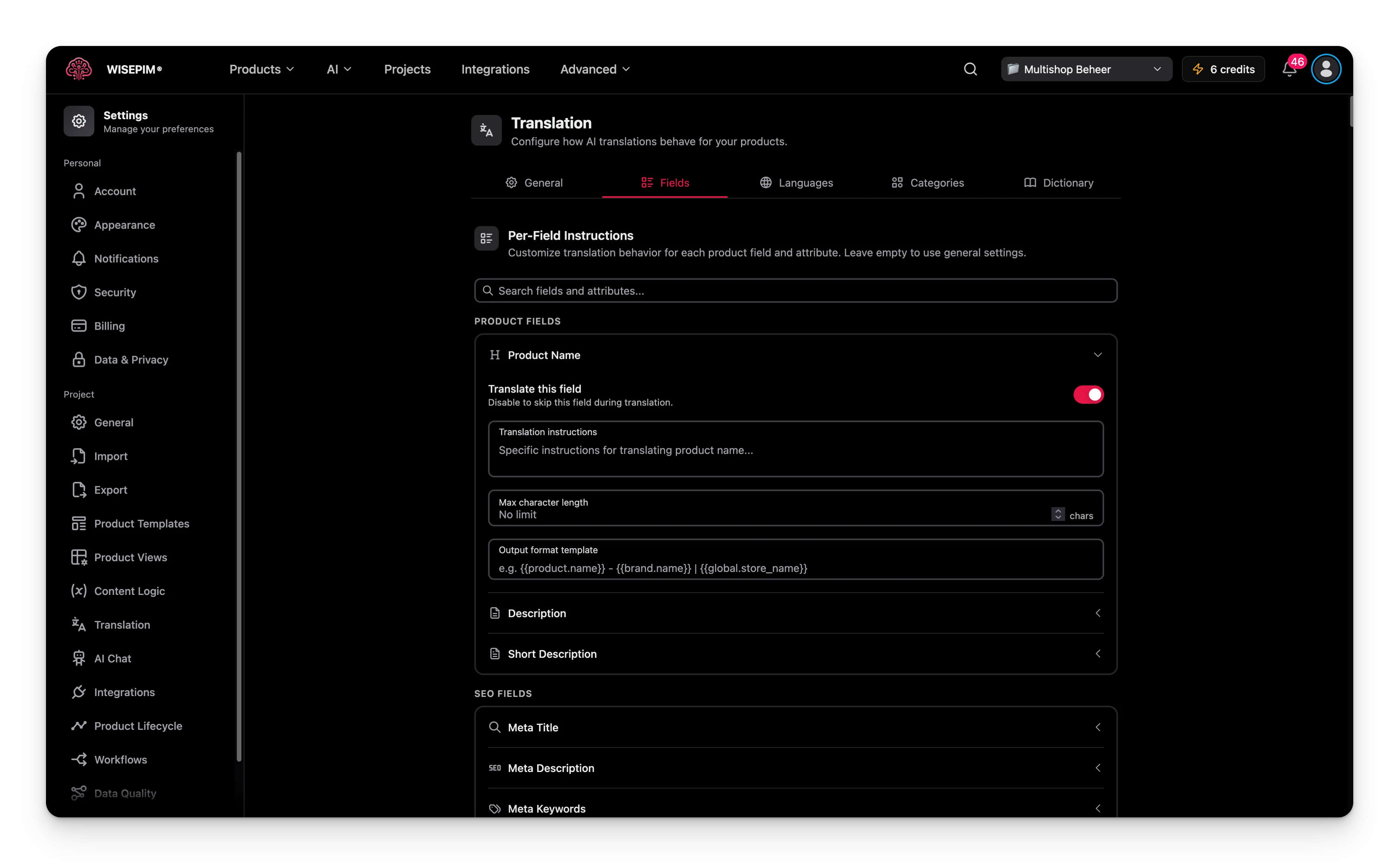 Use the Fields tab to set rules for a single product field. Leave a field empty to use the General settings.
These built-in fields are always available:
* **Product Name**
* **Description**
* **Short Description**
* **Meta Title** (SEO)
* **Meta Description** (SEO)
* **Meta Keywords** (SEO)
Custom attributes from your catalog appear here too, grouped by attribute group. You configure them the same way.
Use the search bar at the top of the Fields tab to find a field or attribute by name.
### Set rules for one field
Expand any field to configure these options:
* **Translate this field**: turn translation on or off for this field. Useful for fields you want to skip, like SKU-based names.
* **Translation instructions**: rules that apply to this field only, such as "Keep the product name under 60 characters."
* **Max character length**: limit the length of the translated output. Leave empty for no limit.
* **Output format template**: build the output from variables.
| Variable | What it inserts |
| ------------------------- | ------------------------------------------------------------------ |
| `{{product.name}}` | The product's name. |
| `{{product.description}}` | The product's description. |
| `{{brand.name}}` | The product's brand name. |
| `{{global.store_name}}` | Your store name. |
| `{{attribute.code}}` | A custom attribute value (replace `code` with the attribute code). |
For example, a template of `{{product.name}} | {{brand.name}}` produces "Wireless Headphones | SoundMax" in the output.
## Languages
Use the Fields tab to set rules for a single product field. Leave a field empty to use the General settings.
These built-in fields are always available:
* **Product Name**
* **Description**
* **Short Description**
* **Meta Title** (SEO)
* **Meta Description** (SEO)
* **Meta Keywords** (SEO)
Custom attributes from your catalog appear here too, grouped by attribute group. You configure them the same way.
Use the search bar at the top of the Fields tab to find a field or attribute by name.
### Set rules for one field
Expand any field to configure these options:
* **Translate this field**: turn translation on or off for this field. Useful for fields you want to skip, like SKU-based names.
* **Translation instructions**: rules that apply to this field only, such as "Keep the product name under 60 characters."
* **Max character length**: limit the length of the translated output. Leave empty for no limit.
* **Output format template**: build the output from variables.
| Variable | What it inserts |
| ------------------------- | ------------------------------------------------------------------ |
| `{{product.name}}` | The product's name. |
| `{{product.description}}` | The product's description. |
| `{{brand.name}}` | The product's brand name. |
| `{{global.store_name}}` | Your store name. |
| `{{attribute.code}}` | A custom attribute value (replace `code` with the attribute code). |
For example, a template of `{{product.name}} | {{brand.name}}` produces "Wireless Headphones | SoundMax" in the output.
## Languages
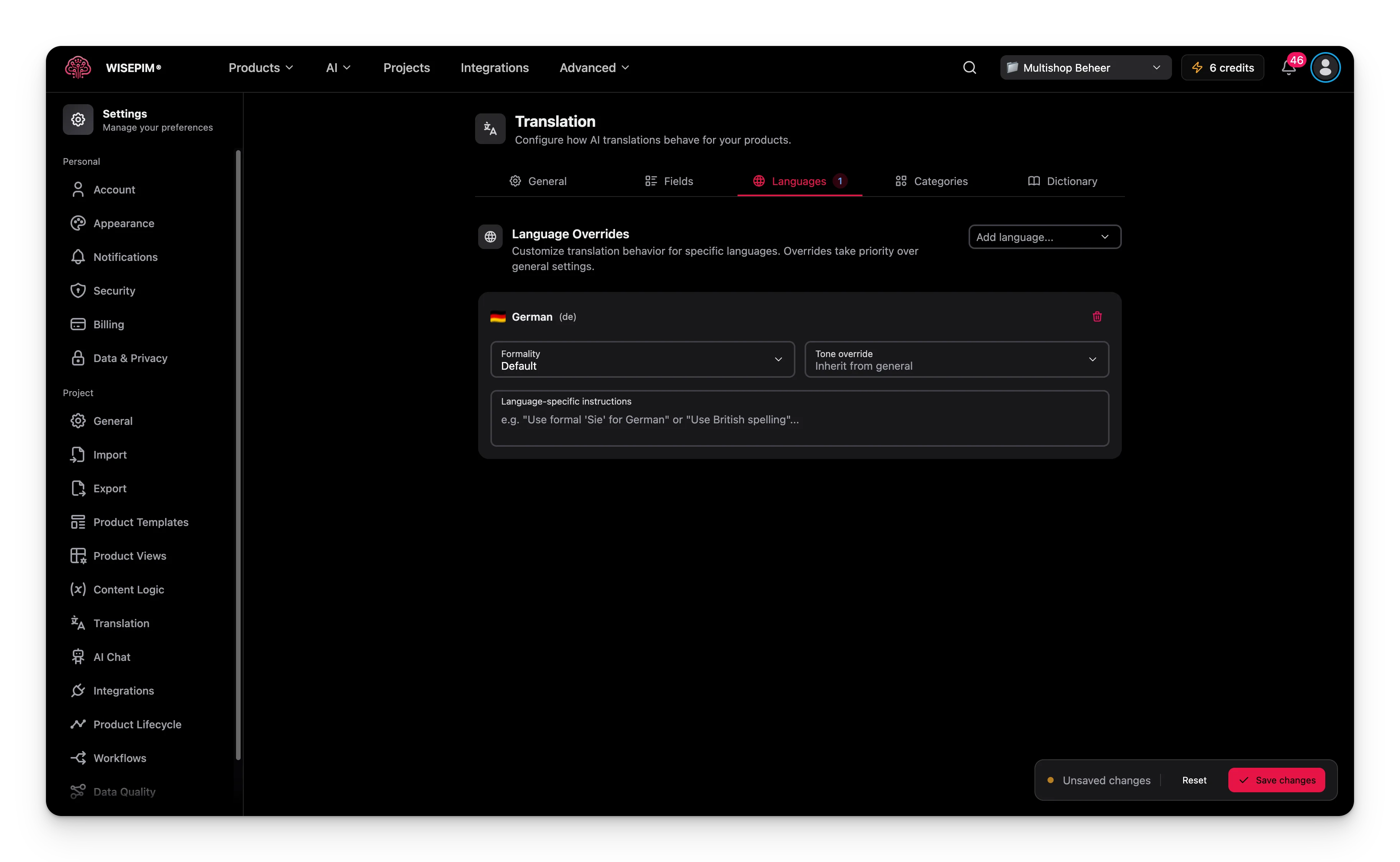 Use the Languages tab to change how the AI translates into one language. These overrides win over the General settings.
Click **Add language** and pick a locale from your project. Only locales already added under **Additional Languages** in [General settings](/en/settings/general) appear here - this tab overrides behavior for existing locales, it does not add new ones. Each language override includes:
* **Formality**: choose **Default**, **Formal**, **Informal**, or **Neutral**. This helps with languages that have a formal and informal form, like "Sie" and "du" in German.
* **Tone override**: set a different tone for this language. Choose "Inherit from general" to keep the project tone.
* **Language-specific instructions**: rules for this language only, such as "Use British spelling for English."
You can add one override per locale in your project.
## Categories
Use the Categories tab when a group of products needs its own terminology or style. For example, electronics may need technical terms while children's products need a playful tone.
Click **Add category** and pick categories from your catalog tree. For each one you can set:
* **Translation instructions**: rules for this category, such as "Use technical terminology for electronics."
* **Terminology notes**: preferred terms, glossary notes, and naming conventions for this category.
## Dictionary
Use the Languages tab to change how the AI translates into one language. These overrides win over the General settings.
Click **Add language** and pick a locale from your project. Only locales already added under **Additional Languages** in [General settings](/en/settings/general) appear here - this tab overrides behavior for existing locales, it does not add new ones. Each language override includes:
* **Formality**: choose **Default**, **Formal**, **Informal**, or **Neutral**. This helps with languages that have a formal and informal form, like "Sie" and "du" in German.
* **Tone override**: set a different tone for this language. Choose "Inherit from general" to keep the project tone.
* **Language-specific instructions**: rules for this language only, such as "Use British spelling for English."
You can add one override per locale in your project.
## Categories
Use the Categories tab when a group of products needs its own terminology or style. For example, electronics may need technical terms while children's products need a playful tone.
Click **Add category** and pick categories from your catalog tree. For each one you can set:
* **Translation instructions**: rules for this category, such as "Use technical terminology for electronics."
* **Terminology notes**: preferred terms, glossary notes, and naming conventions for this category.
## Dictionary
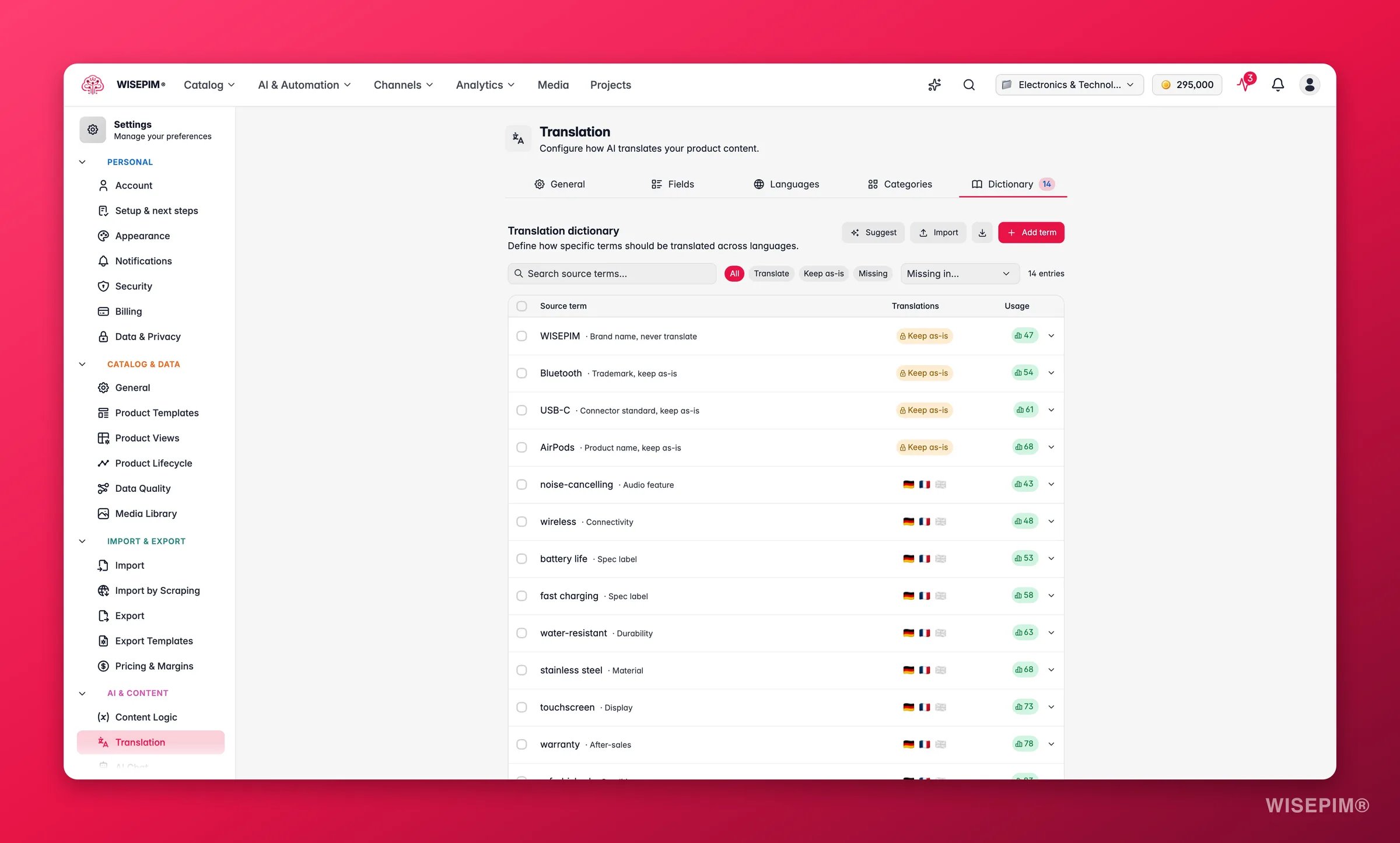
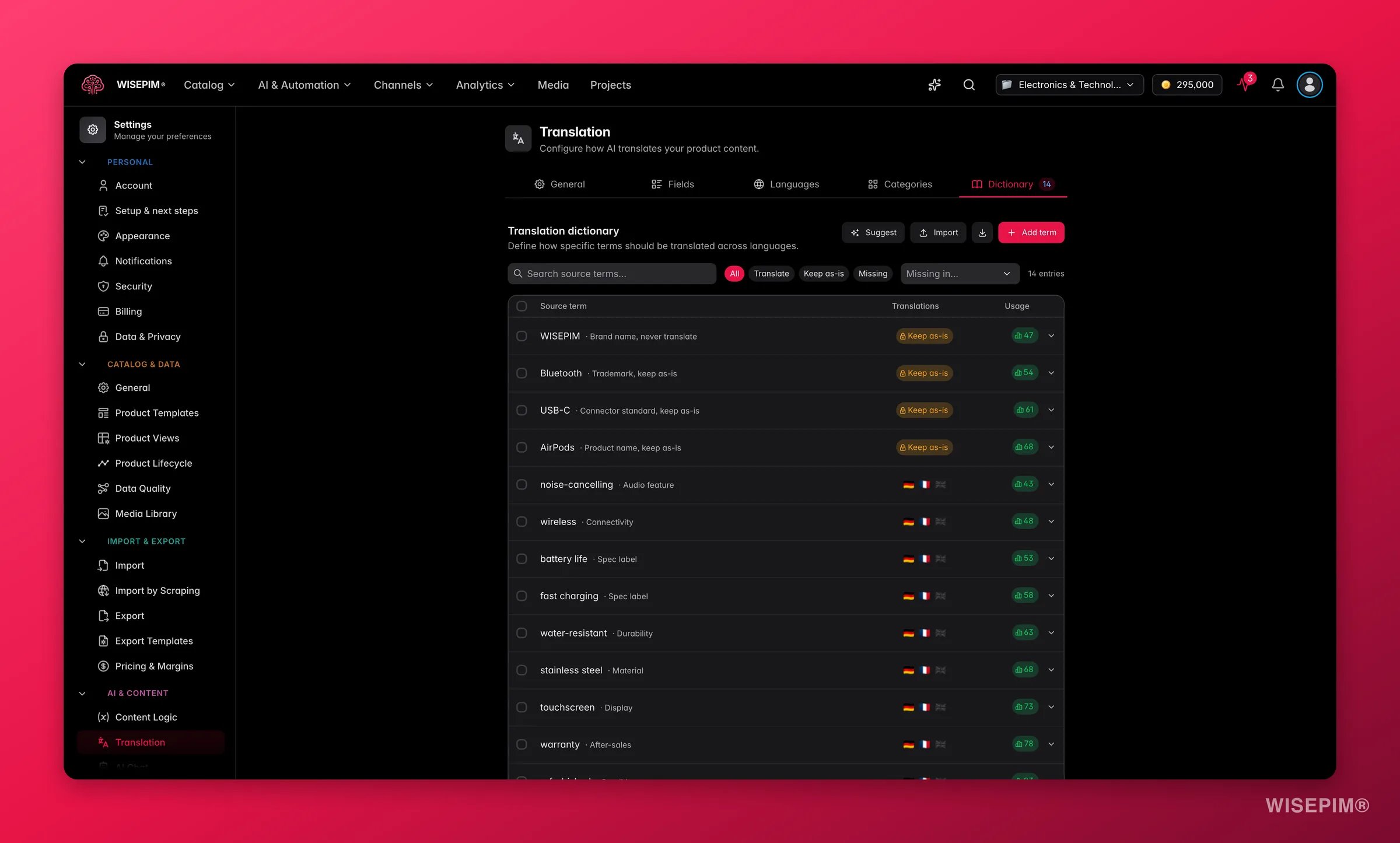 Use the Dictionary to fix how key terms translate across every language. This keeps your terminology consistent throughout the catalog.
### Add a term
A new entry appears.
Type the original term in your primary language.
Fill in one field for each target language to set the exact translation.
Use the context field to clarify meaning, such as "audio product category" versus "computer mouse."
To keep a term untranslated in every language, turn on **Keep as-is**. This is useful for brand names, product codes, and technical terms.
### Edit many terms at once
Click **Bulk edit** to switch to a text editor for adding or changing several terms together. The format is:
```
wireless headphones
context: audio product category
de: kabellose Kopfhorer
fr: casques sans fil
WISEPIM | keep-as-is
```
Start each entry with the source term on its own line. Indent the lines below it to set the context and the translation per language. Add `| keep-as-is` after a term to keep it untranslated.
### Let the dictionary build itself
Turn on **Auto-learn glossary from reviews** and WISEPIM grows the dictionary for you. When a [Linguistic Review](/en/analytics/linguistic-review) finds a wording inconsistency it is highly confident about, that finding becomes a dictionary entry, so the next translation gets it right the first time.
The setting is off by default. Turn it on once your first reviews look sensible.
Auto-learned entries never overwrite your work. Terms you added yourself, and anything marked **Keep as-is**, always win.
## Turn reviewer feedback into settings
Use the Dictionary to fix how key terms translate across every language. This keeps your terminology consistent throughout the catalog.
### Add a term
A new entry appears.
Type the original term in your primary language.
Fill in one field for each target language to set the exact translation.
Use the context field to clarify meaning, such as "audio product category" versus "computer mouse."
To keep a term untranslated in every language, turn on **Keep as-is**. This is useful for brand names, product codes, and technical terms.
### Edit many terms at once
Click **Bulk edit** to switch to a text editor for adding or changing several terms together. The format is:
```
wireless headphones
context: audio product category
de: kabellose Kopfhorer
fr: casques sans fil
WISEPIM | keep-as-is
```
Start each entry with the source term on its own line. Indent the lines below it to set the context and the translation per language. Add `| keep-as-is` after a term to keep it untranslated.
### Let the dictionary build itself
Turn on **Auto-learn glossary from reviews** and WISEPIM grows the dictionary for you. When a [Linguistic Review](/en/analytics/linguistic-review) finds a wording inconsistency it is highly confident about, that finding becomes a dictionary entry, so the next translation gets it right the first time.
The setting is off by default. Turn it on once your first reviews look sensible.
Auto-learned entries never overwrite your work. Terms you added yourself, and anything marked **Keep as-is**, always win.
## Turn reviewer feedback into settings
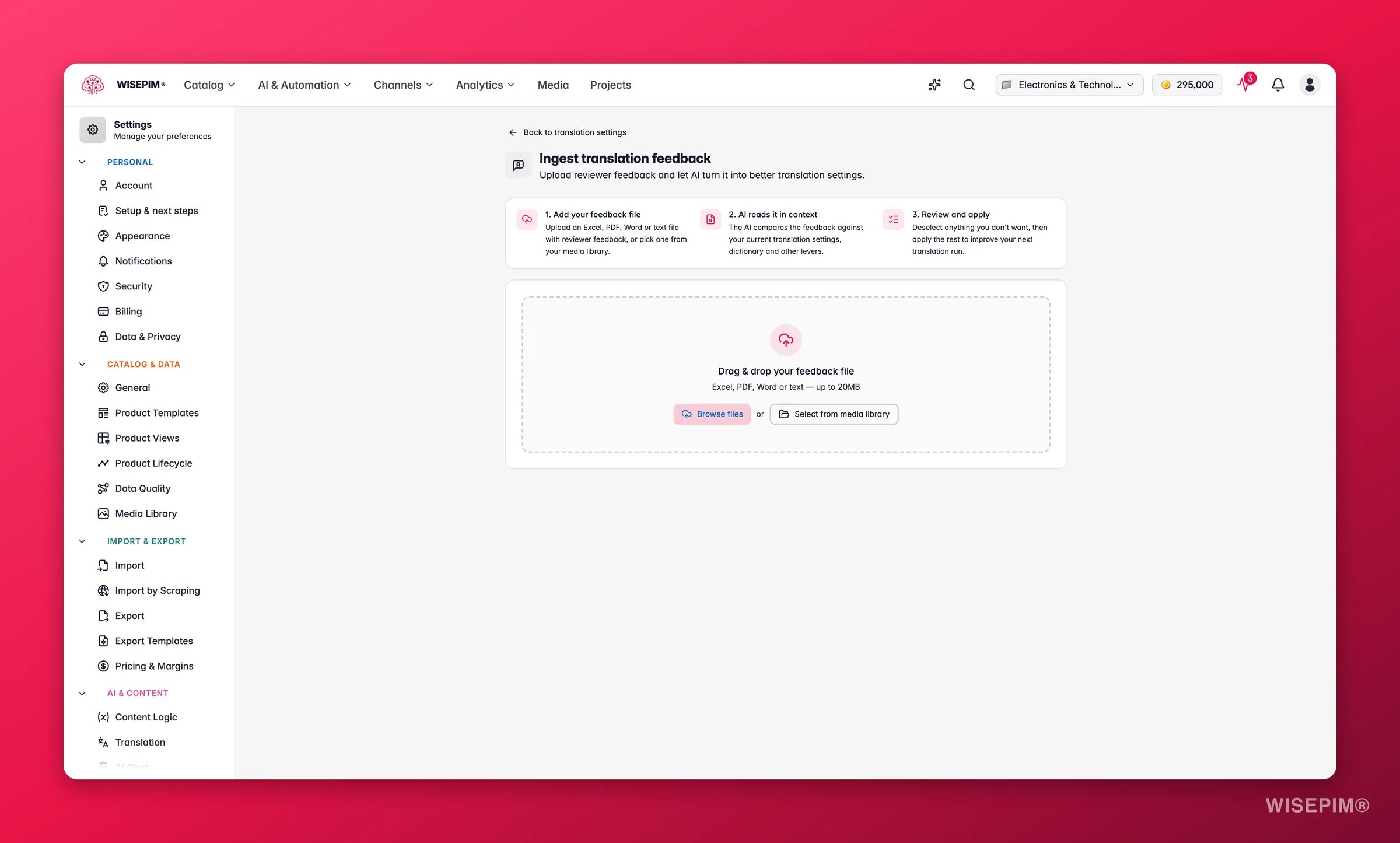
 Native-speaker reviewers usually hand you their feedback as a file: a spreadsheet of corrected terms, a Word document of notes, an annotated PDF. Instead of translating that into settings by hand, click **Ingest feedback** at the top of the Translation settings page and let AI do it.
Drag in an Excel, PDF, Word, or text file (up to 20MB), or pick one from your [media library](/en/products/media-library).
Click **Analyze feedback**. The AI compares the feedback against your current translation settings, dictionary, and other levers. The analysis runs in the background, so you can leave the page and come back later.
You get a list of suggested changes, split into three groups. Everything starts selected; deselect anything you don't want.
Click **Apply changes**. The selected changes land in your translation settings and are used on the next translation run.
The review screen groups suggestions by what they need from you:
Native-speaker reviewers usually hand you their feedback as a file: a spreadsheet of corrected terms, a Word document of notes, an annotated PDF. Instead of translating that into settings by hand, click **Ingest feedback** at the top of the Translation settings page and let AI do it.
Drag in an Excel, PDF, Word, or text file (up to 20MB), or pick one from your [media library](/en/products/media-library).
Click **Analyze feedback**. The AI compares the feedback against your current translation settings, dictionary, and other levers. The analysis runs in the background, so you can leave the page and come back later.
You get a list of suggested changes, split into three groups. Everything starts selected; deselect anything you don't want.
Click **Apply changes**. The selected changes land in your translation settings and are used on the next translation run.
The review screen groups suggestions by what they need from you:
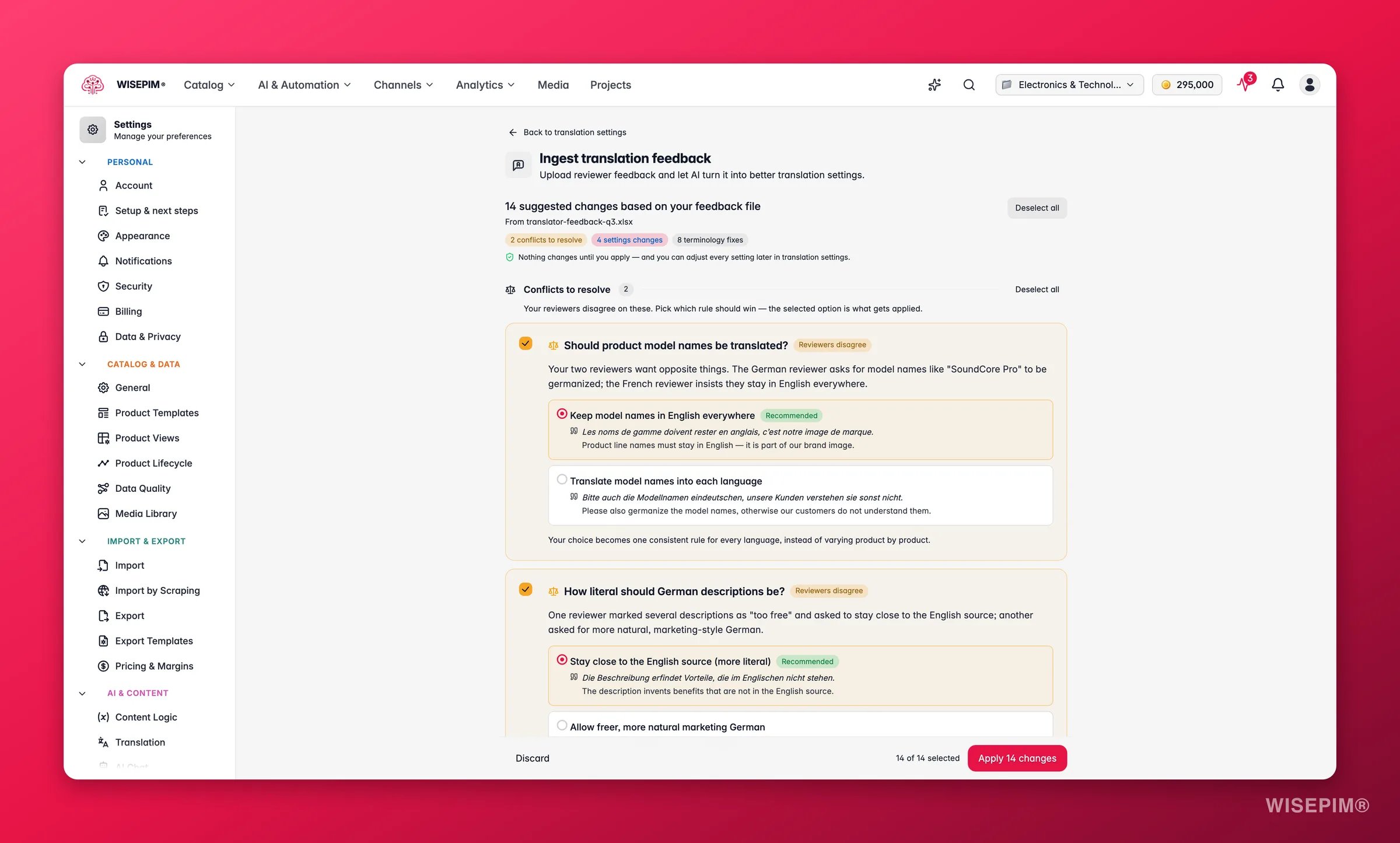
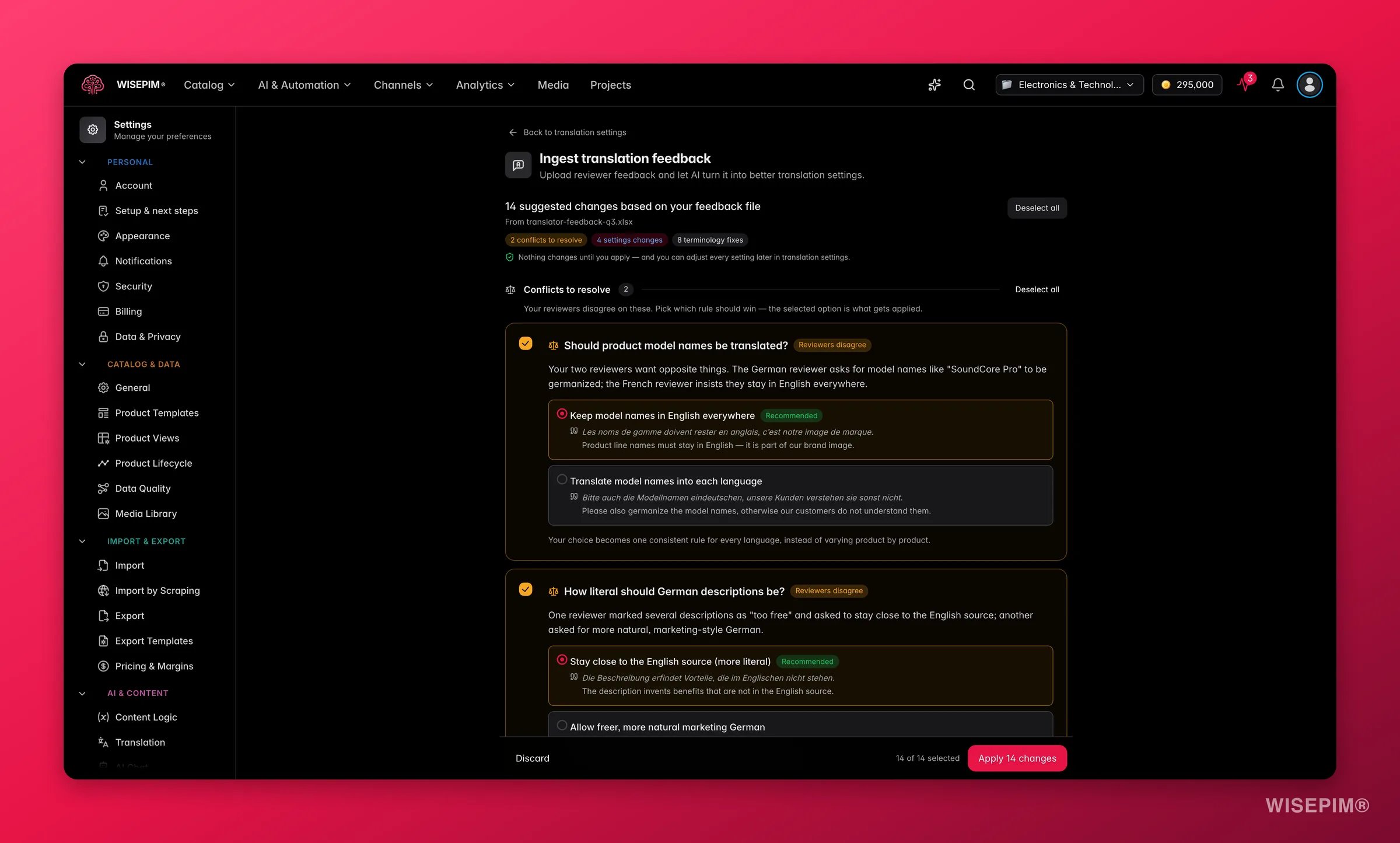 * **Conflicts to resolve**: your reviewers disagree on these - for example, one wants product names kept in English while another wants them translated. Each conflict shows the positions with the quoted evidence from the file, and you pick which rule wins. WISEPIM marks the option it recommends.
* **Settings changes**: adjustments to how the AI translates, based on recurring feedback. Every card shows what changes (current → proposed), what it improves, and the evidence from your feedback file, with a priority so you can see what matters most.
* **Terminology**: corrected term pairs per language, with how often reviewers raised each one. Applied terms are added to your [dictionary](#dictionary), so every future translation uses the approved wording.
* **Conflicts to resolve**: your reviewers disagree on these - for example, one wants product names kept in English while another wants them translated. Each conflict shows the positions with the quoted evidence from the file, and you pick which rule wins. WISEPIM marks the option it recommends.
* **Settings changes**: adjustments to how the AI translates, based on recurring feedback. Every card shows what changes (current → proposed), what it improves, and the evidence from your feedback file, with a priority so you can see what matters most.
* **Terminology**: corrected term pairs per language, with how often reviewers raised each one. Applied terms are added to your [dictionary](#dictionary), so every future translation uses the approved wording.
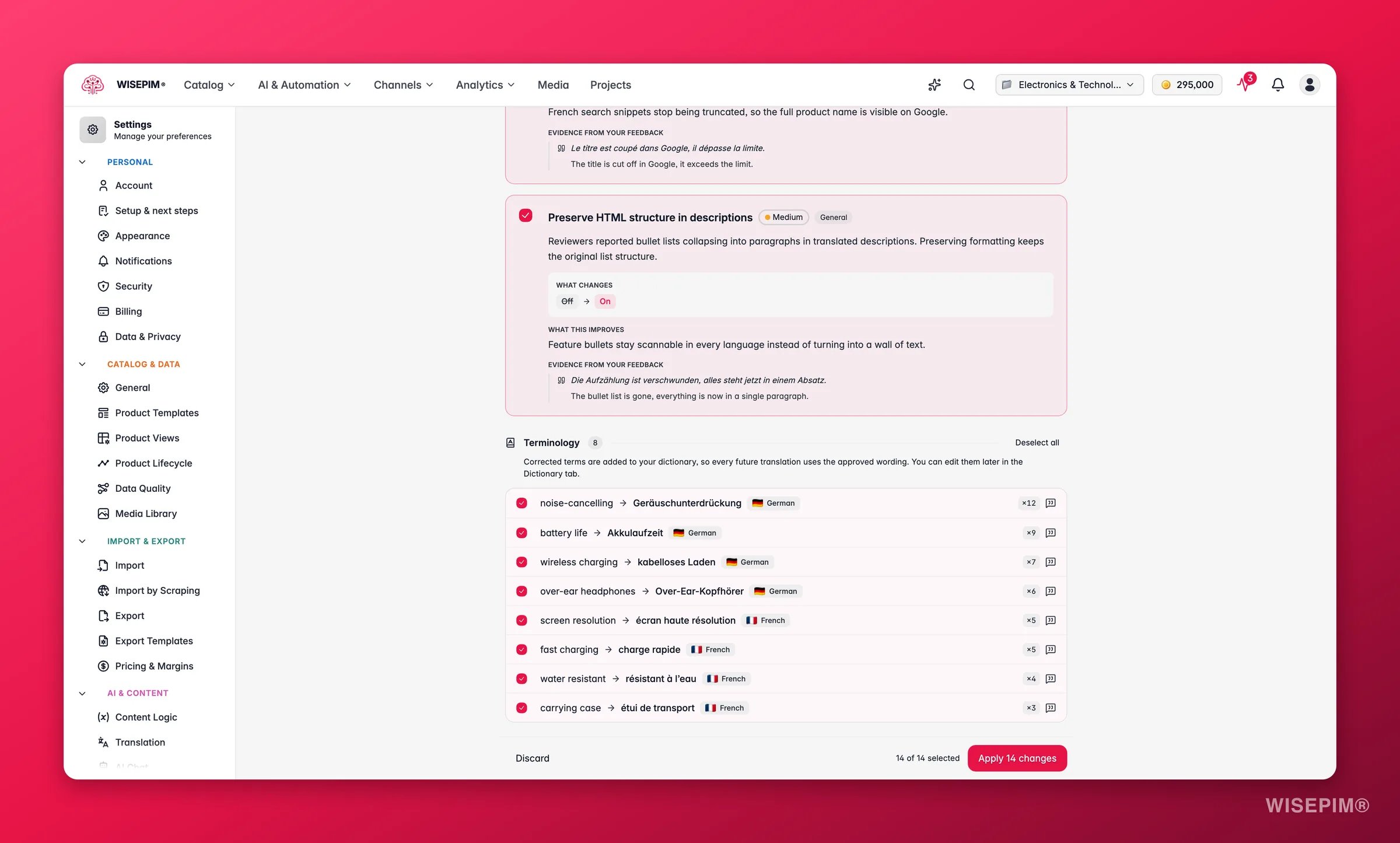
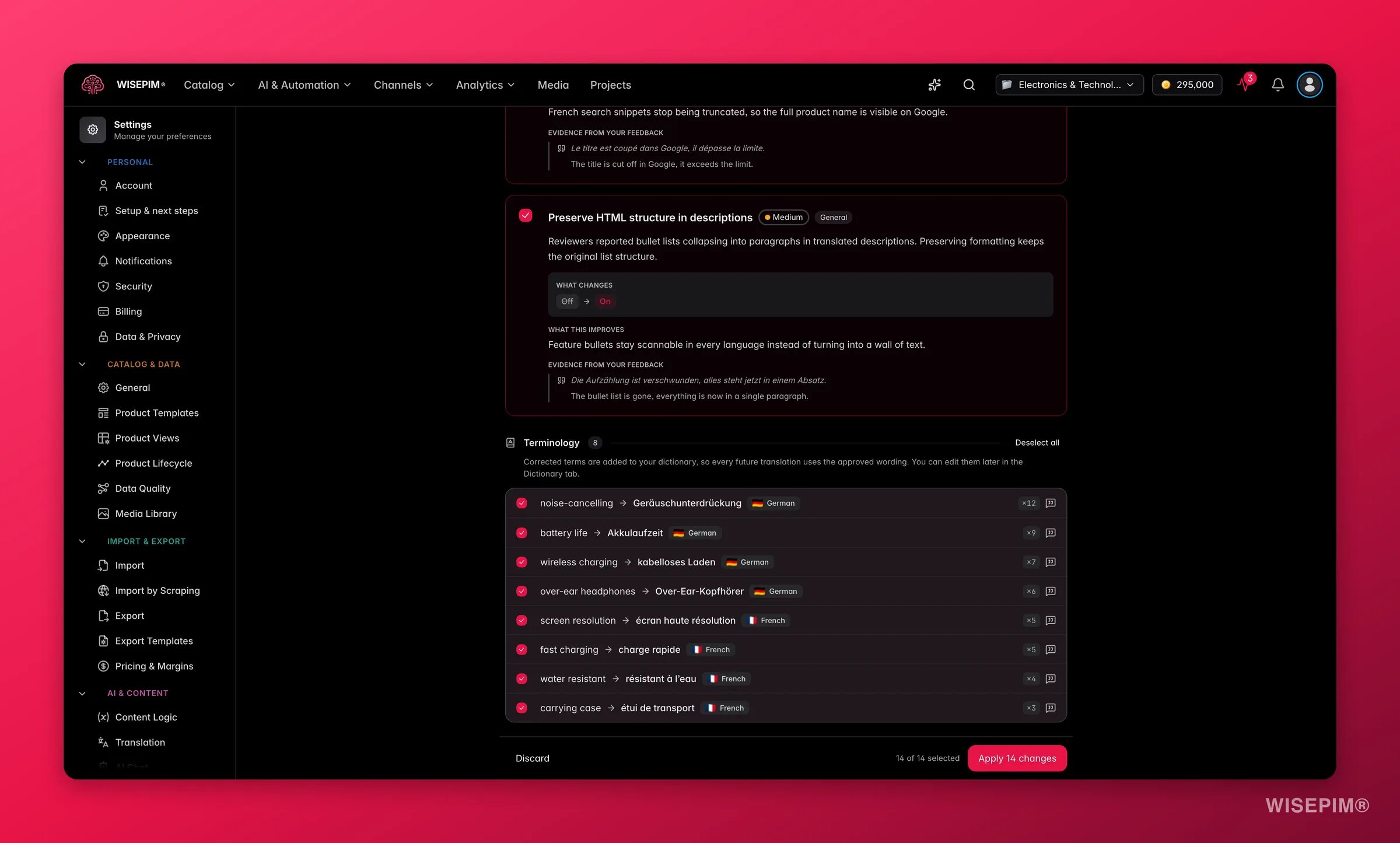 Nothing changes until you apply, and you can adjust every setting later on this page. After you apply, your next [translation quality review](/en/analytics/linguistic-review) checks each change against the actual product texts and reports whether the feedback was really applied.
## Save your changes
When you change any setting, a save bar appears at the bottom:
* **Save changes**: saves your translation settings to the project.
* **Reset**: discards all changes since your last save.
## Related
Translate your catalog in bulk using these settings.
Add or manage the locales in your project.
Reuse saved instructions across AI tasks.
Nothing changes until you apply, and you can adjust every setting later on this page. After you apply, your next [translation quality review](/en/analytics/linguistic-review) checks each change against the actual product texts and reports whether the feedback was really applied.
## Save your changes
When you change any setting, a save bar appears at the bottom:
* **Save changes**: saves your translation settings to the project.
* **Reset**: discards all changes since your last save.
## Related
Translate your catalog in bulk using these settings.
Add or manage the locales in your project.
Reuse saved instructions across AI tasks.