> ## Documentation Index
> Fetch the complete documentation index at: https://docs.wisepim.com/llms.txt
> Use this file to discover all available pages before exploring further.
# Data Quality Settings
> Decide what good product data means for your business. Set how WISEPIM scores completeness, channel readiness, SEO, and conversion.
Every product in WISEPIM gets a quality score. These settings let you decide how that score is calculated, so it reflects what matters to your business.
The score combines four domains. You set the weight of each one, then fine-tune the details. The result is a single grade you can sort, filter, and act on across your catalog.
Select a project from the project switcher first. Data Quality settings are saved per project.
## How scoring works
The settings page has nine tabs. The first five control the scoring model. Start with **General** to set the big picture, then open the other tabs to fine-tune each domain.
Set domain weights and the score needed for each grade.
Score how fully your product fields are filled in.
Score whether products are ready to list on each platform.
Set the character limits that drive search visibility.
Score how well content turns visitors into buyers.
The other four tabs control automated monitoring: which checks run on your catalog, which data sources feed product recommendations, what happens when a check flags a product, and when it all runs.
Choose which automated check families run on your catalog.
Add external data sources that feed product recommendations.
Decide what happens when a check flags a product.
Set how often checks run, or run them on demand.
## General
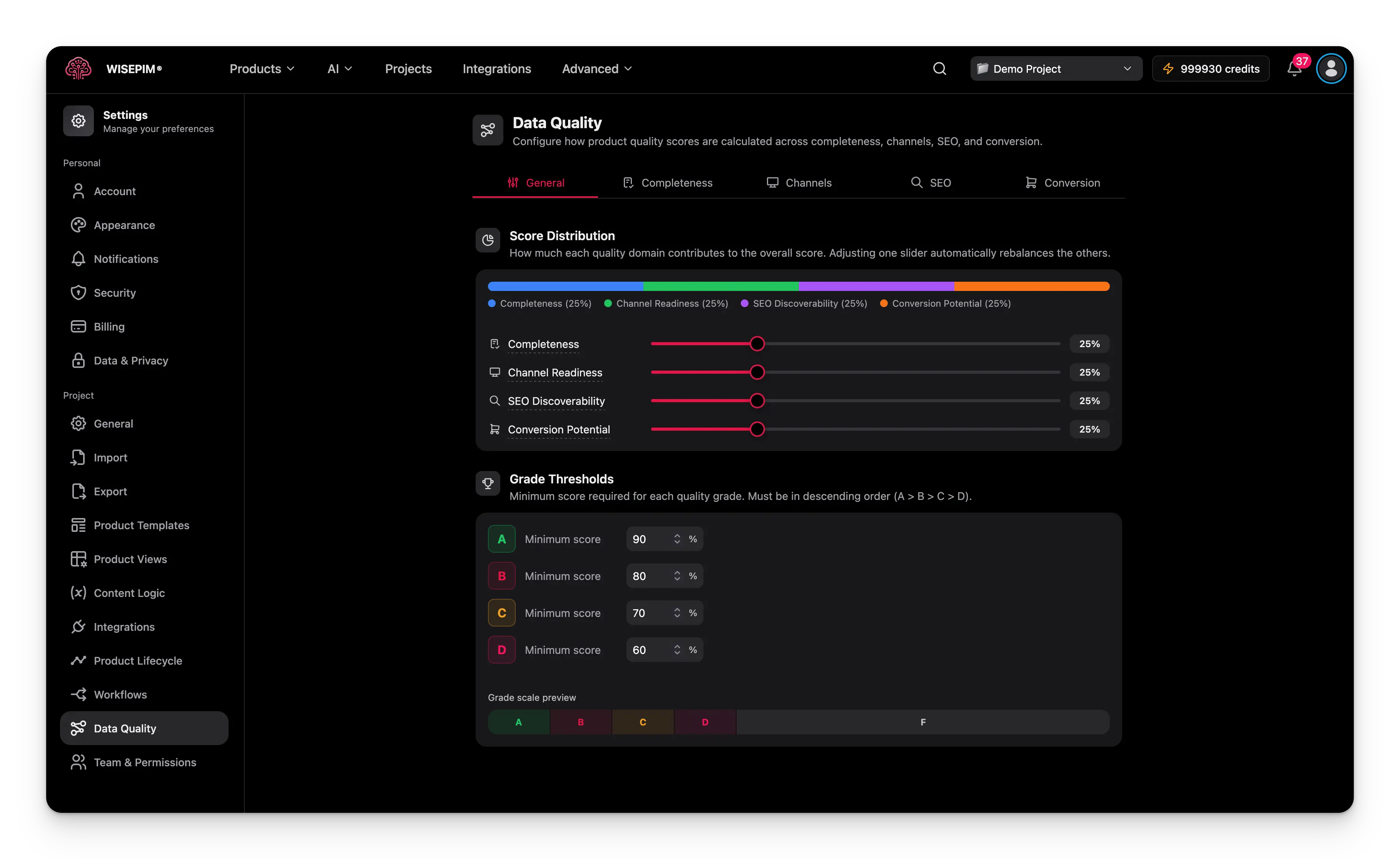
The General tab sets the top-level scoring model: how much each domain counts, and which score earns which grade.
 ### Scoring model
There are two versions of the scoring engine. Every project starts on **v1** and stays there until you switch it yourself.
Turn on **scoring model v2** ("Stricter, more accurate checks") when you want a score that is harder to fool. On top of everything v1 already checks, v2 adds:
* **Placeholder values count as empty.** A description that says "tbd" no longer earns points for being filled in.
* **Attribute validity.** It is not enough for an attribute to have a value. The value has to make sense for that attribute.
* **Media completeness.** Your whole image gallery is scored, not just whether a main image exists.
* **Translation coverage.** Products missing content in one of your languages score lower.
* **Content uniqueness.** Copy repeated across many products, or stuffed with keywords, stops helping your score.
Expect scores to drop the first time you switch a project to v2. Nothing got worse. The bar simply moved, and the gaps it now shows were always there.
Switch one project to v2 first and compare. It is the quickest way to see which of your "complete" products are only complete on paper.
### Extra scoring options
Two more switches shape how the score behaves.
| Setting | What it does |
| ------------------------------- | ------------------------------------------------------------------------------------------------------------------------------------------------------ |
| **Placeholder values** | The list of throwaway values that should count as empty, such as "tbd" or "n/a". Add the ones your suppliers use. |
| **Quality Guard affects score** | Lets [Quality Guard](/en/quality-guard/overview) rule violations pull the quality score down, so one number reflects both completeness and compliance. |
### Domain weights
Your overall score is built from four domains. Adjust each weight to match its importance to your business.
| Domain | What it measures | Default weight |
| ------------------------ | ------------------------------------------- | -------------- |
| **Completeness** | How fully product fields are filled in. | 25% |
| **Channel Readiness** | Whether products meet channel requirements. | 25% |
| **SEO Discoverability** | How well content is optimized for search. | 25% |
| **Conversion Potential** | How purchase-ready the content is. | 25% |
Products whose [product family is linked to an ETIM class](/en/products/classification) also get an **ETIM Conformance** domain in their quality breakdown, measuring feature coverage and value validity. It appears only for those products, and its weight is set by the scoring profile rather than by the four sliders above.
Sell mostly on marketplaces? Raise the Channel Readiness weight. Rely on organic traffic? Raise SEO Discoverability.
### Grade thresholds
Scores map to letter grades. Set the minimum score each grade needs.
| Grade | Default minimum score |
| ----- | --------------------- |
| **A** | 90 |
| **B** | 80 |
| **C** | 70 |
| **D** | 60 |
Products that score below the D threshold get an F.
## Completeness
The Completeness tab controls how WISEPIM checks whether product data is fully filled in.
### Scoring model
There are two versions of the scoring engine. Every project starts on **v1** and stays there until you switch it yourself.
Turn on **scoring model v2** ("Stricter, more accurate checks") when you want a score that is harder to fool. On top of everything v1 already checks, v2 adds:
* **Placeholder values count as empty.** A description that says "tbd" no longer earns points for being filled in.
* **Attribute validity.** It is not enough for an attribute to have a value. The value has to make sense for that attribute.
* **Media completeness.** Your whole image gallery is scored, not just whether a main image exists.
* **Translation coverage.** Products missing content in one of your languages score lower.
* **Content uniqueness.** Copy repeated across many products, or stuffed with keywords, stops helping your score.
Expect scores to drop the first time you switch a project to v2. Nothing got worse. The bar simply moved, and the gaps it now shows were always there.
Switch one project to v2 first and compare. It is the quickest way to see which of your "complete" products are only complete on paper.
### Extra scoring options
Two more switches shape how the score behaves.
| Setting | What it does |
| ------------------------------- | ------------------------------------------------------------------------------------------------------------------------------------------------------ |
| **Placeholder values** | The list of throwaway values that should count as empty, such as "tbd" or "n/a". Add the ones your suppliers use. |
| **Quality Guard affects score** | Lets [Quality Guard](/en/quality-guard/overview) rule violations pull the quality score down, so one number reflects both completeness and compliance. |
### Domain weights
Your overall score is built from four domains. Adjust each weight to match its importance to your business.
| Domain | What it measures | Default weight |
| ------------------------ | ------------------------------------------- | -------------- |
| **Completeness** | How fully product fields are filled in. | 25% |
| **Channel Readiness** | Whether products meet channel requirements. | 25% |
| **SEO Discoverability** | How well content is optimized for search. | 25% |
| **Conversion Potential** | How purchase-ready the content is. | 25% |
Products whose [product family is linked to an ETIM class](/en/products/classification) also get an **ETIM Conformance** domain in their quality breakdown, measuring feature coverage and value validity. It appears only for those products, and its weight is set by the scoring profile rather than by the four sliders above.
Sell mostly on marketplaces? Raise the Channel Readiness weight. Rely on organic traffic? Raise SEO Discoverability.
### Grade thresholds
Scores map to letter grades. Set the minimum score each grade needs.
| Grade | Default minimum score |
| ----- | --------------------- |
| **A** | 90 |
| **B** | 80 |
| **C** | 70 |
| **D** | 60 |
Products that score below the D threshold get an F.
## Completeness
The Completeness tab controls how WISEPIM checks whether product data is fully filled in.
 ### Component weights
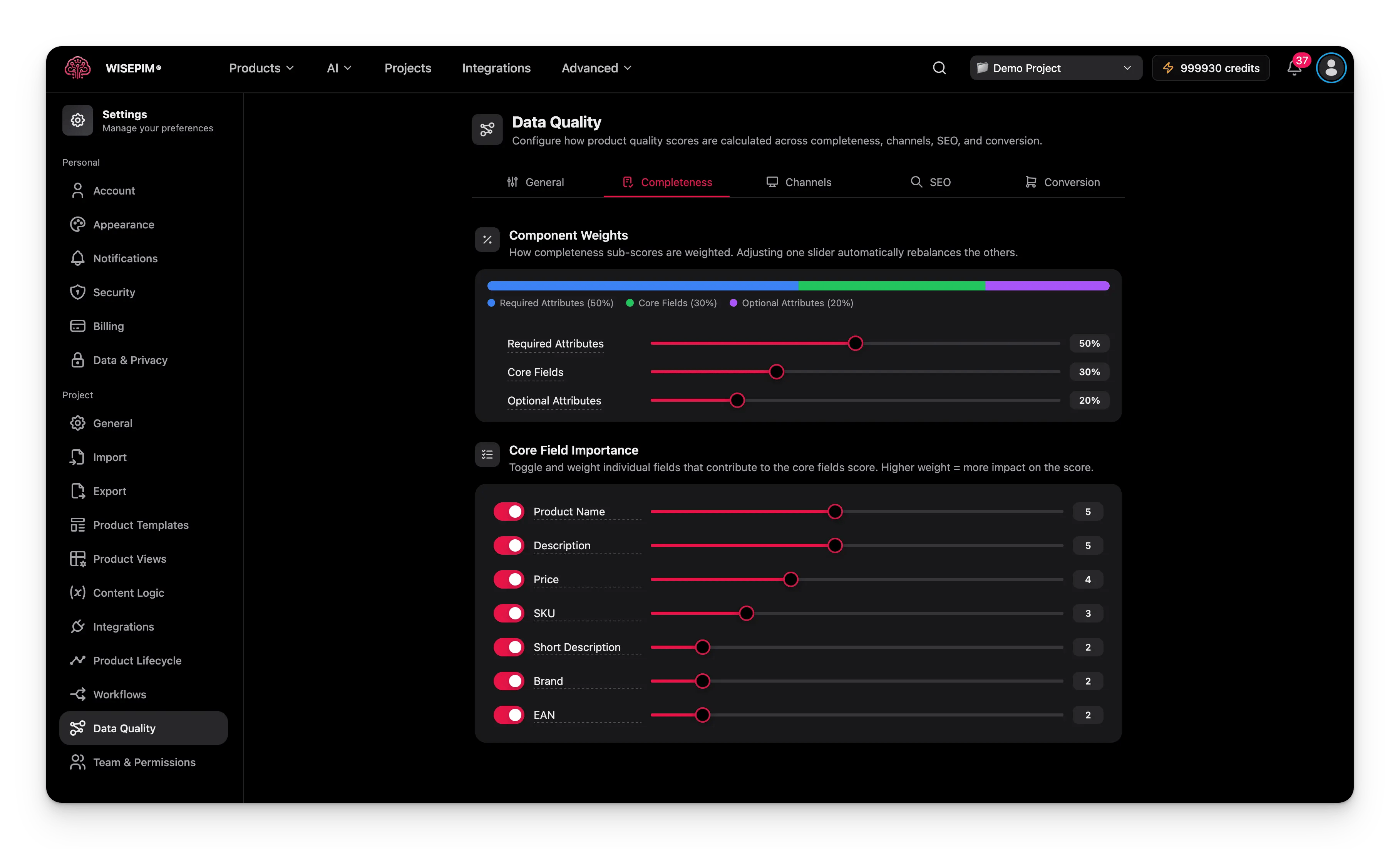
Completeness has three components. Set how much each one counts.
| Component | What it covers | Default weight |
| ----------------------- | --------------------------------------------- | -------------- |
| **Required Attributes** | Attributes marked required in your schema. | 50% |
| **Core Fields** | Standard fields like name, price, and SKU. | 30% |
| **Optional Attributes** | Non-required attributes that still add value. | 20% |
### Core field weights
Turn individual core fields on or off, and set how much each one matters.
| Field | Default weight |
| --------------------- | -------------- |
| **Product Name** | 5 |
| **Description** | 5 |
| **Price** | 4 |
| **SKU** | 3 |
| **Short Description** | 2 |
| **Brand** | 2 |
| **EAN** | 2 |
A higher weight means the field counts more. Missing a high-weight field hurts the score more than missing a low-weight one.
## Channels
The Channels tab scores whether products are ready to list on the platforms you sell on.
### Component weights
Completeness has three components. Set how much each one counts.
| Component | What it covers | Default weight |
| ----------------------- | --------------------------------------------- | -------------- |
| **Required Attributes** | Attributes marked required in your schema. | 50% |
| **Core Fields** | Standard fields like name, price, and SKU. | 30% |
| **Optional Attributes** | Non-required attributes that still add value. | 20% |
### Core field weights
Turn individual core fields on or off, and set how much each one matters.
| Field | Default weight |
| --------------------- | -------------- |
| **Product Name** | 5 |
| **Description** | 5 |
| **Price** | 4 |
| **SKU** | 3 |
| **Short Description** | 2 |
| **Brand** | 2 |
| **EAN** | 2 |
A higher weight means the field counts more. Missing a high-weight field hurts the score more than missing a low-weight one.
## Channels
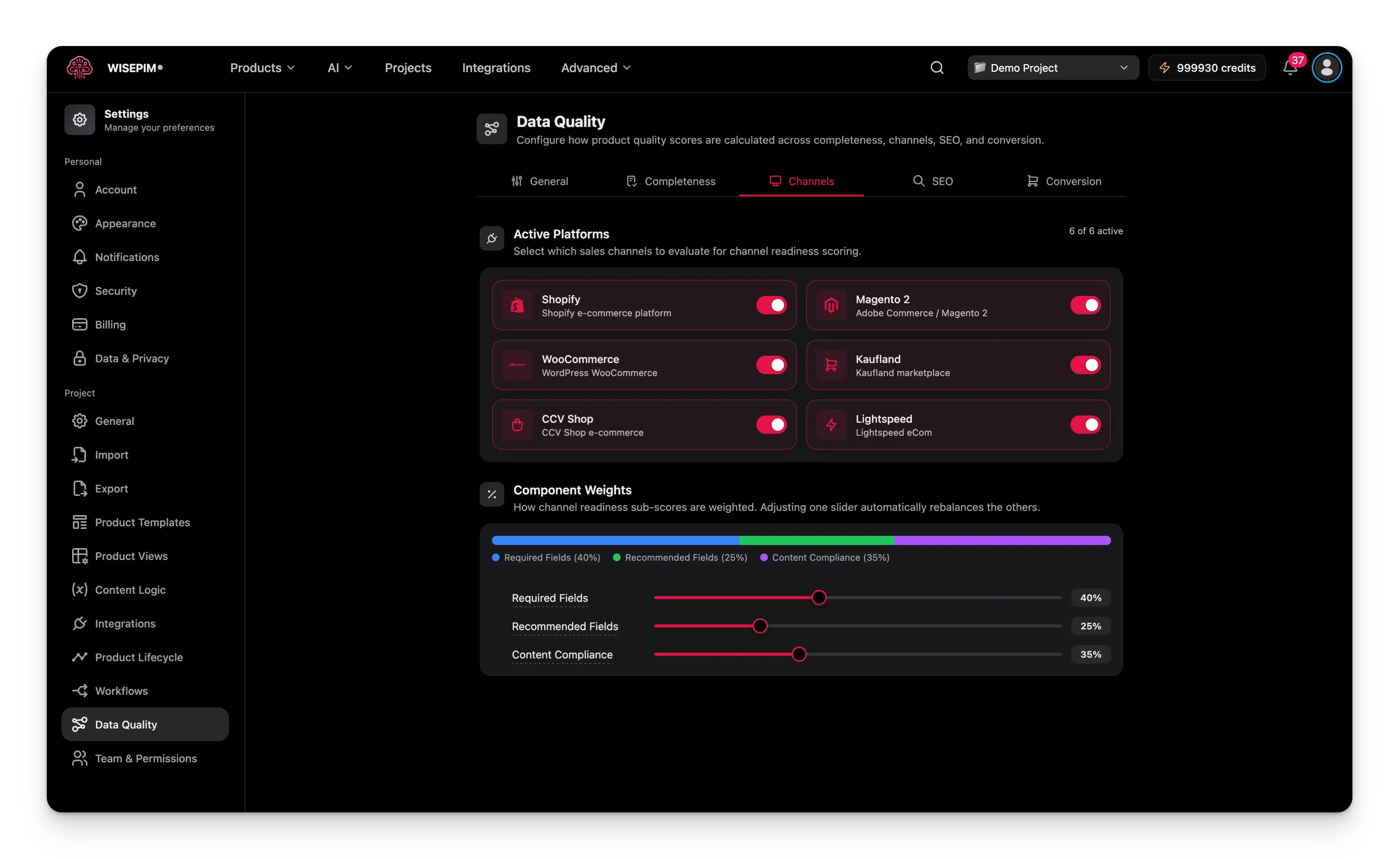
The Channels tab scores whether products are ready to list on the platforms you sell on.
 ### Component weights
| Component | What it covers | Default weight |
| ---------------------- | -------------------------------------------- | -------------- |
| **Required Fields** | Fields the platform needs to list a product. | 40% |
| **Recommended Fields** | Fields that improve a listing. | 25% |
| **Content Compliance** | Whether content meets platform guidelines. | 35% |
### Enabled platforms
Choose which platforms to check readiness for. Supported platforms:
* Shopify
* Magento 2
* WooCommerce
* Kaufland
* CCV Shop
* Lightspeed
Enable only the platforms you sell on. Turning off unused platforms keeps them from dragging down your score.
## SEO
The SEO tab sets character limits for meta fields and content length. These limits decide how well products score for search visibility.
### Character limits
| Field | Default min | Default max |
| ------------------------- | ----------- | ----------- |
| **Meta Title** | 50 | 60 |
| **Meta Description** | 140 | 160 |
| **Content (description)** | 300 | 1,500 |
Search engines usually cut off meta titles past 60 characters and meta descriptions past 160. Staying within these limits keeps your content fully visible in search results.
## Conversion
The Conversion tab scores how well your content turns visitors into buyers.
### Component weights
| Component | What it covers | Default weight |
| ---------------------- | -------------------------------------------- | -------------- |
| **Required Fields** | Fields the platform needs to list a product. | 40% |
| **Recommended Fields** | Fields that improve a listing. | 25% |
| **Content Compliance** | Whether content meets platform guidelines. | 35% |
### Enabled platforms
Choose which platforms to check readiness for. Supported platforms:
* Shopify
* Magento 2
* WooCommerce
* Kaufland
* CCV Shop
* Lightspeed
Enable only the platforms you sell on. Turning off unused platforms keeps them from dragging down your score.
## SEO
The SEO tab sets character limits for meta fields and content length. These limits decide how well products score for search visibility.
### Character limits
| Field | Default min | Default max |
| ------------------------- | ----------- | ----------- |
| **Meta Title** | 50 | 60 |
| **Meta Description** | 140 | 160 |
| **Content (description)** | 300 | 1,500 |
Search engines usually cut off meta titles past 60 characters and meta descriptions past 160. Staying within these limits keeps your content fully visible in search results.
## Conversion
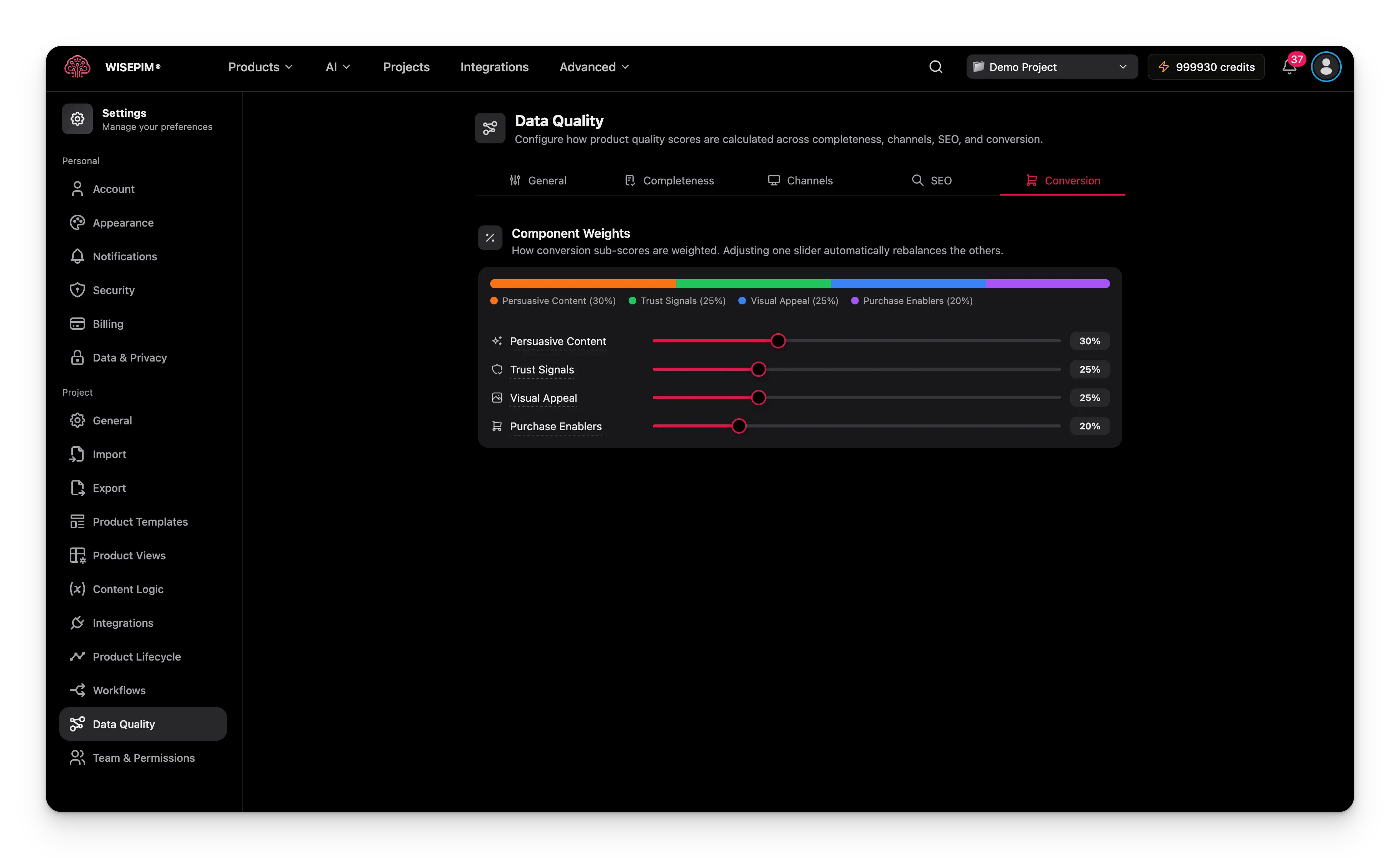
The Conversion tab scores how well your content turns visitors into buyers.
 ### Component weights
| Component | What it covers | Default weight |
| ---------------------- | ----------------------------------------- | -------------- |
| **Persuasive Content** | Compelling, benefit-focused descriptions. | 30% |
| **Trust Signals** | Brand info, reviews, certifications. | 25% |
| **Visual Appeal** | Image quality and quantity. | 25% |
| **Purchase Enablers** | Price, availability, shipping info. | 20% |
## Detection
The Detection tab chooses which automated check families run on your catalog. Findings show up in product recommendations and in the [Quality Guard](/en/quality-guard/overview) quarantine queue; what happens beyond that is decided per family on the [Alerting](#alerting) tab.
| Check family | What it catches | Default |
| --------------------------------- | -------------------------------------------------------------------------------------------------------------------------------------------------------------- | ----------------- |
| **Attribute Health** | Coverage, fill rate, and value distribution across every attribute in your schema - not just title and description. | On |
| **Cross-field Validation** | Sum, ratio, and formula checks across fields. Catches macros that don't add up to calories, or components that don't sum to total wattage. | Off (coming soon) |
| **Image ↔ Attribute Consistency** | AI vision compares image content with text attributes - color mismatches, wrong product type in the image, image/description disagreement. Uses extra credits. | Off (coming soon) |
| **Unit-aware Plausibility** | Validates numeric attributes against per-family ranges and units. Catches a hand tool listed at 1,000 kg or a TV with negative watts. | Off (coming soon) |
| **Schema Suggestions** | Attributes found in supplier feeds and competitor sources that aren't in your data model yet, so you can decide whether to add them. | Off (coming soon) |
While the tab is still at its default (only Attribute Health on), a banner offers a one-click recommended setup: Attribute Health, Cross-field Validation, and Schema Suggestions. Image ↔ Attribute Consistency and Unit-aware Plausibility stay opt-in because they use extra credits.
Families marked **Coming soon** can already be configured. Their checks start running as soon as the evaluator ships.
## Signals
The Signals tab adds opt-in data sources that feed product recommendations. Every signal is off by default, so recommendations don't change overnight - you enable each one deliberately. Enabled signals are included automatically in quality score responses.
Each signal feeds one scoring domain and lists what it needs before it can deliver anything:
| Signal | What it adds | Feeds into | Needs first |
| ---------------------------- | ----------------------------------------------------------------------------------------------------- | ------------ | ----------------------------------------------------------------- |
| **Cluster Outliers** | Attributes that a product's closest peers have filled in but this product hasn't. | Completeness | Product clusters must be built. |
| **Brand Glossary Alignment** | Checks how many of your brand glossary terms appear in the product's copy. | Conversion | Terms in your project's Translation Dictionary. |
| **Internal Linking** | Flags orphaned products, under-linked products, and outbound authority leak. | SEO | Run the internal-link audit (Analytics → SEO) at least once. |
| **Google Search Console** | Grounds SEO recommendations in measured impressions, CTR, and average position over the last 30 days. | SEO | Connect Google Search Console and match your sitemap to products. |
| **Live-page Health** | Core Web Vitals, broken images, and missing price or CTA on the live storefront page. | Conversion | Run a live-page audit. |
| **Commerce Reality** | Stockouts on products with demand, pages with traffic but no orders, top sellers with thin content. | Conversion | Sync order data from at least one connected channel. |
Cluster Outliers is always on for single-product views - it has no toggle. And Commerce Reality is recommendation-only: market performance never moves quality scores.
## Alerting
The Alerting tab decides what happens when a detection family flags a product. Pick one action per family:
| Action | What happens |
| -------------- | ------------------------------------------------------------------------------------------------ |
| **Block** | Stop exports and syncs until the issue is fixed. |
| **Quarantine** | Hold the product back from exports; reviewers handle it from the Quality Guard quarantine queue. |
| **Warn** | Let the product proceed but log a warning and surface it in recommendations. |
| **Score only** | No alert - the finding only affects the quality score. |
By default, Attribute Health and Schema Suggestions are set to **Score only**; the other families are set to **Warn**. Families you turned off on the Detection tab appear grayed out here.
These actions route detection findings. They are separate from [Quality Guard](/en/quality-guard/overview) rule severities (Block / Skip / Warn), which apply to the validation rules you write yourself.
## Schedule
The Schedule tab sets how often the engine recomputes scores and runs the enabled detection families on your catalog.
| Cadence | When it runs |
| ----------------------- | ----------------------------------------------------------------------- |
| **Hourly** | Every hour. |
| **Daily** (recommended) | Once per day at the hour you choose. This is the default, set to 03:00. |
| **Weekly** | Once per week on the day and hour you choose. |
| **Manual only** | Never automatically - only when you click **Run now**. |
### Run on demand
The **Run now** button starts an immediate run for all detection families you enabled, and shows live progress with a status and product count. The next scheduled run still happens at its usual time.
Run now uses your last saved settings. If you have unsaved changes, save them first or the run won't reflect them.
## Save your changes
Change any setting on any tab and a save bar appears at the bottom of the page.
* **Save**: stores your settings for the project. The button is active only when your changes are valid.
* **Undo**: reverts everything to the last saved state.
New settings apply the next time products are evaluated. Existing scores are not recalculated right away. To refresh them now, use [Recalculate Data Quality](/en/essentials/bulk-editing/recalculate-quality) in bulk editing.
## Related
Block low-quality products from reaching your channels.
Refresh scores in bulk after you change these settings.
Set defaults for how WISEPIM exports your product data.
Browse every personal and project setting in one place.
### Component weights
| Component | What it covers | Default weight |
| ---------------------- | ----------------------------------------- | -------------- |
| **Persuasive Content** | Compelling, benefit-focused descriptions. | 30% |
| **Trust Signals** | Brand info, reviews, certifications. | 25% |
| **Visual Appeal** | Image quality and quantity. | 25% |
| **Purchase Enablers** | Price, availability, shipping info. | 20% |
## Detection
The Detection tab chooses which automated check families run on your catalog. Findings show up in product recommendations and in the [Quality Guard](/en/quality-guard/overview) quarantine queue; what happens beyond that is decided per family on the [Alerting](#alerting) tab.
| Check family | What it catches | Default |
| --------------------------------- | -------------------------------------------------------------------------------------------------------------------------------------------------------------- | ----------------- |
| **Attribute Health** | Coverage, fill rate, and value distribution across every attribute in your schema - not just title and description. | On |
| **Cross-field Validation** | Sum, ratio, and formula checks across fields. Catches macros that don't add up to calories, or components that don't sum to total wattage. | Off (coming soon) |
| **Image ↔ Attribute Consistency** | AI vision compares image content with text attributes - color mismatches, wrong product type in the image, image/description disagreement. Uses extra credits. | Off (coming soon) |
| **Unit-aware Plausibility** | Validates numeric attributes against per-family ranges and units. Catches a hand tool listed at 1,000 kg or a TV with negative watts. | Off (coming soon) |
| **Schema Suggestions** | Attributes found in supplier feeds and competitor sources that aren't in your data model yet, so you can decide whether to add them. | Off (coming soon) |
While the tab is still at its default (only Attribute Health on), a banner offers a one-click recommended setup: Attribute Health, Cross-field Validation, and Schema Suggestions. Image ↔ Attribute Consistency and Unit-aware Plausibility stay opt-in because they use extra credits.
Families marked **Coming soon** can already be configured. Their checks start running as soon as the evaluator ships.
## Signals
The Signals tab adds opt-in data sources that feed product recommendations. Every signal is off by default, so recommendations don't change overnight - you enable each one deliberately. Enabled signals are included automatically in quality score responses.
Each signal feeds one scoring domain and lists what it needs before it can deliver anything:
| Signal | What it adds | Feeds into | Needs first |
| ---------------------------- | ----------------------------------------------------------------------------------------------------- | ------------ | ----------------------------------------------------------------- |
| **Cluster Outliers** | Attributes that a product's closest peers have filled in but this product hasn't. | Completeness | Product clusters must be built. |
| **Brand Glossary Alignment** | Checks how many of your brand glossary terms appear in the product's copy. | Conversion | Terms in your project's Translation Dictionary. |
| **Internal Linking** | Flags orphaned products, under-linked products, and outbound authority leak. | SEO | Run the internal-link audit (Analytics → SEO) at least once. |
| **Google Search Console** | Grounds SEO recommendations in measured impressions, CTR, and average position over the last 30 days. | SEO | Connect Google Search Console and match your sitemap to products. |
| **Live-page Health** | Core Web Vitals, broken images, and missing price or CTA on the live storefront page. | Conversion | Run a live-page audit. |
| **Commerce Reality** | Stockouts on products with demand, pages with traffic but no orders, top sellers with thin content. | Conversion | Sync order data from at least one connected channel. |
Cluster Outliers is always on for single-product views - it has no toggle. And Commerce Reality is recommendation-only: market performance never moves quality scores.
## Alerting
The Alerting tab decides what happens when a detection family flags a product. Pick one action per family:
| Action | What happens |
| -------------- | ------------------------------------------------------------------------------------------------ |
| **Block** | Stop exports and syncs until the issue is fixed. |
| **Quarantine** | Hold the product back from exports; reviewers handle it from the Quality Guard quarantine queue. |
| **Warn** | Let the product proceed but log a warning and surface it in recommendations. |
| **Score only** | No alert - the finding only affects the quality score. |
By default, Attribute Health and Schema Suggestions are set to **Score only**; the other families are set to **Warn**. Families you turned off on the Detection tab appear grayed out here.
These actions route detection findings. They are separate from [Quality Guard](/en/quality-guard/overview) rule severities (Block / Skip / Warn), which apply to the validation rules you write yourself.
## Schedule
The Schedule tab sets how often the engine recomputes scores and runs the enabled detection families on your catalog.
| Cadence | When it runs |
| ----------------------- | ----------------------------------------------------------------------- |
| **Hourly** | Every hour. |
| **Daily** (recommended) | Once per day at the hour you choose. This is the default, set to 03:00. |
| **Weekly** | Once per week on the day and hour you choose. |
| **Manual only** | Never automatically - only when you click **Run now**. |
### Run on demand
The **Run now** button starts an immediate run for all detection families you enabled, and shows live progress with a status and product count. The next scheduled run still happens at its usual time.
Run now uses your last saved settings. If you have unsaved changes, save them first or the run won't reflect them.
## Save your changes
Change any setting on any tab and a save bar appears at the bottom of the page.
* **Save**: stores your settings for the project. The button is active only when your changes are valid.
* **Undo**: reverts everything to the last saved state.
New settings apply the next time products are evaluated. Existing scores are not recalculated right away. To refresh them now, use [Recalculate Data Quality](/en/essentials/bulk-editing/recalculate-quality) in bulk editing.
## Related
Block low-quality products from reaching your channels.
Refresh scores in bulk after you change these settings.
Set defaults for how WISEPIM exports your product data.
Browse every personal and project setting in one place.