> ## Documentation Index
> Fetch the complete documentation index at: https://docs.wisepim.com/llms.txt
> Use this file to discover all available pages before exploring further.
# Translating Products
> Translate product titles, descriptions, and metadata into your project languages at once with AI. Reach new markets without manual translation work.
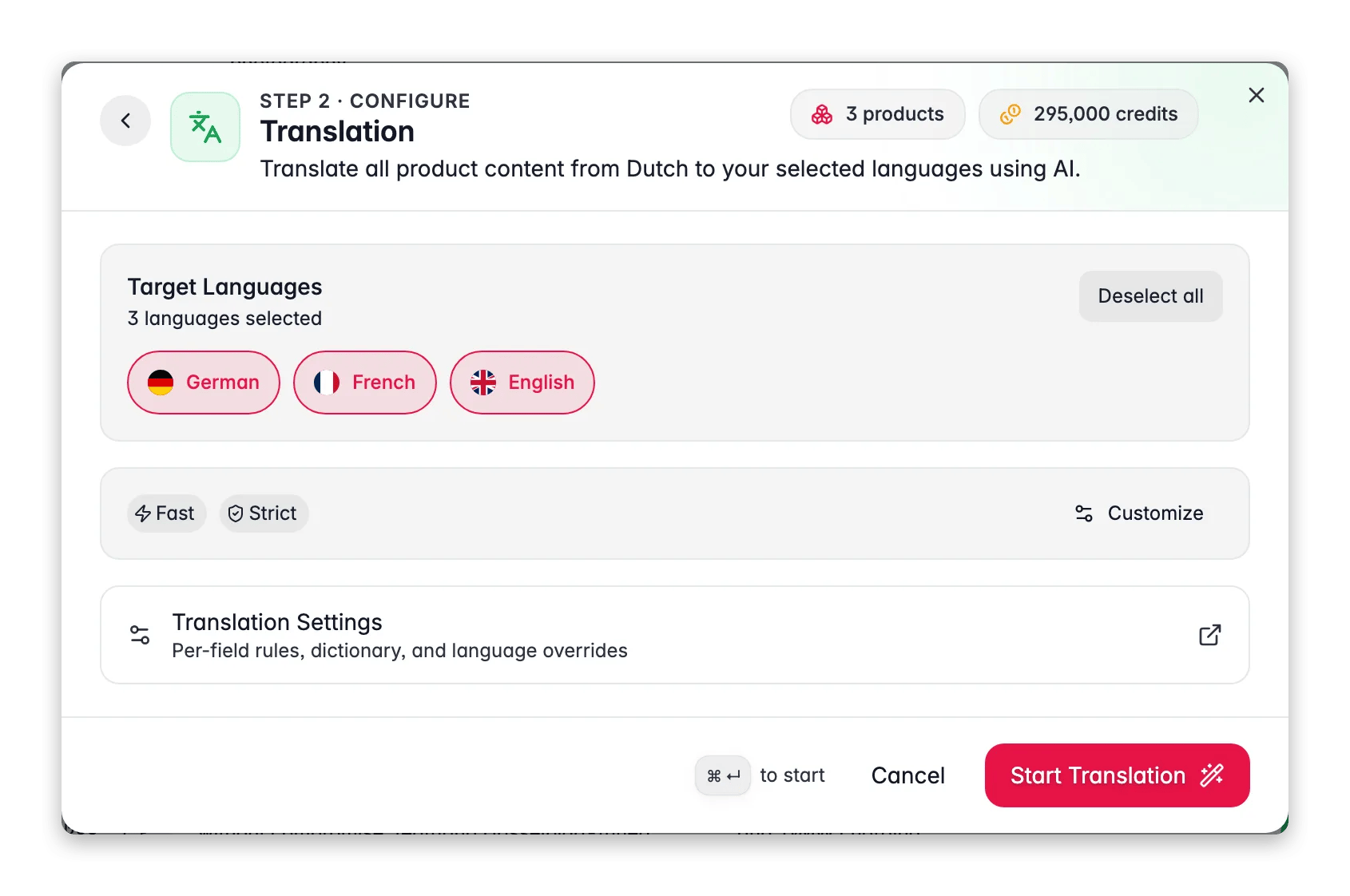
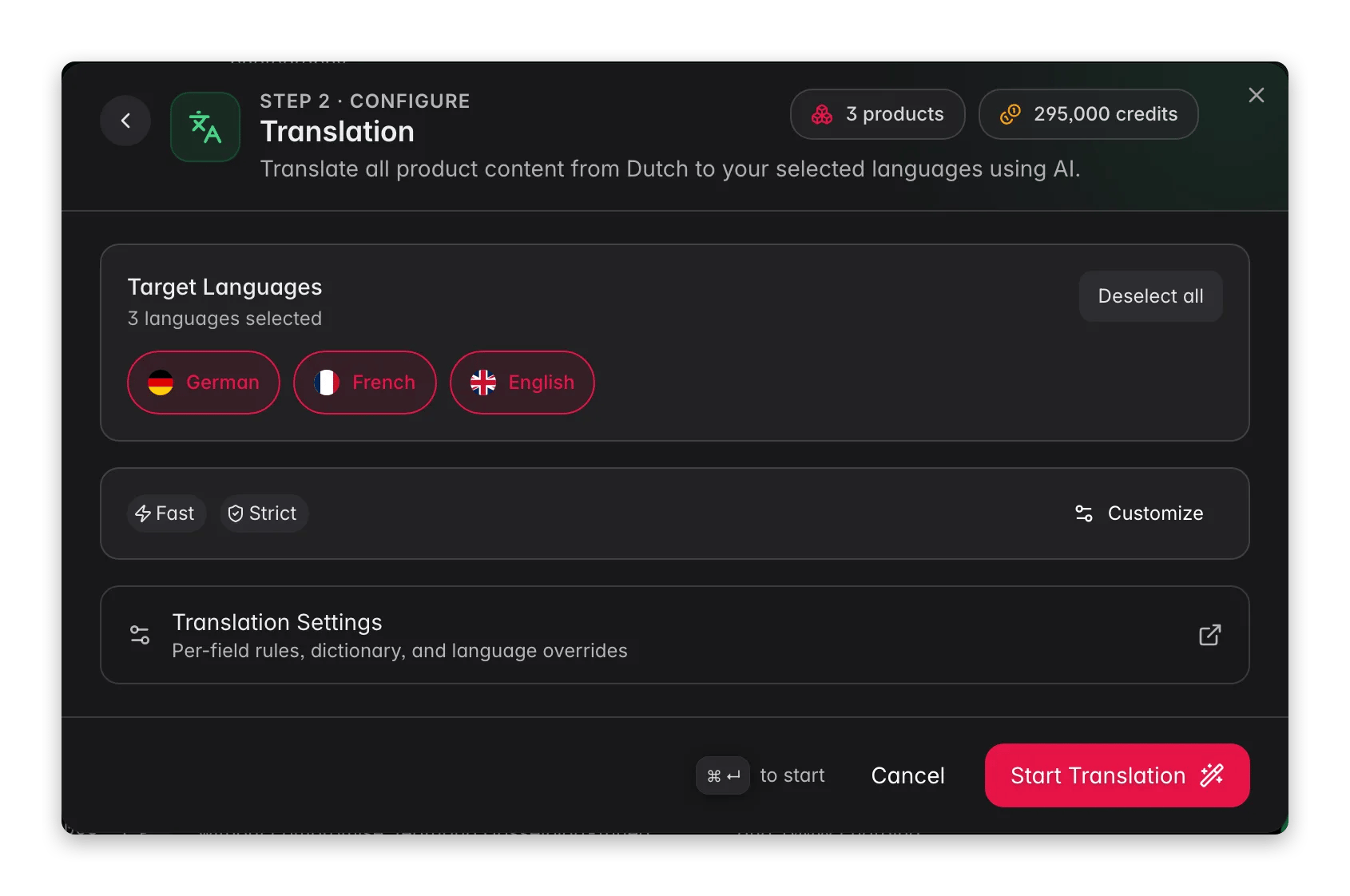 Translation is one of the **Enrich with AI** actions. Select products, choose **Translation**, and AI translates your core content fields into your project languages. It runs in the background, so you can keep working.
AI translates a fixed set of six fields: **product name**, **description**, **short description**, **meta title**, **meta description**, and **meta keywords**. Custom attributes are not translated, so codes and spec values stay as they are.
First set up your target languages in **[Settings > General](/en/settings/general)**. Translation uses the languages configured in your project. With no extra languages set up, the Translation option won't appear.
## Prepare your content first
AI translations are only as good as the source text. Short, vague descriptions produce weak translations. Make sure your content is accurate and complete in your primary language before you translate.
[Enrich your products with AI](/en/essentials/enriching-products) first to sharpen titles, descriptions, and metadata in your primary language. Then translate the improved content.
When a field has enriched or reviewed content, translation uses that as the source automatically. So the cleaner your enriched copy, the better every translation comes out. Enrich first, then translate.
## Translate products
Check individual products on the **Products** page. Or apply filters and choose **Apply to all** to translate your whole filtered catalog.
Click **Enrich with AI** in the toolbar. The modal opens with every available action.
Select **Translation**. AI translates the six core fields into each language set up in your project. Open the options to fine-tune what gets translated and how (see below).
Choose **Fast** or **Pro**. Fast is the default and the right choice for almost every run (see below).
Click **Start Enrichment**. The translation runs in the background. Track its progress in the **[Process Tracker](/en/other-features/process-tracker)**.
## Fast or Pro
There are two translation modes. They differ in the model behind them, and in what they cost.
| Mode | Cost | What it is |
| ------------------------ | ----------------------------------- | --------------------------------------------------------------------------------------------------------------------------------------- |
| **Fast** *(recommended)* | 1 credit per product, per language | Industry-leading quality at catalog speed. This is the default and it handles normal product copy well. |
| **Pro** | 5 credits per product, per language | A much larger model. Use it for catalogs where the wording carries real nuance: luxury, regulated products, or copy that sells on tone. |
Translating one product into three languages costs 3 credits on **Fast** and 15 credits on **Pro**. Check your balance in **[Settings > Billing](/en/settings/billing)** before a catalog-wide run.
Start on **Fast**. Translate a handful of products, read the result in one target language, and only reach for **Pro** if the copy genuinely needs the extra nuance. On a large catalog that choice is the difference between hundreds and thousands of credits.
## What keeps translations consistent
Translation is one of the **Enrich with AI** actions. Select products, choose **Translation**, and AI translates your core content fields into your project languages. It runs in the background, so you can keep working.
AI translates a fixed set of six fields: **product name**, **description**, **short description**, **meta title**, **meta description**, and **meta keywords**. Custom attributes are not translated, so codes and spec values stay as they are.
First set up your target languages in **[Settings > General](/en/settings/general)**. Translation uses the languages configured in your project. With no extra languages set up, the Translation option won't appear.
## Prepare your content first
AI translations are only as good as the source text. Short, vague descriptions produce weak translations. Make sure your content is accurate and complete in your primary language before you translate.
[Enrich your products with AI](/en/essentials/enriching-products) first to sharpen titles, descriptions, and metadata in your primary language. Then translate the improved content.
When a field has enriched or reviewed content, translation uses that as the source automatically. So the cleaner your enriched copy, the better every translation comes out. Enrich first, then translate.
## Translate products
Check individual products on the **Products** page. Or apply filters and choose **Apply to all** to translate your whole filtered catalog.
Click **Enrich with AI** in the toolbar. The modal opens with every available action.
Select **Translation**. AI translates the six core fields into each language set up in your project. Open the options to fine-tune what gets translated and how (see below).
Choose **Fast** or **Pro**. Fast is the default and the right choice for almost every run (see below).
Click **Start Enrichment**. The translation runs in the background. Track its progress in the **[Process Tracker](/en/other-features/process-tracker)**.
## Fast or Pro
There are two translation modes. They differ in the model behind them, and in what they cost.
| Mode | Cost | What it is |
| ------------------------ | ----------------------------------- | --------------------------------------------------------------------------------------------------------------------------------------- |
| **Fast** *(recommended)* | 1 credit per product, per language | Industry-leading quality at catalog speed. This is the default and it handles normal product copy well. |
| **Pro** | 5 credits per product, per language | A much larger model. Use it for catalogs where the wording carries real nuance: luxury, regulated products, or copy that sells on tone. |
Translating one product into three languages costs 3 credits on **Fast** and 15 credits on **Pro**. Check your balance in **[Settings > Billing](/en/settings/billing)** before a catalog-wide run.
Start on **Fast**. Translate a handful of products, read the result in one target language, and only reach for **Pro** if the copy genuinely needs the extra nuance. On a large catalog that choice is the difference between hundreds and thousands of credits.
## What keeps translations consistent
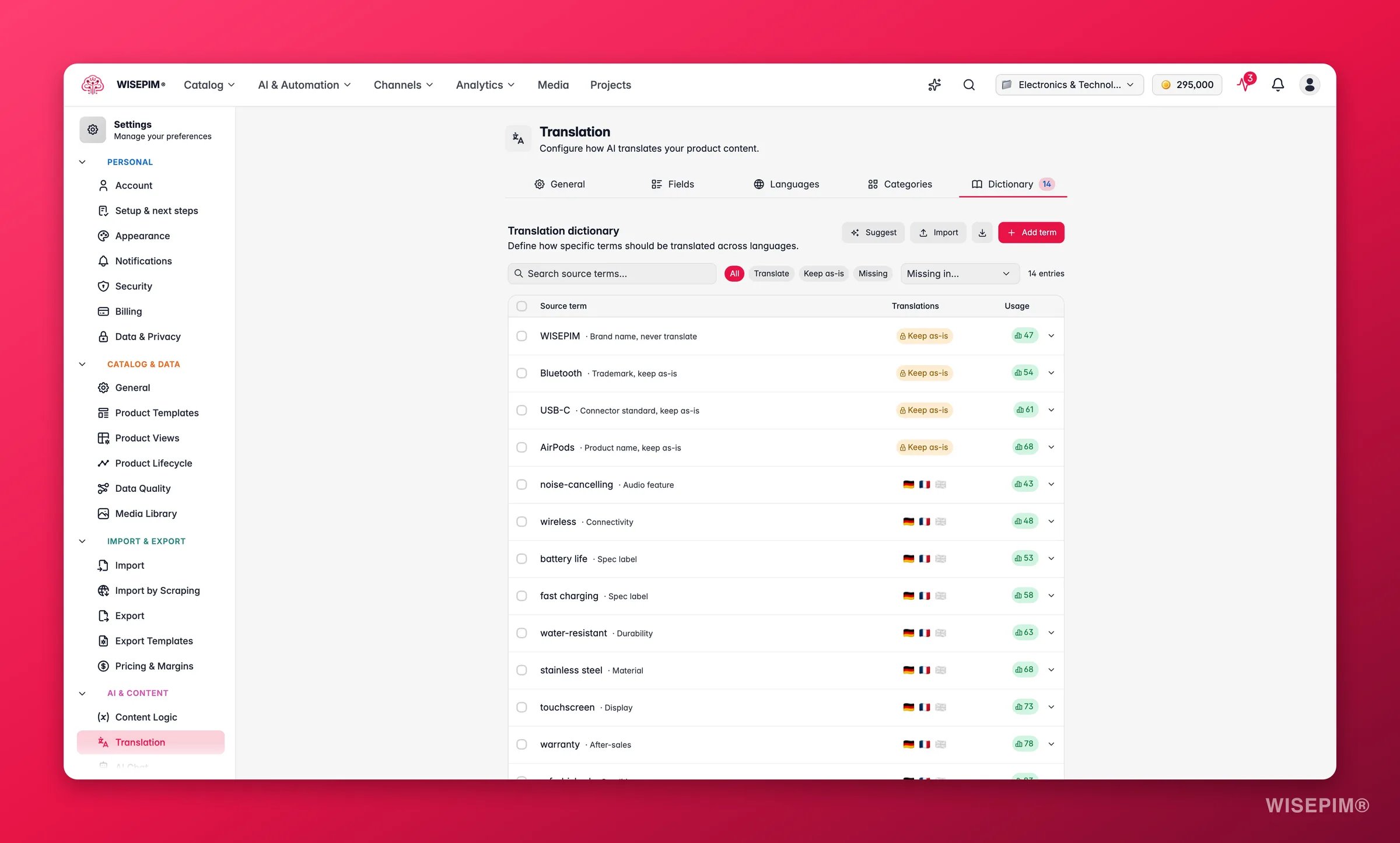
 Three things work in the background so repeat runs do not drift:
* **Translation memory.** The same phrase gets the same translation every time, across chunks, across products, and across separate runs. Your brand words and stock phrases stay stable.
* **Re-translation only when it is needed.** A language is skipped if it was already translated with the same settings from the same source text. Change the source and it is translated again automatically, so editing or enriching a description forces a fresh translation instead of leaving a stale one behind.
* **An optional auto-learn glossary.** Turn it on in **[Settings > Translation](/en/settings/translation)** and confident findings from your [linguistic reviews](/en/analytics/linguistic-review) become dictionary entries by themselves. It is off by default, and it never overwrites entries you set yourself or terms you marked as do-not-translate.
If a translation fails, the credits for it are refunded automatically. You are only charged for the languages that actually came back.
## If a run stops early
Translation tasks can be picked back up from the **[Process Tracker](/en/other-features/process-tracker)**:
* **Resume** finishes only the products that were never processed. It costs no extra credits, because the original run already paid for them.
* **Restart** runs the whole selection again from the start, and is charged as a fresh run.
* **Retry failed** re-runs just the items that failed.
After a run that stopped or partly failed, use **Resume** first. **Restart** is for when you changed your settings and want every product translated again with the new ones.
## Fine-tune the translation
The defaults work out of the box, but a few options materially change quality. Open them in the Enrich with AI modal before you start:
Choose which of the six fields to translate. Skip the ones you do not need, or translate only metadata for an SEO pass.
Pick a tone of voice and a style from literal to creative. Literal stays close to the source. Creative adapts the copy for the new market.
Keep brand and product names exactly as written, so they are never translated by accident.
Give AI extra guidance, for example "use formal address" or "keep units in metric." Save instructions you reuse as a template.
Save your favorite setup as a **translation template**. Load it on your next run so every batch stays consistent, with no need to set the options again.
### Supported languages
WISEPIM supports **93 languages**, including English, Dutch, German, French, Spanish, Italian, Portuguese, Polish, Scandinavian languages, Asian languages, and more. Which ones you can use depends on the languages you set up in **[Settings > General](/en/settings/general)**.
## Review translations
When translation finishes, use the language selector on the Products page to switch languages and check the results.
Three things work in the background so repeat runs do not drift:
* **Translation memory.** The same phrase gets the same translation every time, across chunks, across products, and across separate runs. Your brand words and stock phrases stay stable.
* **Re-translation only when it is needed.** A language is skipped if it was already translated with the same settings from the same source text. Change the source and it is translated again automatically, so editing or enriching a description forces a fresh translation instead of leaving a stale one behind.
* **An optional auto-learn glossary.** Turn it on in **[Settings > Translation](/en/settings/translation)** and confident findings from your [linguistic reviews](/en/analytics/linguistic-review) become dictionary entries by themselves. It is off by default, and it never overwrites entries you set yourself or terms you marked as do-not-translate.
If a translation fails, the credits for it are refunded automatically. You are only charged for the languages that actually came back.
## If a run stops early
Translation tasks can be picked back up from the **[Process Tracker](/en/other-features/process-tracker)**:
* **Resume** finishes only the products that were never processed. It costs no extra credits, because the original run already paid for them.
* **Restart** runs the whole selection again from the start, and is charged as a fresh run.
* **Retry failed** re-runs just the items that failed.
After a run that stopped or partly failed, use **Resume** first. **Restart** is for when you changed your settings and want every product translated again with the new ones.
## Fine-tune the translation
The defaults work out of the box, but a few options materially change quality. Open them in the Enrich with AI modal before you start:
Choose which of the six fields to translate. Skip the ones you do not need, or translate only metadata for an SEO pass.
Pick a tone of voice and a style from literal to creative. Literal stays close to the source. Creative adapts the copy for the new market.
Keep brand and product names exactly as written, so they are never translated by accident.
Give AI extra guidance, for example "use formal address" or "keep units in metric." Save instructions you reuse as a template.
Save your favorite setup as a **translation template**. Load it on your next run so every batch stays consistent, with no need to set the options again.
### Supported languages
WISEPIM supports **93 languages**, including English, Dutch, German, French, Spanish, Italian, Portuguese, Polish, Scandinavian languages, Asian languages, and more. Which ones you can use depends on the languages you set up in **[Settings > General](/en/settings/general)**.
## Review translations
When translation finishes, use the language selector on the Products page to switch languages and check the results.
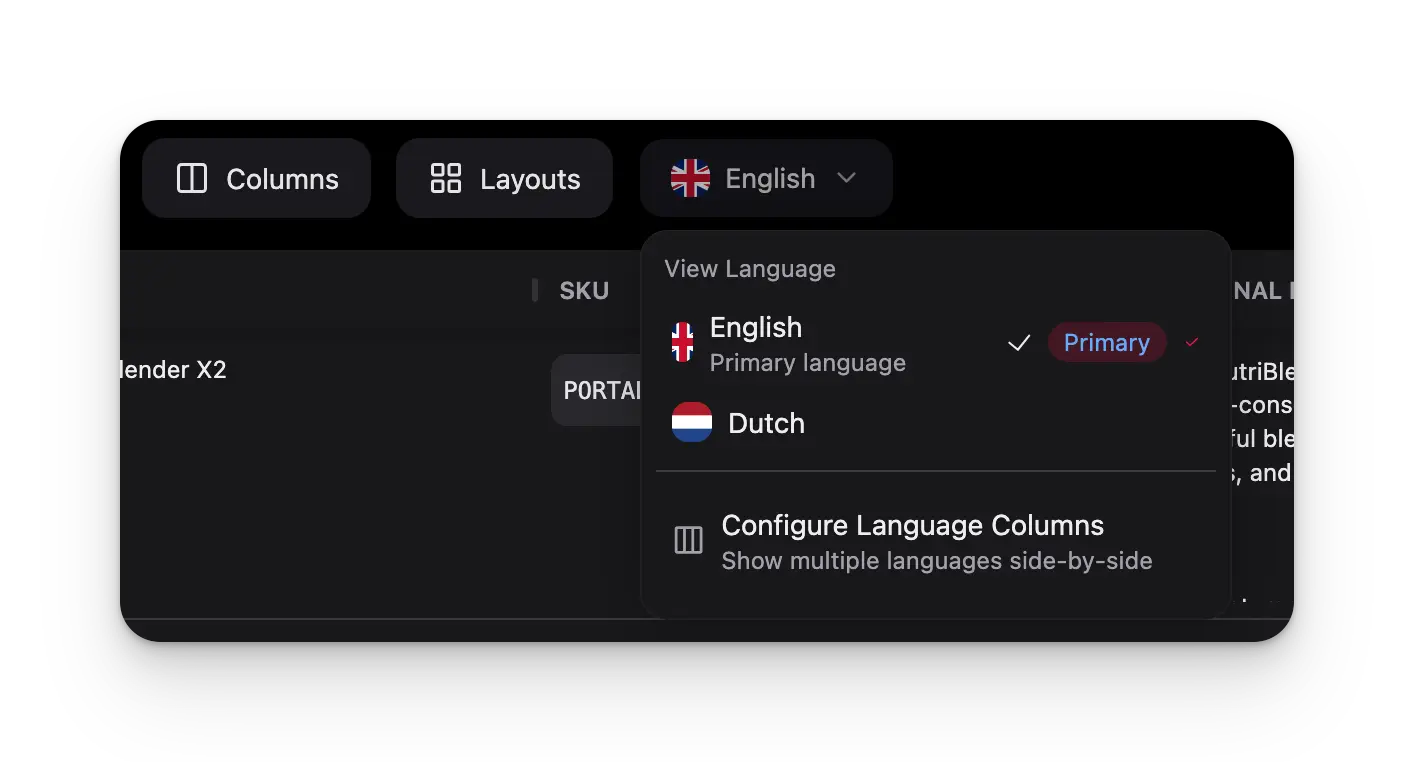 Pick a target language with the language selector.
Review the translated title, description, short description, and meta fields.
Use **Configure Language Columns** to view several languages next to each other.
### Translation status
Each product tracks its own translation status. Filter the products table by status to find what still needs work.
| Status | Meaning |
| ------------------------ | -------------------------------------------------------- |
| **Fully translated** | Every key field is translated into all target languages. |
| **Partially translated** | Some fields or languages are still missing. |
| **Not translated** | No translations exist yet. |
Individual fields can also show as **Outdated**. This happens when you change the source text after translating: the existing translation no longer matches, so the field is flagged for a re-run. Translate again to bring it back in sync.
## Best practices
Enrich products in your primary language first. Better source text means better translations.
Translate 5 to 10 products first to check quality before you run the full catalog.
Technical terms, brand names, and product jargon may need a manual touch-up after translation.
Filter by category and translate in batches. This makes review easier and keeps each category consistent.
## Troubleshooting
Set up at least one target language besides your primary language in **[Settings > General](/en/settings/general)**.
Make sure you selected at least one product. Then check that you have enough AI credits in **[Settings > Billing](/en/settings/billing)**.
Improve your source content first. [Enrich with AI](/en/essentials/enriching-products) in your primary language before you translate.
Only text fields are translated. Numbers, images, and codes stay as they are. An empty source field has nothing to translate.
## Related
Sharpen titles, descriptions, and metadata before you translate.
Set up the project languages that translation uses.
Watch the progress of background translation jobs.
Filter, select, and review products across languages.
From adding a locale to a reviewed, per-language feed you can publish.
Pick a target language with the language selector.
Review the translated title, description, short description, and meta fields.
Use **Configure Language Columns** to view several languages next to each other.
### Translation status
Each product tracks its own translation status. Filter the products table by status to find what still needs work.
| Status | Meaning |
| ------------------------ | -------------------------------------------------------- |
| **Fully translated** | Every key field is translated into all target languages. |
| **Partially translated** | Some fields or languages are still missing. |
| **Not translated** | No translations exist yet. |
Individual fields can also show as **Outdated**. This happens when you change the source text after translating: the existing translation no longer matches, so the field is flagged for a re-run. Translate again to bring it back in sync.
## Best practices
Enrich products in your primary language first. Better source text means better translations.
Translate 5 to 10 products first to check quality before you run the full catalog.
Technical terms, brand names, and product jargon may need a manual touch-up after translation.
Filter by category and translate in batches. This makes review easier and keeps each category consistent.
## Troubleshooting
Set up at least one target language besides your primary language in **[Settings > General](/en/settings/general)**.
Make sure you selected at least one product. Then check that you have enough AI credits in **[Settings > Billing](/en/settings/billing)**.
Improve your source content first. [Enrich with AI](/en/essentials/enriching-products) in your primary language before you translate.
Only text fields are translated. Numbers, images, and codes stay as they are. An empty source field has nothing to translate.
## Related
Sharpen titles, descriptions, and metadata before you translate.
Set up the project languages that translation uses.
Watch the progress of background translation jobs.
Filter, select, and review products across languages.
From adding a locale to a reviewed, per-language feed you can publish.