> ## Documentation Index
> Fetch the complete documentation index at: https://docs.wisepim.com/llms.txt
> Use this file to discover all available pages before exploring further.
# Overview
> Your post-login home: catalog-health at a glance, a ranked queue of the highest-impact fixes, live activity, and one-click jumps into every tool.
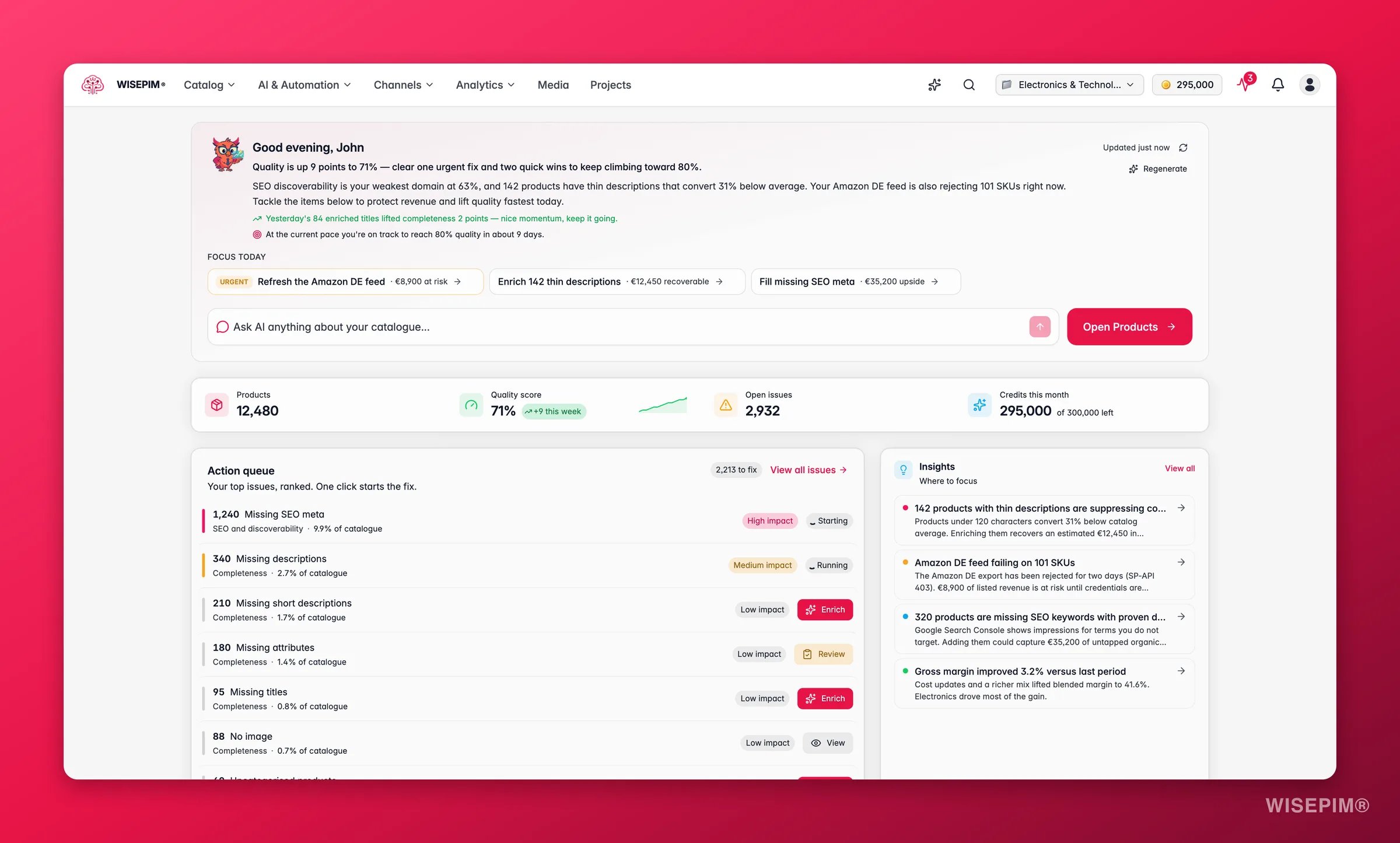
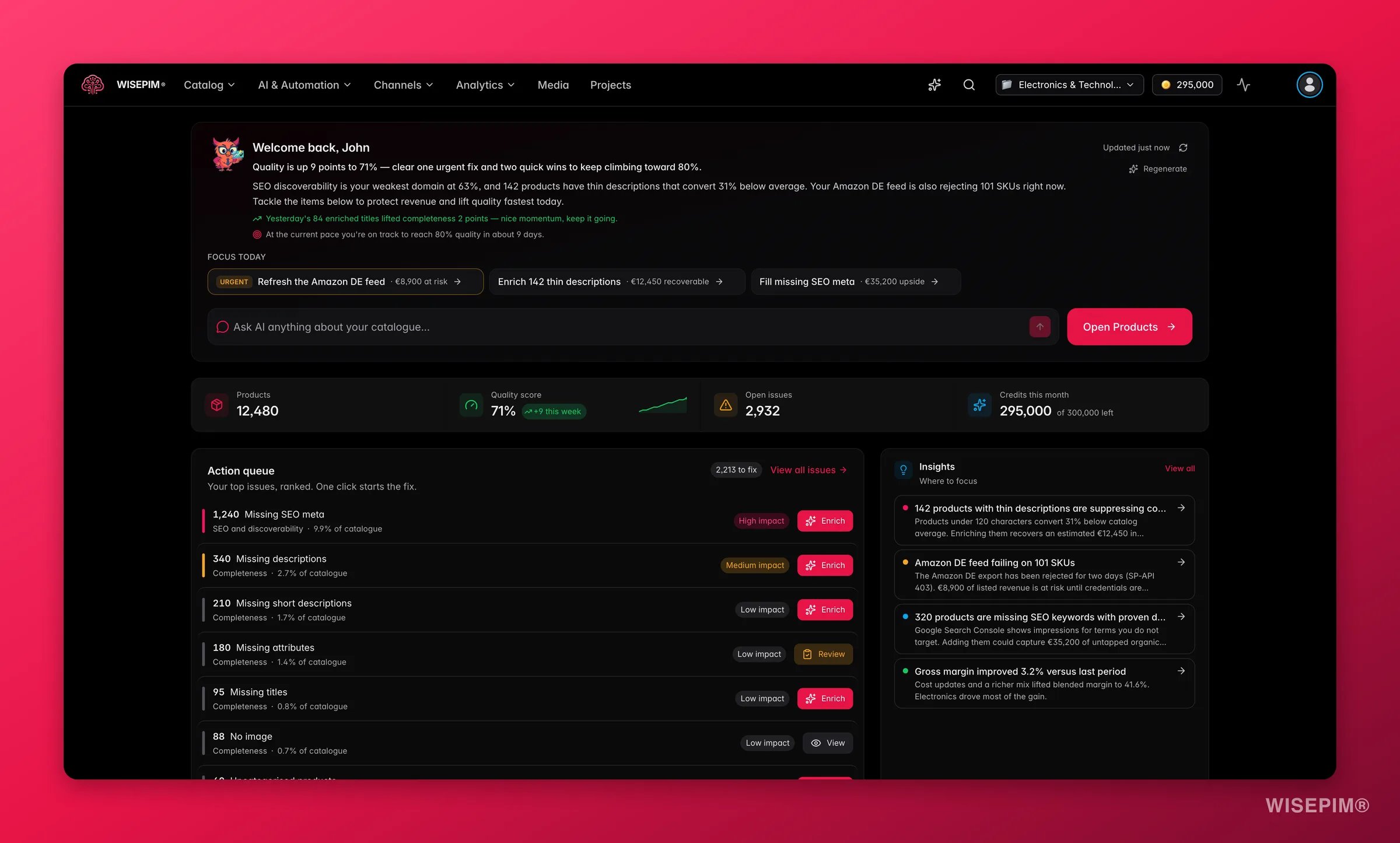 The Overview is the first screen you see after logging in. It answers one question fast: *what is the single best thing I can do for my catalog right now?* It pulls your real catalog data into a health score, a ranked queue of fixable gaps, and a live activity feed, then links you straight into the tool that does the work.
**What acting on it enables:** start every session on the highest-impact task instead of guessing, catch a quality drop the day it happens, and keep the whole team pointed at the same priorities.
Everything on the Overview is your **real** catalog data, not a sample. A brand-new project shows a short activation checklist (connect a channel, import products, invite your team) instead of the dashboard, until there is data to summarize.
## What's on your dashboard
A greeting, your overall catalog-quality score with its trend since yesterday, the single biggest gap right now (for example "2,400 products missing a description"), and an Ask AI box that opens the assistant with your question pre-loaded.
A short AI-written read on your catalog, with a handful of focus items to consider today. You get one briefing per project per day.
Four sparklines tracking the 30-day trend of each quality domain: **Completeness**, **Channel Readiness**, **SEO**, and **Conversion Potential**. Each shows the current score and its change, so you see direction at a glance.
A ranked inbox of the most worthwhile fixes (missing fields, weak images, untranslated content). Each row is a one-click action that queues the job and opens [Products](/en/essentials/managing-products) already filtered to the affected products.
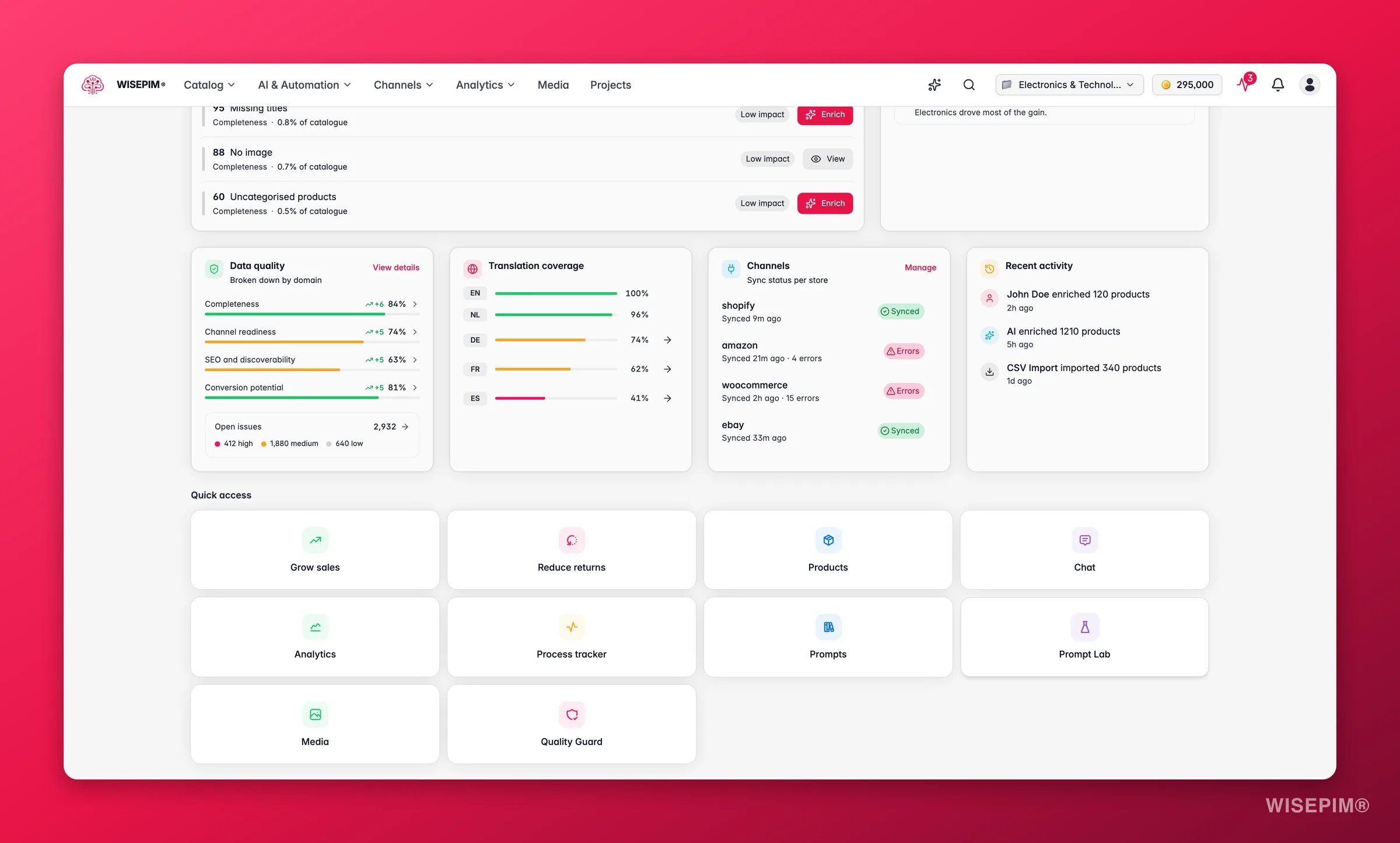
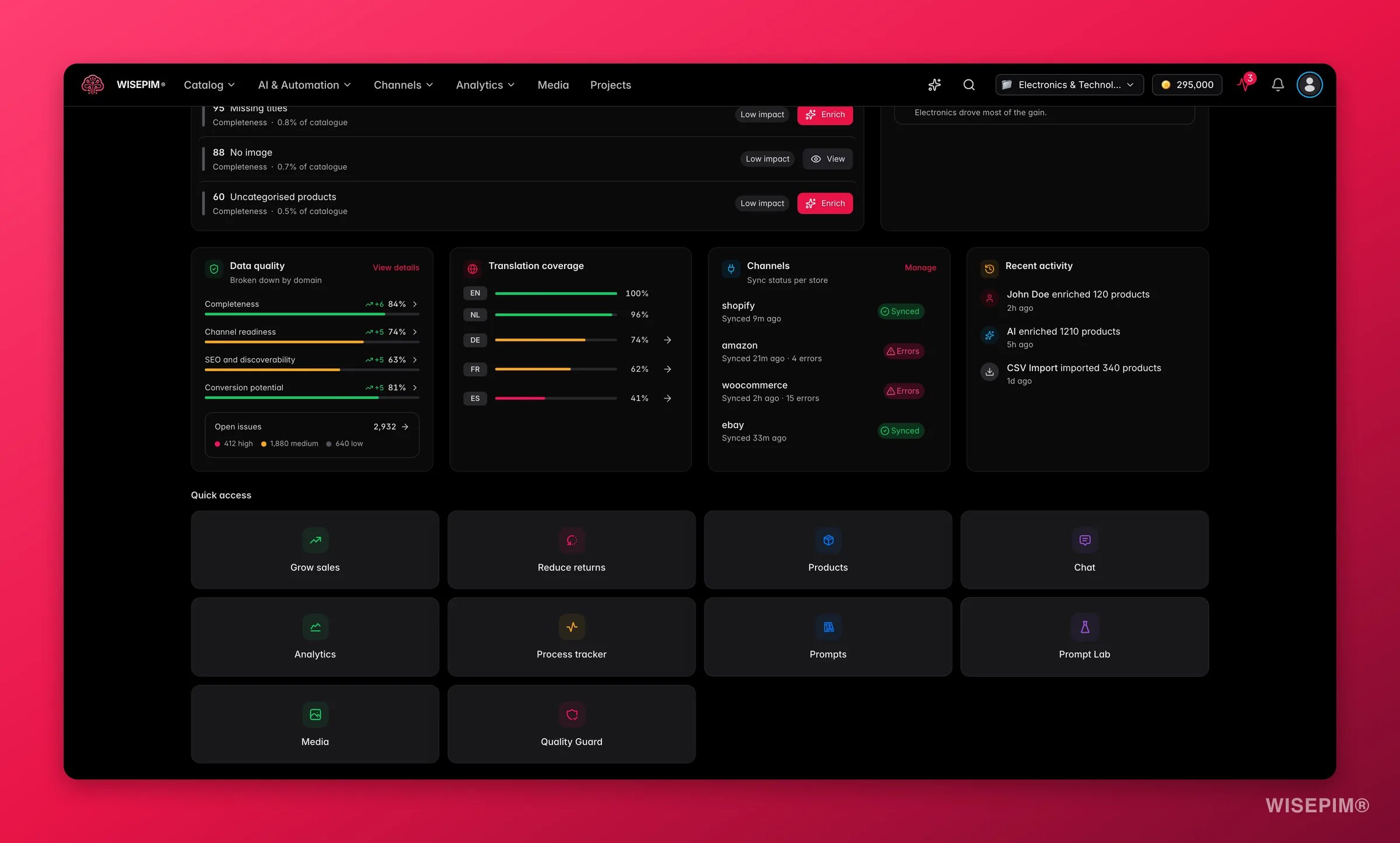
Your worst-scoring product families, a completion funnel (how many products are fully vs partially done), locale coverage per language, channel sync status, and a live feed of recent edits, imports, and enrichment runs.
An eight-tile launcher to the tools you reach for most: Products, Chat, Analytics, Process Tracker, Prompt Library, Prompt Lab, Media, and Quality Guard.
## Your daily briefing
Once a day, per project, WISEPIM writes you a briefing: a plain-language summary of what changed in your catalog and a short list of focus items worth your attention.
Each focus item can be handled in place:
* **Mark it done** when you have dealt with it.
* **Rate it** with a thumbs up or thumbs down. This teaches WISEPIM which suggestions are useful to you.
* **Dismiss it** if it is not relevant. That focus stays out of your briefings for the next 14 days.
Rate the items you dismiss with a thumbs down before dismissing. Dismissing alone hides the item for two weeks; rating it tells WISEPIM why, so future briefings get closer to what you actually care about.
## Start from a goal instead
The action queue is organised by score impact. If you would rather start from a business outcome, the top navigation has two goal hubs that group the same work differently:
* **[Grow sales](/en/guides/overview)** walks you through getting found in search, covering more sales channels, making listings that convert, and protecting your margin.
* **[Reduce returns](/en/guides/cut-your-return-rate)** treats returns as a data problem: fix the riskiest products first, prevent the next batch, and watch your return rate.
The **AI & Automation** hub sits beside them and gathers everything that writes or automates content: prompts, the [Prompt Lab](/en/essentials/prompt-lab), your [Knowledge Library](/en/other-features/knowledge-library), AI Chat, the [Automation Builder](/en/automations/overview), Content Logic, and [Quality Guard](/en/quality-guard/overview).
## Reading the dashboard
* **The trend on the health header** is the fastest signal. A drop overnight usually means an import or a channel sync brought in incomplete data. Open the action queue to see exactly what slipped.
* **Two pulse sparklines diverging** is informative: Completeness rising while Conversion Potential falls means you are filling fields that do not influence buyers. Rebalance toward the dimension that pays.
* **The action queue is already prioritized** by how many products each gap touches and how much it moves your score, so working top-down is the most efficient path.
* **The worst-families list** tells you where to concentrate. Fixing one weak family often lifts the blended score more than scattering effort across the catalog.
The Overview is the first screen you see after logging in. It answers one question fast: *what is the single best thing I can do for my catalog right now?* It pulls your real catalog data into a health score, a ranked queue of fixable gaps, and a live activity feed, then links you straight into the tool that does the work.
**What acting on it enables:** start every session on the highest-impact task instead of guessing, catch a quality drop the day it happens, and keep the whole team pointed at the same priorities.
Everything on the Overview is your **real** catalog data, not a sample. A brand-new project shows a short activation checklist (connect a channel, import products, invite your team) instead of the dashboard, until there is data to summarize.
## What's on your dashboard
A greeting, your overall catalog-quality score with its trend since yesterday, the single biggest gap right now (for example "2,400 products missing a description"), and an Ask AI box that opens the assistant with your question pre-loaded.
A short AI-written read on your catalog, with a handful of focus items to consider today. You get one briefing per project per day.
Four sparklines tracking the 30-day trend of each quality domain: **Completeness**, **Channel Readiness**, **SEO**, and **Conversion Potential**. Each shows the current score and its change, so you see direction at a glance.
A ranked inbox of the most worthwhile fixes (missing fields, weak images, untranslated content). Each row is a one-click action that queues the job and opens [Products](/en/essentials/managing-products) already filtered to the affected products.
Your worst-scoring product families, a completion funnel (how many products are fully vs partially done), locale coverage per language, channel sync status, and a live feed of recent edits, imports, and enrichment runs.
An eight-tile launcher to the tools you reach for most: Products, Chat, Analytics, Process Tracker, Prompt Library, Prompt Lab, Media, and Quality Guard.
## Your daily briefing
Once a day, per project, WISEPIM writes you a briefing: a plain-language summary of what changed in your catalog and a short list of focus items worth your attention.
Each focus item can be handled in place:
* **Mark it done** when you have dealt with it.
* **Rate it** with a thumbs up or thumbs down. This teaches WISEPIM which suggestions are useful to you.
* **Dismiss it** if it is not relevant. That focus stays out of your briefings for the next 14 days.
Rate the items you dismiss with a thumbs down before dismissing. Dismissing alone hides the item for two weeks; rating it tells WISEPIM why, so future briefings get closer to what you actually care about.
## Start from a goal instead
The action queue is organised by score impact. If you would rather start from a business outcome, the top navigation has two goal hubs that group the same work differently:
* **[Grow sales](/en/guides/overview)** walks you through getting found in search, covering more sales channels, making listings that convert, and protecting your margin.
* **[Reduce returns](/en/guides/cut-your-return-rate)** treats returns as a data problem: fix the riskiest products first, prevent the next batch, and watch your return rate.
The **AI & Automation** hub sits beside them and gathers everything that writes or automates content: prompts, the [Prompt Lab](/en/essentials/prompt-lab), your [Knowledge Library](/en/other-features/knowledge-library), AI Chat, the [Automation Builder](/en/automations/overview), Content Logic, and [Quality Guard](/en/quality-guard/overview).
## Reading the dashboard
* **The trend on the health header** is the fastest signal. A drop overnight usually means an import or a channel sync brought in incomplete data. Open the action queue to see exactly what slipped.
* **Two pulse sparklines diverging** is informative: Completeness rising while Conversion Potential falls means you are filling fields that do not influence buyers. Rebalance toward the dimension that pays.
* **The action queue is already prioritized** by how many products each gap touches and how much it moves your score, so working top-down is the most efficient path.
* **The worst-families list** tells you where to concentrate. Fixing one weak family often lifts the blended score more than scattering effort across the catalog.
 ## Act on what you find
A sudden drop almost always traces to fresh data. Check the recent-activity feed for an import or sync, then open the action queue: it will already list the new gaps (missing descriptions, images, or attributes). Fire the matching one-click job. **Outcome:** the drop is reversed within the same session, before those products reach a channel.
Click the family in the worst-families list to open [Products](/en/essentials/managing-products) filtered to it, then run a targeted [enrichment](/en/essentials/enriching-products) on the missing fields. **Outcome:** lifting one weak family raises the blended catalog score more than piecemeal fixes elsewhere.
Each quality domain links into the [Analytics](/en/analytics/data-quality) reports, where you can see field-level health, the per-channel readiness matrix, and the historical trend. **Outcome:** you move from "the score is down" to "these five fields on these products are the cause."
Type the question into the Ask AI box in the header. The assistant opens with your catalog context already loaded and can point you at the right report or action. **Outcome:** a clear next step without hunting through menus.
## Related
The full reporting suite behind the Overview's pulse and health numbers.
Field-level health, quick wins, and the fix workspace.
Where the action-queue jumps land, filtered and ready to fix.
A guided first run that shows the dashboard come to life.
A 45-minute Monday ritual that turns this dashboard into a repeatable habit.
## Act on what you find
A sudden drop almost always traces to fresh data. Check the recent-activity feed for an import or sync, then open the action queue: it will already list the new gaps (missing descriptions, images, or attributes). Fire the matching one-click job. **Outcome:** the drop is reversed within the same session, before those products reach a channel.
Click the family in the worst-families list to open [Products](/en/essentials/managing-products) filtered to it, then run a targeted [enrichment](/en/essentials/enriching-products) on the missing fields. **Outcome:** lifting one weak family raises the blended catalog score more than piecemeal fixes elsewhere.
Each quality domain links into the [Analytics](/en/analytics/data-quality) reports, where you can see field-level health, the per-channel readiness matrix, and the historical trend. **Outcome:** you move from "the score is down" to "these five fields on these products are the cause."
Type the question into the Ask AI box in the header. The assistant opens with your catalog context already loaded and can point you at the right report or action. **Outcome:** a clear next step without hunting through menus.
## Related
The full reporting suite behind the Overview's pulse and health numbers.
Field-level health, quick wins, and the fix workspace.
Where the action-queue jumps land, filtered and ready to fix.
A guided first run that shows the dashboard come to life.
A 45-minute Monday ritual that turns this dashboard into a repeatable habit.