> ## Documentation Index
> Fetch the complete documentation index at: https://docs.wisepim.com/llms.txt
> Use this file to discover all available pages before exploring further.
# WooCommerce Integration
> Connect your WooCommerce store to WISEPIM in one click. Enter your store URL, approve WISEPIM in your WordPress admin, and the API keys are generated for you.
Connect your WooCommerce store to WISEPIM to manage your whole catalog from one place. Once connected, you can import products, enrich them with AI, and push the improved content back to WooCommerce.
You no longer need to create API keys by hand. Enter your store URL, click **Connect with WooCommerce**, and approve the access in your own WordPress admin - WooCommerce generates the keys and hands them to WISEPIM automatically.
You need admin access to your WordPress site and a WISEPIM account with an active project.
## Connect with one click
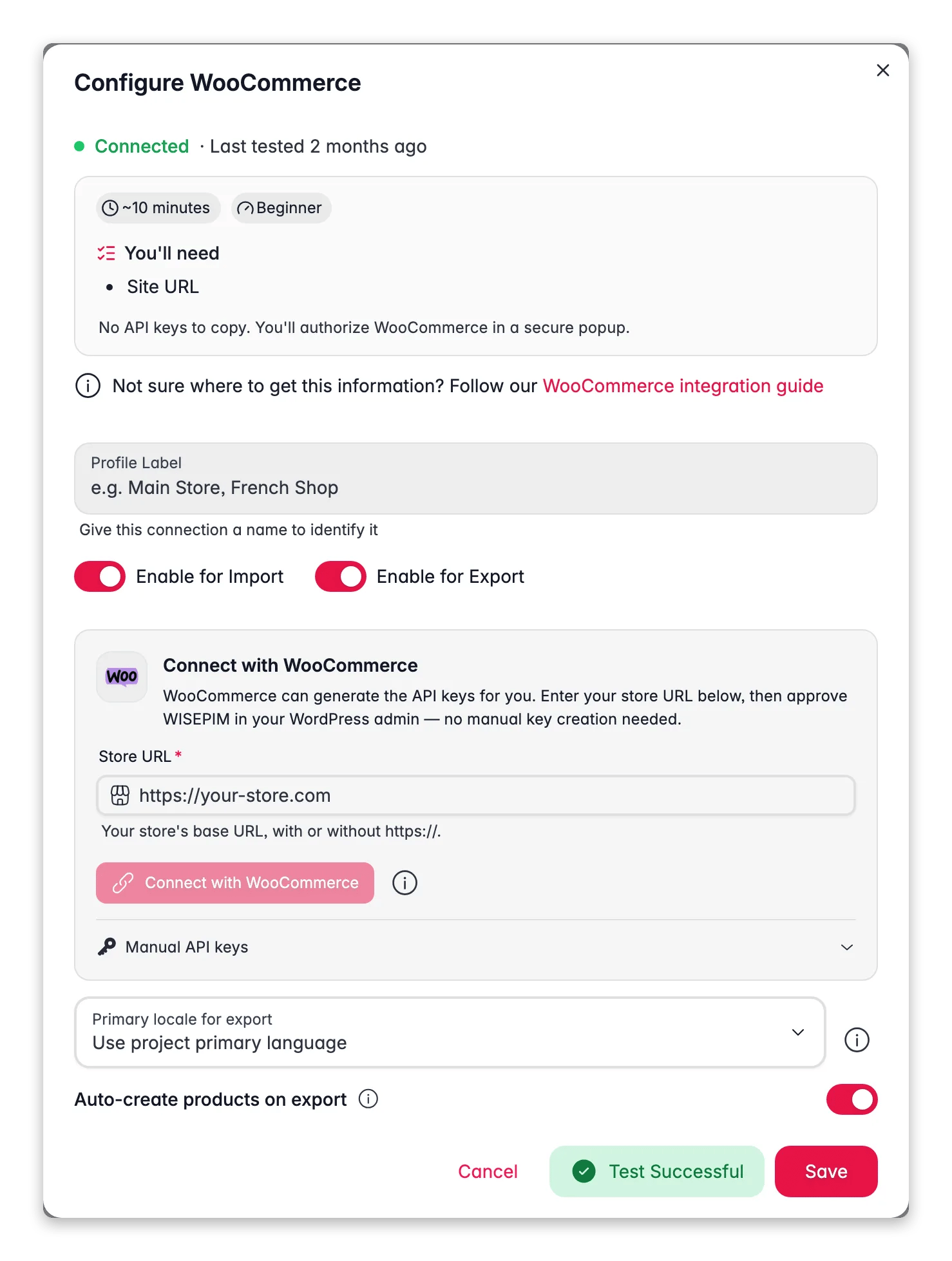
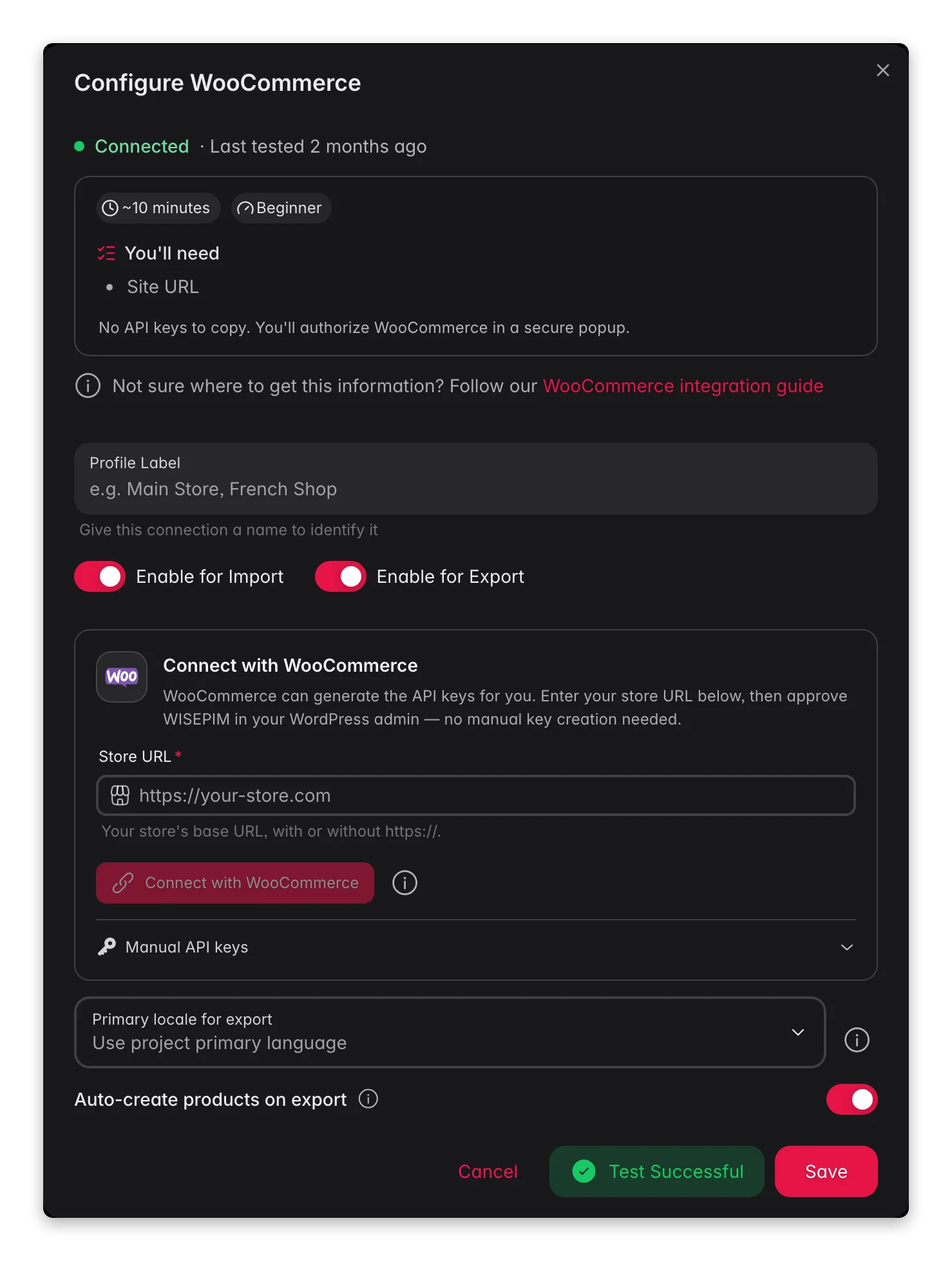 Log in to WISEPIM and go to **Settings** > **Integrations**, then click the **WooCommerce** tile.
Type your store's base URL (for example `https://your-store.com`), with or without `https://`. No extra path, no trailing slash.
You are sent to your own store, where WordPress asks you to approve WISEPIM's access (Read/Write). Make sure you are logged in to WordPress as an admin.
Click approve, and WooCommerce generates the API keys and sends them to WISEPIM directly. You land back in WISEPIM with your store connected.
Your WooCommerce store is now connected. You can start importing products.
Need fresh keys later - for example after a security cleanup? Open the integration again and click **Reconnect with WooCommerce**. Your store generates a new key pair the same way.
## Manual API keys (fallback)
The one-click flow works for almost every store. Reach for manual keys when it can't:
* A security plugin or firewall on your site blocks the `/wc-auth` authorization page
* You're connecting a local or non-HTTPS development store
* You simply prefer creating and pasting keys yourself
In your WordPress admin, go to **WooCommerce** > **Settings** > **Advanced** > **REST API** and click **Add Key**. Name it WISEPIM, select an admin user, and set **Permissions** to **Read/Write**.
Click **Generate API Key**. Copy the **Consumer Key** (starts with `ck_`) and **Consumer Secret** (starts with `cs_`) right away - the secret is only shown once.
In the WooCommerce integration in WISEPIM, expand **Manual API keys** below the connect button and paste both values.
Click **Test Connection**, and **Save** once it succeeds.
Your API keys give full access to your store data. Never share them publicly or commit them to version control. If you think a key is exposed, revoke it in WooCommerce and reconnect.
## What syncs
* **Import** brings in name, SKU, regular and sale price with sale dates, descriptions, stock, weight and size, images, attributes, tags, and categories - plus brand, EAN, cost, and SEO from meta fields. Variable products come in with each variation as a child product. Products match by SKU.
* **Export** sends SKU, name, type, status, prices with sale dates, stock, descriptions, weight and size, SEO fields, brand, EAN, cost, and your custom PIM attributes. Prices are adjusted by your [pricing rules](/en/settings/pricing) first.
A few things to know before you rely on it:
* **Images and categories flow one way.** Import pulls them into WISEPIM, but export does not push images or categories back - keep managing those in your store.
* **Variations sync in, not out.** Export does not push the variation matrix back, so set up variations in WooCommerce.
* **Syncing is not real time.** You start each import and export run yourself.
* **Multiple stores are fine.** Add several WooCommerce profiles to the same project; each keeps its own settings and runs.
## Troubleshooting
When a connection test fails, WISEPIM now shows the likely cause and the concrete fix on screen, instead of a generic error. The common ones:
WooCommerce reports no detail when an authorization is declined or blocked, so WISEPIM can't tell you which happened. Make sure you were logged in to WordPress as an admin and clicked approve. If it keeps failing, a security plugin is likely blocking the `/wc-auth` page - use the **Manual API keys** fallback.
The store's firewall stopped the request before your store ever saw the key - this is not an API-key problem. Allowlist WISEPIM, or disable the bot-fight / browser-integrity check for the REST API path. WISEPIM sends an identifiable request so firewalls like Cloudflare and Wordfence can recognize it.
Re-check the key and secret for typos and confirm they have **Read/Write** permission. Regenerate them (or just hit **Reconnect with WooCommerce**) if unsure.
Verify the base URL: no extra path, no trailing slash, and the REST API enabled on your WordPress site. Permalinks must not be set to "Plain".
Fix the SSL certificate on your store, or confirm the URL uses the correct protocol.
Integrations are included in your WISEPIM plan - connecting WooCommerce costs nothing extra.
## Related
Pull your catalog from WooCommerce into WISEPIM.
Improve titles, descriptions, and SEO with AI.
Push the improved content back to WooCommerce.
See every platform WISEPIM connects to.
Log in to WISEPIM and go to **Settings** > **Integrations**, then click the **WooCommerce** tile.
Type your store's base URL (for example `https://your-store.com`), with or without `https://`. No extra path, no trailing slash.
You are sent to your own store, where WordPress asks you to approve WISEPIM's access (Read/Write). Make sure you are logged in to WordPress as an admin.
Click approve, and WooCommerce generates the API keys and sends them to WISEPIM directly. You land back in WISEPIM with your store connected.
Your WooCommerce store is now connected. You can start importing products.
Need fresh keys later - for example after a security cleanup? Open the integration again and click **Reconnect with WooCommerce**. Your store generates a new key pair the same way.
## Manual API keys (fallback)
The one-click flow works for almost every store. Reach for manual keys when it can't:
* A security plugin or firewall on your site blocks the `/wc-auth` authorization page
* You're connecting a local or non-HTTPS development store
* You simply prefer creating and pasting keys yourself
In your WordPress admin, go to **WooCommerce** > **Settings** > **Advanced** > **REST API** and click **Add Key**. Name it WISEPIM, select an admin user, and set **Permissions** to **Read/Write**.
Click **Generate API Key**. Copy the **Consumer Key** (starts with `ck_`) and **Consumer Secret** (starts with `cs_`) right away - the secret is only shown once.
In the WooCommerce integration in WISEPIM, expand **Manual API keys** below the connect button and paste both values.
Click **Test Connection**, and **Save** once it succeeds.
Your API keys give full access to your store data. Never share them publicly or commit them to version control. If you think a key is exposed, revoke it in WooCommerce and reconnect.
## What syncs
* **Import** brings in name, SKU, regular and sale price with sale dates, descriptions, stock, weight and size, images, attributes, tags, and categories - plus brand, EAN, cost, and SEO from meta fields. Variable products come in with each variation as a child product. Products match by SKU.
* **Export** sends SKU, name, type, status, prices with sale dates, stock, descriptions, weight and size, SEO fields, brand, EAN, cost, and your custom PIM attributes. Prices are adjusted by your [pricing rules](/en/settings/pricing) first.
A few things to know before you rely on it:
* **Images and categories flow one way.** Import pulls them into WISEPIM, but export does not push images or categories back - keep managing those in your store.
* **Variations sync in, not out.** Export does not push the variation matrix back, so set up variations in WooCommerce.
* **Syncing is not real time.** You start each import and export run yourself.
* **Multiple stores are fine.** Add several WooCommerce profiles to the same project; each keeps its own settings and runs.
## Troubleshooting
When a connection test fails, WISEPIM now shows the likely cause and the concrete fix on screen, instead of a generic error. The common ones:
WooCommerce reports no detail when an authorization is declined or blocked, so WISEPIM can't tell you which happened. Make sure you were logged in to WordPress as an admin and clicked approve. If it keeps failing, a security plugin is likely blocking the `/wc-auth` page - use the **Manual API keys** fallback.
The store's firewall stopped the request before your store ever saw the key - this is not an API-key problem. Allowlist WISEPIM, or disable the bot-fight / browser-integrity check for the REST API path. WISEPIM sends an identifiable request so firewalls like Cloudflare and Wordfence can recognize it.
Re-check the key and secret for typos and confirm they have **Read/Write** permission. Regenerate them (or just hit **Reconnect with WooCommerce**) if unsure.
Verify the base URL: no extra path, no trailing slash, and the REST API enabled on your WordPress site. Permalinks must not be set to "Plain".
Fix the SSL certificate on your store, or confirm the URL uses the correct protocol.
Integrations are included in your WISEPIM plan - connecting WooCommerce costs nothing extra.
## Related
Pull your catalog from WooCommerce into WISEPIM.
Improve titles, descriptions, and SEO with AI.
Push the improved content back to WooCommerce.
See every platform WISEPIM connects to.