> ## Documentation Index
> Fetch the complete documentation index at: https://docs.wisepim.com/llms.txt
> Use this file to discover all available pages before exploring further.
# Shopify Integration
> Connect your Shopify store to WISEPIM in minutes. Create a custom app, set the access scopes, and import your products to enrich and translate them.
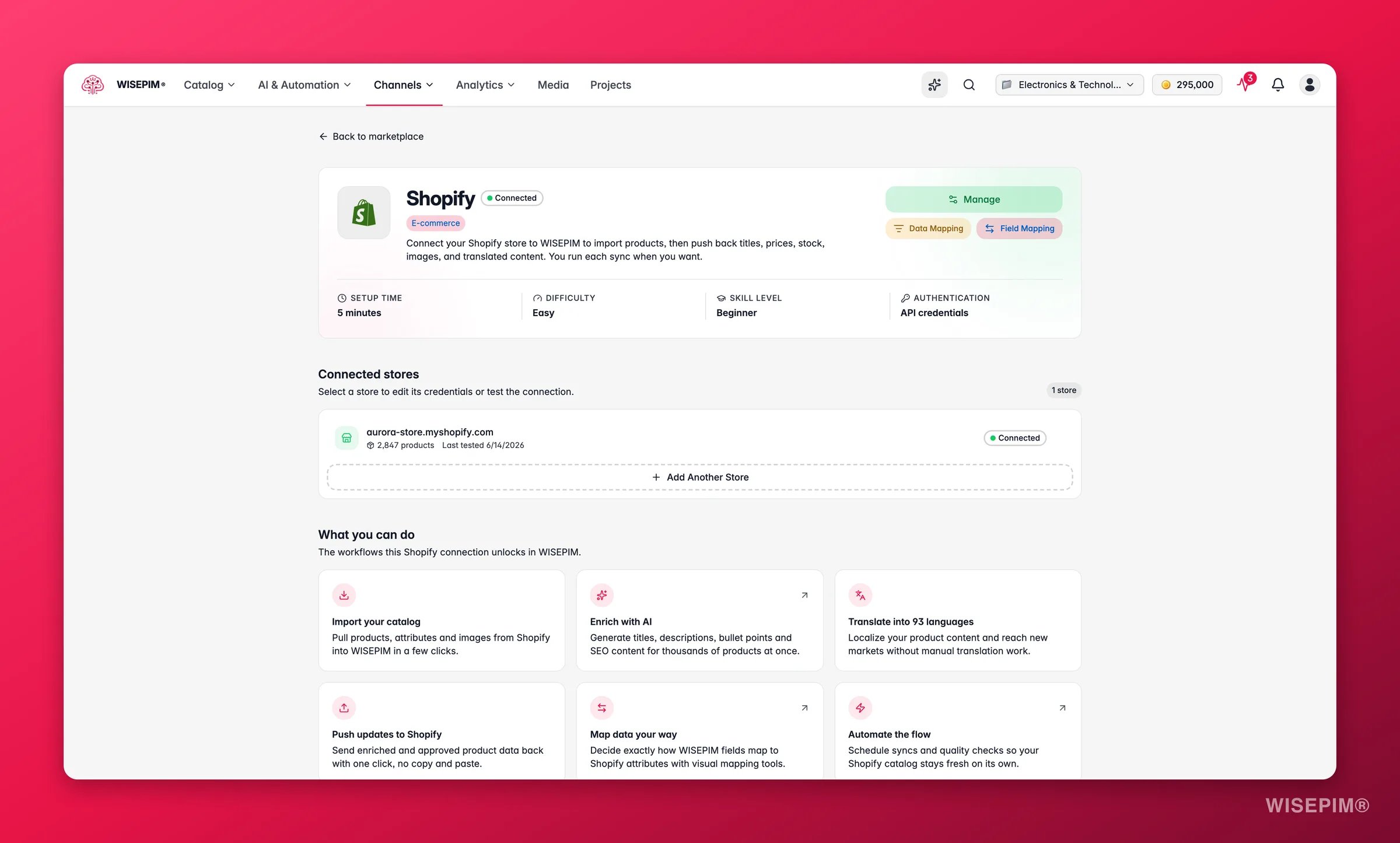
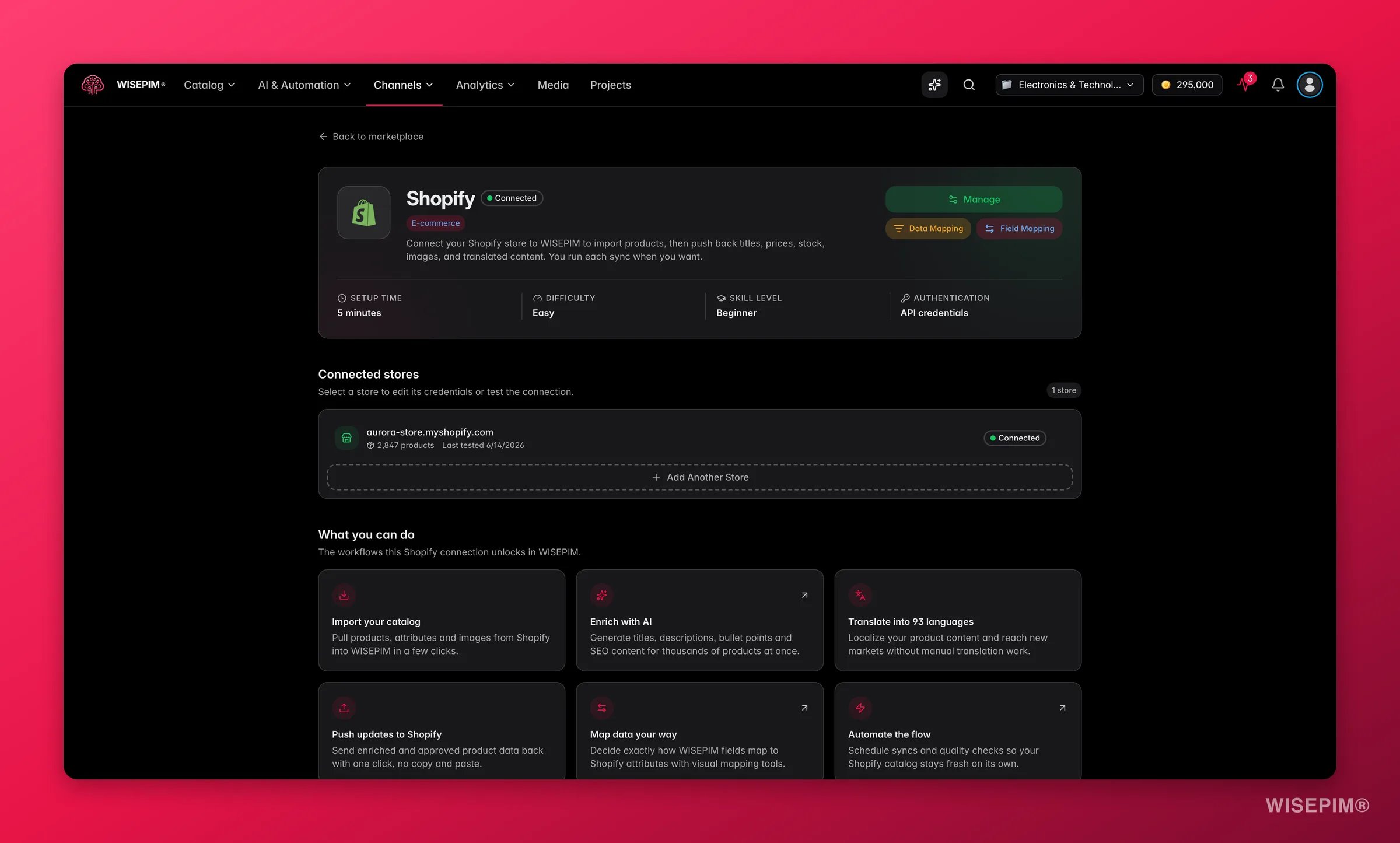 Connect your Shopify store to WISEPIM to import your products, enrich them with AI, and translate them into your target language. Setup takes a few minutes.
There are two ways in:
* **Install from the Shopify App Store.** The fastest route. Shopify tells WISEPIM who you are, so there is nothing to copy and paste.
* **Create a custom app in your Shopify admin.** Use this if you already have a WISEPIM account and want to connect another store by hand.
## Install from the Shopify App Store
Install WISEPIM straight from the Shopify App Store and you are done in one step.
Open the Shopify App Store from your Shopify admin and search for **WISEPIM**.
Click to install and approve the access Shopify asks about. You never type your store domain, your API key, or your secret.
If you are new, WISEPIM creates your account for you: your details come from Shopify, and you get a project ready to use. You arrive logged in, with your store already connected.
You can choose your plan inside the app and let Shopify handle the billing. The charge then appears on your regular Shopify invoice instead of a separate one.
Installing from the App Store replaces the custom-app steps below. You only need the custom app route if you connect a store to an existing WISEPIM account yourself.
## Create a custom app in Shopify
Connect your Shopify store to WISEPIM to import your products, enrich them with AI, and translate them into your target language. Setup takes a few minutes.
There are two ways in:
* **Install from the Shopify App Store.** The fastest route. Shopify tells WISEPIM who you are, so there is nothing to copy and paste.
* **Create a custom app in your Shopify admin.** Use this if you already have a WISEPIM account and want to connect another store by hand.
## Install from the Shopify App Store
Install WISEPIM straight from the Shopify App Store and you are done in one step.
Open the Shopify App Store from your Shopify admin and search for **WISEPIM**.
Click to install and approve the access Shopify asks about. You never type your store domain, your API key, or your secret.
If you are new, WISEPIM creates your account for you: your details come from Shopify, and you get a project ready to use. You arrive logged in, with your store already connected.
You can choose your plan inside the app and let Shopify handle the billing. The charge then appears on your regular Shopify invoice instead of a separate one.
Installing from the App Store replaces the custom-app steps below. You only need the custom app route if you connect a store to an existing WISEPIM account yourself.
## Create a custom app in Shopify
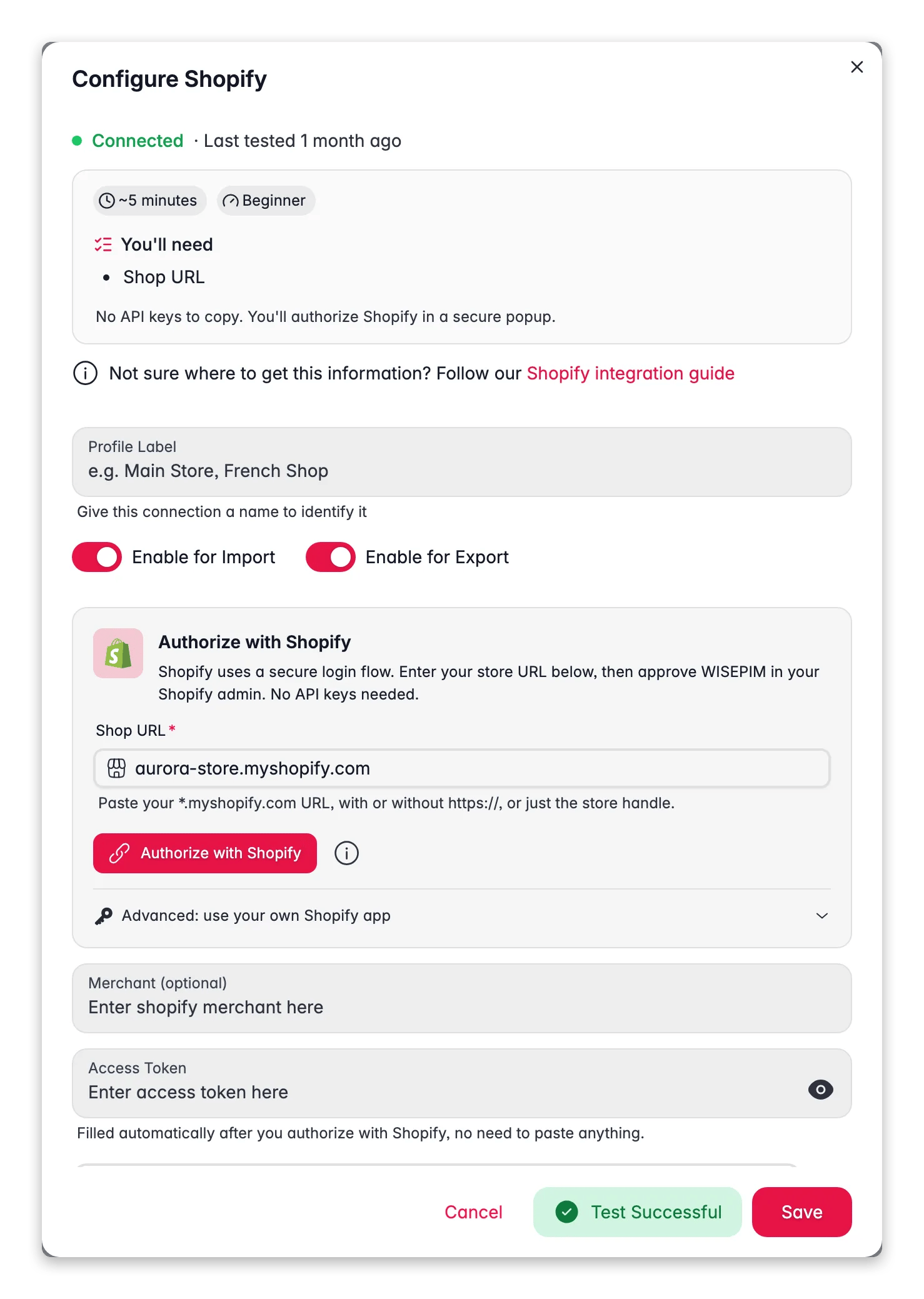
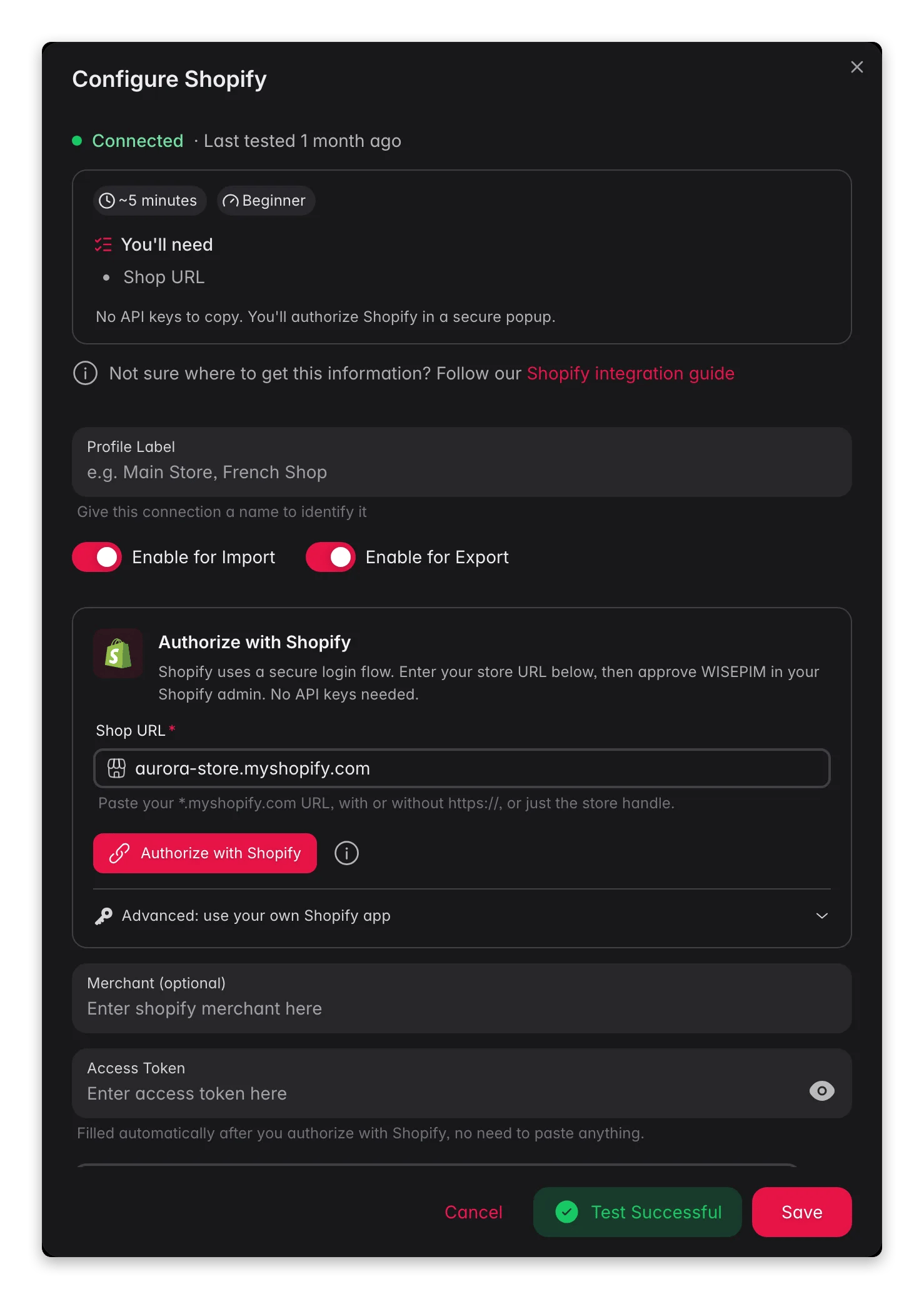 First, generate API credentials inside your Shopify admin.
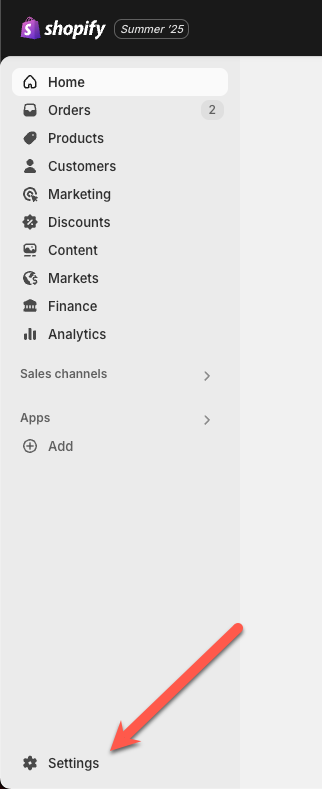
Log in to your Shopify admin and open **Settings**.
First, generate API credentials inside your Shopify admin.
Log in to your Shopify admin and open **Settings**.
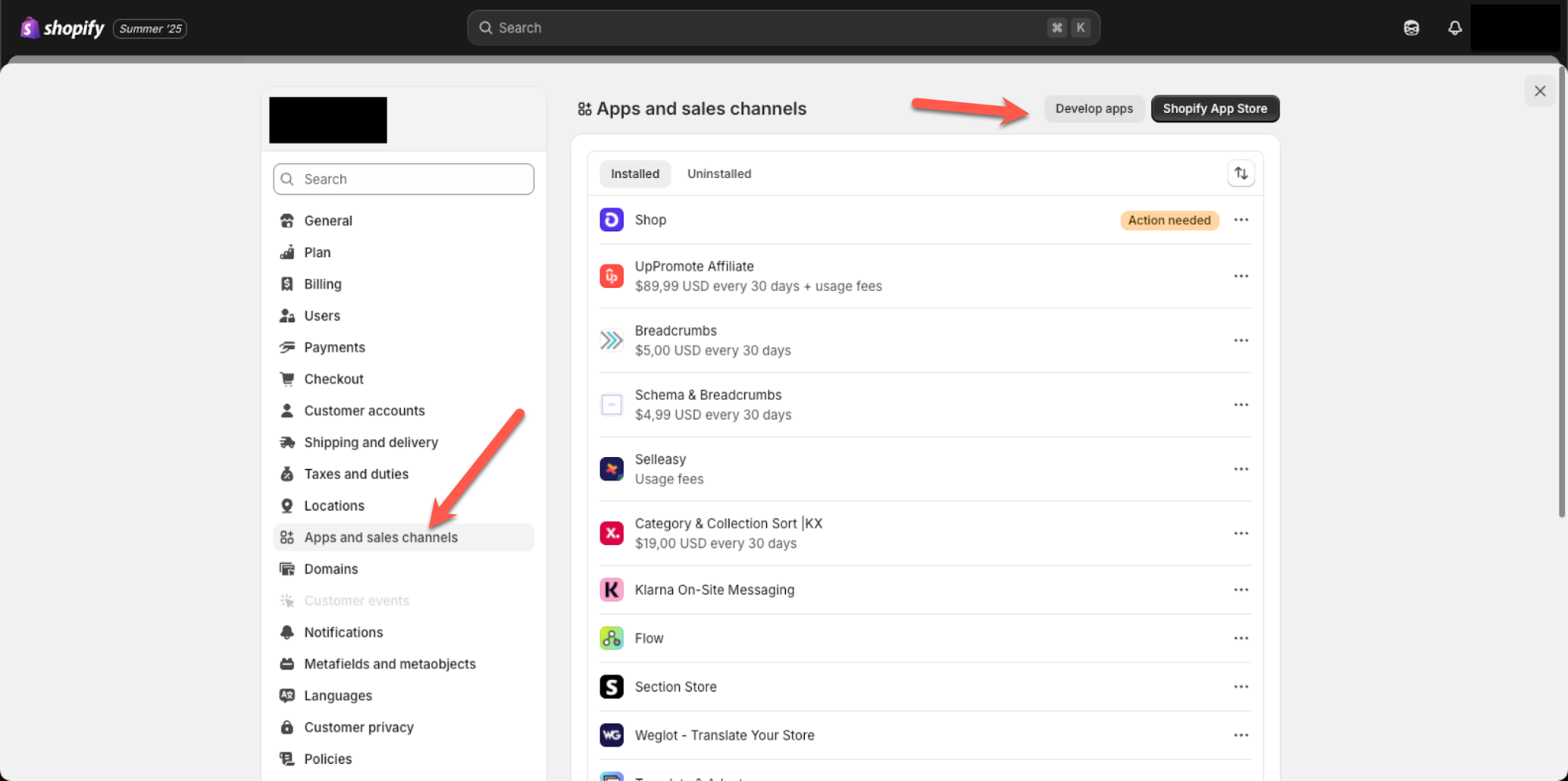
 Open **Apps and sales channels**, then click **Develop apps**. This is where you create a custom app for WISEPIM.
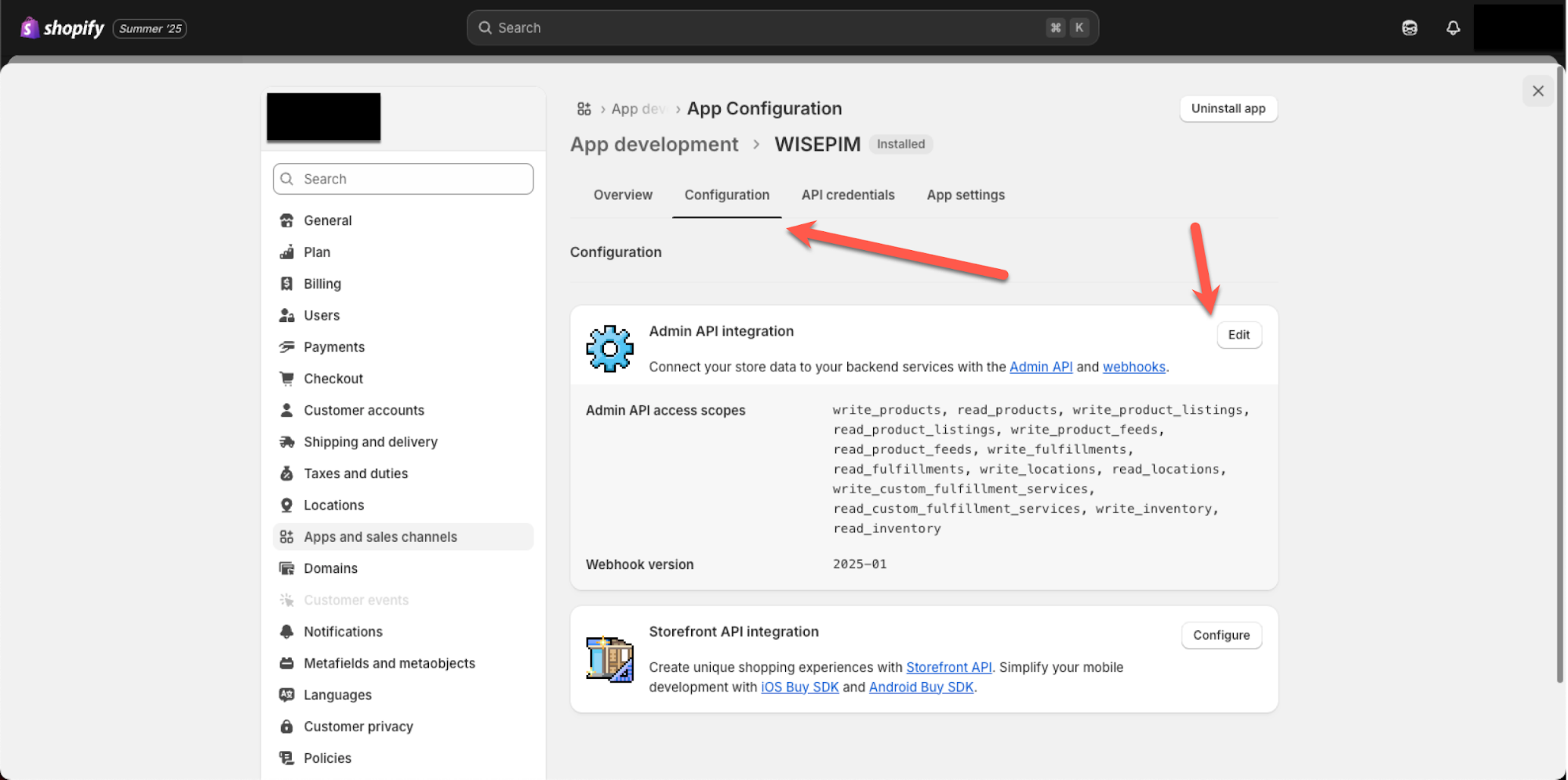
 Open the **Configuration** tab for your app. Here you set the access scopes that let WISEPIM read your product data.
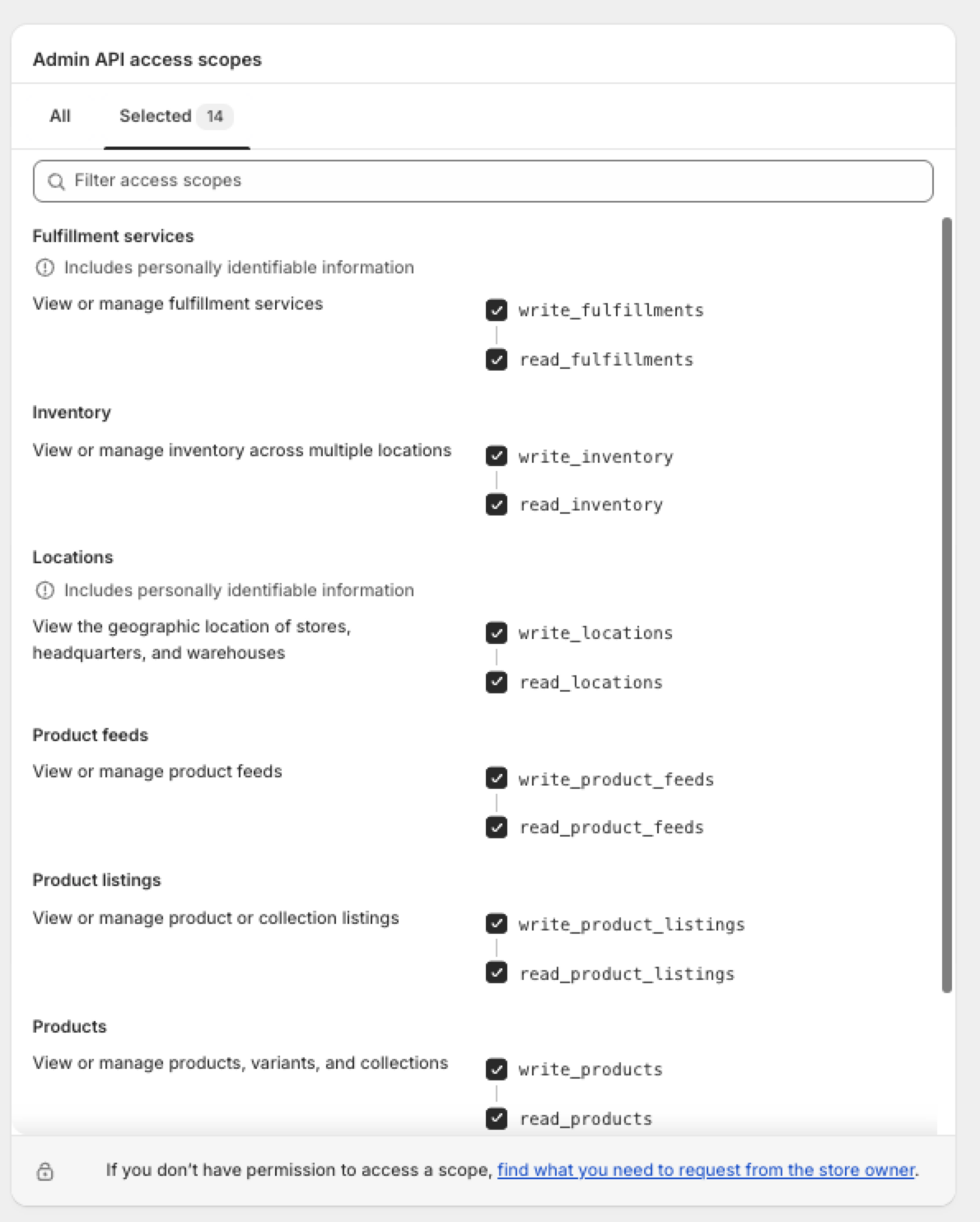
 Add the access scopes shown below so WISEPIM can fetch your product data, then save your changes.
 ## Connect Shopify to WISEPIM
Next, copy your credentials from Shopify into WISEPIM.
In your Shopify app, find the **API key** and **API secret key**. Keep this tab open so you can copy both values.
In WISEPIM, open your Shopify integration and paste in the API key and the secret. Save to connect your store.
## Connect Shopify to WISEPIM
Next, copy your credentials from Shopify into WISEPIM.
In your Shopify app, find the **API key** and **API secret key**. Keep this tab open so you can copy both values.
In WISEPIM, open your Shopify integration and paste in the API key and the secret. Save to connect your store.
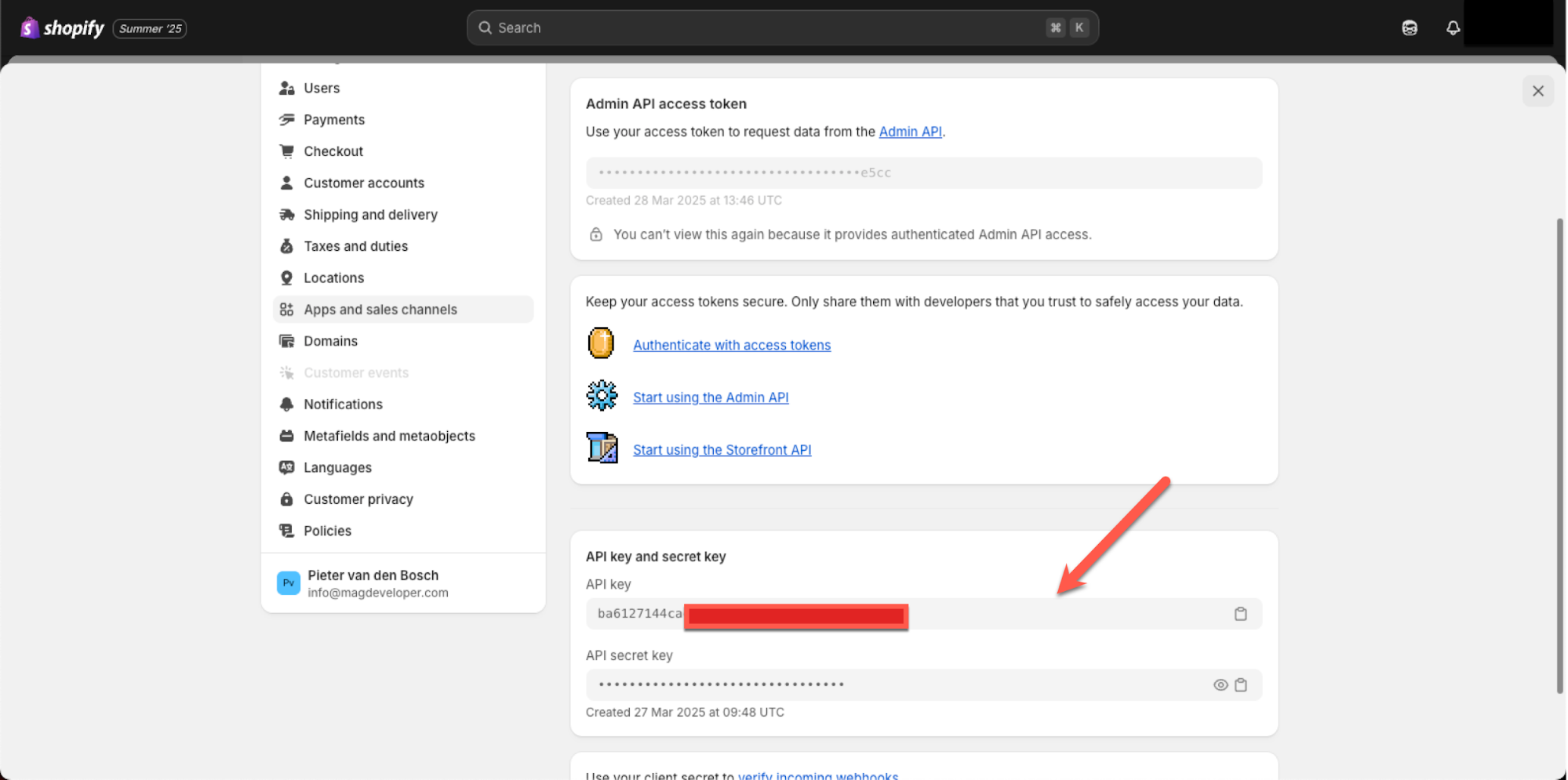 Your API secret gives full access to your store data. Never share it publicly or commit it to version control. If a secret is exposed, revoke the app in Shopify and create a new one.
## Import and enrich your products
Your store is now connected. You can fetch your Shopify products into WISEPIM, then enrich and translate them into your target language.
### Large catalogs
Big stores import reliably. WISEPIM uses Shopify's bulk system, which streams your whole catalog in one job instead of walking page by page. There is no size ceiling to work around, so tens of thousands of products come across in a single run.
### Translations
Translated content now syncs back to Shopify correctly. Translate your products in WISEPIM, export to Shopify, and each language lands in the matching Shopify locale.
### Variants
Shopify sync is single-variant today: import reads the **first variant's** price, SKU, barcode, and stock onto the product, and export writes those core fields back to that same variant. The full option/variant matrix is not synced in either direction - keep managing multi-variant options in Shopify itself.
## Related
Fetch your Shopify catalog into WISEPIM.
Improve titles, descriptions, and SEO with AI.
Push enriched content back to your store.
See every platform WISEPIM connects to.
Your API secret gives full access to your store data. Never share it publicly or commit it to version control. If a secret is exposed, revoke the app in Shopify and create a new one.
## Import and enrich your products
Your store is now connected. You can fetch your Shopify products into WISEPIM, then enrich and translate them into your target language.
### Large catalogs
Big stores import reliably. WISEPIM uses Shopify's bulk system, which streams your whole catalog in one job instead of walking page by page. There is no size ceiling to work around, so tens of thousands of products come across in a single run.
### Translations
Translated content now syncs back to Shopify correctly. Translate your products in WISEPIM, export to Shopify, and each language lands in the matching Shopify locale.
### Variants
Shopify sync is single-variant today: import reads the **first variant's** price, SKU, barcode, and stock onto the product, and export writes those core fields back to that same variant. The full option/variant matrix is not synced in either direction - keep managing multi-variant options in Shopify itself.
## Related
Fetch your Shopify catalog into WISEPIM.
Improve titles, descriptions, and SEO with AI.
Push enriched content back to your store.
See every platform WISEPIM connects to.