> ## Documentation Index
> Fetch the complete documentation index at: https://docs.wisepim.com/llms.txt
> Use this file to discover all available pages before exploring further.
# Prompt Library
> Save, organize, and reuse the AI prompts that generate your product content. Build your own collection, or start from community and expert-made prompts.
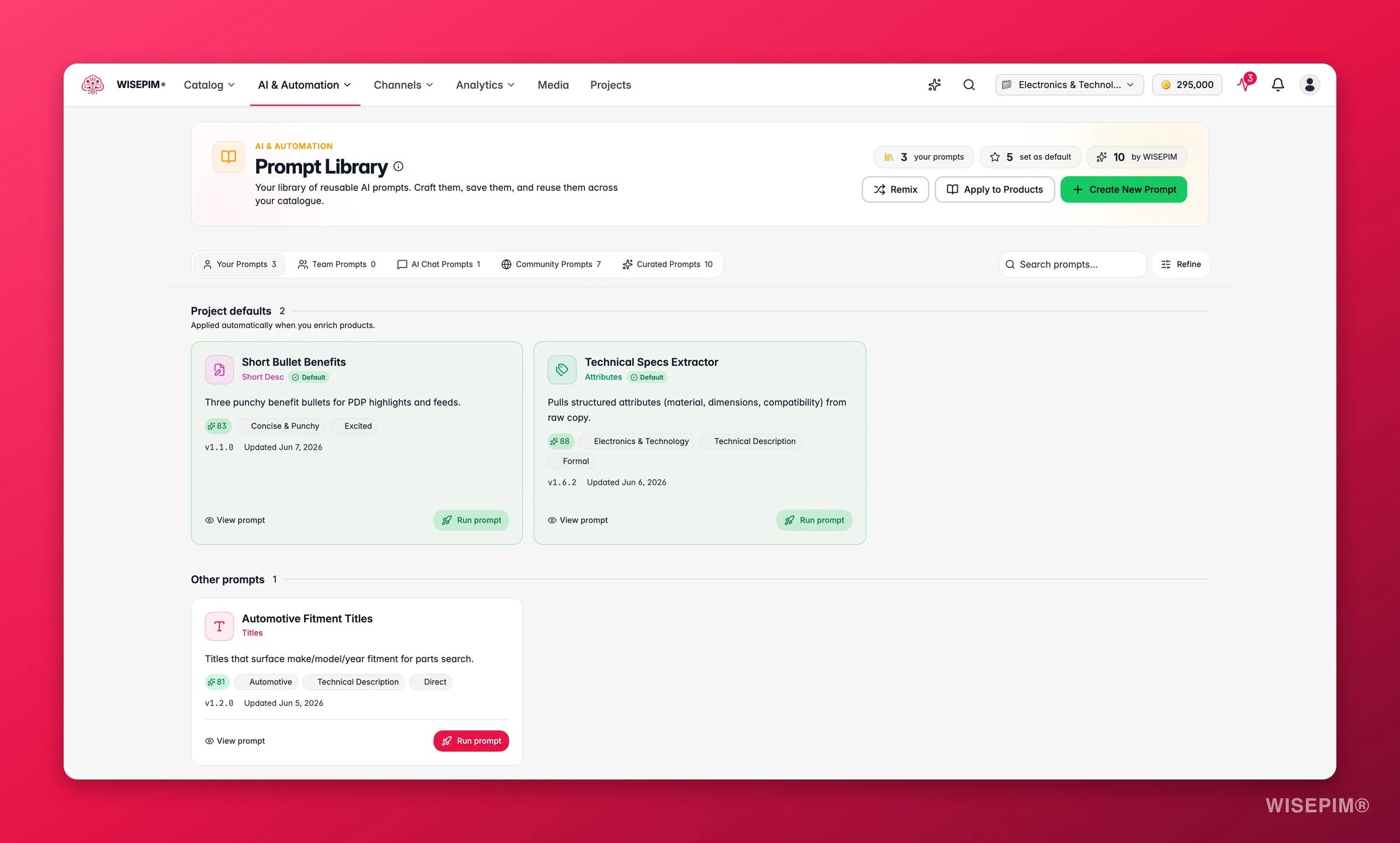
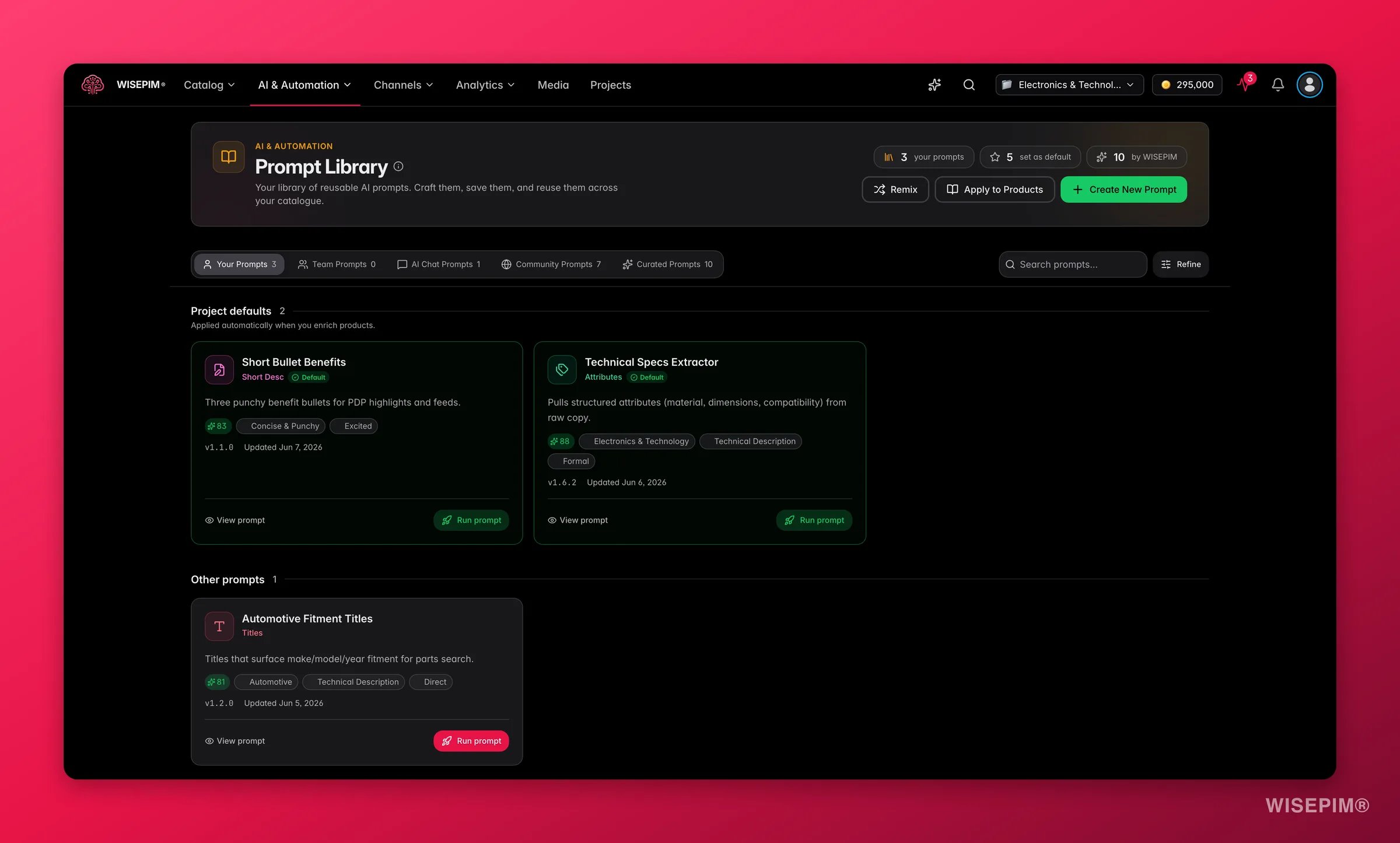
The Prompt Library is where all your AI prompts live. Save the prompts you perfect in the Prompt Lab, organize them by category, and reuse them to keep your content consistent. You can also browse prompts shared by other users and expert-made prompts from the WISEPIM team.
**Where to find it:** in the top navigation, open **AI & Automation** and choose **Prompts** (that menu entry is the Prompt Library), or use your avatar menu → **Prompt Library**.
A saved prompt is reusable across your whole catalog. Build a small collection of proven prompts, and your content stays consistent no matter who runs it.
 ## Three collections
The library is split into three tabs. Use the right one for the job.
| Collection | What's inside | Use it to |
| --------------------- | ---------------------------------------------- | --------------------------------------------- |
| **Your Prompts** | Prompts you created and saved. Private to you. | Reuse your proven, brand-specific prompts. |
| **Community Prompts** | Prompts shared by other WISEPIM users. | Find inspiration and adapt tested approaches. |
| **Curated Prompts** | Expert prompts built and tested by WISEPIM. | Start from a reliable, high-quality template. |
### Curated Prompts
## Three collections
The library is split into three tabs. Use the right one for the job.
| Collection | What's inside | Use it to |
| --------------------- | ---------------------------------------------- | --------------------------------------------- |
| **Your Prompts** | Prompts you created and saved. Private to you. | Reuse your proven, brand-specific prompts. |
| **Community Prompts** | Prompts shared by other WISEPIM users. | Find inspiration and adapt tested approaches. |
| **Curated Prompts** | Expert prompts built and tested by WISEPIM. | Start from a reliable, high-quality template. |
### Curated Prompts
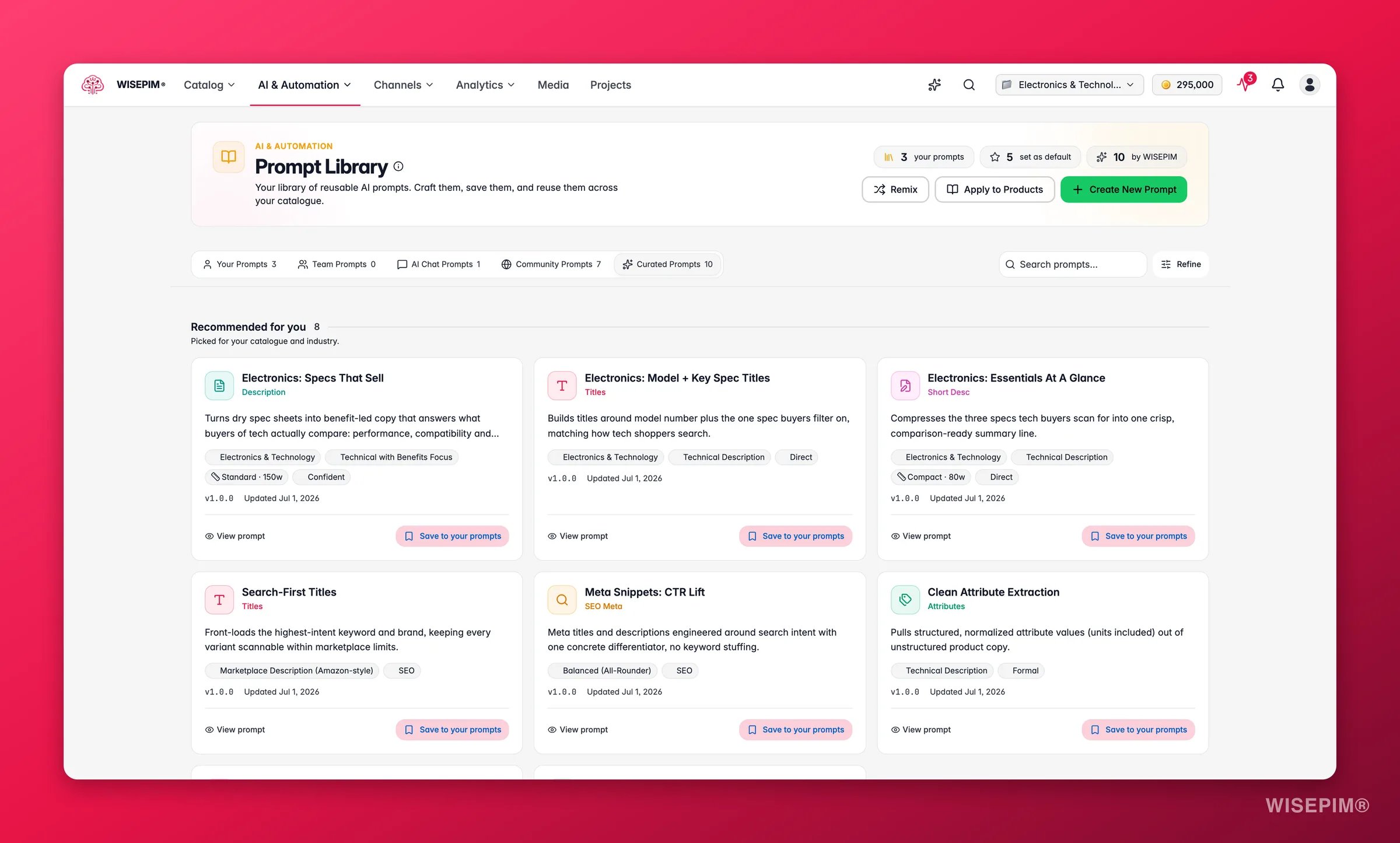
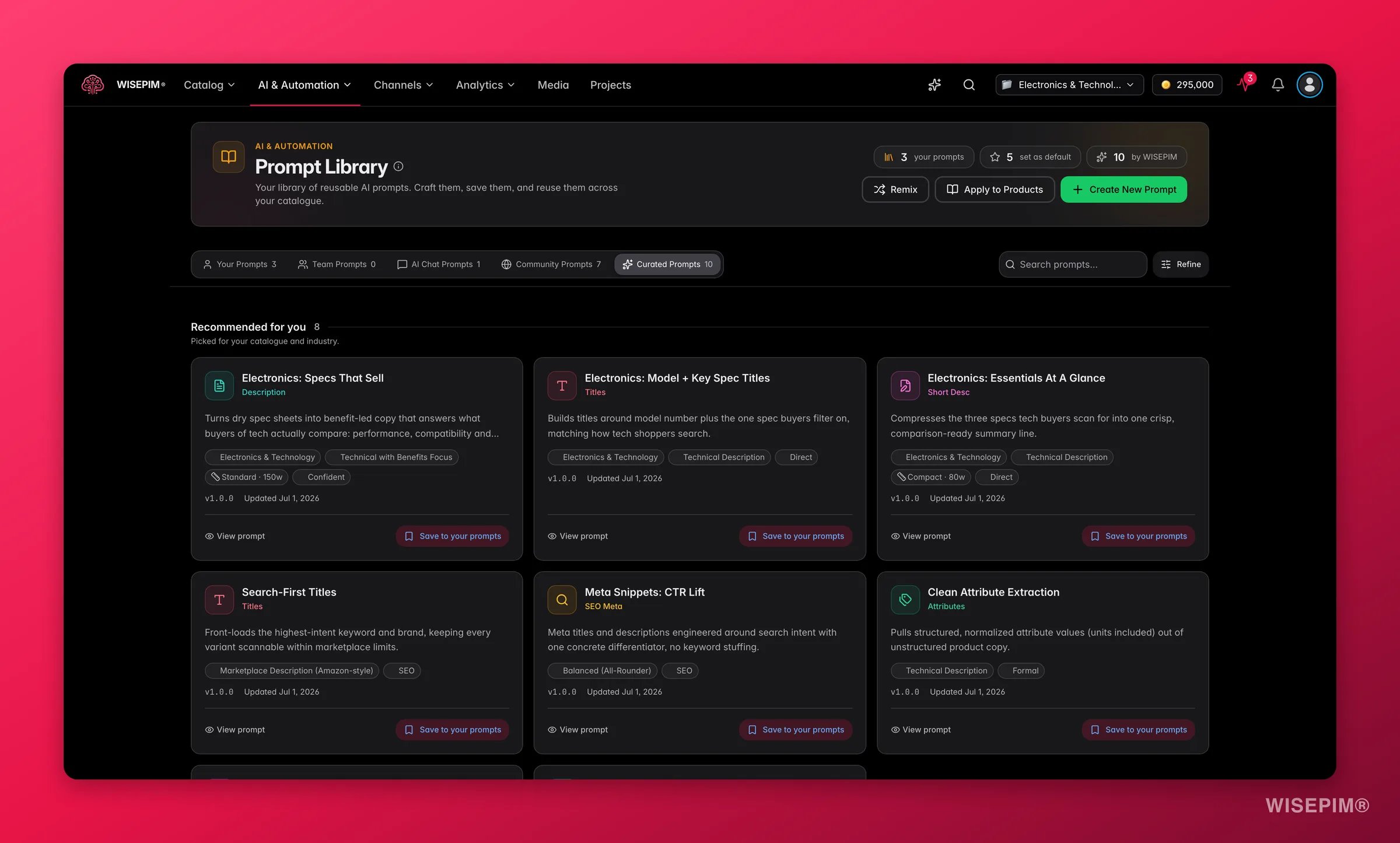 The **Curated Prompts** tab holds over 100 prompts written and tested by the WISEPIM team. They cover every content type, from product descriptions to SEO meta, across a wide range of industries.
You do not have to dig through all of them. The tab is ranked for your project: prompts that match your industry and your tone of voice come first, so the best fit for your catalog is usually near the top. Save one to **Your Prompts** and adapt it, or use it as-is.
A new project starts with sensible default prompts so you can enrich from day one. Once you finish onboarding and WISEPIM knows your industry, those starting defaults are upgraded to industry-specific ones. Any prompt you wrote or edited yourself is left exactly as you set it.
## Find a prompt
Search by title or description, and the results filter as you type. Narrow them further with the filters:
* **What to Enrich**: description, title, or attributes
* **Industry**: your market sector
* **Purpose**: SEO, marketing, technical, or standard
Filter by industry first to cut the list down fast. Then add a purpose filter for precise results.
Each prompt appears as a card showing its title, description, category tags, version number, and last-updated date. Color-coded chips mark the industry, purpose, and tone at a glance.
The **Curated Prompts** tab holds over 100 prompts written and tested by the WISEPIM team. They cover every content type, from product descriptions to SEO meta, across a wide range of industries.
You do not have to dig through all of them. The tab is ranked for your project: prompts that match your industry and your tone of voice come first, so the best fit for your catalog is usually near the top. Save one to **Your Prompts** and adapt it, or use it as-is.
A new project starts with sensible default prompts so you can enrich from day one. Once you finish onboarding and WISEPIM knows your industry, those starting defaults are upgraded to industry-specific ones. Any prompt you wrote or edited yourself is left exactly as you set it.
## Find a prompt
Search by title or description, and the results filter as you type. Narrow them further with the filters:
* **What to Enrich**: description, title, or attributes
* **Industry**: your market sector
* **Purpose**: SEO, marketing, technical, or standard
Filter by industry first to cut the list down fast. Then add a purpose filter for precise results.
Each prompt appears as a card showing its title, description, category tags, version number, and last-updated date. Color-coded chips mark the industry, purpose, and tone at a glance.
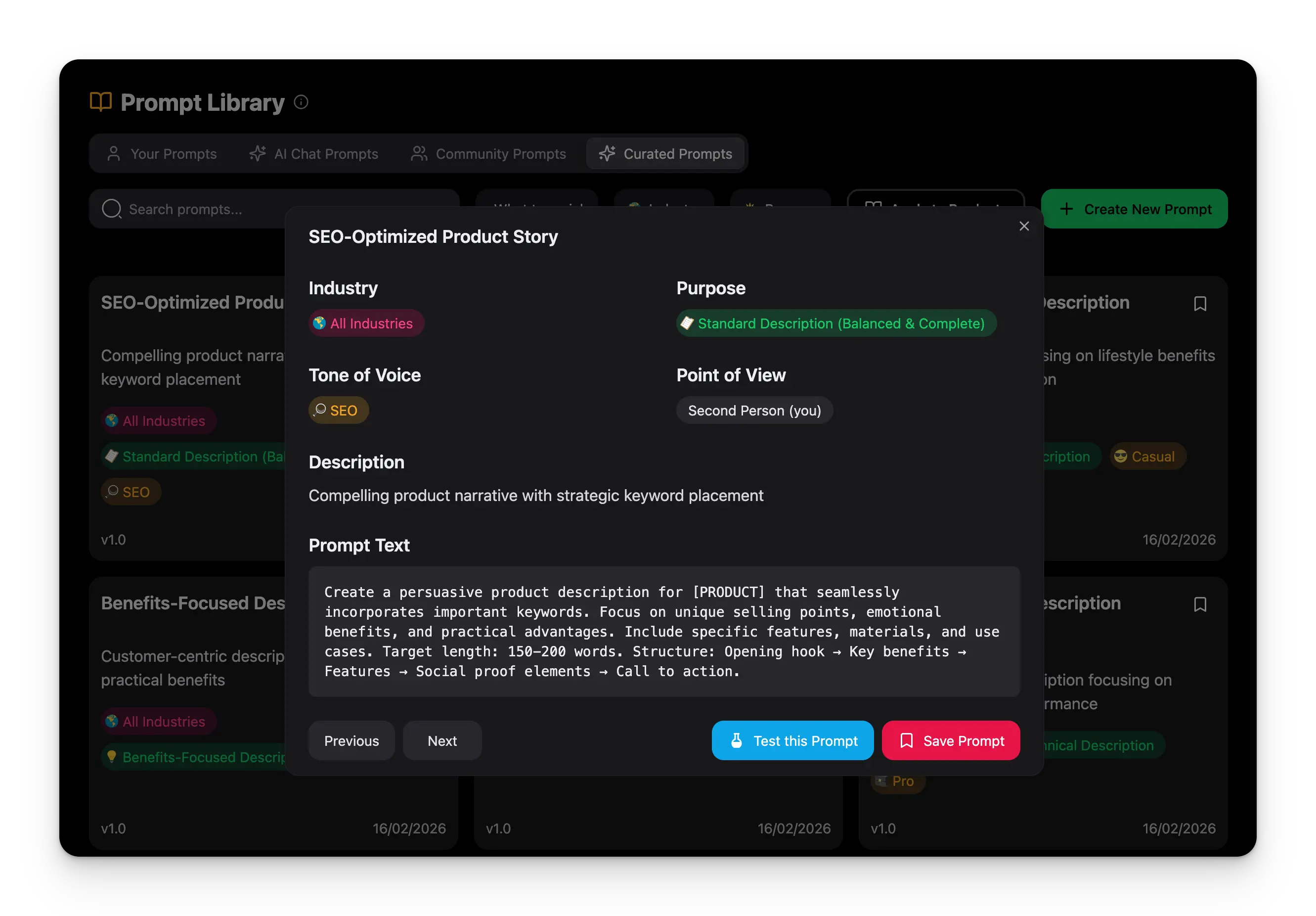 ## Create a prompt
Click **Create New Prompt** (the green button, top right). Or open the [Prompt Lab](/en/essentials/prompt-lab) and save a prompt from there.
Give it a descriptive, searchable title, a clear description, and the prompt text.
Choose the industry, purpose, and tone so the prompt is easy to filter later. Set the point of view and any advanced options.
Save to your library, then test it in the [Prompt Lab](/en/essentials/prompt-lab) before using it in production.
## Create a prompt
Click **Create New Prompt** (the green button, top right). Or open the [Prompt Lab](/en/essentials/prompt-lab) and save a prompt from there.
Give it a descriptive, searchable title, a clear description, and the prompt text.
Choose the industry, purpose, and tone so the prompt is easy to filter later. Set the point of view and any advanced options.
Save to your library, then test it in the [Prompt Lab](/en/essentials/prompt-lab) before using it in production.
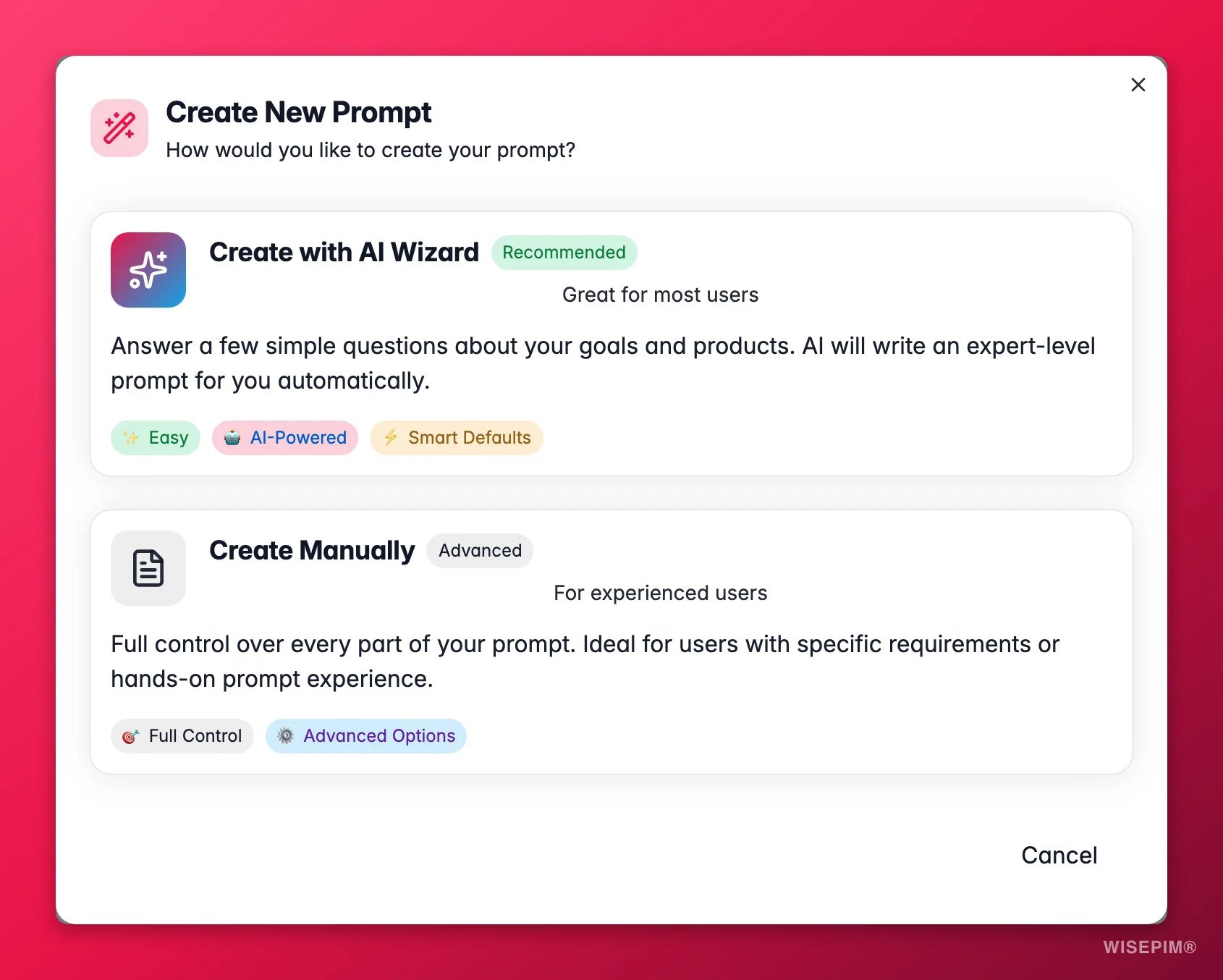
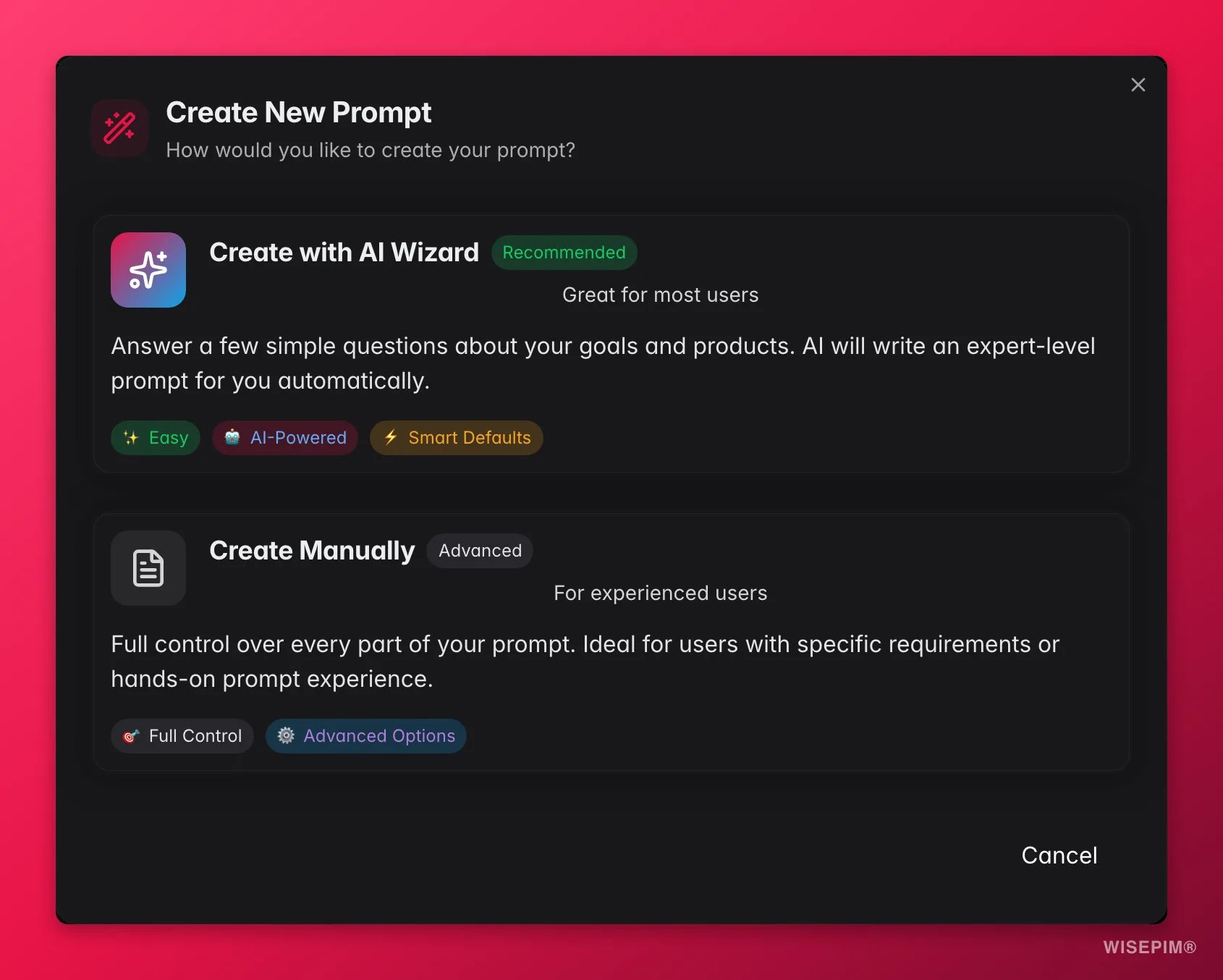
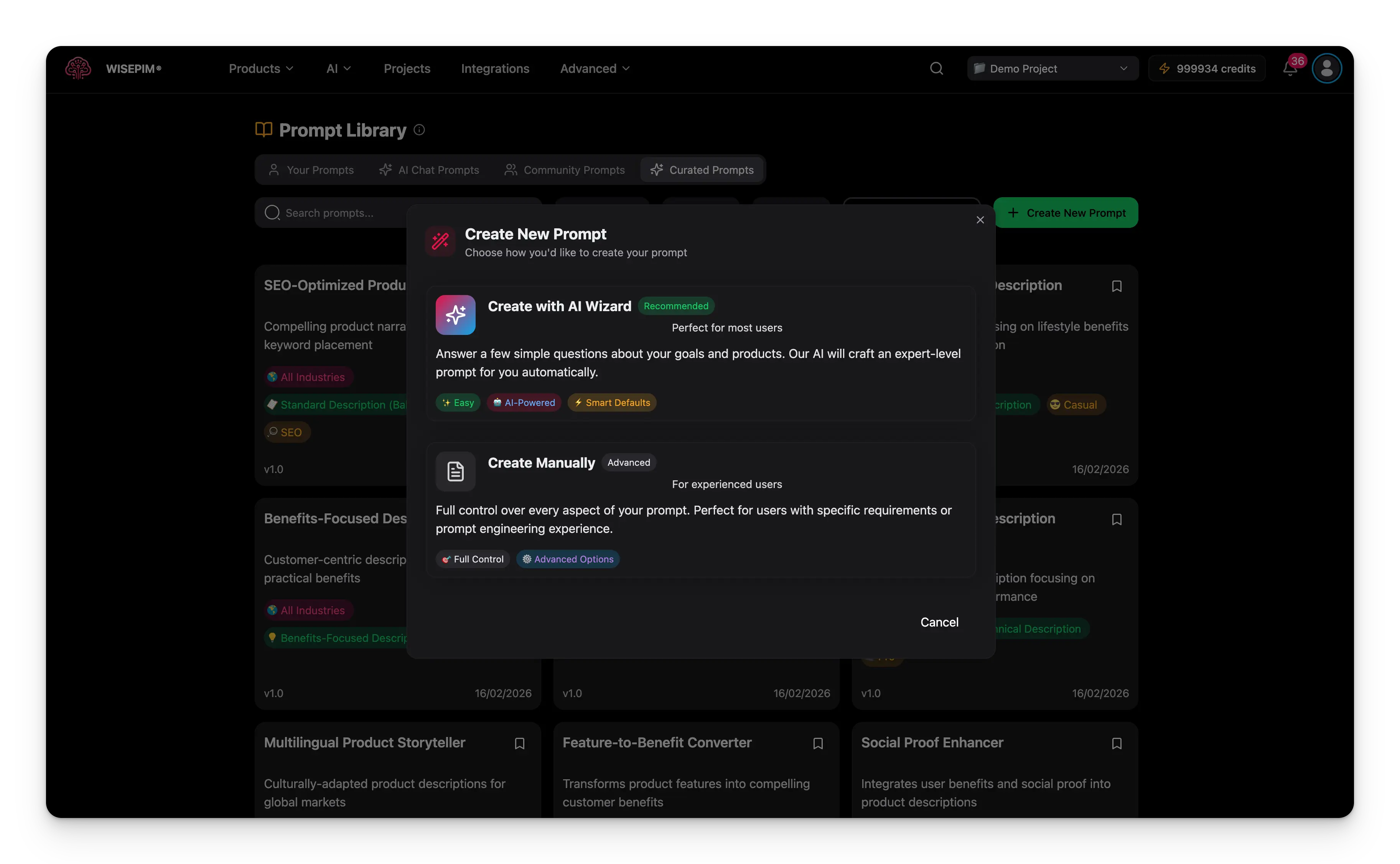 Need a head start? Use the **AI Prompt Wizard** to generate a prompt for you, then refine it.
 ### Edit a prompt
Click the edit icon on any of your prompts to change its title, description, text, or categories. Save the changes instantly. Edit a prompt when you want to improve its results, adapt it for new products, or refine its language.
Version numbers increment automatically with each update, and the last-updated date is tracked for you. For a major change, create a new prompt instead of overwriting, so you keep the working version as a backup.
### Set a prompt as default
When a prompt becomes your go-to for a content type, make it the default. Choose **Set as default** on the prompt card in the library, or open the prompt and use the same option in the view modal.
The default prompt is preselected every time you open the enrich modal for that field, and it is the prompt [Auto-Fill](/en/ai/auto-fill) uses when it fills gaps on its own. One click here saves a click on every enrichment run afterwards.
**Set as default** and the dropdowns in [Settings → Enrich Prompts](/en/settings/enrich-defaults) are the **same setting**: one default per enrichment type, stored on the project. Changing it in either place updates the other, and the most recent change wins - there is no precedence between them. Use whichever is closer to hand: the library when you've just written a prompt, the settings page when you want to review all five types at once.
### Choose how long descriptions should be
Description prompts have a **target size**, so you can reuse the same prompt and still get copy that fits the channel you are writing for.
| Target size | Roughly |
| ----------------- | ------------------------------------------------------------- |
| **Auto** | WISEPIM picks a suitable length for the product. The default. |
| **Compact** | 80 words |
| **Standard** | 150 words |
| **Detailed** | 300 words |
| **Comprehensive** | 500 words |
| **Custom** | A word count you set yourself |
Use **Compact** for marketplace listings with tight character limits, and **Detailed** or **Comprehensive** for your own storefront, where longer copy helps both shoppers and search engines.
## Reuse community and curated prompts
You don't have to write every prompt yourself. Copy a good one into your own collection and adapt it.
1. Browse and find a useful prompt.
2. Click the copy icon to **Duplicate** it into your collection.
3. Edit the copy to match your brand and products.
4. Test and refine it in the [Prompt Lab](/en/essentials/prompt-lab).
1. Browse the curated collection.
2. Click the bookmark icon to **Save to Your Prompts**.
3. The prompt is added to your personal collection.
4. Customize it to fit your needs.
When you reuse a prompt, study its structure. Note how the instructions are organized and how variables are used, then apply those techniques to your own prompts.
### Edit a prompt
Click the edit icon on any of your prompts to change its title, description, text, or categories. Save the changes instantly. Edit a prompt when you want to improve its results, adapt it for new products, or refine its language.
Version numbers increment automatically with each update, and the last-updated date is tracked for you. For a major change, create a new prompt instead of overwriting, so you keep the working version as a backup.
### Set a prompt as default
When a prompt becomes your go-to for a content type, make it the default. Choose **Set as default** on the prompt card in the library, or open the prompt and use the same option in the view modal.
The default prompt is preselected every time you open the enrich modal for that field, and it is the prompt [Auto-Fill](/en/ai/auto-fill) uses when it fills gaps on its own. One click here saves a click on every enrichment run afterwards.
**Set as default** and the dropdowns in [Settings → Enrich Prompts](/en/settings/enrich-defaults) are the **same setting**: one default per enrichment type, stored on the project. Changing it in either place updates the other, and the most recent change wins - there is no precedence between them. Use whichever is closer to hand: the library when you've just written a prompt, the settings page when you want to review all five types at once.
### Choose how long descriptions should be
Description prompts have a **target size**, so you can reuse the same prompt and still get copy that fits the channel you are writing for.
| Target size | Roughly |
| ----------------- | ------------------------------------------------------------- |
| **Auto** | WISEPIM picks a suitable length for the product. The default. |
| **Compact** | 80 words |
| **Standard** | 150 words |
| **Detailed** | 300 words |
| **Comprehensive** | 500 words |
| **Custom** | A word count you set yourself |
Use **Compact** for marketplace listings with tight character limits, and **Detailed** or **Comprehensive** for your own storefront, where longer copy helps both shoppers and search engines.
## Reuse community and curated prompts
You don't have to write every prompt yourself. Copy a good one into your own collection and adapt it.
1. Browse and find a useful prompt.
2. Click the copy icon to **Duplicate** it into your collection.
3. Edit the copy to match your brand and products.
4. Test and refine it in the [Prompt Lab](/en/essentials/prompt-lab).
1. Browse the curated collection.
2. Click the bookmark icon to **Save to Your Prompts**.
3. The prompt is added to your personal collection.
4. Customize it to fit your needs.
When you reuse a prompt, study its structure. Note how the instructions are organized and how variables are used, then apply those techniques to your own prompts.
 ## Use variables inside a prompt
[Content Logic](/en/workflows/content-logic) variables work inside the prompt text itself. Write `{{product.name}}`, `{{brand.tagline}}`, or `{{category.target_audience}}` in the prompt body and each variable is replaced with that product's own value before the prompt reaches the AI.
```
Write a description for {{product.name}} by {{product.brand}}.
Brand voice: {{brand.tagline}}. Target audience: {{category.target_audience}}.
```
One prompt then behaves differently for every product, so you get unique, on-brand copy instead of the same template with the name swapped. Update a brand or category variable once and every prompt that uses it follows.
## Keep your library organized
A tidy library is faster to search. A few habits keep it that way:
* **Name clearly.** Use descriptive names like "Electronics SEO Description v2" or "Fashion Marketing Copy".
* **Categorize consistently.** Group by industry or content type, and tag with relevant keywords.
* **Review regularly.** Archive or delete prompts that no longer perform, and test the rest against new products.
Press `C` to create a new prompt when you're not typing in a field.
## Troubleshooting
Use more specific search terms, try different filter combinations, and browse the community and curated collections for inspiration.
Customize it for your product types and adjust the industry and purpose settings. Test it on a few different products in the Prompt Lab to find what needs changing.
Use the same prompt across similar products, complete your [Knowledge Library](/en/other-features/knowledge-library), and make sure the prompt instructions are specific enough.
Apply consistent naming and categories, and archive or delete prompts you no longer use.
## Related
Build and test prompts on a real product before you save them.
Apply your saved prompts to products in bulk.
Give the AI your brand voice for on-brand results.
Generate and refine content in a conversation.
## Use variables inside a prompt
[Content Logic](/en/workflows/content-logic) variables work inside the prompt text itself. Write `{{product.name}}`, `{{brand.tagline}}`, or `{{category.target_audience}}` in the prompt body and each variable is replaced with that product's own value before the prompt reaches the AI.
```
Write a description for {{product.name}} by {{product.brand}}.
Brand voice: {{brand.tagline}}. Target audience: {{category.target_audience}}.
```
One prompt then behaves differently for every product, so you get unique, on-brand copy instead of the same template with the name swapped. Update a brand or category variable once and every prompt that uses it follows.
## Keep your library organized
A tidy library is faster to search. A few habits keep it that way:
* **Name clearly.** Use descriptive names like "Electronics SEO Description v2" or "Fashion Marketing Copy".
* **Categorize consistently.** Group by industry or content type, and tag with relevant keywords.
* **Review regularly.** Archive or delete prompts that no longer perform, and test the rest against new products.
Press `C` to create a new prompt when you're not typing in a field.
## Troubleshooting
Use more specific search terms, try different filter combinations, and browse the community and curated collections for inspiration.
Customize it for your product types and adjust the industry and purpose settings. Test it on a few different products in the Prompt Lab to find what needs changing.
Use the same prompt across similar products, complete your [Knowledge Library](/en/other-features/knowledge-library), and make sure the prompt instructions are specific enough.
Apply consistent naming and categories, and archive or delete prompts you no longer use.
## Related
Build and test prompts on a real product before you save them.
Apply your saved prompts to products in bulk.
Give the AI your brand voice for on-brand results.
Generate and refine content in a conversation.