> ## Documentation Index
> Fetch the complete documentation index at: https://docs.wisepim.com/llms.txt
> Use this file to discover all available pages before exploring further.
# Managing Your Products
> Search, filter, bulk edit, and manage your entire product catalog from one central dashboard. Master the WISEPIM product page for faster daily workflows.
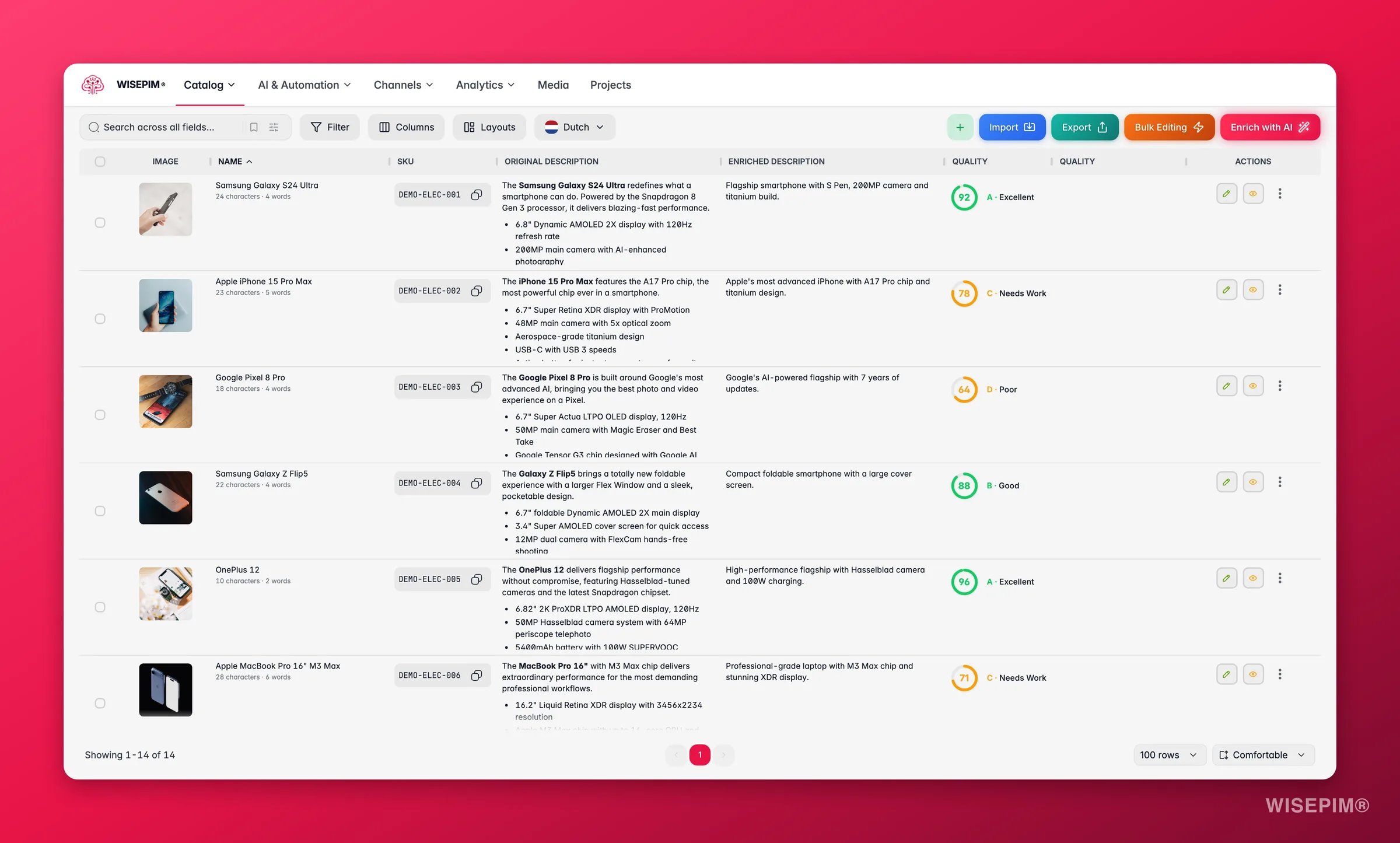
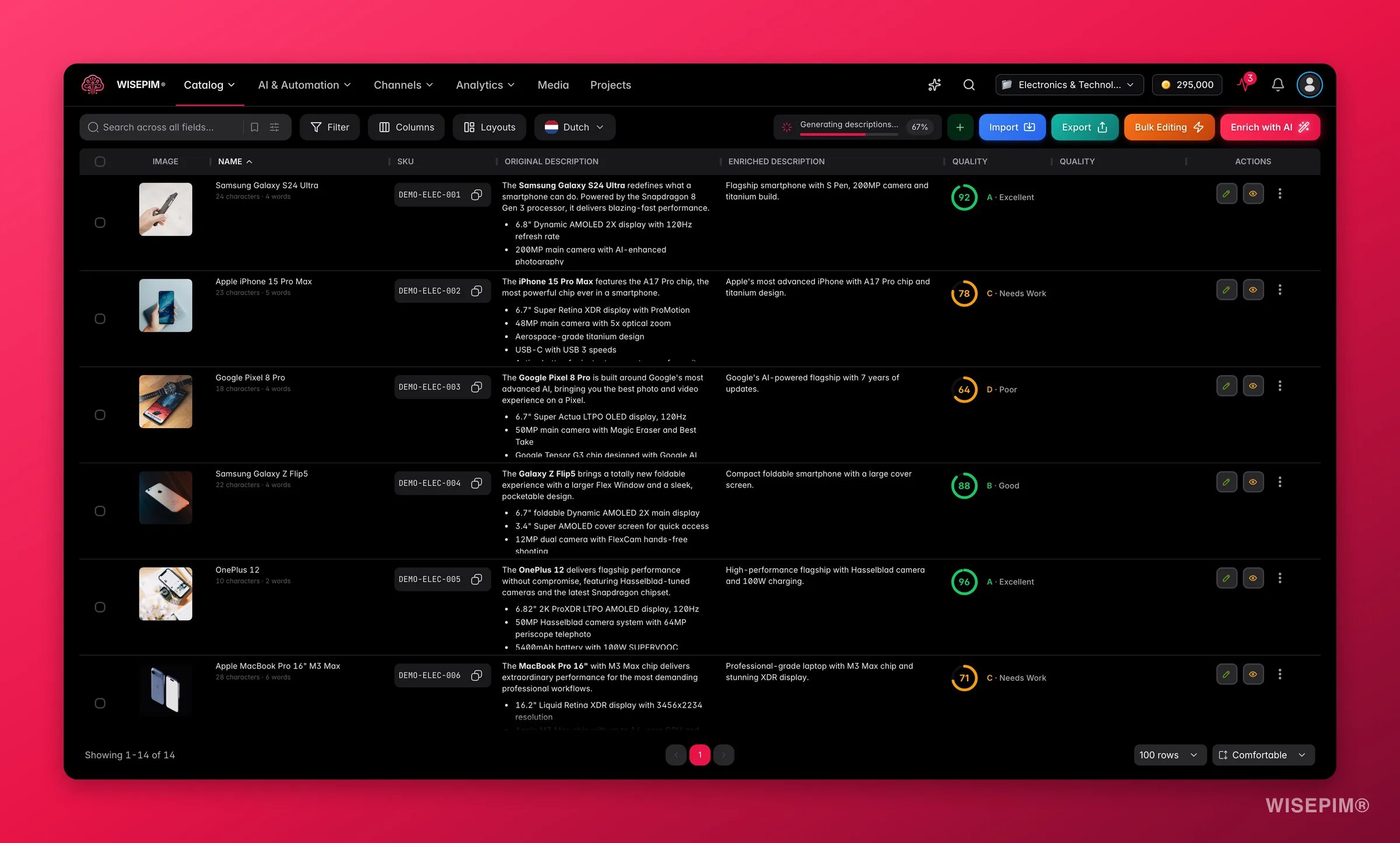 The Products page is your command center for the whole catalog. From here you can search, filter, edit, enrich, import, and export, all without leaving the page.
Your view preferences (columns, filters, sorting, page size) save automatically. Your workspace stays exactly how you left it.
## Page layout
The Products page has three zones:
| Zone | Location | What it does |
| -------------------------- | --------- | ------------------------------------------------------------------------------------------------- |
| **Display controls** | Top left | Controls *what* you see: search, filters, columns, layouts, language |
| **Actions** | Top right | Acts on products: create, import, export, bulk edit, enrich (translation is a mode inside Enrich) |
| **Selection & pagination** | Bottom | Select products, move between pages, set rows per page and row height |
## Display controls
The Products page is your command center for the whole catalog. From here you can search, filter, edit, enrich, import, and export, all without leaving the page.
Your view preferences (columns, filters, sorting, page size) save automatically. Your workspace stays exactly how you left it.
## Page layout
The Products page has three zones:
| Zone | Location | What it does |
| -------------------------- | --------- | ------------------------------------------------------------------------------------------------- |
| **Display controls** | Top left | Controls *what* you see: search, filters, columns, layouts, language |
| **Actions** | Top right | Acts on products: create, import, export, bulk edit, enrich (translation is a mode inside Enrich) |
| **Selection & pagination** | Bottom | Select products, move between pages, set rows per page and row height |
## Display controls
 The left side of the toolbar controls how your product data is displayed.
Find products instantly with search, or build advanced filters with 40+ fields and save them as presets.
Choose which columns to show, reorder them, and save layout templates for different workflows.
If your project has multiple locales configured, a **language selector** also appears in the toolbar to switch which language's content is displayed.
### Choose which fields you search
By default the search box looks across all fields. If that returns too much noise, click **Search in** next to the search box and pick the fields you want. Fields are grouped into **Identifiers**, **Content**, **Metadata**, **Commercial**, and **Other**. Use **Select all** to search everything again, or **Only** on a single field to narrow the search to just that one. The placeholder text updates to show what you are currently searching.
Two extra options sit in the same popover:
| Option | What it does |
| --------------------- | --------------------------------------------------------------------------------------------------------- |
| **Fuzzy matching** | Matches similar terms, not just exact matches. Handy when you are not sure how a name is spelled. |
| **Collapse variants** | Groups variant matches under their parent product, so one product family takes one row instead of twenty. |
SKU and EAN are matched exactly, because a partial match on an identifier is almost never what you want. The text fields (name, brand, supplier, description, meta title, meta description) match on parts of words, and fuzzy matching loosens them further.
### Saved searches
Found a view you keep coming back to? Click **Saved** in the toolbar and save it. A saved search stores your filters *and* the text in the search box, so it recreates the exact list you were looking at. Give it a name, and it appears in the **Saved searches** popover for one-click access. Delete one from the same popover.
Saved searches and saved filter sets are stored on the server, not in your browser. They follow you to any device you sign in on, so the view you built on your laptop is waiting for you on your desktop.
## Actions
The left side of the toolbar controls how your product data is displayed.
Find products instantly with search, or build advanced filters with 40+ fields and save them as presets.
Choose which columns to show, reorder them, and save layout templates for different workflows.
If your project has multiple locales configured, a **language selector** also appears in the toolbar to switch which language's content is displayed.
### Choose which fields you search
By default the search box looks across all fields. If that returns too much noise, click **Search in** next to the search box and pick the fields you want. Fields are grouped into **Identifiers**, **Content**, **Metadata**, **Commercial**, and **Other**. Use **Select all** to search everything again, or **Only** on a single field to narrow the search to just that one. The placeholder text updates to show what you are currently searching.
Two extra options sit in the same popover:
| Option | What it does |
| --------------------- | --------------------------------------------------------------------------------------------------------- |
| **Fuzzy matching** | Matches similar terms, not just exact matches. Handy when you are not sure how a name is spelled. |
| **Collapse variants** | Groups variant matches under their parent product, so one product family takes one row instead of twenty. |
SKU and EAN are matched exactly, because a partial match on an identifier is almost never what you want. The text fields (name, brand, supplier, description, meta title, meta description) match on parts of words, and fuzzy matching loosens them further.
### Saved searches
Found a view you keep coming back to? Click **Saved** in the toolbar and save it. A saved search stores your filters *and* the text in the search box, so it recreates the exact list you were looking at. Give it a name, and it appears in the **Saved searches** popover for one-click access. Delete one from the same popover.
Saved searches and saved filter sets are stored on the server, not in your browser. They follow you to any device you sign in on, so the view you built on your laptop is waiting for you on your desktop.
## Actions
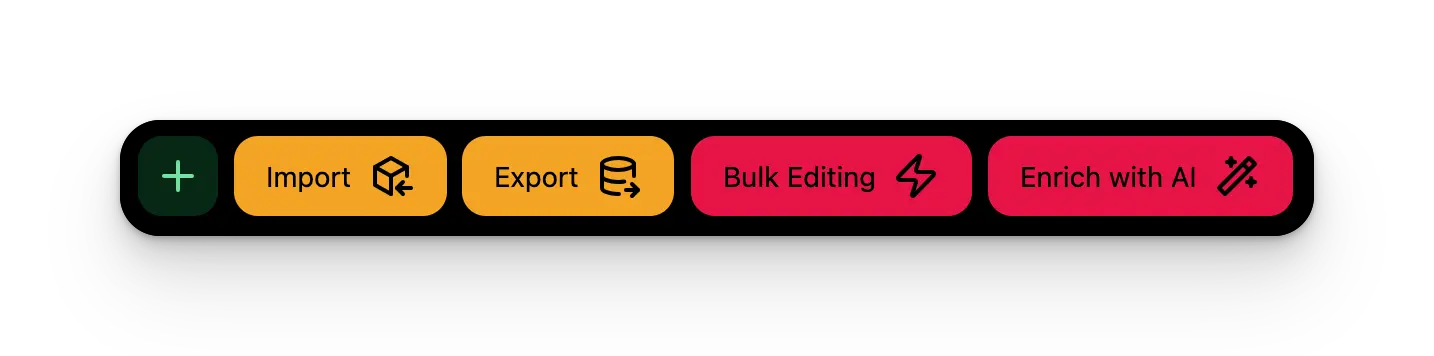 The right side of the toolbar is where you take action on your products.
Add new products manually with smart defaults and template-driven fields.
Bring products in from Excel, CSV, Shopify, WooCommerce, Magento, and more.
Push your product data to connected platforms or download as a file.
Make changes to hundreds of products at once: prices, categories, text, and more.
Improve product descriptions, titles, and SEO fields using AI prompts. Translation is built in as one of the enrich modes.
There is no separate Translate button in the toolbar. To translate products, open **Enrich** and pick the translation mode. See [Translating products](/en/products/translating-products) for the full walkthrough.
Enrichment results now land in the table live. When a product finishes, its new content appears in the row on its own. No refresh, no reloading the page.
## Working with products
### Selecting products
Click the checkbox next to any product to select it. You can also:
* **Select all on the current page** using the header checkbox
* **Select all products across all pages** using the banner that appears after selecting the current page
The right side of the toolbar is where you take action on your products.
Add new products manually with smart defaults and template-driven fields.
Bring products in from Excel, CSV, Shopify, WooCommerce, Magento, and more.
Push your product data to connected platforms or download as a file.
Make changes to hundreds of products at once: prices, categories, text, and more.
Improve product descriptions, titles, and SEO fields using AI prompts. Translation is built in as one of the enrich modes.
There is no separate Translate button in the toolbar. To translate products, open **Enrich** and pick the translation mode. See [Translating products](/en/products/translating-products) for the full walkthrough.
Enrichment results now land in the table live. When a product finishes, its new content appears in the row on its own. No refresh, no reloading the page.
## Working with products
### Selecting products
Click the checkbox next to any product to select it. You can also:
* **Select all on the current page** using the header checkbox
* **Select all products across all pages** using the banner that appears after selecting the current page
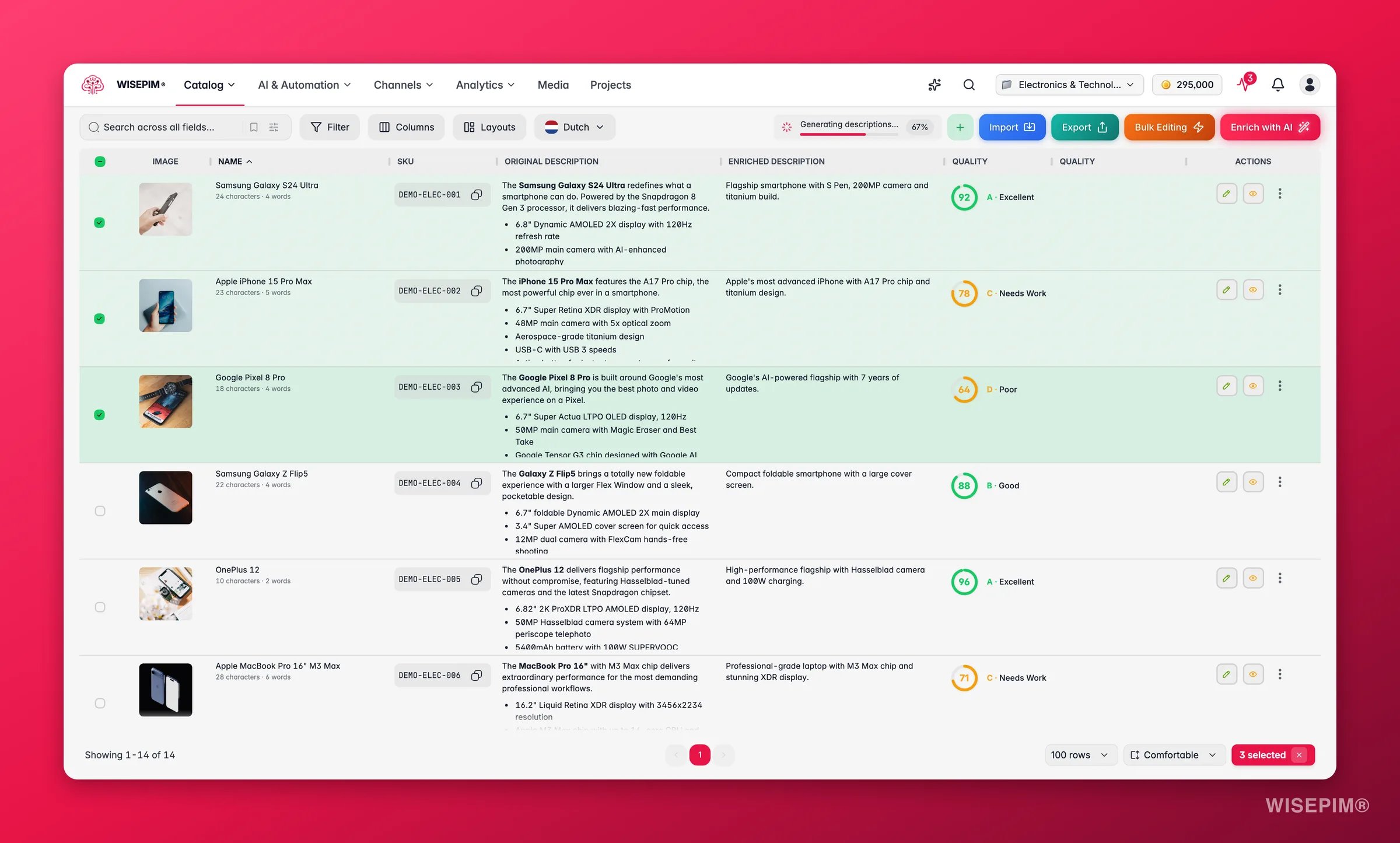
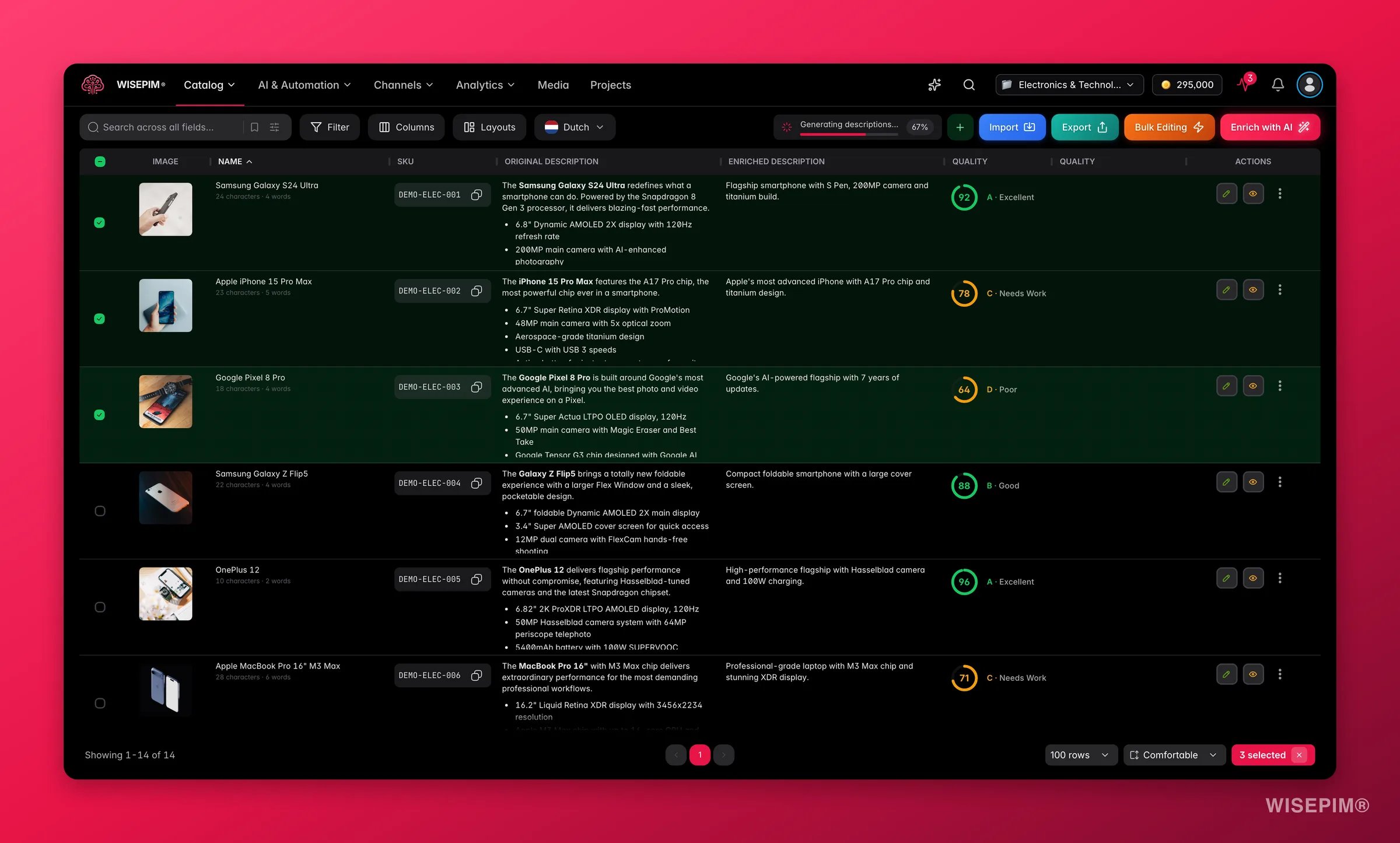 Selecting everything across all pages acts on every product that matches your current filters, not just the rows you can see.
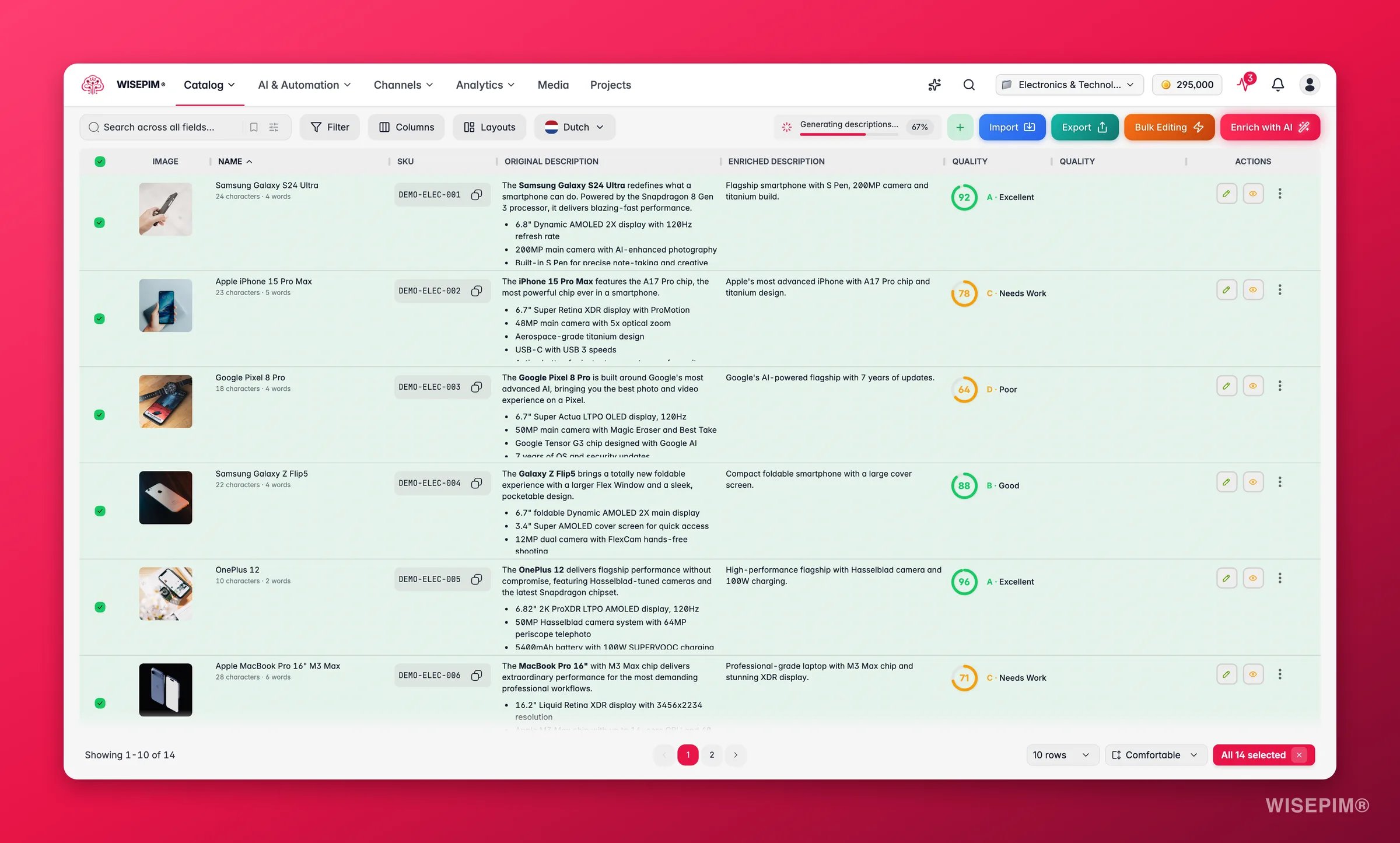
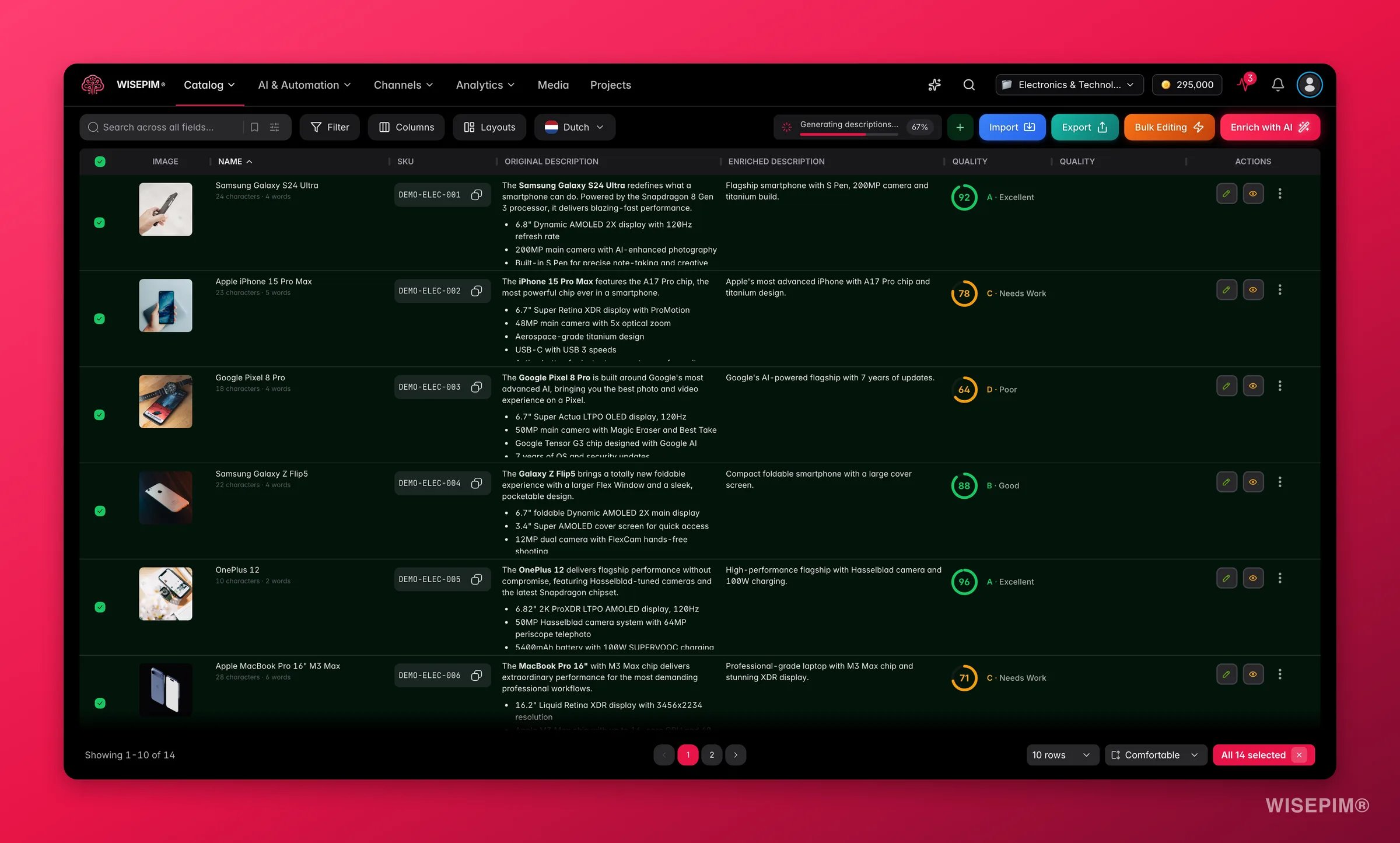 The selection counter at the bottom right shows how many products are selected. Once you have a selection, the bulk action buttons in the toolbar become active.
### Previewing and editing
Each product row has action buttons on the right:
* **Eye icon**: opens a read-only [preview](/en/products/editing-products) with product details and navigation to adjacent products
* **Pencil icon**: opens the [quick edit modal](/en/products/editing-products) for the most-used fields, without leaving your product list
* **⋮ (three-dots) menu**: opens the row action menu (see below)
To open the **full [product editor](/en/products/editing-products)** with a tab for every field, use the ⋮ menu and choose **Edit**. There's no separate "click the name" shortcut.
Quick edit does not auto-save. Make your changes, then click **Save Changes**. Once saved, your updates are visible to other team members in real-time.
### Row action menu
The **⋮ (three-dots)** menu on each row holds the per-product actions:
| Action | What it does |
| ------------------------------ | --------------------------------------------------------------------------------------------------------- |
| **Mark Reviewed / Unreviewed** | Flips the product's review status in one click |
| **Edit** | Opens the full [product editor](/en/products/editing-products) |
| **Test prompt** | Opens [Prompt Lab](/en/essentials/prompt-lab) with this product loaded, so you can try an AI prompt on it |
| **Delete** | Removes the product (with confirmation) |
If your project uses a multi-stage product lifecycle, the **Mark Reviewed / Unreviewed** toggle is replaced by a stage selector so you can move the product through your custom stages instead.
### Reviewing products
The **Reviewed** flag marks a product as checked and ready. It's more than a label: review status can **gate exports**, so unreviewed products can be held back until someone has signed off. That makes "Reviewed" a useful filter for finding work that still needs attention, and a safe gate before you push data to a live store.
Change a product's review status from the **⋮ menu** (Mark Reviewed/Unreviewed), the preview modal, or quick edit. You can also update it in bulk via [Bulk Edit > Update Status](/en/essentials/bulk-editing/update-status).
The review status chip is display-only, you can't click it to toggle. The review/status column also isn't shown by default; add it from [Customize Your View](/en/products/customizing-views) if you want it in the table.
### Quality score
The **Quality Score** column gives each product an at-a-glance grade for how complete and well-optimized its data is (descriptions, images, attributes, SEO, and more). Sort by it to surface your weakest products first, then fix them with quick edit or [AI enrichment](/en/essentials/enriching-products). A rising quality score means cleaner listings and better-performing product pages.
## Operation history
Bulk changes are fast, which also means a wrong one lands fast. **Operation history** is your safety net: it lists your recent bulk changes and lets you undo any of them in one click.
Open the [Command Menu](/en/essentials/command-menu) with `⌘K` (or `Ctrl+K`) and search for **History**.
Operation history currently lives in the Command Menu only. There is no toolbar button for it.
Each entry shows how many products it touched, when it ran, and who ran it, plus a chip for what kind of change it was:
| Kind | What it covers |
| ----------------- | --------------------------------------------------------------------- |
| **Bulk action** | A change made from [Bulk Edit](/en/essentials/bulk-editing) |
| **AI enrichment** | Content written by [AI enrichment](/en/essentials/enriching-products) |
| **Import** | Products created or updated by an import |
| **Single edit** | A change you made to one product |
From any entry you can:
* **View changes** to see a field-level diff of exactly what changed, old value next to new value
* **Undo** to roll the whole operation back
* **Redo** to put it back if you undid it by mistake
An entry you have rolled back is marked **Undone**, so the list always tells you the current state.
An operation can only be undone as a group while the products are untouched. If some of those products changed after the operation ran, WISEPIM tells you how many diverged and blocks the group undo, rather than quietly overwriting newer work.
Operation history and undo are a paid-plan feature. On the free plan you can see the entry point but not roll changes back.
## Workflow examples
### Review new imports
1. [Filter](/en/products/filtering-products) by **Status = Unreviewed**
2. Use the preview (eye icon) to browse through products
3. [Enrich](/en/essentials/enriching-products) products that need better descriptions
4. Mark products as **Reviewed** when done
### Prepare for a new market
1. [Filter](/en/products/filtering-products) by **Translation status = Not translated**
2. Select all matching products
3. [Translate](/en/products/translating-products) into your target languages
4. Review translations using the Language Comparison view
### Seasonal price update
1. [Filter](/en/products/filtering-products) by category (e.g., "Summer Collection")
2. Select all matching products
3. [Bulk Edit > Change Price](/en/essentials/bulk-editing/change-price) to apply a percentage discount
4. [Export](/en/essentials/exporting-products) the updated products to your webshop
### Clean up imported data
1. [Filter](/en/products/filtering-products) for products with empty descriptions
2. Run [AI Enrichment](/en/essentials/enriching-products) on the selection
3. [Bulk Edit > Trim Whitespace](/en/essentials/bulk-editing/trim-whitespace) to clean up formatting
4. [Bulk Edit > Standardize Case](/en/essentials/bulk-editing/standardize-case) on product names
If you repeat the same steps often, you can probably automate them. See [Automations](/en/automations/overview) to build workflows that run on their own.
## Related
Build advanced filters and save them as presets for daily work.
Open a product and edit every field in the full editor.
Change prices, text, and categories across hundreds of products at once.
Search, select, and run product actions with your keyboard.
The selection counter at the bottom right shows how many products are selected. Once you have a selection, the bulk action buttons in the toolbar become active.
### Previewing and editing
Each product row has action buttons on the right:
* **Eye icon**: opens a read-only [preview](/en/products/editing-products) with product details and navigation to adjacent products
* **Pencil icon**: opens the [quick edit modal](/en/products/editing-products) for the most-used fields, without leaving your product list
* **⋮ (three-dots) menu**: opens the row action menu (see below)
To open the **full [product editor](/en/products/editing-products)** with a tab for every field, use the ⋮ menu and choose **Edit**. There's no separate "click the name" shortcut.
Quick edit does not auto-save. Make your changes, then click **Save Changes**. Once saved, your updates are visible to other team members in real-time.
### Row action menu
The **⋮ (three-dots)** menu on each row holds the per-product actions:
| Action | What it does |
| ------------------------------ | --------------------------------------------------------------------------------------------------------- |
| **Mark Reviewed / Unreviewed** | Flips the product's review status in one click |
| **Edit** | Opens the full [product editor](/en/products/editing-products) |
| **Test prompt** | Opens [Prompt Lab](/en/essentials/prompt-lab) with this product loaded, so you can try an AI prompt on it |
| **Delete** | Removes the product (with confirmation) |
If your project uses a multi-stage product lifecycle, the **Mark Reviewed / Unreviewed** toggle is replaced by a stage selector so you can move the product through your custom stages instead.
### Reviewing products
The **Reviewed** flag marks a product as checked and ready. It's more than a label: review status can **gate exports**, so unreviewed products can be held back until someone has signed off. That makes "Reviewed" a useful filter for finding work that still needs attention, and a safe gate before you push data to a live store.
Change a product's review status from the **⋮ menu** (Mark Reviewed/Unreviewed), the preview modal, or quick edit. You can also update it in bulk via [Bulk Edit > Update Status](/en/essentials/bulk-editing/update-status).
The review status chip is display-only, you can't click it to toggle. The review/status column also isn't shown by default; add it from [Customize Your View](/en/products/customizing-views) if you want it in the table.
### Quality score
The **Quality Score** column gives each product an at-a-glance grade for how complete and well-optimized its data is (descriptions, images, attributes, SEO, and more). Sort by it to surface your weakest products first, then fix them with quick edit or [AI enrichment](/en/essentials/enriching-products). A rising quality score means cleaner listings and better-performing product pages.
## Operation history
Bulk changes are fast, which also means a wrong one lands fast. **Operation history** is your safety net: it lists your recent bulk changes and lets you undo any of them in one click.
Open the [Command Menu](/en/essentials/command-menu) with `⌘K` (or `Ctrl+K`) and search for **History**.
Operation history currently lives in the Command Menu only. There is no toolbar button for it.
Each entry shows how many products it touched, when it ran, and who ran it, plus a chip for what kind of change it was:
| Kind | What it covers |
| ----------------- | --------------------------------------------------------------------- |
| **Bulk action** | A change made from [Bulk Edit](/en/essentials/bulk-editing) |
| **AI enrichment** | Content written by [AI enrichment](/en/essentials/enriching-products) |
| **Import** | Products created or updated by an import |
| **Single edit** | A change you made to one product |
From any entry you can:
* **View changes** to see a field-level diff of exactly what changed, old value next to new value
* **Undo** to roll the whole operation back
* **Redo** to put it back if you undid it by mistake
An entry you have rolled back is marked **Undone**, so the list always tells you the current state.
An operation can only be undone as a group while the products are untouched. If some of those products changed after the operation ran, WISEPIM tells you how many diverged and blocks the group undo, rather than quietly overwriting newer work.
Operation history and undo are a paid-plan feature. On the free plan you can see the entry point but not roll changes back.
## Workflow examples
### Review new imports
1. [Filter](/en/products/filtering-products) by **Status = Unreviewed**
2. Use the preview (eye icon) to browse through products
3. [Enrich](/en/essentials/enriching-products) products that need better descriptions
4. Mark products as **Reviewed** when done
### Prepare for a new market
1. [Filter](/en/products/filtering-products) by **Translation status = Not translated**
2. Select all matching products
3. [Translate](/en/products/translating-products) into your target languages
4. Review translations using the Language Comparison view
### Seasonal price update
1. [Filter](/en/products/filtering-products) by category (e.g., "Summer Collection")
2. Select all matching products
3. [Bulk Edit > Change Price](/en/essentials/bulk-editing/change-price) to apply a percentage discount
4. [Export](/en/essentials/exporting-products) the updated products to your webshop
### Clean up imported data
1. [Filter](/en/products/filtering-products) for products with empty descriptions
2. Run [AI Enrichment](/en/essentials/enriching-products) on the selection
3. [Bulk Edit > Trim Whitespace](/en/essentials/bulk-editing/trim-whitespace) to clean up formatting
4. [Bulk Edit > Standardize Case](/en/essentials/bulk-editing/standardize-case) on product names
If you repeat the same steps often, you can probably automate them. See [Automations](/en/automations/overview) to build workflows that run on their own.
## Related
Build advanced filters and save them as presets for daily work.
Open a product and edit every field in the full editor.
Change prices, text, and categories across hundreds of products at once.
Search, select, and run product actions with your keyboard.