> ## Documentation Index
> Fetch the complete documentation index at: https://docs.wisepim.com/llms.txt
> Use this file to discover all available pages before exploring further.
# Group as Variants
> Attach many products to one parent product as its variants. Turn a flat list of sizes and colors into a single configurable product in one action.
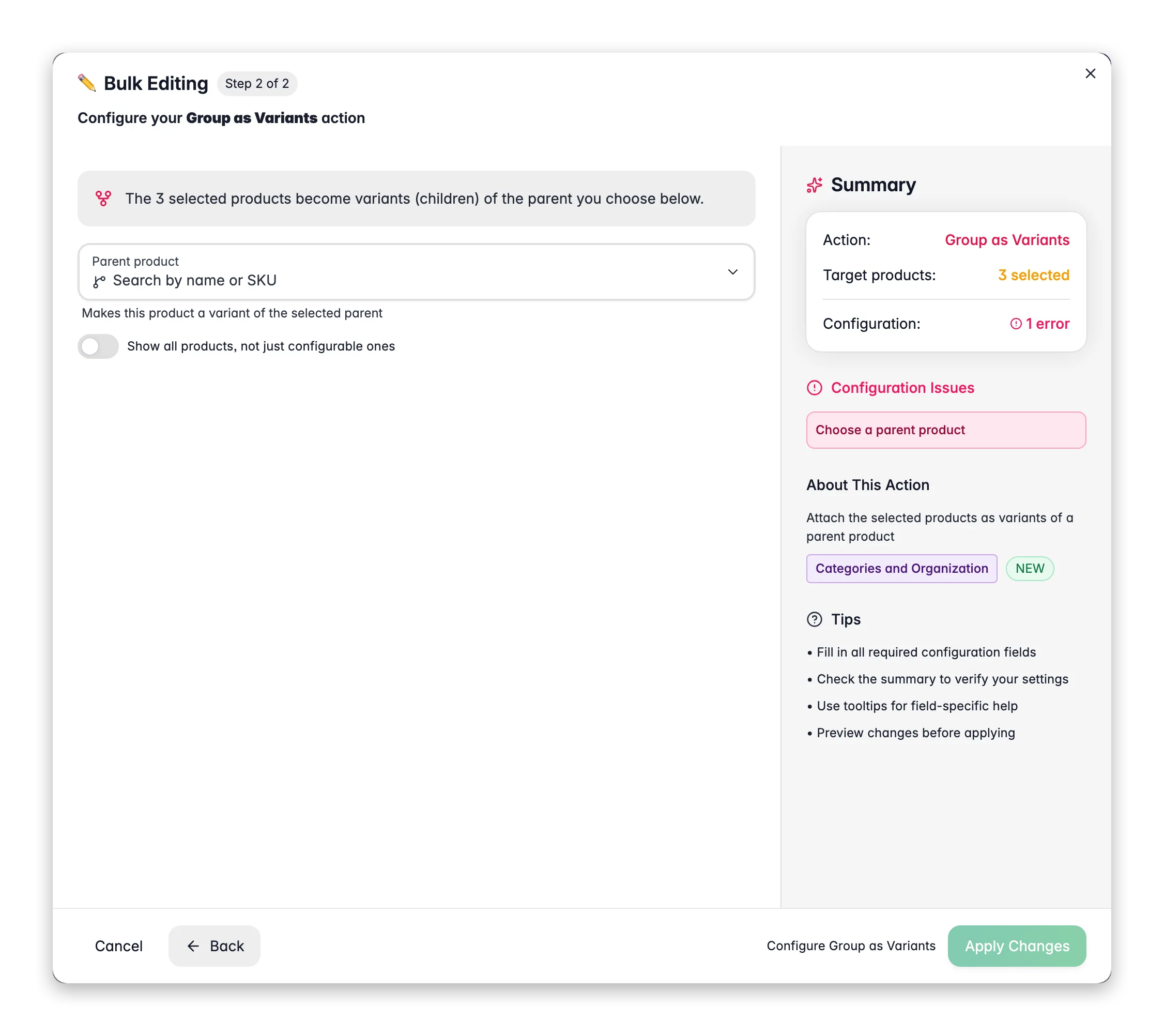
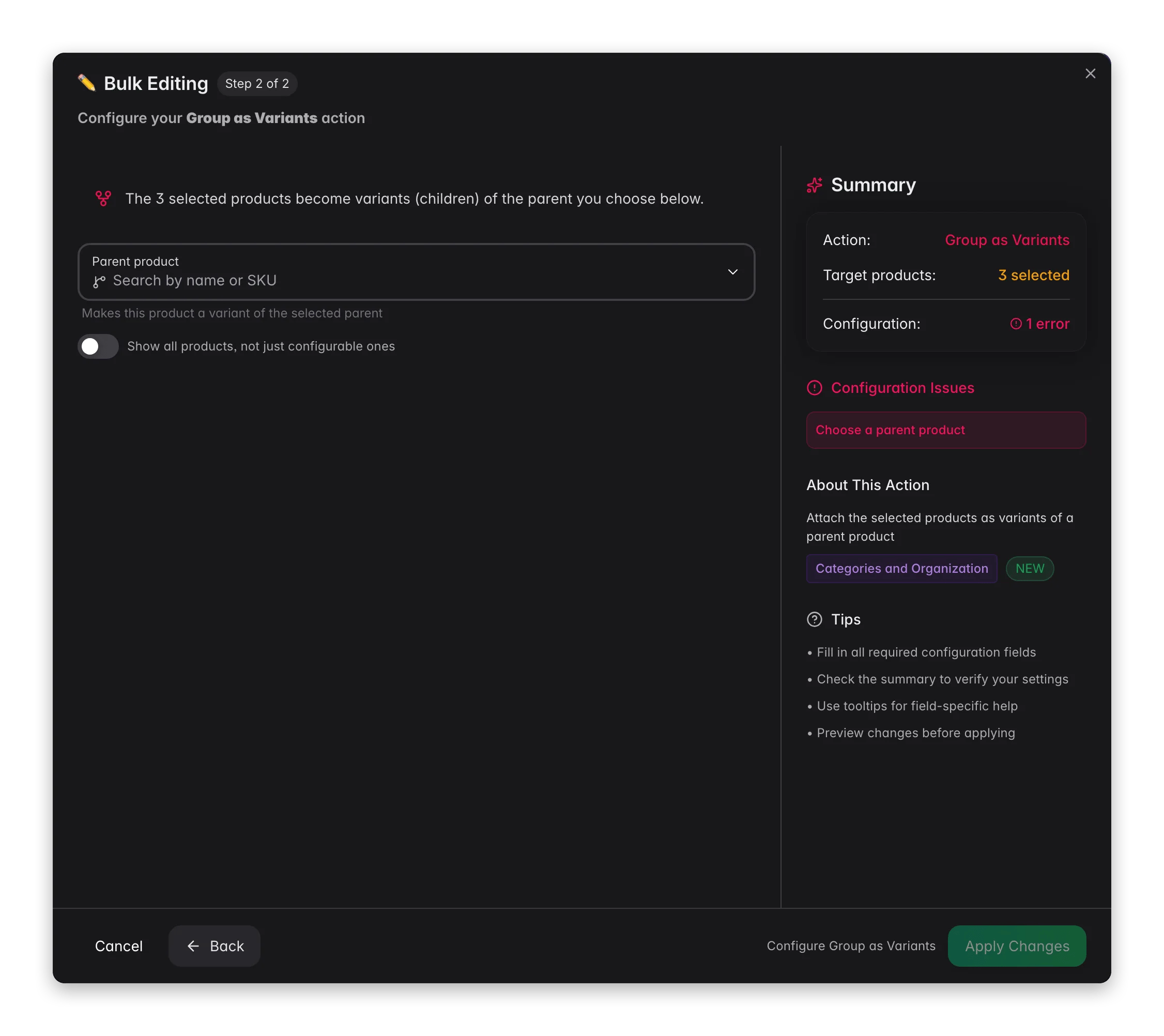 Imports often arrive flat: every size and every color is its own separate product. **Group as Variants** fixes that. Select the products that belong together, pick the parent they belong to, and WISEPIM attaches them all as variants of that parent.
The result is one configurable product with its variants underneath, instead of twenty look-alike rows. Shoppers get a single product page with a size or color picker, and your channels get a clean, correctly structured listing.
## Group products as variants
Check the individual products that should become variants. Leave the parent out of the selection - you pick it in the next step, and a selected product can't be its own parent.
Click **Bulk Editing**, then pick the **Group as Variants** card (under Categories & Organization).
The **Parent product** search shows configurable products by default. Turn on **Show all products, not just configurable ones** to pick a simple product instead - WISEPIM warns you that saving will convert it to a configurable (parent) product.
Click **Apply Changes**. The selected products become variants of the parent, and a toast confirms how many were grouped.
This action works on a **page selection only** - it is deliberately not available when you select all products across all pages. Grouping every filtered product under one parent is rarely intended, so WISEPIM blocks it rather than letting a stray filter create a 2,000-variant product.
You can attach up to **500 products** in one run. If your selection is larger, split it into batches and run the action more than once.
## The parent must be configurable
Only a configurable product can have variants. If the parent you pick is a simple product, WISEPIM converts it to a configurable product as part of the action - the amber warning in the modal tells you before you apply.
Some products can never be a parent, and the action fails with a clear error instead of guessing:
| Rejected as parent | Why |
| ----------------------------------- | ----------------------------------------------------------------- |
| A product that is already a variant | Variants cannot be nested. Pick the top-level parent instead. |
| A bundle or grouped product | These group products for sale, which is a different relationship. |
| A virtual product | Virtual products do not carry a variant structure. |
Products **in your selection** are handled more gently: anything that can't become a variant - a configurable product, or a product that already has variants of its own - is silently skipped, and the toast reports how many were skipped. The rest of the selection still goes through.
## When to use it
* **After a flat import.** A supplier file with one row per size becomes one configurable product per style. (The [CSV importer](/en/essentials/importing-products) can also detect and link variants during the import itself.)
* **Cleaning up duplicates.** Products that look like the same item varying by one attribute are usually variants, not separate products.
* **Preparing for a marketplace.** Channels expect variants under a parent. Grouping them first avoids rejected listings.
Set up a [product family](/en/products/product-families) with a variant axis (size, color) before you group. The family tells WISEPIM which attribute makes each variant different, so the variant picker on your storefront comes out right.
To attach a **single** product, use the **Parent product** field on its Basic Info tab (in the [full editor](/en/products/editing-products) or Quick Edit) - that field appears on simple and virtual products. There is no bulk *un*-group action: detach variants one at a time by clearing that field, or from the parent's Relationships tab.
## Related
Define the attributes and variant axes that structure your products.
Link variants, bundles, and related products on a single product.
Find parents and variants with the Has Variants and Is Variant filters.
Browse every bulk editing action by category.
Imports often arrive flat: every size and every color is its own separate product. **Group as Variants** fixes that. Select the products that belong together, pick the parent they belong to, and WISEPIM attaches them all as variants of that parent.
The result is one configurable product with its variants underneath, instead of twenty look-alike rows. Shoppers get a single product page with a size or color picker, and your channels get a clean, correctly structured listing.
## Group products as variants
Check the individual products that should become variants. Leave the parent out of the selection - you pick it in the next step, and a selected product can't be its own parent.
Click **Bulk Editing**, then pick the **Group as Variants** card (under Categories & Organization).
The **Parent product** search shows configurable products by default. Turn on **Show all products, not just configurable ones** to pick a simple product instead - WISEPIM warns you that saving will convert it to a configurable (parent) product.
Click **Apply Changes**. The selected products become variants of the parent, and a toast confirms how many were grouped.
This action works on a **page selection only** - it is deliberately not available when you select all products across all pages. Grouping every filtered product under one parent is rarely intended, so WISEPIM blocks it rather than letting a stray filter create a 2,000-variant product.
You can attach up to **500 products** in one run. If your selection is larger, split it into batches and run the action more than once.
## The parent must be configurable
Only a configurable product can have variants. If the parent you pick is a simple product, WISEPIM converts it to a configurable product as part of the action - the amber warning in the modal tells you before you apply.
Some products can never be a parent, and the action fails with a clear error instead of guessing:
| Rejected as parent | Why |
| ----------------------------------- | ----------------------------------------------------------------- |
| A product that is already a variant | Variants cannot be nested. Pick the top-level parent instead. |
| A bundle or grouped product | These group products for sale, which is a different relationship. |
| A virtual product | Virtual products do not carry a variant structure. |
Products **in your selection** are handled more gently: anything that can't become a variant - a configurable product, or a product that already has variants of its own - is silently skipped, and the toast reports how many were skipped. The rest of the selection still goes through.
## When to use it
* **After a flat import.** A supplier file with one row per size becomes one configurable product per style. (The [CSV importer](/en/essentials/importing-products) can also detect and link variants during the import itself.)
* **Cleaning up duplicates.** Products that look like the same item varying by one attribute are usually variants, not separate products.
* **Preparing for a marketplace.** Channels expect variants under a parent. Grouping them first avoids rejected listings.
Set up a [product family](/en/products/product-families) with a variant axis (size, color) before you group. The family tells WISEPIM which attribute makes each variant different, so the variant picker on your storefront comes out right.
To attach a **single** product, use the **Parent product** field on its Basic Info tab (in the [full editor](/en/products/editing-products) or Quick Edit) - that field appears on simple and virtual products. There is no bulk *un*-group action: detach variants one at a time by clearing that field, or from the parent's Relationships tab.
## Related
Define the attributes and variant axes that structure your products.
Link variants, bundles, and related products on a single product.
Find parents and variants with the Has Variants and Is Variant filters.
Browse every bulk editing action by category.