> ## Documentation Index
> Fetch the complete documentation index at: https://docs.wisepim.com/llms.txt
> Use this file to discover all available pages before exploring further.
# Web Research
> Automatically gather product specs, descriptions, and market prices from the web with AI research. Enrich your catalog without manual data entry.
 Web Research is an AI-powered feature that automatically searches the web to find and enrich your product data. It scans multiple trusted online sources, cross-references the information for accuracy, and structures the results into your product catalog. This saves you hours of manual data entry.
**What acting on it enables:** thin supplier imports turn into complete listings, missing barcodes and part numbers get filled in, and you get a live read on what the market charges for each product.
Web research costs **5 credits per product**. Products that were already researched inside your freshness window are skipped and cost nothing. If you select variants together with their parent, WISEPIM collapses the variants onto the parent and researches once, so you pay for one product instead of many.
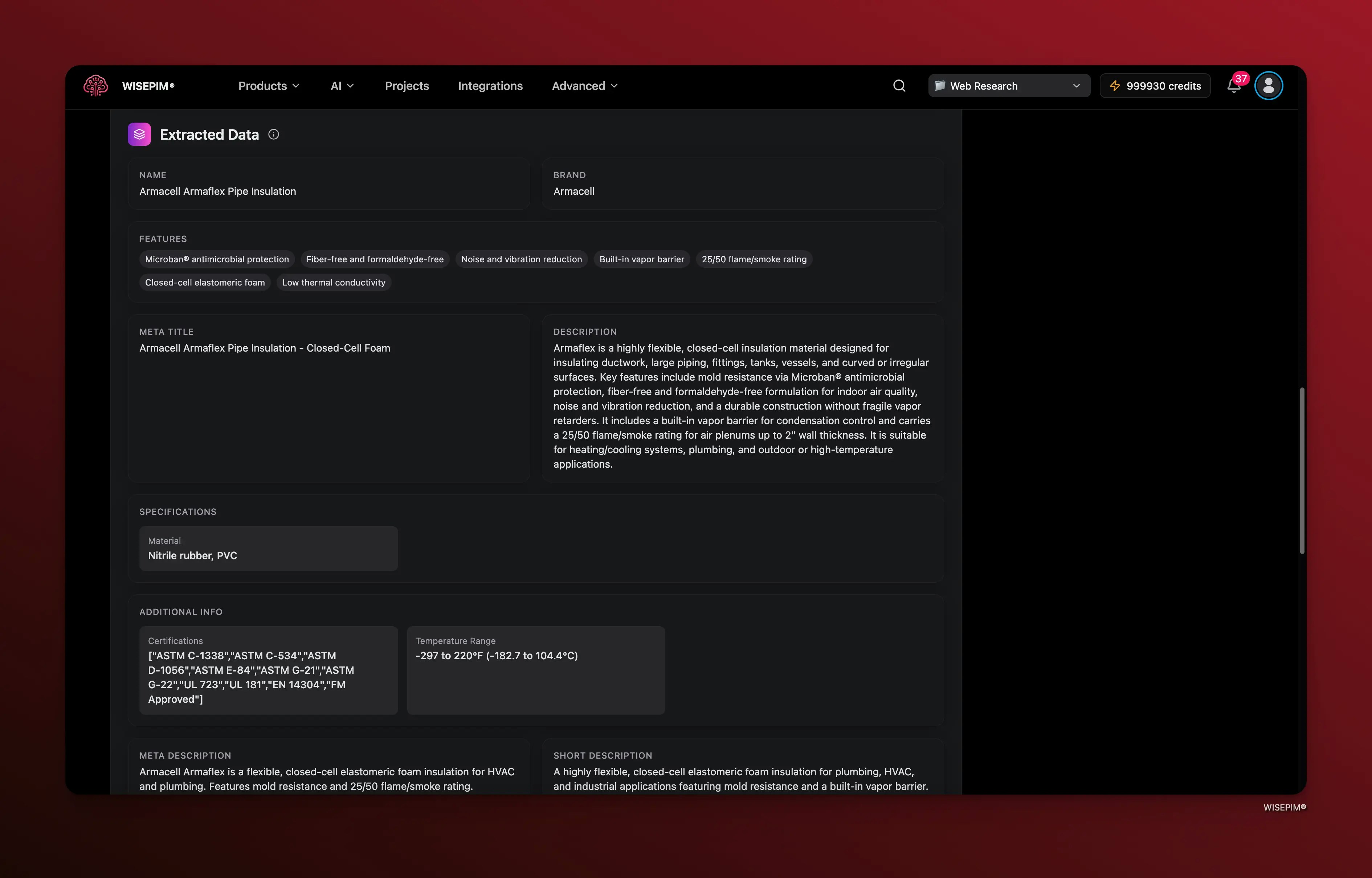
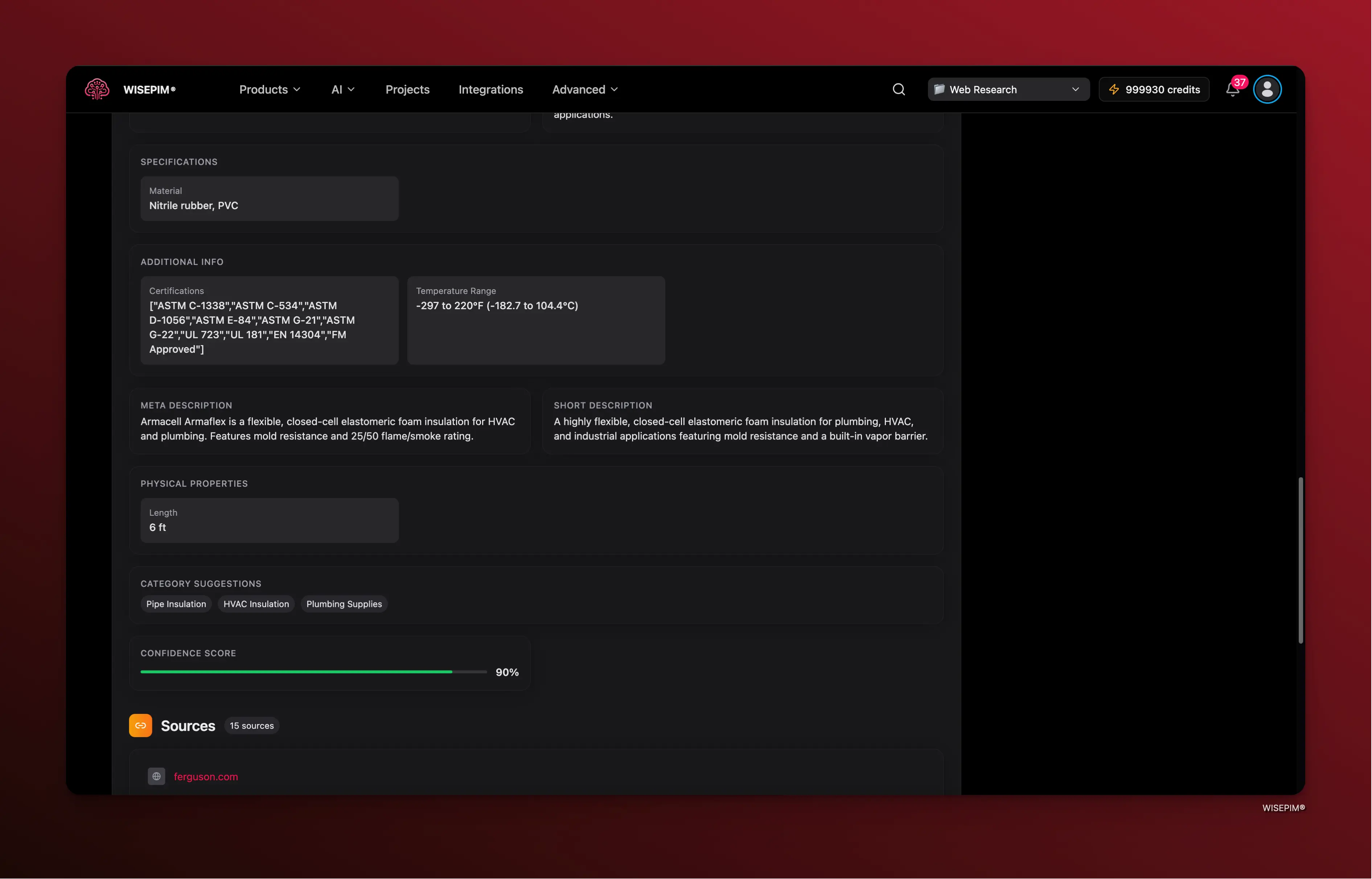
Web Research results appear in the **Web Research** tab on a product's edit page. The tab shows up once research has run for that product. You can review, approve, or discard the findings before they are applied to your catalog.
## How Web Research Works
WISEPIM's Web Research follows a four-step process to ensure accurate, high-quality product data:
The AI searches across trusted online databases, manufacturer sites, and product directories using the best available identifier for each product.
Data found across multiple sources is compared and validated to reduce errors and eliminate conflicting information.
The verified information is organized and formatted to match your product data model, filling in missing attributes, specifications, and pricing signals.
You review the research results and decide which data to apply to your products. Nothing changes in your catalog until you approve it.
## Starting Web Research
### Selecting Products
You can run Web Research on individual products, a selection of products, or your entire filtered catalog.
Go to your main **Products** overview.
Check the boxes next to the products you want to research. Alternatively, use filters to narrow down your catalog and select all matching products.
Click the **Enrich with AI** button in the toolbar.
From the enrichment type selection, choose **Web Research**.
### Research a single product
You do not have to go through the Products table. Open any product's [edit page](/en/products/editing-products) and start web research straight from there. This is the quickest way to test your settings on one product before you run a batch.
### Choosing a Product Identifier
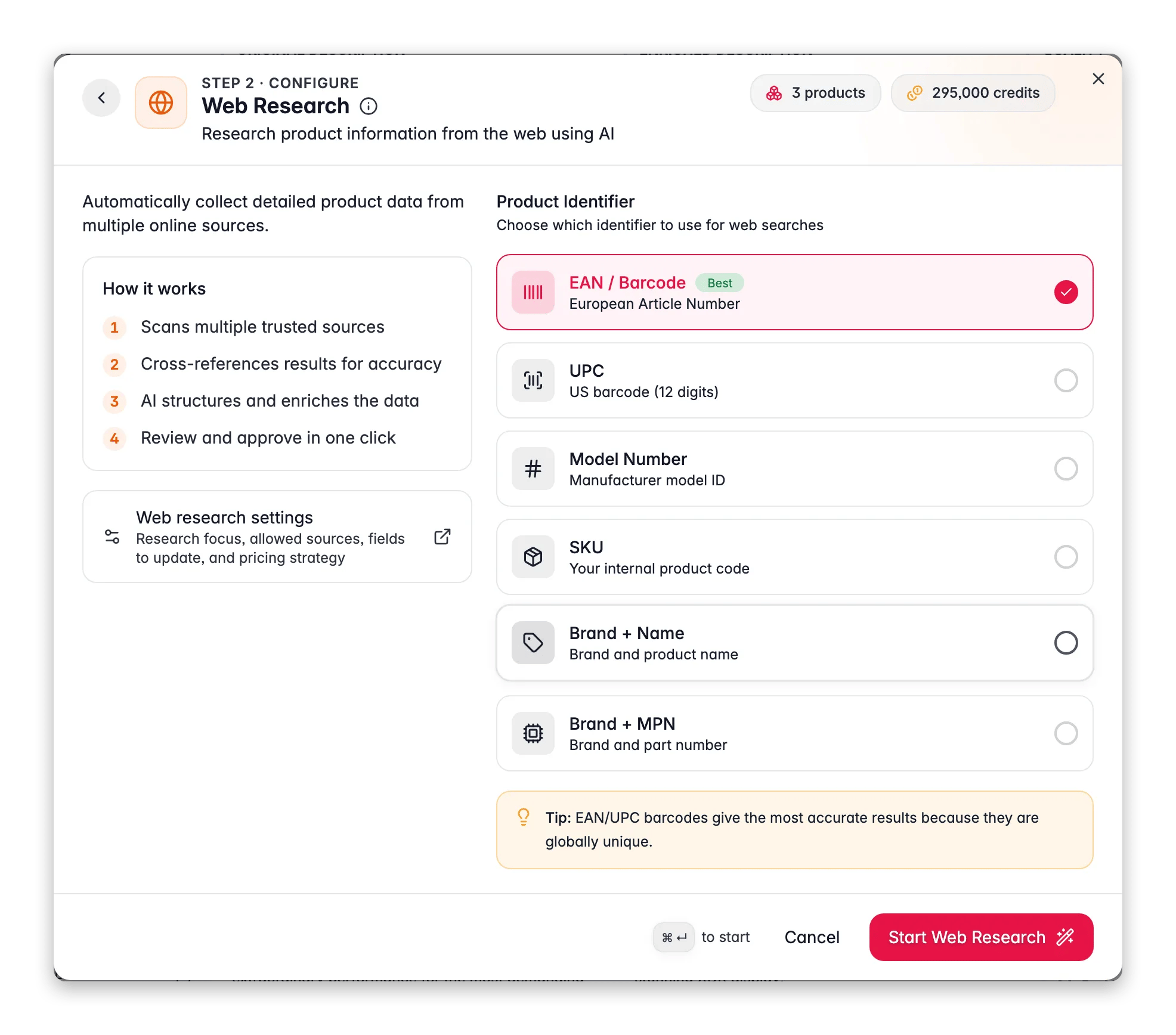
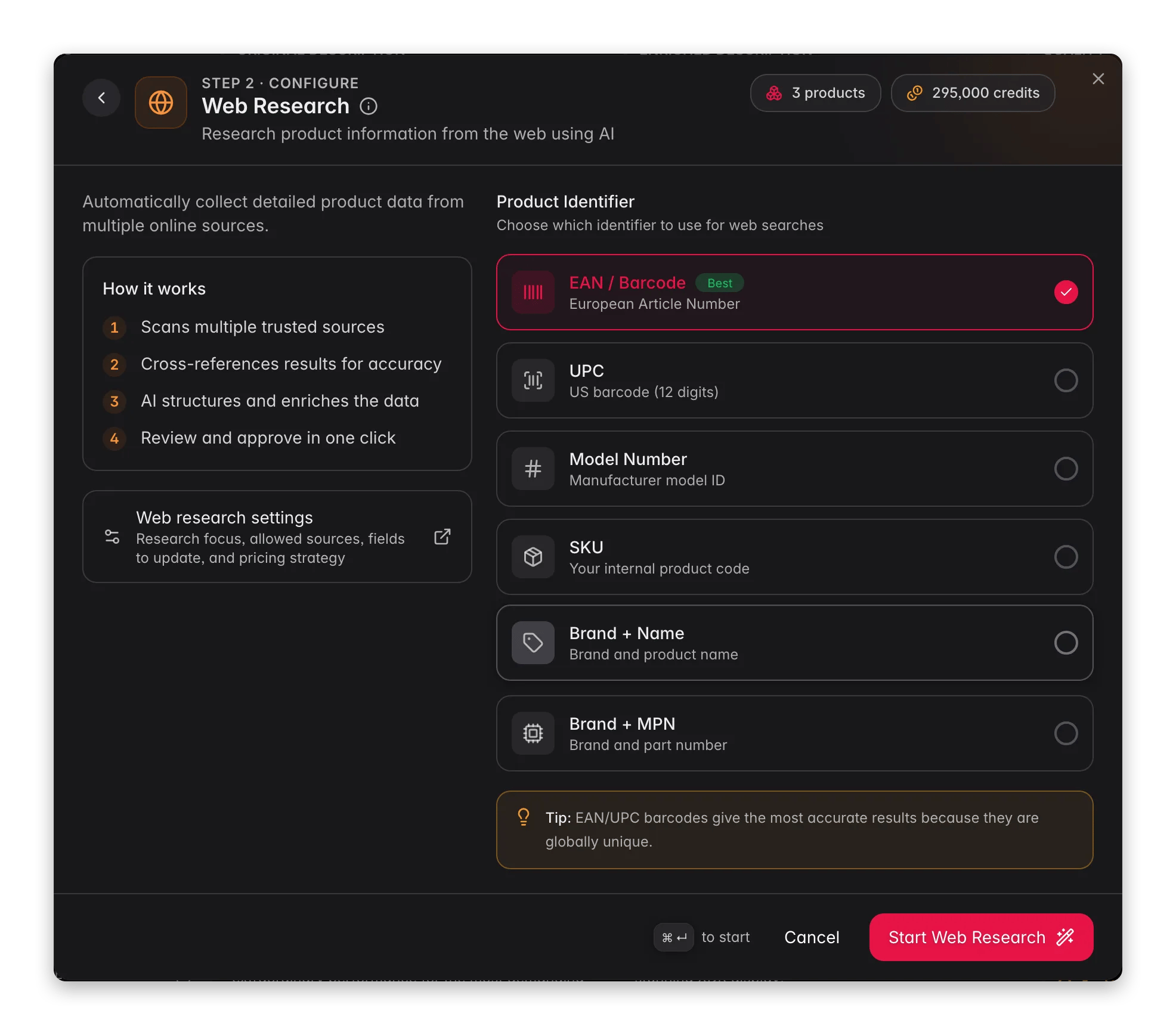
After selecting Web Research, you choose which product identifier the AI should use to search the web. The picker starts on the **Default identifier** you set in [Settings](#settings-for-web-research), so most of the time you can leave it alone. WISEPIM prioritizes the most reliable identifier available: EAN/GTIN first, then MPN, then Brand + Name. The identifier determines how accurately the AI can locate your products online.
European Article Number (EAN) or Global Trade Item Number (GTIN). Globally unique, delivers the most accurate results. **Recommended** for most use cases.
Universal Product Code (12 digits). The standard barcode format used primarily in the United States.
The manufacturer's model identifier. Useful for electronics, appliances, and industrial products.
Your internal product code. Works best when your SKU matches the manufacturer's or is widely recognized.
A combination of the brand name and product name. Good fallback when barcodes are not available.
Brand name combined with the Manufacturer Part Number. Effective for technical and industrial products.
EAN/GTIN barcodes deliver the most accurate results because they are globally unique identifiers. Whenever possible, use these for Web Research. Results are also biased toward your project's market and locale, so local pricing and regional sources are prioritized.
### Running the Research
Once you have selected your identifier type, click **Start Web Research**. A confirmation toast will appear, and the research process begins in the background.
You can continue working in WISEPIM while Web Research runs. The process does not block any other actions, and you will be notified when results are ready.
The run shows up in the [Process Tracker](/en/other-features/process-tracker) right away. Web research tasks support all three recovery actions:
* **Resume** picks up only the products that were never processed. It costs no extra credits.
* **Restart** runs the whole original selection again and is charged as a new run.
* **Retry failed** re-runs just the products that errored.
## Applying Web Research to Your Catalog
### Apply to Selected Products
Select specific products using checkboxes, then start Web Research. This is ideal when you want to enrich a targeted batch of products, for example new arrivals or products with missing specifications.
### Apply to All Filtered Products
If you want to research a larger set, apply filters first (by category, brand, status, or any other criteria) and then choose to apply Web Research to all matching products. You do not need to manually select each product.
Running Web Research on a large number of products at once may take significant processing time. Consider starting with a smaller batch to verify the results meet your expectations before scaling up.
## Settings for Web Research
Every run reads your project settings, so set them once and each future run behaves the way you want. Go to **Settings > Web Research**, in the **AI & Content** group.
### General
| Setting | What it does |
| ------------------------------------------- | ------------------------------------------------------------------------------------------------------------------------------------------------------------------------------------------------- |
| **Research focus** | Free text, up to 500 characters. Tell the AI what matters in your catalog: the specs you care about, the markets you sell in, the detail you always want. |
| **Default identifier** | The identifier every run starts with. Pick **EAN** (recommended), **UPC**, **Model number**, **SKU**, **Brand + product name**, or **Brand + MPN**. |
| **Research freshness window** | How many days a result counts as fresh. Default is **30**. A product researched inside that window is skipped, so you never pay twice for the same answer. Set it to **0** to always re-research. |
| **Automatically apply results to products** | On by default. Findings are written to your products as soon as research finishes. Turn it off when you would rather review everything first. |
| **Overwrite existing content** | Off by default. Research only fills fields that are empty. Turn it on when you want researched data to replace what you already have. |
Leave the freshness window at 30 days while you are enriching a big catalog. Re-running the same selection then only costs credits for the products that were never researched.
### Sources
Decide where research is allowed to look.
* **All sources**: the open web. The default, and the widest coverage.
* **Only these sites**: a list you trust. Research reads nothing outside it. Good when a manufacturer or distributor site is your source of truth.
* **Exclude these sites**: everything except the domains you name. Good for keeping a competitor or a low-quality aggregator out of your data.
You can list up to **10 domains**.
### Identifiers to discover
Research can also find the identifiers a product is missing: **EAN/GTIN**, **UPC**, **MPN**, and **Model number**. Switch each one on or off. Two extra switches let WISEPIM calculate a **UPC from an EAN** and an **EAN from a UPC**. Those are pure conversions, so they need no source at all.
Identifiers follow stricter rules than everything else, whatever the rest of your settings say:
* They are only ever written to **empty** fields. **Overwrite existing content** does not apply to them.
* Every value is checksum-validated before it is stored, so a malformed barcode never lands in your catalog.
* If research finds a value that conflicts with the one you already have, the conflict is flagged for you and your value stays.
A wrong identifier is worse than an empty one. A bad barcode gets a listing rejected, or matches your product to somebody else's. That is why WISEPIM flags conflicts instead of overwriting.
### Fields to update
Nineteen switches decide which product fields research may fill, grouped under **Content**, **Product data**, and **Compliance & shipping**. Turn on only what you want touched.
Six are **off by default**, because they carry legal or logistics weight and usually deserve a human check:
* Warranty
* Certifications
* Dangerous good
* Fragile
* Handling instructions
* Long name
Turn them on when you trust your sources and want the compliance fields filled too. Research picks up warranty terms and certifications from product pages and manufacturer sites the same way it picks up specs.
### Pricing strategy
Research reads the prices it finds across retailers and can turn them into a recommended price per product. Nothing is calculated until you pick a strategy.
| Strategy | What you get |
| --------------------- | --------------------------------------------------------------------------------- |
| **No recommendation** | The default. You still see market prices, but no recommended price is calculated. |
| **Match average** | Sit at the average of the prices found. |
| **Match lowest** | Match the cheapest price found. |
| **Undercut lowest** | Price below the cheapest price found. |
| **Undercut average** | Price below the average. |
| **Premium** | Price above the market to signal quality. |
Then tune the result:
* **Adjustment %** shifts the recommendation up or down from the strategy's base number.
* **Rounding** keeps the output tidy: whole numbers, or charm prices ending in .99 or .95.
* **VAT handling** tells WISEPIM whether the prices it found include or exclude VAT, and at what rate, so it compares like with like.
* A live example shows what your settings produce before you save.
Guardrails stop a strategy from doing something you would regret:
* **Minimum margin** keeps the recommendation above a margin floor based on your cost price.
* **Minimum price** and **Maximum price** cap the range.
By default the recommendation is a number you look at, nothing more. Turn on **Write recommended price to product** to have it saved, and choose whether it goes to the **Regular price** or the **Sale price (special price)**. WISEPIM warns you before it overwrites a price you set yourself.
**Split prices per variant** is on by default. For a configurable product, every variant gets its own market prices and its own recommendation instead of one number for the whole family.
This is not the same feature as [Pricing & Margins](/en/settings/pricing). Web research suggests a price from what the market charges, and can save it onto the product. Pricing & Margins never changes your stored price: it applies markups and margins at export time, per channel. You can run both, and they never touch each other's numbers.
## Reviewing Results
Web Research results appear in the **Web Research** tab on a product's edit page (the tab shows up once research has run). From there you can review all the data the AI gathered from the web, compare it with your existing product data, and decide what to apply.
Web Research is an AI-powered feature that automatically searches the web to find and enrich your product data. It scans multiple trusted online sources, cross-references the information for accuracy, and structures the results into your product catalog. This saves you hours of manual data entry.
**What acting on it enables:** thin supplier imports turn into complete listings, missing barcodes and part numbers get filled in, and you get a live read on what the market charges for each product.
Web research costs **5 credits per product**. Products that were already researched inside your freshness window are skipped and cost nothing. If you select variants together with their parent, WISEPIM collapses the variants onto the parent and researches once, so you pay for one product instead of many.
Web Research results appear in the **Web Research** tab on a product's edit page. The tab shows up once research has run for that product. You can review, approve, or discard the findings before they are applied to your catalog.
## How Web Research Works
WISEPIM's Web Research follows a four-step process to ensure accurate, high-quality product data:
The AI searches across trusted online databases, manufacturer sites, and product directories using the best available identifier for each product.
Data found across multiple sources is compared and validated to reduce errors and eliminate conflicting information.
The verified information is organized and formatted to match your product data model, filling in missing attributes, specifications, and pricing signals.
You review the research results and decide which data to apply to your products. Nothing changes in your catalog until you approve it.
## Starting Web Research
### Selecting Products
You can run Web Research on individual products, a selection of products, or your entire filtered catalog.
Go to your main **Products** overview.
Check the boxes next to the products you want to research. Alternatively, use filters to narrow down your catalog and select all matching products.
Click the **Enrich with AI** button in the toolbar.
From the enrichment type selection, choose **Web Research**.
### Research a single product
You do not have to go through the Products table. Open any product's [edit page](/en/products/editing-products) and start web research straight from there. This is the quickest way to test your settings on one product before you run a batch.
### Choosing a Product Identifier
After selecting Web Research, you choose which product identifier the AI should use to search the web. The picker starts on the **Default identifier** you set in [Settings](#settings-for-web-research), so most of the time you can leave it alone. WISEPIM prioritizes the most reliable identifier available: EAN/GTIN first, then MPN, then Brand + Name. The identifier determines how accurately the AI can locate your products online.
European Article Number (EAN) or Global Trade Item Number (GTIN). Globally unique, delivers the most accurate results. **Recommended** for most use cases.
Universal Product Code (12 digits). The standard barcode format used primarily in the United States.
The manufacturer's model identifier. Useful for electronics, appliances, and industrial products.
Your internal product code. Works best when your SKU matches the manufacturer's or is widely recognized.
A combination of the brand name and product name. Good fallback when barcodes are not available.
Brand name combined with the Manufacturer Part Number. Effective for technical and industrial products.
EAN/GTIN barcodes deliver the most accurate results because they are globally unique identifiers. Whenever possible, use these for Web Research. Results are also biased toward your project's market and locale, so local pricing and regional sources are prioritized.
### Running the Research
Once you have selected your identifier type, click **Start Web Research**. A confirmation toast will appear, and the research process begins in the background.
You can continue working in WISEPIM while Web Research runs. The process does not block any other actions, and you will be notified when results are ready.
The run shows up in the [Process Tracker](/en/other-features/process-tracker) right away. Web research tasks support all three recovery actions:
* **Resume** picks up only the products that were never processed. It costs no extra credits.
* **Restart** runs the whole original selection again and is charged as a new run.
* **Retry failed** re-runs just the products that errored.
## Applying Web Research to Your Catalog
### Apply to Selected Products
Select specific products using checkboxes, then start Web Research. This is ideal when you want to enrich a targeted batch of products, for example new arrivals or products with missing specifications.
### Apply to All Filtered Products
If you want to research a larger set, apply filters first (by category, brand, status, or any other criteria) and then choose to apply Web Research to all matching products. You do not need to manually select each product.
Running Web Research on a large number of products at once may take significant processing time. Consider starting with a smaller batch to verify the results meet your expectations before scaling up.
## Settings for Web Research
Every run reads your project settings, so set them once and each future run behaves the way you want. Go to **Settings > Web Research**, in the **AI & Content** group.
### General
| Setting | What it does |
| ------------------------------------------- | ------------------------------------------------------------------------------------------------------------------------------------------------------------------------------------------------- |
| **Research focus** | Free text, up to 500 characters. Tell the AI what matters in your catalog: the specs you care about, the markets you sell in, the detail you always want. |
| **Default identifier** | The identifier every run starts with. Pick **EAN** (recommended), **UPC**, **Model number**, **SKU**, **Brand + product name**, or **Brand + MPN**. |
| **Research freshness window** | How many days a result counts as fresh. Default is **30**. A product researched inside that window is skipped, so you never pay twice for the same answer. Set it to **0** to always re-research. |
| **Automatically apply results to products** | On by default. Findings are written to your products as soon as research finishes. Turn it off when you would rather review everything first. |
| **Overwrite existing content** | Off by default. Research only fills fields that are empty. Turn it on when you want researched data to replace what you already have. |
Leave the freshness window at 30 days while you are enriching a big catalog. Re-running the same selection then only costs credits for the products that were never researched.
### Sources
Decide where research is allowed to look.
* **All sources**: the open web. The default, and the widest coverage.
* **Only these sites**: a list you trust. Research reads nothing outside it. Good when a manufacturer or distributor site is your source of truth.
* **Exclude these sites**: everything except the domains you name. Good for keeping a competitor or a low-quality aggregator out of your data.
You can list up to **10 domains**.
### Identifiers to discover
Research can also find the identifiers a product is missing: **EAN/GTIN**, **UPC**, **MPN**, and **Model number**. Switch each one on or off. Two extra switches let WISEPIM calculate a **UPC from an EAN** and an **EAN from a UPC**. Those are pure conversions, so they need no source at all.
Identifiers follow stricter rules than everything else, whatever the rest of your settings say:
* They are only ever written to **empty** fields. **Overwrite existing content** does not apply to them.
* Every value is checksum-validated before it is stored, so a malformed barcode never lands in your catalog.
* If research finds a value that conflicts with the one you already have, the conflict is flagged for you and your value stays.
A wrong identifier is worse than an empty one. A bad barcode gets a listing rejected, or matches your product to somebody else's. That is why WISEPIM flags conflicts instead of overwriting.
### Fields to update
Nineteen switches decide which product fields research may fill, grouped under **Content**, **Product data**, and **Compliance & shipping**. Turn on only what you want touched.
Six are **off by default**, because they carry legal or logistics weight and usually deserve a human check:
* Warranty
* Certifications
* Dangerous good
* Fragile
* Handling instructions
* Long name
Turn them on when you trust your sources and want the compliance fields filled too. Research picks up warranty terms and certifications from product pages and manufacturer sites the same way it picks up specs.
### Pricing strategy
Research reads the prices it finds across retailers and can turn them into a recommended price per product. Nothing is calculated until you pick a strategy.
| Strategy | What you get |
| --------------------- | --------------------------------------------------------------------------------- |
| **No recommendation** | The default. You still see market prices, but no recommended price is calculated. |
| **Match average** | Sit at the average of the prices found. |
| **Match lowest** | Match the cheapest price found. |
| **Undercut lowest** | Price below the cheapest price found. |
| **Undercut average** | Price below the average. |
| **Premium** | Price above the market to signal quality. |
Then tune the result:
* **Adjustment %** shifts the recommendation up or down from the strategy's base number.
* **Rounding** keeps the output tidy: whole numbers, or charm prices ending in .99 or .95.
* **VAT handling** tells WISEPIM whether the prices it found include or exclude VAT, and at what rate, so it compares like with like.
* A live example shows what your settings produce before you save.
Guardrails stop a strategy from doing something you would regret:
* **Minimum margin** keeps the recommendation above a margin floor based on your cost price.
* **Minimum price** and **Maximum price** cap the range.
By default the recommendation is a number you look at, nothing more. Turn on **Write recommended price to product** to have it saved, and choose whether it goes to the **Regular price** or the **Sale price (special price)**. WISEPIM warns you before it overwrites a price you set yourself.
**Split prices per variant** is on by default. For a configurable product, every variant gets its own market prices and its own recommendation instead of one number for the whole family.
This is not the same feature as [Pricing & Margins](/en/settings/pricing). Web research suggests a price from what the market charges, and can save it onto the product. Pricing & Margins never changes your stored price: it applies markups and margins at export time, per channel. You can run both, and they never touch each other's numbers.
## Reviewing Results
Web Research results appear in the **Web Research** tab on a product's edit page (the tab shows up once research has run). From there you can review all the data the AI gathered from the web, compare it with your existing product data, and decide what to apply.
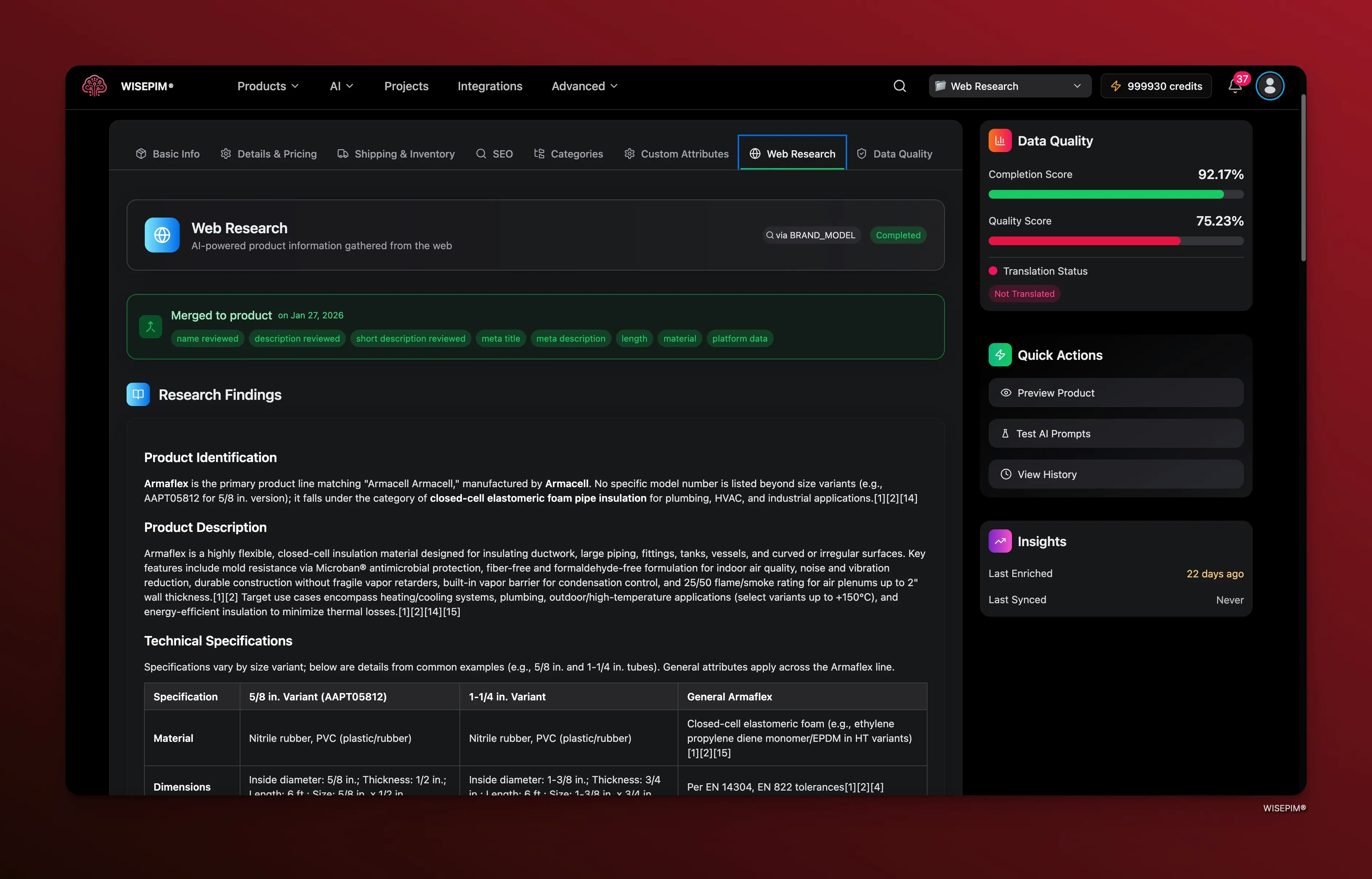
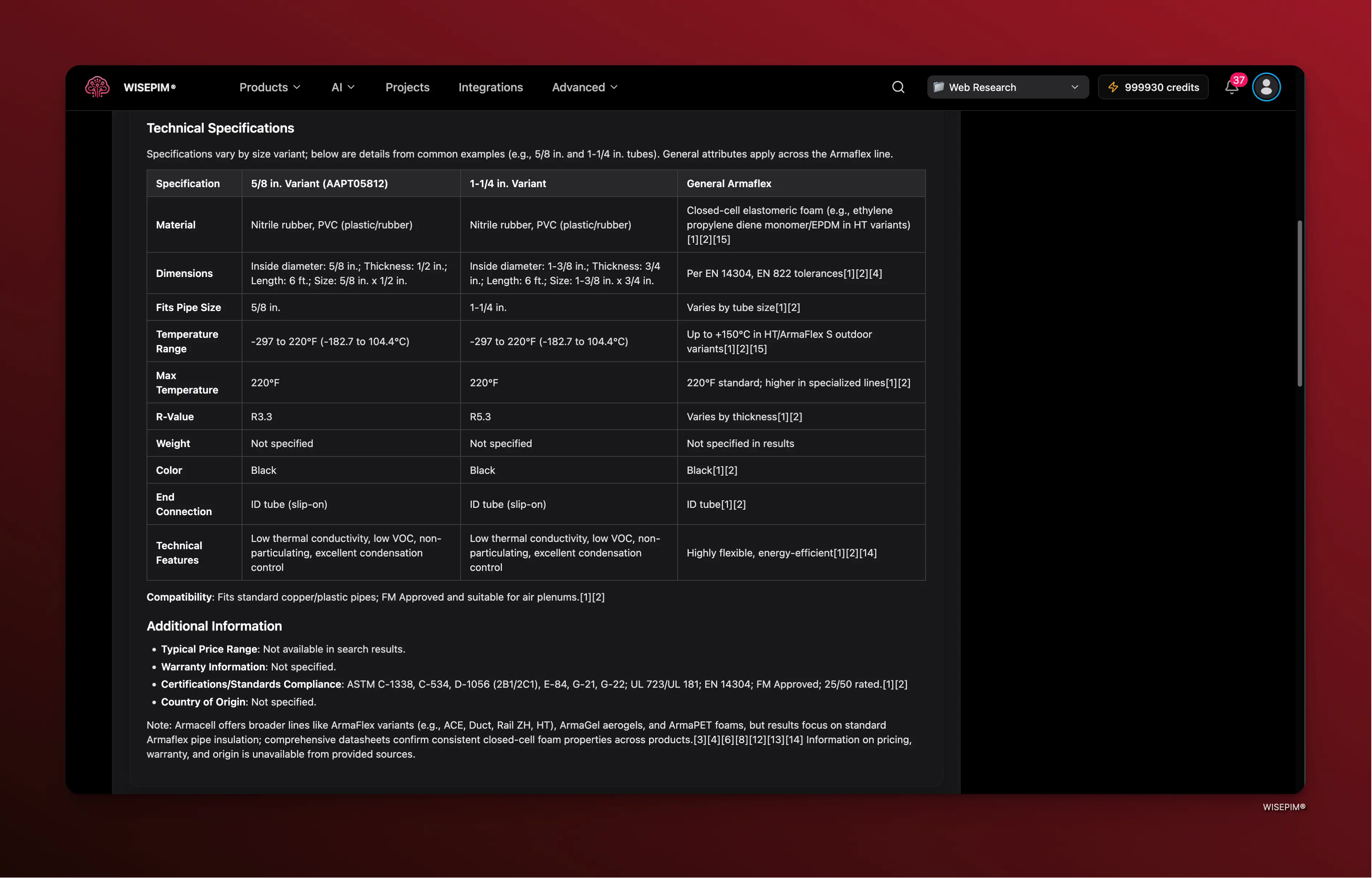 At the top of the results panel you will see the **Market Price Intelligence** summary, followed by the full research findings.
From there you can:
* **Review gathered data**: see the specifications, descriptions, and attributes the AI found online
* **Check market pricing**: see the min, max, and average market price surfaced across sources, with the currency used
* **Compare with existing data**: check how the researched data differs from what you already have
* **Approve or discard**: accept the findings to update your product, or dismiss them if they are not relevant
At the top of the results panel you will see the **Market Price Intelligence** summary, followed by the full research findings.
From there you can:
* **Review gathered data**: see the specifications, descriptions, and attributes the AI found online
* **Check market pricing**: see the min, max, and average market price surfaced across sources, with the currency used
* **Compare with existing data**: check how the researched data differs from what you already have
* **Approve or discard**: accept the findings to update your product, or dismiss them if they are not relevant
 ### Quality Control Best Practices
* **Spot-check a sample first**: before approving results in bulk, review a handful of products manually to ensure accuracy
* **Verify technical specifications**: cross-reference critical specs like dimensions, weights, and material composition
* **Check brand consistency**: ensure imported descriptions align with your brand voice and tone
* **Review product images**: if the research surfaces image URLs, verify they match your actual products
## Market Price Intelligence
When Web Research completes, WISEPIM extracts market pricing signals from the sources it finds. You will see a **Market Price Intelligence** widget at the top of the research panel showing:
* **Min price**: the lowest price found across all scraped sources
* **Max price**: the highest price found
* **Avg market target**: the average across all price points, highlighted as a quick reference
* **Currency**: the currency reported by the sources (ISO 4217, e.g. EUR, USD, GBP)
* **Sources**: clickable badges for each website the price was found on
Market pricing is sourced from the web at the time the research runs. It reflects publicly available retail and marketplace prices, not your own pricing. Use it as a reference point for positioning and pricing decisions.
Prices are computed dynamically from the individual source data WISEPIM scrapes. If a product has prices from multiple retailers, you get the full spread. Results are biased toward your project's locale, so local market prices are weighted first.
## Best Practices
### Choosing the Right Identifier
| Scenario | Recommended Identifier |
| -------------------------- | --------------------------- |
| Products with barcodes | EAN/GTIN or UPC |
| Electronics and appliances | Model Number or Brand + MPN |
| Products without barcodes | Brand + Name |
| Internally coded products | SKU (if widely recognized) |
### Maximizing Research Quality
* **Ensure identifiers are accurate**: incorrect EANs or model numbers will return irrelevant results
* **Clean up product data first**: fill in brand names and basic identifiers before running research so the AI has more to work with
* **Use the most specific identifier available**: a barcode will always outperform a generic brand + name search
* **Start small and scale**: test with 5-10 products to validate result quality before researching your full catalog
### When to Use Web Research
You have just imported a batch of products with only SKUs and names. Web Research can fill in descriptions, specifications, attributes, and market pricing automatically.
You want to identify and fill missing attributes across your existing catalog without manually researching each product.
You want a market price reference to inform your pricing strategy, sourced from live web data at the time of research.
You need to understand where your products sit in the market before publishing to a sales channel.
## Troubleshooting
### No Results Found
If Web Research returns no data for a product, it usually means:
* The identifier is incorrect or not recognized online
* The product is too new or niche to have public data available
* The identifier type does not match what is used for that product
**Solution**: Try a different identifier type. If EAN returns nothing, try Brand + Name or Model Number.
### Inaccurate Results
If the AI returns data that does not match your product:
* Double-check that the identifier (EAN, SKU, etc.) is correct in your catalog
* Verify that the product has not been confused with a similarly named item
* Discard the incorrect results and try with a more specific identifier
### No Market Price Shown
If the Market Price Intelligence widget does not appear, the sources WISEPIM found did not include extractable pricing data. This can happen for:
* Niche or B2B products with prices available on request only
* Products where the web sources found do not publish retail prices publicly
* Very new products not yet widely listed online
**Solution**: There is nothing to fix. The widget only appears when pricing data is available. The rest of the research results are still usable.
### Slow Processing
Web Research speed depends on the number of products and the complexity of each search. If processing seems slow:
* Check the **[Process Tracker](/en/other-features/process-tracker)** for current task status
* Avoid running multiple large research batches simultaneously
* Consider breaking very large batches into smaller groups
### A Run Stopped Halfway
Open the task in the [Process Tracker](/en/other-features/process-tracker) and choose **Resume**. It processes only the products that were never handled, and costs no extra credits. Use **Restart** only when you want the whole selection researched again, which is charged as a new run.
## Related
Watch a research run, read what it did, and resume it if it stopped early.
Export-time markup and margin rules. Separate from the price web research recommends.
Turn the specs research found into structured attributes on your products.
Start research on a single product and merge the findings field by field.
### Quality Control Best Practices
* **Spot-check a sample first**: before approving results in bulk, review a handful of products manually to ensure accuracy
* **Verify technical specifications**: cross-reference critical specs like dimensions, weights, and material composition
* **Check brand consistency**: ensure imported descriptions align with your brand voice and tone
* **Review product images**: if the research surfaces image URLs, verify they match your actual products
## Market Price Intelligence
When Web Research completes, WISEPIM extracts market pricing signals from the sources it finds. You will see a **Market Price Intelligence** widget at the top of the research panel showing:
* **Min price**: the lowest price found across all scraped sources
* **Max price**: the highest price found
* **Avg market target**: the average across all price points, highlighted as a quick reference
* **Currency**: the currency reported by the sources (ISO 4217, e.g. EUR, USD, GBP)
* **Sources**: clickable badges for each website the price was found on
Market pricing is sourced from the web at the time the research runs. It reflects publicly available retail and marketplace prices, not your own pricing. Use it as a reference point for positioning and pricing decisions.
Prices are computed dynamically from the individual source data WISEPIM scrapes. If a product has prices from multiple retailers, you get the full spread. Results are biased toward your project's locale, so local market prices are weighted first.
## Best Practices
### Choosing the Right Identifier
| Scenario | Recommended Identifier |
| -------------------------- | --------------------------- |
| Products with barcodes | EAN/GTIN or UPC |
| Electronics and appliances | Model Number or Brand + MPN |
| Products without barcodes | Brand + Name |
| Internally coded products | SKU (if widely recognized) |
### Maximizing Research Quality
* **Ensure identifiers are accurate**: incorrect EANs or model numbers will return irrelevant results
* **Clean up product data first**: fill in brand names and basic identifiers before running research so the AI has more to work with
* **Use the most specific identifier available**: a barcode will always outperform a generic brand + name search
* **Start small and scale**: test with 5-10 products to validate result quality before researching your full catalog
### When to Use Web Research
You have just imported a batch of products with only SKUs and names. Web Research can fill in descriptions, specifications, attributes, and market pricing automatically.
You want to identify and fill missing attributes across your existing catalog without manually researching each product.
You want a market price reference to inform your pricing strategy, sourced from live web data at the time of research.
You need to understand where your products sit in the market before publishing to a sales channel.
## Troubleshooting
### No Results Found
If Web Research returns no data for a product, it usually means:
* The identifier is incorrect or not recognized online
* The product is too new or niche to have public data available
* The identifier type does not match what is used for that product
**Solution**: Try a different identifier type. If EAN returns nothing, try Brand + Name or Model Number.
### Inaccurate Results
If the AI returns data that does not match your product:
* Double-check that the identifier (EAN, SKU, etc.) is correct in your catalog
* Verify that the product has not been confused with a similarly named item
* Discard the incorrect results and try with a more specific identifier
### No Market Price Shown
If the Market Price Intelligence widget does not appear, the sources WISEPIM found did not include extractable pricing data. This can happen for:
* Niche or B2B products with prices available on request only
* Products where the web sources found do not publish retail prices publicly
* Very new products not yet widely listed online
**Solution**: There is nothing to fix. The widget only appears when pricing data is available. The rest of the research results are still usable.
### Slow Processing
Web Research speed depends on the number of products and the complexity of each search. If processing seems slow:
* Check the **[Process Tracker](/en/other-features/process-tracker)** for current task status
* Avoid running multiple large research batches simultaneously
* Consider breaking very large batches into smaller groups
### A Run Stopped Halfway
Open the task in the [Process Tracker](/en/other-features/process-tracker) and choose **Resume**. It processes only the products that were never handled, and costs no extra credits. Use **Restart** only when you want the whole selection researched again, which is charged as a new run.
## Related
Watch a research run, read what it did, and resume it if it stopped early.
Export-time markup and margin rules. Separate from the price web research recommends.
Turn the specs research found into structured attributes on your products.
Start research on a single product and merge the findings field by field.